
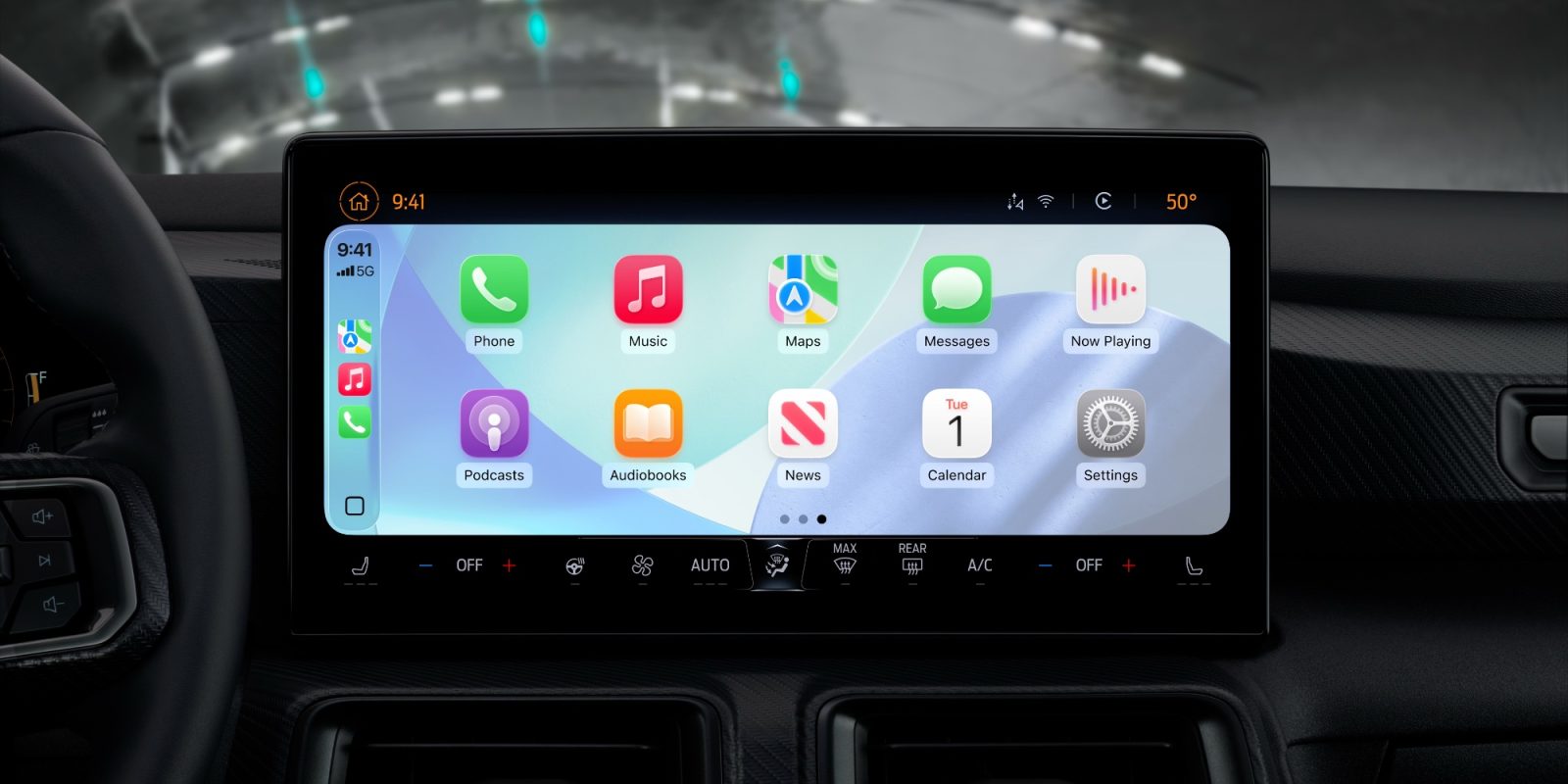
iOS 26 brings major changes to CarPlay, including a new Liquid Glass design and support for widgets.
There’s also a small change that addresses a years-long feature request for many CarPlay users: the ability to disable CarPlay screenshots.
For years, you’ve been able to take a screenshot of your CarPlay display by simply taking a screenshot on your iPhone. This feature can also be quite frustrating when your iPhone is connected to CarPlay and you only want to take a screenshot of your iPhone’s screen. In my case, this has led to hundreds of unwanted CarPlay screenshots in my Photos library.
iOS 26 finally solves this problem.
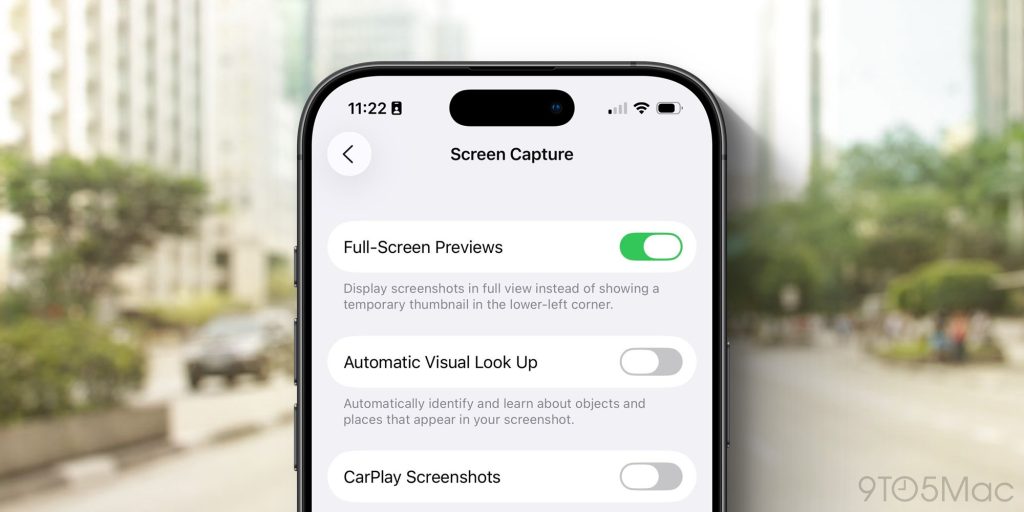
In fact, by default, CarPlay screenshots are completely disabled in iOS 26. After updating, taking a screenshot on your iPhone will no longer automatically capture your CarPlay display.
If you want to enable CarPlay screenshots again, you can do so in a few taps:
- Open the Settings app
- Tap General
- Tap Screen Capture
- Toggle on or off the new “CarPlay Screenshots” switch
It’s a small change, but one that I already appreciate, and I’ve already seen CarPlay users on social media celebrate.
Top comment by Dan
This would drive me nuts, if I had an issue with it. My biggest frustration with CarPlay & Apple Maps, is that I can't pause the route while am getting something to eat or filling the car. The only way to not have my phone continuously trying to get me to "Proceed to the Route" is to cancel or stop it. Why can't I pause?
What’s your favorite change to CarPlay in iOS 26? What do you think of the new Liquid Glass design and icons? Let us know down in the comments.
My favorite CarPlay accessories
- OttoCast Wireless CarPlay Adapter
- Belkin MagSafe-compatible Car Charger for iPhone
- CarpodGo Portable Wireless CarPlay Screen
- iOttie Easy One Touch iPhone Car Mount
Follow Chance: Threads, Bluesky, Instagram, and Mastodon.


FTC: We use income earning auto affiliate links. More.


Comments