
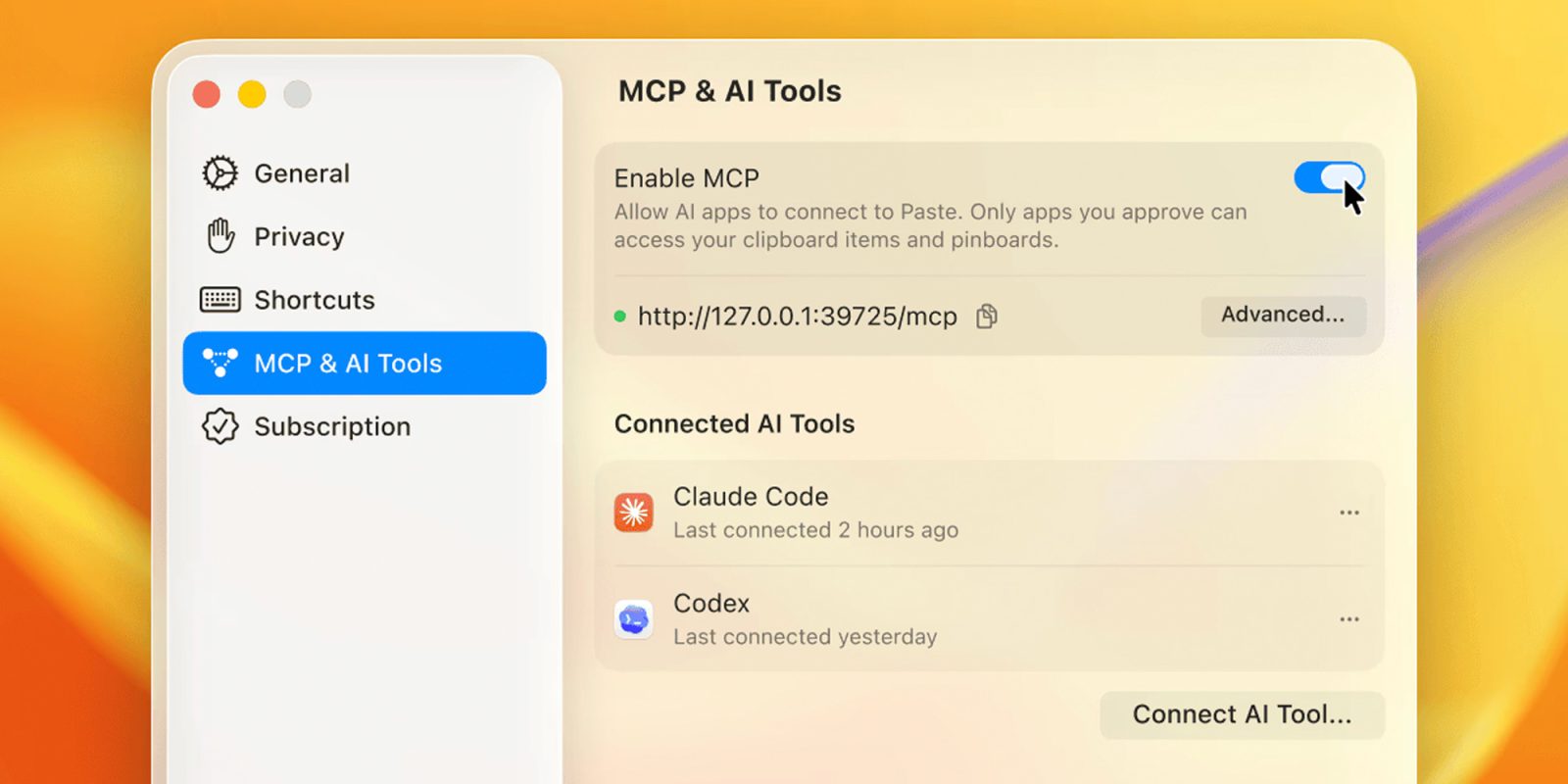
Clipboard manager Paste got even more useful today, with the release of Paste MCP: a tool that connects your clipboard history to several AI tools, from Claude and Codex, to Cursor and beyond. Here are the details.
A bit of context
In late 2024, Anthropic proposed the Model Context Protocol (MCP), a standard for connecting AI assistants and traditional platforms.
Soon after the announcement, and even more so after Anthropic donated MCP to the Linux Foundation’s Agentic AI Foundation, the protocol was adopted by countless companies and platforms, including Zapier, Notion, Google, Figma, OpenAI, Salesforce, and many others.
Today, Paste launched Paste MCP, which lets users connect Paste to their favorite AI tools through a built-in local MCP on their Macs.
Paste, for the uninitiated, is one of the most complete and widely used third-party clipboard managers for Mac. It currently offers iOS and iPadOS apps as well, in addition to collaborative tools, Shortcuts support, and features developed specifically for developers, designers, marketing professionals, and more.
You can learn more about Paste here.
Back to Paste MCP
With the new support for MCP in Paste, users can now securely hand off the contents of their clipboard to their favorite AI tools, which opens up a wide range of productivity possibilities.
From performing contextual searches on content you added to your clipboard in the past to purposely copying documents, notes, screenshots, text, images, and other data to quickly hand off to an AI assistant, Paste MCP can really speed up several workflows.
You can see Paste MCP in action below: an AI tool sorts through the user’s Paste clipboard history to find the context the user asked about, then builds interactive dashboards and data visualization widgets based on that context.
With Paste MCP, you can:
- Ask your AI tool to find context saved in Paste
- Pull together notes, links, screenshots, and research copied throughout the week
- Turn saved context into drafts, updates, summaries, or project research
- Stay in your AI workflow while Paste keeps clipboard history available behind it
- Connect Paste to Claude, Codex, Cursor, and other supported AI tools
Sure, the video above features a mocked-up demo. However, it still makes it easy to understand how powerful Paste MCP can be (especially for users who already rely on AI tools in their work and could now hand off information more quickly, making their workflows feel much more streamlined).
To set up Paste MCP, open MCP settings in Paste, turn on the ‘Enable MCP’ selector, choose your AI tool (Claude, Codex, Cursor, or other tools that support MCP), then follow the setup guide.
Paste stresses that users are always in control of which tools can access their clipboard and can revoke access at any time.
You can learn more about Paste MCP here.
Worth checking out on Amazon
- Geoffrey Cain – ‘Steve Jobs in Exile’
- David Pogue – ’Apple: The First 50 Years’
- MacBook Neo
- Logitech MX Master 4
- AirPods Pro 3
- AirTag (2nd Generation) – 4 Pack
- Apple Watch Series 11
- Wireless CarPlay adapter


FTC: We use income earning auto affiliate links. More.


Comments