
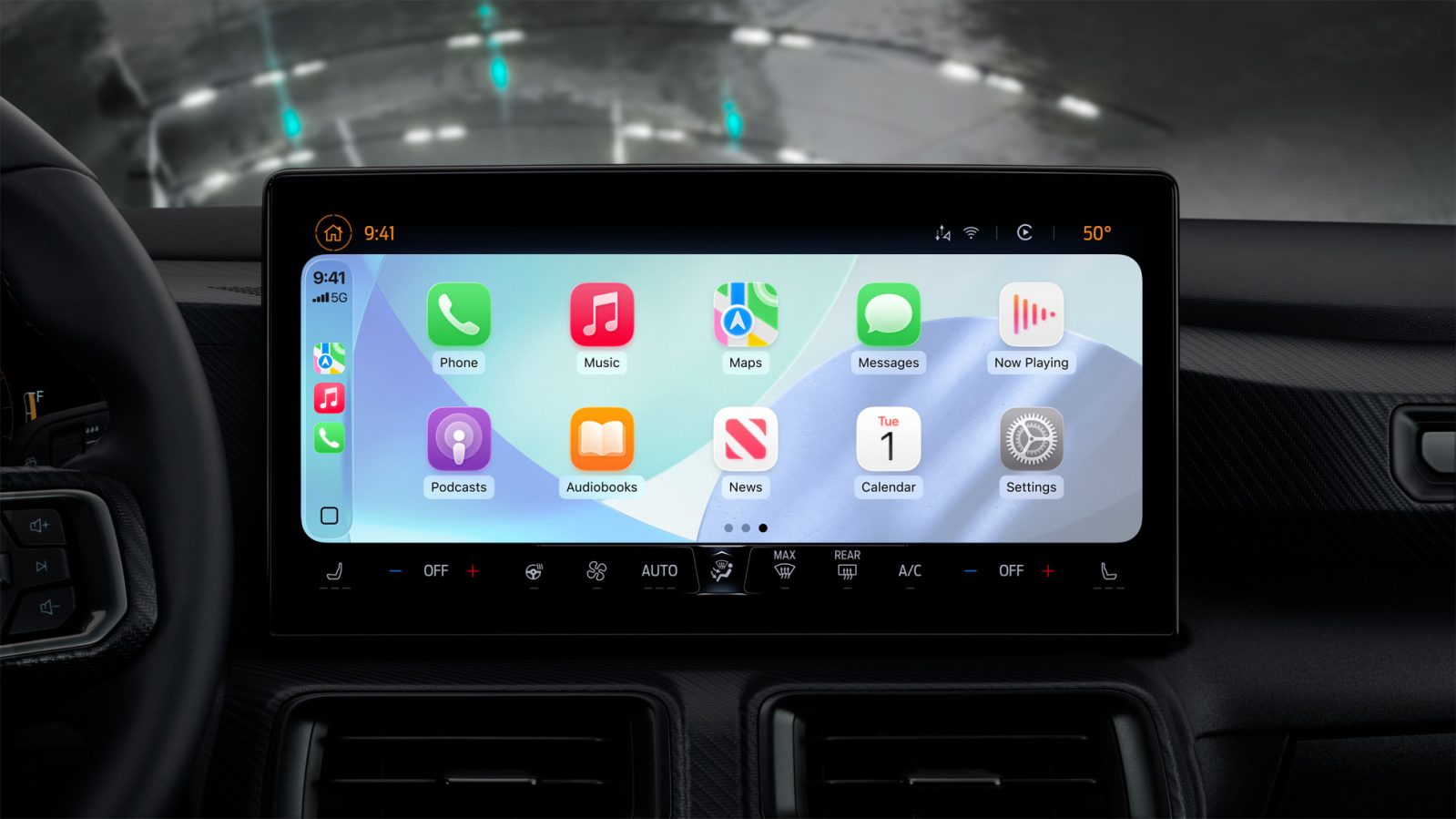
Like many people, Apple CarPlay is a must-have feature for me. Having quick access to key iPhone apps via my car’s screen is incredibly convenient. Here are three of my favorite recent CarPlay features.
Three CarPlay features I’ve been loving
Smart Display Zoom
I drive a Ford Mustang Mach-E, which has a large, portrait-oriented center console screen. iOS 26 added a new “Smart Display Zoom” feature that makes CarPlay significantly better on this screen and other cars with similarly large screens.
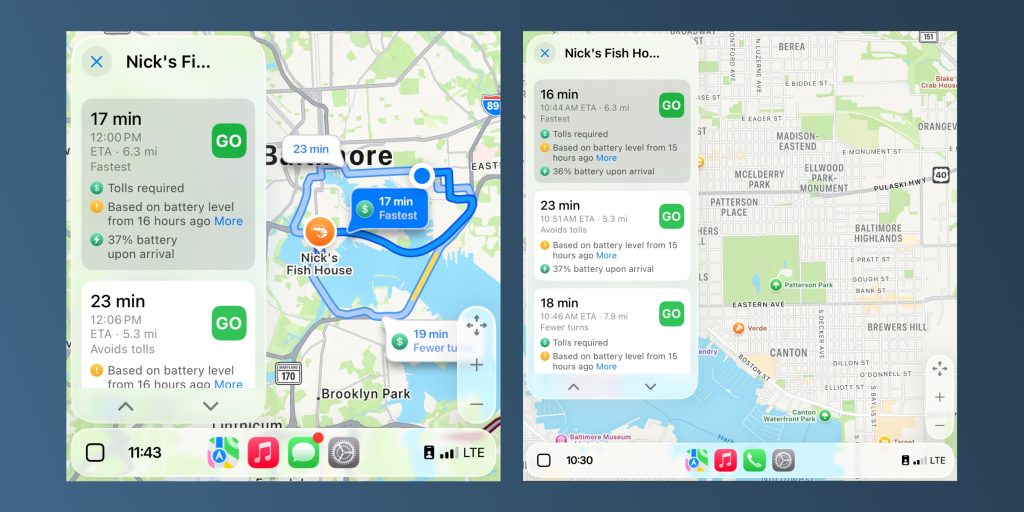
Normal zoom (L) vs Smart Display Zoom (R)
As I covered in depth last year, Smart Display Zoom effectively increases the density of how much information is shown on the screen at one time. You can see more app icons on the grid, for example. It also greatly increases the amount of detail shown in Apple Maps, whether directly in the Maps app itself or on the CarPlay dashboard interface.
In most cars, Smart Display Zoom is disabled by default. You can enable it by going to the Settings app in CarPlay. Your mileage will vary, but at least for my car, I’ve found it makes CarPlay significantly more capable.
Live Activities
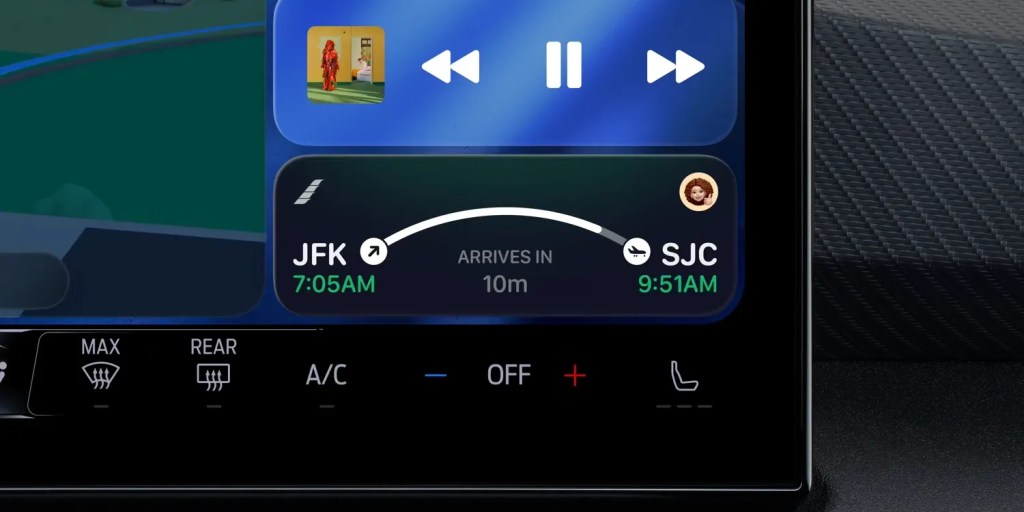
As of iOS 26, Live Activities from your iPhone will also now show up on CarPlay. This allows you to
There are a few instances in which I’ve found this to be especially useful. First, Live Activities from Carrot Weather. Being able to keep an eye on incoming precipitation is very important while driving, and having Carrot Weather’s robust Live Activities in CarPlay solves that problem.
Second, I love being able to follow along with Live Activities from the Apple Sports app in CarPlay. It’s nice being able to glance at my screen and see the score of a game — especially as baseball season kicks off soon.
Apple Music SharePlay
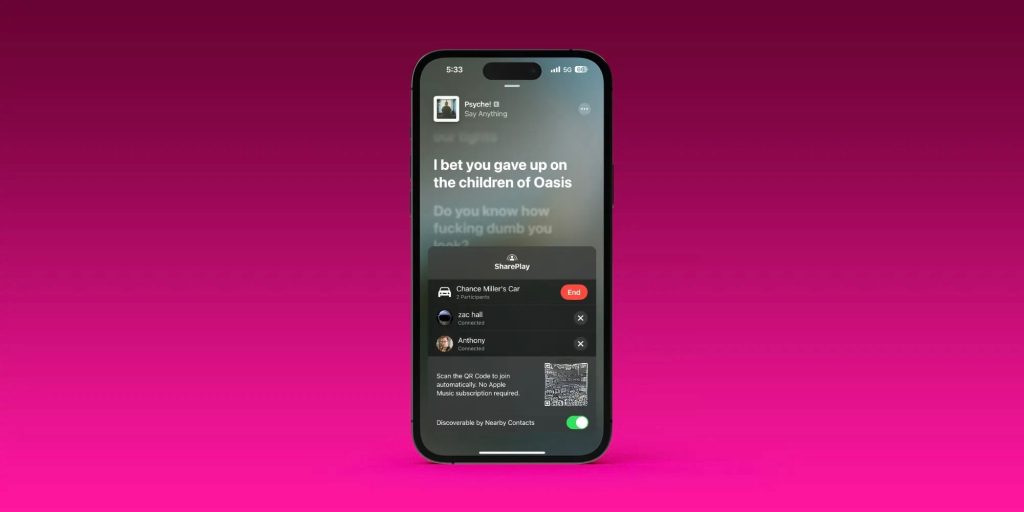
Whenever I’m with friends or family in the car, this feature is a hit. SharePlay support for Apple Music in CarPlay allows anyone in the car to control and contribute to what’s playing, rather than just one person.
On the Now Playing screen in Apple Music, there’s a SharePlay icon in the upper-right corner. Tapping on this will launch a QR code that other people in the car can scan. Those people are then able to control playback via Apple Music, even if they don’t have an Apple Music subscription themselves.
It’s a super fun feature, though it can get a bit unhinged depending on the music taste of other people in your car.
Wrap up
What are your favorite CarPlay features? Let us know down in the comments.
My favorite CarPlay accessories
- Charge your EV with solar panels
- iOttie Easy One Touch iPhone Car Mount
- Bring wireless CarPlay to any car
- Belkin MagSafe-compatible Car Charger for iPhone
- Wireless Portable CarPlay Screen
- In-car USB-C charger with retractable cable
Follow Chance: Threads, Bluesky, Instagram, and Mastodon.


FTC: We use income earning auto affiliate links. More.

Comments