
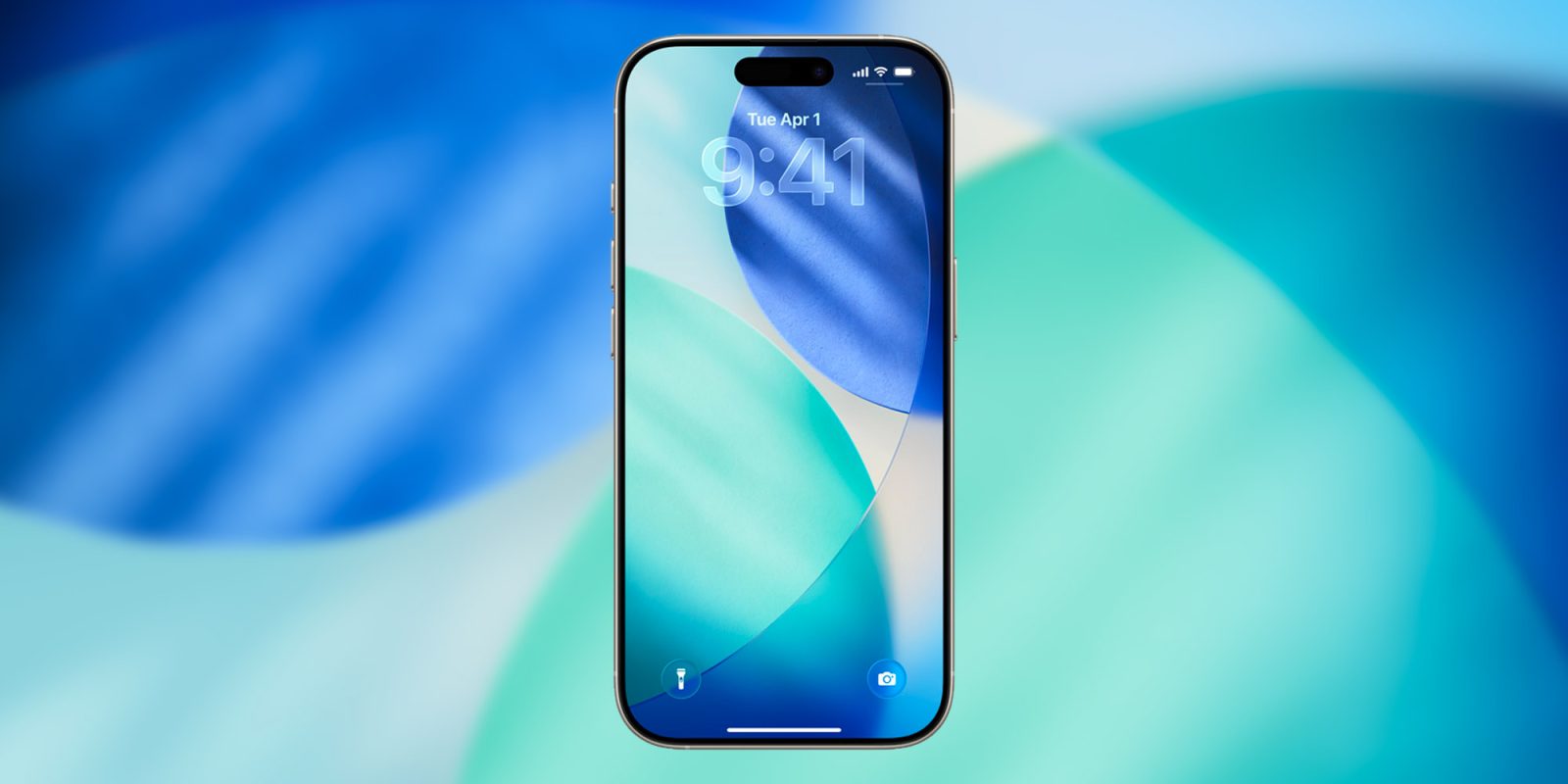
Did you know that your iPhone can replicate your voice, letting you enter text prompts that are spoken aloud in a voice that sounds eerily like you? The feature is called Personal Voice, and in iOS 26 it got a lot better.
Personal Voice lets you save a digital version of your voice for ongoing use
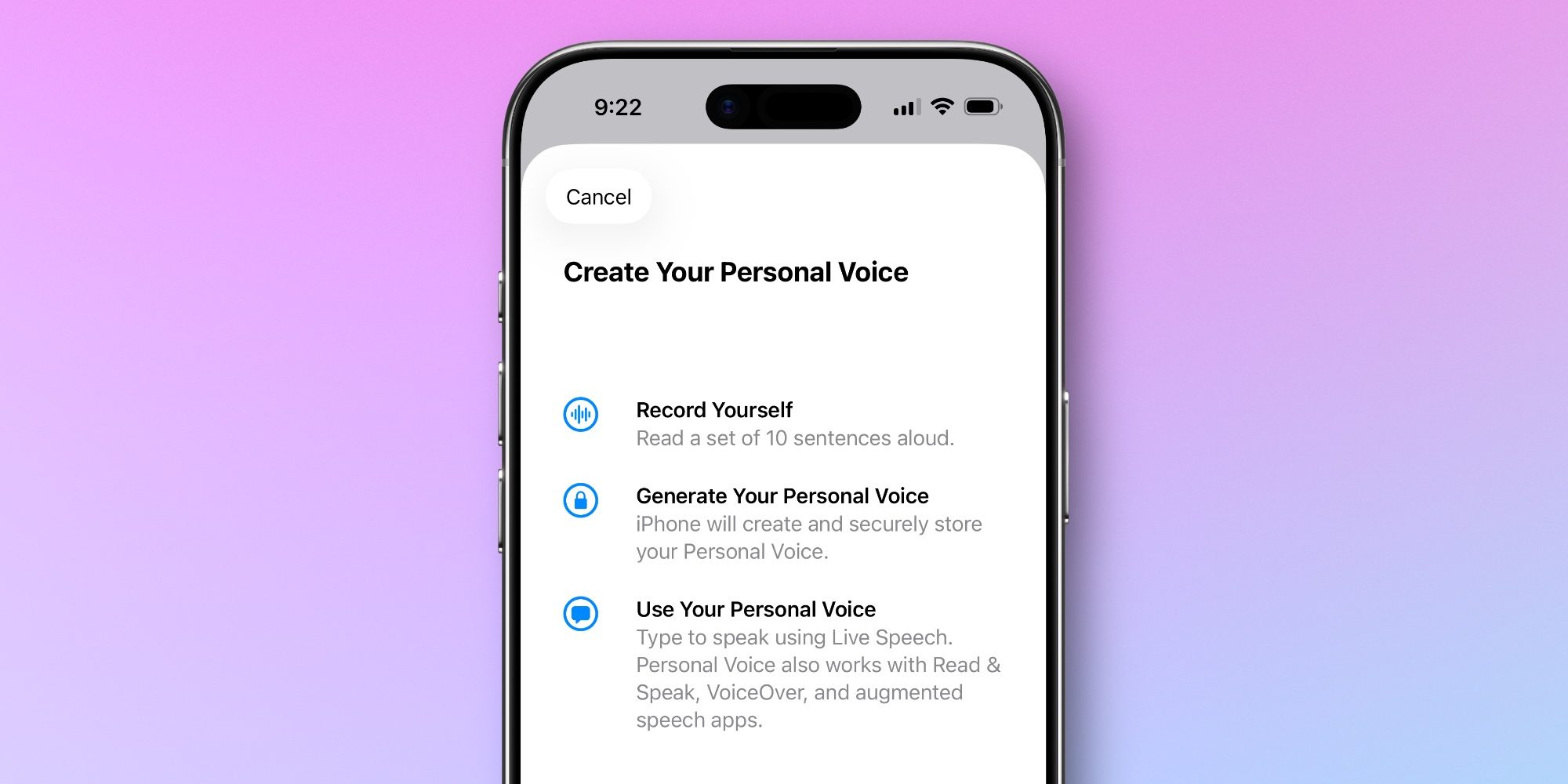
Earlier this week, YouTuber MKBHD reposted an old video he made after iOS 17 launched. It highlighted a ‘Personal Voice’ feature that was new to iPhone at the time.
His video reminded me that Personal Voice got some big upgrades in iOS 26.
Per Apple’s official list of all new iOS 26 features:
Personal Voice creation
For users at risk of losing their ability to speak, Personal Voice uses on-device intelligence to create a smoother, more natural-sounding voice in less than a minute, using only 10 recorded phrases.
Personal Voice is an Accessibility feature you can find inside Settings ⇾ Accessibility ⇾ Personal Voice. It’s intended for users who are at risk of losing their voice, but its sheer uniqueness makes it fun to play around with no matter who you are.
In iOS 17, Personal Voice was a much bigger hassle to set up. As you can see in MKBHD’s video below, it used to be about a 15-minute process requiring you to read 150 text prompts aloud.
But with iOS 26, Personal Voice is easier to set up and sounds better too.
iOS 26 makes Personal Voice better in two main ways
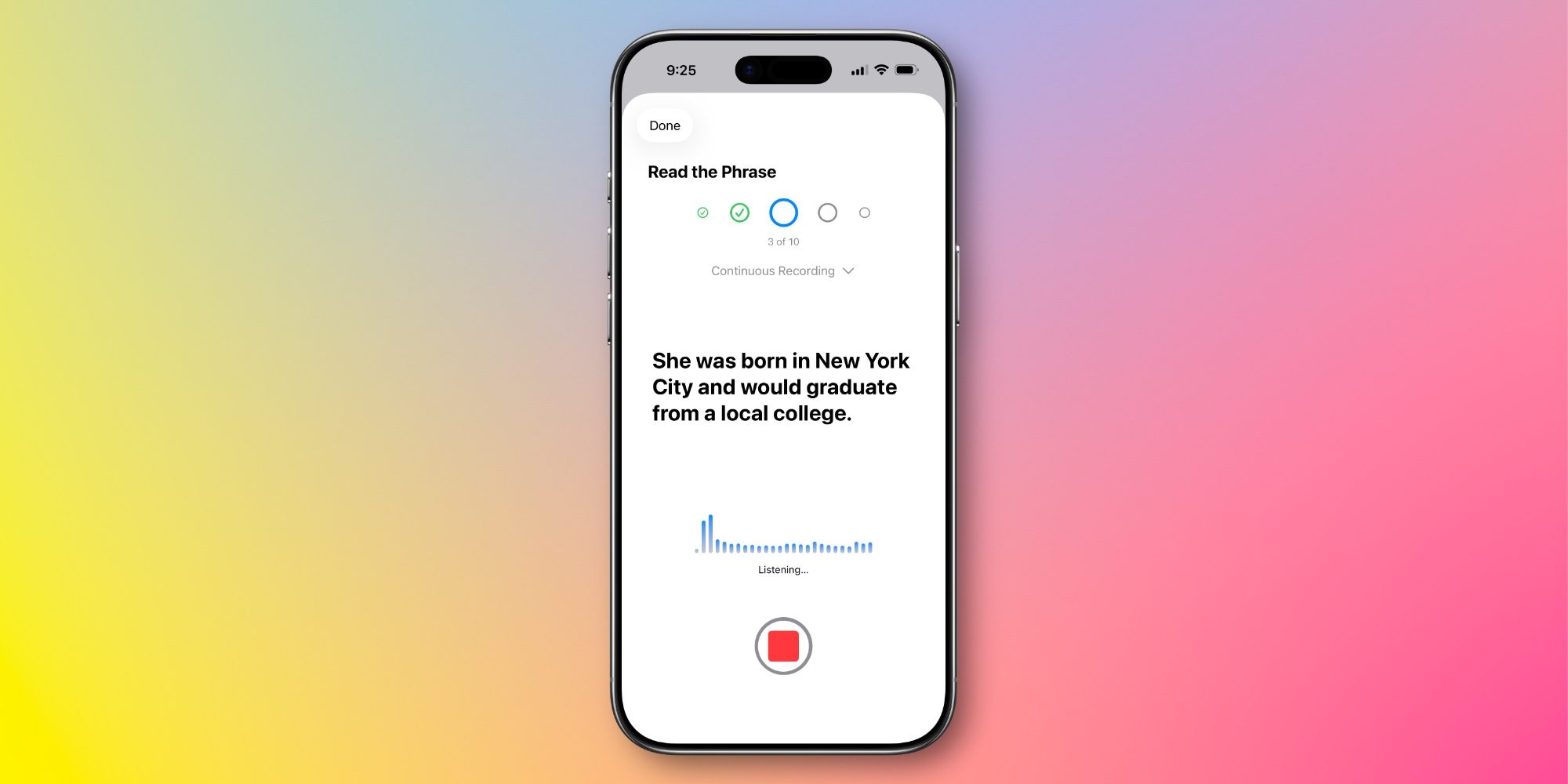
In iOS 26, the initial Personal Voice setup is vastly improved. Now you only need to read 10 prompts, not 150. This makes the whole process last no more than a minute or two.
The improvements don’t stop at setup though. The actual feature works better than before as well.
As Apple’s release notes say, your Personal Voice is now “smoother” and “more natural-sounding” than before.
Apple says this is due to “on-device intelligence.” Looking at the included footnote, however, reveals that Apple Intelligence is to thank. The upgraded Personal Voice experience requires an AI-supported iPhone.
Once your Personal Voice is set up, you can use it in several ways. Per Apple:
- You can choose your Personal Voice as the voice to use for built-in features such as Live Speech, Read & Speak, and VoiceOver. Each of these are configurable in Accessibility settings on your device.
- You can also allow third-party apps, such as augmentative and alternative communication (AAC) apps, to request to use your personal voice. They can then use your Personal Voice to speak aloud through your device’s speaker or during calls, but they can’t capture speech from Personal Voice.
The quickest way to start using Personal Voice after setup is with Live Speech. Open Settings ⇾ Accessibility ⇾ Live Speech, turn on Live Speech, then triple-click the iPhone’s Side Button to enter your text prompt.
Note: Personal Voice is currently supported in: English (United States), Spanish (Mexico), and Chinese (Mandarin – China mainland).
Have you given Personal Voice a try in iOS 26? How did it work for you? Let us know in the comments.
Best iPhone accessories
- AirPods Pro 3 (now only $199, down from $249)
- 10-year AirTag battery case 2-pack
- MagSafe Car Mount for iPhone
- Apple’s new AirTag 2 (1-pack / 4-pack)
- 100W USB-C fast charging power adapter


FTC: We use income earning auto affiliate links. More.


Comments