
9to5Mac is brought to you by CleanMyMac by MacPaw. With the release of macOS 27 Golden Gate, use CleanMyMac first to free up space, optimize your system, and ensure your new Mac runs at 100% on day one. Learn more.
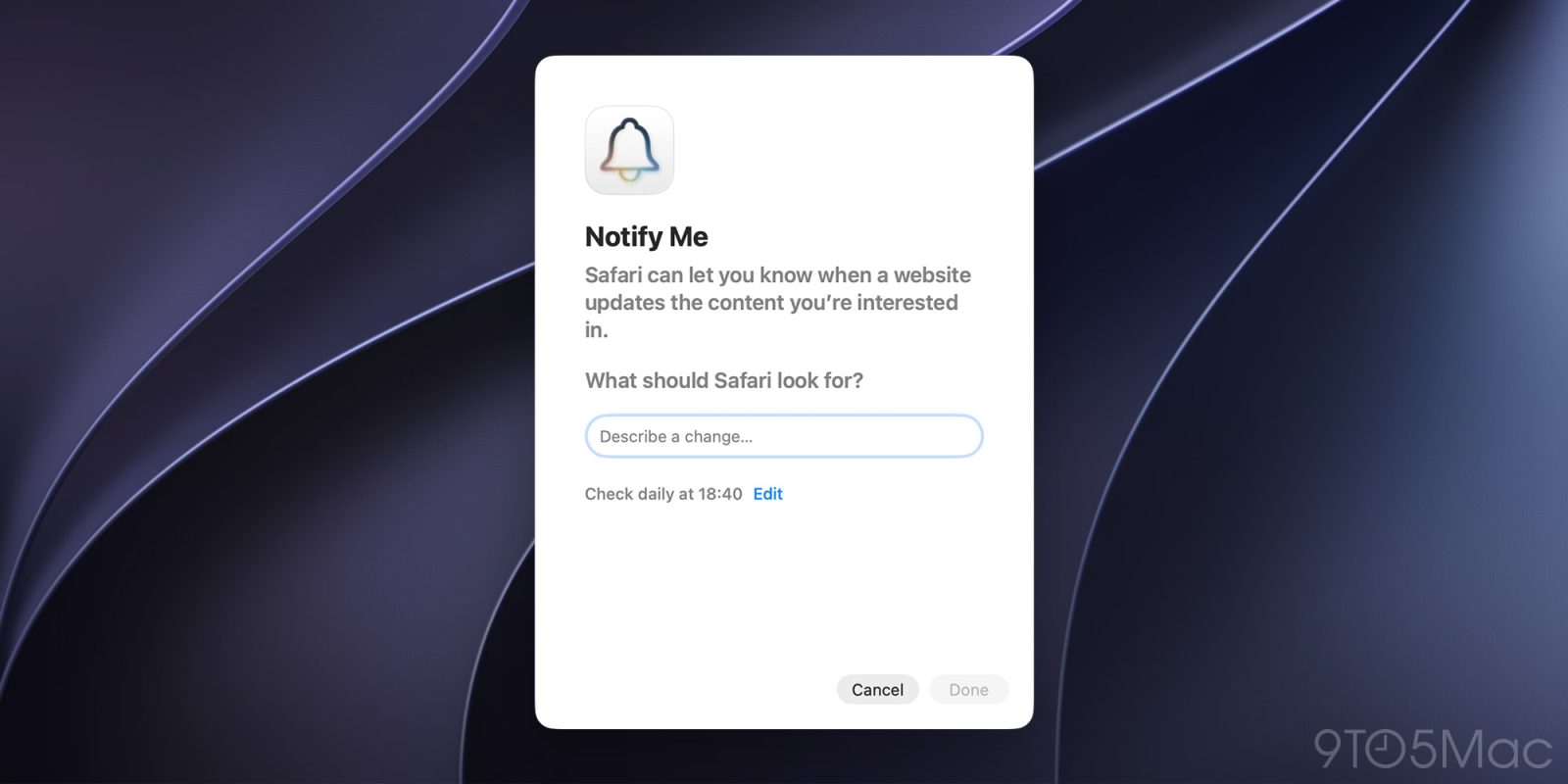
One of the many new features included in macOS 27 Golden Gate is Safari’s new “Notify Me” feature, which lets users get alerted when a website updates content they’re interested in. Here’s how to use it.
Safari can now notify you when webpages change
One of the most useful ways Apple has incorporated Apple Intelligence into macOS 27 Golden Gate is through Safari’s new “Notify Me” feature.
With it, users can ask Safari to monitor a webpage for specific changes and receive a notification when it detects an update.
When setting up a new custom notification, in addition to telling Safari what to look for, the user can also set a regular schedule ranging from hourly to monthly.
After the custom notification is set up, Safari will check the webpage according to the selected schedule and notify the user when it detects the requested change, such as a price drop, an item coming back in stock, changes to policies, registrations opening, or new information being added to the page.
Setting up Safari’s new “Notify Me” feature:
- On Safari, go to the webpage you want to keep an eye on.
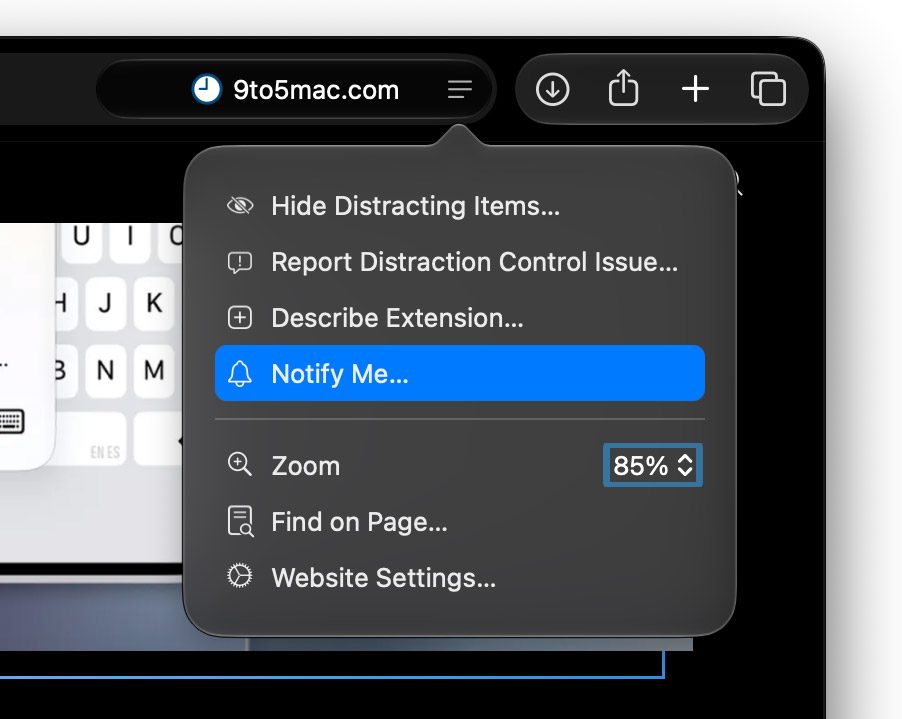
- Click the Page menu button to the right of the Smart Search field.
- Select “Notify Me” from the pop-up menu.
- In the “What should Safari look for?” field, describe what you want. Apple Intelligence will then analyze the page’s contents to determine whether it can handle your request.
- Optionally, you can set how often and when Safari should check for updates. Hourly and Daily let you choose a specific time, while Weekly and Monthly also let you choose specific days.
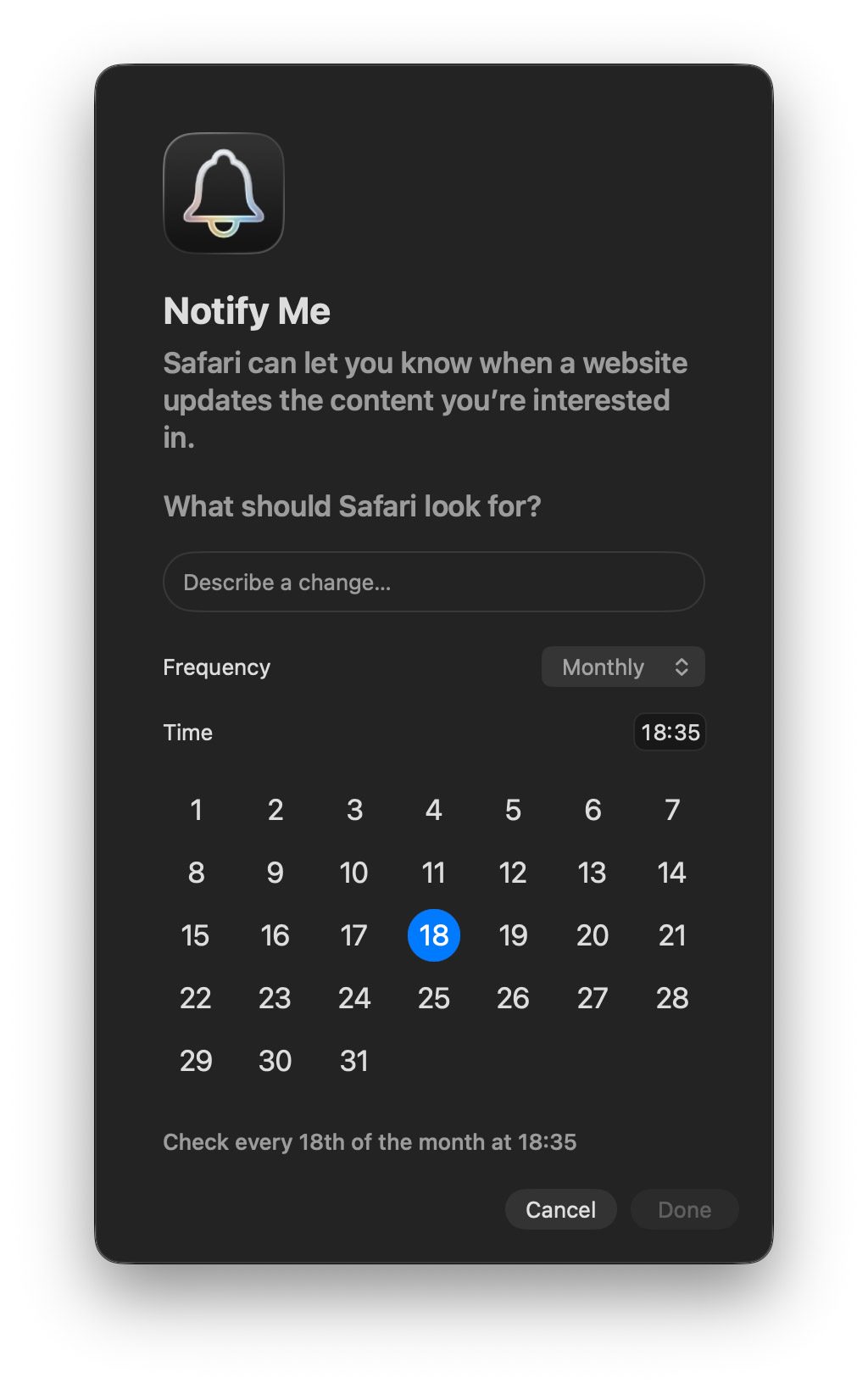
- Click Done. Alternatively, Safari may show a Next button instead. In that case, macOS will ask for permission to send Safari notifications. You can also manage Safari notification permissions from Settings > Notifications > Safari.
Importantly, since the feature relies on Apple Intelligence, it may not be available in all languages or regions. To check the current availability status, follow this link.
Do you have a creative idea for how to use Safari’s new Notify Me feature? Let us know in the comments.
9to5Mac is brought to you by CleanMyMac by MacPaw. With the release of macOS 27 Golden Gate, use CleanMyMac first to free up space, optimize your system, and ensure your new Mac runs at 100% on day one. Learn more.


FTC: We use income earning auto affiliate links. More.

Comments