
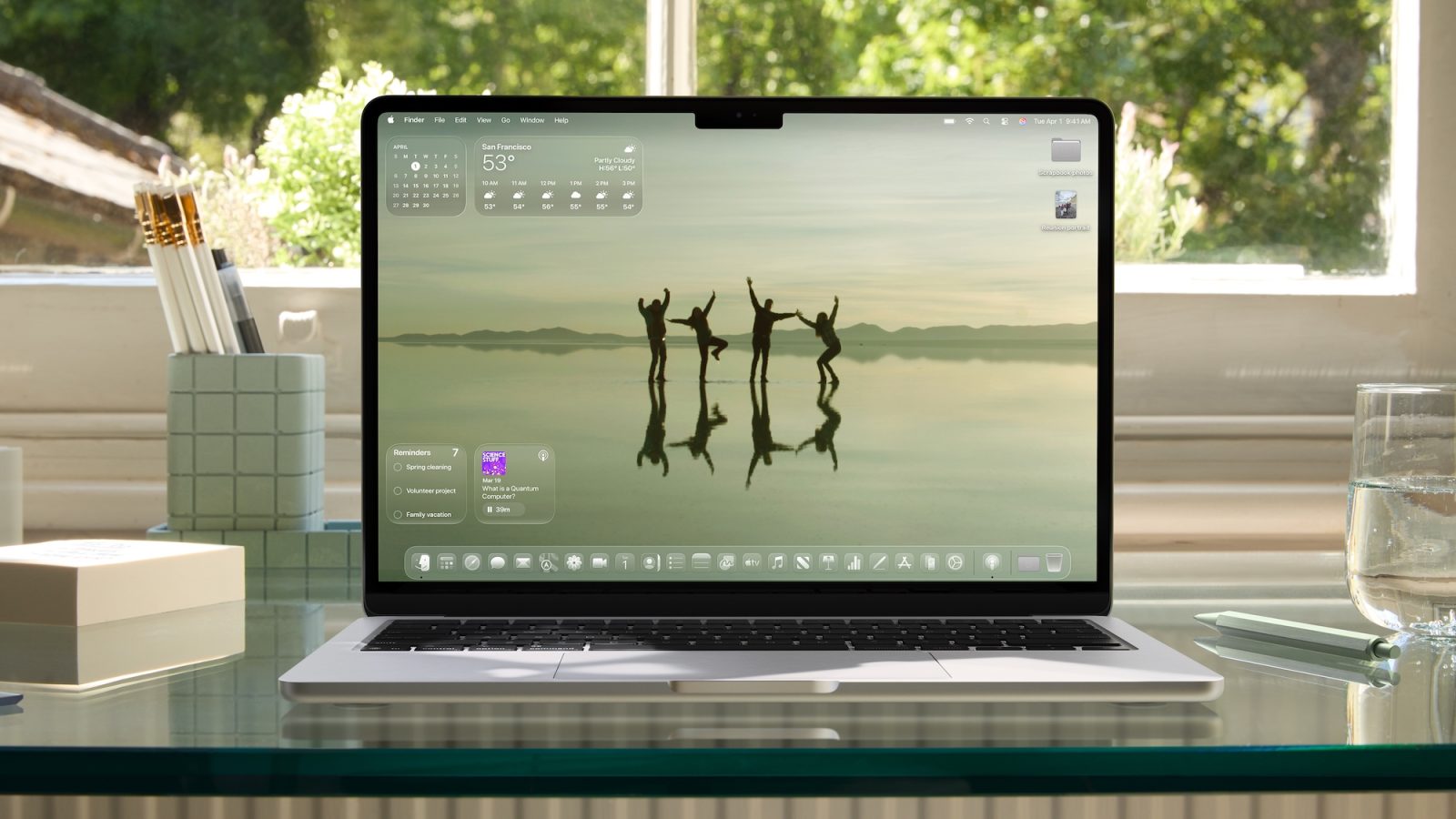
macOS 26.4 is the latest Mac software update, and alongside new emoji and a Compact Tab Bar option in Safari, the new release also adds three battery-related features. Here’s how to use them.
#1: Charge Limit
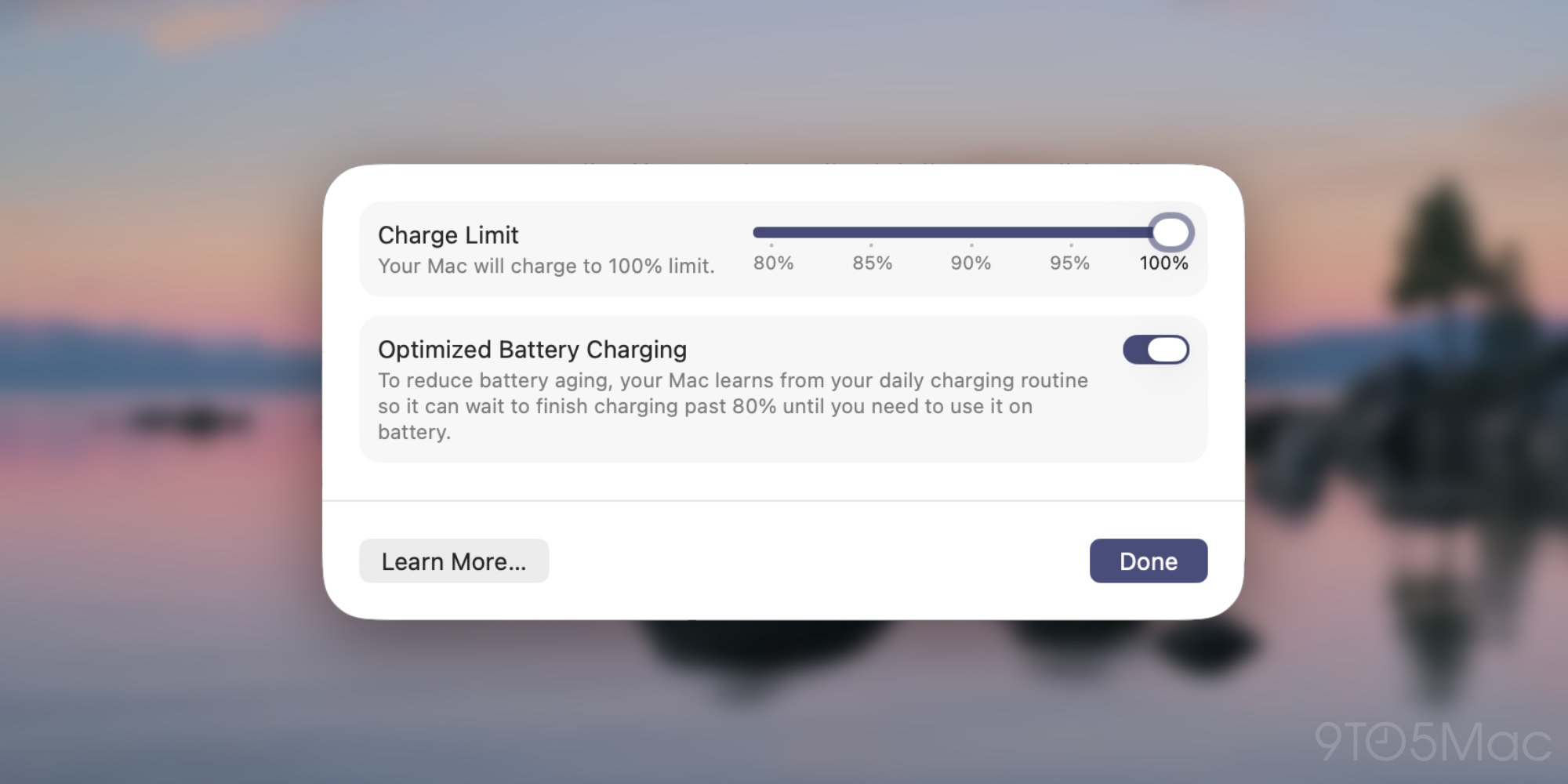
Batteries degrade over time. That’s why in recent years, Apple introduced a ‘Charge Limit’ feature for iPhone that lets you set a maximum limit below 100%, which might help extend the battery’s lifespan.
With macOS 26.4, Charge Limit has come to the Mac too.
You’ll find Charge Limit by opening System Settings ⇾ Battery then clicking the ‘i’ symbol next to ‘Charging.’
Use Charge Limit to set a limit on what your Mac considers a full charge. Your Mac will charge to within a few percentage points of the charge limit, then stop charging and show “Charged to [%] Limit” in the battery status menu. If the battery charge level drops more than 5% while connected to power, charging resumes, again charging to within a few percentage points of the limit.
Apple lets you set your MacBook’s maximum charge to anywhere from 80% to 100%. Though it’s hard to know how big a difference Charge Limit will make in a Mac battery’s lifespan, the idea is that a lower charge limit makes for a healthier battery over time.
#2: ‘Slow Charger’ indicator
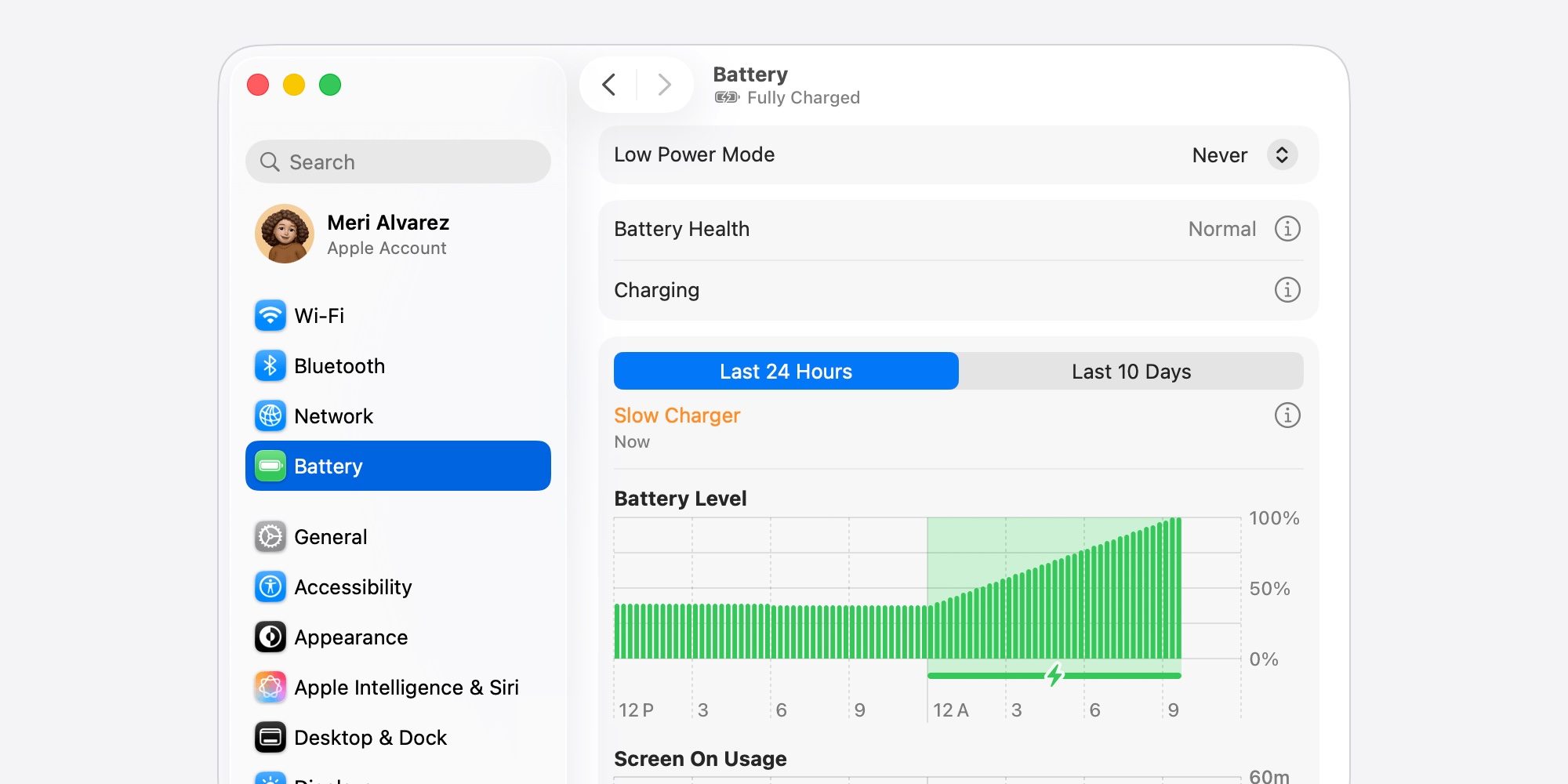
Another new macOS 26.4 feature you’ll find inside System Settings ⇾ Battery is the ‘Slow Charger’ indicator.
Essentially, if your MacBook is connected to a charger that’s offering subpar charging speeds, your Mac will let you know. The ‘Slow Charger’ message appears in the battery status menu as well as in System Settings.
If you see the message and want to fix your charging issue, you’ll need to get a new charger to enjoy improved speeds.
Apple has an official support document outlining the recommended minimum charging wattage for each Mac. For most recent Macs, here are the recommendations:
- MacBook Neo: 20W USB-C Power Adapter and USB-C Charge Cable
- MacBook Air: Apple 30W USB-C Power Adapter (13-inch only), 35W Dual USB-C Port Power Adapter, 67W USB-C Power Adapter, or 70W USB-C Power Adapter and USB-C to MagSafe 3 Cable
- 14-inch MacBook Pro: Apple 67W, 70W, or 96W USB-C Power Adapter and USB-C to MagSafe 3 Cable
- 16-inch MacBook Pro: Apple 140W USB-C Power Adapter and USB-C to MagSafe 3 Cable
You can buy official Apple chargers from the company’s website, but in most cases this 100W Anker power adapter is a more affordable alternative that will get the job done.
#3: Automate your battery’s Charge Limit with Shortcuts

‘Charge Limit’ is new in macOS 26.4, but Apple also provided a way to modify your Mac’s limit via the Shortcuts app.
In the Shortcuts app in macOS 26.4, there’s a new ‘Set Battery Charge Limit’ action you can use.
If you’re at all familiar with the Shortcuts app, you know there are a variety of ways this new action can be used.
You can build single-action shortcuts that change your Charge Limit with, say, a custom keyboard shortcut. Or you can build ‘Set Battery Charge Limit’ into complex, multi-step shortcuts.
I think the new action is especially powerful when you automate it. The Mac’s Shortcuts app only recently added the Automation tab that’s been available on iPhone and iPad for years.
With the Automation tab, you can set your Charge Limit to update automatically based on various triggers, such as the time of day, for example.
Do you plan to use any of macOS 26.4’s new battery features for Mac? Let us know in the comments.
Best Mac accessories
- AirPods Pro 3
- 100W USB-C power adapter for fast charging
- tomtoc protective MacBook sleeve bag
- Twelve South aluminum laptop stand for MacBooks
- Anker Docking Station USB-C with Ethernet, HDMI, SD, more


FTC: We use income earning auto affiliate links. More.



Comments