
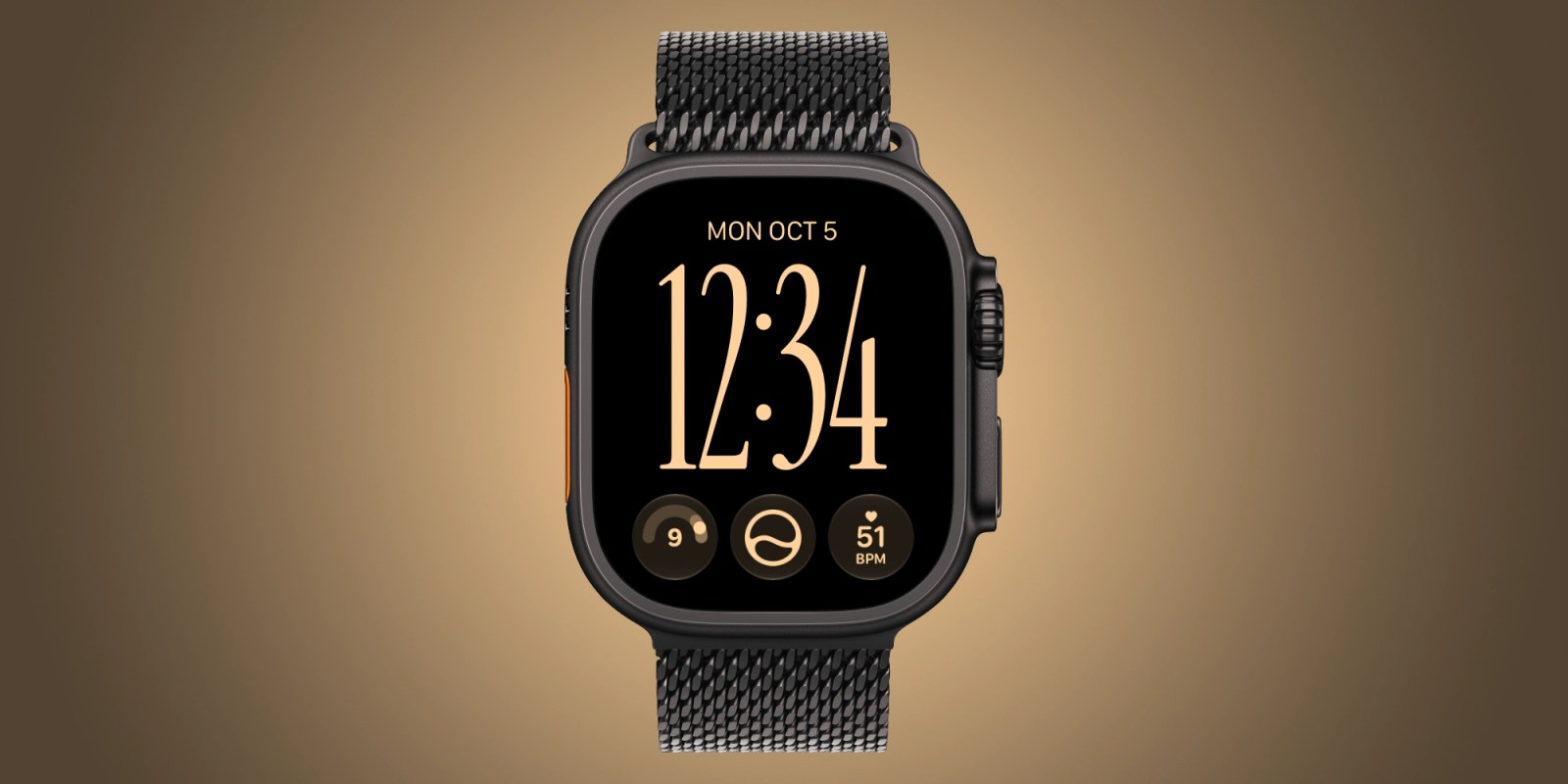
Upgrade to a new Apple Watch Series 12 or Ultra 4? Apple Watch Series 12 and Ultra 4 bring upgraded performance and new health sensing features.
Still, they can feel like the same watch in day-to-day use unless you know where to look for the changes. From new health complications to automatic Shazam recognition, a few setup changes can help you get more out of your upgrade. Here’s what to try.
Refresh your watch face
Start by adding exclusive new complication options only supported on the new Apple Watch models. Series 12 and Ultra 4 can display your live heart rate, steps count, and readiness score on your watch face.
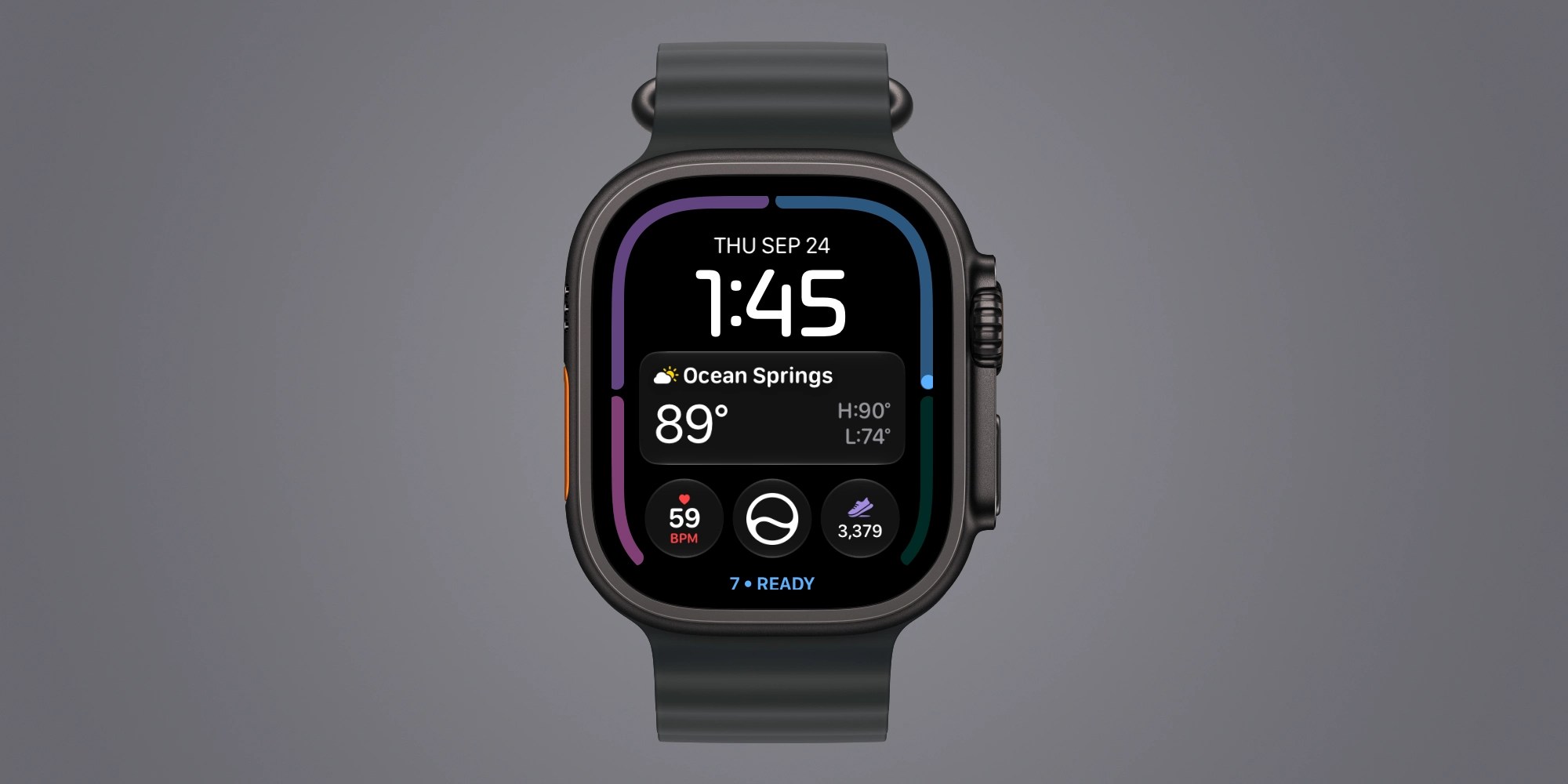
You can add these complications to your favorite watch face to unlock new insight into your health and fitness.
For me, live heart rate data has been an essential new complication, using a single slot with better data compared to the old wide slot with less current data. Step tracking has also been a big motivator for getting activity logged earlier in the day.
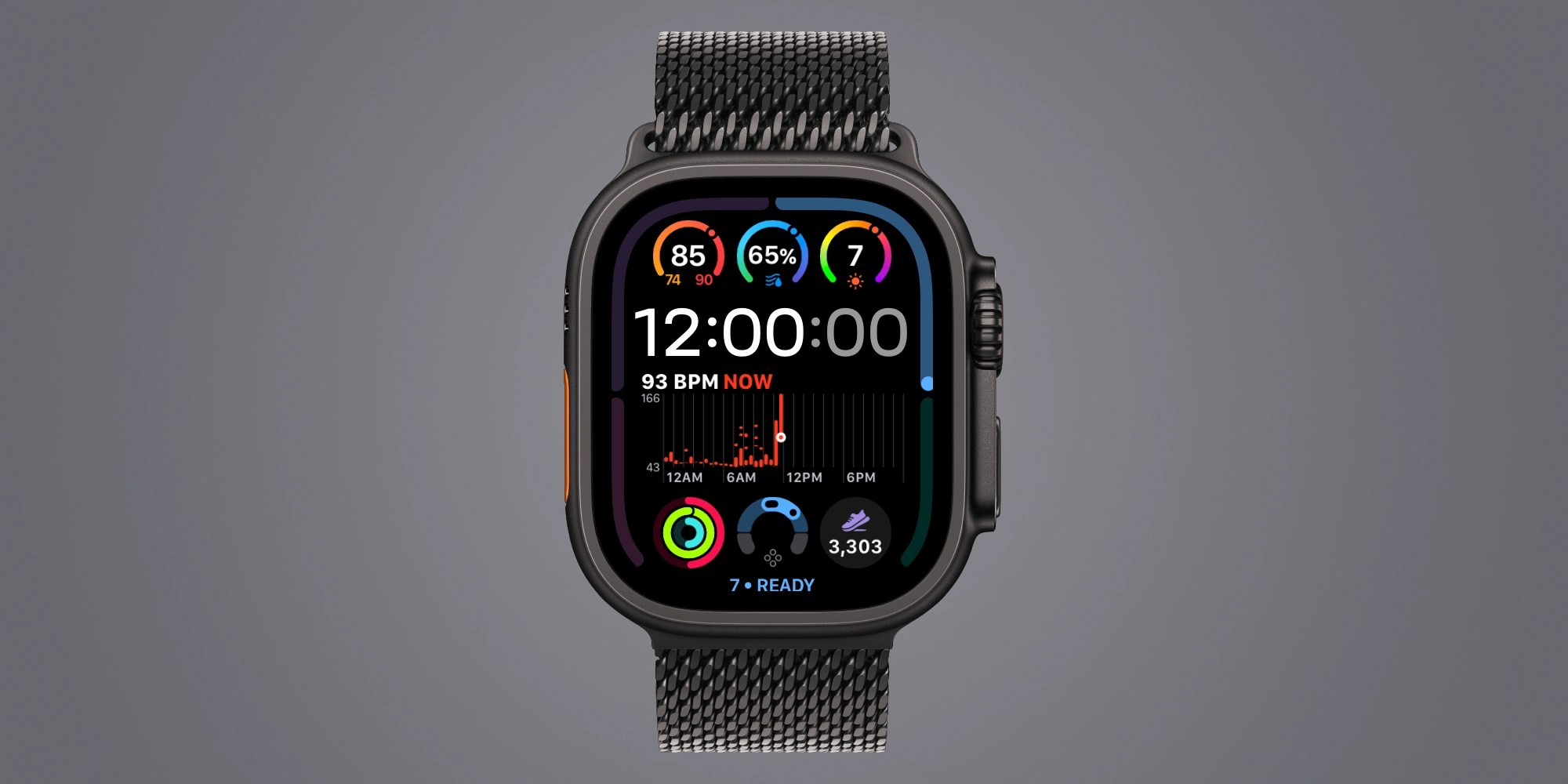
And since readiness score can change throughout the day based on your vitals and activity, displaying readiness on your watch face can be a great tip.
And while it’s off by default, you can enable quick switching between watch faces with a swipe at Settings > Clock > Swipe to Switch Watch Face.
Turn on automatic Shazam
Your new Watch can identify music around you without a request to Siri or a tap on Shazam.
On Apple Watch, open Settings → Smart Stack and enable Music Detection. When you open the Smart Stack, Music Recognition can show the song title and artist.
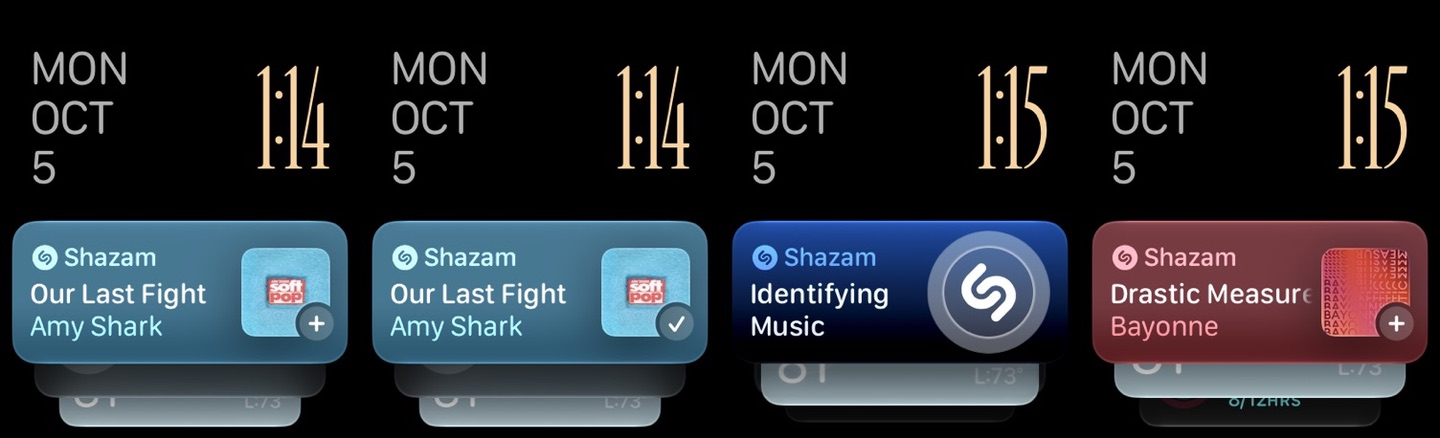
It’s a small setup change with an obvious payoff the next time something unfamiliar plays at a restaurant or coffee shop.
Try Siri Modular
Siri Modular comes to every Apple Watch running watchOS 27, although Series 12 and Ultra 4 have more complication options.
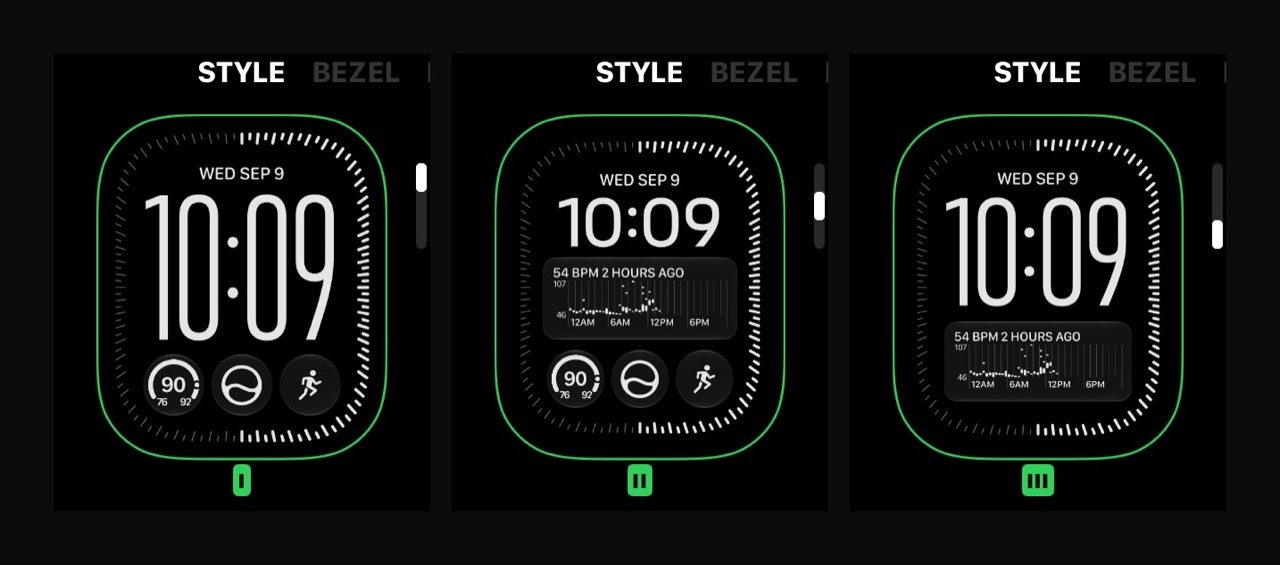
Something I love about the Siri Modular face is how you can style it. For now, I have a few instances of the Siri Modular face in my rotation using different colors, fonts, layout styles, and complications.
Give readiness time to work
Adding a readiness complication is only part of the setup. You also need to collect the data behind the score.
Apple says to complete your Health Details, set up Activity and overnight vitals, enable Sleep, and wear your Watch while sleeping for at least seven nights. You also need sleep data from the previous night.
Find a charging window during the day so overnight tracking becomes easier to maintain.
So far, readiness has been an interesting experiment, but I think it’s still too early to call it useful for me.
Daytime vitals
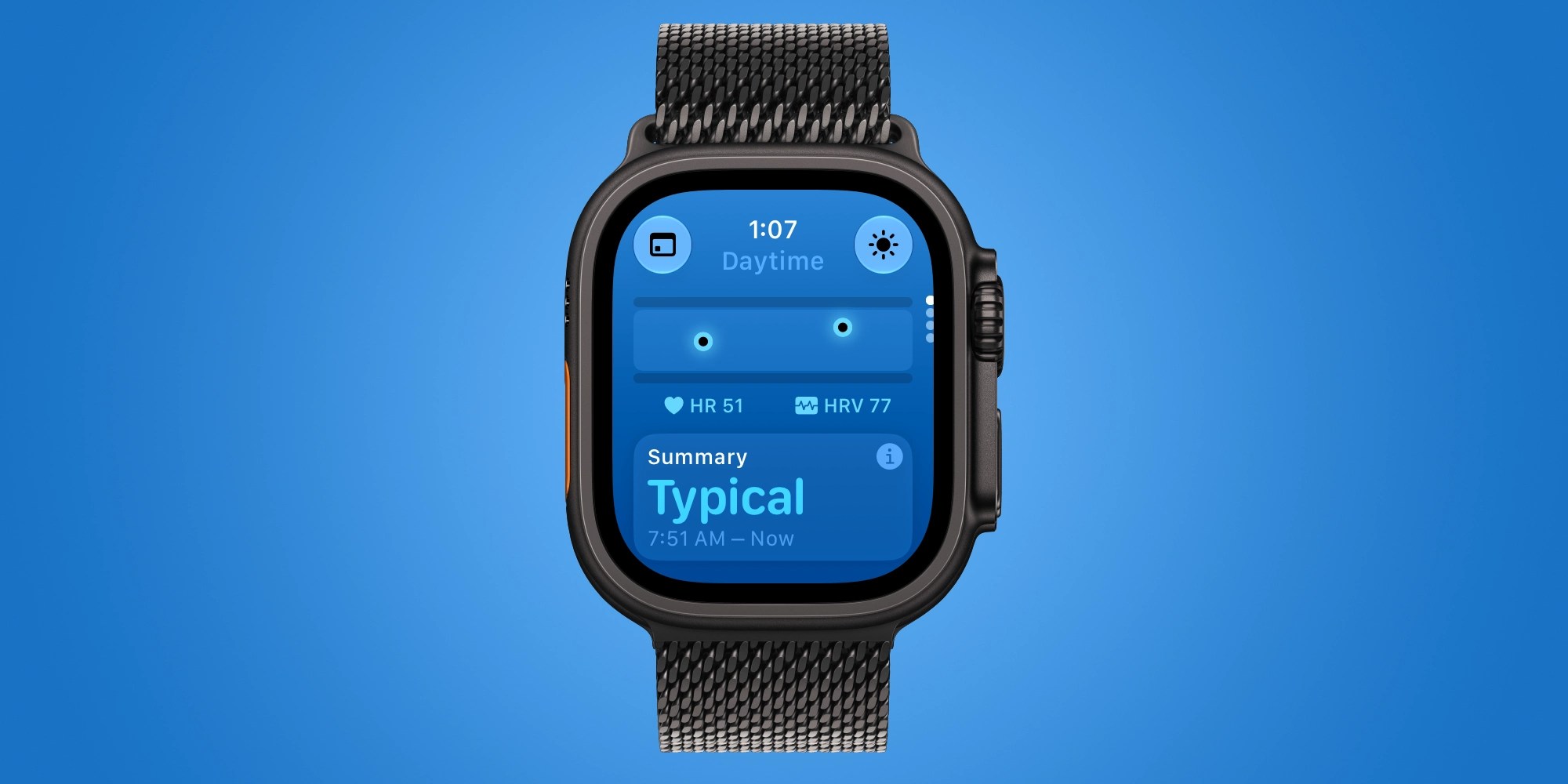
Lastly, the Vitals app has more insight with Series 12 and Ultra 4 hardware.
You can see daytime vitals, not just overnight, in the Vitals app. This is based on heart rate and recovery heart rate variability. Overnight vitals also factor respiratory rate and wrist temperature.
Looking ahead, there’s more to come for Series 12 and Ultra 4 with Siri Recap and Live Rewind on the way.
What are your favorite ways to get the most out of the new Apple Watch Series 12 and Ultra 4? Share your ideas in the comments.
Do more with your Apple products
AirPods 5 | Apple’s newest wireless headphones
Apple AirTag 2 | Add Find My tracking to keys, bags, bikes, more
AirPods Pro 3 | Apple’s best wireless headphones


FTC: We use income earning auto affiliate links. More.




Comments