
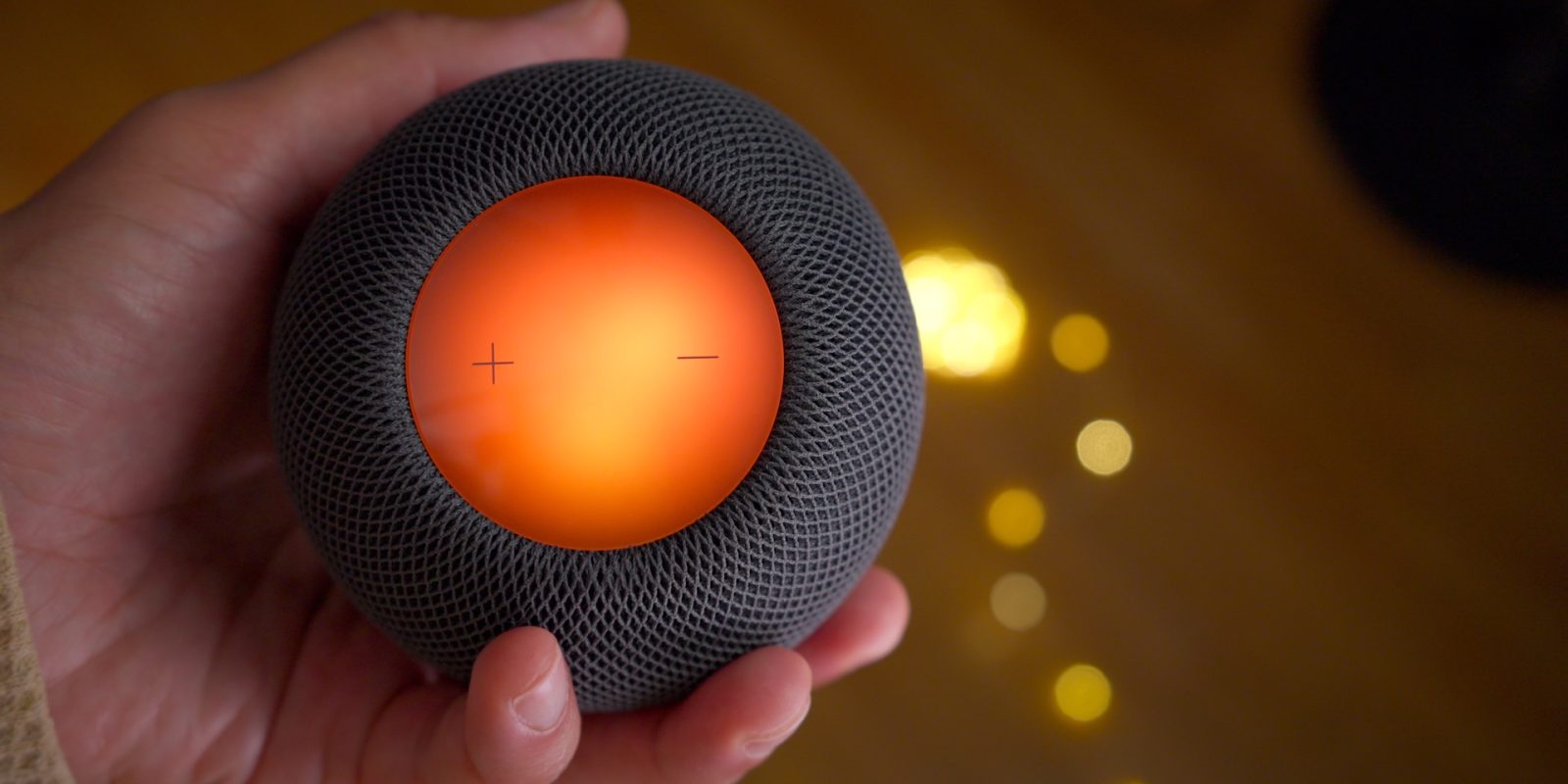
iOS 27.2 and its corresponding updates for the HomePod lineup bring several key new features to Apple’s smart speakers. The most exciting update? The ability to finally use your HomePod as the default sound output for your Mac. This means that the 2nd-generation HomePod and HomePod mini 2 can now function as low-latency wireless speakers for your Mac!
Watch our hands-on video for an in-depth look at how the new wireless speaker functionality works, along with other new features like Sound Glow, Lock Controls, and home theater surround sound support. Be sure to subscribe to our YouTube channel for more in-depth videos.

HomePod as speakers for Mac
It’s long been possible to use a HomePod as a wireless speaker for the Mac, but doing so came with at least one big caveat: wireless latency. While it’s generally fine for movie playback, the latency is immediately noticeable when playing anything in real time. For example, playing instruments in Logic Pro, audio and FaceTime calls, etc. For these particular applications, HomePods have, up until now, been less than ideal speakers for the Mac.
Video walkthrough
Subscribe to 9to5Mac on YouTube for more videos
Apple has addressed this issue in the 27.2 update, significantly reducing latency when using a HomePod mini 2 or HomePod (2nd generation) as a wireless speaker for Mac desktops and laptops that support Wi-Fi 6E. This, unfortunately, excludes some early Apple Silicon machines, such as those powered by the M1 family of chips, but it’s good to see this feature made available.
For the HomePod mini 2, Apple included a different Wi-Fi/Bluetooth architecture based on PCIe and revised audio routing to prioritize low-latency applications. It’s also worth noting that Apple’s Wi-Fi 6E requirement applies to the Mac hardware itself and doesn’t imply that a user needs a 6E-enabled router.
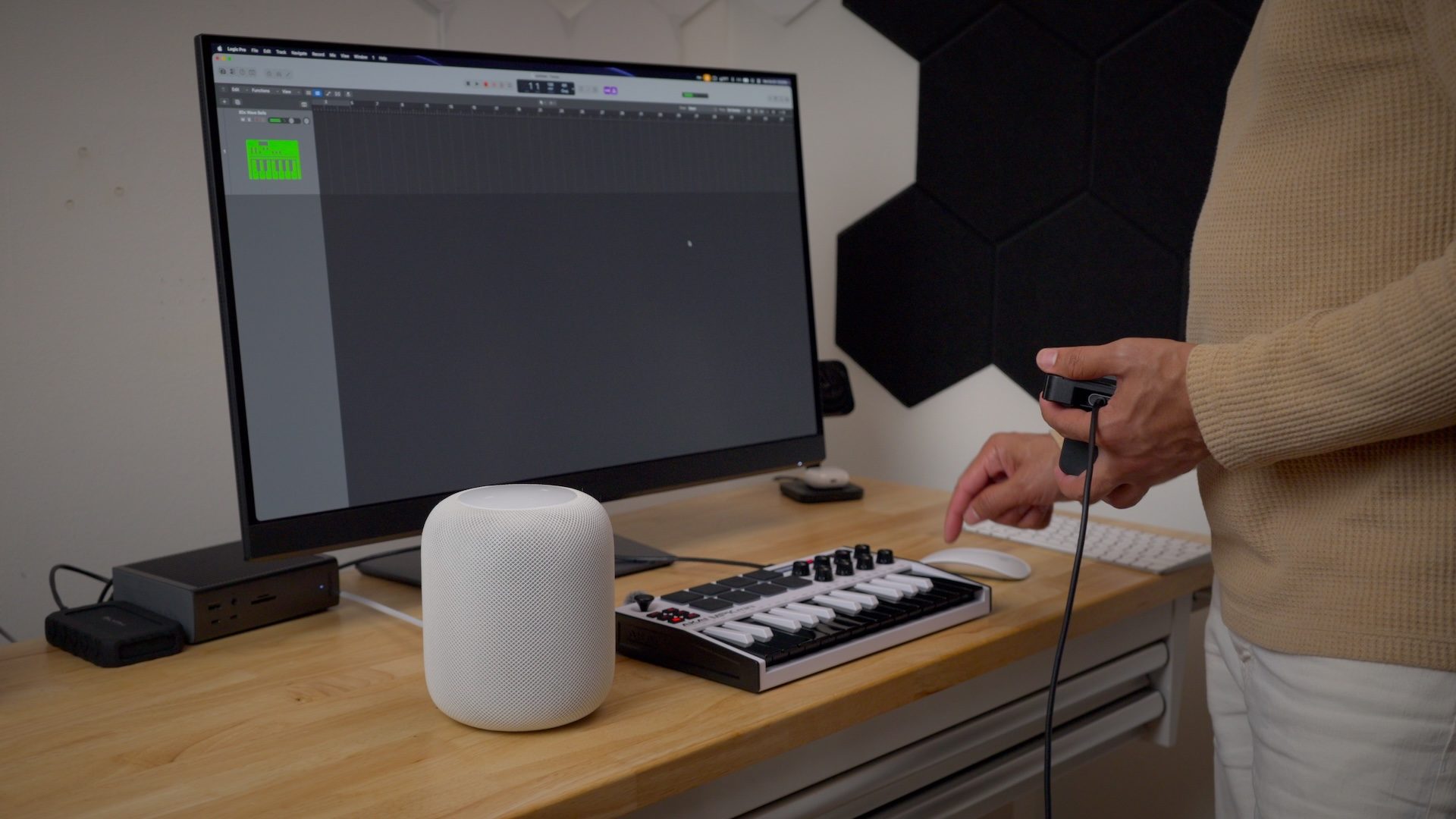
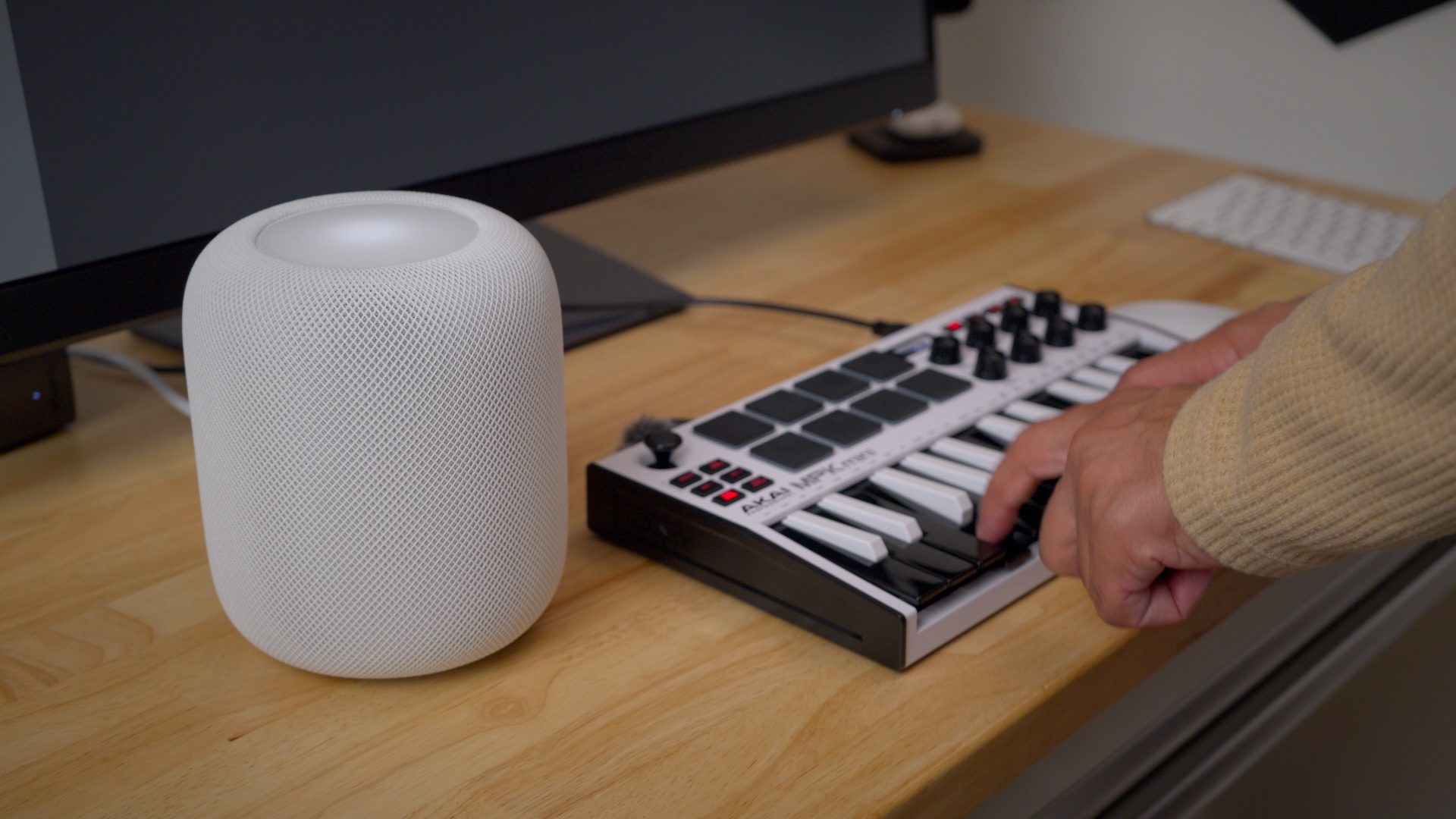
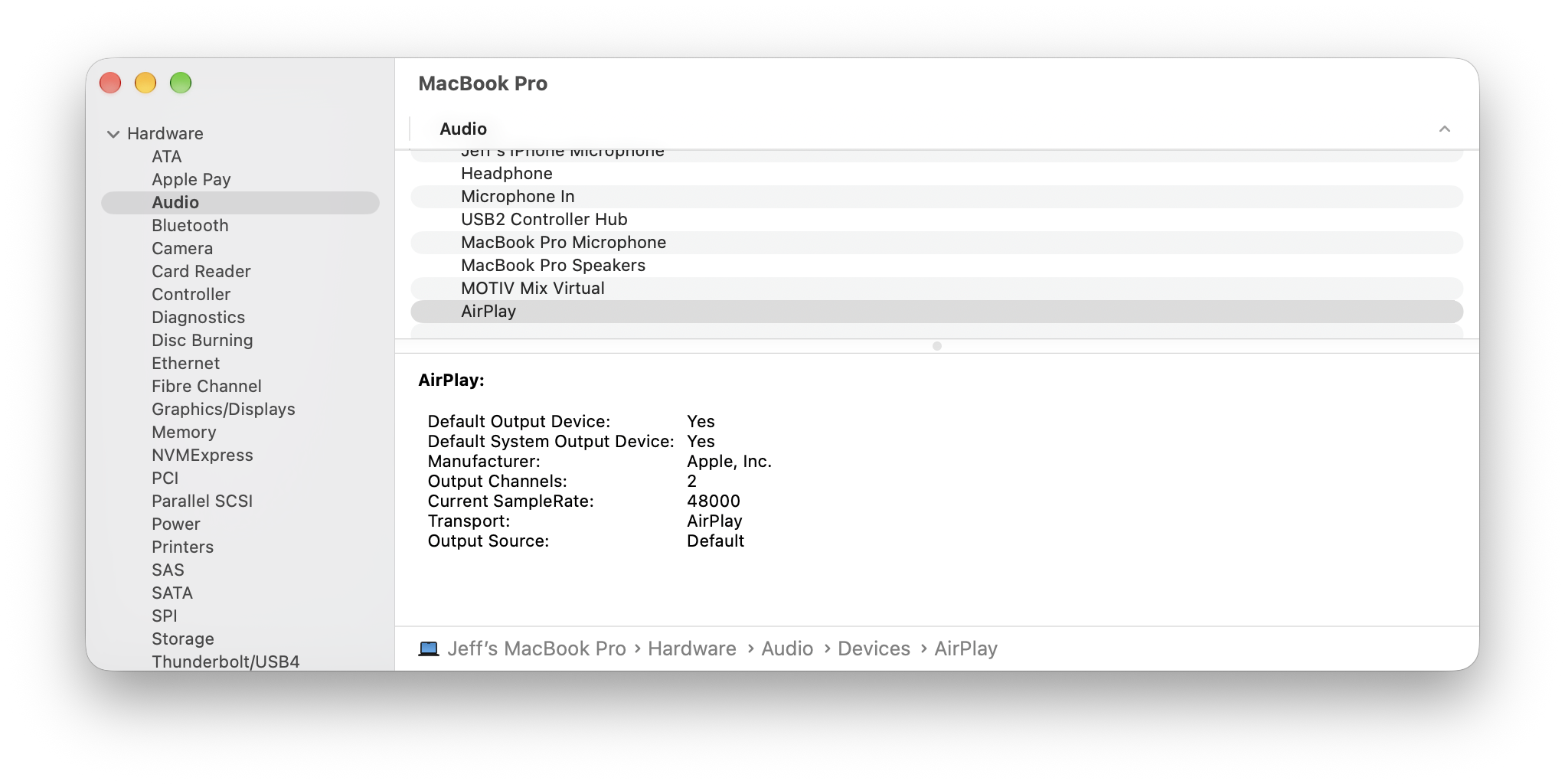
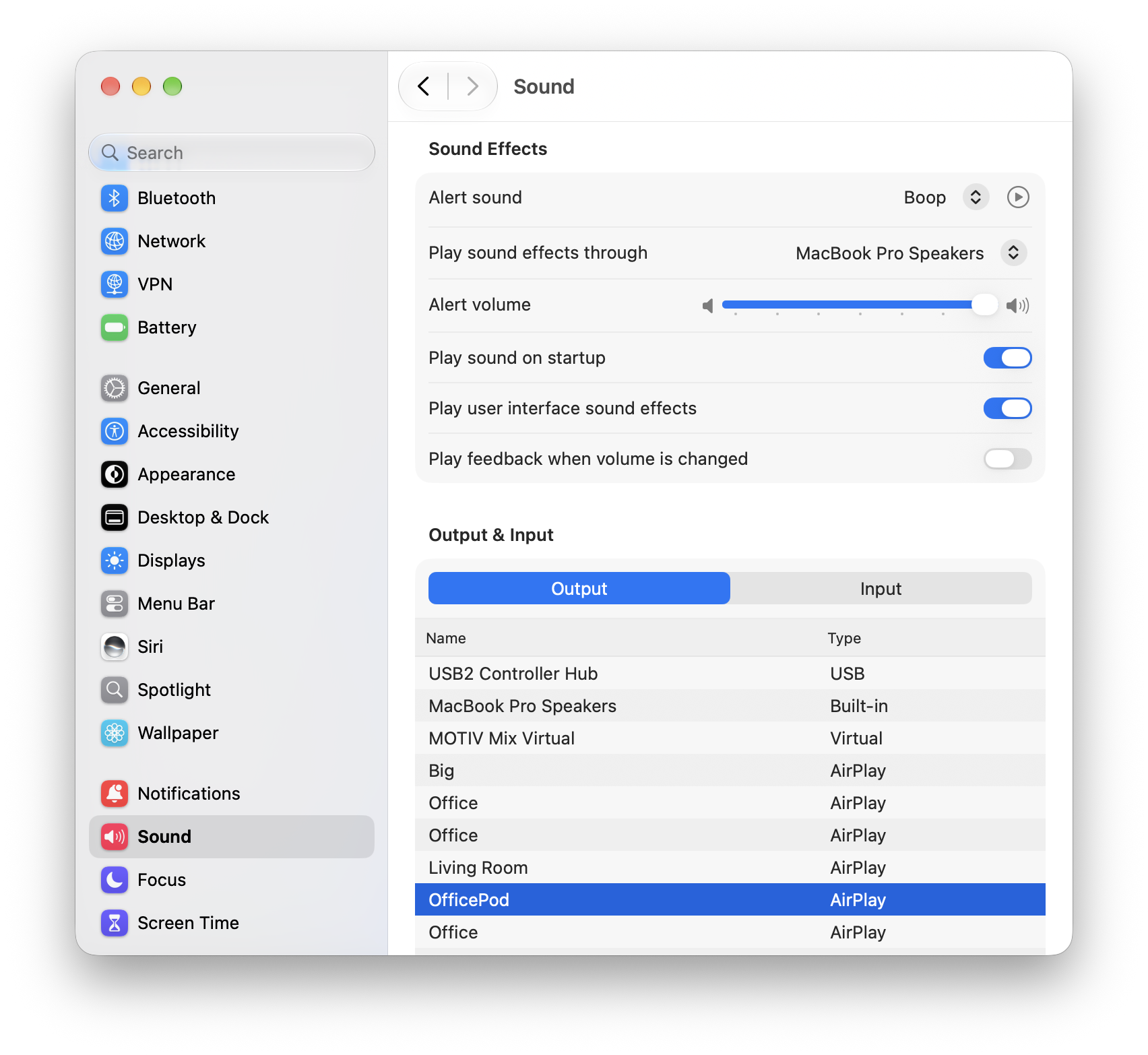
From that, we can gather that the update will allow the HomePod to work similarly to how it currently works with an Apple TV, when set as the default audio source. In other words, instead of relying on traditional AirPlay, it creates an ad hoc point-to-point connection between the Mac and the HomePod for minimal latency. This will make a HomePod a viable speaker-output destination for real-time audio applications.
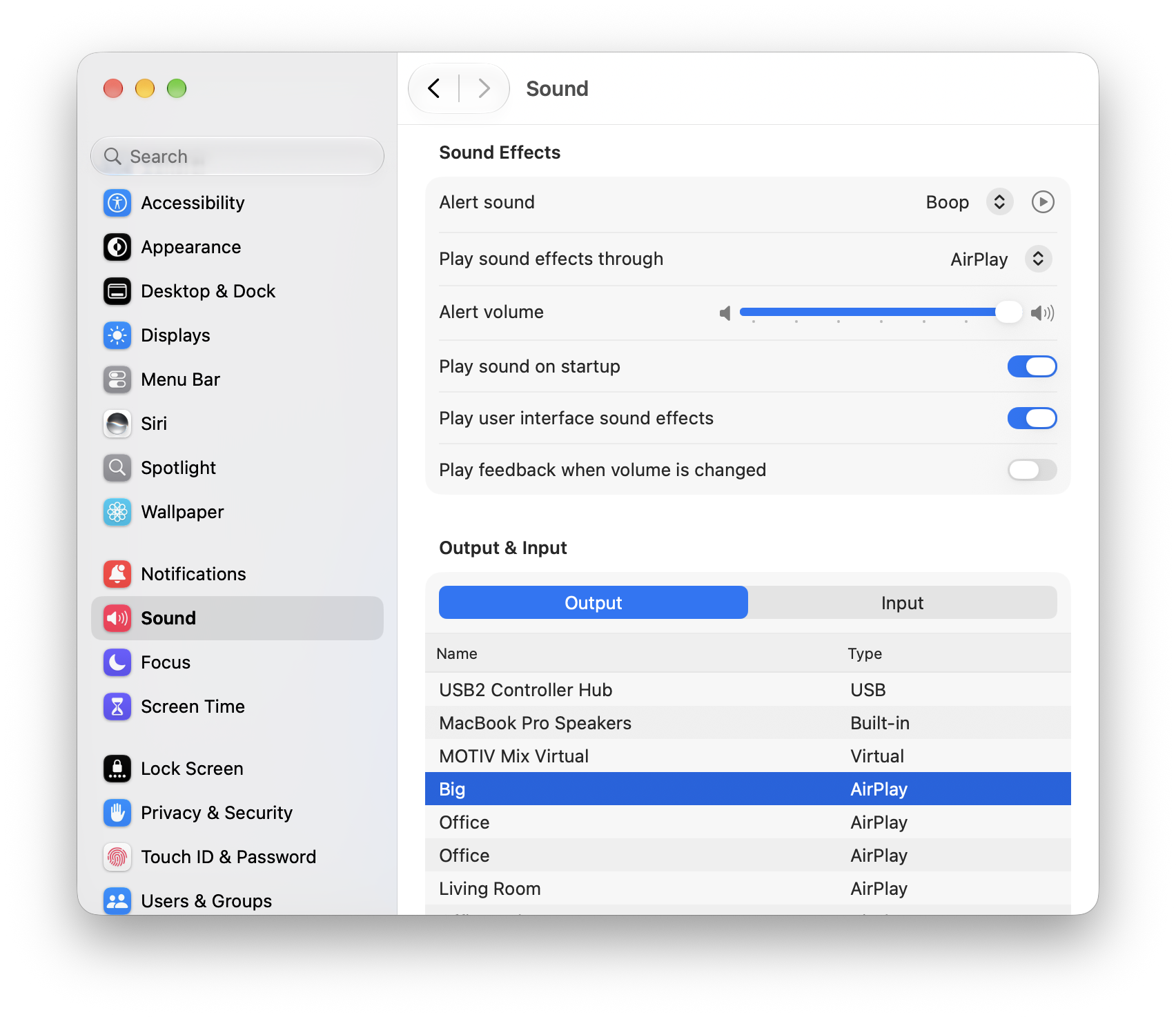
Apple is so confident of the low-latency connection that it defaults to playing sound effects via AirPlay when a compatible HomePod is selected as the output destination. Obviously, sound effects are the sort of thing that relies on low latency, since their sound has to correspond to what is happening in the environment at that exact time; otherwise, it would be disorienting. If I select my HomePod mini (1st generation), that option is not even available.
Needless to say, this update instantly has me reconsidering my speaker needs for my Mac desktop setup. I recently got rid of my Yamaha HS3s because I’m looking for something with a little more umph. A pair of full-sized 2nd-generation HomePods in a stereo pair would definitely fit the bill, and look much better to boot.
Lock Controls
Have you ever accidentally brushed the touch sensor on the top cap of the HomePod, activating it to play music? Do you have pets who surreptitiously activate your HomePod while you’re not in the room? If so, then the new Lock Controls switch in 27.2 will help.
When Lock Controls is enabled, the touch surface on top of the HomePod is locked, meaning touch, touch-and-hold, and volume adjustments are disabled. You’ll easily recognize when Lock Controls is enabled by the bright red “no” animation that appears.
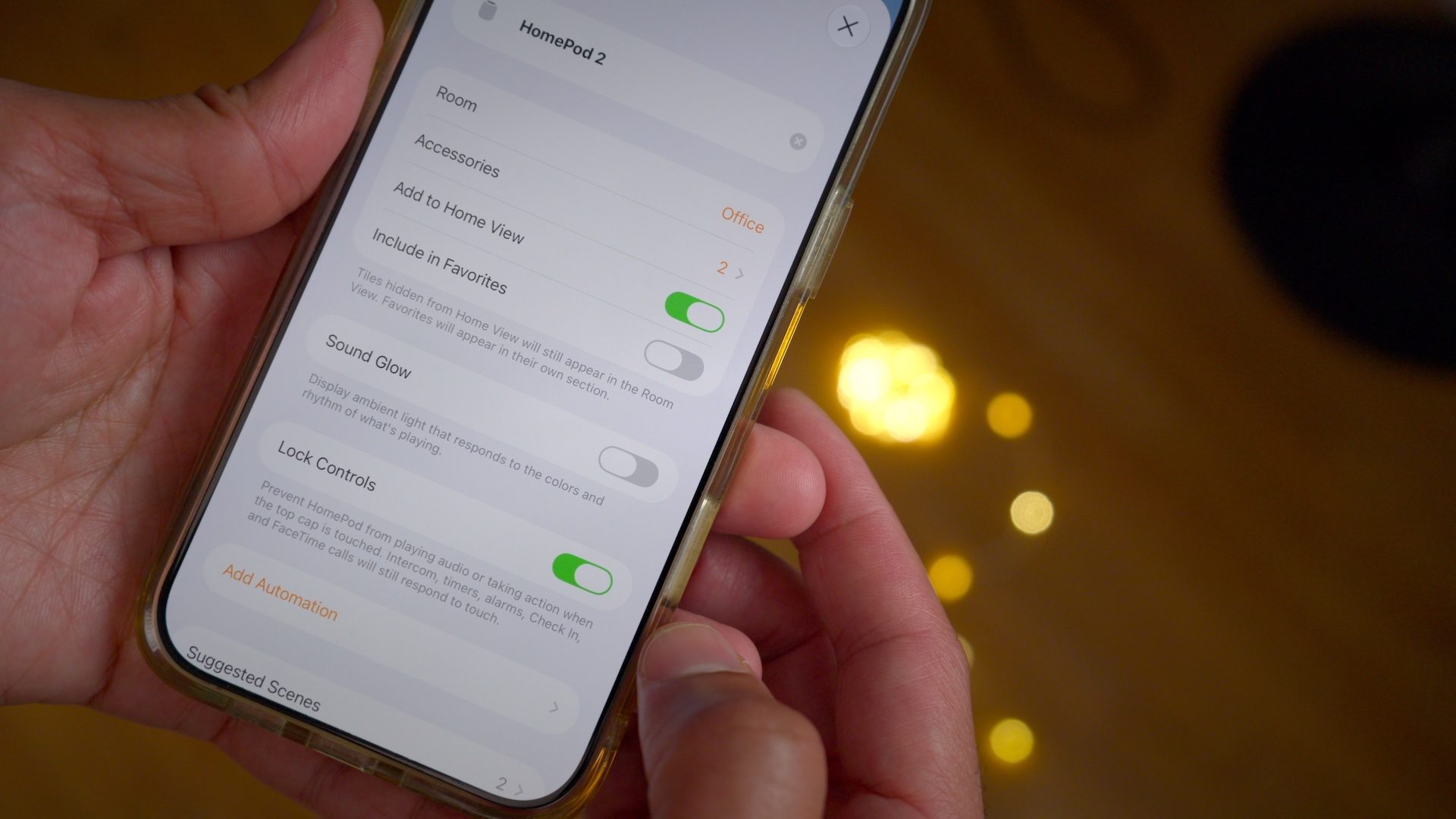
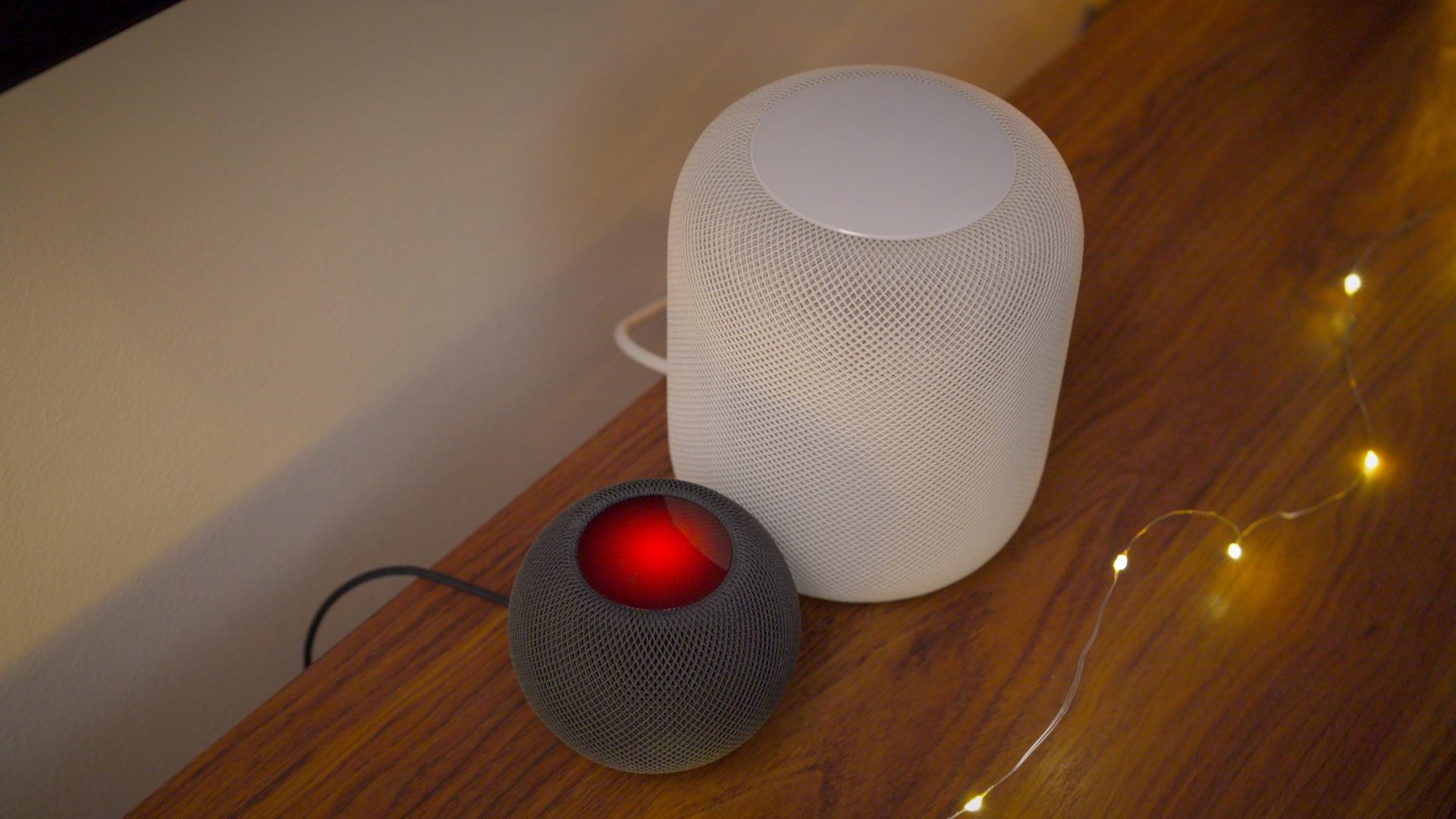
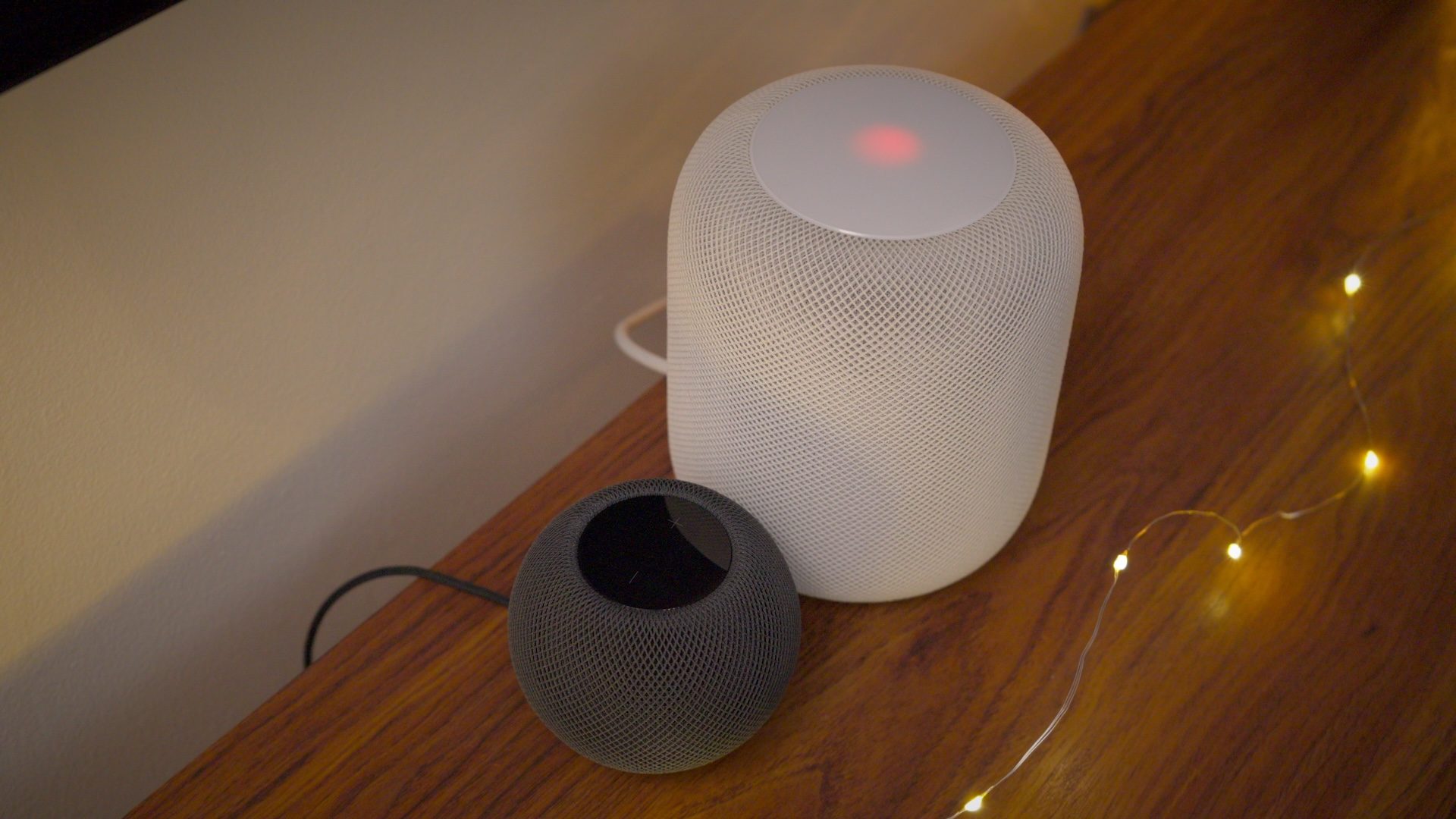
Lock Controls will prevent a HomePod from playing audio or taking action when the device’s top cap is touched. However, intercom, alarms, timers, Check in, and FaceTime calls will continue to respond to touch.
Of all the new features in the 27.2 software update, Lock Controls is the only one that appears on all HomePod models, regardless of generation. That means that, yes, even the original OG HomePod lands support for the handy new addition!
Sound Glow
My favorite new feature in the 27.2 update is Sound Glow. This is the feature that displays ambient light that corresponds to the colors and rhythm of the album artwork for the music or podcasts being played.
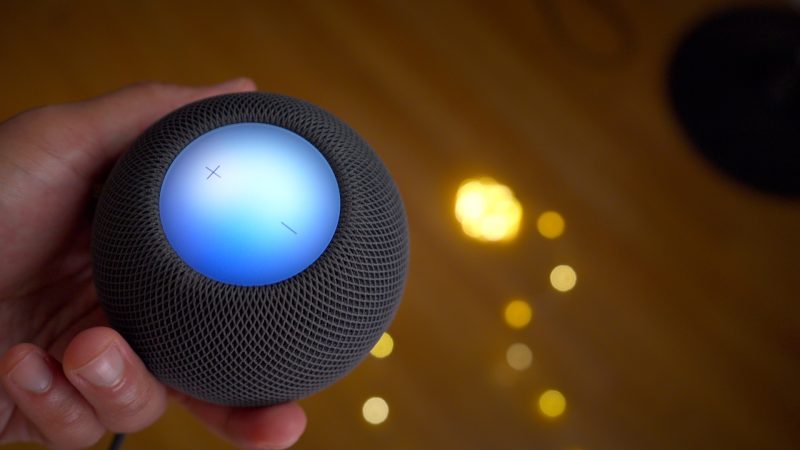
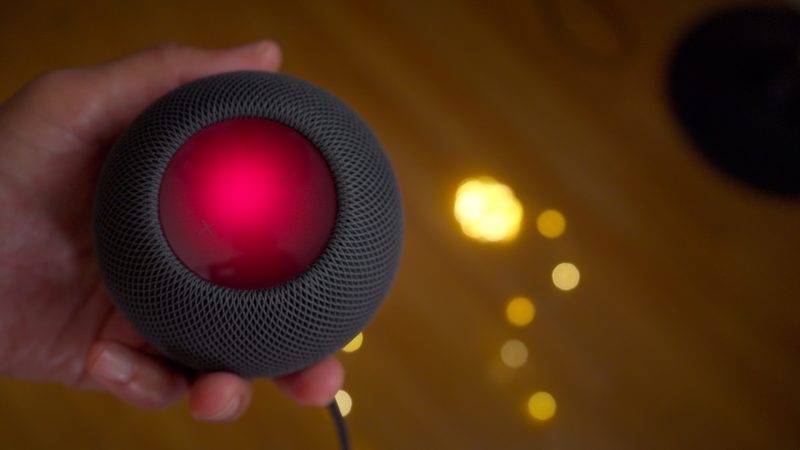
Sound Glow takes full advantage of the LED Matrix displays beneath the HomePod top cap. The big HomePod features an array of 37 RGB LEDs, while the smaller HomePod mini features an array of 19 RGB LEDs. As a side note, the original HomePod features 19 LEDs across a smaller surface area than the updated version.
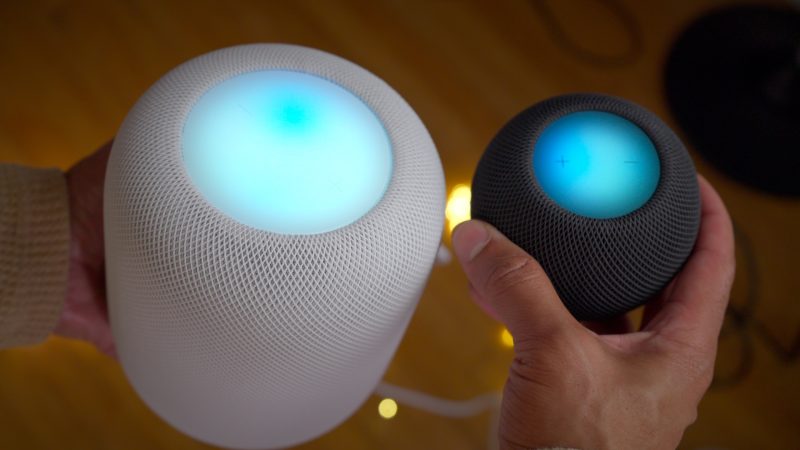
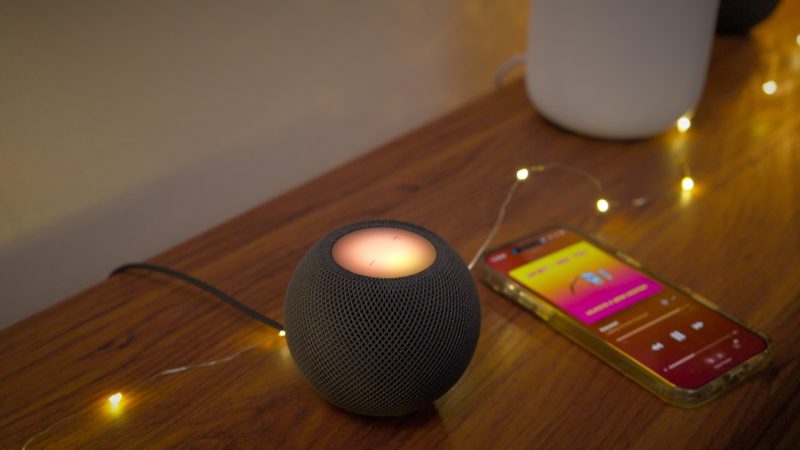
To enable Sound Glow, you must update your iOS device and your HomePod to 27.2. Once updated, open the Home app and venture into the settings for the HomePod you wish to adjust. There, you’ll find a Sound Glow switch you can enable.
Apple notes that you’ll also be able to toggle Sound Glow with your voice, but it will require an Apple Intelligence‑enabled iPhone running the latest software. This could be enabled once Apple enables Siri AI on the HomePod mini 2, and perhaps the 2nd-generation HomePod, but this remains to be seen.
Home theater surround sound
If you plan to purchase an Apple TV 4K (fourth-generation), you’re likely interested in the new home theater surround sound option available with the HomePod mini 2 or the 2nd-generation full-sized HomePod. This feature lets you use four HomePods, two identical matching stereo pairs in front and rear, for a surround sound setup.
I haven’t been able to personally test this yet, because I don’t yet have the newest Apple TV 4K, but I can bet it will sound fantastic, especially when four full-sized Dolby Atmos-enabled HomePods are involved. That being said, this is an expensive proposition.

Here are the pricing details for those looking to set up a four-speaker home theater surround sound option:
- Apple TV 4K ($299) + Four HomePod 2 ($349×4) = $1695
- Apple TV 4K ($299) + Two HomePod 2 ($349×2) + two HomePod mini 2 ($149×2) = $1295
- Apple TV 4K ($299) + Four HomePod mini 2 ($149×4) = $895
By way of comparison, Sonos’ Dolby Atmos-enabled four-speaker Immersive Set with Beam Ultra bundle can be had for less than $1600 and comes with a dedicated subwoofer. I’m not a home audio expert or an audiophile, so I can’t say which one is better, but it’s interesting that both it and the highest-tier HomePod surround setup are so similar in price.
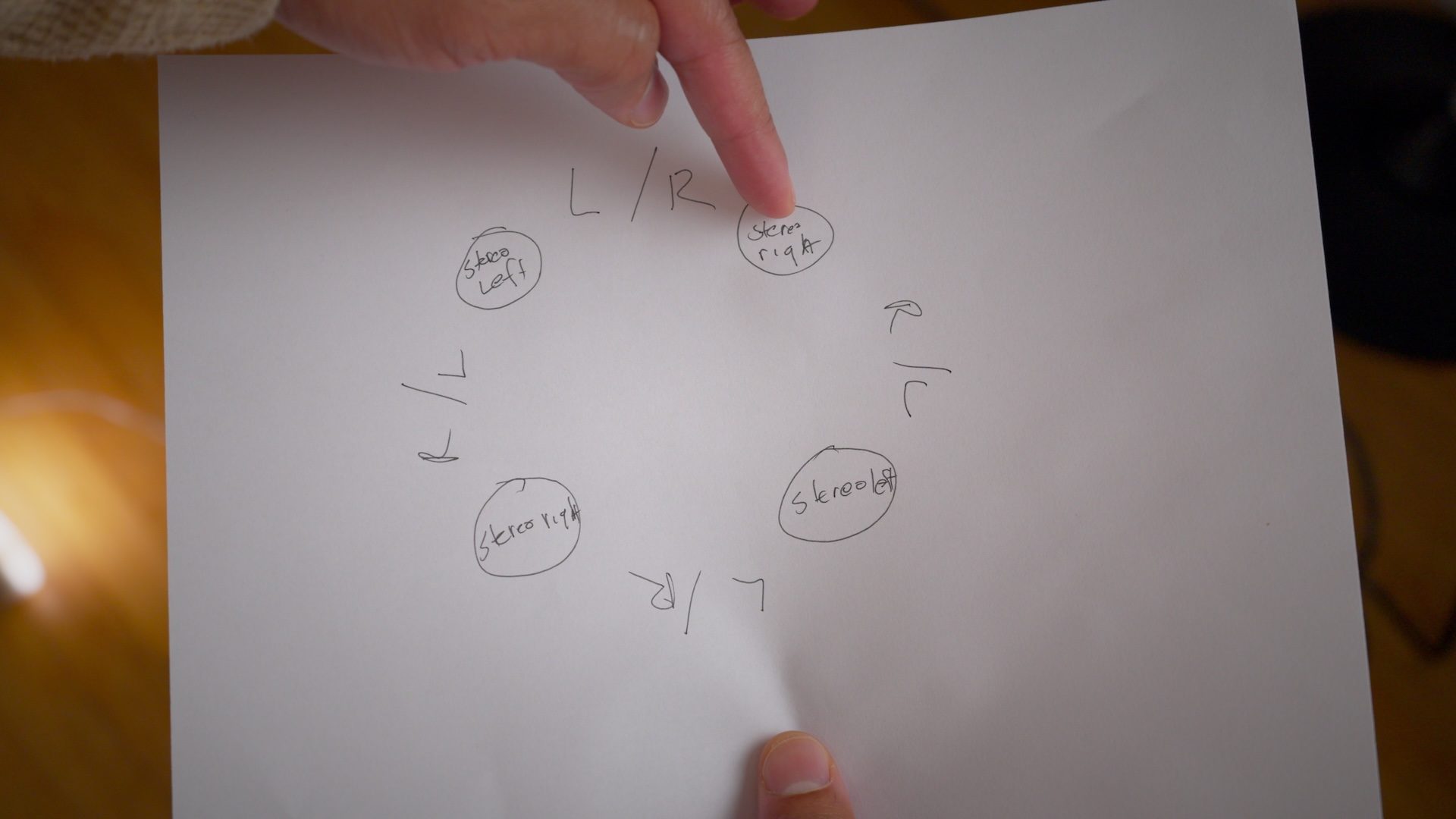
When managing your HomePod speakers via the tvOS interface on the Apple TV 4K, you’ll see new options for Surround Sound and Whole Room Audio under the Home Theater section. The surround sound option is self-explanatory and ideal for movies and television shows, but the Whole Room Audio option is better suited to listening to music, as it provides left- and right-channel placement no matter which direction you face.
9to5Mac’s Take
iOS 27.2 provides noteworthy updates to all HomePod models, including the original HomePod, which now includes the new Lock Controls capability. But the real fun starts with the HomePod mini, with its Sound Glow support, and the HomePod mini 2 and HomePod 2nd-generation, with their support for working as the default speaker for Wi-Fi 6E-enabled Mac hardware. I think a pair of HomePod mini 2’s would look great sitting next to Apple’s just-released M6 iMac.
What do you think? Are you planning to get any of Apple’s new Home-focused hardware, or are you looking to take advantage of the new 27.2 features on hardware you already own? Sound off in the comments with your thoughts on the matter.
Jeff’s favorite Apple home hardware
FTC: We use income earning auto affiliate links. More.



Comments