
Apple’s Messages app scored a bunch of new features in iOS 26, including a new ‘Screen Unknown Senders’ option meant to eliminate spam texts. My initial experience with the feature wasn’t great, but tweaking one key setting has changed that.
‘Screen Unknown Senders’ filters your Messages for spam
As part of the variety of new iPhone features in iOS 26, Apple sought to eliminate spam calls and texts.
The Phone app gained new call screening tools, and in Messages, Apple has a new ‘Screen Unknown Senders’ feature.
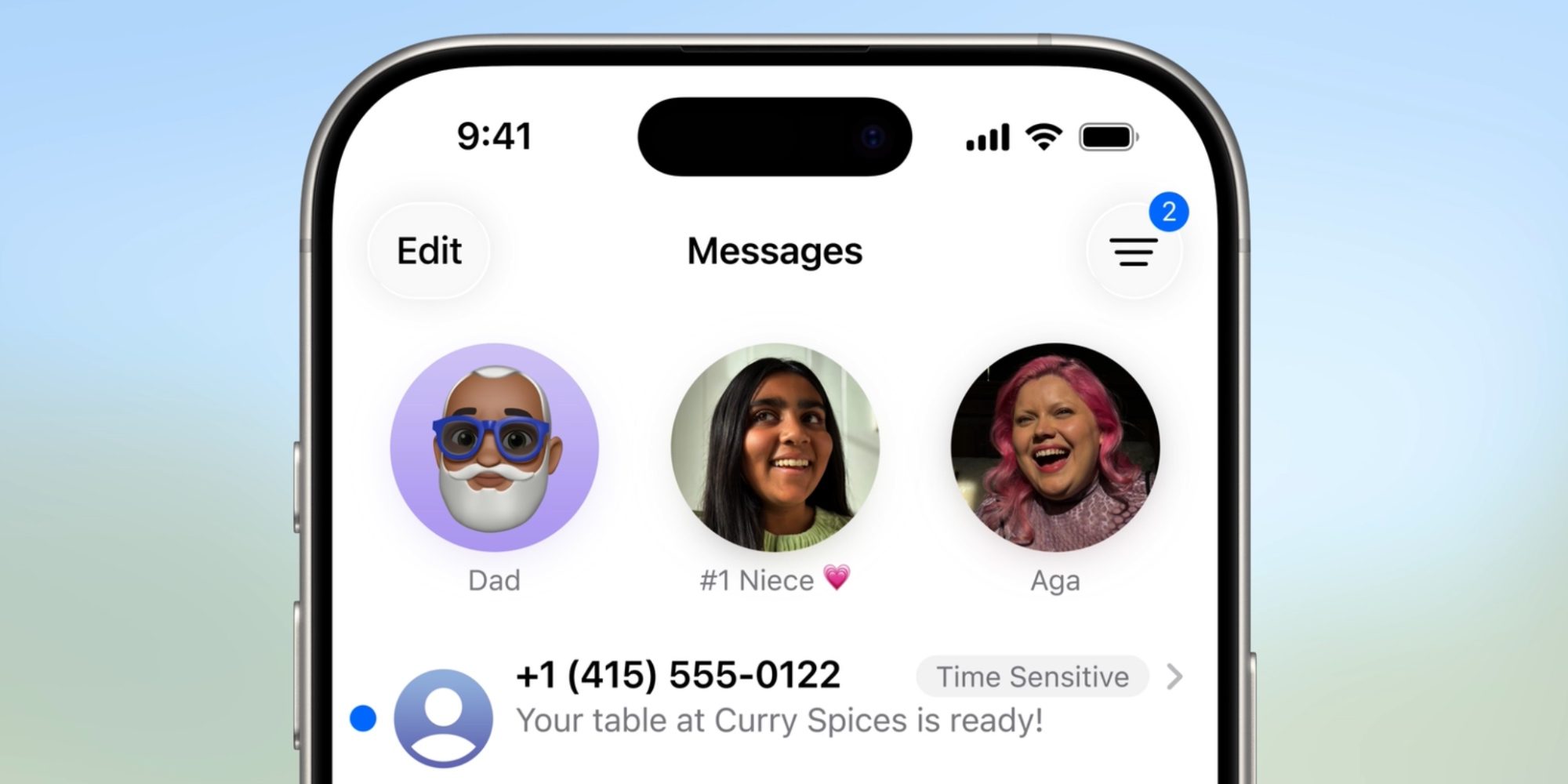
‘Screen Unknown Senders’ will identify messages that may be spam, and hide them away in a separate screen behind the filter icon in Messages’ top-right corner.
A key aspect of the feature is that these messages won’t trigger push notifications. They’ll be available in the dedicated ‘Unknown Senders’ section of Messages when they arrive, but you won’t be alerted every time potential spam comes in.
You can optionally disable ‘Screen Unknown Senders’ altogether, and Messages will work exactly as it did before. But Apple also provides some valuable filter options to make the feature work best for you.
Changing a key setting made Messages filters work better for me
For my first few months running iOS 26, I used ‘Screen Unknown Senders’ in its most restrictive setup.
Only messages identified as time sensitive were able to notify me. Generally this meant verification codes, or urgent alerts about a pending delivery.
But over time I found myself frustrated by the feature.
On several occasions, I missed key messages from senders that I didn’t want to miss.
I almost turned the feature off altogether, but then I remembered Apple’s filtering options.
Inside Settings ⇾ Apps ⇾ Messages there’s an ‘Allow Notifications’ menu under the Unknown Senders heading. It only appears when you have ‘Screen Unknown Senders’ enabled.
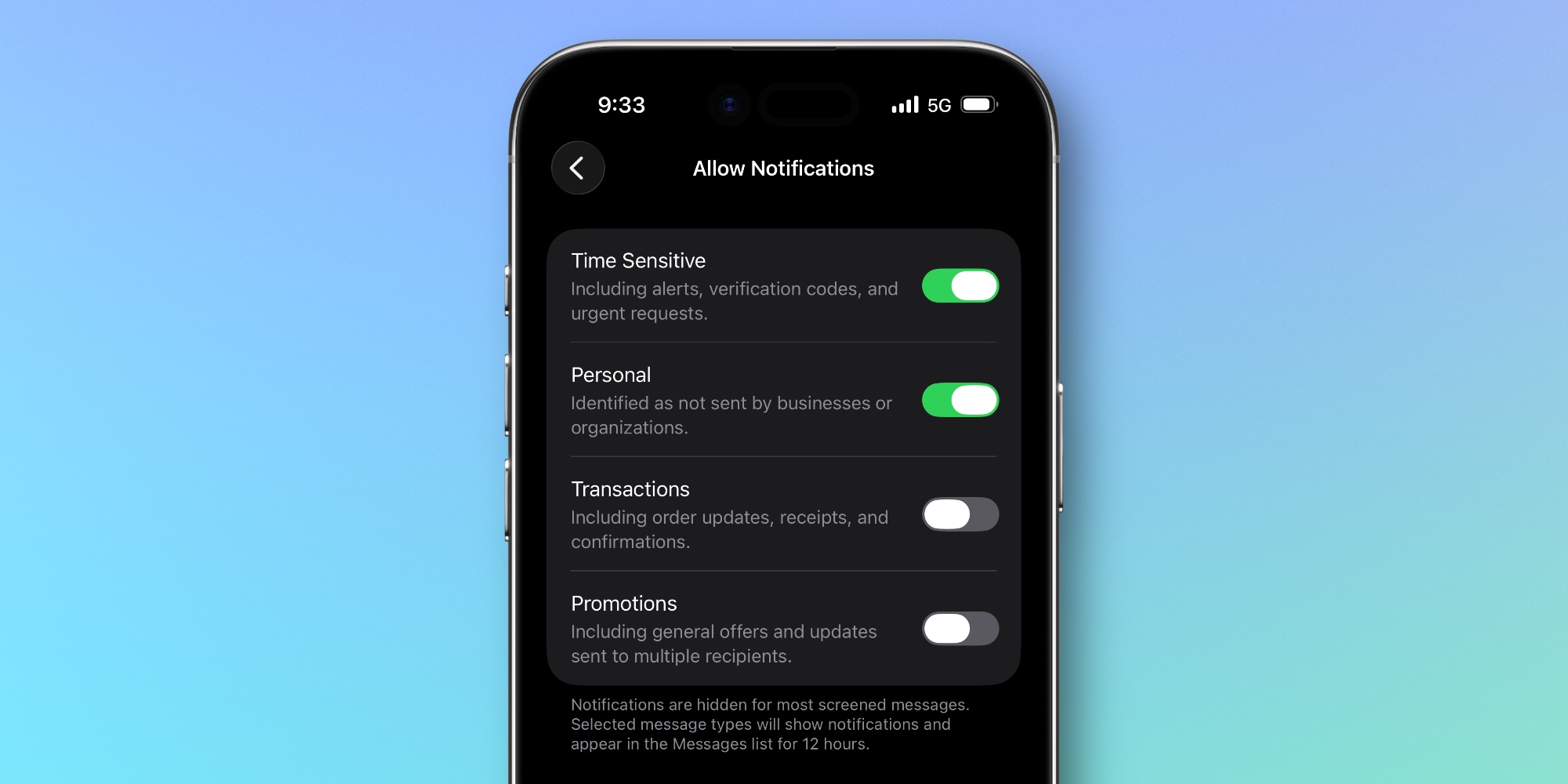
Within ‘Allow Notifications’ you can toggle alerts for four types of screened messages:
- Time Sensitive: Including alerts, verification codes, and urgent requests.
- Personal: Identified as not sent by businesses or organizations.
- Transactions: Including order updates, receipts, and confirmations.
- Promotions: Including general offers and updates sent to multiple recipients.
When I first set up the new Messages feature, I only had ‘Time Sensitive’ enabled. But I realized that toggling on ‘Personal’ should address the problem I’d been having with missed messages.
Since making that one Settings change, Messages’ new screening tools have proven a fantastic addition for me.
I no longer miss messages from real people, that are directed to me personally (rather than a large group), and time sensitive notices keep surfacing too. But all of the other spam I might receive gets filtered out and doesn’t alert me.
Are you using Messages’ new screening tools in iOS 26? How have they worked for you? Let us know in the comments.
Best iPhone accessories
- AirPods Pro 3 (now only $199, down from $249)
- MagSafe Car Mount for iPhone
- 10-year AirTag battery case 2-pack
- 100W USB-C fast charging power adapter
- AirTag 4-pack (now only $75, down from $99)


FTC: We use income earning auto affiliate links. More.



Comments