
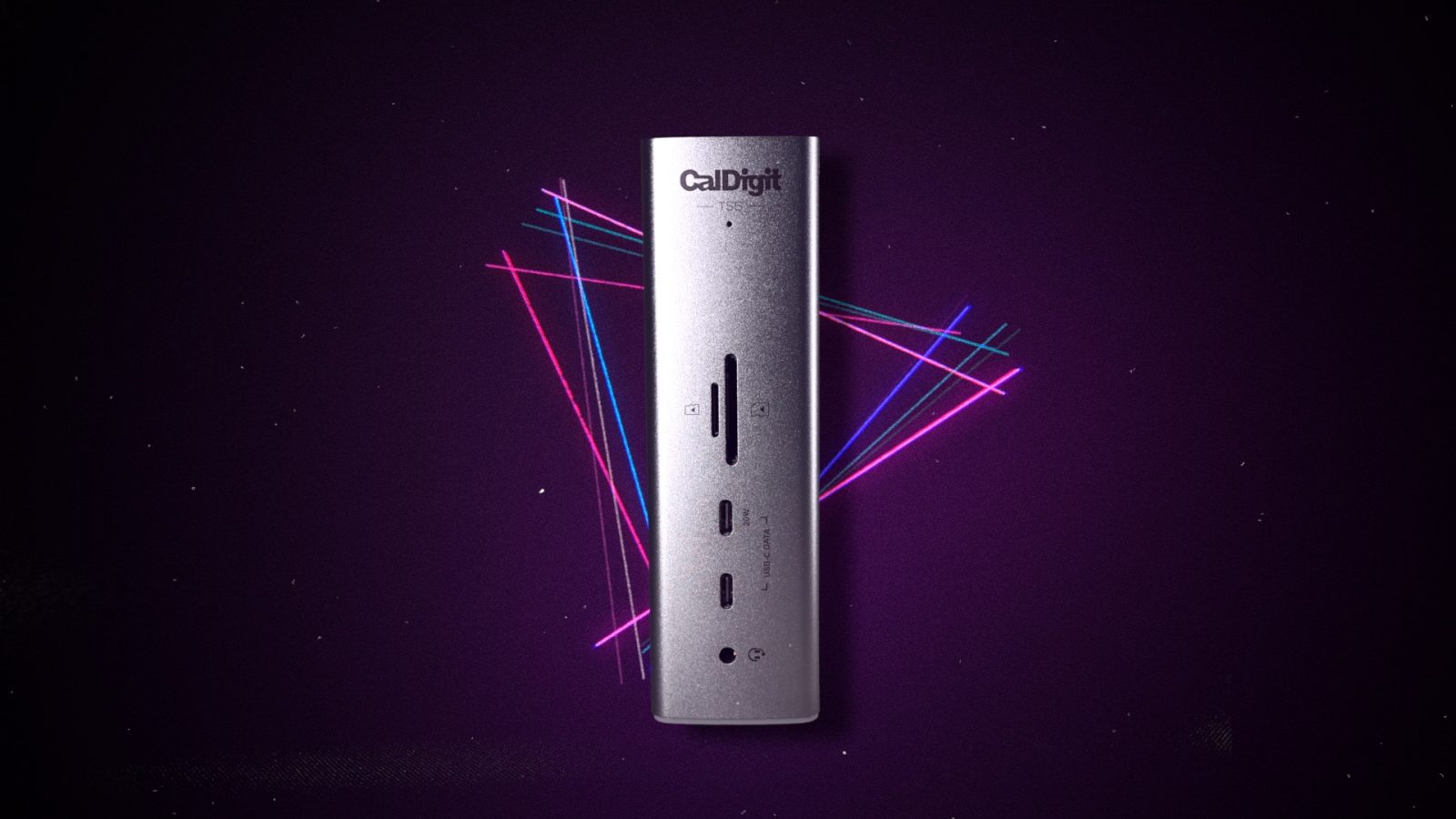
After reviewing the CalDigit TS5 Plus, a Thunderbolt 5 dock with an insane array of 20 ports, 140W charging, and 10GbE, I admit that I wasn’t as excited to try out the regular CalDigit TS5, which only sports 15 ports.
Although not as powerful as the TS5 Plus, after trying the regular TS5 for the last month, I’d recommend it over its bigger brother for most Mac users. Like the TS5 Plus, it provides 64 GB/s max PCIe bandwidth, up to 140W of Power Delivery, and a heaping helping of I/O. But it also features an additional Thunderbolt 5 downstream port, and it’s $100 cheaper than the TS5 Plus.
Is the CalDigit TS5 the dock you should consider for your Mac? Watch our hands-on video walkthrough as we take a closer look, and be sure to subscribe to 9to5Mac on YouTube for more.

Essential specifications
- 15 Ports
- 4 x 80Gb/s Thunderbolt ports
- 140W Power Delivery
- 2.5GbE
- 8 x offline charging ports
- Space Gray color
- 1-year parts and labor warranty
- Price $399
Video: CalDigit TS5 review
Subscribe to 9to5mac on YouTube for more videos
Interfaces
- 1 x Thunderbolt 5 Host (Up to 120Gb/s)
- 3 x Thunderbolt 5 (80Gb/s)
- 3 x USB-C (10Gb/s)
- 1 x USB-A (10Gb/s)
- 1 x USB-A (480MB/s)
- 1 x SD 4.0 (UHS-II)
- 1 x microSD 4.0 (UHS-II)
- 1 x 2.5 Gigabit Ethernet
- 1 x front combo audio in/out (3.5mm)
- 1 x rear audio out (3.5mm)
- 1 x rear audio in (3.5mm)
- 1 x DC In (20V 12A)
My CalDigit TS5 Setup
I’m a massive fan of Thunderbolt and the versatility and simplicity it offers, allowing us to connect to an absurd amount of external I/O with just a single cable to our Macs. An M4 Pro MacBook Pro with Thunderbolt 5 connectivity in tow is the brains of my operation. Still, the veins of the operation, if you will – the connections to all of the many peripherals that I use daily – are made possible by the CalDigit TS5.
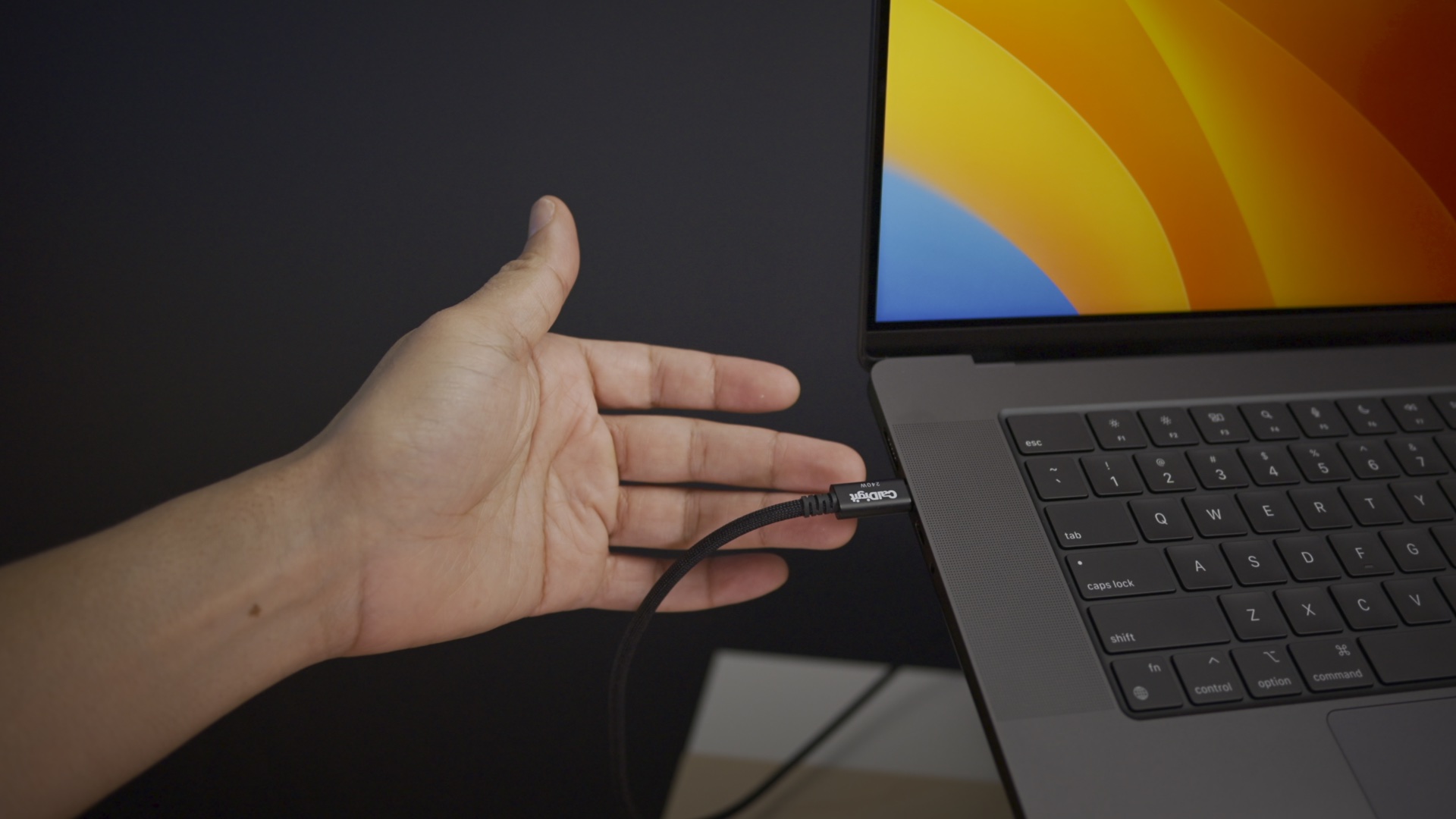
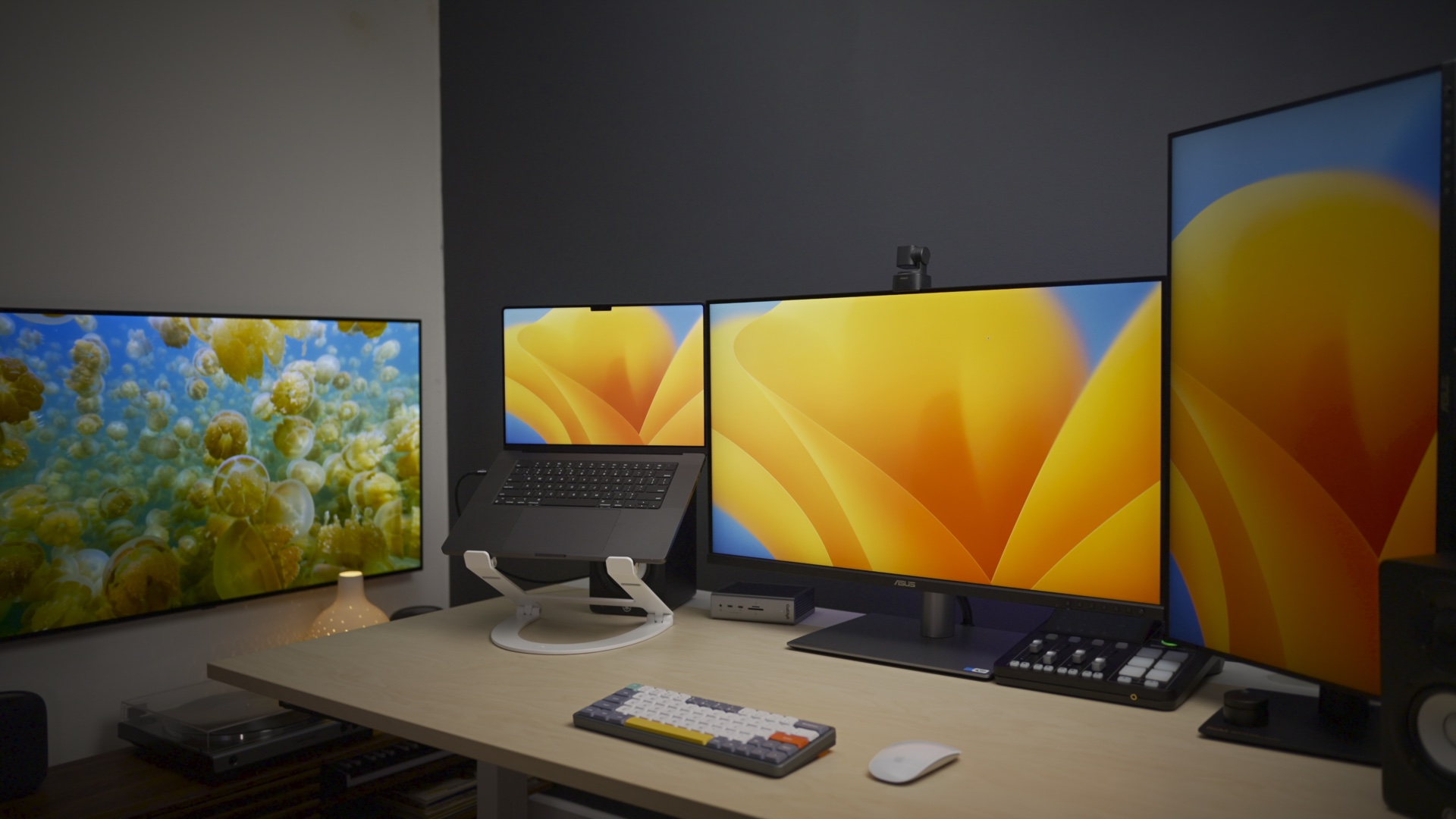
With a single Thunderbolt 5 cable connected to the upstream port on the TS5 from my MacBook Pro, I’m able to connect all of the following simultaneously with no hiccups:
- 16-inch M4 Pro MacBook Pro
- Asus ProArt Display 6K (review)
- Asus Pro Art Display 4K
- Rode Rodecaster Duo
- Shure SM7Db microphone
- Shure AONIC 50 Gen 2 headphones
- Yamaha HS3 studio monitors
- OBSBOT Tiny SE
- OWC Envoy Pro Thunderbolt 5 SSD
- OWC Envoy Express Thunderbolt 4 SSD
Watch my video above to learn more about the reasoning behind the hardware choices!

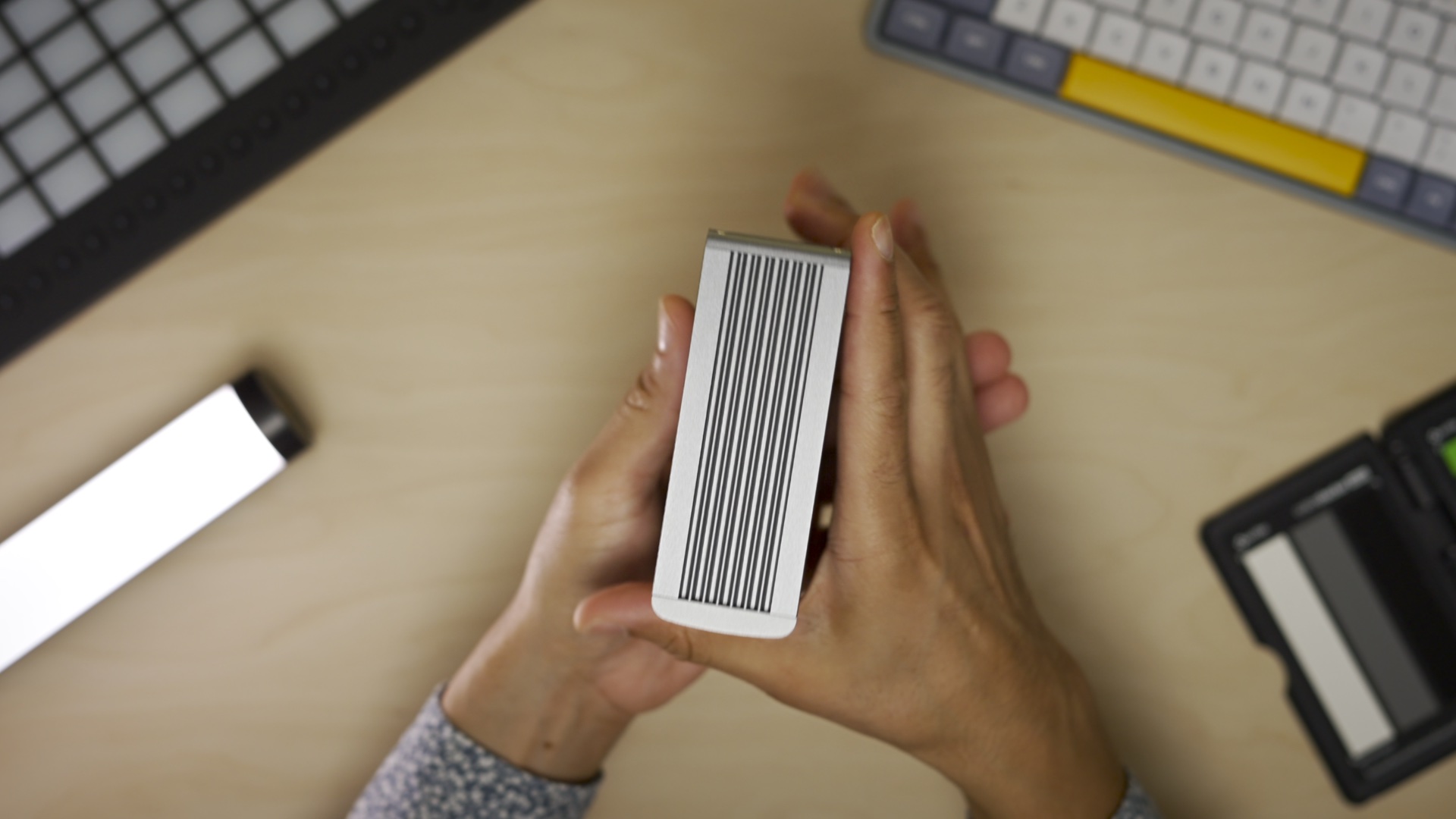
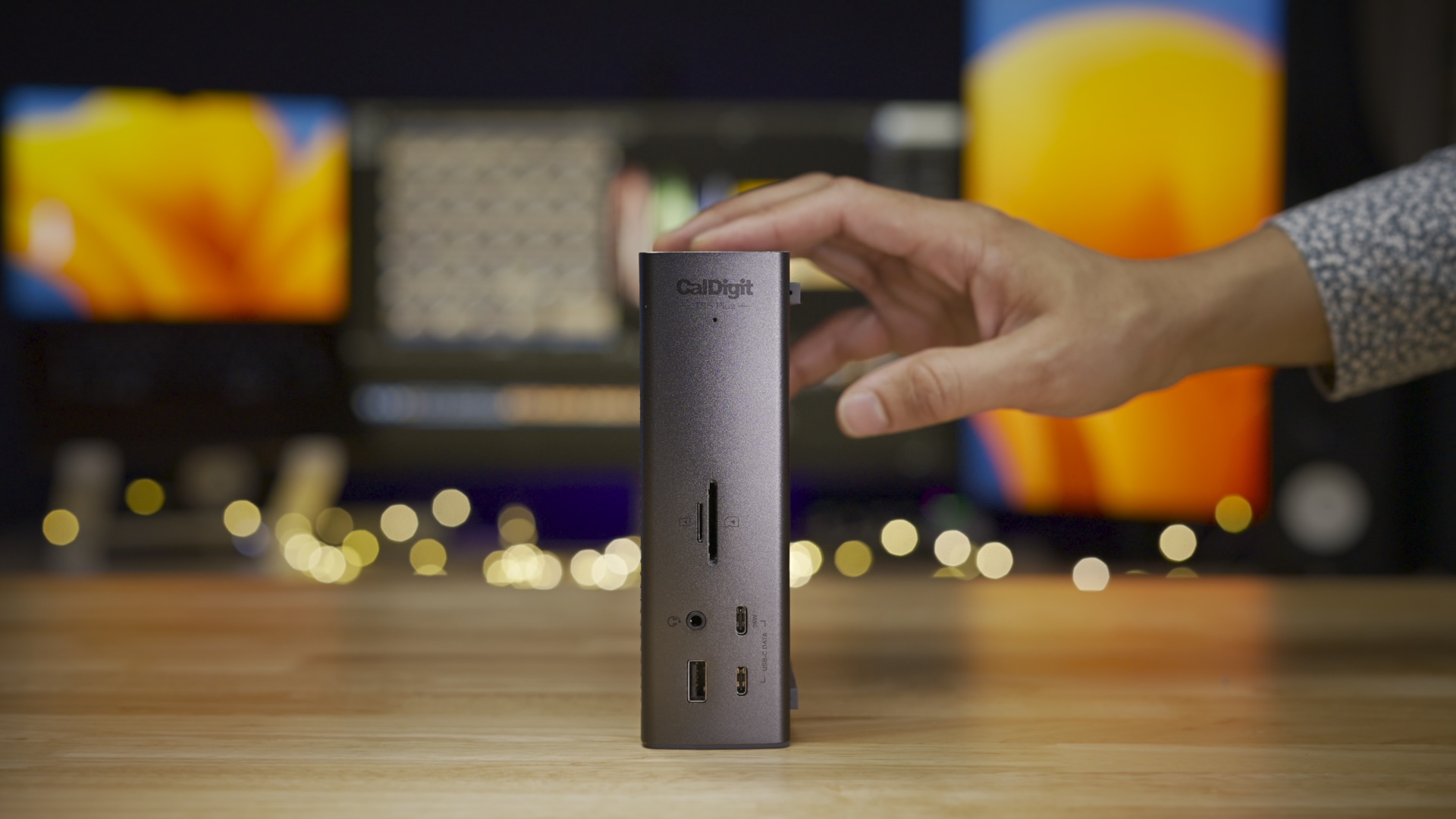
Like all T-series docks CalDigit makes, the TS5 can rest vertically or horizontally on a desktop surface. CalDigit provides handy rubber strips that can be inserted into the device’s trademarked ridges to provide additional desktop stability.
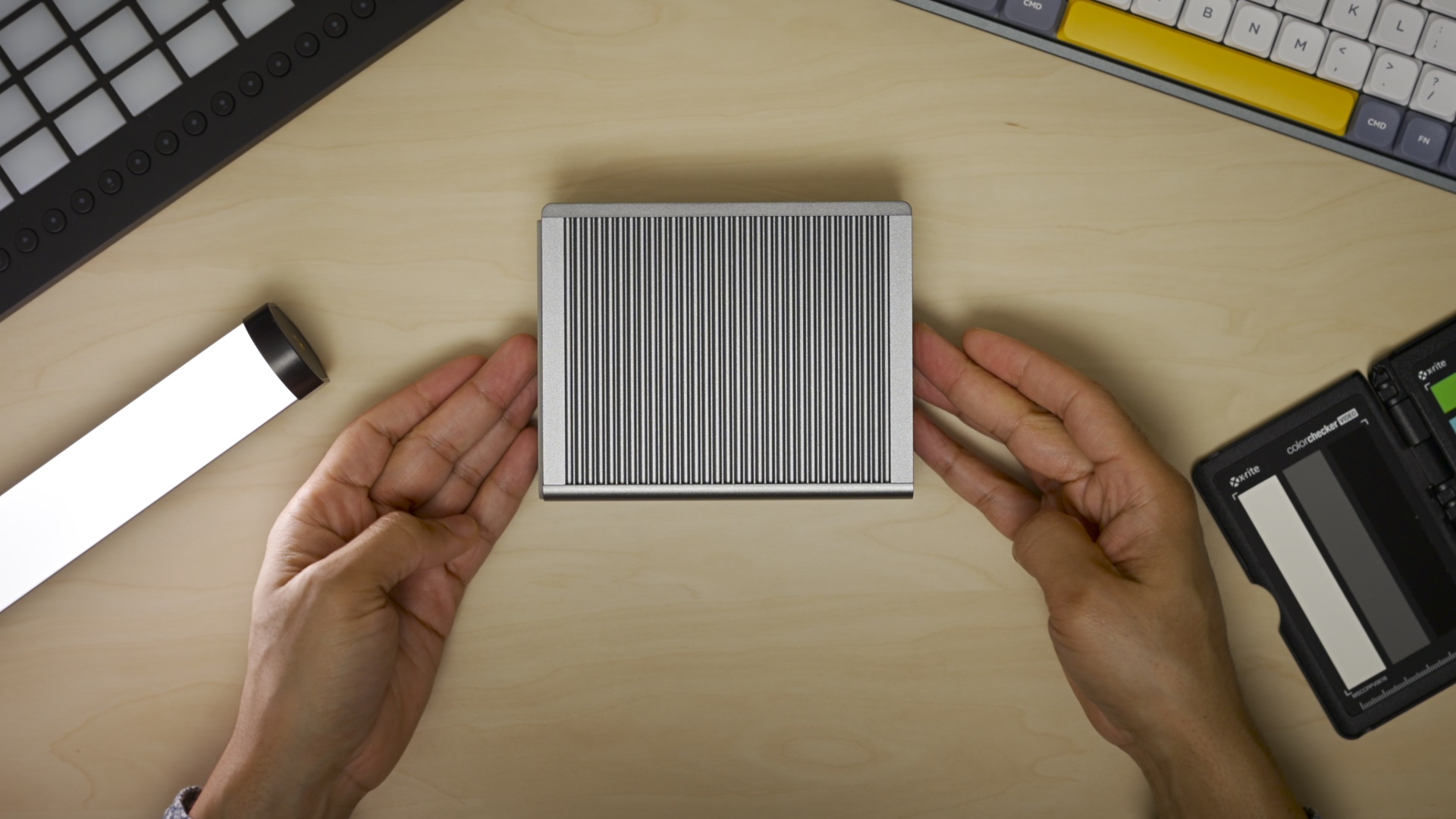
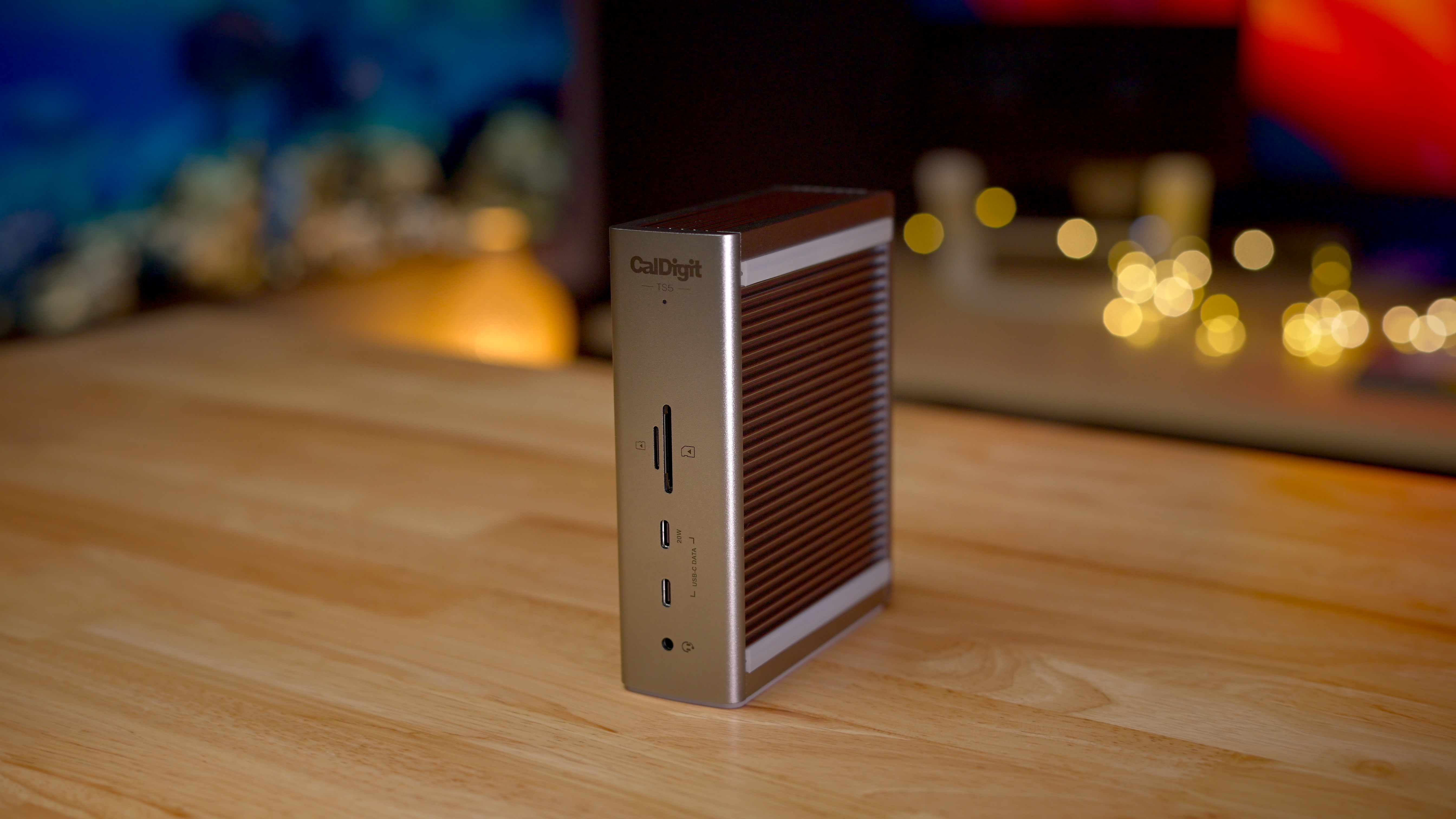
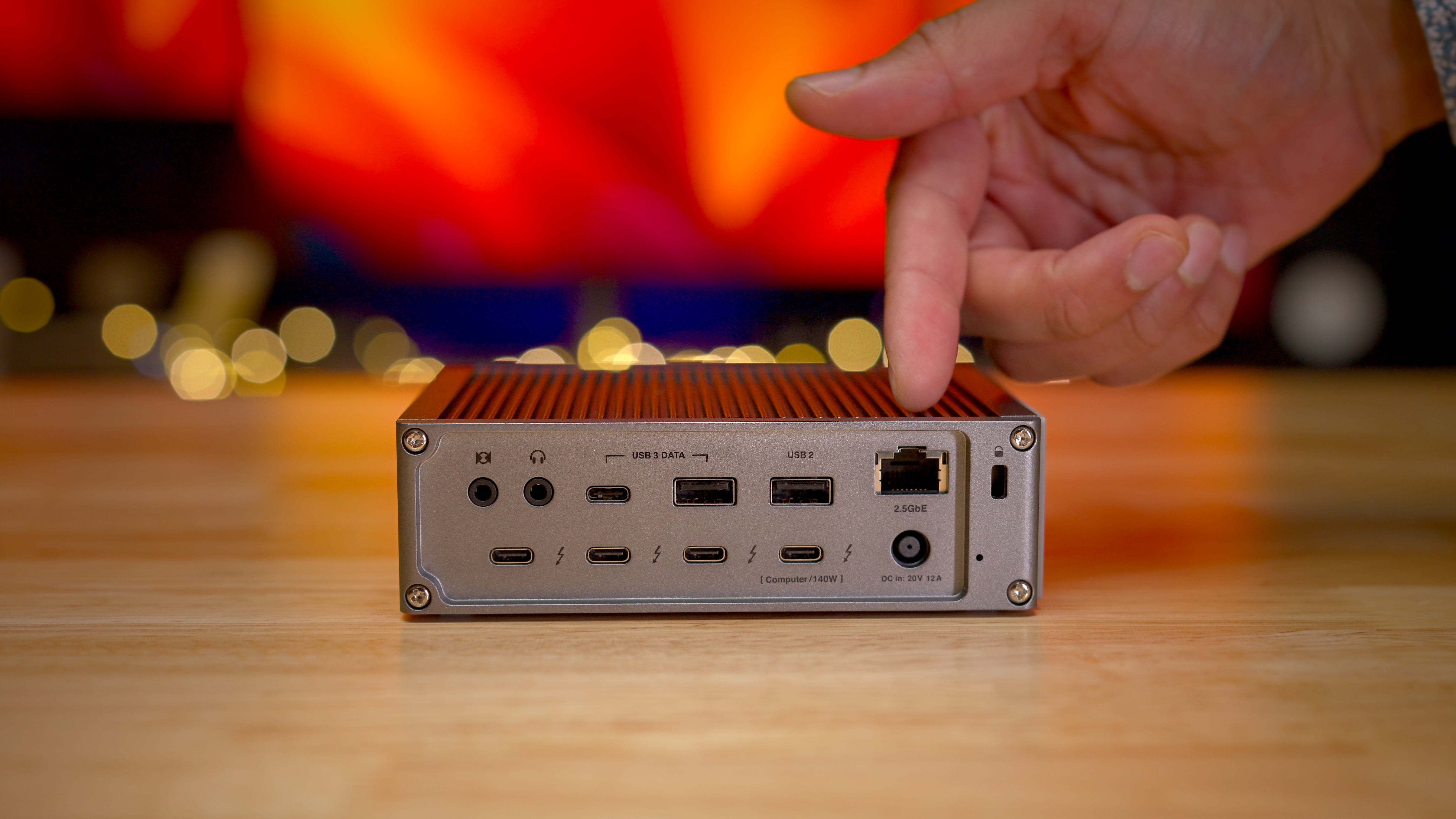
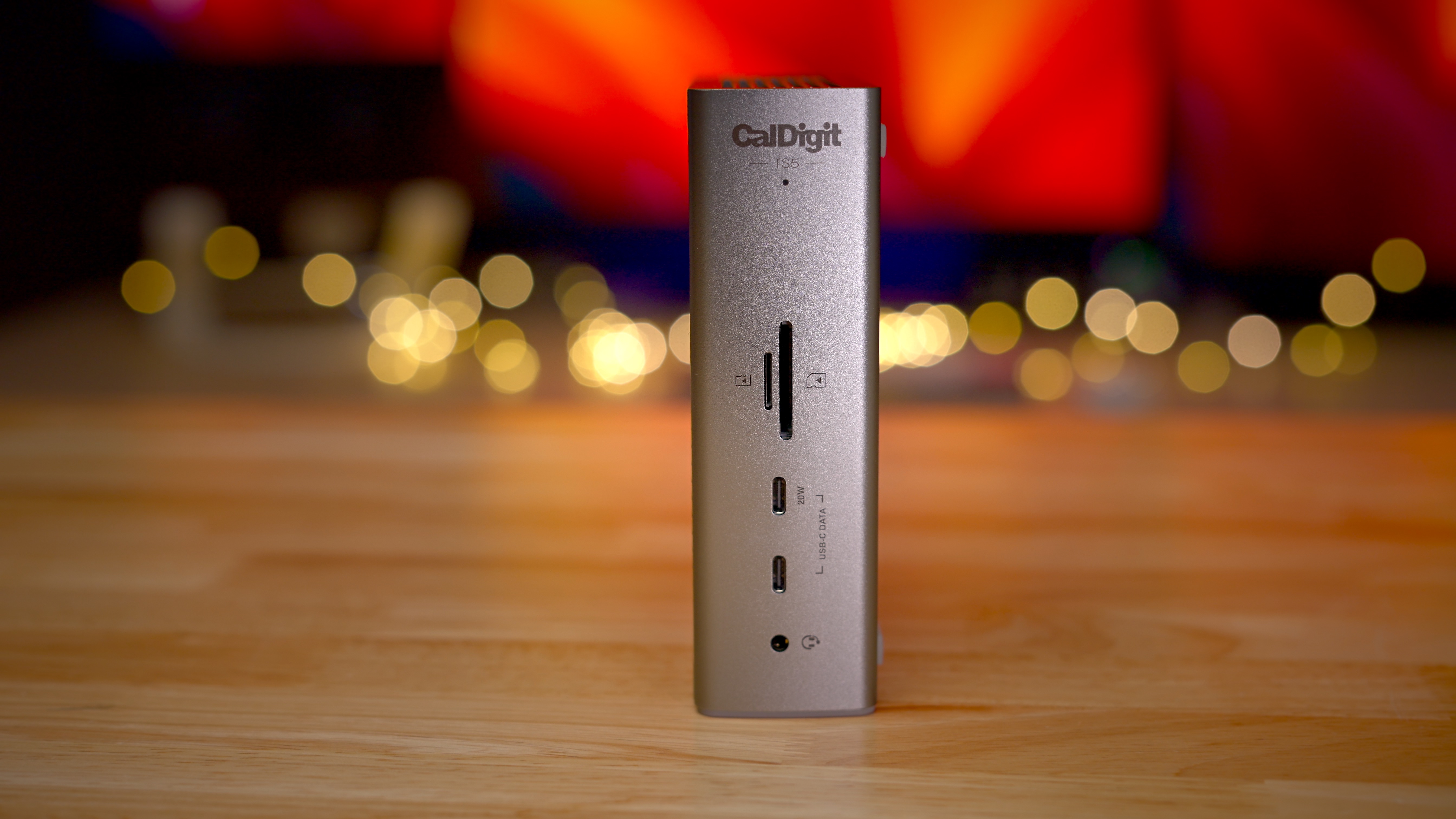
While the unit includes a few front-facing ports, such as UHS-II SD and microSD, its Thunderbolt host connection port is conveniently located on the rear, which is usually more desirable from a cable management perspective.
If you’re upgrading from an older TS device, then you’ll be pleased to learn that the TS5 supports up to 140W of power delivery to a connected computer. For a power-hungry laptop like Apple’s 16-inch MacBook Pro, this is especially nice because it will charge at maximum speed. And if your computer is Thunderbolt 5 compatible, like the M4 Pro MacBook Pro, then you’ll also be able to take full advantage of the 80Gb/s connectivity, which is double the speed of Thunderbolt 4.
I connected an OWC Envoy Pro Thunderbolt 5 SSD to the dock, and transfer speeds were similar to the speeds I got when directly connected to the MacBook Pro’s Thunderbolt 5 ports. If I had the same setup connected via an older device like the CalDigit TS4, the speeds would be effectively cut in half, since Thunderbolt 5 offers double the bandwidth of Thunderbolt 4 (up to 6200 MB/s for compatible external SSDs).

But even if you don’t yet own a Thunderbolt 5 device, the technology is backward-compatible with older Thunderbolt versions, so you’ll be good to go and ready for future upgrades.
The TS5 is compact, and I found it dead silent and reliable while taking advantage of the power and flexibility offered by Thunderbolt 5. That said, there are differences that you’ll want to consider when deciding between it and the CalDigit TS5 Plus.
Differences between TS5 and TS5 Plus
| TS5 | TS5 Plus | |
|---|---|---|
| Total TB ports | 4 | 3 |
| TB Downstream PD | 15W | 36W |
| USB-A (10Gb/s) | 2 | 5 |
| USB-C (10Gb/s) | 3 | 5 |
| Dual USB Controllers | No | Yes |
| Front 36W USB-C | No (20W only) | Yes |
| Front USB-A port | No | Yes |
| DisplayPort | No | Yes |
| Ethernet | 2.5GbE | 10GbE |
| Color | Space Gray | Space Black |
| Dimensions | 5.55” x 1.65” x 4.46” | 6.10” x 1.85” x 5.03” |
| Price | $399.99 | $499.99 |
For an extra $100, the TS5 Plus packs several noteworthy additions into a dock that is physically larger than the regular model, and it features a significantly larger 330W power supply. This allows the TS5 Plus to deliver up to 36W of power via all of its downstream Thunderbolt ports versus the TS5’s 15W. It also offers a 36W front-facing USB-C port, compared to the TS5’s 20W port. These power-delivery improvements provide faster charging for devices like iPads and should be more than enough power for even the hungriest of bus-powered devices.
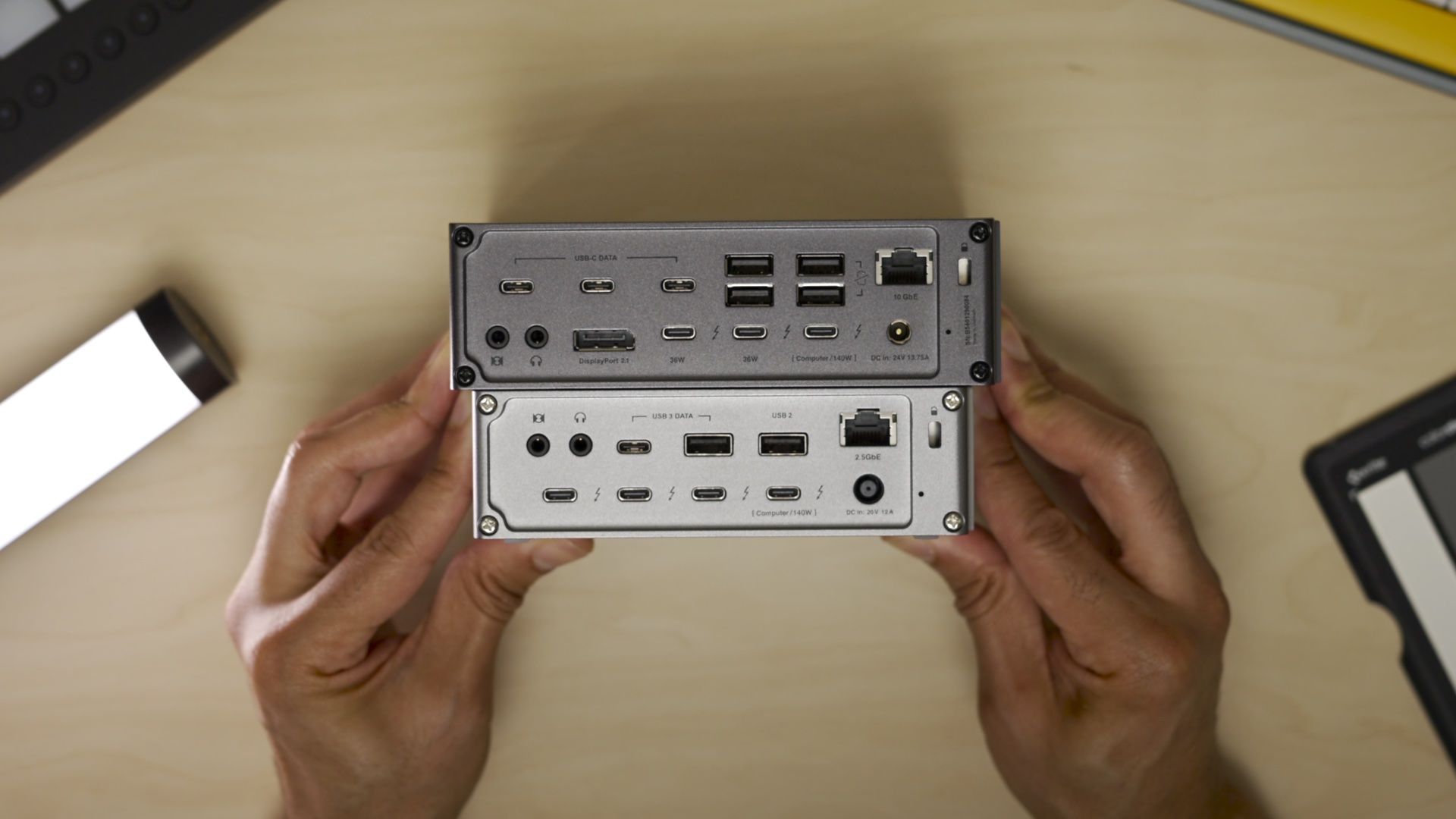
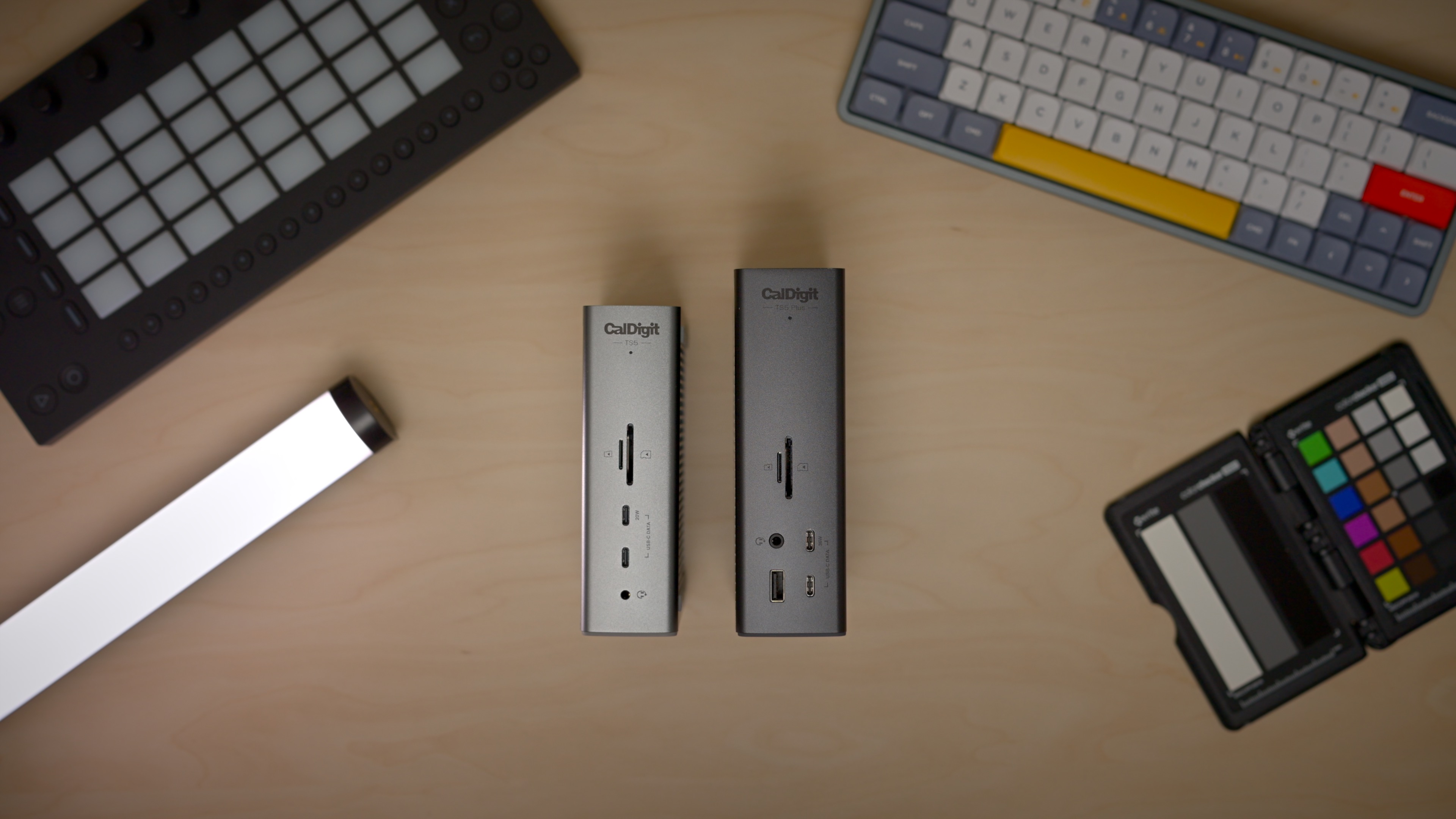
Other noticeable differences include 10GbE versus 2.5GbE, a physical DisplayPort 2.1 connection on the rear, and more USB-C I/O – five ports versus three – and USB-A I/O – five ports versus two. It’s worth noting that one of the USB-A ports on the regular TS5 is limited to 480 Mb/s, so it’s better suited for wired mice and keyboards.

Related: CalDigit TS5 Plus review
CalDigit also gave the TS5 Plus dual USB Controllers to speed up simultaneous data transfers between multiple SSDs, a feature that you won’t find on the lower-cost model. In contrast, devices connected to the TS5 share the same logical bandwidth.
It’s up to you to decide whether any of these differences warrant spending an extra $100, but I’d go out on a limb and say most users will be more than happy with the regular TS5.
External Displays
No desktop setup is complete without at least one external display, and the Asus Pro Art Display 6K stands front and center as my primary monitor. Its large 31.5-inch footprint, coupled with 6K resolution, allows me to view and edit 4K video content with ease, and enjoy sprawling views of my Ableton Live arrangements.
To the right of the primary monitor is a second 4K Asus Pro Art display in portrait mode. I use this display primarily for content best viewed in portrait orientation, such as Slack and Discord chats, RSS feeds, and Instagram. It’s off to the side, so it’s less distracting than if it were front and center. This display, like its 6K companion, is matte, which is great for readability and reducing reflections originating from the many studio and practical lights in my workspace.
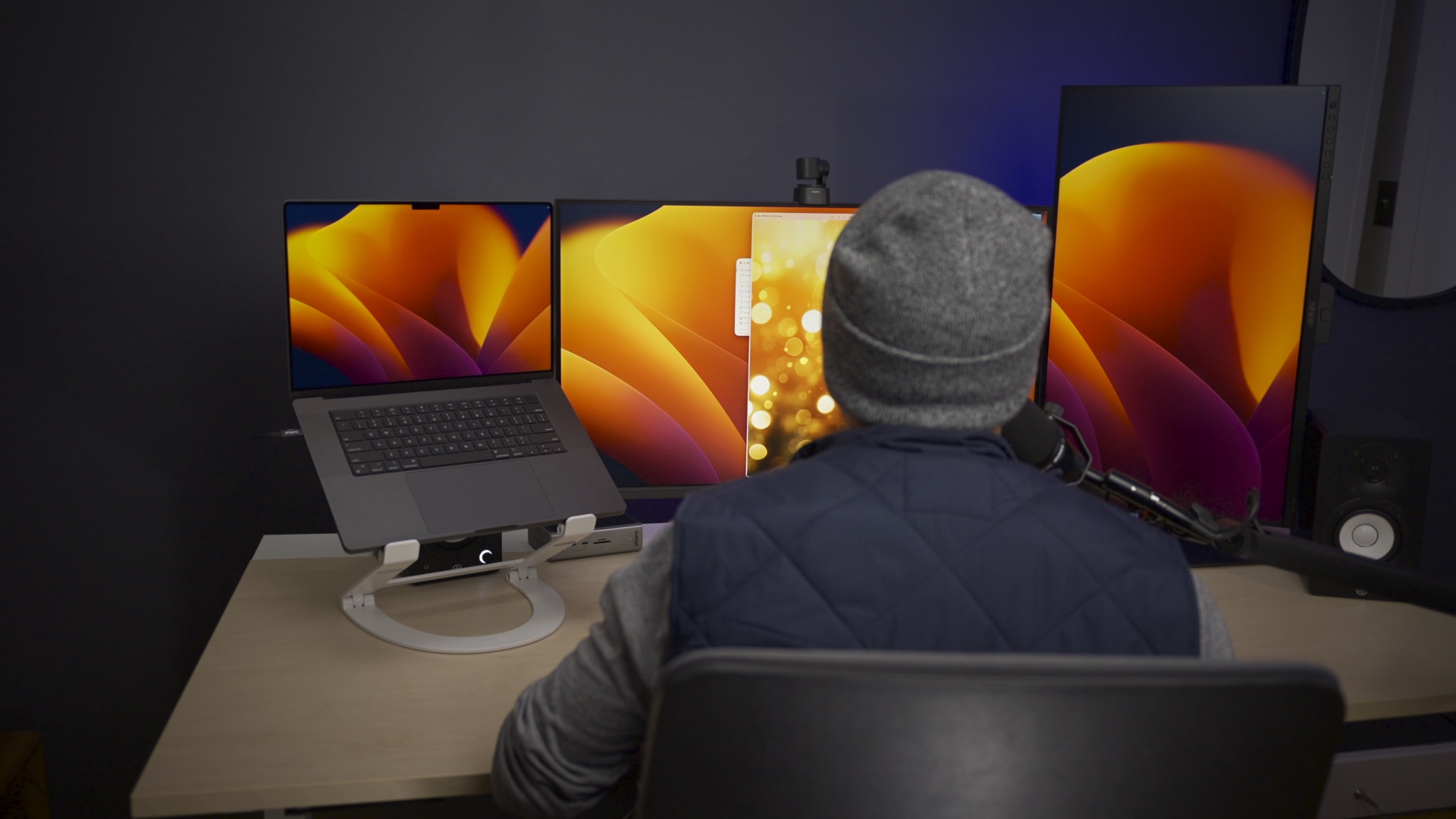
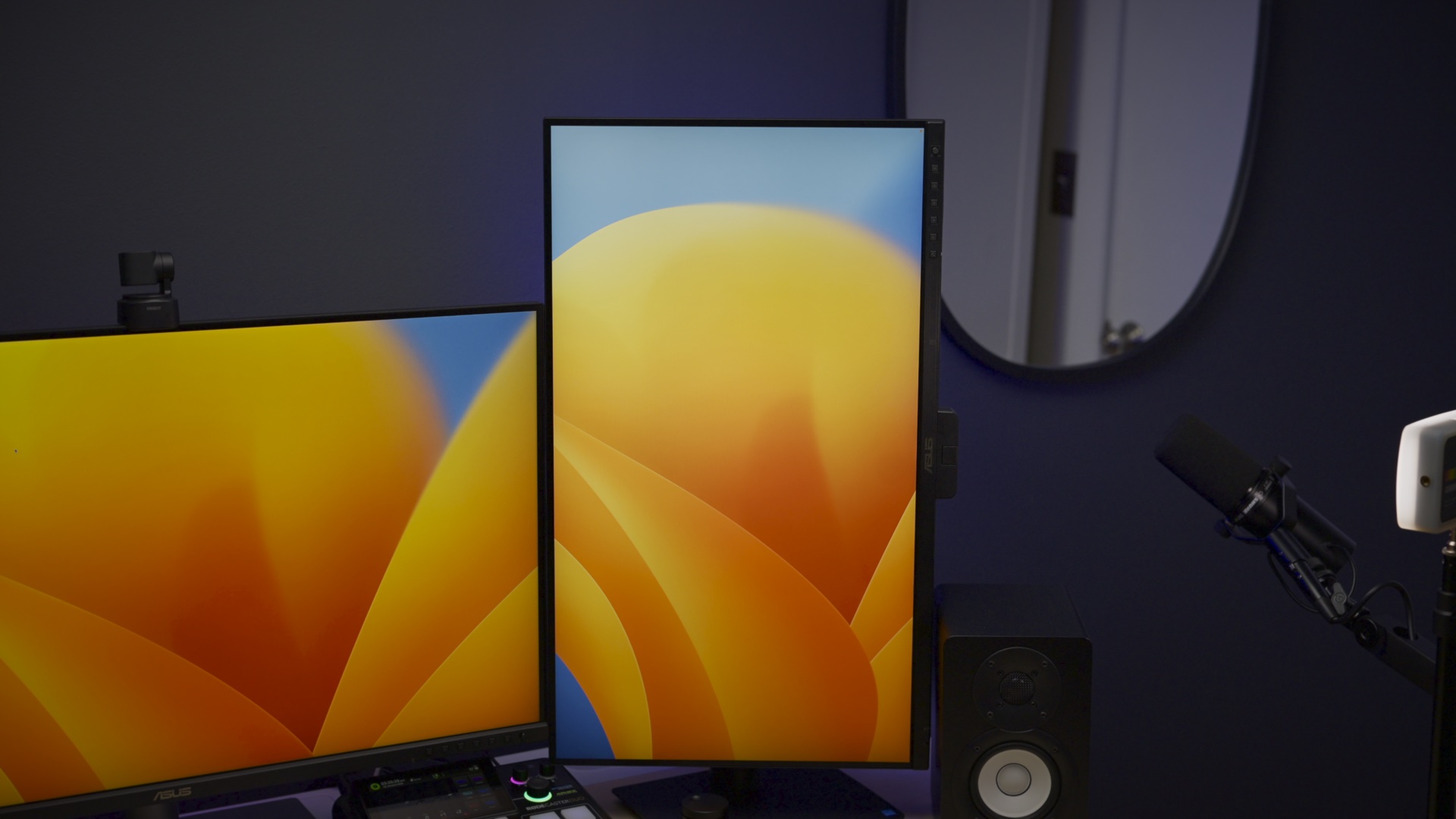
While Windows users can connect up to three external displays, macOS users are limited to two. CalDigit outlines many display combinations in its documentation, but the TS5 can support up to two 6K displays at 60Hz on macOS. The TS5 also supports higher refresh-rate displays and provides up to 120 Gb/s of bandwidth to a connected display via the Thunderbolt 5 Boost feature when necessary. I strongly recommend reading CalDigit’s explanation of display possibilities, because there are quite a few asterisks to consider.
An extra Thunderbolt 5 downstream port
For all the advantages the TS5 Plus has over the TS5, there is one area where the baseline model beats its bigger brother: the amount of Thunderbolt 5 I/O.
CalDigit included three downstream Thunderbolt 5 ports on the TS5, versus just two on the TS5 Plus. Depending on your setup and Thunderbolt requirements, this may actually make the regular TS5 more desirable over the TS5 Plus!
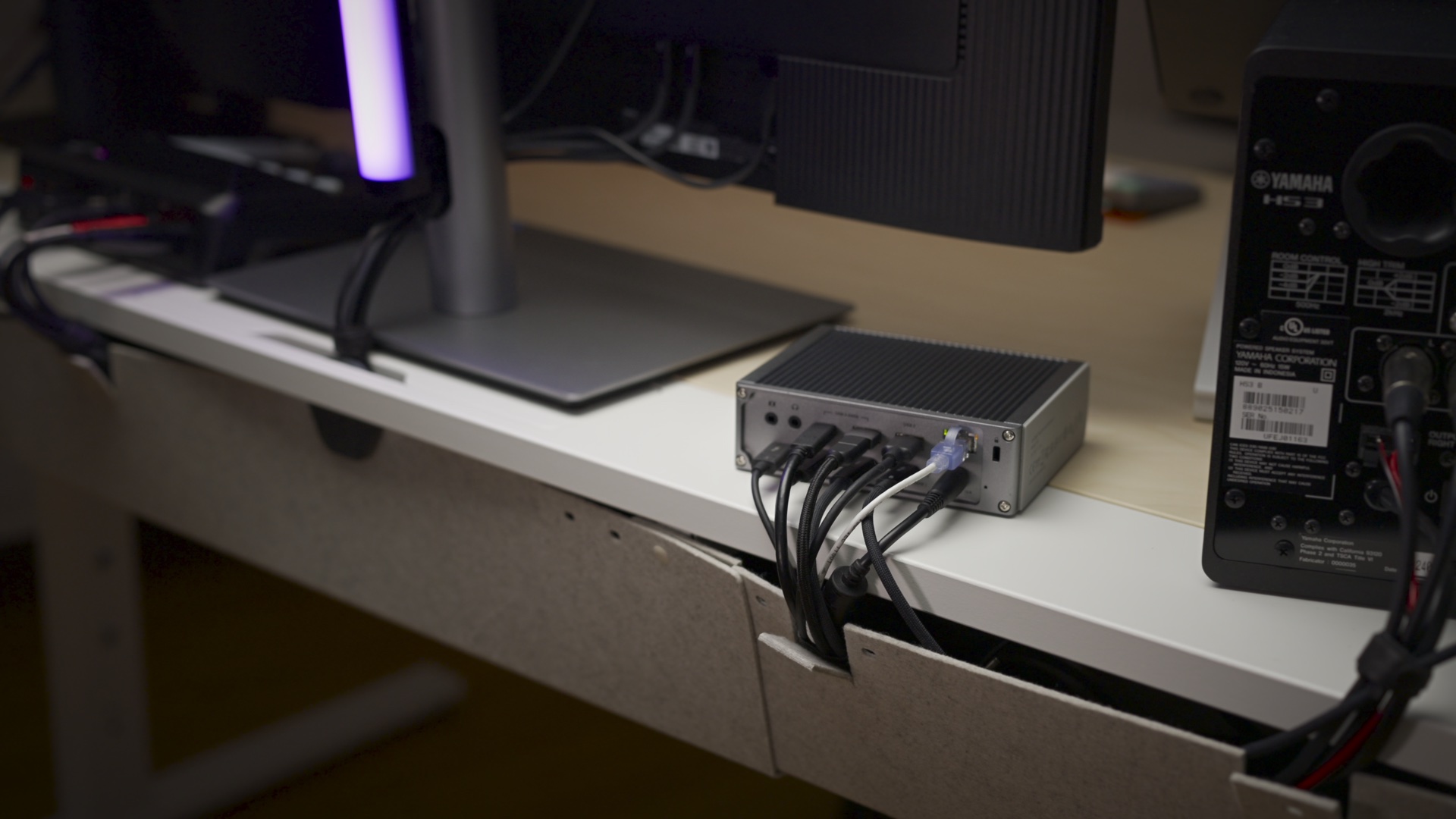
Especially is this extra port handy when connecting devices that serve as Thunderbolt termination points, in other words, devices that don’t feature dual Thunderbolt ports to facilitate daisy-chaining. For users with lots of Thunderbolt-only hardware, this may be a selling point.
9to5Mac’s Take
The CalDigit TS5 can turn a complex peripheral setup into a breeze with single-cable connectivity to your host computer. And it’s not just limited to the Mac; it works with Windows PCs and even the iPad and iPhone to a limited degree. If you regularly work at a desk with external displays and other devices, a dock like the CalDigit TS5 is one of the best accessories you can buy.
How do you connect accessories to your Mac? Would you consider the TS5 or TS5 Plus? Sound off in the comments with your thoughts.


FTC: We use income earning auto affiliate links. More.






Comments