
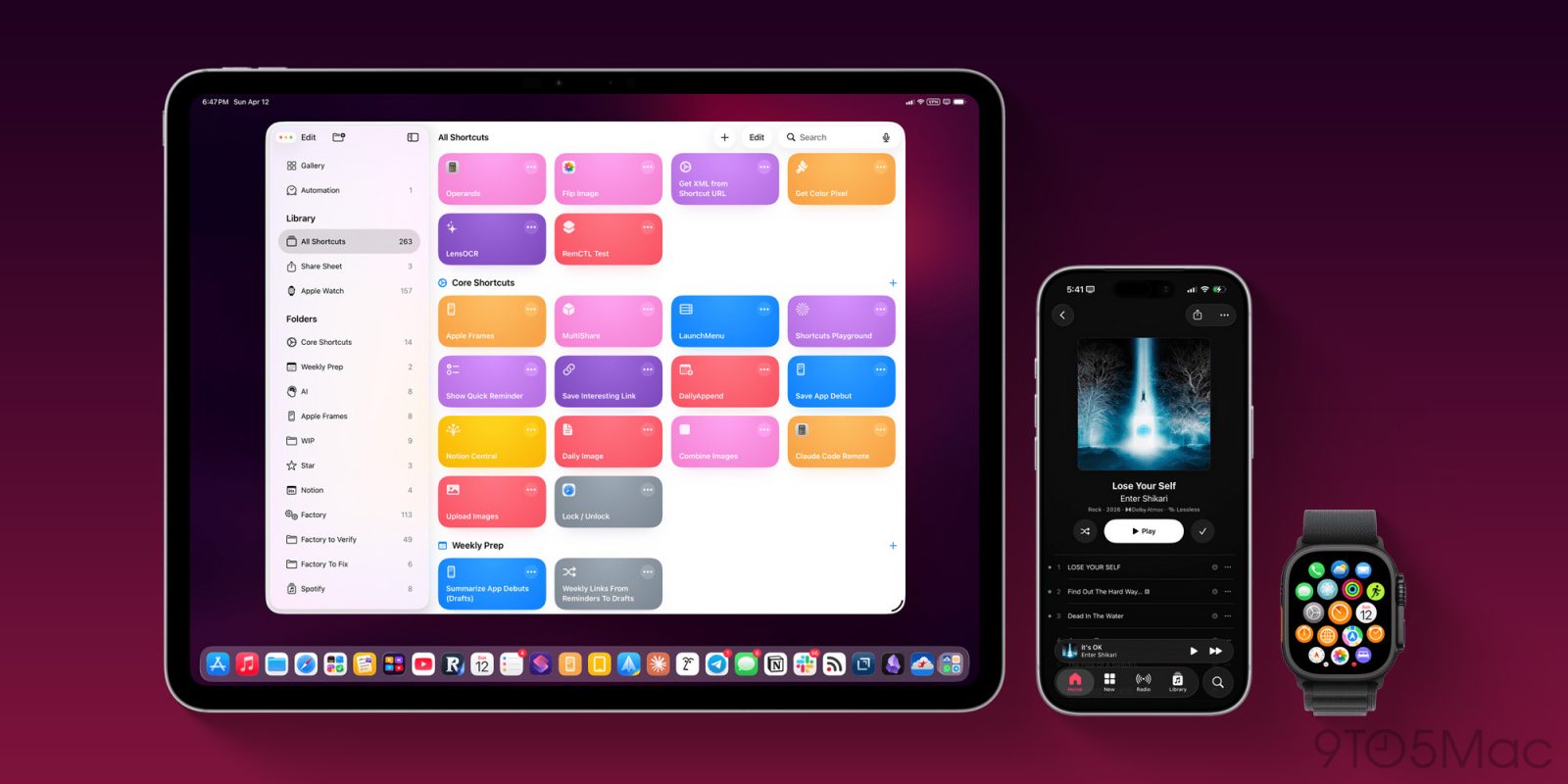
Federico Viticci at MacStories is out today with a major update to his Apple Frames shortcut that frames your screenshots with official Apple product bezels.
Federico describes Apple Frames 4 as a “complete rethinking of the shortcut that is noticeably faster, updated to support all the latest Apple devices, and designed to support even more personalization options.”
Apple Frames is a complex shortcut, but Federico has somehow trimmed it from over 800 steps to around 300 with this update. This means it is “faster and vastly more reliable than before thanks to a more intelligent logic that adapts to the growing ecosystem of Apple screen sizes and display resolutions.”
Federico explains one of the additions with Apple Frames 4:
The first big addition to this version is support for frame colors. Finally, you’re no longer limited to whichever default frame color I chose: Apple Frames 4 supports all the colored bezels officially offered by Apple. If you don’t like the defaults I picked, you can customize the shortcut per-device and per-orientation to use whatever color you like best.
Apple Frames 4 also adds support for device variants. For example, you can choose between using the iPhone 16 Pro or iPhone 17 Pro for a particular frame. There’s also now proportional scaling:
The other substantial addition to Apple Frames 4 is proportional scaling when merging screenshots from different Apple devices. This is something that always bothered me about Apple Frames: when framing screenshots from, say, an iPhone 17 Pro Max and an iPad Pro, the shortcut would merge the images, display them side by side, and…the iPhone would be as tall as the iPad Pro. That’s no longer the case: the new Apple Frames also contains a mapping of all supported devices’ physical proportions, which are respected when merging different screenshots in the same image.
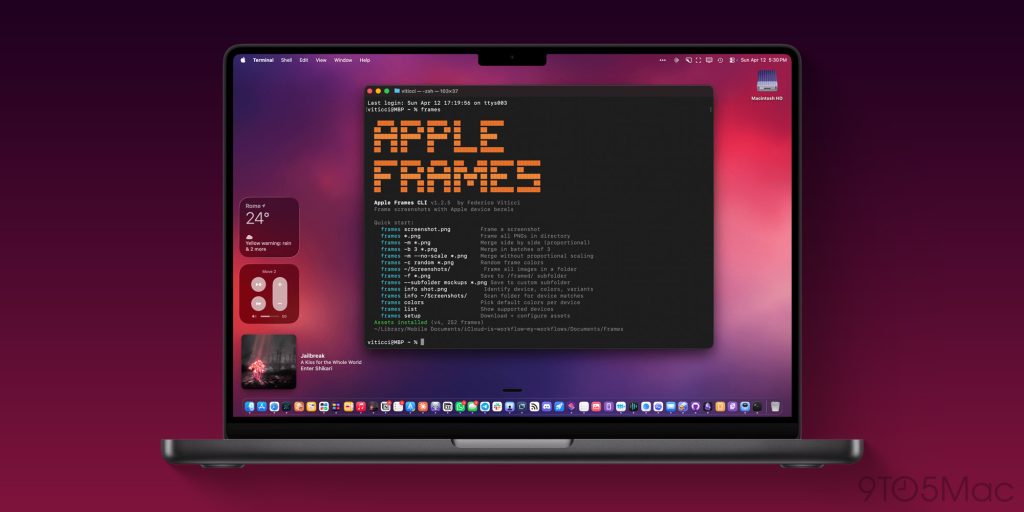
Naturally, Federico didn’t stop there. In addition to overhauling Apple Frames, he also built a command-line interface (CLI) to frame screenshots from directly in Terminal on your Mac:
I built the CLI for this very reason: to help developers and marketers who deal with screenshots on a daily basis and save them a bit of extra time every day. Furthermore, by building the CLI with an agent-first mindset and shipping a skill for it, I’ve also ensured that Apple Frames can now be a part of agentic app development workflows. If you’re already using Claude or Codex to build, test, and debug your iPhone and iPad apps, now you can slot in the Apple Frames CLI and related skill to end up with pretty framed screenshots.
You can download the new Apple Frames 4 shortcut and find more information on the Apple Frames CLI on the MacStories website. Apple Frames is a key part of my workflow for 9to5Mac, and I know it’s also a crucial tool for developers. I’m thrilled with this update.
Follow Chance: Threads, Bluesky, Instagram, and Mastodon.


FTC: We use income earning auto affiliate links. More.


Comments