
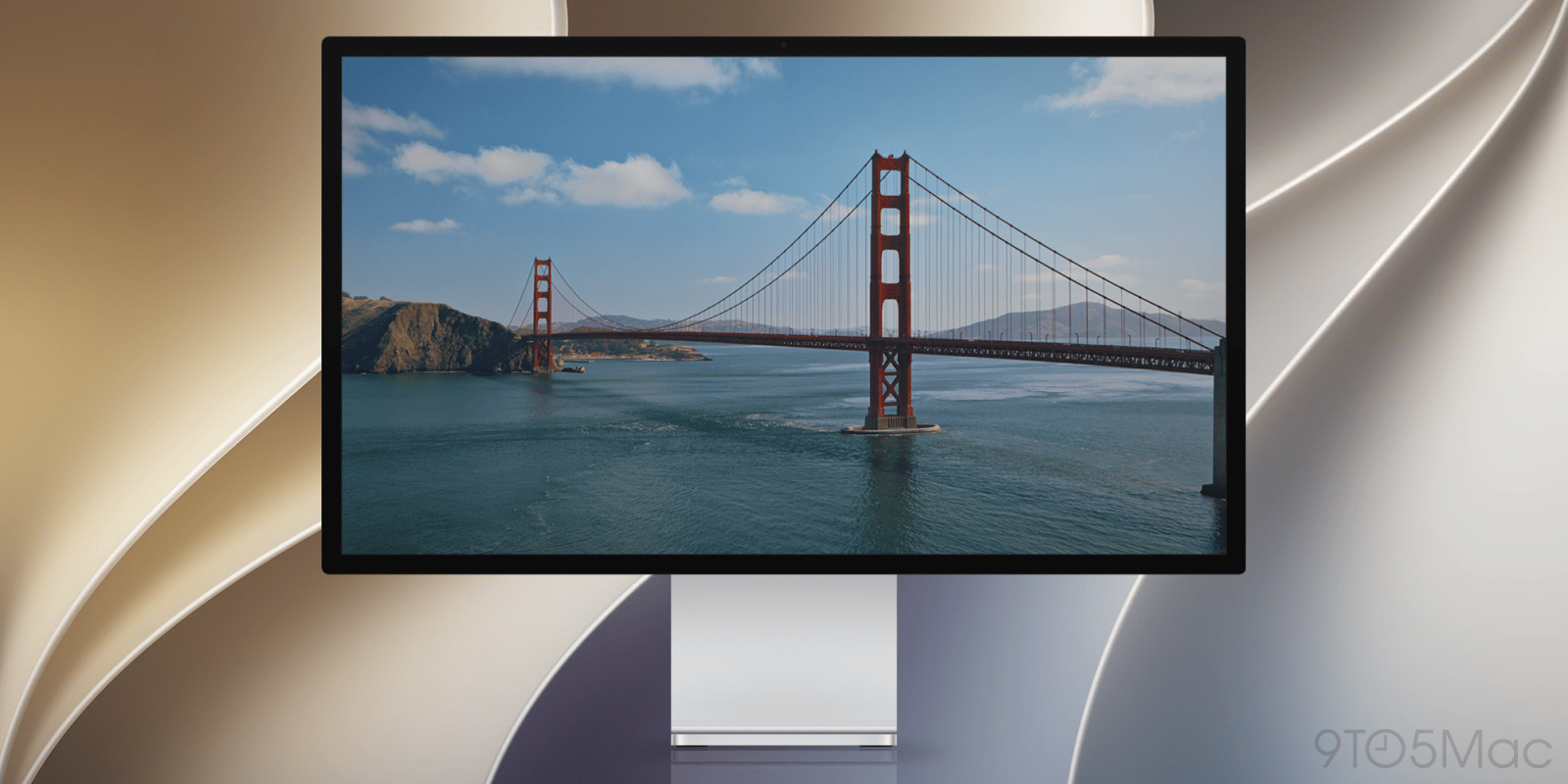
Included in today’s release of macOS 27 Golden Gate beta 6 is a new dynamic wallpaper of the Golden Gate Bridge, bringing the total count of dynamic wallpapers to five. Download all of the below.
macOS 27 Golden Gate wallpaper gallery keeps expanding
When Apple announced macOS 27 Golden Gate during WWDC26, the company showed the same system wallpaper across all of its operating systems, featuring a stylized 27.
After a couple of developer betas, however, Apple began adding dynamic screensavers that double as wallpapers, featuring beautiful slow-motion footage overlooking San Francisco’s iconic Golden Gate Bridge.
When the Mac is unlocked, the screensaver gradually comes to a stop, leaving behind a fresh and slightly different wallpaper each time.
Although macOS handles the dynamic effect, below you’ll find a gallery of static frames from each of the four videos, plus light and dark versions of the generic stylized 27 wallpaper.












Be sure to click the images and save the full-resolution versions. To set either as your background image, go to ‘System Settings’ > ‘Wallpaper’, scroll down to ‘Your Photos’, click the ‘Add Photo’ button, then do any of the following:
- Add a photo from your Photos library: Click Choose from Photos, then select a photo.
- Add an image file: Click Choose File, select a file, then click Open. You can also drag an image from your desktop or a folder onto the thumbnail at the top of Wallpaper settings.
- Add a folder from the Finder: Click Choose Folder, select a folder, then click Open.
- Add an album or folder from the Photos app: Select an album or folder under Photo Sets.
According to Apple, “you can also choose custom wallpaper without opening Wallpaper settings”:
- Use a photo from your Photos library: Go to the Photos app, select a photo, click the share button in the Photos toolbar, then click Set Wallpaper.
- Use a picture you find on the web: Control-click the image in the Safari window, then choose Use Image as Desktop Wallpaper.
- Use an image you saved on your Mac: Click on the Finder in the Dock to open a Finder window. Control-click the image file, then click Set Desktop Picture.
To learn more about how to set custom wallpaper on macOS, follow this link.
Do you have a favorite? Let us know in the comments.
Worth checking out on Amazon
- Geoffrey Cain – ‘Steve Jobs in Exile’
- David Pogue – ’Apple: The First 50 Years’
- MacBook Neo
- Logitech MX Master 4
- AirPods Pro 3
- AirTag (2nd Generation) – 4 Pack
- Apple Watch Series 11
- Wireless CarPlay adapter


FTC: We use income earning auto affiliate links. More.


Comments