image via Macworld
Apple has posted a MobileMe Beta FAQ. According to a few readers, the beta is now live for those who initially signed up. FAQ and signup below:
The MobileMe Mail beta is a preview of the new version of the mail web application. MobileMe Mail beta includes a completely new interface with a new widescreen view, improved performance, and powerful new features that make it easier to use than ever. Using the beta is completely voluntary and you can leave it at any time.
- Widescreen and compact views
- Rules to keep your email organized everywhere
- Single-click archiving
- Message formatting toolbar
- Improved performance
- Increased security with SSL
More information about new features is available here.
To join the MobileMe Mail beta, log in to http://www.me.com/mail. In the lower-left corner, click the “Request an invitation” link.
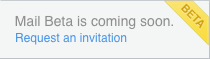
If you do not see the link then you already have requested an invitation. You will receive an email notification when you have been added to the beta and can start using it.
If you received an invitation, then you have already been added to the beta and you don’t need to take any further action. Simply sign into me.com to begin using the MobileMe Mail beta.
Note: You will receive an email notification when you have been added to the beta and can start using it.
The MobileMe Mail beta is currently available in English.
Safari 4 (Mac and PC), Firefox 3.6 (Mac and PC), and Internet Explorer 8 (PC) are fully supported.
You don’t have to change any of your current settings on any of your devices. Your MobileMe Mail account will continue to work as expected in Mac OS X Mail, and on your iPhone, iPad, or iPod touch. For help setting up your MobileMe account on your iPhone, iPad, or iPod touch, visit the MobileMe Setup instructions.
No. New messages are pushed to your iPhone, iPad, or iPod touch automatically, and you’re notified when they arrive.
Only the user of the MobileMe account requesting the invitation will participate in the beta. Other Family Member accounts will be unaffected unless individual users also request to join the beta.
Yes, but the rules you set up during the MobileMe Mail beta will be applied as messages come in to MobileMe, so they may override any rules you’ve set up in Mac OS X Mail. To avoid duplicate rules:
- Create rules at me.com, and leave your Mac OS X Mail rules in place.
- Then disable the duplicate rules on your Mac for a few days. Make sure you’re happy with the results.
- When you’re sure you’re happy with your rules at me.com, then delete your rules on your Mac.
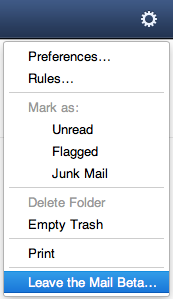
You may stop using the MobileMe Mail beta at any time during the beta. To leave, select “Leave the Mail Beta” from the action (gear) menu while logged in to MobileMe Mail.
First, please check the MobileMe Mail Beta Known Issues article to see if the issue you’ve encountered has already been reported. If it hasn’t or if you just want to send us your feedback about the beta, click the Feedback link in the lower-leff corner of the MobileMe beta window. We unfortunately cannot respond individually to feedback or issues reported.
If you would just like to opt out of the beta, select the action (gear) menu in the upper-right corner of the MobileMe Mail beta and choose “Leave the Mail Beta.”
Note: One-on-one Support is not available for the MobileMe Mail beta.
The following keyboard shortcuts are available:
| Action |
Mac |
PC |
| Print |
?P |
Ctrl+P |
| Undo |
?Z |
Ctrl+Z |
| Redo |
??Z |
Ctrl+Shift+Z |
| Open selected message in new window |
Return |
Return |
| Scroll in selected message until bottom of message, then select next message |
Space |
Space |
| Delete selected message or folder |
? |
Backspace |
| Select All Messages |
?A |
Ctrl+A |
| Compose new message |
??N |
Ctrl+Shift+N |
| Reply |
??R |
Ctrl+Shift+R |
| Toggle between reply/reply all in Reply window |
??R |
Ctrl+Shift+R |
| Save Draft |
?S |
Ctrl+S |
| Increase font size when composing a message |
?= |
Ctrl+= |
| Decrease font size when composing a message |
?- |
Ctrl+- |
| Bold |
?B |
Ctrl+B |
| Italic |
?I |
Ctrl+I |
| Underline |
?U |
Ctrl+U |
| Indent items in a list |
Tab |
Tab |
| Outdent items in a list |
Shift+Tab |
Shift+Tab |