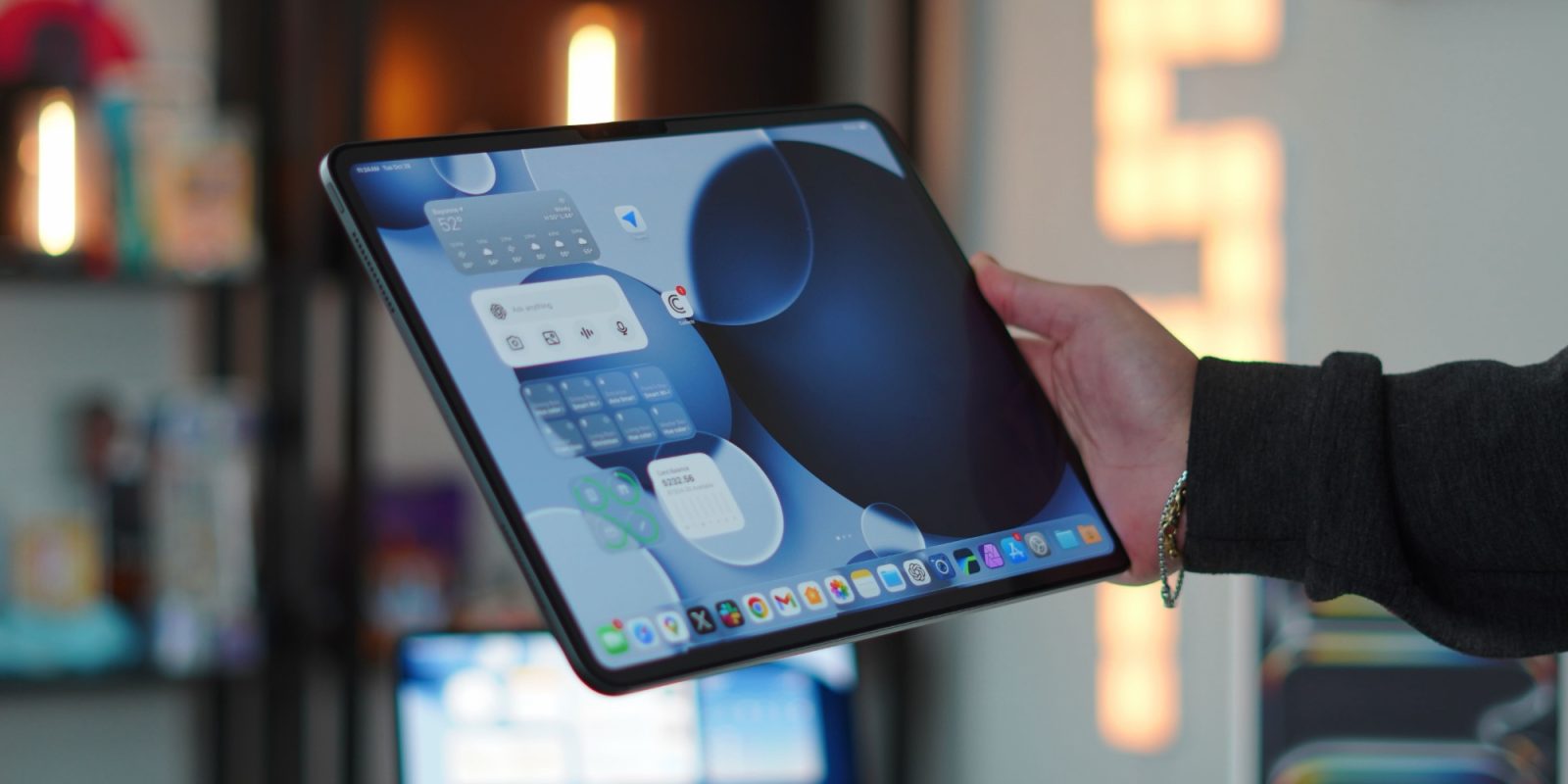
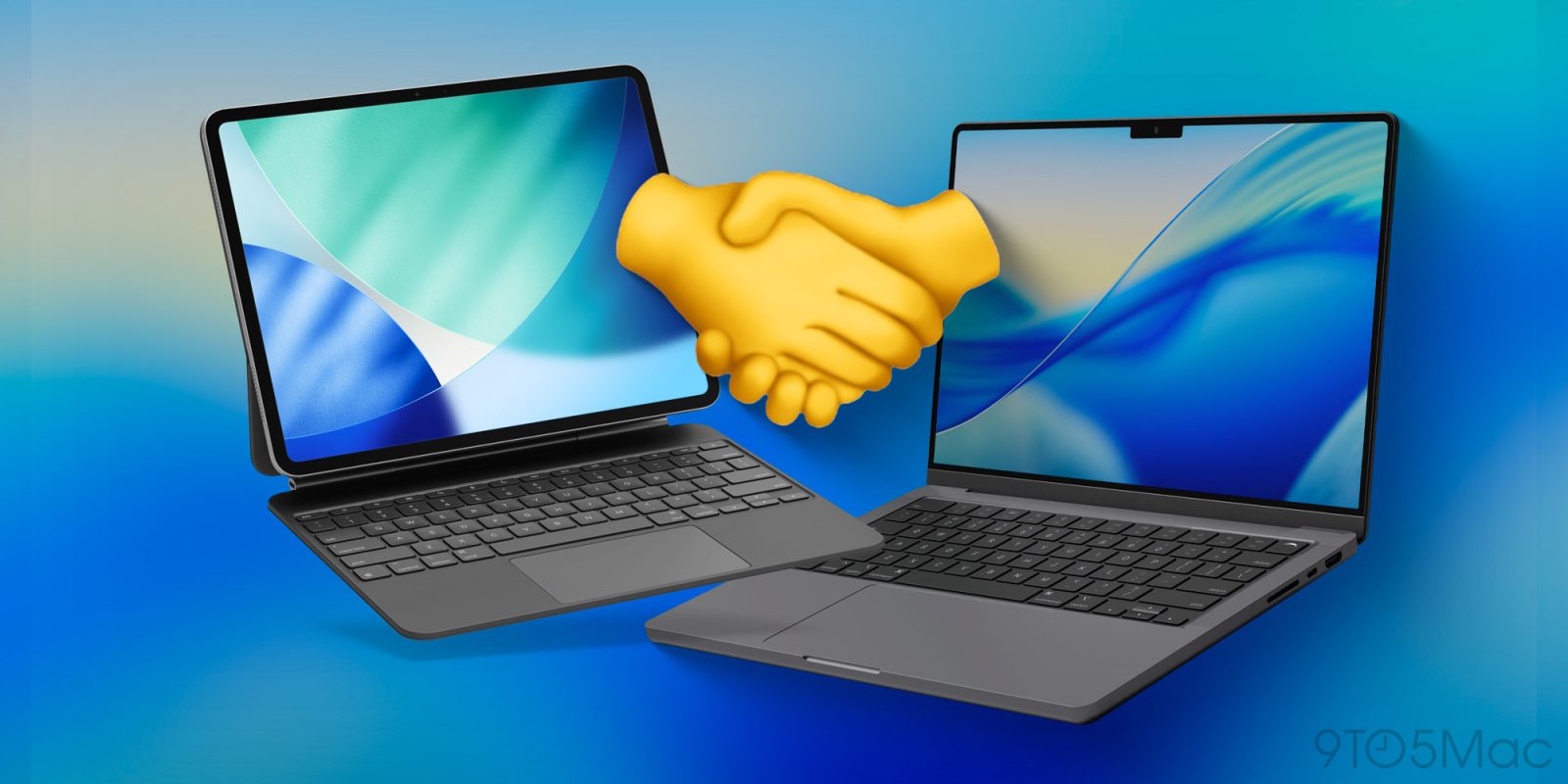
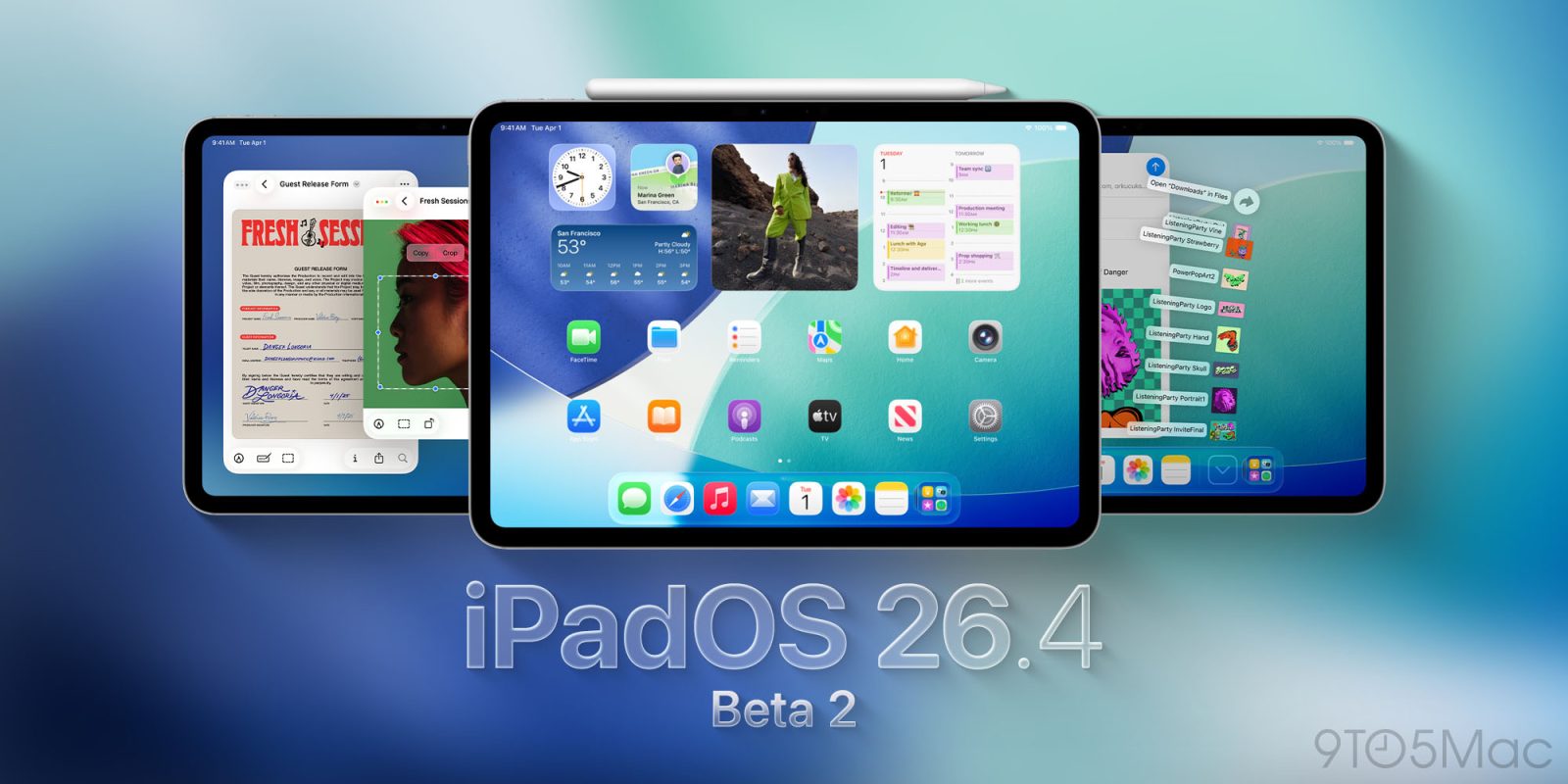
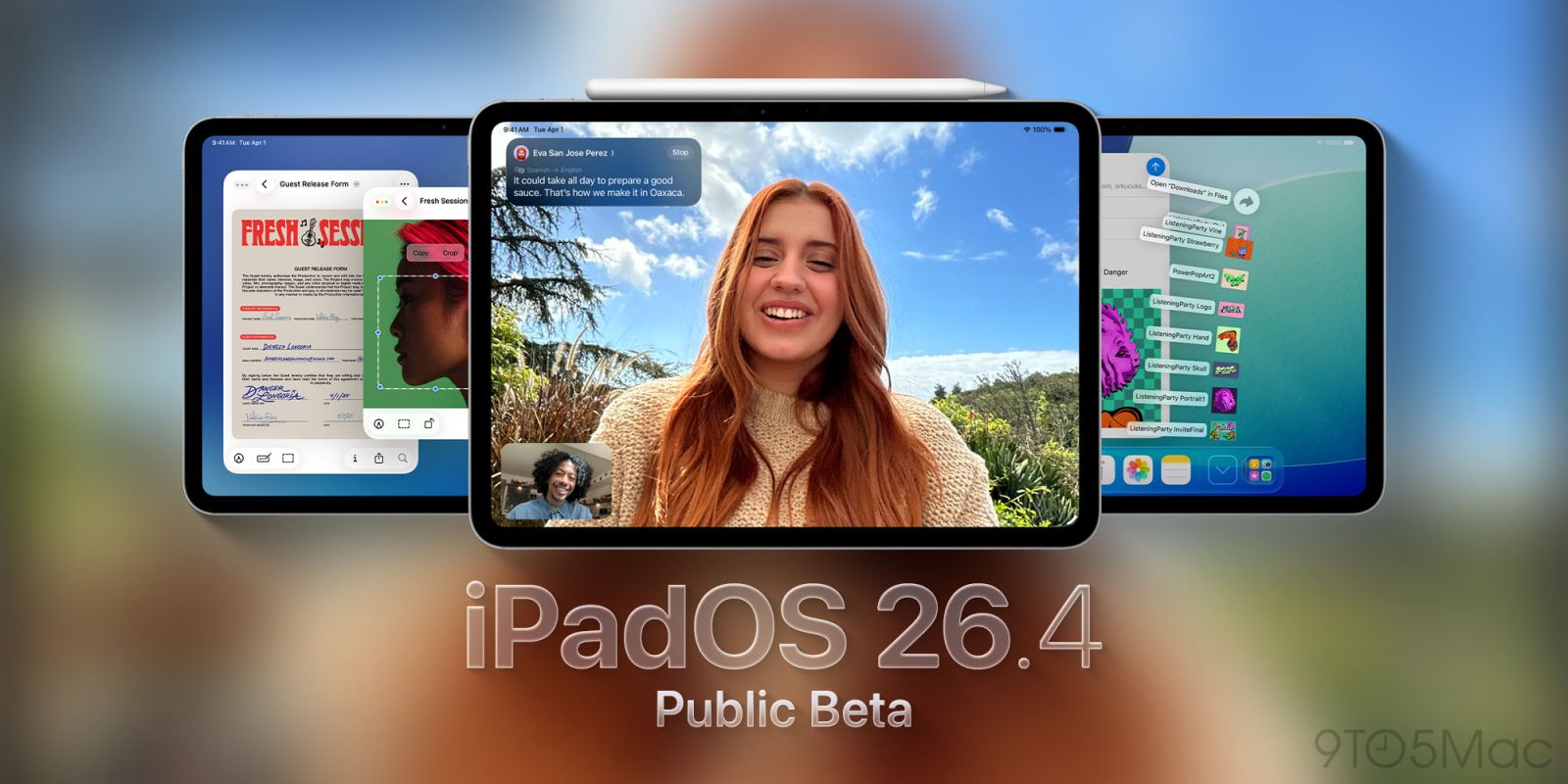
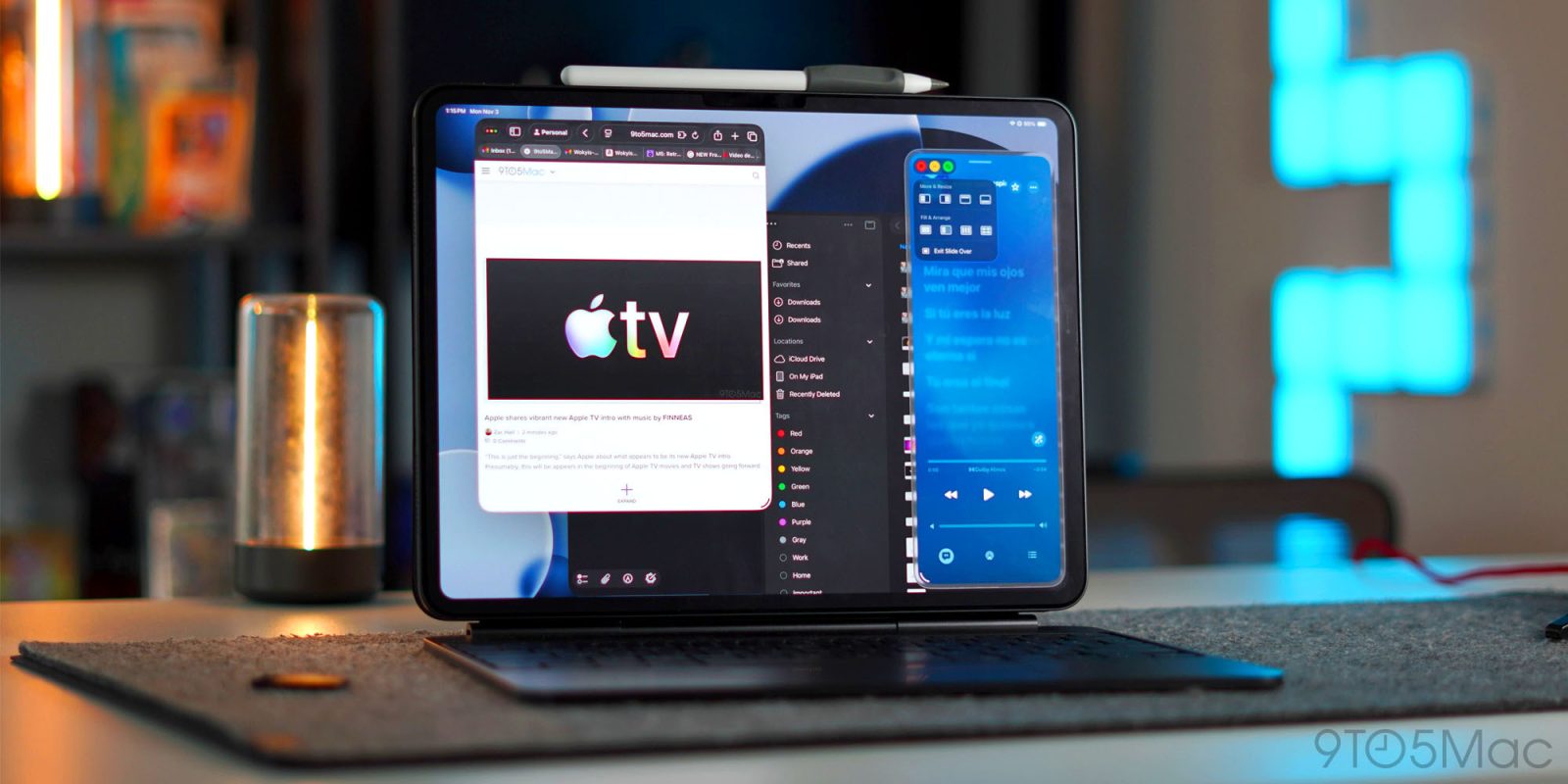
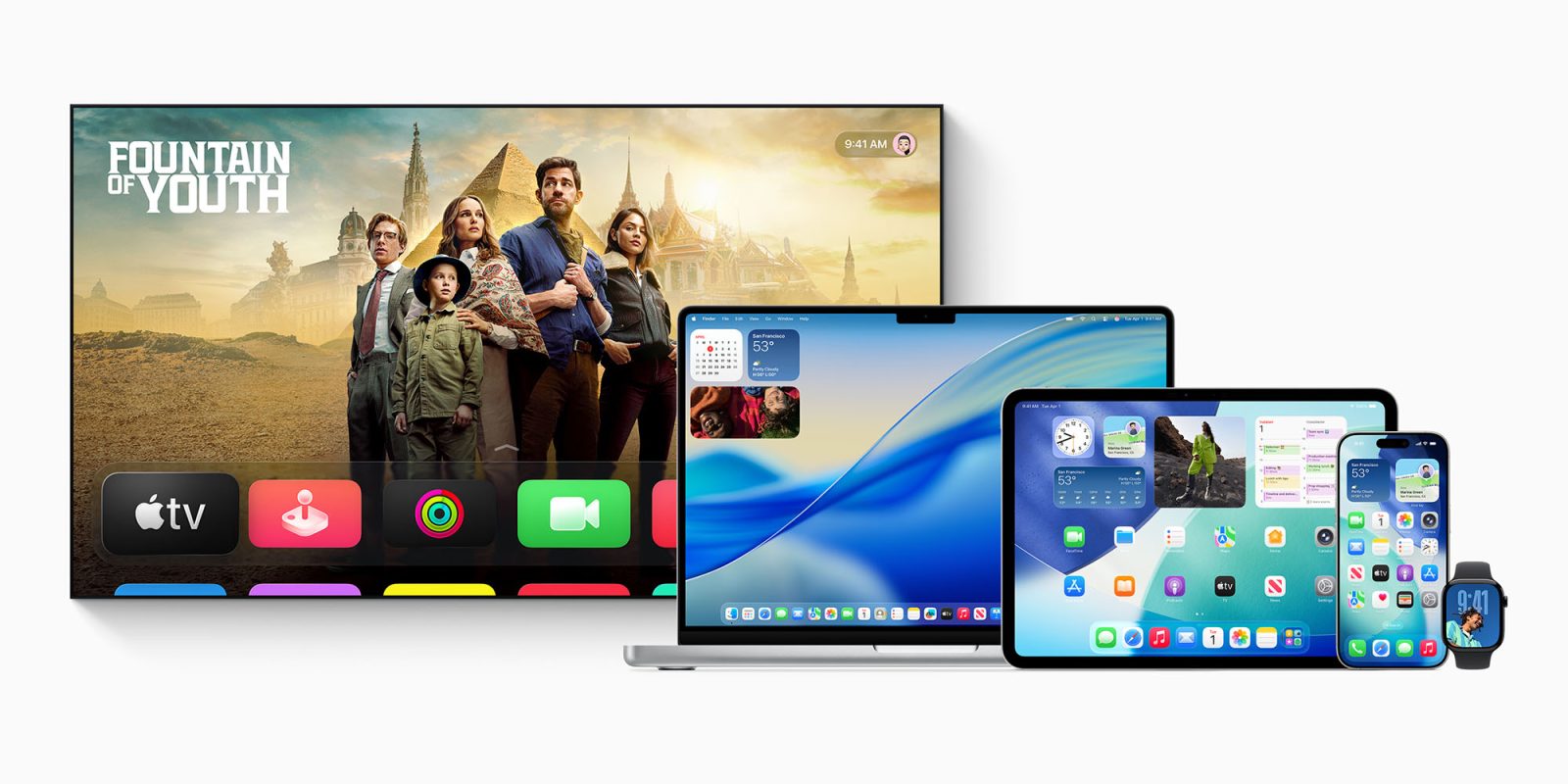
I have been a hardcore iPad user for almost a decade now. I have used it as my main computer and dealt with all the ups and downs. But one of the biggest misconceptions about the iPad is that it is trying to compete with the MacBook when, in reality, they were built to work in tandem. It is not until you have them side by side that you start to see the magic and power that is the Apple walled garden. Features like Universal Control, Sidecar, Handoff, and continuity tools create “aha” moments that genuinely change how you work. So I wanted to put a list together of some of those amazing magic ecosystem moments that iPadOS and MacOS give you together.
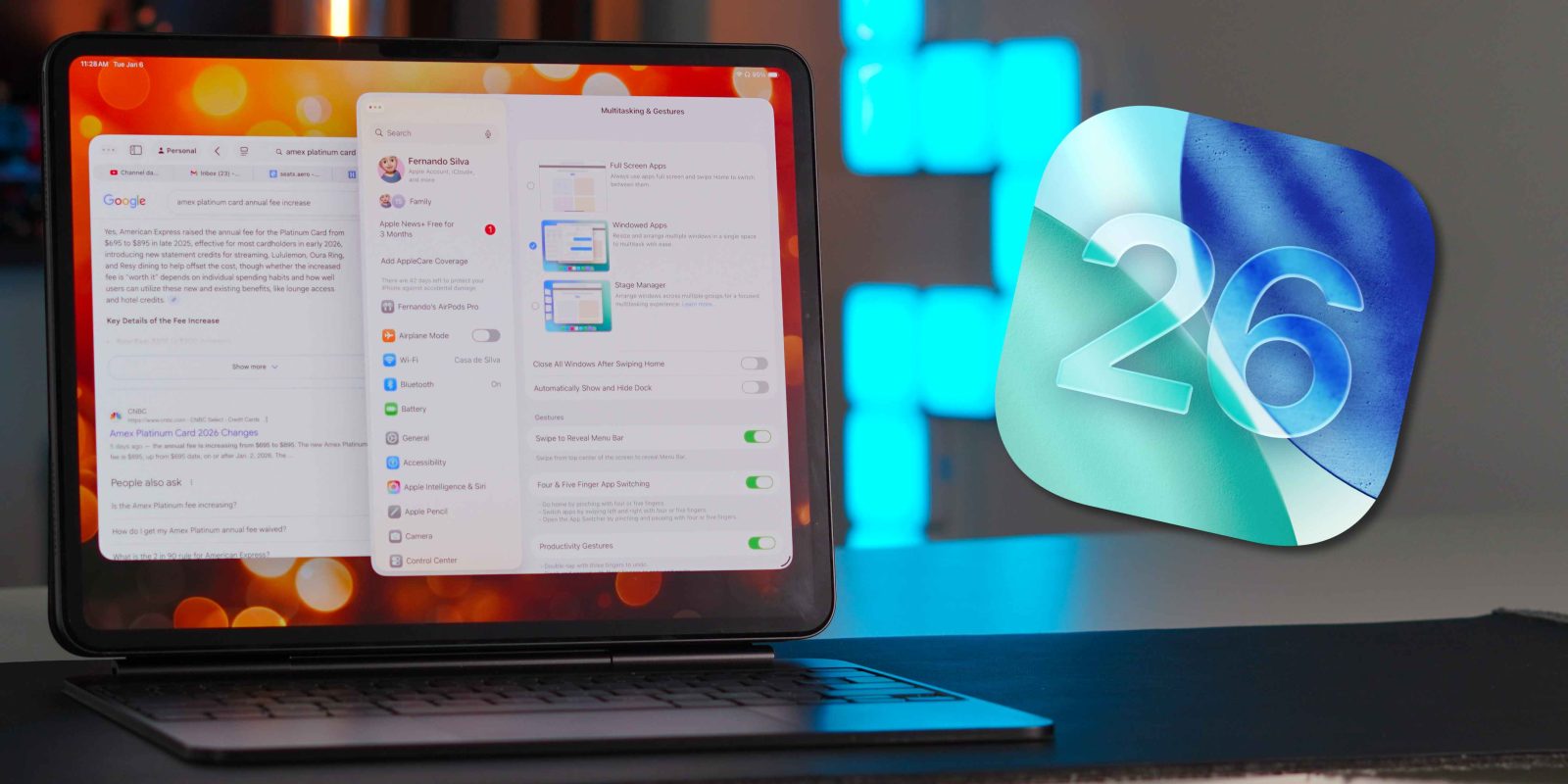
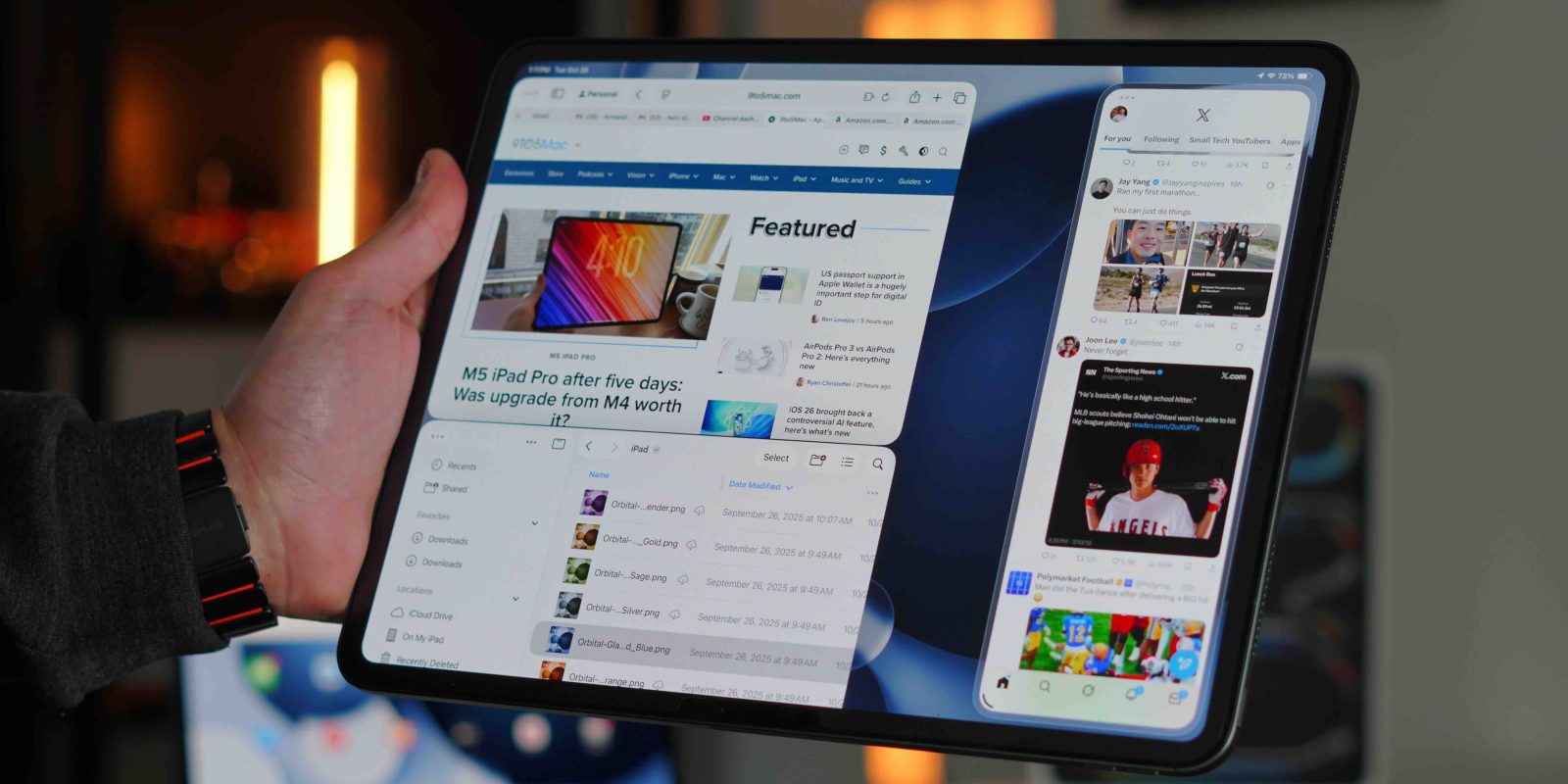
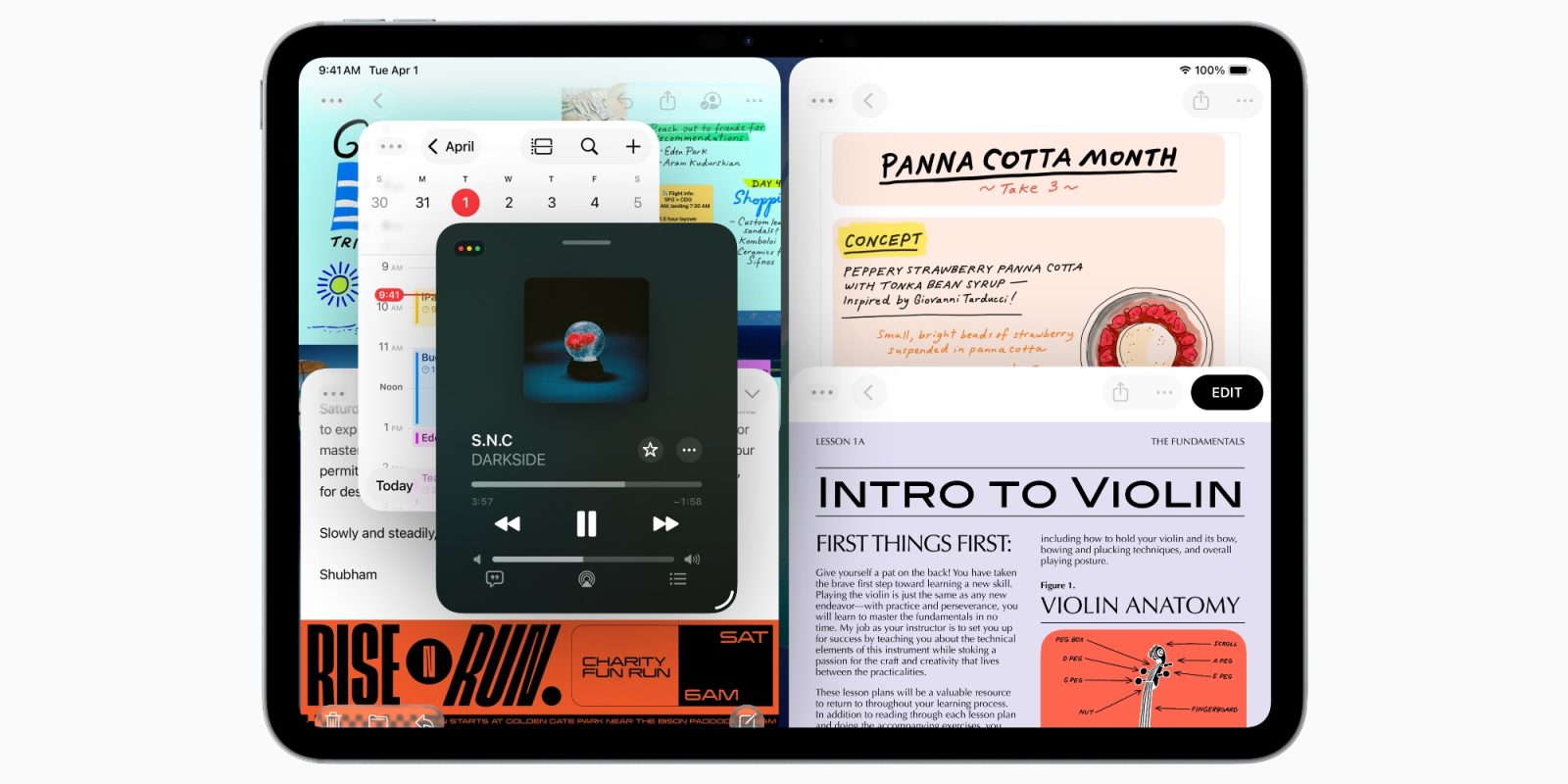
iPadOS 26 makes major changes to how multitasking works via a new app windowing system. And Apple’s new system got a lot better for me after I changed one key setting.
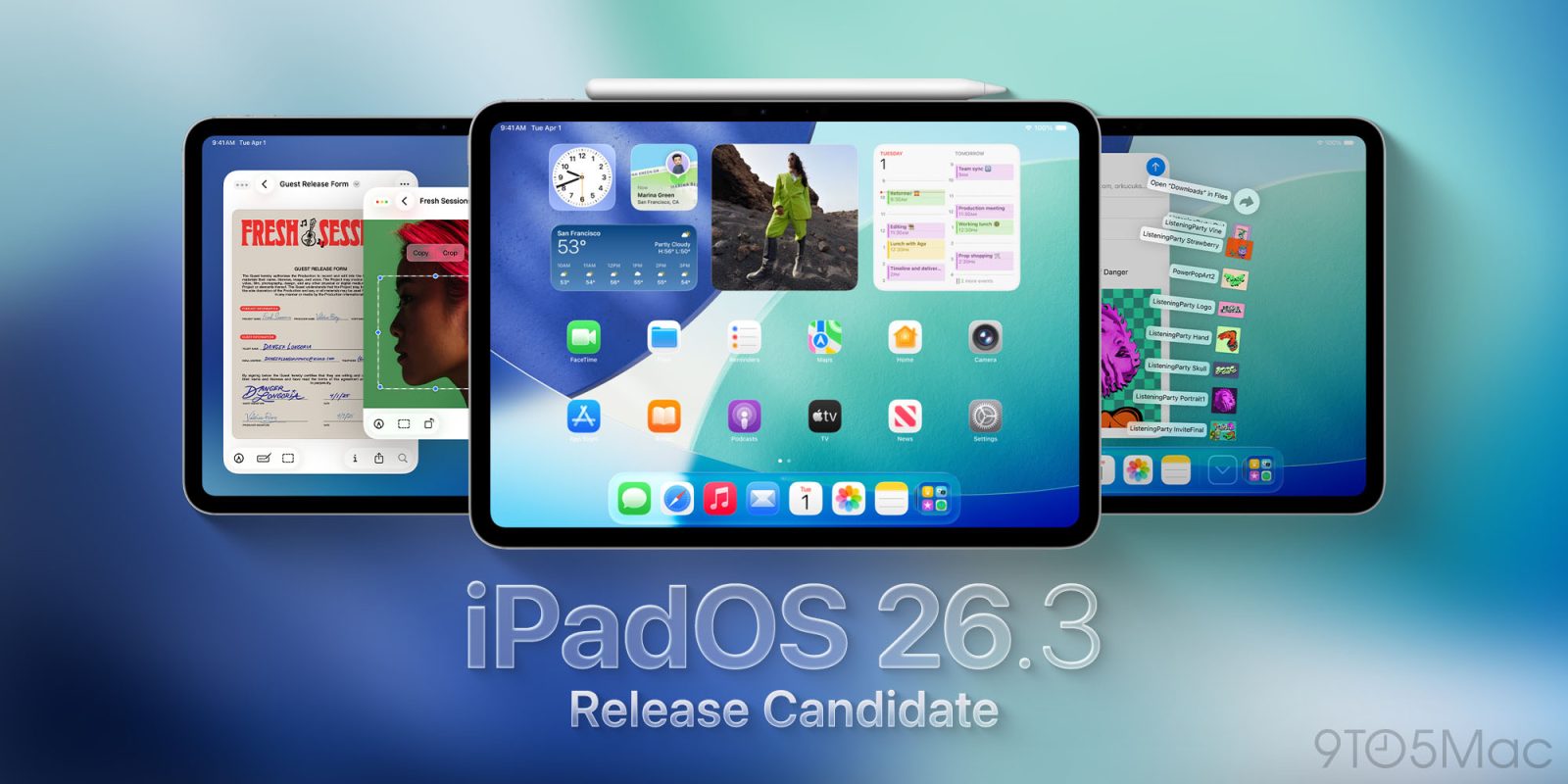
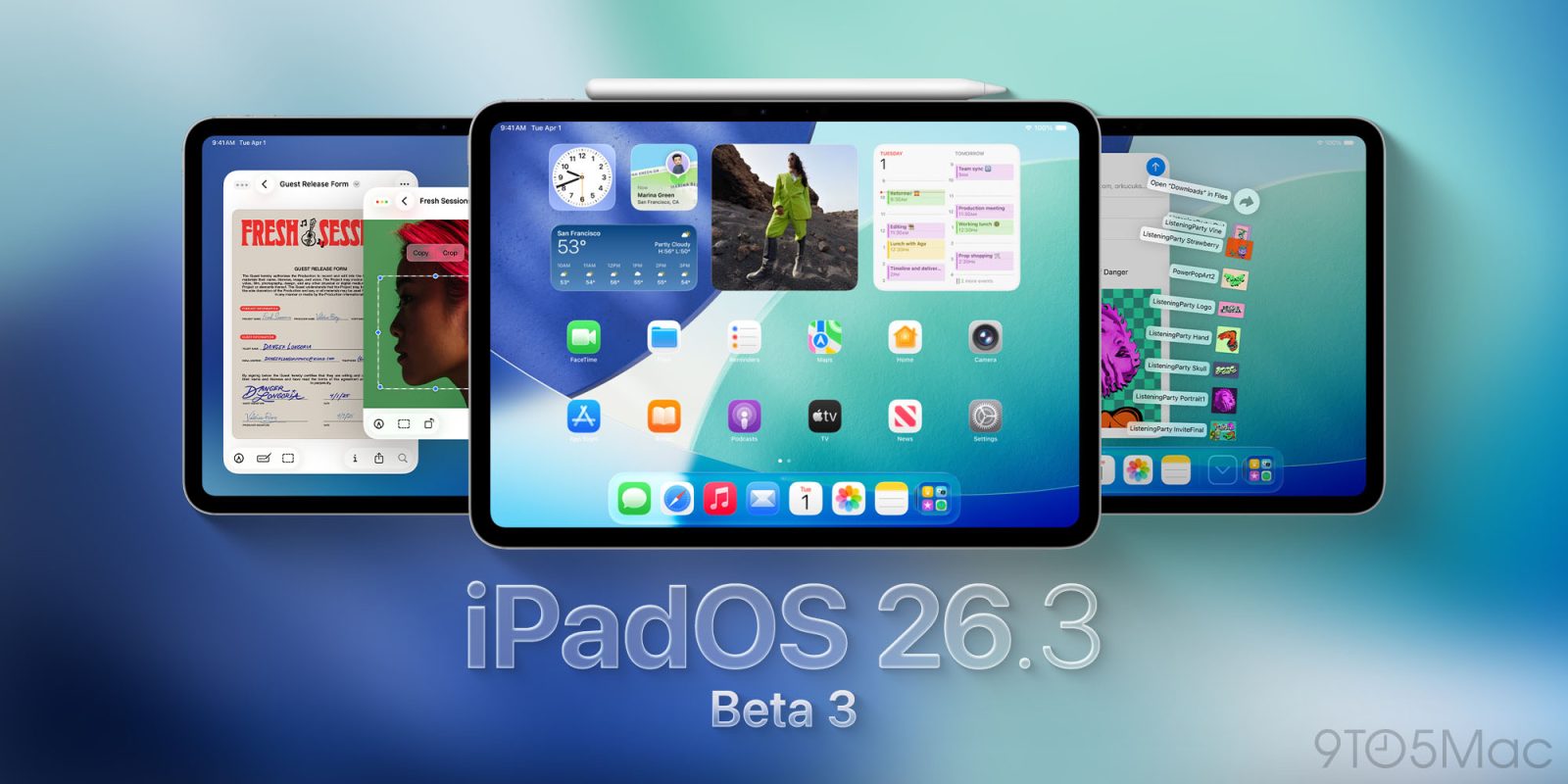
Apple’s beta cycle for its 26.3 updates is officially wrapping up, as the iPadOS 26.3 RC (release candidate) is now available for testing. Here’s what that means.
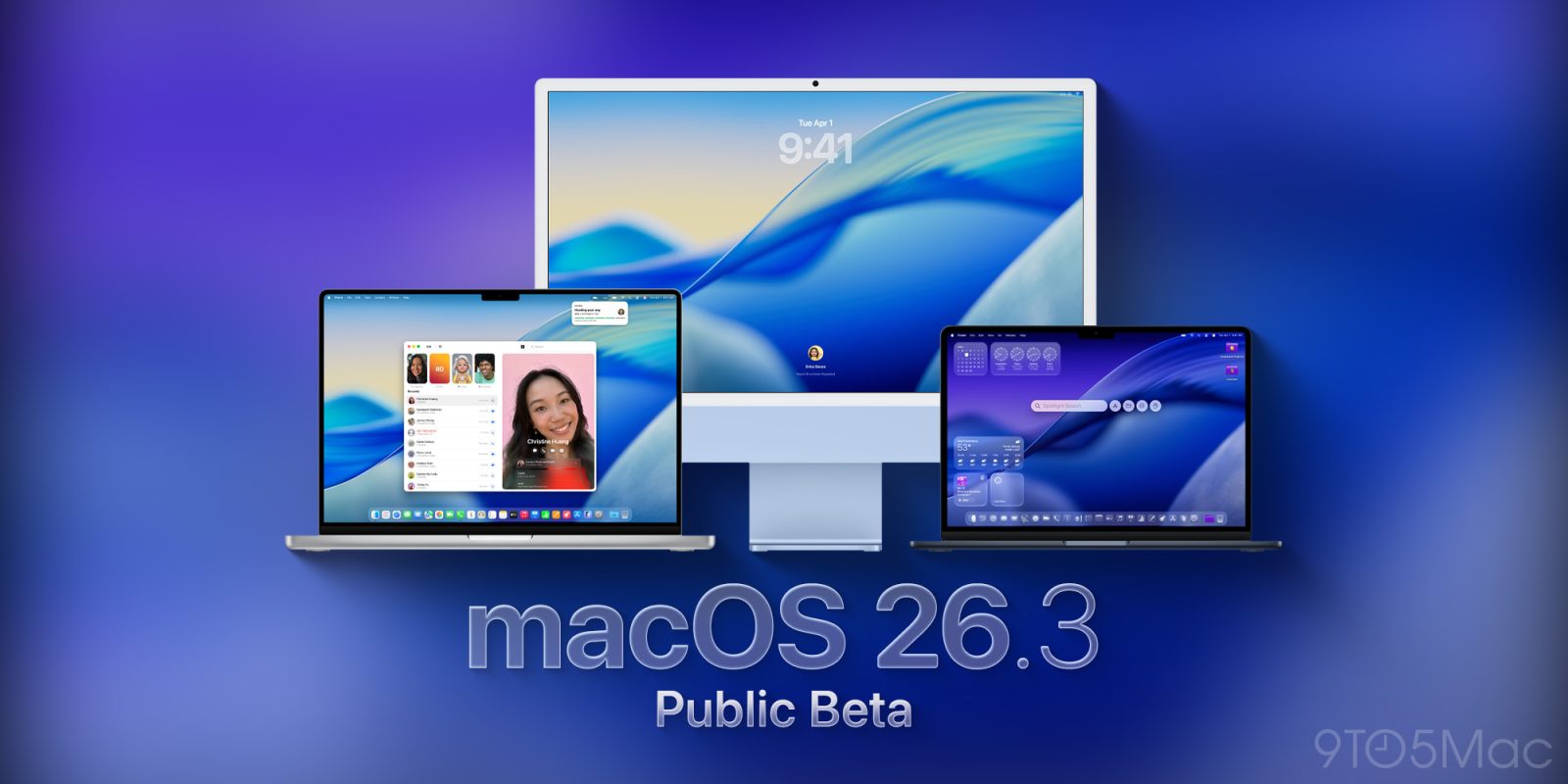
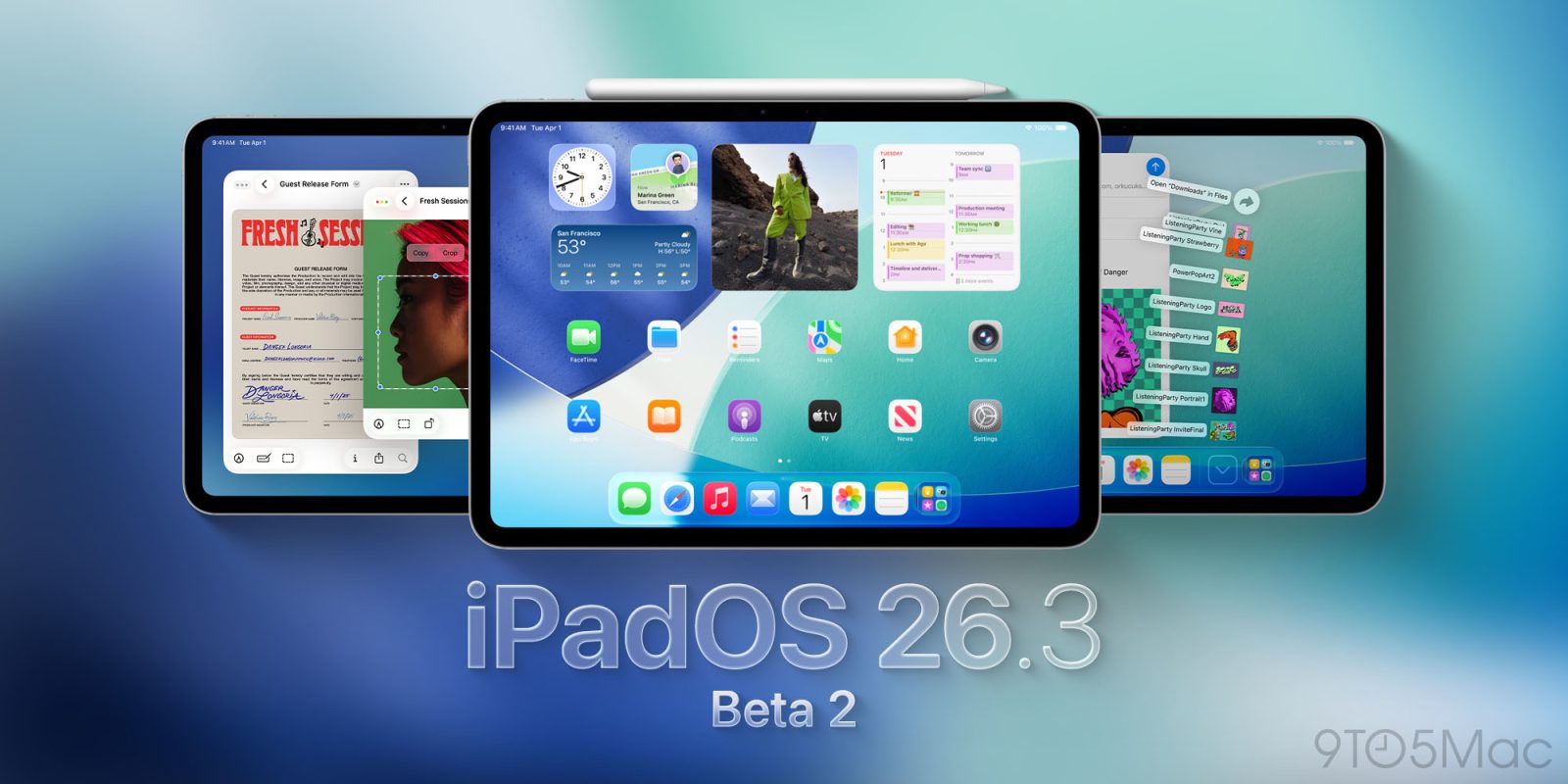
Following an extended software hiatus over the holidays, Apple has returned to shipping beta updates. Today the company has released public beta 2 for macOS Tahoe 26.3, iPadOS 26.3, tvOS 26.3, and more.
Getting a new iPad is one of the most exciting experiences. You get a beautiful pane of glass that just happens to be a tablet, capable of doing basically anything, if set up correctly. The most tedious part of an iPad is setting it up and learning how to navigate it. Especially now with the update to iPadOS 26, people quietly changed how the iPad works in some pretty meaningful ways. So before you start to set things up, and download a ton of apps, here are the things you should do right away to make your iPad feel faster, cleaner, and more intentional from day one.
I’ve been using an iPad Pro as my primary computer since the big redesign in 2018. Back then, it was still running what was essentially an iPad version of iOS. But I loved the design and the raw power it offered so much that I decided to commit to the iPad full-time. Every year after that, Apple teased the idea that the iPad was becoming a more genuine computer replacement. And every year, the software fell just short.
Then Apple released iPadOS 26 in 2025, and for the first time, it genuinely changed what the iPad could be for a lot of people. It was transformative in many ways, but it also introduced a level of nuance that left some users hesitant. So the question is: was this update finally enough?
With iPadOS 26.2, Apple is bringing two major upgrades to the iPad: Split View has returned, and Slide Over has a new gesture. Now, you can just drag and drop apps from your dock, and they’ll snap into place – there’ll no longer be a need to manually resize your windows in the manner you need them.
This was already how things worked in iPadOS 18 and prior, and now it’s finally back.
iPadOS 26 brought an all-new multitasking experience to the iPad, but it came at the cost of Slide Over, an omission that proved controversial among iPad users. It also removed key Split View features as well.
With iPadOS 26.1, Apple responded to some of that feedback and added a new version of Slide Over back to the iPad.
Now, Apple has released iPadOS 26.2 beta 3 and it gives Slide Over and Split View on iPad another improvement.
iPadOS 26 is a huge update for iPad users, with a bigger roster of productivity upgrades than ever before. Here are three new iPadOS 26 features I’ve been really loving on my iPad Pro.
Following the release of the first developer betas of iOS 26.2 and iPadOS 26.2 earlier this week, Apple is now preventing the update from being installed on devices with the C1 modem. Here are the details.
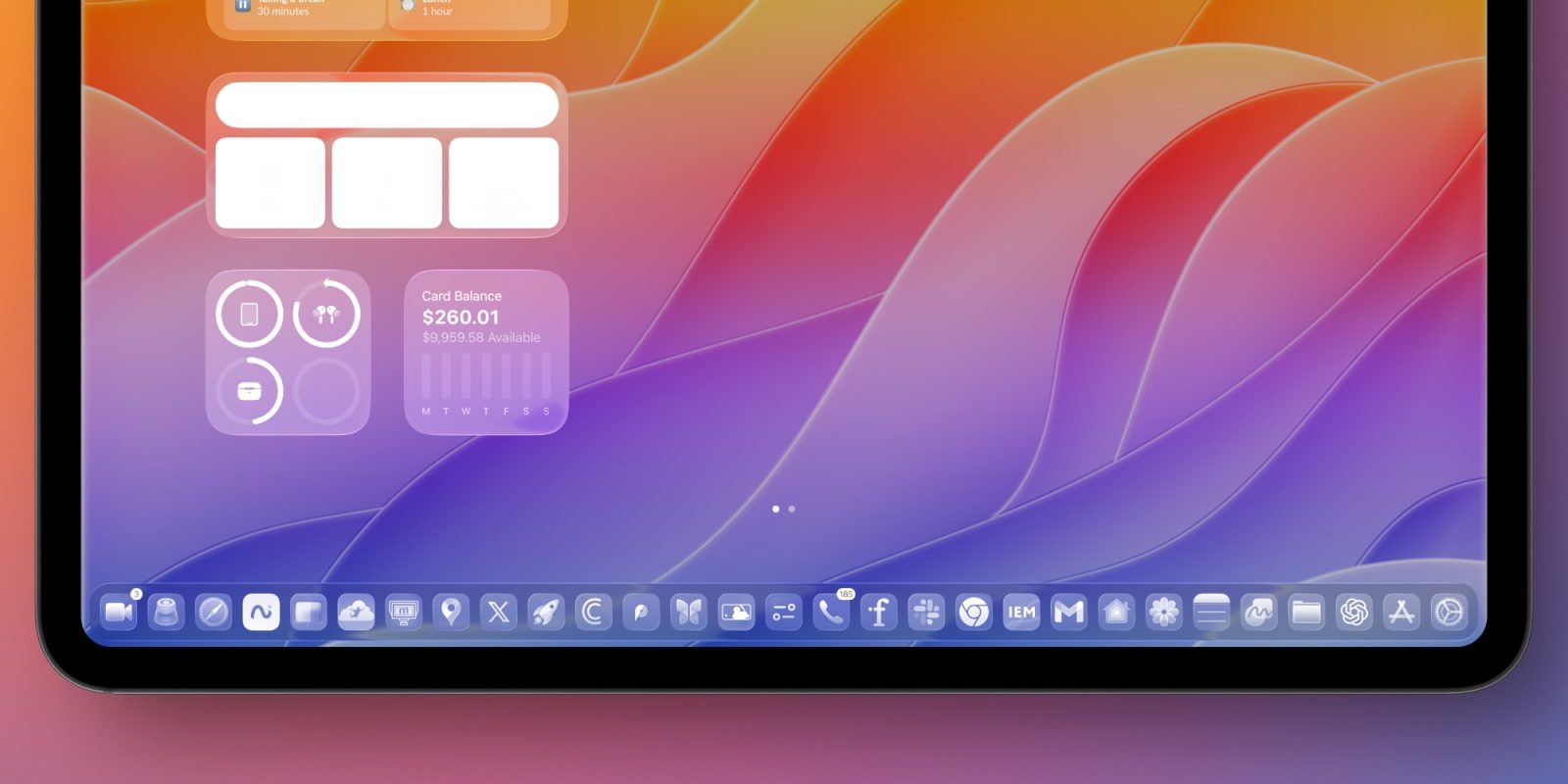
While I’m generally a fan of the Liquid Glass user interface, not everybody is. For some, it fails usability tests, while others are just not keen on the aesthetics.
Fortunately Apple allows a huge amount of control over the effects, and Adam Engst over at TidBITs has put together the ultimate guide for this …
iPadOS 26 is a huge upgrade for iPad, especially in areas of productivity. Alongside new windowing and multitasking features, dock and files changes, there’s a new iPadOS 26 capability for apps that pro users will love: Background Tasks.
With today’s rollout of developer betas for iOS 26.1, iPadOS 26.1, and macOS Tahoe 26.1, Apple began to lay the groundwork for adopting Anthropic’s protocol for agentic AI. Here’s what this means.
iOS 26 launched this week alongside companion updates for Apple’s other platforms. There are so many new features in each update, it can be easy to miss some of the changes. Fortunately, Apple has published new comprehensive documents outlining every new feature in iOS 26, iPadOS 26, and macOS Tahoe.
While this is not the day Apple will release a revamped, LLM-powered Siri, today’s updates bring multiple welcome additions to the Apple Intelligence feature set. Here are some highlights.