
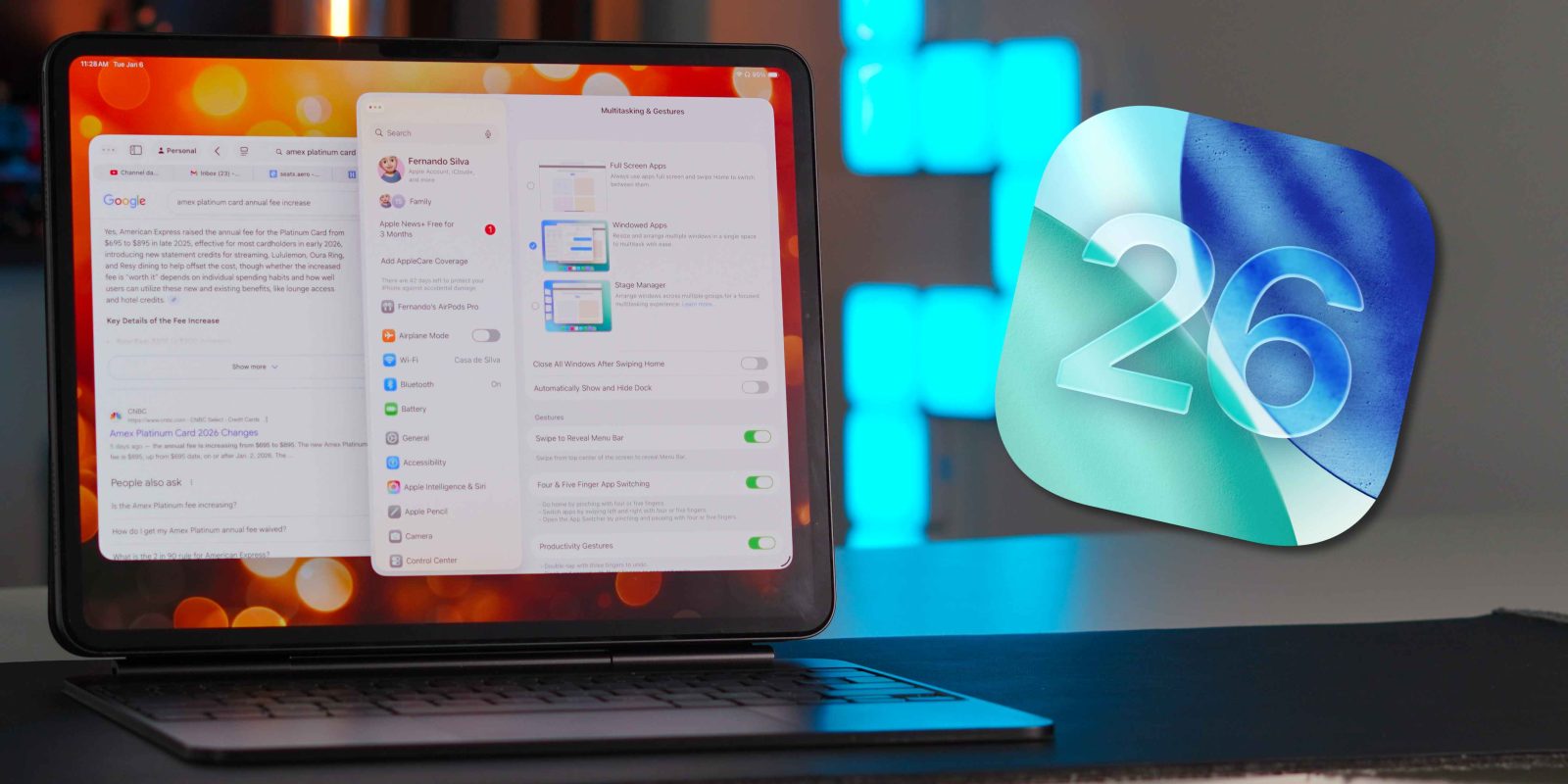
Getting a new iPad is one of the most exciting experiences. You get a beautiful pane of glass that just happens to be a tablet, capable of doing basically anything, if set up correctly. The most tedious part of an iPad is setting it up and learning how to navigate it. Especially now with the update to iPadOS 26, people quietly changed how the iPad works in some pretty meaningful ways. So before you start to set things up, and download a ton of apps, here are the things you should do right away to make your iPad feel faster, cleaner, and more intentional from day one.
Be sure to check out our complete guide on how to setup your iPad correctly!
Now lets get into each step!
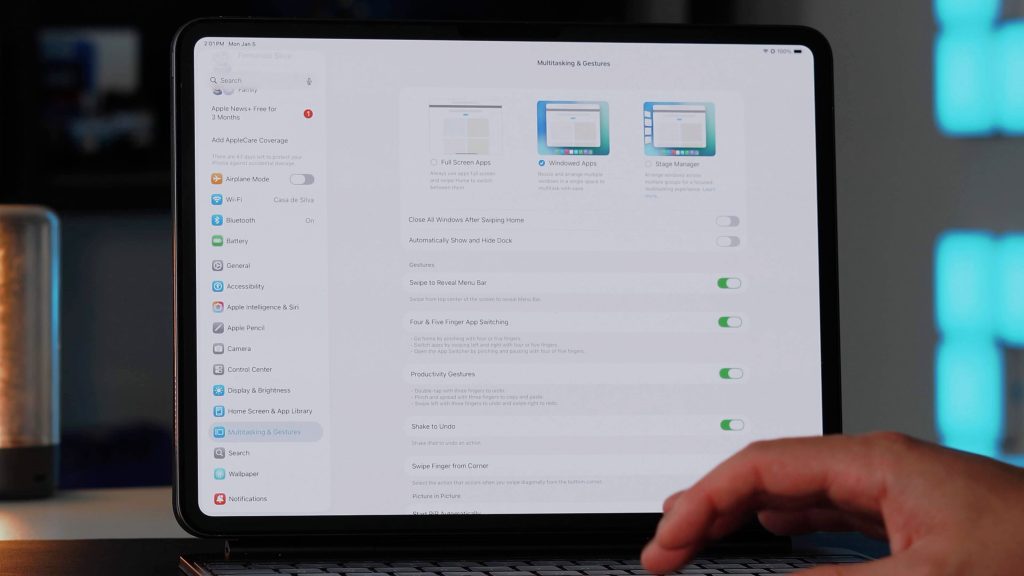
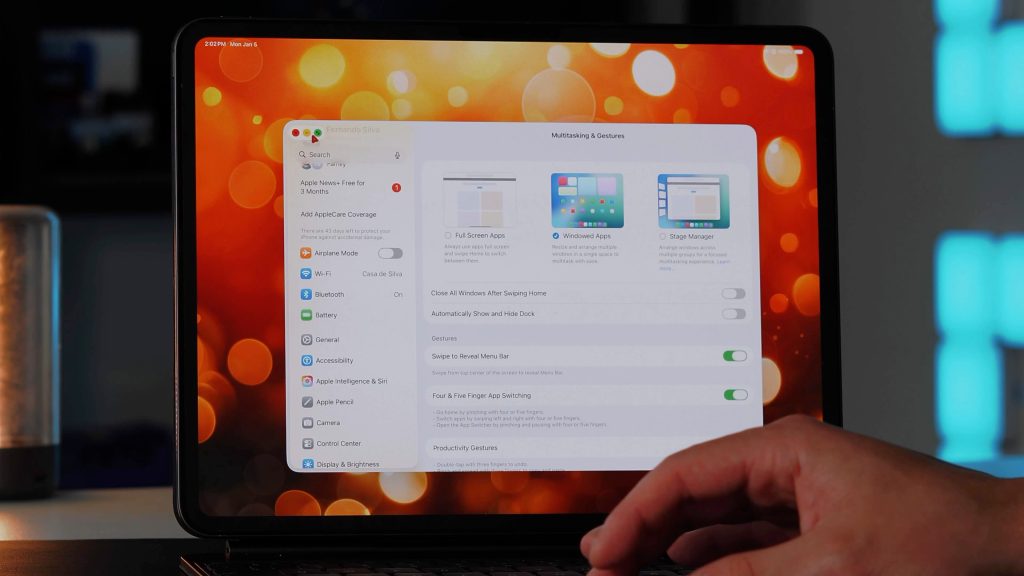
1. Set up the new windowing & multitasking
The update to iPadOS 26 adds a brand new way to experience your iPad. Apple brought true Mac-like windowing and multitasking to the iPad. But what is great about this is that it is optional. If you have no interest in the new desktop-like windowing system, you can just keep it the way it has always been. Here is how you decide:
- Open Settings
- Go to Multitasking & Gestures
- Enable either the new Windowed Apps option or the Full Screen Apps option
This, to me, is the most important first step because it will dictate how you experience your iPad on a day-to-day basis. If you are used to the old full-screen app ways, then go with that choice. However, if you want a computer-like experience, opt for the new version of multitasking. What I love is that there are options and there is no wrong answer.
2. Organize your Files app
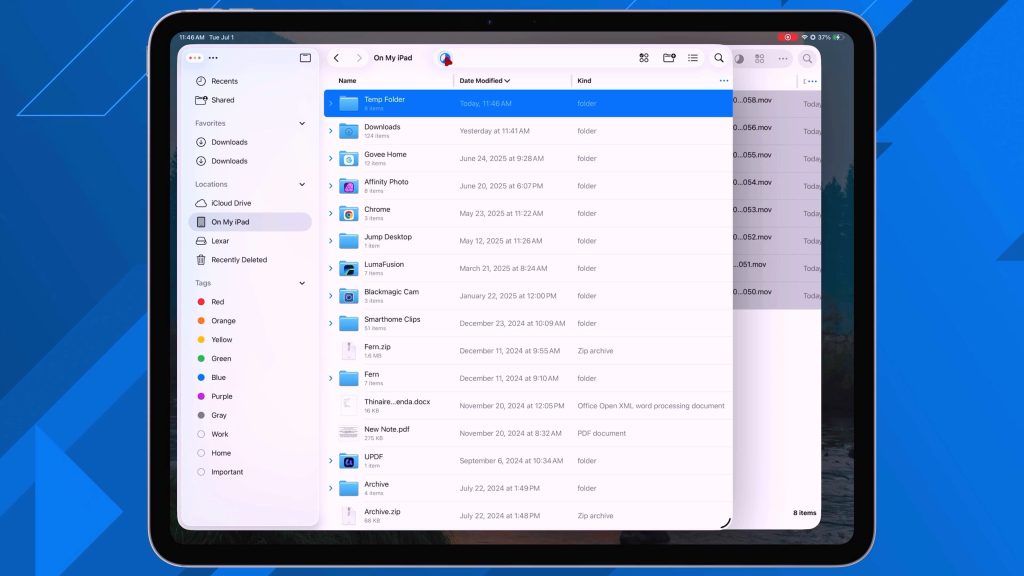
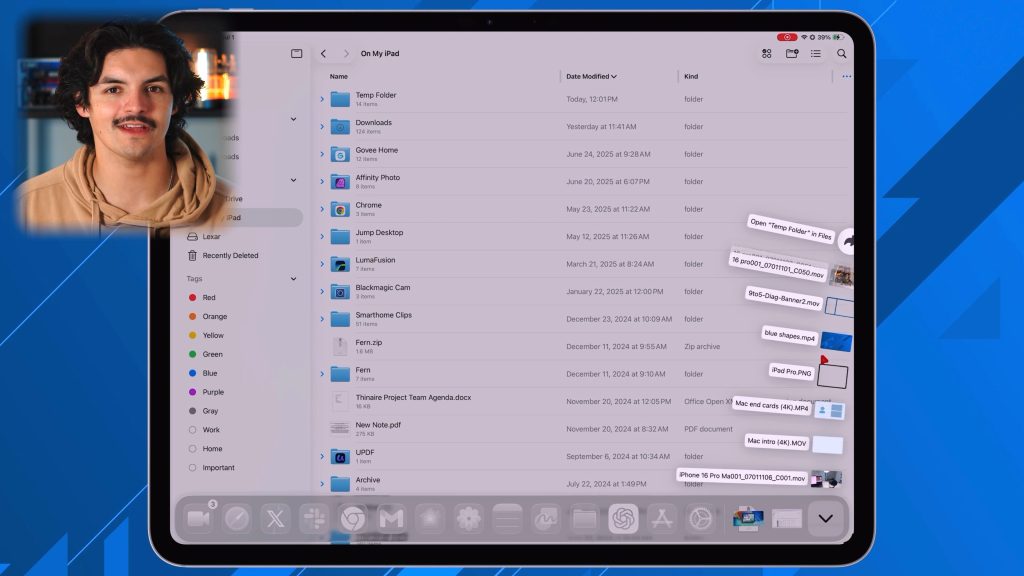
The Files app for the iPad has always been a crutch to the iPadOS experience. When compared to the Finders app, it felt watered down and lacked customization options. Apple changed that with iPadOS 26. There is so much more you can do now.
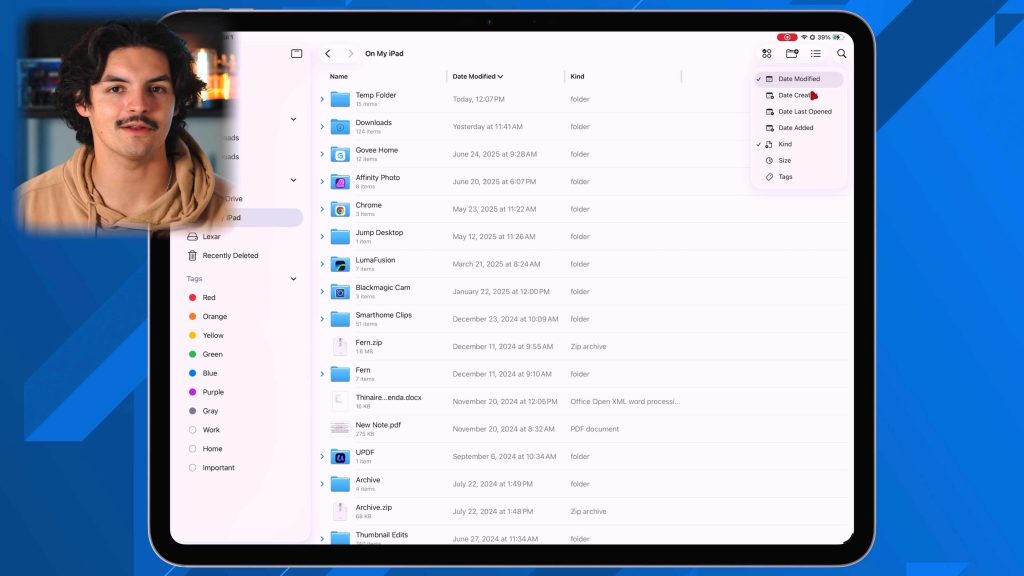
- Change column size
- Add additional column categories
- Change the folder color and add emojis for customization
- Place folders in your dock! (Huge for me)
- Background data transfer is much more intuitive
- Changing layouts is much easier
The Files app feels much more Finder-like, which I think is huge for both professional and casual workflows. I can now place my iCloud desktop folder in my Dock, allowing me to easily access all its content from my iPad while customizing it. It’s truly magical.
3. Customize your Control Center
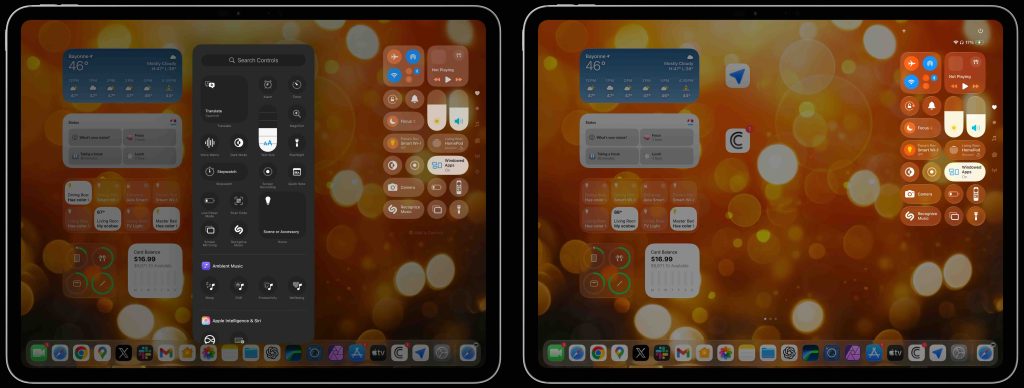
Control Center also got revamped in iPadOS 26. You get way more customization and optionality when using it. It is also a feature that is often underrated and rarely discussed. It has turned into an extension of your homescreen that adds a ton of utility. Customizing it is very easy and works just like customizing your home screen. Here is how:
- Swipe down from the top-right to open Control Center
- Long-press to edit
- Add controls like Screen Recording, Notes, Low Power Mode, and Focus
- Reorder them so your most-used tools are easiest to reach
You can add various utilities, such as smart home controls, shortcuts, and accessibility options, and the customization possibilities are nearly endless. They have also added pagination, allowing you to view multiple pages of widgets and controls. I love Control Center because it allows me to add more as quick-access settings that I wouldn’t want on my homescreen.
4. Home Screen and Lock Screen customizations
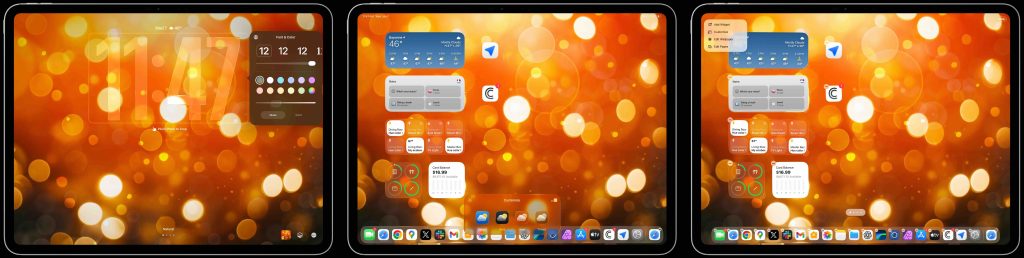
The Home Screen and Lock Screen are the two places you interact with your iPad the most, yet most people never touch the defaults. A few small changes can make your iPad feel cleaner, more personal, and far more useful every time you pick it up. Setting these up is also very simple, once you know how to do it.
- Long-press on the Home Screen until apps start jiggling
- Tap Edit on top left corner
- From there, you can add Widgets, change the app icon colors & size, edit wallpaper and add/remove pages.
- You can also edit the lock screen in the same way. You can add widgets, change wallpaper and even change the clock font
Now, when you open your iPad, it will be set up exactly the way you want. You will have your quick information at a glance on your lock screen, and your home screen will have all your most used apps and actions. Once this is set up for your flow, it makes things go much faster.
5. Notification management
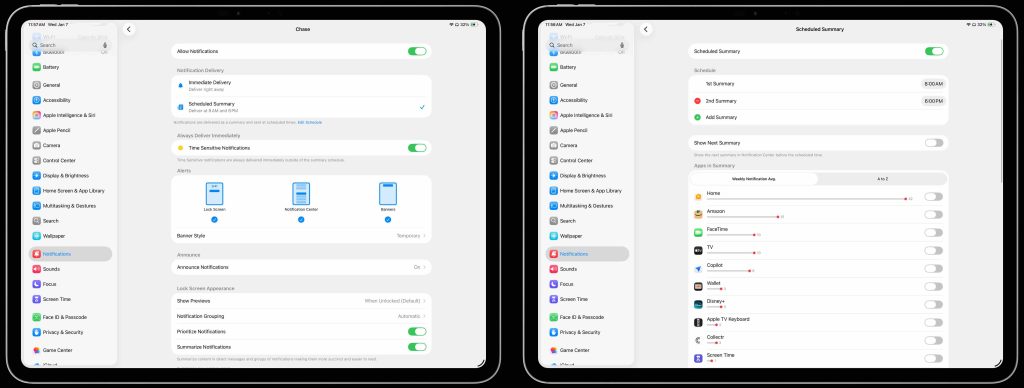
This is a big one for me. I have 100s of apps installed on my iPad, and if they all sent me notifications, then I would be overloaded and miss the important ones. So this is something I do on all my iPads and takes just a few minutes, so you can save your sanity. Here’s how:
- Open Settings
- Go to Notifications
- Tap Scheduled Summary and turn it on
- Choose delivery times for non-urgent alerts
- Go back and review individual apps
- Turn off notifications for apps that don’t truly matter
Once this is done, you will be set. I like to set my schedule summaries to show me notifications that I think are important but not time-sensitive. Then i like to make sure the apps i want to get nitifucation froms are set to immediate. Lastly, I like to turn off notifications from apps that don’t really matter.
Final thoughts and more
The iPad doesn’t need a ton of apps or complicated workflows to be great. With just a little setup, iPadOS 26 turns the iPad into something that feels faster, more intuitive, and far more personal. The change to iPadOS 26 for me has been fantastic, but I am aware that not everyone wants their iPad to do computer things. So I am glad that Apple allows customers to stick to the old ways as well.
So if you take the time to customize your Home Screen and Lock Screen, learn the core multitasking gestures, organize Files, and clean up notifications, your iPad immediately becomes easier to use and more fun as well.
Be sure to check out our full list of 10 things to do in our video. What do you think, though? Are you a fan of iPadOS 26? What’s the first thing you do with a new iPad?
Best iPad-related deals
- iPad mini $389 (down from $499)
- M3 iPad Air $489 (down from $599)
- A16 iPad $299 (down from $349)
- Airtags 4 pack $64 (down from $99)
- iPad charging stand
- Apple Pencil Pro $92 (down from $129)


FTC: We use income earning auto affiliate links. More.


Comments