

Apple’s new AirTag comes with several improvements over the original model, one of which is that it expands AirTag’s best feature—Precision Finding—to the Apple Watch. Here’s how to set it up.
AirTag 2 expands Precision Finding to the Apple Watch
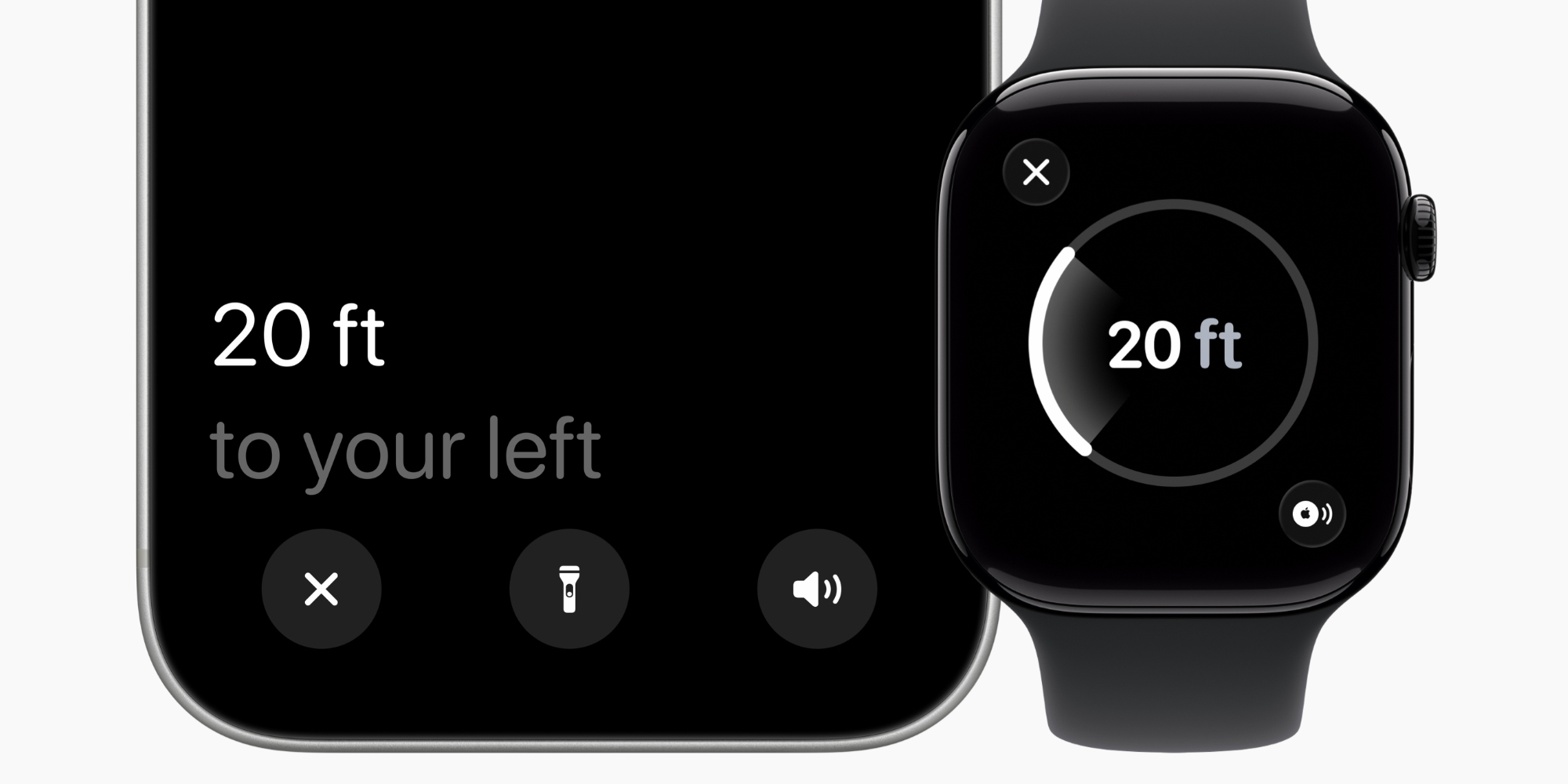
AirTag’s core purpose is to help you find lost objects. And the best feature for doing that has long been Precision Finding.
Precision Finding uses haptic, visual, and audio feedback to guide you step-by-step directly to your lost item.
The feature got better with AirTag 2 thanks to an expanded range that now lets Precision Finding work from up to 1.5x farther away than the first AirTag.
But AirTag 2 has another key Precision Finding improvement: it brings the feature to Apple Watch for the first time.
However, as my colleague Ben pointed out in his hands-on review, the way you set it up isn’t the most intuitive.
On Apple Watch, the Find Items app is typically the place you go for tracking down a lost AirTag.
But to use Precision Finding, watchOS instead sends you to Control Center.
How to set up Precision Finding and requirements for use
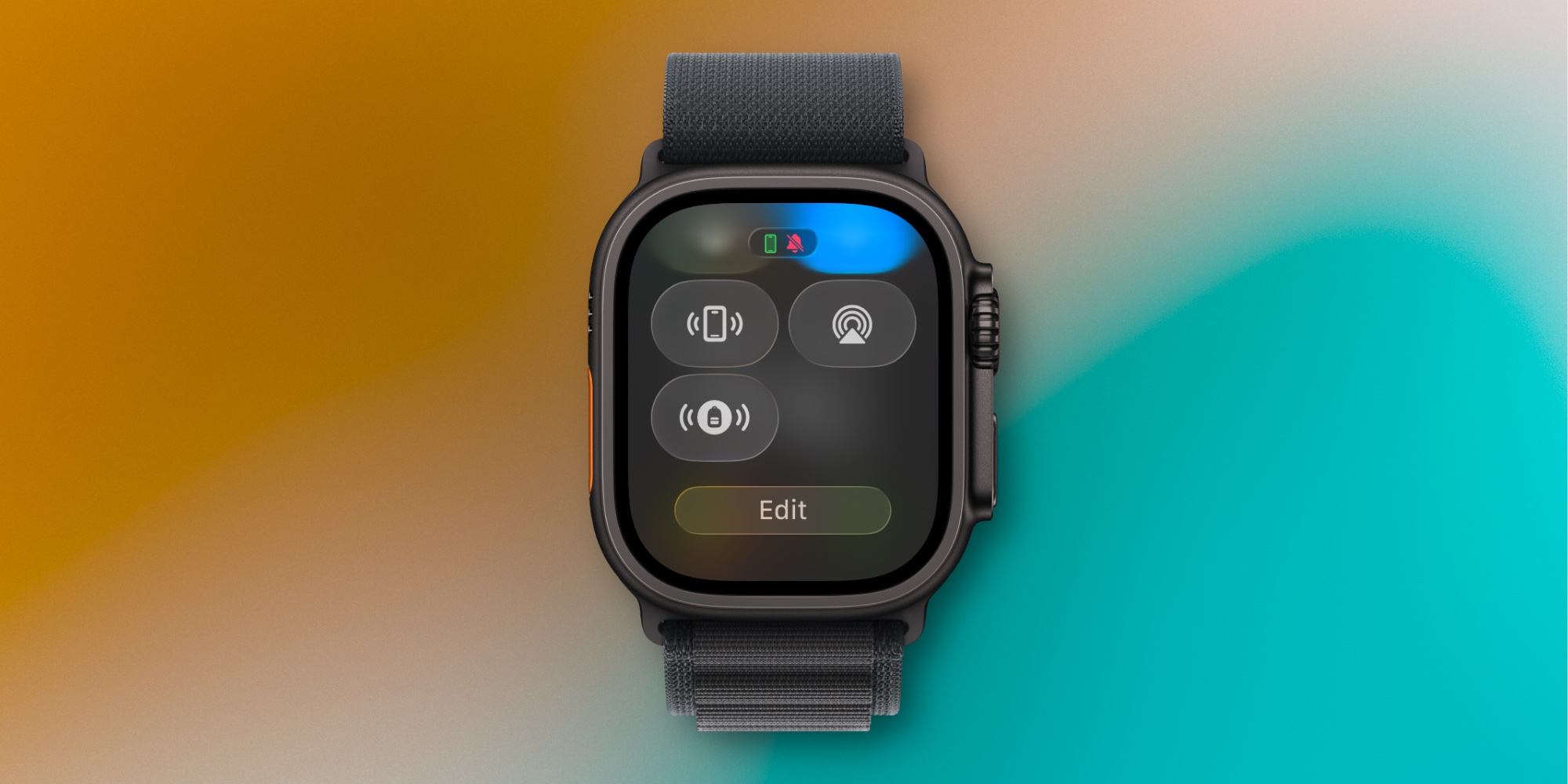
Here’s how you can set up Precision Finding, per Apple:
- On your Apple Watch, hit the side button to open Control Center
- Scroll to the bottom and tap Edit
- Tap the Add button in the top-left corner
- Scroll down to Find Items, then tap Find AirTag
- Tap through to add your item to Control Center
Once it’s in Control Center, the AirTag will gain a special icon to match its item type. For example, my AirTag 2 is in my backpack, so I see a backpack in Control Center.
In order to use Precision Finding on Apple Watch, there are both hardware and software requirements.
- Hardware: You need AirTag 2 and an Apple Watch Series 9 or later, or Apple Watch Ultra 2 or later
- Software: watchOS 26.2.1 or later is required
It’s very convenient having quick access to Precision Finding right from Control Center. And I do like how it automatically assigns different icons for each item you add. It would be nice to have the feature available in the Find Items app too, but perhaps that will happen in a future update.
You can buy AirTag 2 on Amazon:
Do you expect to use AirTag Precision Finding on your Apple Watch very often? Let us know in the comments.
Best AirTag and iPhone accessories
- AirPods Pro 3 (now only $199, down from $249)
- 10-year AirTag battery case 2-pack
- 5-year AirTag compact battery case 2-pack
- MagSafe Car Mount for iPhone
- 100W USB-C fast charging power adapter


FTC: We use income earning auto affiliate links. More.



Comments