
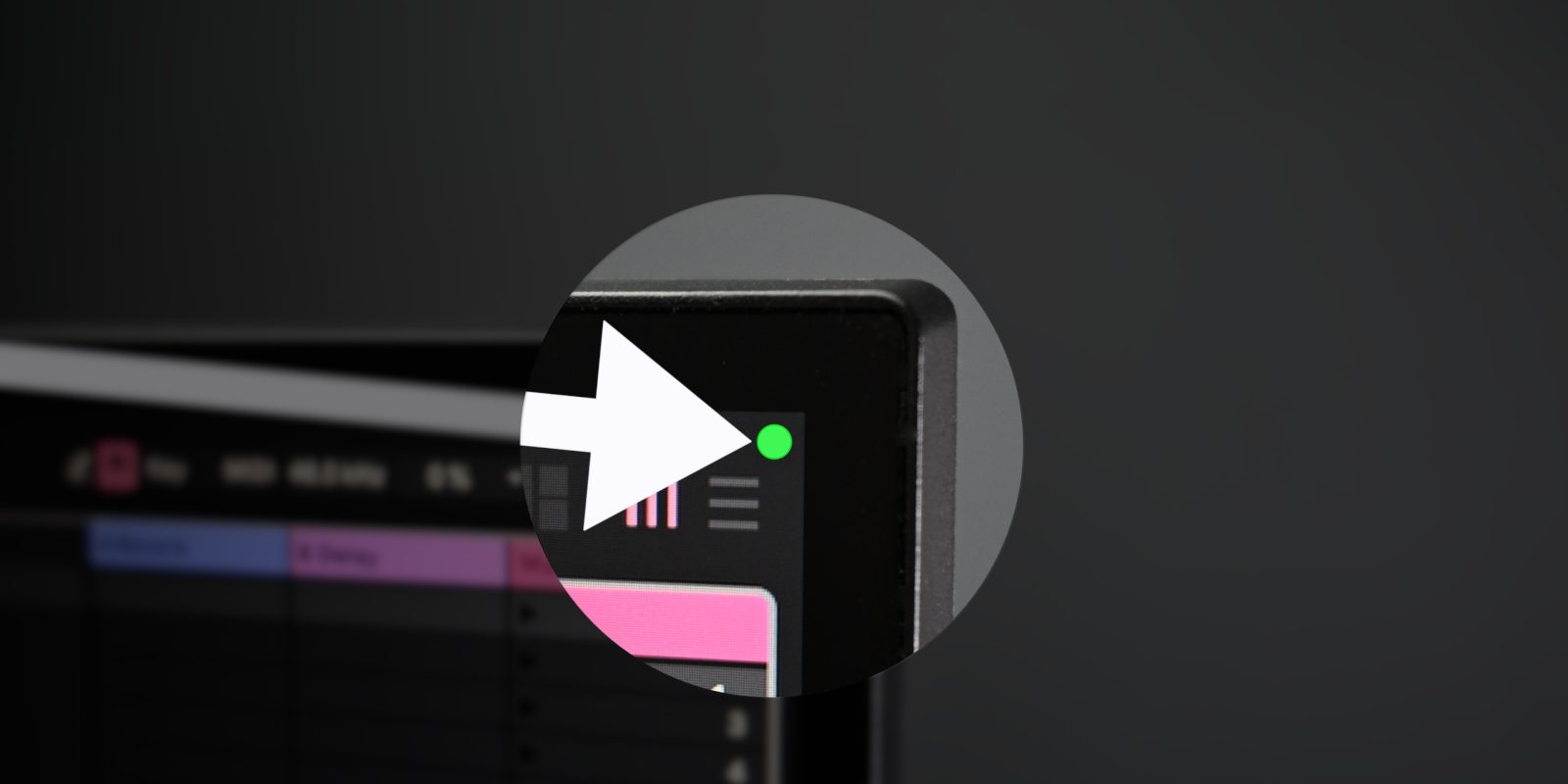
Apple includes privacy indicators in the upper-right corner of your Mac’s display to indicate when critical hardware is in use. An orange indicator means your microphone is in use, while a green indicator suggests the camera is in use. These indicators help users stay diligent about apps that may be using the camera or microphone legitimately or, in the worst case, unscrupulously.
While I appreciate having these indicators, they can become a distraction when taking screenshots or recording my Mac’s external display. Thankfully, Apple provides a solution to address the issue without compromising privacy.
Starting with macOS Sonoma 14.4, Apple added the ability to disable privacy indicators on external displays connected to your Mac. Privacy indicators will always appear on your Mac’s main display, but being able to limit them on external displays is a thoughtful compromise.
Privacy indicators will always display in the menu bar, but you can disable them when the menu bar is hidden in an app in full-screen mode or when it’s set to hide automatically. If both the microphone and camera are active, the green (camera) privacy indicator takes precedence, since the camera is the more critical hardware.
Video: How to disable privacy indicators for external Mac displays
Subscribe to 9to5mac on YouTube for more videos
How to disable external display privacy indicators
Step 1: Start up your Mac from macOS Recovery by shutting down your Mac, then holding the power button until “Loading startup options…” appears.
Step 2: Click Options and then click Continue, and your Mac will boot into macOS Recovery.
Step 3: Click your Mac’s user → Next, enter your password, and click Continue.
Step 4: In the menu bar, click Utilities → Terminal.
Step 5: Type the following command at the Terminal prompt and press Return on your keyboard:

system-override suppress-sw-camera-indication-on-external-displays=onStep 6: If you have FileVault encryption enabled for your user account, you will see a message that says the data volume needs to be unlocked to proceed. Enter your password in the terminal to unlock the data volume and press Return.
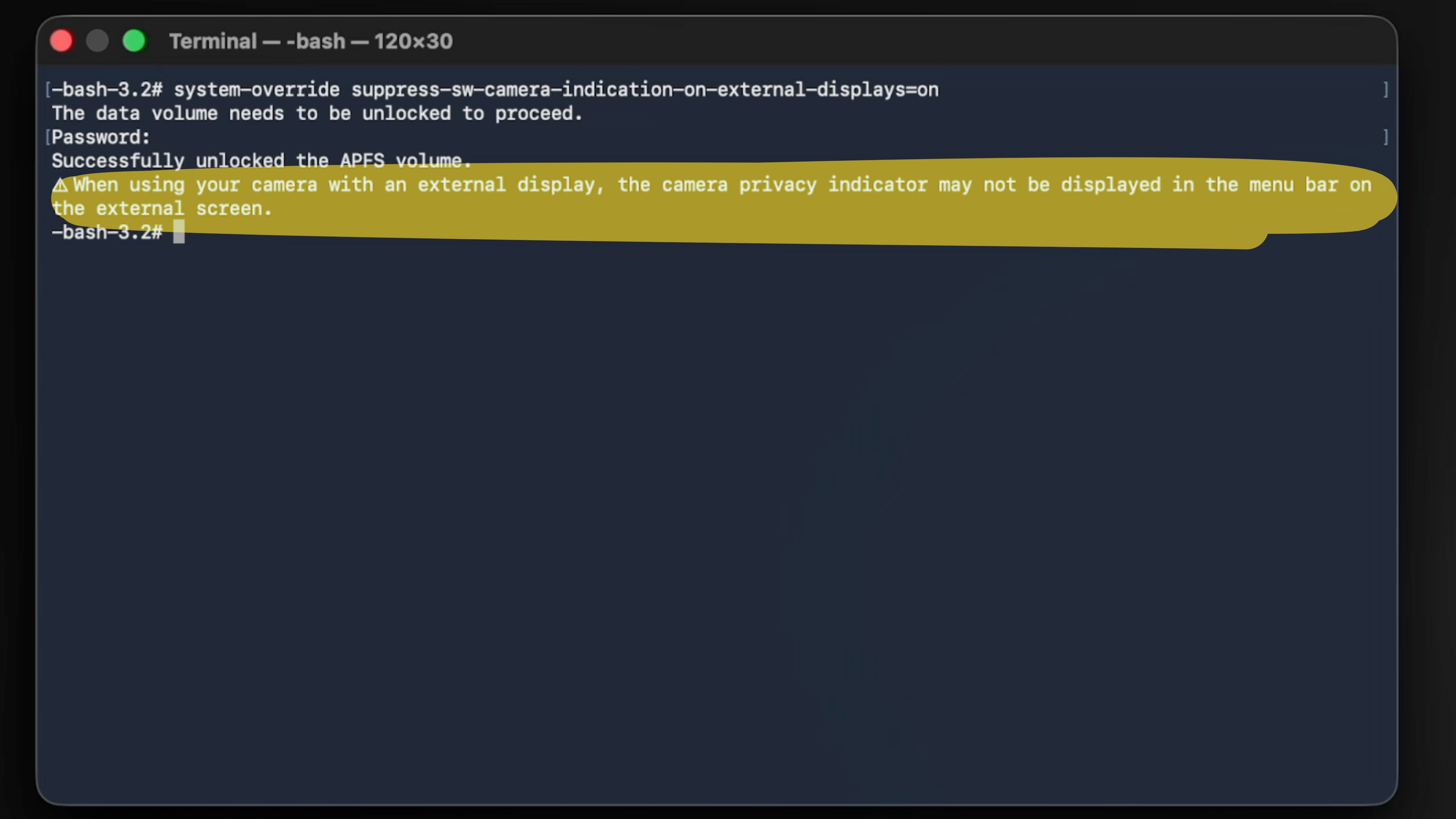
If the command worked, you should see the following message: When using your camera with an external display, the camera privacy indicator may not be displayed in the menu bar on the external screen.
I have yet to encounter a situation where the privacy indicator did not display in the menu bar, but you’ll want to keep this possibility in mind.
Step 7: In the menu bar, click → Restart and log back in to macOS.

Step 8: Open Settings → Privacy & Security → Camera (or Microphone).
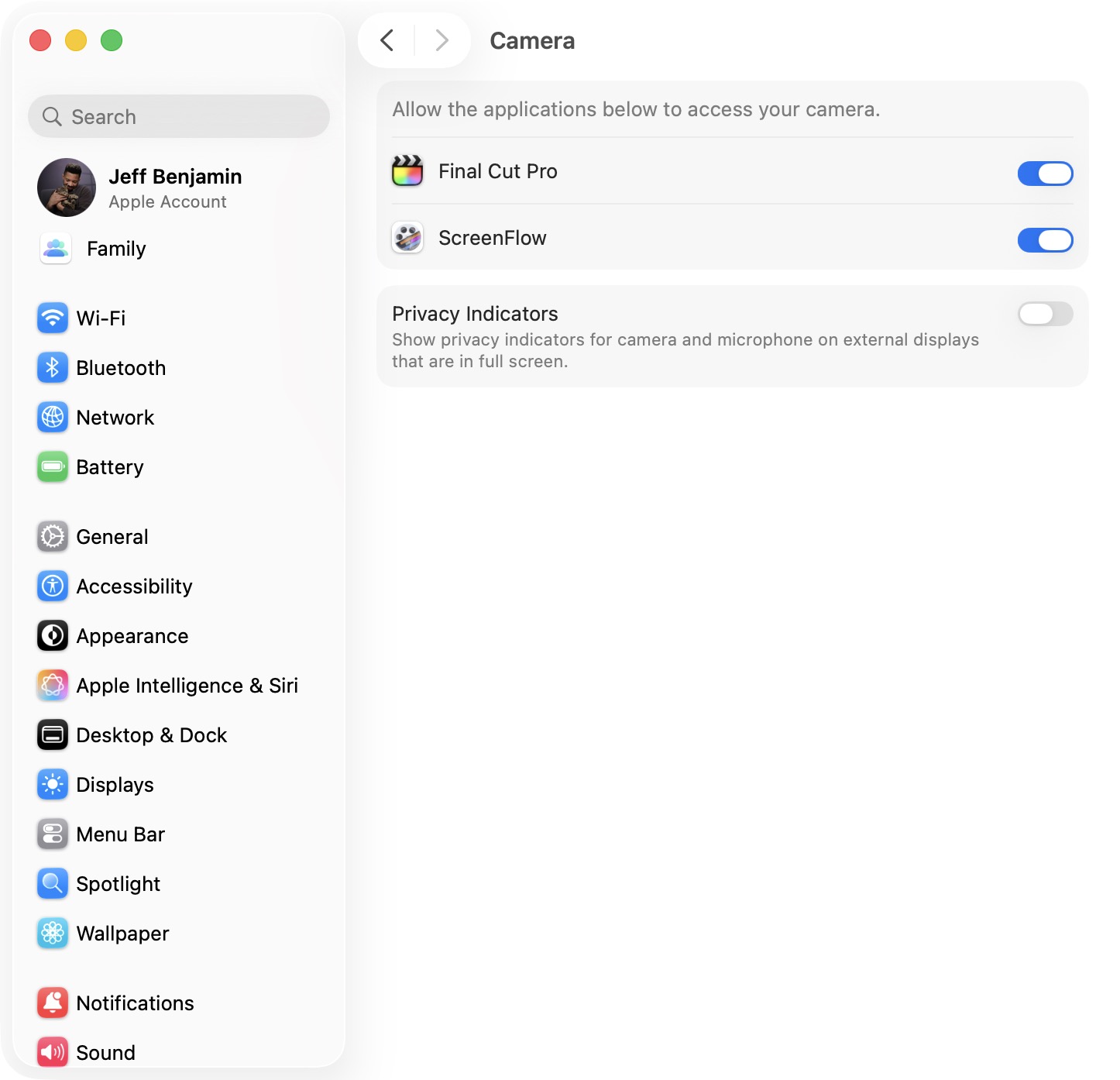
Step 9: Disable the Privacy Indicators switch at the bottom of the page and verify with your password or Touch ID.
Note: Changing Settings → Privacy & Security → Camera will also change Settings → Privacy & Security → Microphone and vice versa.
9to5Mac’s Take
I think privacy indicators are a must-have to help keep tabs on critical hardware usage, but at times I find them invasive, especially for screenshots and screencasts. I appreciate that Apple has provided a relatively easy way to disable them on external displays while having them remain on the main display. And since Apple provides a switch inside Settings, there is no need to go back into macOS Recovery to disable the feature if you want to turn it off, which is super handy.
Would you consider disabling privacy indicators on your external Mac display?


FTC: We use income earning auto affiliate links. More.

Comments