
I’ve been using Photoshop’s generative AI features to remove unwanted objects and extend photos since Adobe introduced them in 2023. They’ve been hit or miss for me, but they’re certainly a lot faster than the old-fashioned approach of masking, cloning, and manually painting things out. But with iOS 27, Apple has significantly improved its Clean Up tool and introduced the new Extend tool, and I was curious to see how Apple’s offerings compare with Adobe’s. So, with the help of a friend, I put both to the test using a variety of photos to see how they stack up.
For this article, my friend Jürg was kind enough to provide several photos from his travels throughout Switzerland and Europe. He takes much better photos than I ever could, and takes pictures of more exciting subjects than my corner of Ohio has to offer. You can see more of his photography on Instagram. I narrowed the selection down to six photos: three to test object removal and three to test image extension.
All photos were shot on an iPhone 17 Pro Max and edited on an iPhone 18 Pro Max running iOS 27.0. The Clean Up tool in iOS 27 has three options: Auto, Fast, and High Quality. I left the setting on Auto for all three tests.
Photoshop tests were done on a MacBook Pro running Adobe Photoshop 27.10.0 using the “Firefly Fill & Expand” model. I selected the objects using either the Object Selection Tool or Lasso Tool, then chose Generative Fill and left the prompt box blank.
For the Extend tool, I used whatever extension Photos selected by default. The Extend tool in Photos limits how far you can expand the edges of an image, while Photoshop doesn’t have the same restriction. To keep the comparison as consistent as possible, I used the result from Apple’s Photos as my reference, and had Photoshop create something in a similar size.
I made every effort to keep the HDR appearance as consistent as possible between the photos edited in Photos on iOS 27 and those edited in Photoshop, but there was some minor variation.
Making things disappear


Right: iOS 27 Clean Up
First up is the removal of this red chair in front of the yellow door. This was the first photo I tested with the new Clean Up tool, and I have to say, it left quite a positive impression. The result looks very believable, and the only real mistake I noticed is that the rivet behind the chair’s left armrest was also removed instead of being correctly reconstructed. It’s not something I’m convinced most people would notice, though, and it would be an easy fix to clone back in with Photoshop. I was particularly impressed by how the shadow beneath the chair was replaced with a texture that matches the surrounding scene while also maintaining the existing lighting.


Right: Adobe Photoshop Generative Fill
Photoshop doesn’t do as good a job as Apple’s Clean Up tool here. The chair’s shadow remains and looks more like an oil stain. The door’s rivets are misaligned, and one is obviously missing. The replacement texture also contains significantly more visual artifacts. Overall, it isn’t nearly as clean or realistic as what Clean Up produced.


Right: iOS 27 Clean Up
I was really impressed with Clean Up’s results here. Not only did it remove the plate with bread, but it also added a nice reflection of the mug and jars. Notice it even got the handle of the spoon right in the reflection. A nice detail. Clean Up also completely removed the plate’s shadow from the napkin. I thought removing a red plate from a red table of the same color might prove more of a challenge for Clean Up, but nope! If I had one nitpick, it’s that Clean Up left the crumbs from the plate, though removing them would be very easy to do by running Clean Up again over that area.


Right: Adobe Photoshop Generative Fill
Photoshop removed the plate with bread well enough, but again, it had issues with leaving behind an out-of-place shadow. The napkin looks dirty or wet here, but at least Photoshop didn’t leave behind as many pesky crumbs.


Right: iOS 27 Clean Up
This photo proved to be a much bigger challenge for Clean Up. After attempting to remove the man on the right, Clean Up left behind a garbled mess with plenty of obvious artifacts. The leaves are too chunky. It struggled in a similar way on the left side of the image, where the woman with white hair was standing behind the white flowers. Clean Up also left behind a “ghost” of the dog’s head, though it arguably blends in with the stone wall and is much more noticeable in this side-by-side comparison.


Right: Adobe Photoshop Generative Fill
Photoshop had no issues removing the woman on the left behind the white flowers or the man on the right behind the leaves, realistically filling in both areas in the process. The end result is a very convincing photo that looks like nobody was ever there. Photoshop also avoided leaving behind any phantom shadows this time.
Adding to the picture

Right: Adobe Photoshop Generative Fill
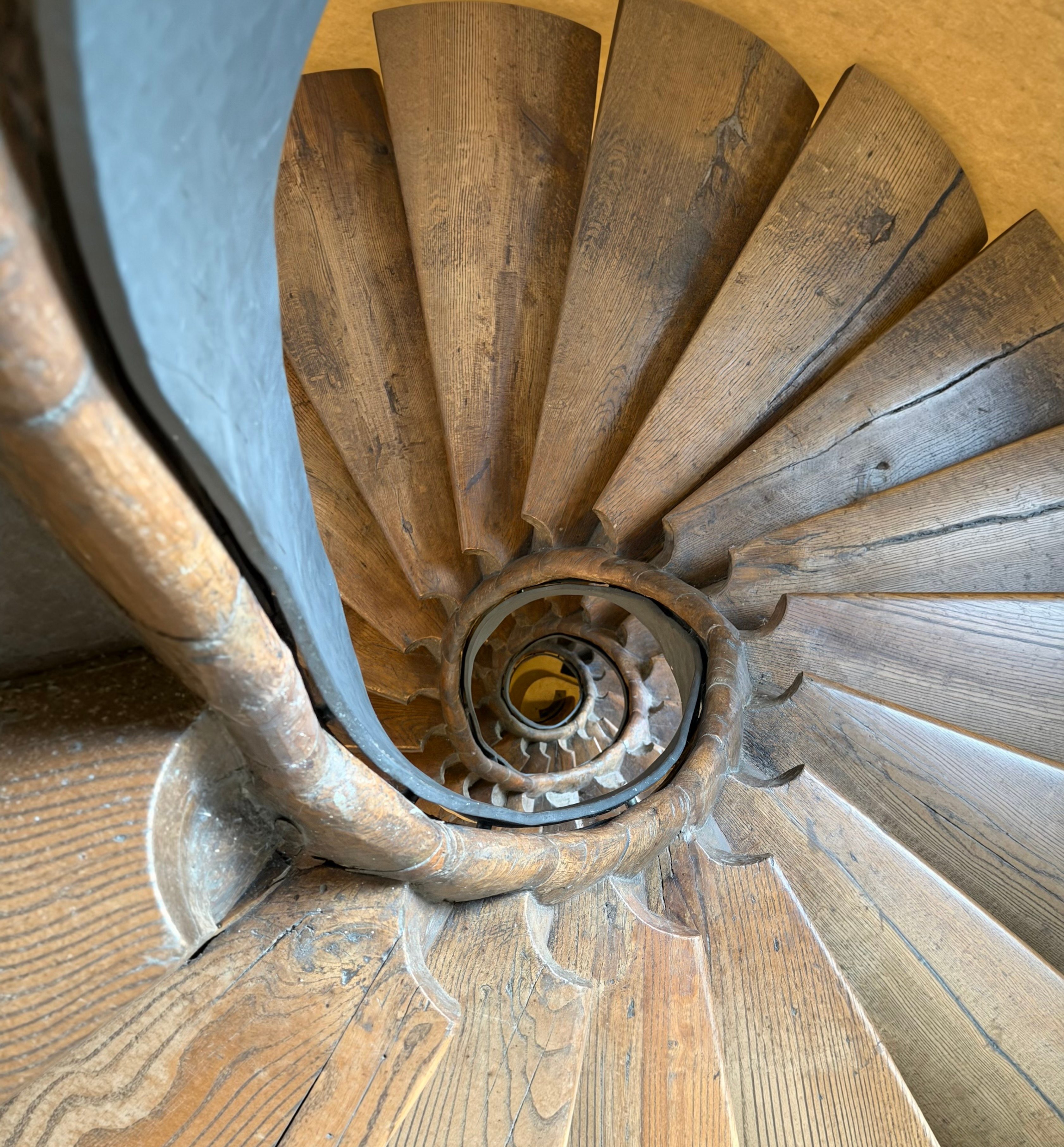
I thought this photograph of these old, winding steps would make for a good test because I didn’t think it would be immediately obvious to either AI what it was looking at, and I was curious to see how each would interpret the scene. Or even what it would do with it. It looks like iOS 27’s Extend tool interpreted the photo as something more like a ceiling fan, rounding off the ends of the stairs as though they were blades. Photoshop, on the other hand, simply extended the stairs outward and did a surprisingly good job of matching the wood grain.


Right: Adobe Photoshop Generative Fill
Extend does an excellent job living up to its name here. It extends the scene really well and creates a very convincing final image. Notice the windows are believably repeated and the bridge on the right side of the photo, while arguably too smooth, still manages to look fairly convincing.
Now look at Photoshop’s attempt. Actually, Photoshop, did you even make an attempt? This is a complete failure by just about every measure. Pure, obvious AI slop. The windows and roofline in the upper-left corner of the photo look terrible. The bridge on the right doesn’t have anything resembling the realistic arch Apple created, and for some reason, Photoshop decided the waterfall should randomly change direction rather than continue along the existing river line.


Right: Adobe Photoshop Generative Fill
Extend again manages to create a convincing image that, while not perfect, is significantly better than what Photoshop produced. Extend creates a believable table with some books or magazines, and the flowers in the vase look much more realistic than those generated by Photoshop. The decorative ornamentation above the left door also matches the real ones in the photo surprisingly well. There is some strangeness on the right side of the photo, where Extend has added a radiator, a random power cord, and a table for some reason.
Perhaps the biggest difference between Extend and Photoshop is at the ceiling. Extend has recreated more of the wood from the opposite wall, while Photoshop has tried to turn it into something more like a structural beam.
Photoshop, meanwhile, can’t seem to generate an image without the telltale signs of AI slop. Its table has too many legs and appears to simply “break off” before blending into the floor. The ornamentation above the door is less convincing, missing one of the “swirls” and doesn’t have the textured paint found on the real ornamentation in the photo.
I wouldn’t say either is perfect, but when it comes to realism, I think Apple’s solution edges out Adobe’s.
The good, the bad, and the AI slop
It’s worth mentioning that Photoshop requires a subscription to use, but none of the features I tested consume generative AI credits. Adobe does give users the option to choose other AI models that may require credits, but I didn’t use those models in my tests. Apple, too, has made it clear that “usage limits may apply” to some Apple Intelligence features and may charge for expanded access in the future.
It’s clear that Apple has made significant improvements to the Clean Up tool over previous versions of iOS. I’ve tried it before and always found it underwhelming, but now it’s genuinely good. The new Extend tool is impressive as well, and I found it significantly better than Adobe’s offering in my tests. Adobe gives you unlimited refinements and the ability to adjust results with prompts, but I question the value of those benefits if additional generations and prompts simply churn out more obvious AI slop. Apple may be more limiting in this regard, but its initial results are much better to begin with.
Of course, results will vary depending on the photograph, the complexity of the scene, and what you’re asking the tools to do. These were simply the results I got from the photos I tested.
How about you: Have you had a chance to try out Apple’s new Clean Up and Extend tools? If so, what do you think?
Best Apple accessories
- AirPods Pro 3 (now only $199, down from $249)
- Apple AirPods Max 2 ($479, down from $549)
- Anker 25W Qi2.2 3-in-1 Foldable MagSafe Charger
- AirTag 2 (1-pack / 4-pack)
- AirPods 5 with Wireless Charging Case
- Apple MagSafe Charger with fast-charging capability


FTC: We use income earning auto affiliate links. More.



Comments