
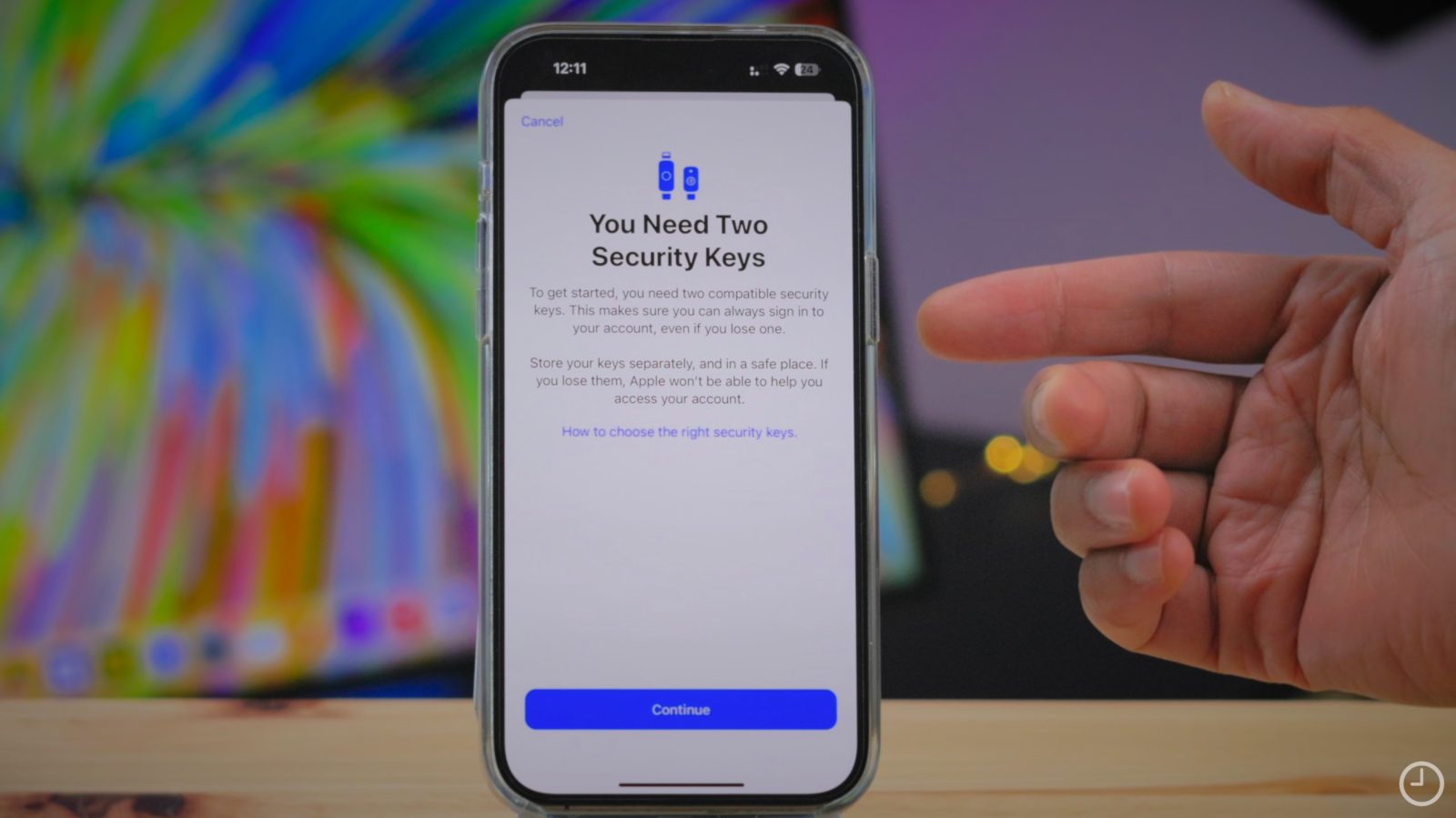
The main new feature that arrived with iOS 16.3 and macOS 13.2 is support for physical security keys. For those that want to take security up a notch, you’ll need to pick up at least two hardware keys, but which ones to choose? Here are the security keys Apple recommends for iPhone, iPad, and Mac.
With the launch of physical security key support for Apple devices, the company hasn’t jumped into making its own keys. Instead, it made iPhone, iPad, and Mac compatible with existing FIDO-certified security keys.
If you choose to use Security Keys for Apple ID, the hardware keys will replace the six-digit 2FA code that’s normally sent to a verified device. That means this is definitely not the right fit for everyone as you assume full responsibility for your account (if your keys are lost you may be locked out of your account permanently). But if you want a greater level of security for your Apple ID, physical keys offer that.
Security keys Apple recommends for iPhone, iPad, Mac
In a support document, Apple has recommended three specific keys while also giving the green light to others that meet a couple of guidelines.
Important: You’ll need a minimum of two FIDO-certified security keys to enable them with iPhone, iPad, and Mac
- YubiKey 5C NFC – $55 each, available from Amazon and Yubico (works with most iPhones and Macs via USB-C and NFC)
- YubiKey 5Ci – $75 each, available from Amazon and Yubico (works with all iPhones and most Macs via Lightning and USB-C)
- FEITAN ePass K9 NFC USB-A – $25 each (works with older Macs via USB-A and most iPhones via NFC)
For other recommended security keys, Apple says to make sure it’s FIDO certified and of course, features connectivity for your Apple devices. Here’s a more affordable option with USB-C and NFC:
- GoTrust Idem Key USB-C and NFC – $35 each (works across most iPhones and Macs)
Apple notes NFC for security keys only works with iPhones (iPhone 6 and later). USB-C works with most Macs and recent iPads, USB-A works with older Macs (or iPhones/iPads with a Lightning adapter), and Lightning works with iPhones and supported iPads.
Top comment by Guy Teague
so i have two yubikeys i bought a couple years ago, both with nfc and one with usb-a and one is usb-c. i tried them on lastpass (i know, i know!) and google which were two of the few companies which used them and i didn't like the procedures either one used and i sure didn't like the yubikey software which was supposed to replace google or lp authenticator. so i mothballed them until apple announced this new support and i decided i'd try to get my money's worth out of them and checked the box and set them up. but then i slept and realized i was using a brand new feature and without any reviews or descriptions of how it worked other than the apple vagueness and decided to wait until the feature had been proven and a thorough analysis of how it worked was published. don't get me wrong--i worked network support for decades and i wore up to a half dozen secure-id's around my neck for the various customers we supported, so i'm hardly a novice in the usage of hardware keys. so i went into the /password and security/ setting to remove them and it wouldn't load on my iphone. it also wouldn't load on my mac. ditto for ipad. i troubleshot on my own and with apple for nearly 8 hours with no clear answer of why the setting wouldn't load and i got more and more nervous i'd be locked out of my apple accounts. but one thing did sort of work--i logged into the web icloud using chrome and when i selected to manage my account it wanted me to use my new security key to do so and .......
For a look at the setup process, check out my colleague Jeff’s video walkthrough:
One more thing to keep in mind, there are four instances where security keys will not work:
- You can’t sign in to iCloud for Windows.
- You can’t sign in to older devices that can’t be updated to a software version that supports security keys.
- Child accounts and Managed Apple IDs aren’t supported.
- Apple Watches that are paired with a family member’s iPhone aren’t supported. To use security keys, first set up your watch with your own iPhone.
And if you haven’t seen all the requirements, here’s everything Apple says you need to use Security Keys for Apple ID:
- At least two FIDO® Certified security keys with connectivity for your Apple devices
- iOS 16.3, iPadOS 16.3, or macOS Ventura 13.2, or later on all of the devices where you’re signed in with your Apple ID
- Two-factor authentication set up for your Apple ID
- A modern web browser – if you can’t use your security key to sign in on the web, update your browser to the latest version or try another browser
- To sign in to Apple Watch, Apple TV, or HomePod after you set up security keys, you need an iPhone or iPad with a software version that supports security keys
Are you planning to use physical security keys with your Apple ID? Share your thoughts in the comments!
Read more 9to5Mac tutorials and guides:
- Top iPhone 14 Pro features to check out and customize
- MacBook Pro comparison: How the new M2 Pro/Max improves over the M1 versions
- MacBook Air vs 2023 Pro: Here’s how the new M2 laptops compare
- Mac mini comparison: What’s different with the M2 and M2 Pro vs M1


FTC: We use income earning auto affiliate links. More.

Comments