
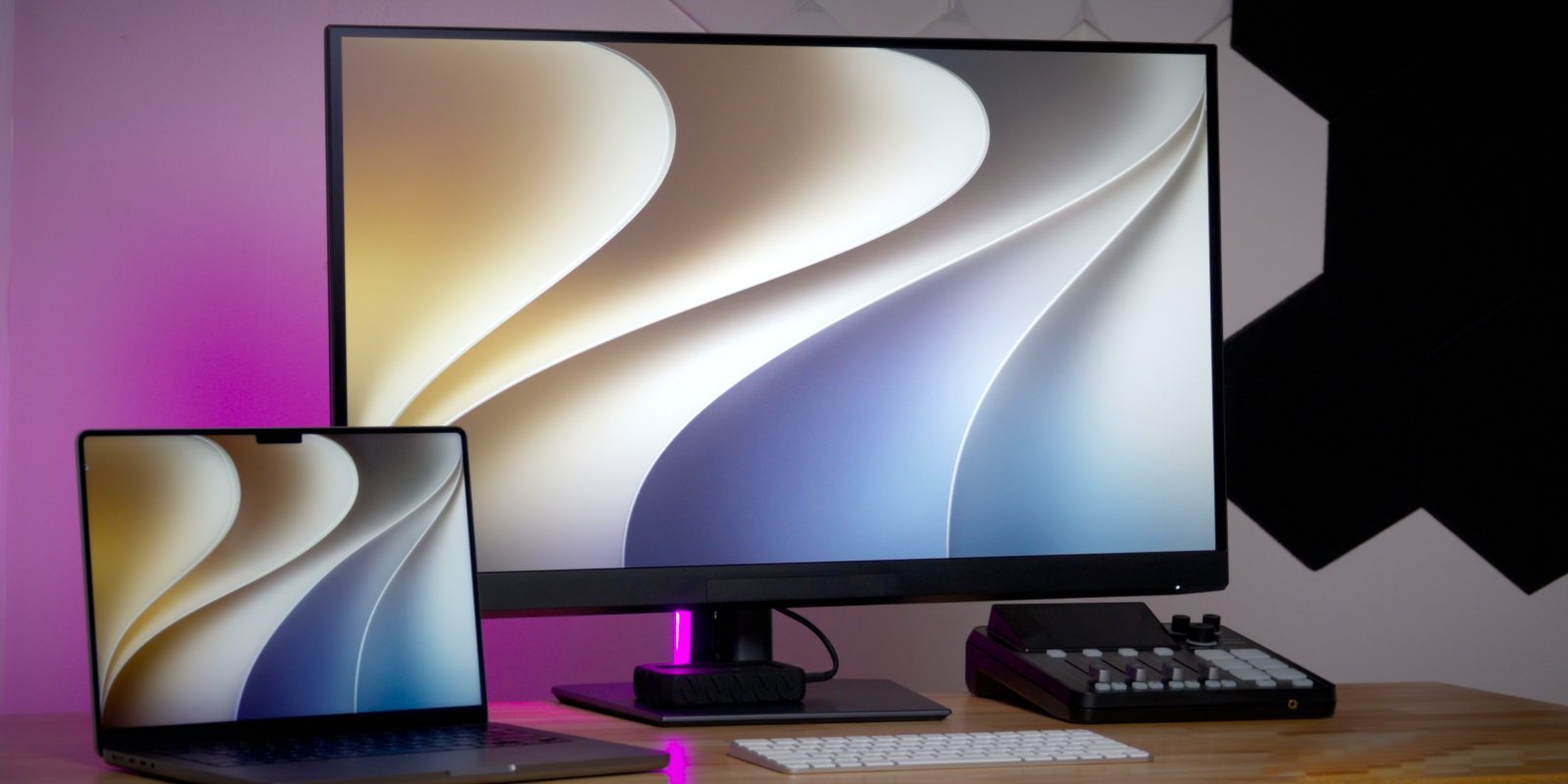
I’m in the middle of testing Dell’s 32-inch UltraSharp U3226Q, and my thoughts so far are extremely positive. The picture quality of this OLED panel is impressive, especially when HDR is enabled in macOS. I’ll have a full hands-on review of the UltraSharp on our YouTube channel.
Meanwhile, I wanted to note a key improvement Apple introduced in macOS 27 regarding HDR support. A drawback of using an HDR-ready third-party monitor on macOS 26 Tahoe was the inability to activate High Dynamic Range at the common 2560 x 1440 scaled resolution. Fortunately, the newest macOS release resolves this problem.

The problem
If you’re using an HDR10-capable third-party display with macOS Tahoe, you’ll see a High Dynamic Range toggle in Settings → Displays. When that switch is flipped, HDR content will be viewable. You can see an example of this in the screenshot below.
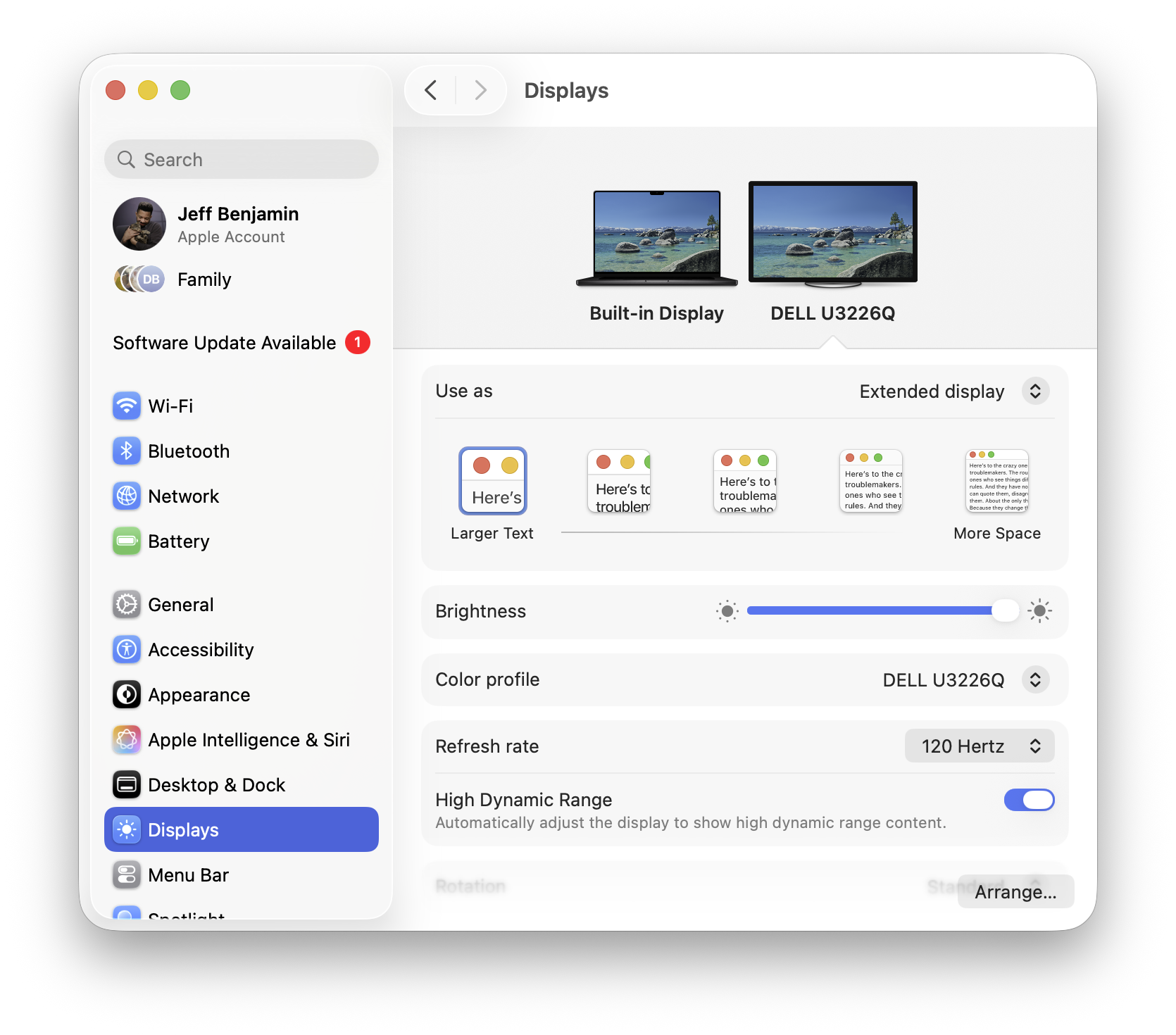
But notice in that same screenshot that I’m running the display at a resolution of 1920 x 1080, which is exactly 2x the pixel-doubled resolution of this 4K UHD display’s native 3840 x 2160.
Most users probably don’t want to run at 1920 x 1080 because it makes content appear too large on a 4K display. The Dell Ultrasharp U3226Q is a 32-inch display, and running at 1920×1080 greatly reduces the available screen real estate.
Fixing this issue in macOS is easy; simply select a scaled resolution, such as the popular 2560 x 1440, which is the default setting for Apple’s 5K Studio Display. The problem is that when you select a scaled resolution on macOS Tahoe, HDR is disabled. Notice the screenshot below:
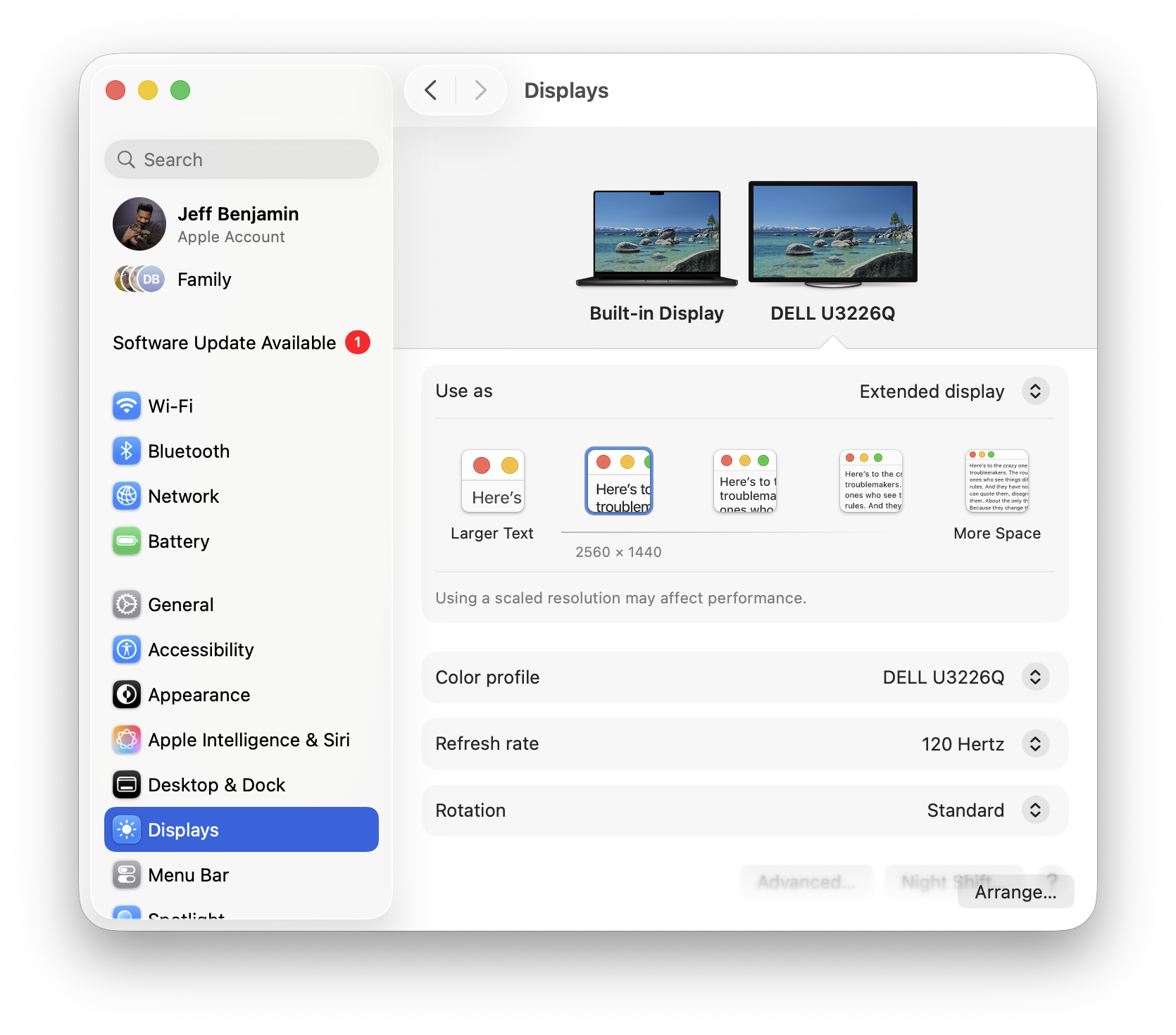
As you can see, the High Dynamic Range toggle is no longer available, and macOS automatically switches back to Standard Dynamic Range. This means that when running macOS Tahoe with an HDR display, you have to choose between HDR and running the preferred scaled resolution.
Thankfully, this issue has been fixed in macOS 27 Golden Gate. In the screenshot below, you can see that you can have both a scaled resolution selected and HDR enabled simultaneously. This is a native option, and no third-party software is involved.
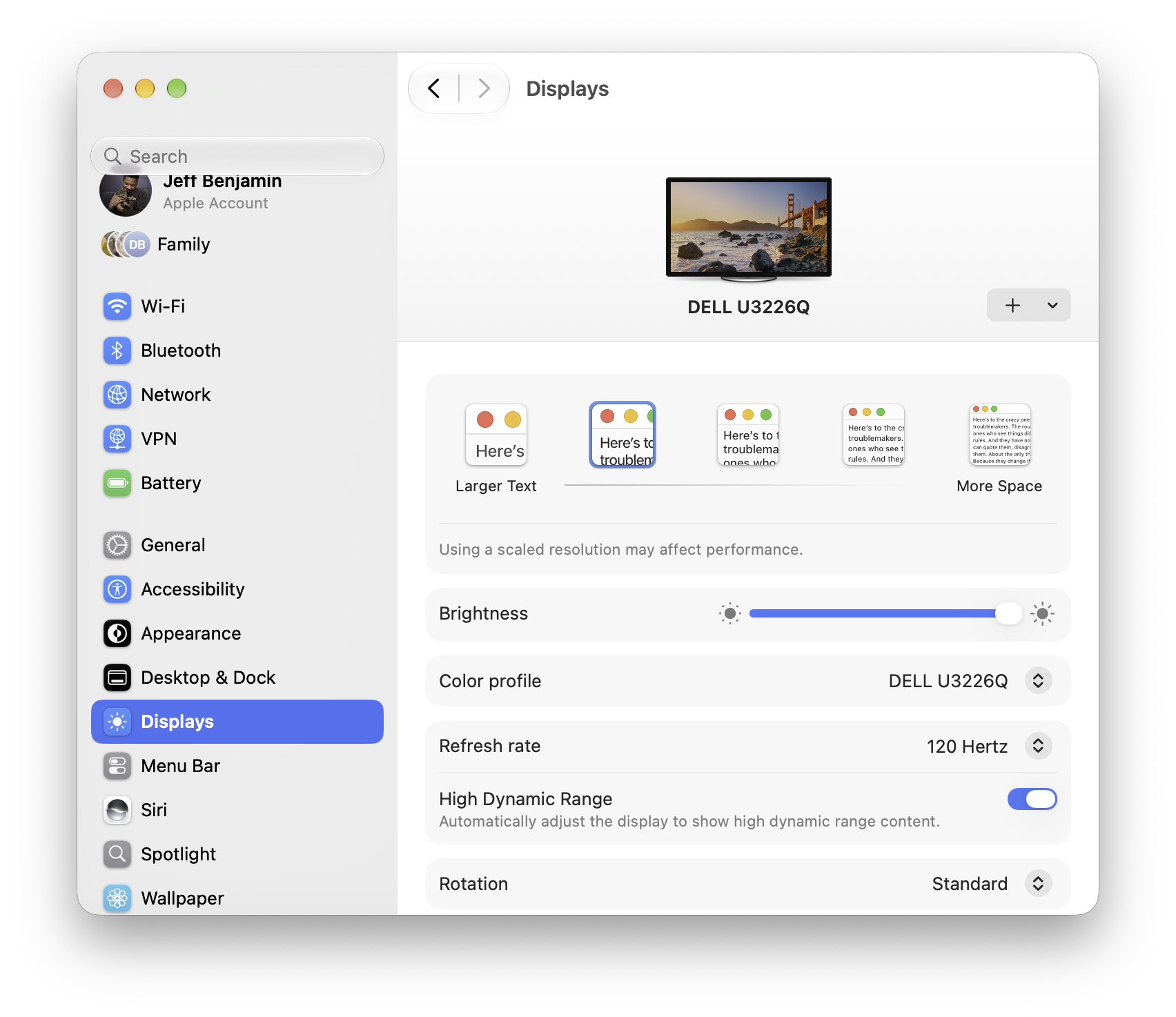
So if you’re running a third-party HDR display, this feature alone makes upgrading from macOS Tahoe to macOS Golden Gate worth it, in my opinion. Granted, this is on my M4 MacBook Pro. I tried the same thing on my M1 Max MacBook Pro, but I couldn’t select both settings at the same time, even though I was running macOS 27, so there are apparently hardware requirements as well.
macOS Golden Gate includes a range of new features, which I outlined in my Siri AI overview, my macOS Top Features video, and my final review of macOS 27. One such feature related to HDR displays is that macOS 27 offers much more native HDR support across the OS.
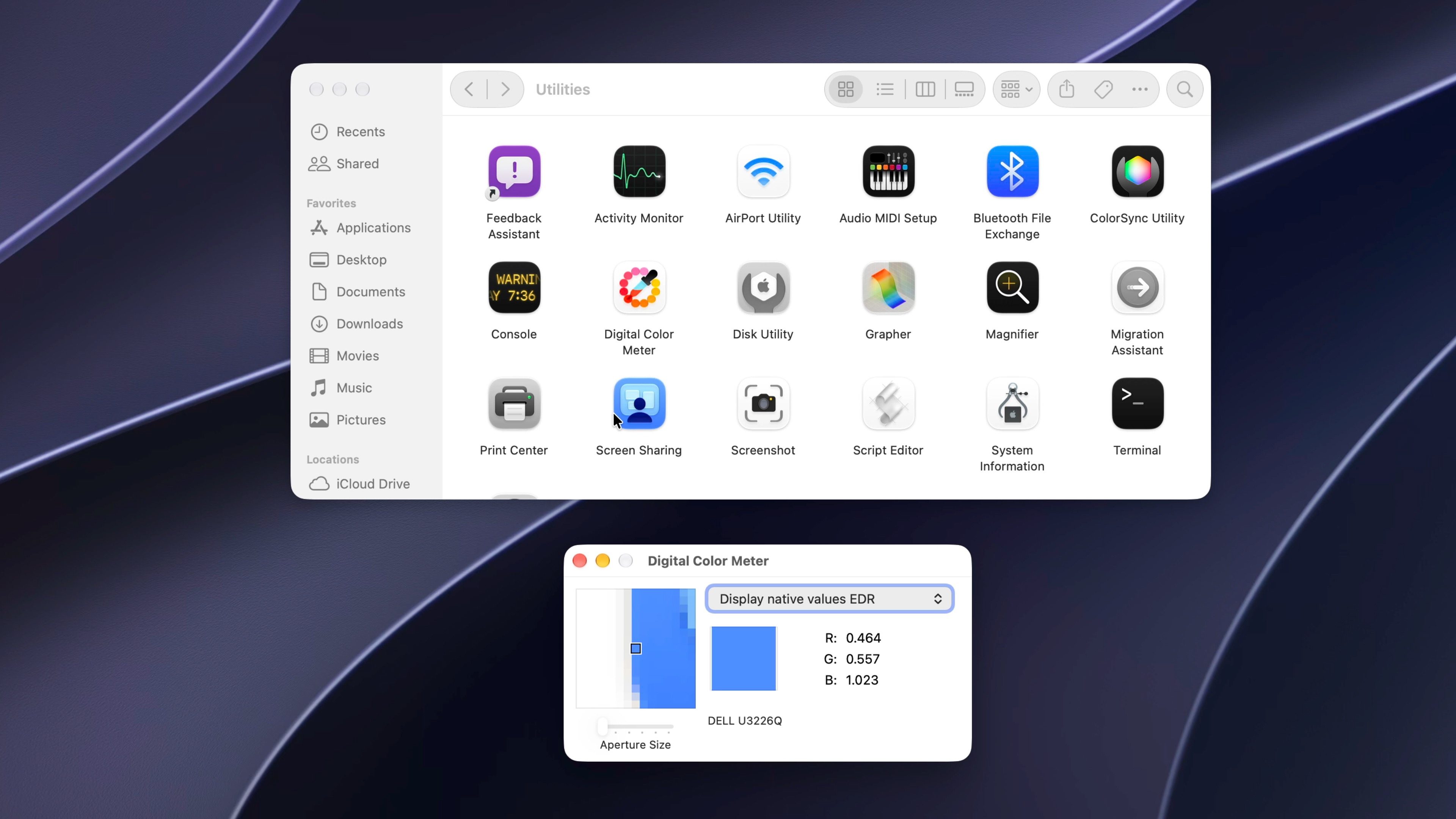
You’ll notice super-bright spectral highlights, cursors, and an overall more contrasty appearance compared to macOS Tahoe. It all results in a fantastic look for both Apple Studio Display XDR users, Pro Display XDR users, and third-party OLED display users.
What are your thoughts? Do you run a third-party external display with your Mac, and if so, would you consider using an HDR-capable display?
Jeff’s favorite Mac accessories:
- Whoosh! Screen Cleaner – the best way to clean your Mac’s display
- Dell 32-inch UltraSharp U3226Q – a high-end 4K OLED display
- Asus ProArt 6K Display – the most budget-friendly 6K Display for Mac
- Asus ProArt 5K Display – Pound for pound, the best external display for Mac
- Rodecaster Duo – the best and most feature-packed audio interface for Mac
- Apple Magic Mouse – the best mouse for Mac, hands-down


FTC: We use income earning auto affiliate links. More.





Comments