accessibility

See All Stories

How-to: Make accessible iBooks with iBooks Author

Site default logo image

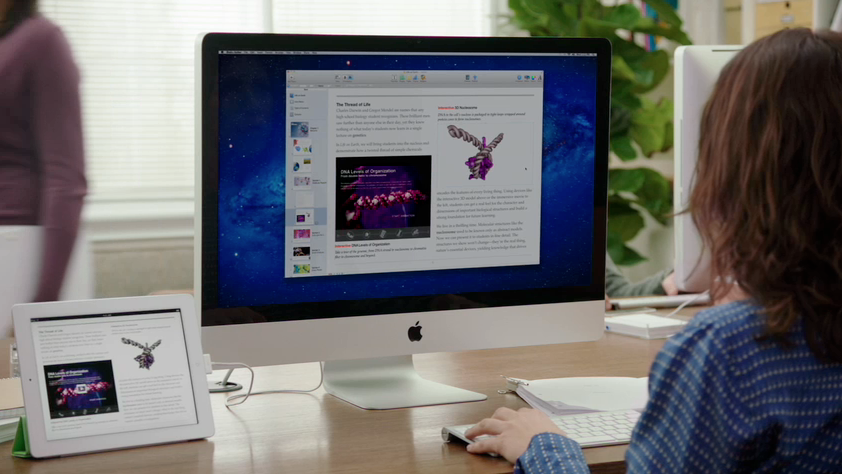
Apple takes pride making sure its products and software is made for every user, including students and teachers in the classroom. iPads are being used more and more throughout the classroom. To assist with this, Apple, last year, launched iBooks Author. iBooks Author is a free app, available in the Mac App Store that allows users to create interactive iBooks.

In this accessibility segment, I will be discussing how to make create accessible iBooks using iBooks Author


Expand
Expanding
Close

How-to: Have your iOS device read text for you

Site default logo image

iOS devices are built with all users in mind: they come with several accessibility features for low-vision or legally blind users, settings for hard-of-hearing or deaf users, settings for individuals who have physical and motor difficulties, and settings for individuals with learning difficulties.

In this accessibility segment, I will be discussing how to make text speakable on an iPad, iPhone, or iPod touch:


Expand
Expanding
Close

Site default logo image

How-to: Make text more readable/larger on your iPad and iPhone

This is the latest how-to as part of our new series:

For some people, the font sizes on the iPad, iPhone, and iPod touch are too small. Sometimes, these small fonts prevent people from using or purchasing the iOS devices. Thankfully, there are multiple solutions to this potential issue. Below, we’ve rounded up the fixes:


Expand
Expanding
Close

iOS 7 includes the ability to control your iPhone or iPad using head movements [video]

Site default logo image

Discovered by an anonymous tipster, iOS 7’s “Accessibility” section now includes a feature that allows you to control your iPhone or iPad with left or right head movements. We’ve tested this ourselves and found it to be quite accurate, but it’s quite tedious to control your device this way since it cycles through all of the options on the screen and you move your head when it is bordering around the option you want.
Expand
Expanding
Close

Site default logo image

Kindle for iOS adds line spacing, multipage highlights, accessibility improvements, more

Line Spacing

Amazon updated its Kindle iOS app today with a number of notable improvements. Included in version 3.8 of the app is the ability to adjust line spacing to loose, normal or tight, and multipage highlights allowing you to “highlight long passages that span multiple pages for added convenience.”

Amazon also noted that it added accessibility improvements in today’s update including the ability to set a higher maximum font size.

What’s New in Version 3.8

• Line Spacing – loose, normal, and tight line spacing options change the page layout to suit your reading preference
• Multipage Highlights – highlight long passages that span multiple pages for added convenience
• Accessibility Improvements – select a higher maximum font size, bug fixes
• Bug Fixes/Stability Improvements

Site default logo image

Amazon updates Kindle iOS app with new accessibility features, VoiceOver support for the visually impaired

Amazon announced today that it is updating its Kindle mobile apps, starting with an update to the Kindle iOS app,to include new accessibility features for the blind and visually impaired. The updated app now includes VoiceOver support and new accessibility features, the addition of the Hiragino Mincho ProN (Serif) font selection for Japan, and an enhancement to the app’s ‘Before you go’ feature that now offers “the ability to download a free sample and email yourself a reminder about recommended books.”

A full list of new accessibility features available in today’s update below:

  • Read aloud over 1.8 million titles available in the Kindle Store using Apple’s VoiceOver technology. Over 300,000 of these books are exclusive to the Kindle Store. Over 900,000 books are less than $4.99; over 1.5 million are less than $9.99.
  • Seamlessly navigate within their library or within a book, with consistent title, menu and button names; navigate to a specific page within a book and sort books in the library by author or title.
  • Read character-by-character, word-by-word, line-by-line, or continuously, as well as move forward or backward in the text.
  • Search for a book within their library or search within their book and navigate to specific text.
  • Add and delete notes, bookmarks, and highlights.
  • Use customer-favorite features like X-Ray, End Actions and sharing on Facebook and Twitter.
  • Look up words in the dictionary and Wikipedia.
  • Customize the reading experience including changing the font, text size, background color, margin, and brightness.
  • Use iOS accessibility features like Zoom, Assistive Touch, and Stereo to Mono, as well as peripheral braille displays.
Site default logo image

Tips: Missing alerts? Try the little known Screen Flash alert

Just in case a bouncing icon in your dock or a Sosumi sound from your speakers isn’t enough to catch your attention, this OS X accessibility feature is certain to be just the news flash you need when OS X demands your attention.

Enabling ‘screen flash’ in the Accessibility panel in System Preferences adds an extra layer of alertness to a busy environment by displaying a lighting fast flash across your screen, similar to what you see when snapping a shot in Photo Booth.

You can test out the screen flash before enabling the feature, and personally I found the experience to be quite jarring, but it  certainly can be a handy accessibility feature and could be a useful tool for your workflow.

You can also do similar on the iPhone: Settings > General > Accessibility > LED Flash for Alerts.

Have any helpful tips and tricks of your own? Let us know in the comments!