9to5Mac Reviews
All the products that the 9to5Mac team has reviewed.

All the products that the 9to5Mac team has reviewed.
All the products that the 9to5Mac team has reviewed.
All the products that the 9to5Mac team has reviewed.



Adobe recently announced the latest Mac versions of Photoshop Elements 11 and Premiere Elements 11, and I had a brief opportunity to glance at some of their shiny, new add-ons. Version 11 of both programs notably boast new looks, new experiences, new features, and new functions; but more importantly, they effectively tout prosumer video- and photo-editing solutions for the average consumer.
For those unaware, Adobe Photoshop Elements essentially provides iPhoto users with a Photoshop or Aperture-ish editing experience without the hefty price tag; and similarly, Premiere Elements gives iMovie users the more pocket-friendly bells and whistles of Premiere Pro or Final Cut Pro X.
Go below for the full review.

We recently reviewed one of our favorite keyboard solutions for the iPad, Logitech’s Ultrathin iPad Keyboard Cover. However, we have seen a few new competitors since then. Most notably: ZAGG’s new KeysPRO line, which we were able to get our hands on at IFA last month. The ZAGGKeys PRO caught our eye with its backlit keys, rugged build quality and battery life of up to three weeks at eight hours a day. It has potential to become the go-to iPad keyboard when it goes on sale at the end of the month (full review on the way), but one keyboard recently released already has it beat, at the very least, on battery life…
Logitech’s new Solar Keyboard Folio for iPad 2 and 3 comes with one impressive claim: the ability to type for two hours a day for two years on a full charge…even in the dark. That claim combined with a solid Logitech keyboard similar to what we’re used to from the company’s past iPad products, we essentially get solar power and a folio-style case added to the Ultrathin Keyboard cover for an extra $30.
I have had long enough since its release to put it to the test and have a couple of thoughts:

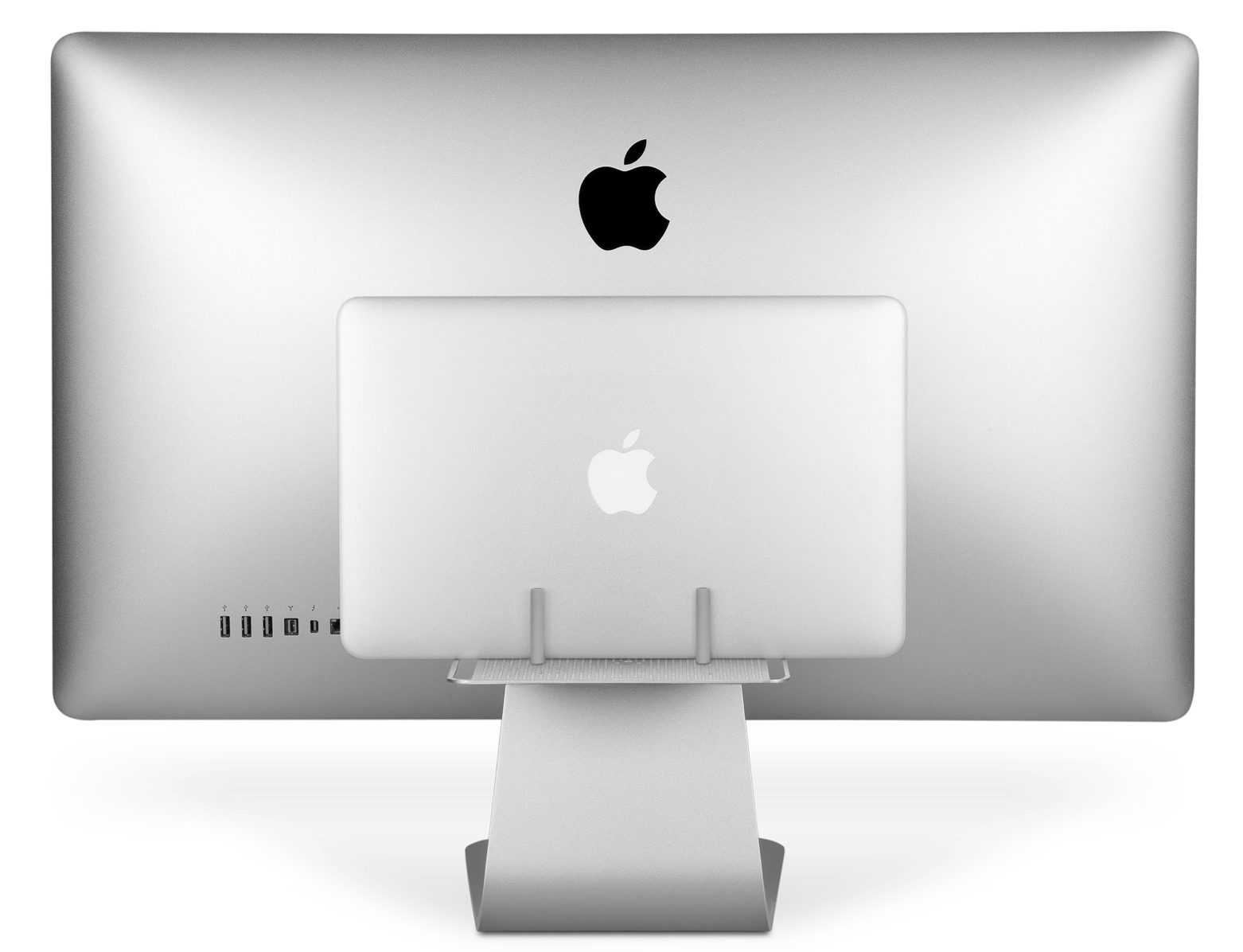
Last week, we highlighted Twelve South’s announcement of its new BackPack 2 accessory for Apple iMacs and LED Cinema/Thunderbolt display. The accessory is the successor to its original BackPack, a device that allows you to store hard drives or other peripherals behind your large display. The new version expands on the original, adding the ability to securely store things like laptops, the ability to store items below the display, and adding improved cable management by way of built-in rails.
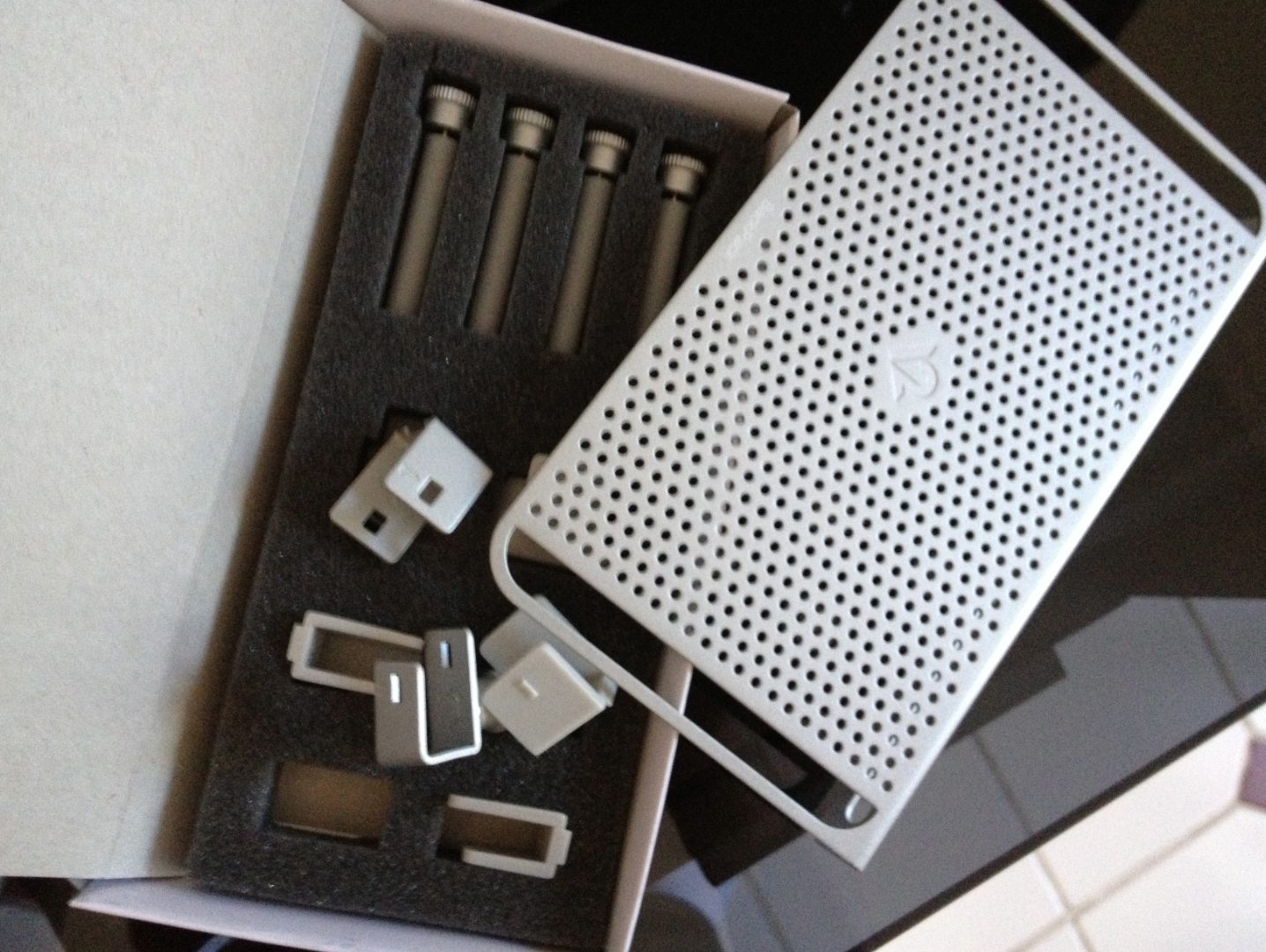
I’ve been testing out the BackPack 2 in our workflow for the past week, and it is a great accessory. I have never tested out the original version, though the basis of the BackPack is neat. As an LED Display user with a MacBook Air, it is so convenient to store the MacBook Air behind the display when I am at my desk. That way, my desk can be used to store other things. The MacBook Air can be safely placed on the BackPack with an included set of pegs.
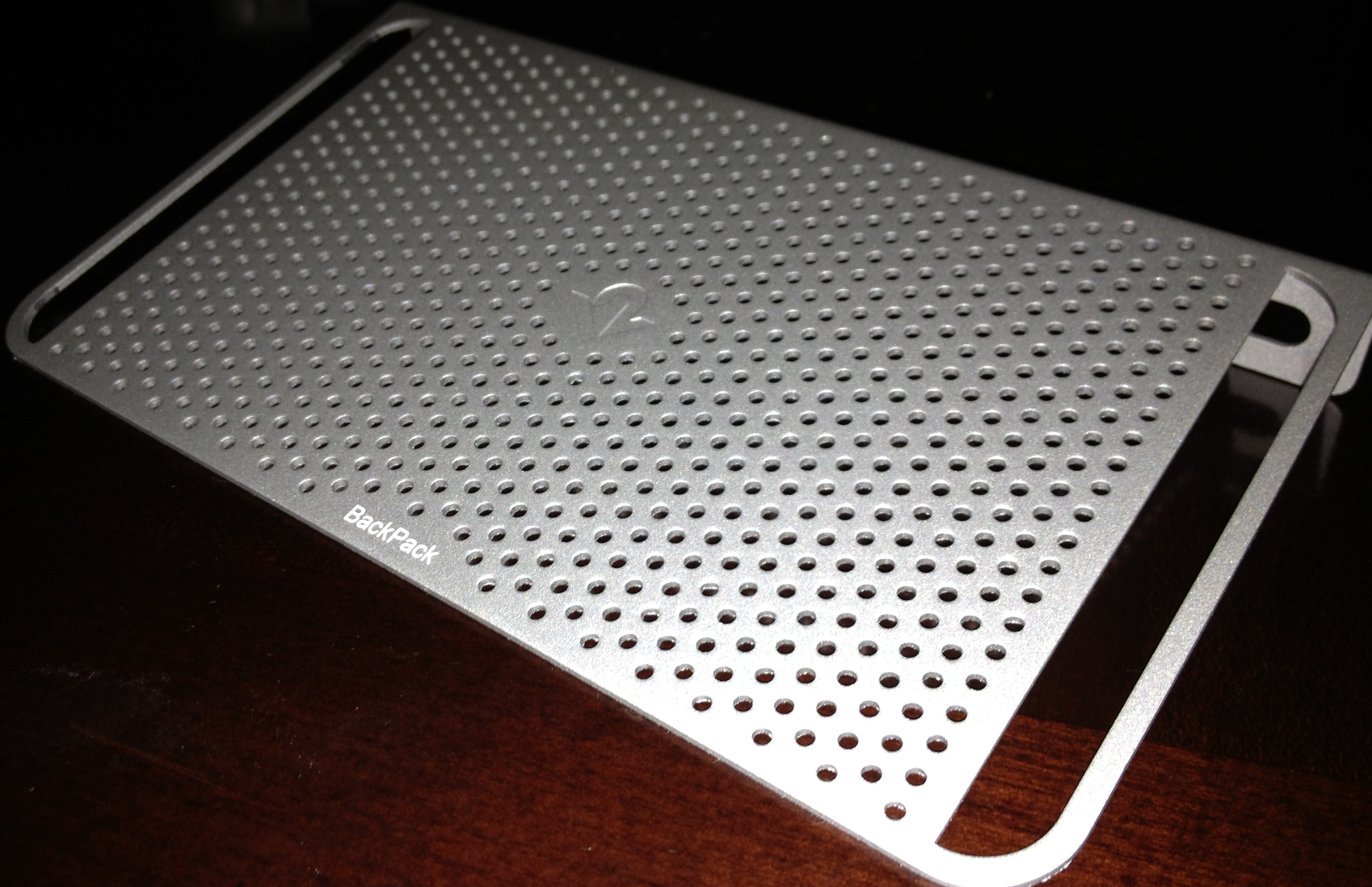
With that in mind, the BackPack 2 is an amazing solution for clearing up the technology from your desk. Perhaps an extension of that sentiment are the new cable rails on the right and left sides of the unit. These rails are perfect for pulling your cables through for increased organization.
On that note, the BackPack 2 is also perfect for storing external hard drives behind your display. New in the 2.0 version is the ability to place items below your display. On the note of clearing up your desk, you can use the BackPack 2 to store your wireless trackpad, keyboard and/or mouse in an easy position for taking and placing when needed.
Overall, we’ve enjoyed using the BackPack 2 and we recommend it for those who need an easy and cost effective ($34.99) solution for clearing up their desk and storing their technology.

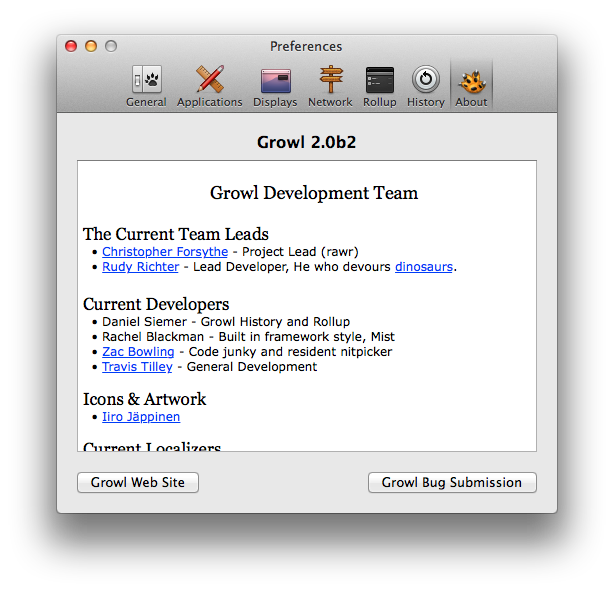
A few days ago, 9to5Mac reported on Hiss, a system for pushing Growl messages to the Mountain Lion Notification Center. Near the end of that report, we noted Growl was also working on a similar update, and we are happy to bring a first look at that update today.
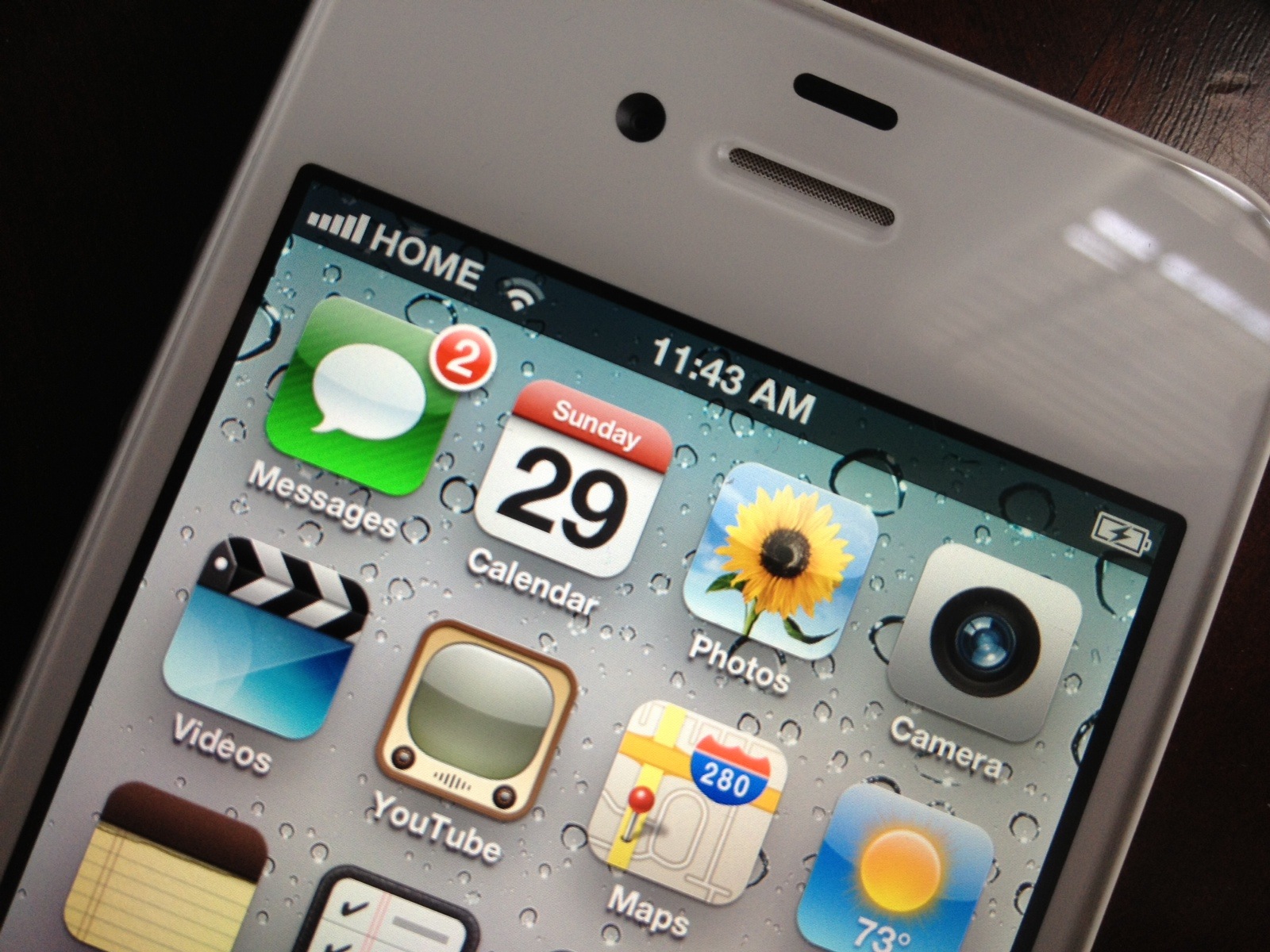
In recent months, the iPhone has been released on a few U.S. prepaid carriers, allowing consumers to purchase the device without a contract on a much cheaper plan than what a post-paid carrier would offer on a contract.
Unfortunately, the device selection is limited to only the 8 GB iPhone 4 or the 16 GB iPhone 4S (available in black or white) on both Cricket and Virgin Mobile. The unlimited plans are only $55 depending on either carrier. The data runs over Sprint’s 3G network, however, which is one of the slowest 3G networks available. This really limits the iPhone’s potential and ruins the experience of using such an advanced device. I am sure many people believe the old “you get what you pay for” saying is true—an iPhone on a prepaid carrier will never be as good as an iPhone on a contract carrier.
However, those people could be wrong.
Keep reading to find out how one pre-paid carrier stands above the rest.
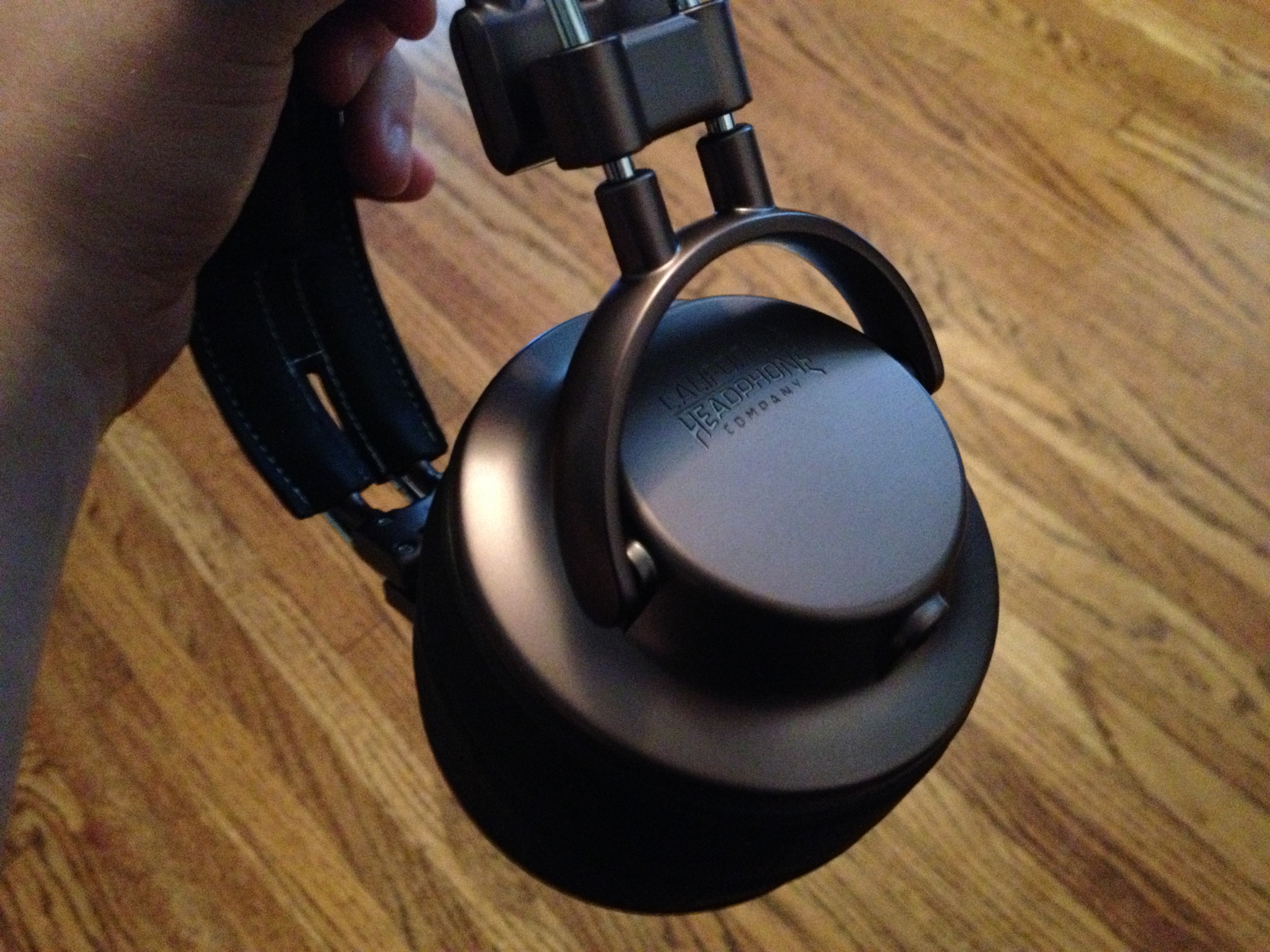
For the past couple of weeks, I’ve been testing out California Headphones, a new type of headset “designed for country and rock fans”. Headphones are not always an easy type of product to review because everyone has their own sense of sound and preference for audio-listening. Here are my thoughts and observations about the California Headphones (the Silverado model).
Overall, the quality of the California Earphones is as advertised. The premise of the California Headphones is its style that features a “California” feel based on rock and country music. The quality of sound is going to be up to the user, but in my tests they work and look great for the casual-to-medium music listener.
This particular model is priced at $225 – which we think is a bit steep – but the company also has a comparable model at just under $100. It’s worth comparing the two models at California Headphone’s website.
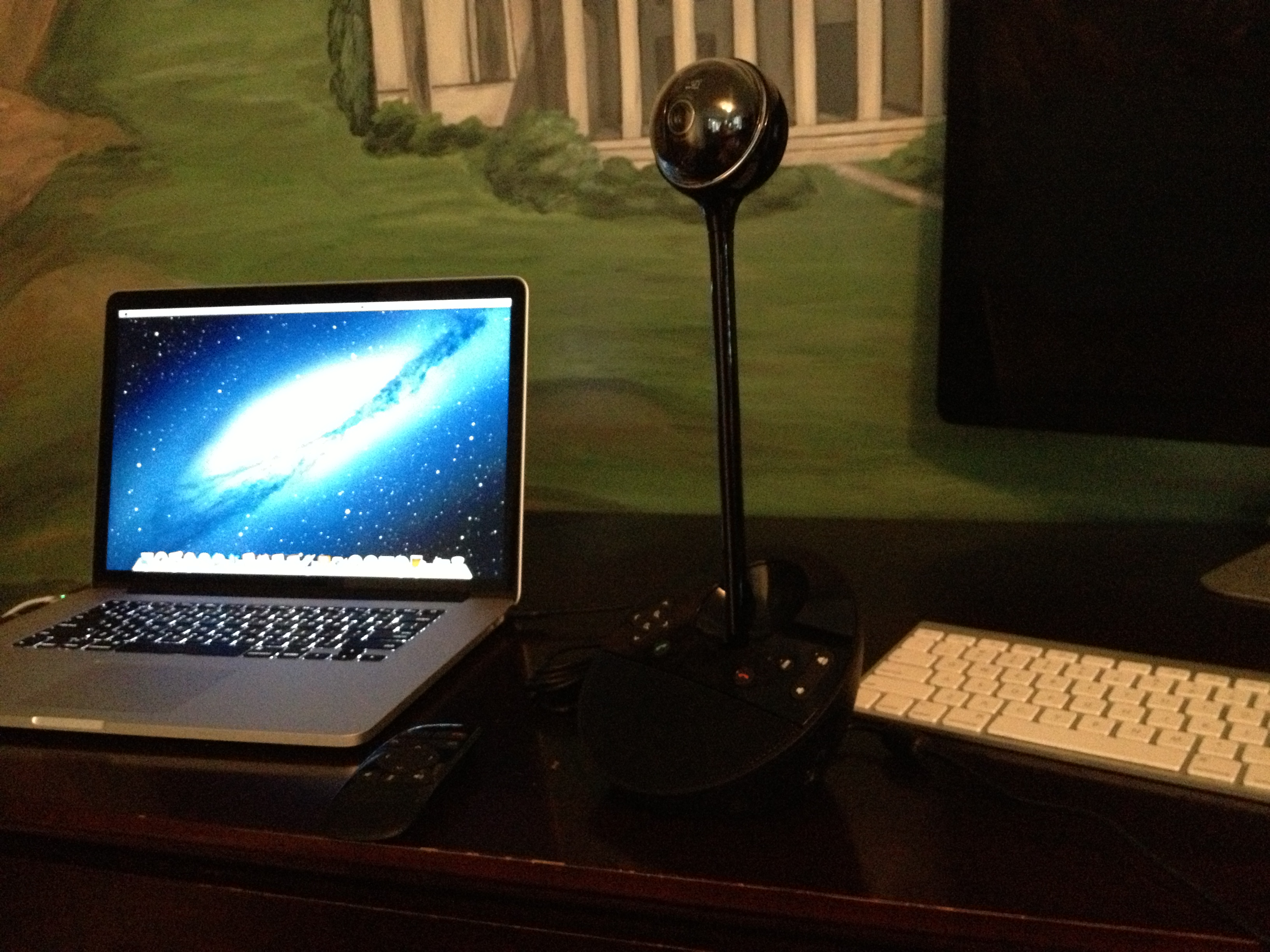
I’ve integrated Logitech’s BCC950 ConferenceCam into my workflow over the past couple of weeks, and I think it’s the ultimate audio/video setup for audio and video calls. I’ve been using the camera and microphone from Logitech primarily with Skype, and its a perfect companion for the ubiquitous conferencing software.
The product trumps the camera and microphone setup built-into any Mac or PC. The ConferenceCam offers 1080P video capture via a Carl Zeiss lens. The high quality optics also offer auto-focus, which is clearly important and present in our real-world testing of the ConferenceCam product.

The camera also offers wide-angle video capture, making it a true ConferenceCam. The wide-angle capture technology allows the camera to pickup multiple people in a single frame without panning. This is unlike webcams built into computers that are optimized to capture a single person in the video frame. After all, computer cameras are built for one-to-one video chats.
The sound (sending and receiving) quality from the ConferenceCam is well beyond built in Audio as well. With devices that help and enhance the work of people, the technical specifications don’t really matter. What matters is the overall quality of the product. And overall, the sound quality of my voice that people heard on the other end of multiple calls via the ConferenceCam sounded much better than calls via my computer’s microphone. The same goes for audio coming out of the ConferenceCam’s built-in speaker system.
While the A/V is fantastic, the coolest feature of the ConferenceCam is the ability for a user to rotate the camera angles with a click of a button on the unit itself or with the included wireless remote controller.
With the touch of a button, the camera can be tilted up, down, left, or right. This is also a nod to the camera being able to pickup many more people than the stationary web-cam built into many modern desktops and notebooks.
The ConferenceCam works on both Macs and PCs, and it integrates seamlessly with Skype via a plug-in available from Logitech’s website as well as with Logitech’s own software.
The camera runs for $249.99 and we recommend it for anyone who relies on multiple person video and audio calling solutions via their computers.
Growl is a notification app for OS X that predates the idea of Notification Center on OS X or iOS. I have used it for years, and it is supported by a vast majority of Mac apps, including high-profile ones like the official Twitter client. When OS X 10.8 was announced, many people assumed Growl was dead. Growl uses its own banners and a “Rollup” window (a place to collect missed notifications), so it seemed the overlap was too large and there would only be room for one notification system on OS X.
However, a new app called Hiss seeks to unify the two systems by putting your Growl notifications right into your Mountain Lion Notification Center. I played around with it today, and it seems to work pretty well. It grabs any incoming Growl messages and stops them, and then it replaces them with native OS X notification banners that stack up in Notification Center just as you would expect.
[vimeo http://vimeo.com/44479512]
Checkmark is a new take on Apple’s Reminders app with additional features and a clean interface. It features the ability to create location- and time-based reminders like Apple’s solution, but it goes beyond what Apple’s implementation offers. For example, when creating a location-based reminder, you have the option of setting a delay before the notification appears. I especially like that, as I usually have a few things to do before getting to the tasks on my list, and Apple’s Reminders app sometimes reminds me way too early. Checkmark also offers time-based reminders, which work exactly as you would expect.
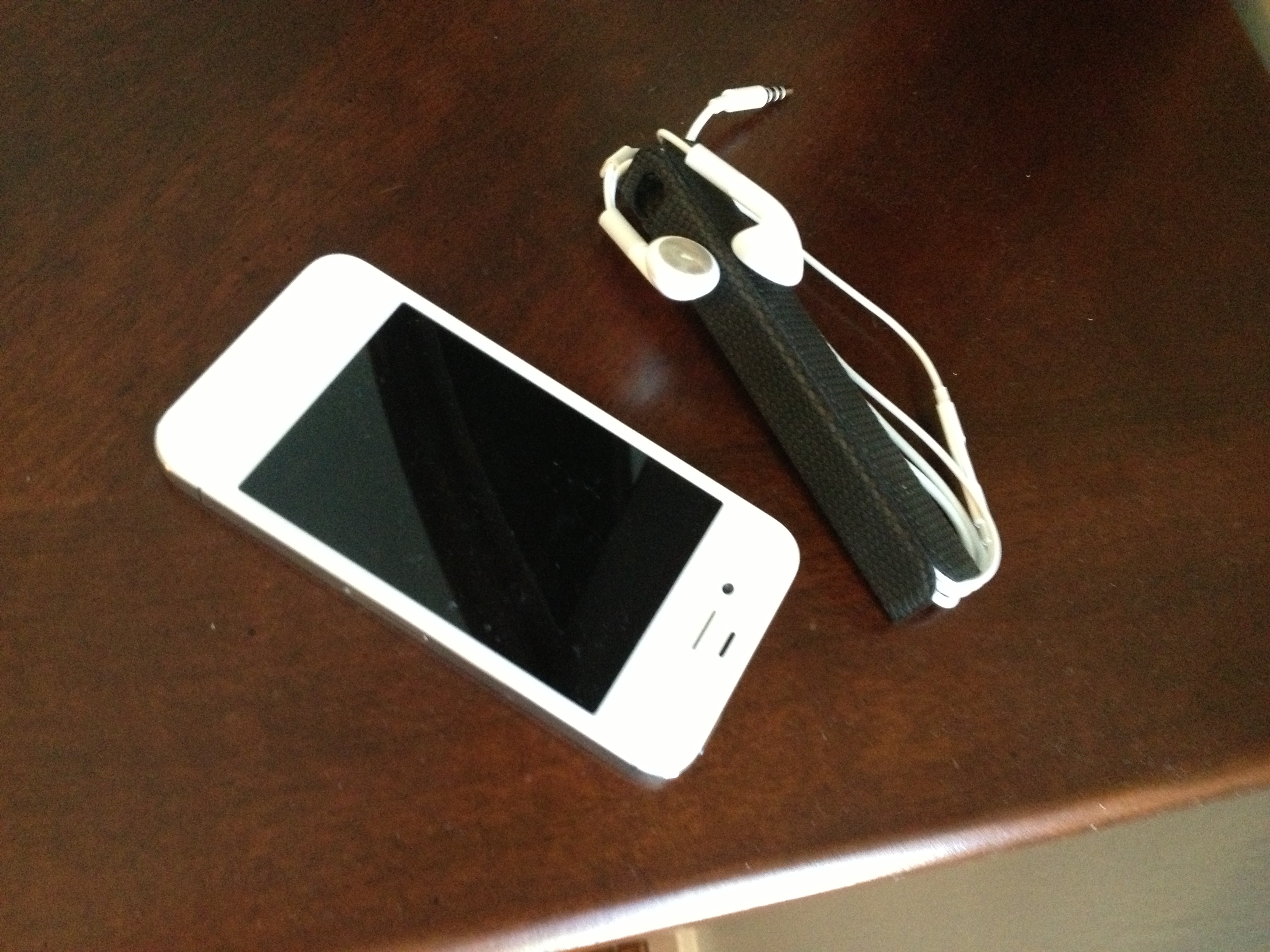
We were impressed with the TidyTilt iPhone accessory when it appeared on Kickstarter a number of months ago, and, now, we have been able to finally get our hands on the product. The TidyTilt is a solution to the long-existing iPhone earphone tangling and organization problem. The TidyTilt solves that issue in addition to adding some cool new benefits to the iPhone.
The TidyTilt is reminiscent of the iPad 2 and third-generation iPad Smart Cover. It’s a well-built cover-like product with magnets. Since the iPhone does not include magnets like the past two iPad generations, TidyTilt includes a sticker that is placed on the back edges of the iPhone. This sticker includes a magnet base that is strong enough to hold the TidyTilt.
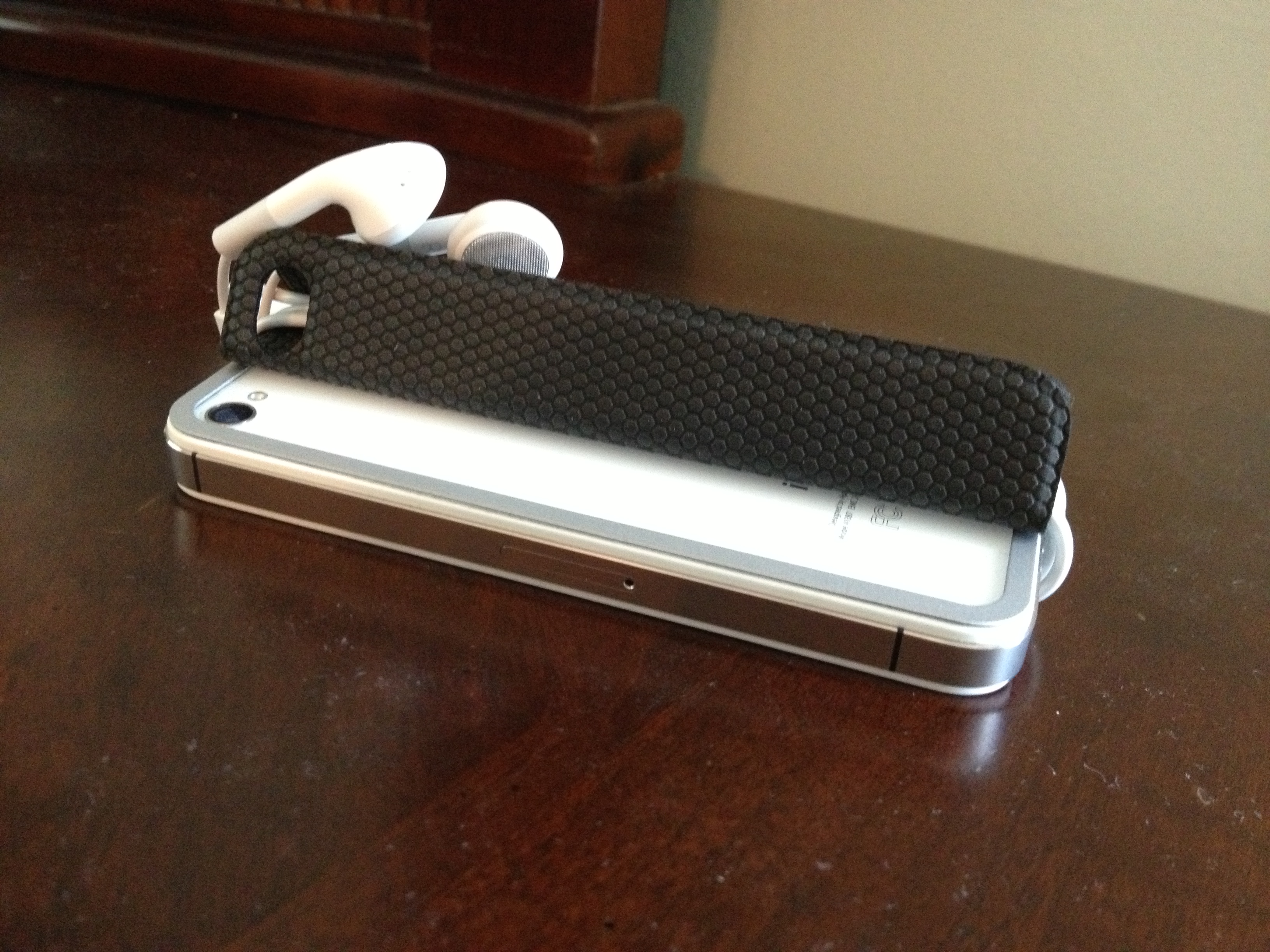
At heart, the TidyTilt is a product that keeps your iPhone earphones “tidy.” As shown in the image above, a user simply wraps their earphones around the iPhone + TidyTilt, folds the TidyTilt’s sides, and the earphones are organized into a fashion that will not tangle.
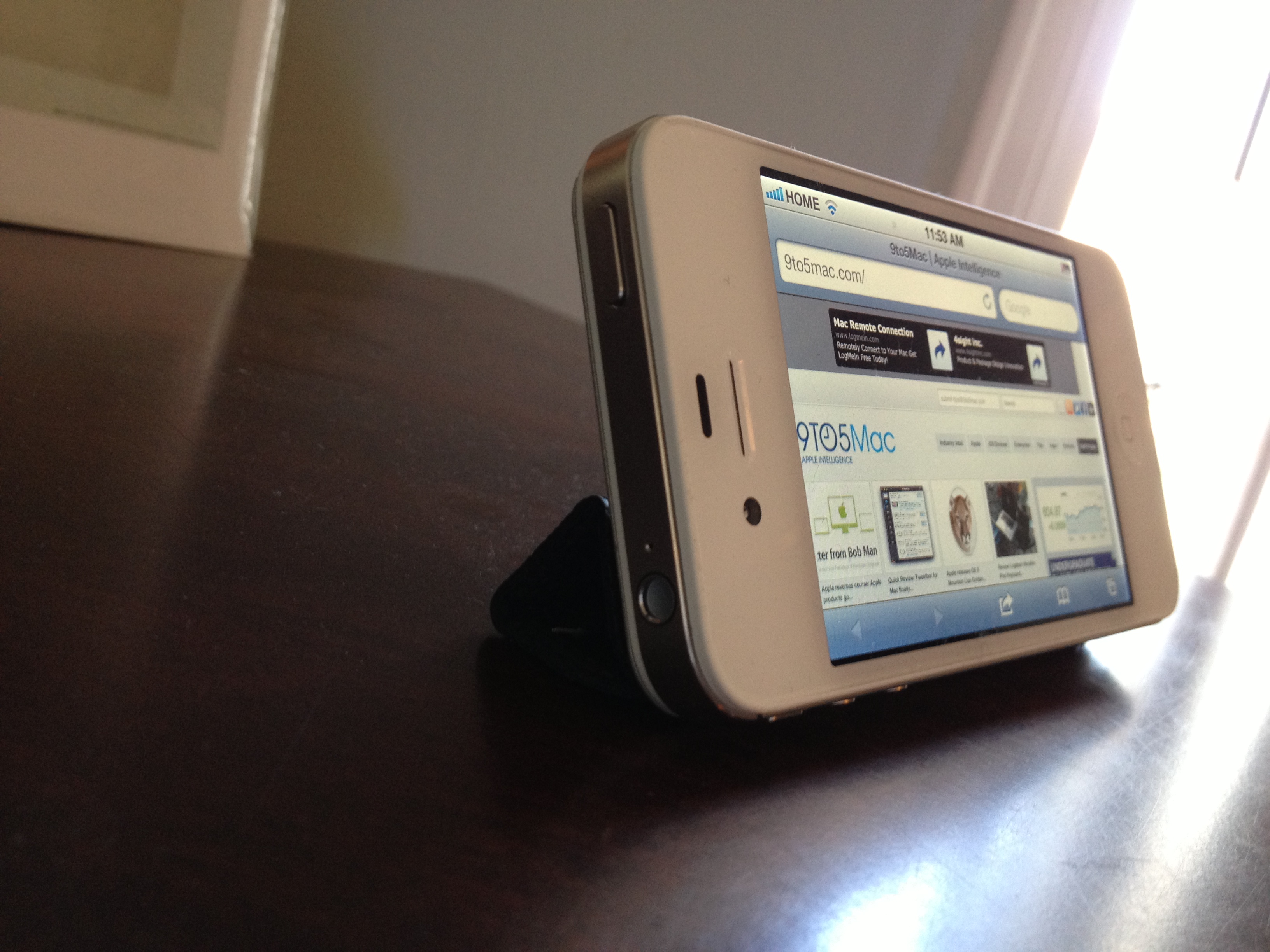
In addition to offering a solution to that problem, the TidyTilt acts like a Smart Cover in that it can prop your iPhone into ideal positions for typing, video watching, gaming, and more.
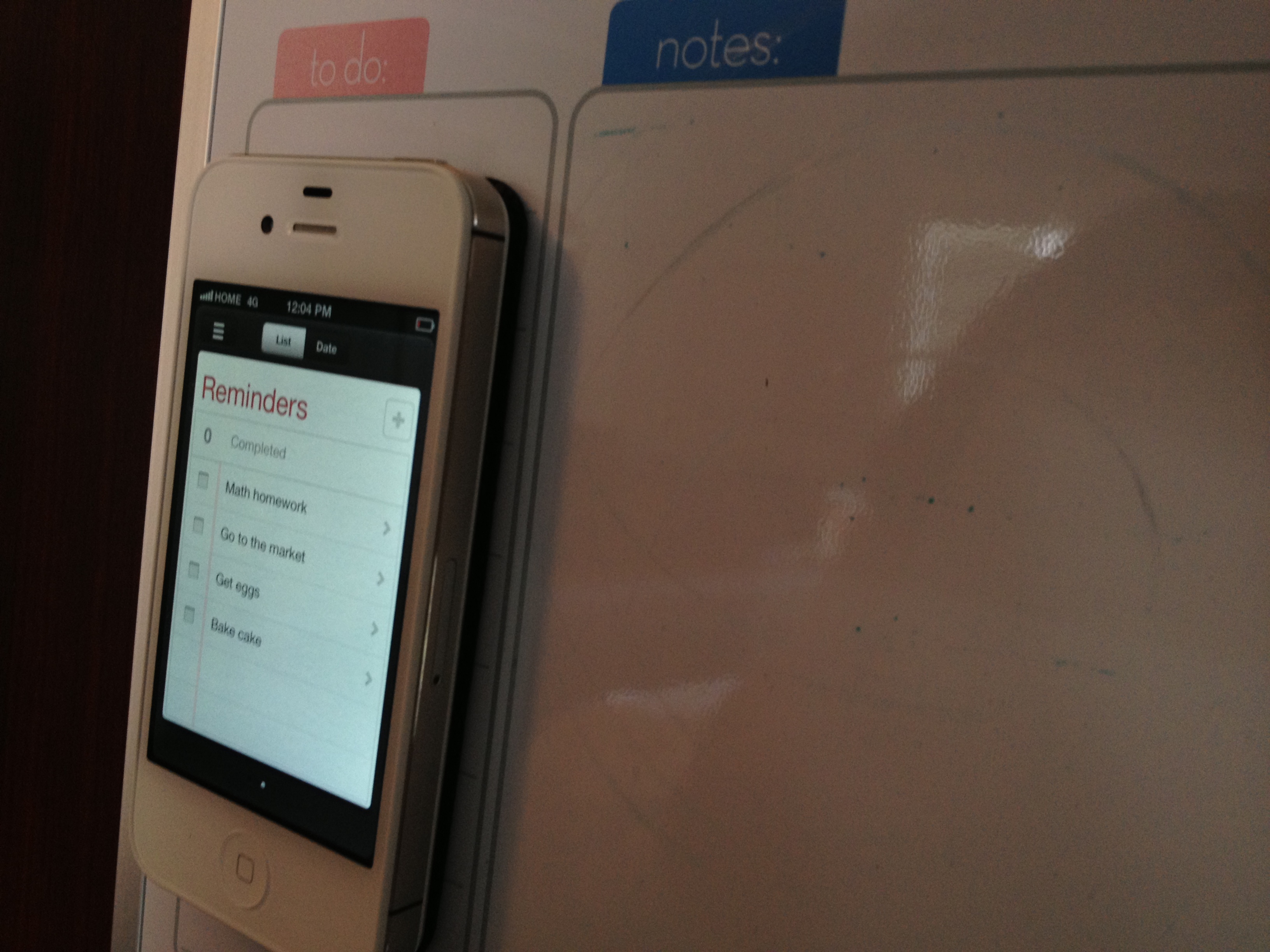
In addition, the product’s magnet base allows you to easily attach an iPhone to a whiteboard or refrigerator.
The TidyTilt comes in black, blue, green, and pink and is available for $29.99. We recommend it for anyone who wants an easy, versatile solution to iPhone earphone organization and tangling problems.
See our full image gallery below:
We reported late last month that Tweetbot for Mac, a desktop version of the popular third-party iOS Twitter client, would likely come soon after the company’s graphic designer, Mark Jardine, tweeted an image of the client running on a MacBook. Today, Tweetbot developers decided to make things official with the release of a public alpha, and we recently got a chance to play around with it. (Blog post here.)
The Tweetbot alpha, which at this point runs on 10.7+ and 10.8 Mountain Lion, has a lot going for it despite warnings of “Bugs! Lots of them.” According to Tapbots, the main goal of the alpha was to replicate the core functionality of the iOS client. Like tapping a tweet in the iPad app, hovering over a tweet in the Mac client provides you with the same Reply, Retweet, Favorite, Share, and Actions button to get access to details, conversations, retweets, and etc.
In addition, like the iPad app, you will find a button to quickly switch lists in the upper right, while a Lists button on the left sidebar will let you manage and edit your lists within the app. The app also bakes in the familiar “Mute Filters” for your main timeline. However, only the ability to mute “Clients” appears to be an option now—with the option for muting keywords greyed out. You will also get Twitter, bit.ly, CloudApp, and Droplr URL shortening options, and all the same image and video-uploading options as on iOS, including: CloudApp, Droplr, img.ly, Lockerz, Mobypicture, Pikchur, Posterous, Twitgoo, TwitPic/TwitVid, and yfrog. Syncing options only feature Tweet Marker currently (iCloud coming soon), while all the Read Later services are present such as bitly, Instapaper, Pinboard, Pocket, and Readability.
We have had a lot to say about the Twitter experience on the new Retina MacBook Pros. The official Twitter for Mac app is unfortunately not Retina-ready and almost unusable on the new Retina displays. Fortunately, we have a Retina update to Twitterific to tie us over, but the Alpha Tweetbot release today is also built for the new Retina display. We have no complaints. It looks great, but Tapbots said further improvements are coming…
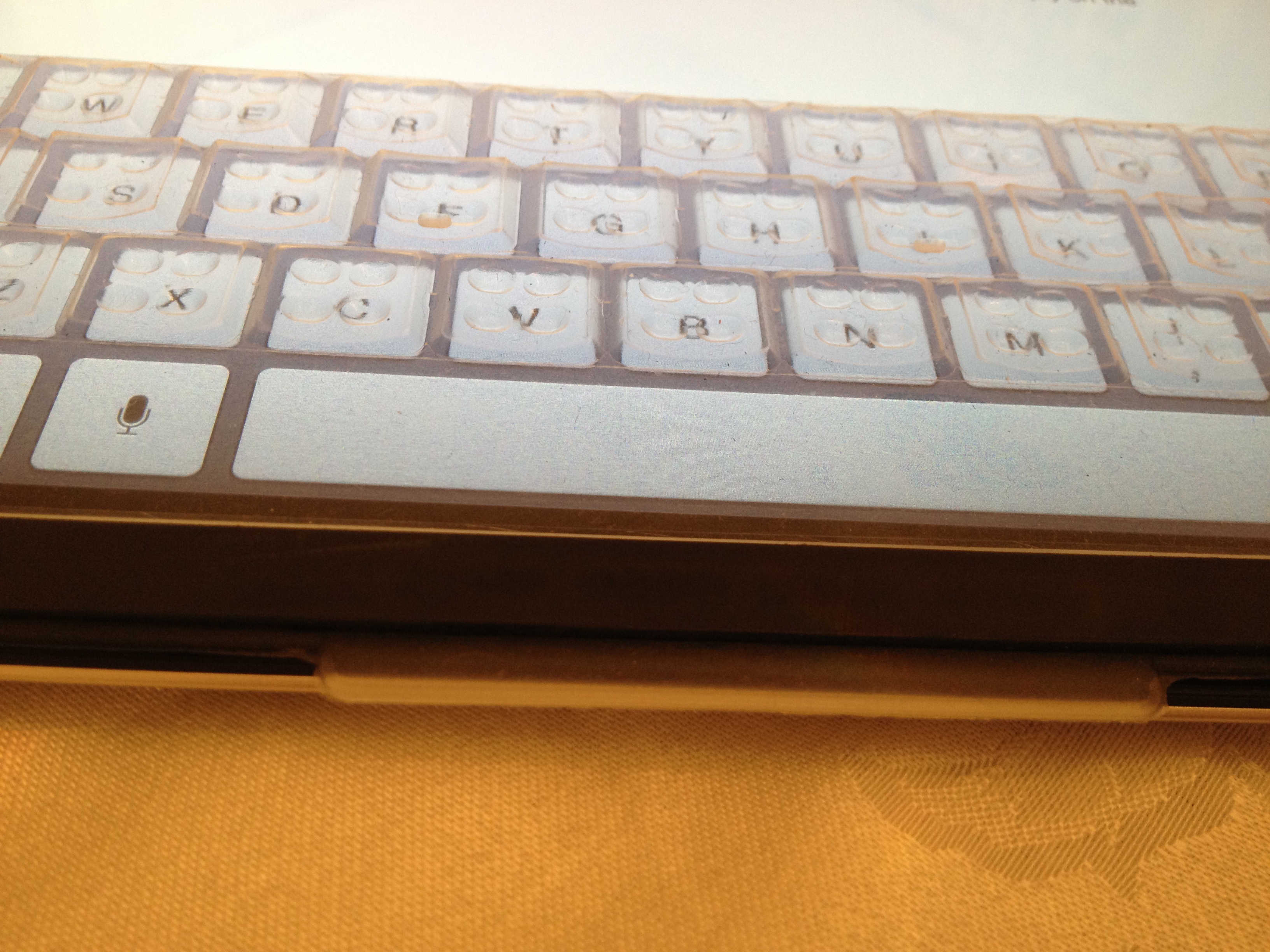
One of the common knocks against Apple’s iPad is its keyboard. The entire premise of the iPad is its large, Multi-Touch keyboard, but some call the feature a roadblock to content creation. We previously profiled a slim, convenient Logitech keyboard that will “kickstart your your transition from consumption to creation” on the iPad. Over the last couple of weeks, we have been testing out an iPad accessory called the TouchFire, which for a decent price, will open up more doors for content creation on the iPad. Read on for our full review:
LunaTik, the creators of the famously well-funded TikTok iPod nano watch band, have launched a pair of well-designed and well-functioning styluses, optimized for iOS devices.
We’ve been using the LunaTik Stylus and the performance of the stylus is very precise. Our tests were conducted by playing around the iPad operating system, but the true results come via an app like Paper.
This precise stylus also doubles a real ink pen, making it versatile. The pen, itself, works like your standard ink pen. It’s nothing too special alone, but the cool part is that it’s not only your physical paper pen, but your virtual paper pen.
The creators of the stylus explain the technology and history behind the product on their Kickstarter page.
LunaTik’s stylus comes in both an alloy configuration ($39.95) and a polymer version ($19.95). The alloy comes in a silvery color and the polymer comes in several colors.
See our full image gallery below:
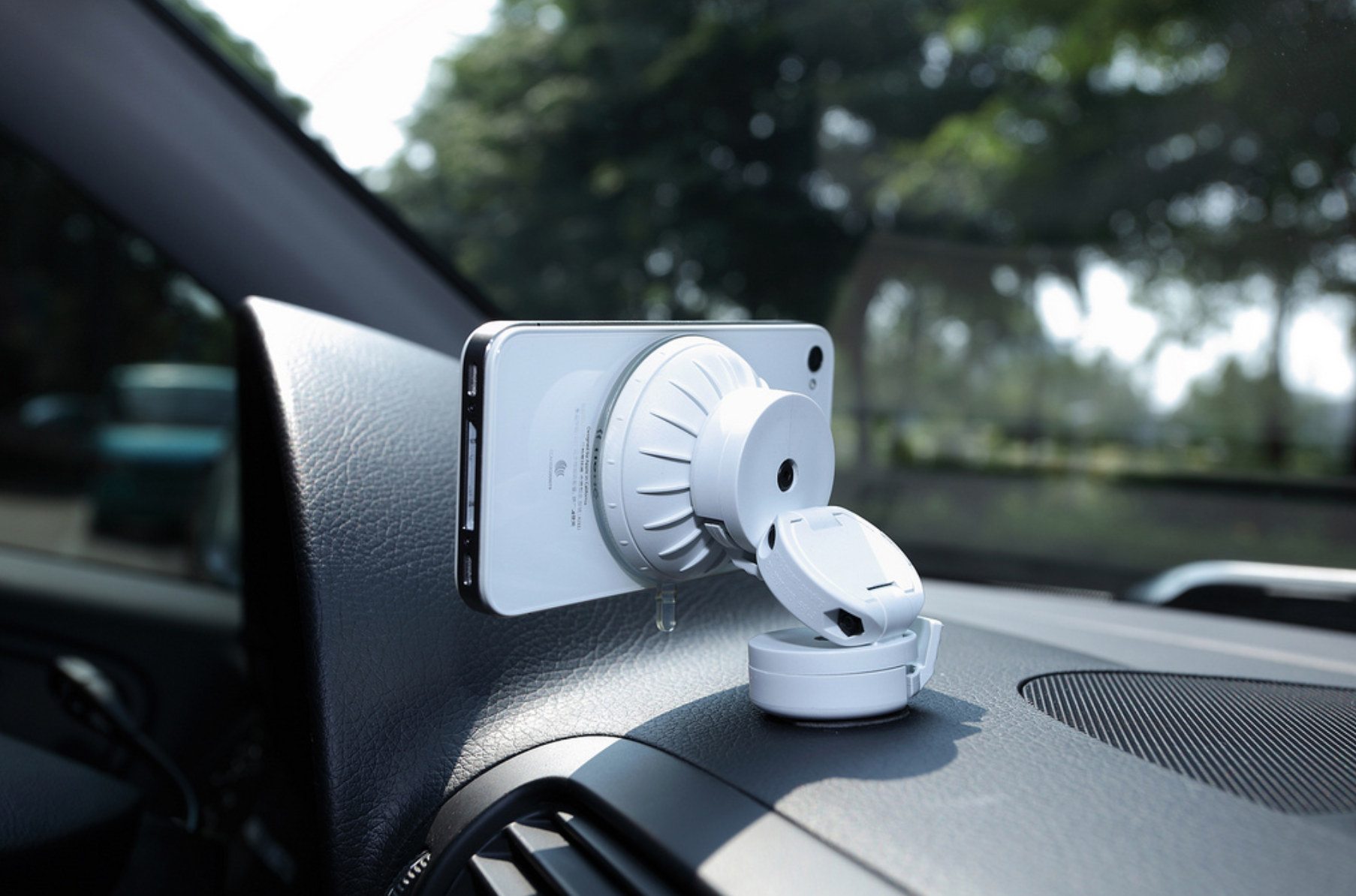
We’ve been testing out Just Mobile’s Xtand Go car dashboard mount for the iPhone, and it’s a versatile and well-designed iPhone car-mount. Just Mobile is known for their creative and well-thought-out designs, and this stand is no exception. The stand is easy to place onto a car dashboard using included heavy-duty stickers (which thankfully do not leave residue) or a suction cup. The dashboard mount is versatile because, while its device holder is built for the iPhone, it supports other devices including the iPod touch, other types of phones, and iPhones in cases. Perhaps the best feature of the Xtand Go is its easily movable arm, making it easy for anyone in the front seat to move the phone around to their liking. The Xtand Go is available in both black and white for around $30-$40 at Amazon.
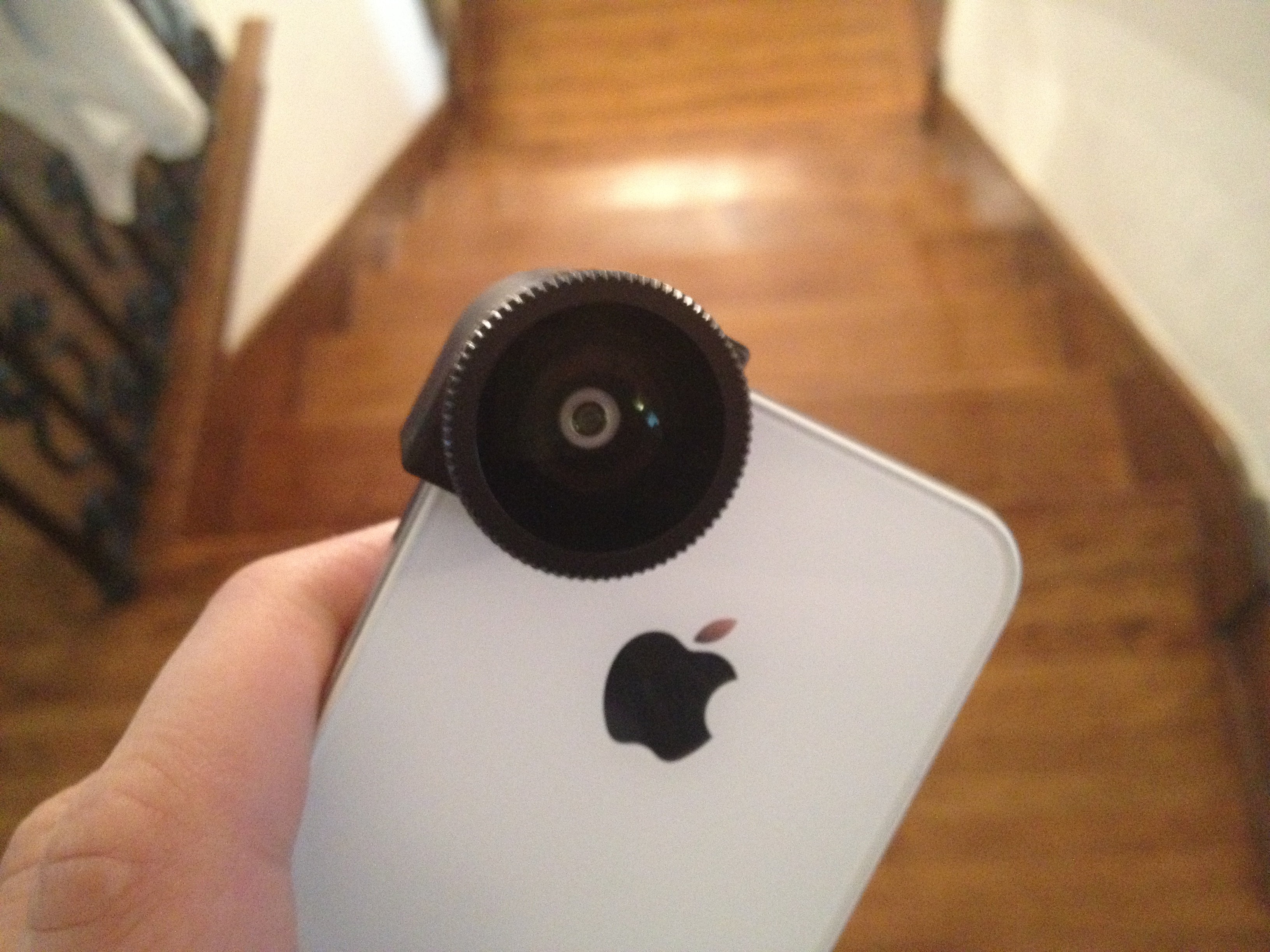
For the past few weeks, we have been testing out the Olloclip iPhone camera lens kit on an iPhone 4S. The Olloclip kit is a camera add-on for the iPhone that provides three external lenses: a fish-eye lens, a macro lens, and a wide-angle lens. The kit is perfect for any photography fan or for anyone who wants to drastically improve the photos they take with their iPhone. Read on for the full review:
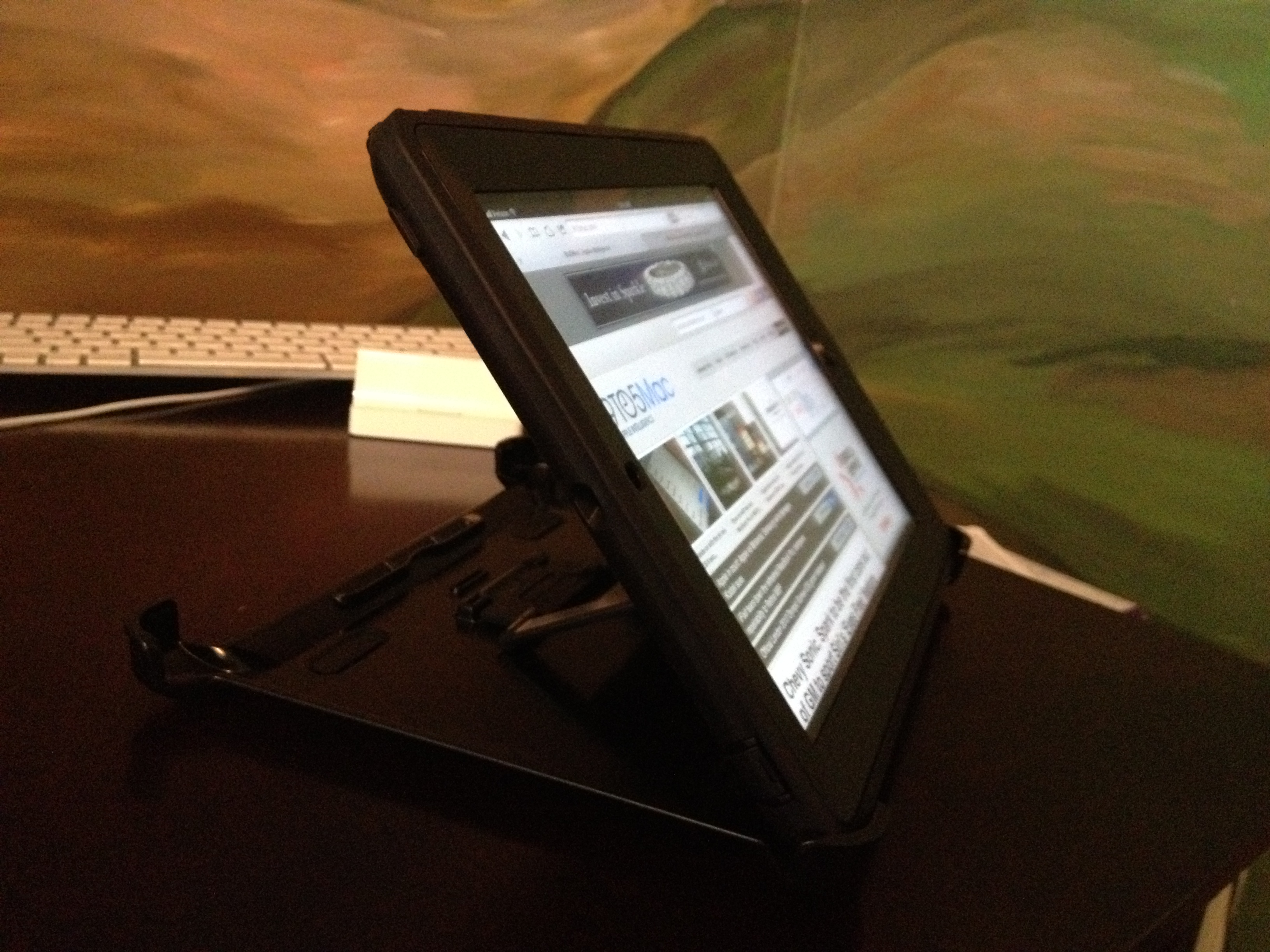
We’ve been testing out the Otterbox Defender case for the third-generation iPad for a while now, and the case is exactly what we have come to expect from Otterbox. The case is very high quality, rugged, yet still light and thin enough to carry. The Otterbox Defender for the third-generation iPad is essentially the iPad version of the Otterbox Defender for iPhone, so it offers unrivaled protection from dents, scratches, falls, and more. Here’s what you need to know about the Defender for the third-generation iPad:
We first told you about Griffin’s StudioConnect audio interface when it unveiled at the Consumer Electronics Show earlier this year. There are more than a few products on the market that make it easy to hook up your guitar, mic, or MIDI controller to the iPad for use with the many iOS apps that include built-in DAWs with CoreMIDI support (such as Apple’s own GarageBand). While it might not be the prettiest iPad dock we have seen, there are a few reasons why it beats the competition.
With StudioConnect, in terms of inputs and outputs, what you get is pretty basic: standard 5-pin MIDI in and out, one 1/4-inch mono input, and left and right RCA output. The large knob out front controls the 3.5mm headphone jack below it, while a separate volume wheel on the side is for your main output. It is more than enough to plug in supported mics, a guitar, or a MIDI controller, but it is clear that Griffin did not build the StudioConnect with professionals in mind. Most pros will not do anything too heavy-duty inside of an iOS app at this point. The inputs above will likely be sufficient for most musicians using the iPad as a mobile or writing setup.
While it does not offer some of the standard inputs and outputs that pros are familiar with, Griffin used its experience making iOS accessories to nail the design where the competition gets it wrong….

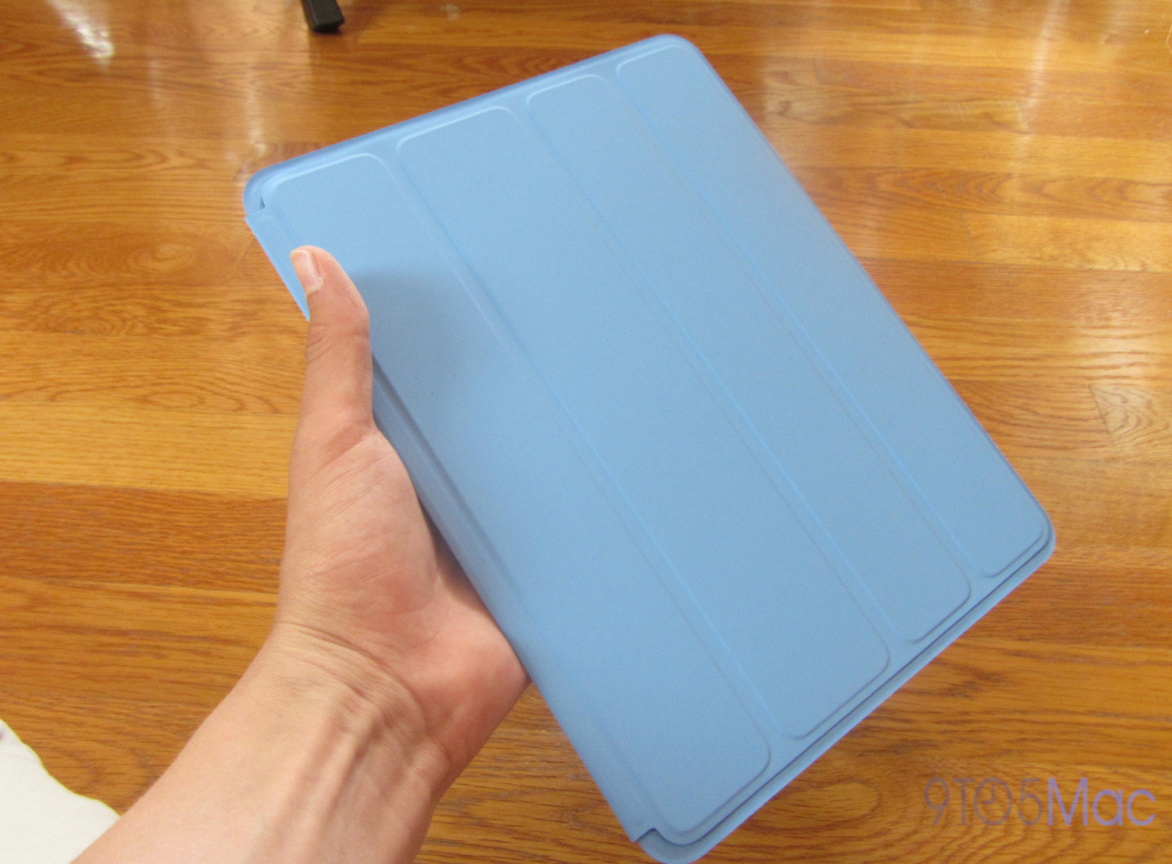
A few hours before the opening keynote at this year’s Worldwide Developers Conference, we reported that Apple was set to unveil an all-new iPad. We did not get a product demo at the keynote. Fast-forward a few hours after the event, and the Polyurethane Case appeared on the Apple Store. As an alternative to the Smart Cover that unveiled with the iPad 2, which provides only screen protection, the Smart Case offers full back and front protection for $10 more than the $39 Smart Cover. It is available in six colors (without tax at Adorama), and free engraving is available if ordered online. So, is the Smart Case the case you need to protect your iPad? Read on for the full review (including video) below.
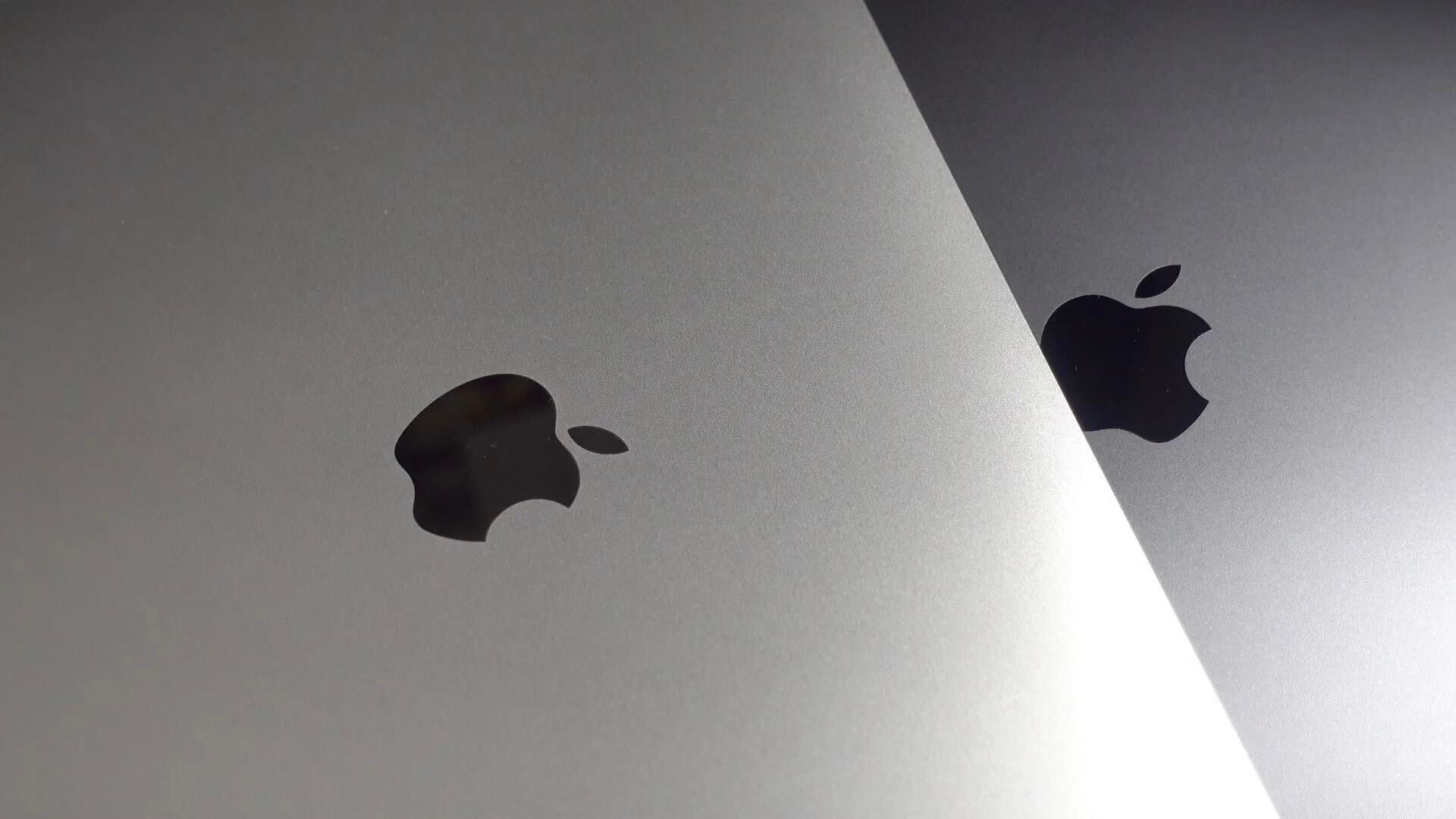
After posting initial benchmark data yesterday for the new Retina MacBook Pro’s SSD and USB 3.0, AnandTech published a longer analysis today about the notebook’s display. The report first took a closer look at the new resolution preferences for Retina MBP users and described the advantages of the different scaling options displayed in the gallery above:
Retina Display MBP owners now get a slider under OS X’s Display Preferences that allow you to specify desktop resolutions other than 1440 x 900. At 1440 x 900 you don’t get any increase in usable desktop resolution compared to a standard 15-inch MacBook Pro, but everything is ridiculously crisp… Even at the non-integer scaled 1680 x 1050 setting, the Retina Display looks a lot better than last year’s high-res panel. It looks like Apple actually renders the screen at twice the selected resolution before scaling it to fit the 2880 x 1800 panel (in other words, at 1920 x 1200 Apple is rendering everything at 3840 x 2400 (!) before scaling… Everything just looks better.
As illustrated in the images above showing benchmark data, the review found greatly improved viewing angles, black levels, and contrast when compared to the previous generation high-res MacBook Pro model. AnandTech then looked at Apple’s claims that the new MacBook Pro display reduces glare by 75 percent from previous generations:
Written by Travis Tucker
First off, let me just say this is by far the best and most intuitive amp modeling iOS apps that I have seen to date. If you know how to move and manipulate the app layout of your iPhone/iPad, you will be up and running on JamUp in no time. The app has five main sections: Amp/FX, preset, songs, sampler, and tuner.
The Amp/FX section is what you would expect. It is an area for you to experiment with by adding and manipulating amps and effects in various locations in your signal chain. Various staple amp models are featured, as well as the tried-and-true lineup of effect pedals. The amp sounds are genuinely warm and sound noticeably better than comparable models in Amplitube’s amp modeling app. With that said, some of the amp features are not as faithful to the models they are based upon. On-board tremolo and decent clean sounds are noticeably absent on some heads. The pedals sound great. A feature I would like to see added is the ability to stack the same model pedal in series, instead of using it only once.
The Preset section is a collection of sound patches pre-programmed by PositiveGrid that serve as nice launching points for tinkering and coming up with your own sounds that can then be saved. It is self-explanatory, but what makes this work as easy as it does is the fast and intuitive interface. It is also much less daunting and intimidating than similar apps.
The Songs section is great, because it allows you to jam along with any audio file in your iDevice’s music library. You can sort/find the songs in your library in a variety of ways, and control the volume mix. You can even vary the pitch/speed of the music playing! I loved this feature for playing along with some bands that detune a half or whole step. The pitch change alone does not vary the speed. These features are a great practice tool for breaking guitar parts down and playing through setlists by bands with various tunings.
The Sampler section allows you to record yourself playing a section of music, and then you can play something along with it, after the fact, in loop fashion. This is another great tool for practicing and songwriting. I especially liked the ability to export and share recordings as song ideas.
The Tuner is self-explanatory, although, again, I really like the interface choice (the vintage “note wheel”). It also cuts the audio output, so no one is forced to hear your droning notes being tuned.
HARDWARE
Another great feature of this app is the interoperability that it provides with many guitar input interfaces. More than half a dozen other interfaces work with the app besides PostiveGrid’s own JamUp Plug. I compared the audio response of IK Multimedia’s iRig and the JamUp Plug, but the JamUp model was undeniably better sounding. However, noticeable clipping is evident while using some sound combination choices, regardless of input level and interface chosen. This is a problem not unique to this app, but it frustrates nonetheless.
SUMMARY
I think the JamUp is a wonderful tool for guitar players looking to experiment with different amps and pedals before buying the real deal. It is also quite handy in helping to decipher songs and putting simple song ideas together. It sounds much better than Amplitube. It does not offer the ability to dive as deeply into sound tweaking as the rival app by Agile Partners, but its interface is much smoother and intuitive.
JamUp Pro is available for $19.99 here. The company also offers a free, scaled-back lite version available.

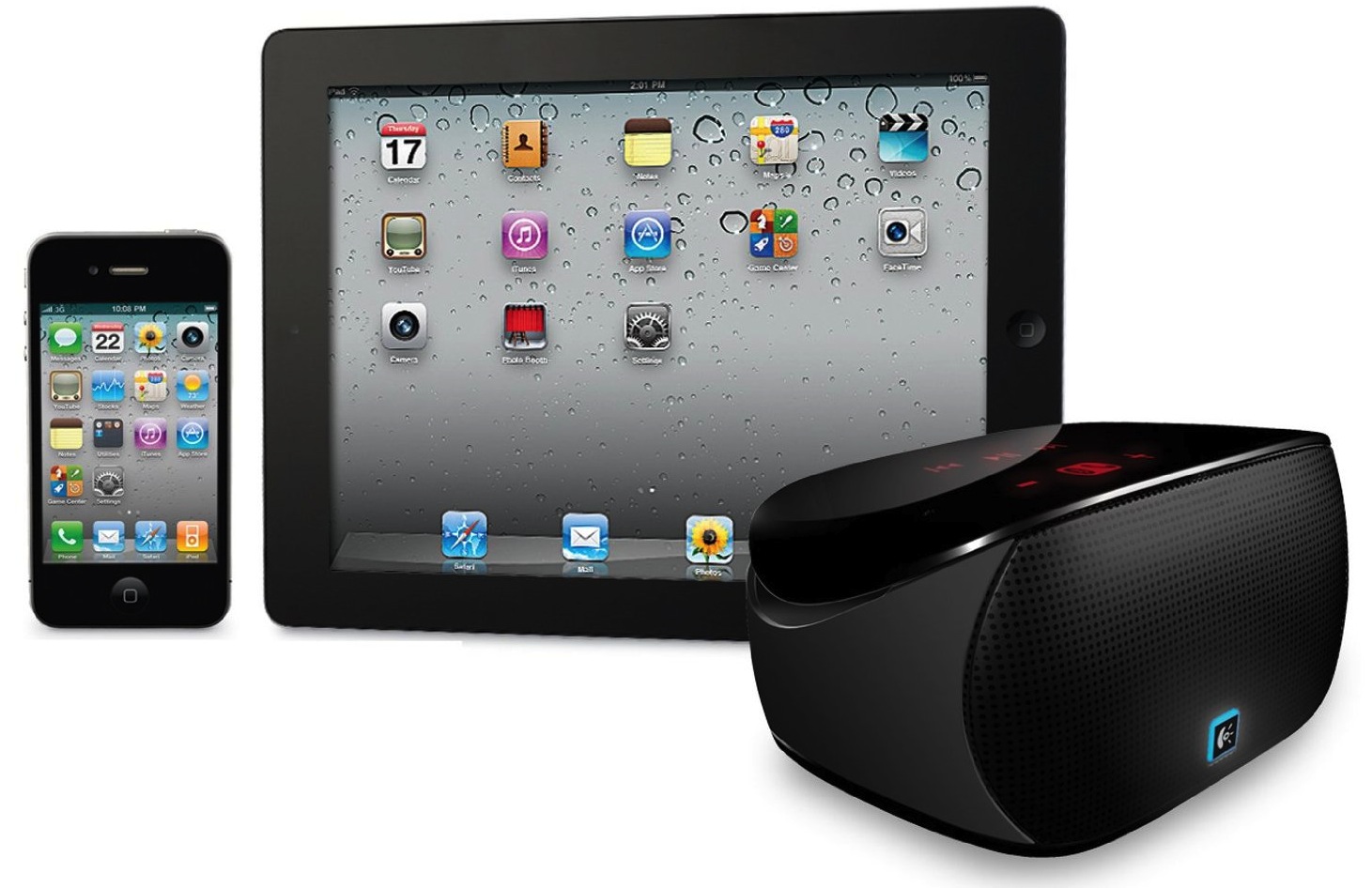
Last month, I put the full-sized Logitech Boombox up against the Jawbone Jambox in a $150 Bluetooth speaker battle. I liked both devices, but they had separate strengths and weaknesses and were best suited to different tasks. For instance, I liked the portability of the Jambox, its speakerphone capability, and charging via USB. I liked the sound and simplicity of the Logitech Boombox, but I did not like the proprietary AC adapter.
After the review, Logitech got ahold of me and said if I liked the Jambox and the Boombox, they made another product that I would love called the “Mini Boombox.” Unlike Logitech’s full-size Bluetooth speakers, the Mini charges via Mini-USB, can fit in the palm of your hand (or cargo pant pockets), and it acts as a speakerphone for an iPhone. This one retails for $100, but it can be found for $79.99 at both Amazon (with $30 of MP3s) and Best Buy.
How did it stack up against the two $150 Bluetooth speakers mentioned earlier?
Photos by Veronica Oggy
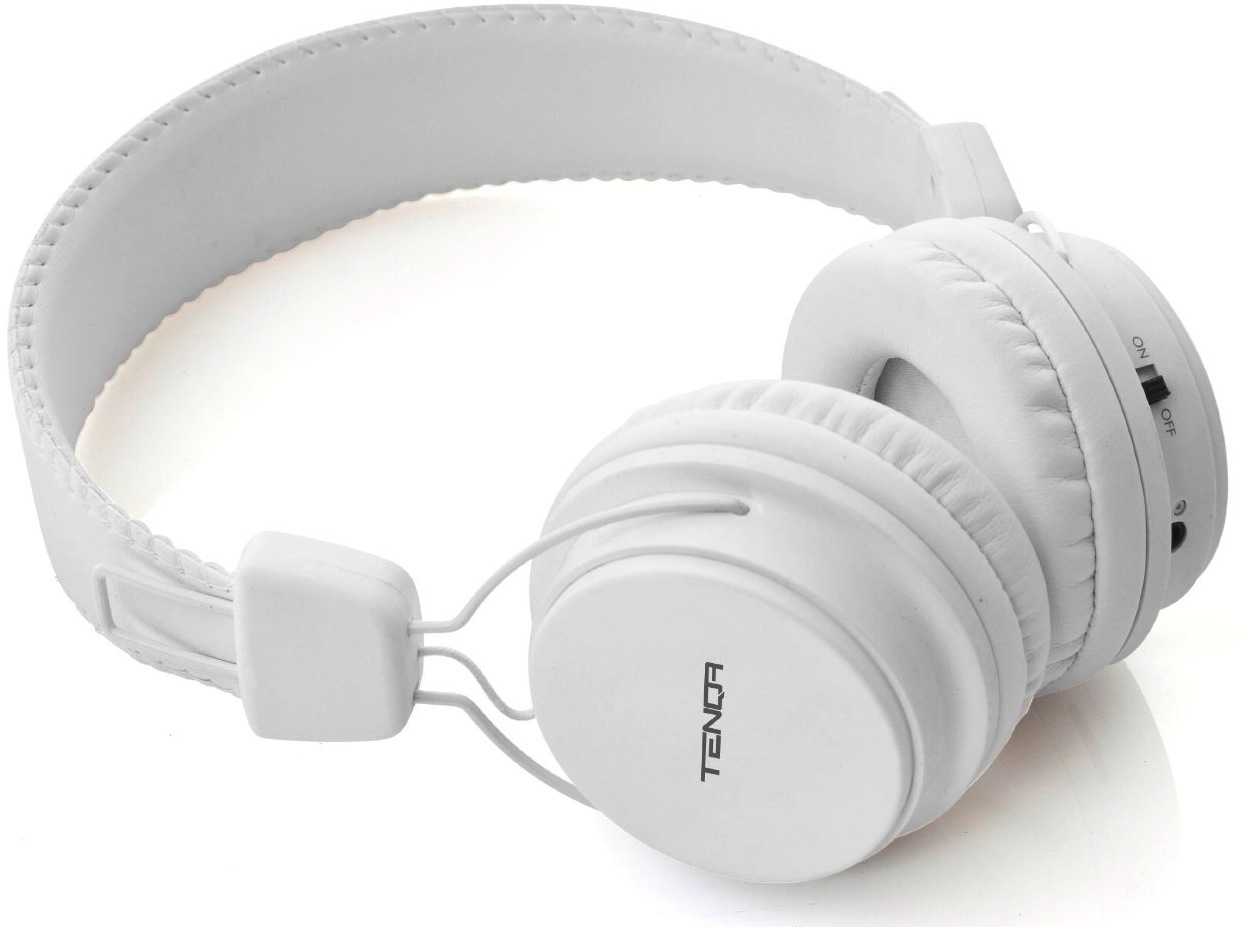
For a pair of headphones under the $50 mark, we often find ourselves recommending something like the standard $35 Apple earphones. You typically cannot beat the sound quality (build quality up for debate) for the price, but if you want to go Bluetooth, pickings are slim in the under $200 category.
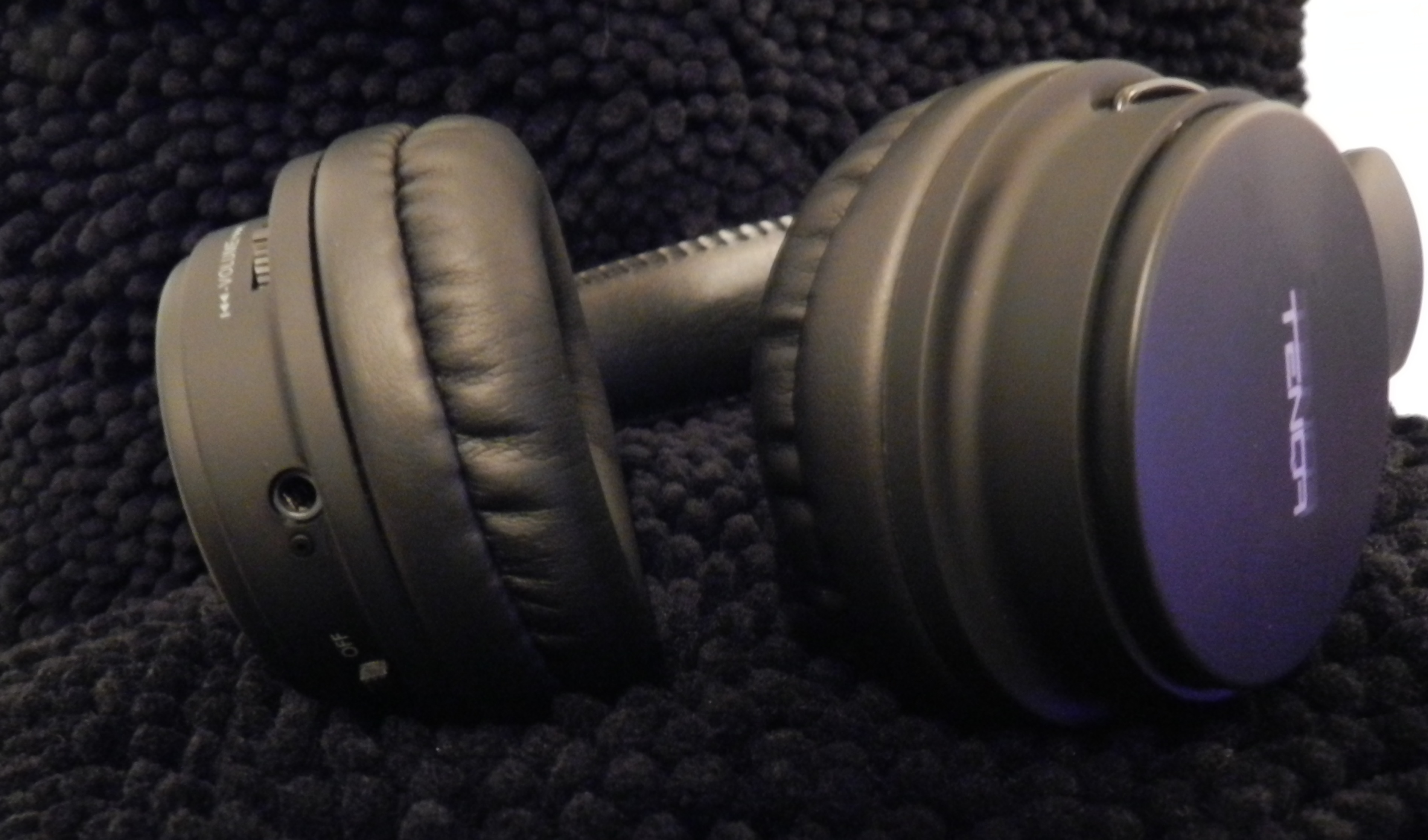
If you are looking for DJ-style, over-ear Bluetooth headphones, your options are even fewer before hitting the $250+ price point for a wireless pair of Beats by Dr.Dre.
However, at just $39, Tenqa’s Remxd Bluetooth Headphones are clearly not for the pros, but looking at the Bluetooth alternatives from Rocketfish, Sony, and Sennheiser, they definitely impress at a fraction of the competition’s prices. They were also built with iPhone in mind, which means they pack a microphone and controls for hands-free calls—just like Apple’s stock iPhone earphones…
[slideshow]
Note: Some of the screenshots in this slideshow are from the current beta version.
I love the CloudApp file sharing service, and I’ve tried my fair share of CloudApp clients for my iPhone. Unfortunately, most of the iOS clients that are currently available have been abandoned by the developers, receive few updates, or just aren’t that great. Enter DropCloud.

Developer Steven Troughton-Smith has re-written his acclaimed Speed for iPhone application for the iPad. The new iPad application takes full advantage of the iPad’s larger display, Retina graphics support, and the device’s GPS. The concept of Speed is simple: it uses the iPad’s sensors, including the GPS, to be able to process and inform users how fast their car is moving. The application has a beautifully embedded Google Map interface to show your car (as a blue dot) in motion, and also uses the device’s compass to which direction you are headed. The application also features a center dial (analog or digital) that allows users to setup a maximum speed. If a user goes above the set speed limit, the iPad will notify them that they are passing this limit. This is perfect for speed-limited driving environments, and pushes the iPad as a fully digital car dashboard replacement or complement.
[youtube http://www.youtube.com/watch?v=nfMAqzxy9CQ]
The application will also tell you how long (in terms of distance) you have travelled, much like a car will tell you in the dashboard, when the application is running and even in the background. If you flick up on the Speed dashboard interface, you are presented with options such as true north and magnetic north for the compass feature, analog or digital presentation for the speed limiter, trip total resetting, and background tracking. The interface of the application is beautifully crafted and appears like a real car dashboard complete with a leather background and chromed-out toggles.
In our real life tests, the application is very accurate against our actual real-life car speeds measured by our actual car dashboards. For anyone living in this digital world, Speed for iPad is the future – we believe of car dashboards. On an iPad, it’s portable, can be held by anyone in the car, and can be your media center with the device’s built-in music player. iPad car dashboard mounts are even already appearing. Something important to note about Speed for iPad is the development process that went into the application. Speed started as one of the initial App Store applications, grew very popular (the app even was promoted by Apple), and has now been completely redesigned and re-written for the iPad with a host of new features. This circle will continue when Speed 2 launches later this year for the iPhone, complete with all the new innovations in this new iPad app.
Speed for iPad is available for $2.99 on the App Store today. You can read more about Speed at the official website. Press release: