Author

Avatar for Jeff Benjamin

Jeff Benjamin

Jeff Benjamin

Jeff is the head of video content production for 9to5. He joined 9to5Mac in 2016, producing videos, walkthroughs, how-tos, written tutorials, and reviews. He takes pride in explaining things simply, clearly, and concisely. Jeff’s videos have been watched hundreds of millions of times by people seeking to learn more about today’s tech. Subscribe to 9to5Mac on YouTube to catch Jeff’s latest videos.

iOS Decoded is Jeff’s flagship video series that breaks down what’s new in iOS betas, including behind-the-scenes deep dives into undiscovered features and exclusive details on the iOS roadmap. 

Jeff also produces a weekly podcast, alongside co-host Fernando Silva, entitled 9to5Mac Overtime. A video-first podcast, 9to5Mac Overtime airs weekly on our YouTube channel, but can also be enjoyed in audio form via Apple Podcasts, or your podcast app of choice.

Have a tip or exclusive? Connect with Jeff!

Connect with Jeff Benjamin

How-To: Automatically show the desktop bar by using Hot Corners to invoke Mission Control [Video]

Site default logo image

Mission Control Hot Corners

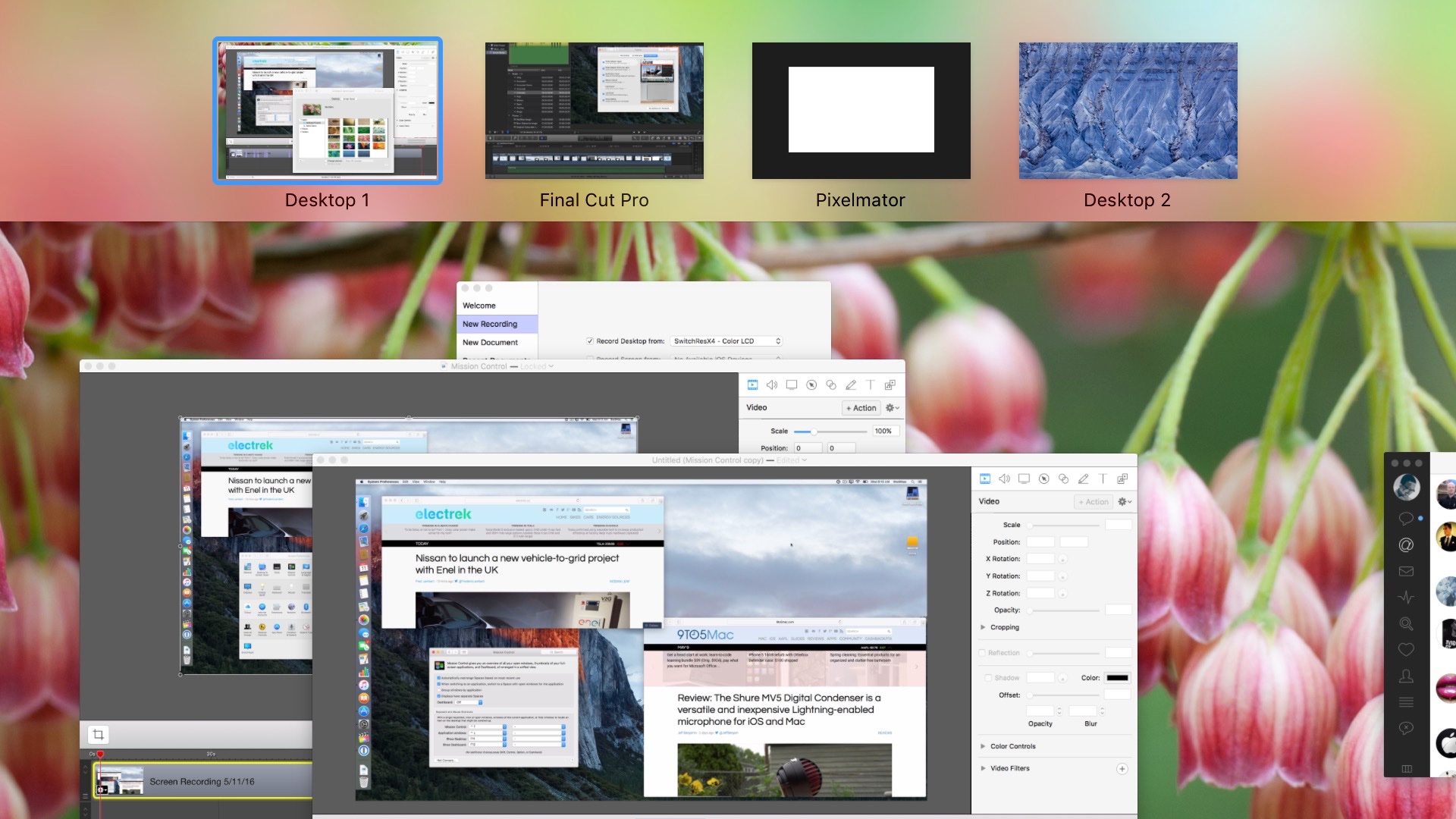
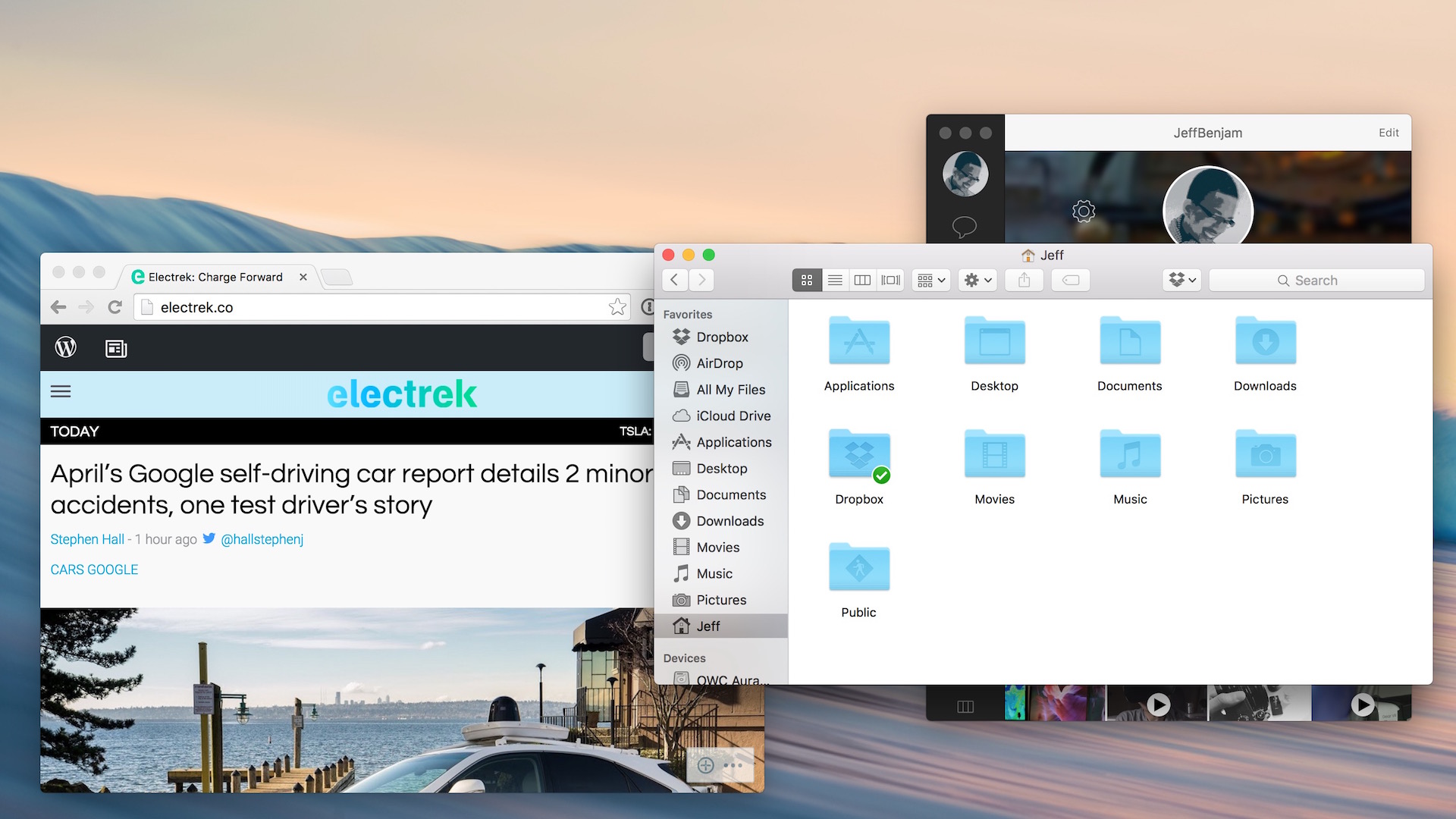
When you invoke Mission Control on OS X El Capitan using the typical gesture on your Mac’s trackpad or via a keyboard shortcut, you’ve probably noticed that the desktop bar at the top of the interface appears minimized. Although this yields additional real estate for the app windows below the desktop bar, it means that you no longer get to see the handy thumbnails that represent each desktop without moving your mouse to the desktop bar area.

There are some workarounds to defeating this OS X El Capitan change, including an open source utility called Force Full Desktop Bar. But for those of you who don’t wish to go through the trouble of installing a separate utility, which also requires you to disable El Capitan’s System Integrity Protection, try this handy Hot Corner shortcut instead.
Expand
Expanding
Close

The state of jailbreaking for May 2016 + 5 jailbreak tweaks you should know about [Video]

Site default logo image

IGExperiments Jailbreak Tweak

Is jailbreaking dead? No. A quick search on Twitter or on Reddit, and it’s obvious that the passion for jailbreaking continues to ebb and flow throughout the community. Jailbreaking isn’t dead as some may think, but no one can discount the fact that it’s entered a sustained lull.
Expand
Expanding
Close

How-To: Group Mission Control windows by application on OS X [Video]

Group Mission Control Windows

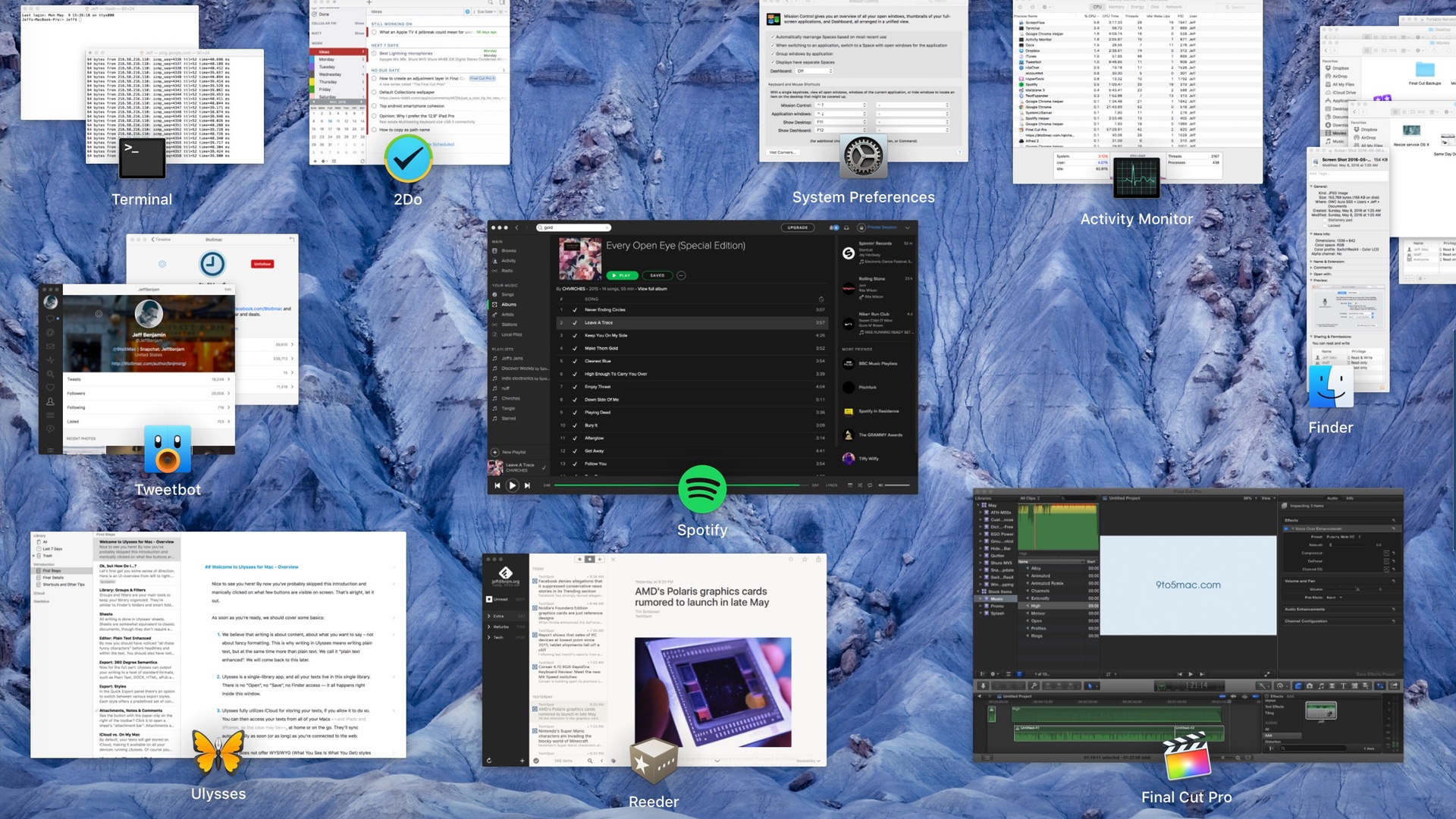
Mission Control is a tool that I use every day on my Mac to quickly locate open app windows. In my opinion, though, finding a specific window in the Mission Control view can be a challenge if you have many app windows open at once.

The good news is that it’s easy to group like applications while using Mission Control. More importantly, enabling grouping places the relevant app icon near groups and single windows. Having an app icon displayed makes it even easier to identify a particular app window while using Mission Control.
Expand
Expanding
Close

Review: The Shure MV5 Digital Condenser is a versatile and inexpensive Lightning-enabled microphone for iOS and Mac

Site default logo image

Shure MV5 Review

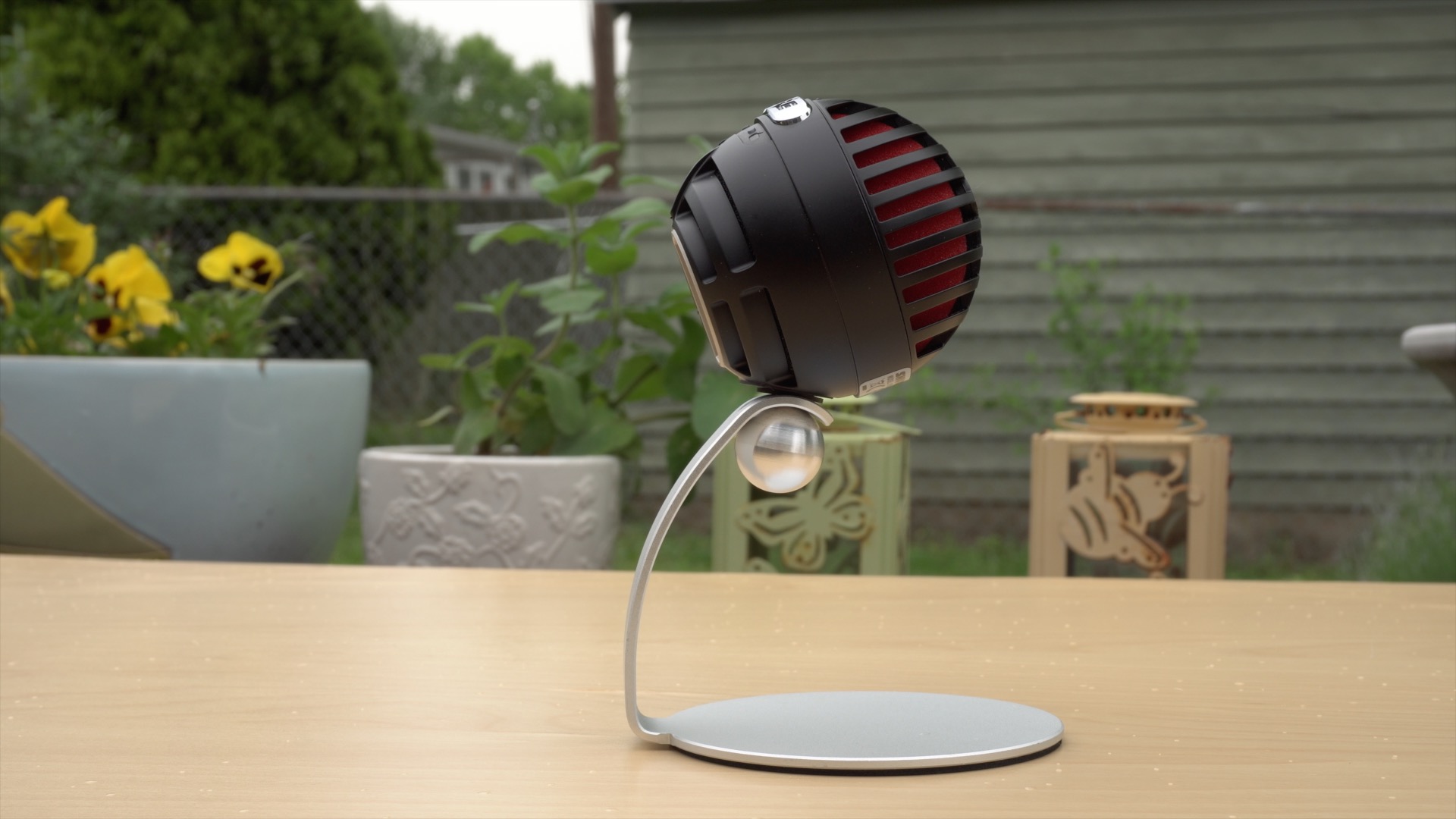
As someone keen on recording voiceovers and podcasts from an iPad, I needed a Lightning-enabled microphone that could handle such a task. While it’s true that Apple’s Lightning to USB 3 Camera Adapter allows iOS to interface with a variety of microphones that it wasn’t able to before, I like the idea of keeping my setup as minimal and as dongle-free as possible.

Enter the Shure MV5 Digital Condenser Microphone. This is a MFi-certified Lightning-enabled microphone that works with the iPad or iPhone using a single microUSB to Lightning cable. By switching out the Lightning cable for a traditional USB cable, you can use the same microphone with your Mac or PC.

This microphone is a digital condenser that can be powered via Lightning or USB. It doesn’t require any special adapters or power supplies to work, just plug it in, launch an app, and start recording.


Expand
Expanding
Close

Review: Audio-Technica’s ATH-M50x closed-back studio monitor headphones live up to the hype

Site default logo image

ATH-M50x

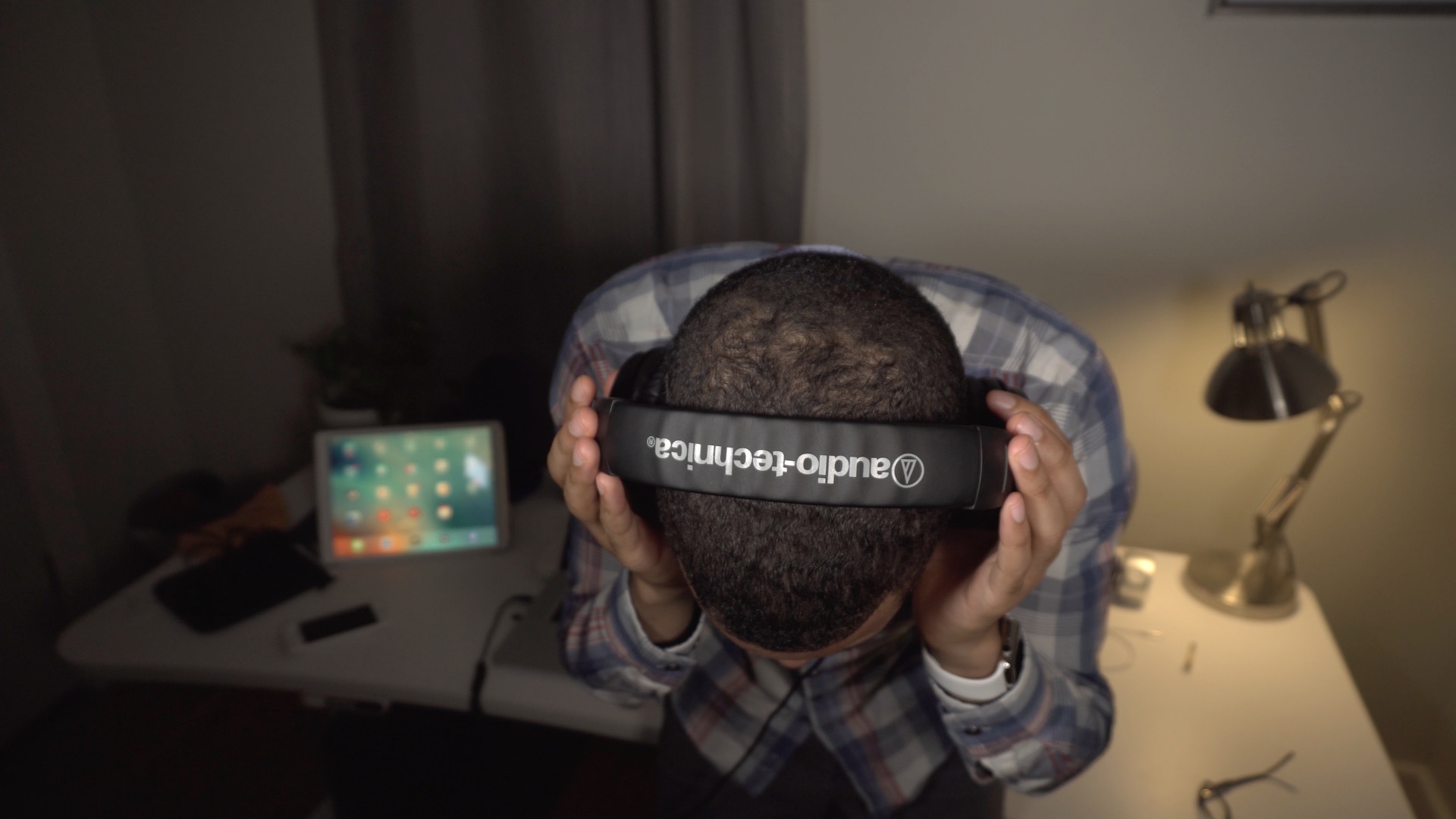
For the last few months I’ve been using my Apple EarPods for nearly every application that requires in-ear audio. I use my EarPods for monitoring while recording voiceovers, for podcasting, and for everyday music listening.

Absurd as it is, the last pair of headphones I’d owned, a pair of Sony MDR-7506’s, ended up developing a short in the cable. I simply never got around to replacing them in a timely manner.

Audio-Technica’s ATH-M50, and the updated ATH-M50x, have received rave reviews from tech sites, bloggers and YouTubers alike. The love that these headphones receive on a regular basis convinced me that the next pair of headphones that I tried needed to be these. Do they live up to the hype?
Expand
Expanding
Close

How-To: Automatically change your Mac’s display resolution when running specific apps [Video]

SwitcherResX Change Resolution based on App Mac OS X

I normally run my 15″ MacBook Pro at default resolution, which equates to a useable space of 1440-by-900. While this default resolution is great for reading and writing, I’ve found that it’s not always so good for editing with timeline-based apps, such as Final Cut Pro X.

Generally speaking, it’s better to have more resolution for timeline-based apps, because the timelines can be so long and expansive. A larger field of view gives content creators more flexibility and room to work with on the canvas.

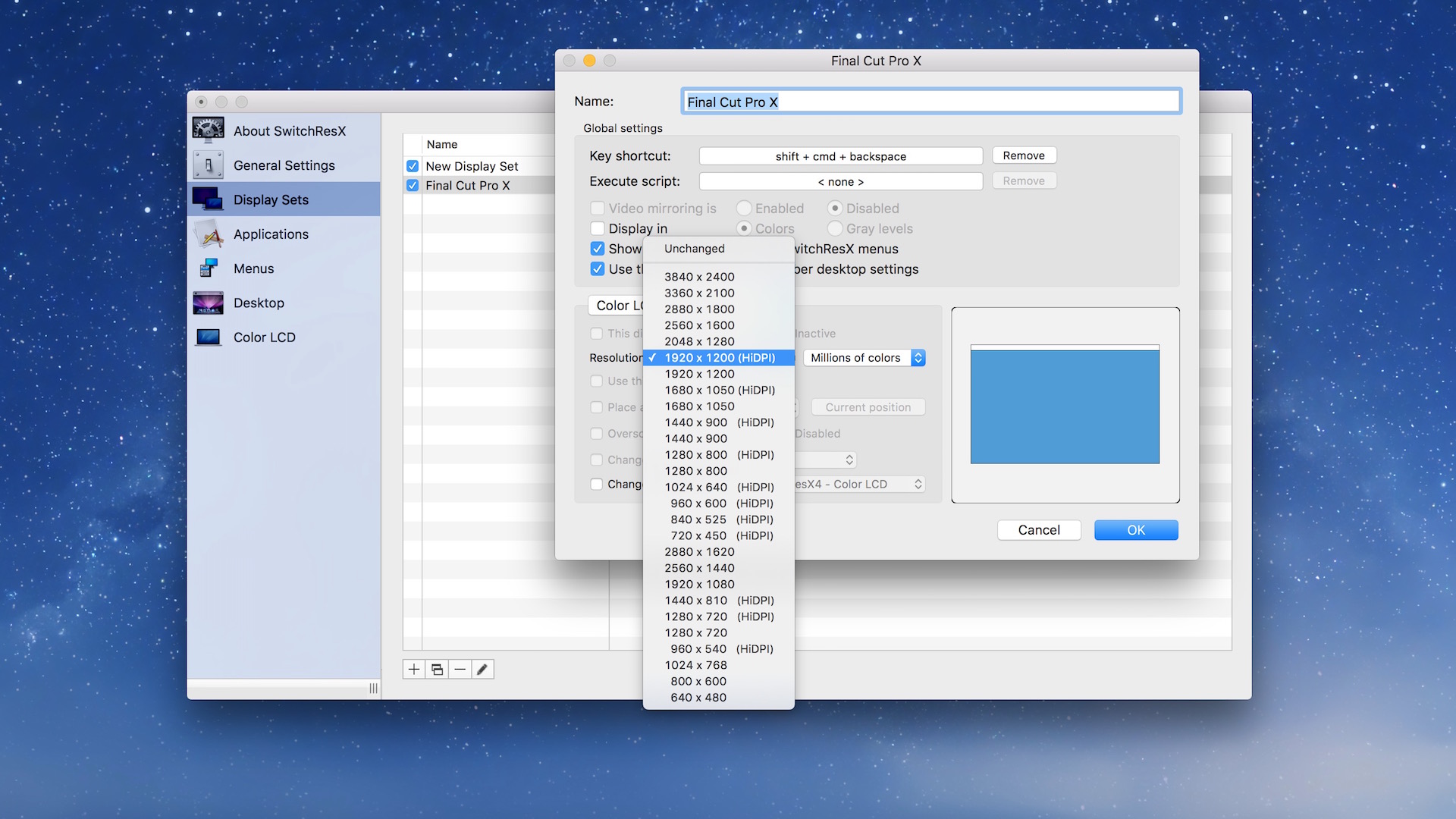
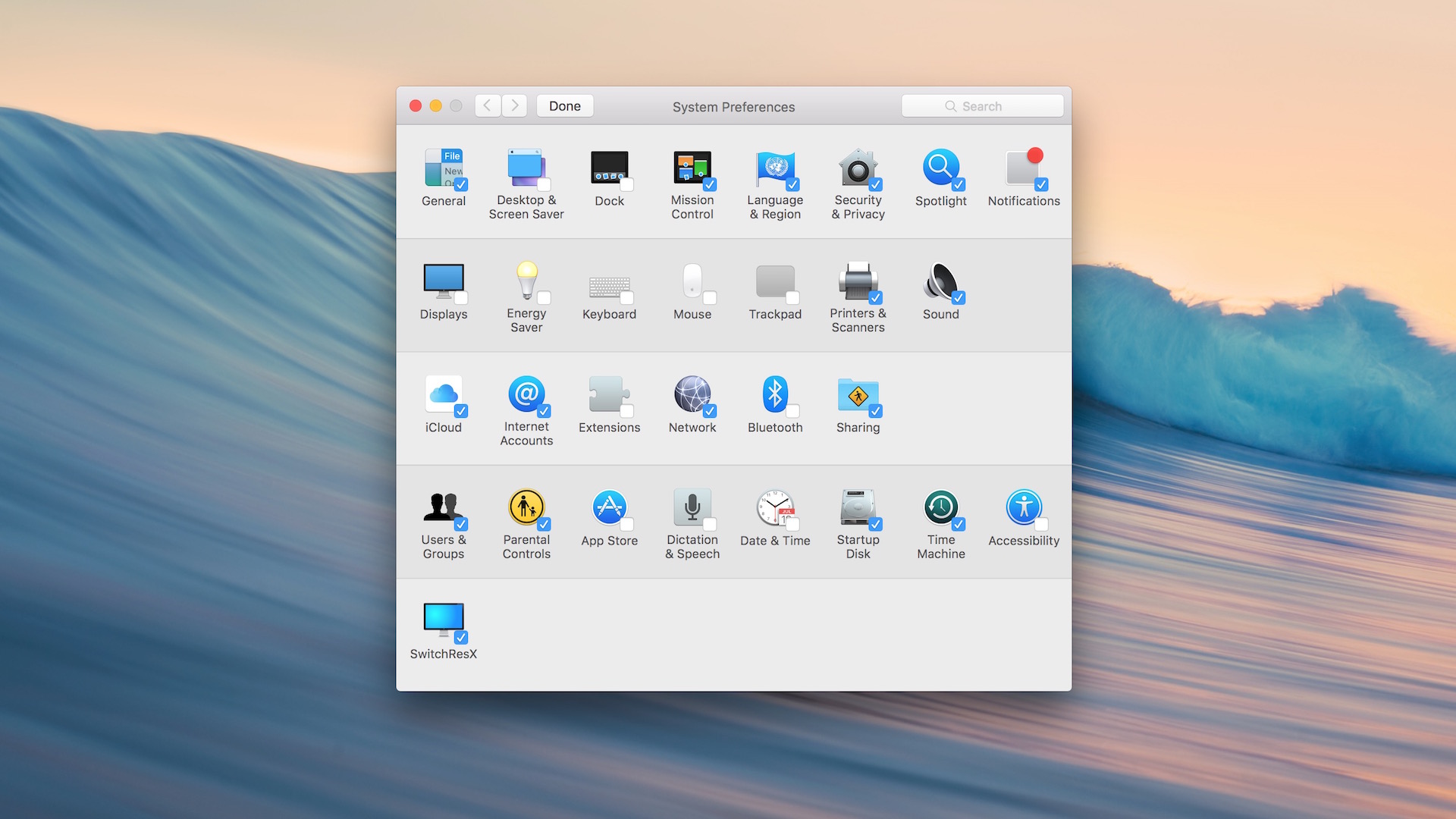
Wouldn’t it be nice if your Mac automatically adjusted to a higher resolution when running a certain app, and automatically switched back to default resolution when closing said app? In this post, we’ll show you how to wield SwitchResX, a utility geared towards managing your Mac’s screen resolution, in such a way that makes that possible.
Expand
Expanding
Close

How-To: Enable Aero Snap-like window snapping on your Mac [Video]

BetterSnapTool Custom Snap Areas

Yesterday, we wrote a post about hiding the menu bar, and in the corresponding video tutorial, we used window snapping to highlight one of the benefits of a hidden menu bar. Afterwards, I received several tweets and emails asking how to perform window snapping, since this is not a feature that appears natively in OS X.

Window snapping allows you to position windows in specific areas of the screen, usually by dragging the window to the edge of the screen, causing the window to “snap” into place. This feature was first popularized by Microsoft’s Aero Snap on Windows. Even though Apple doesn’t natively support it, window snapping is available on the Mac via a variety of third-party apps.
Expand
Expanding
Close
How-To: Hide the menu bar in OS X [Video]

How to hide the menu bar in OS X

If you’re running OS X El Capitan, it’s possible to hide the menu bar on your primary display. Hiding the menu bar works very much like a hidden Dock in OS X, in that when you move your cursor to the edge of the screen, the menu bar reappears from its hidden state. In this post we’ll show you how to hide your menu bar, and why you might consider doing so.
Expand
Expanding
Close
Opinion: MacBook Pro owners, it’s time to consider a 4K display

Site default logo image

4K-displays-Sharp-Dell-LG-01

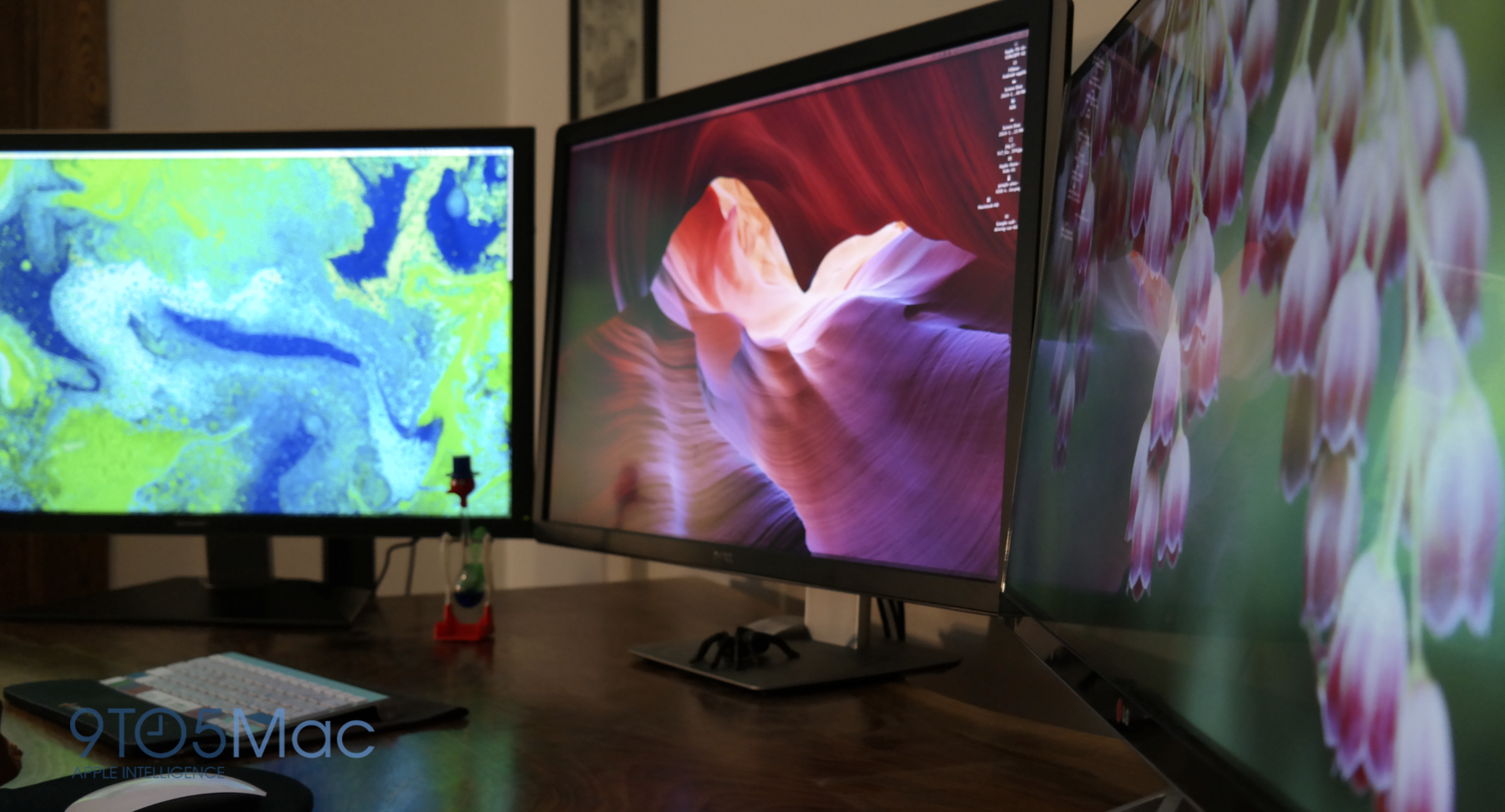
If you own a MacBook Pro with Retina Display and desire extra screen real estate, then a 4K monitor can be a good investment, especially as the price of such monitors continue to dwindle.

Why should you consider a 4K display instead of a cheaper monitor with lesser resolution? It all boils down to clarity.
Expand
Expanding
Close
Quitter: a new Mac app from the creator of Instapaper [Video]

quitter-marco-arment

Marco Arment is well known for working at Tumblr, creating Instapaper and Overcast, and for being a fairly prolific podcaster. Needless to say, he’s dabbled his toes in lot of different areas. One area that has remained virtually untouched by Arment is, oddly enough, the Mac.

As someone whose name is so synonymous with iOS development, it’s surprising that Quitter, a brand new app based around auto-quitting distracting apps after a set period of inactivity, is Arment’s first app release for the Mac.
Expand
Expanding
Close
How-To: Find your MacBook’s battery cycle count and learn what it means about its battery life

MacBook Pro with Retina Display back cover battery exposed

Recently I noticed that my Late 2013 MacBook Pro with Retina Display seemed to be dying at a faster clip. Naturally, I assumed that the battery might be going bad.

After checking the battery cycle count, I learned that I was probably wrong about the battery being bad, as the cycle count was still well within the normal life span of my MacBook. Here’s how I was able to verify that everything was okay with my MacBook’s battery.


Expand
Expanding
Close
How-To: Quickly resize images on OS X using a Service with Automator

Resize service OS X

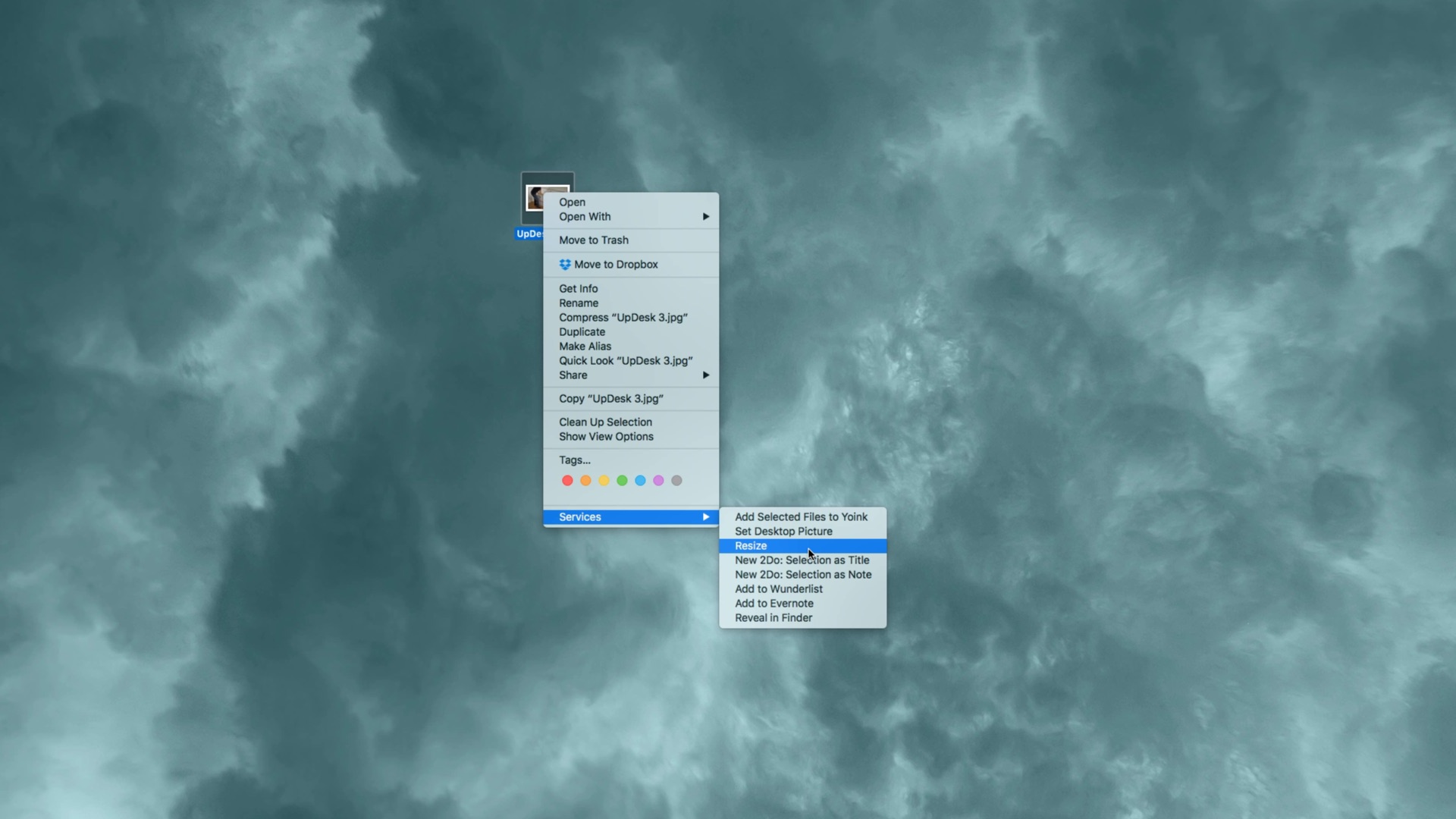
Every day I use a handy service created with Automator to resize images exported from 4K footage to a smaller size. It’s easy to resize images in an app like Preview or Pixelmator, but using a service works better for me since it can batch resize multiple images in seconds, and it’s directly accessible from the Finder. Here’s how you can create your own handy image resizing service using Automator.
Expand
Expanding
Close
Does a standing desk really make a difference? Hands-on with the UpDesk PowerUp

Site default logo image

SteelSeries Apex M800 Desktop

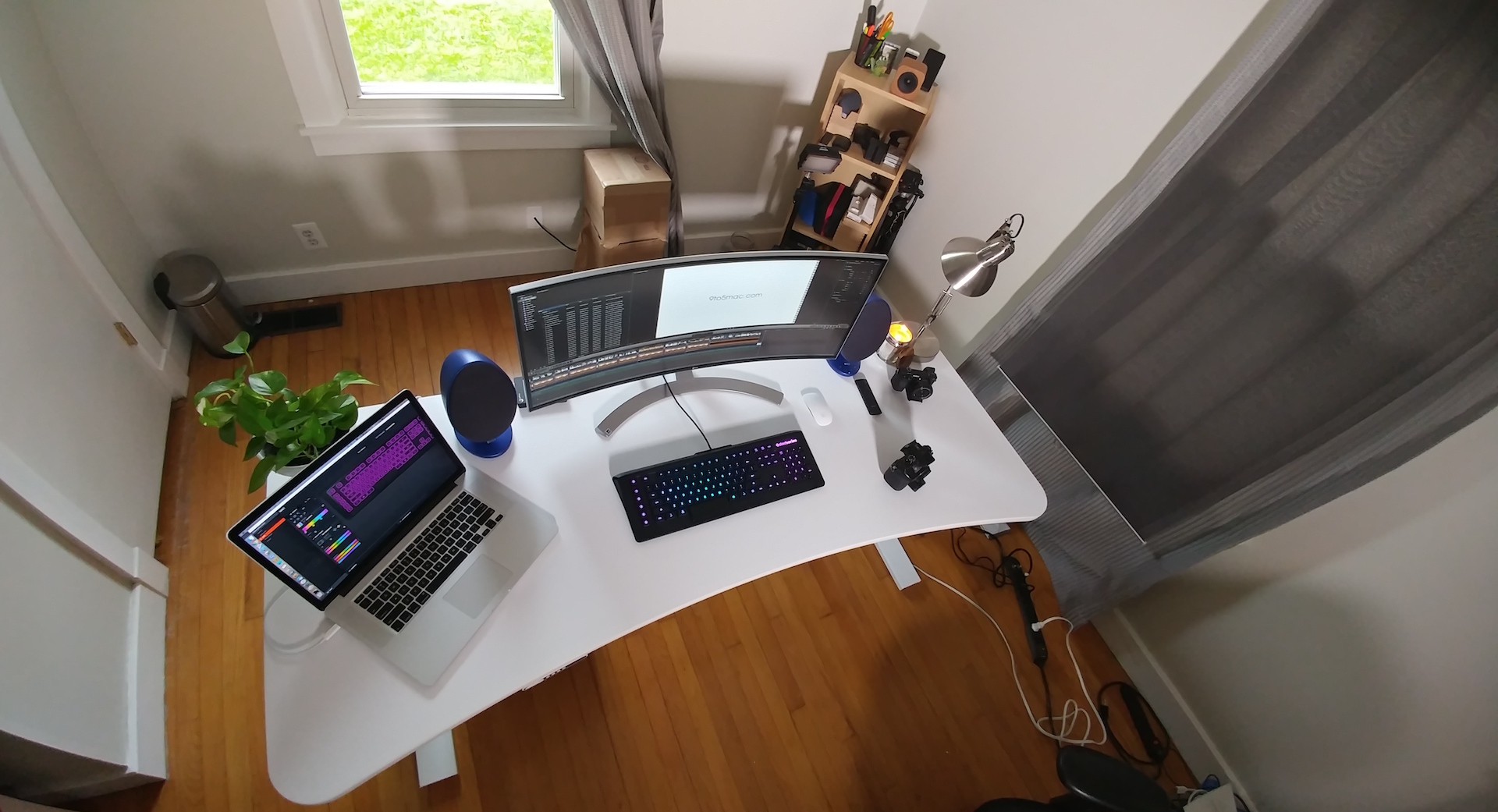
I’ve always been intrigued about the idea of a standing desk, but I’ve never been motivated to actually try one until recently. As someone who sits at a desk and blogs about Mac and iOS for a living, I was particularly interested in seeing what type of benefits such a desk could offer.

Enter the PowerUp from UpDesk, a Nashville-based company that specializes in standing desks. The PowerUp, as its name alludes to, is a motorized standing desk that can lower and raise with the press of a button.

I’ve been testing out the PowerUp for the last few weeks, and have collected some thoughts and observations about the setup. Does it really make a difference in my day to day Mac and iOS blogging workflow?
Expand
Expanding
Close

Opinion: Apple’s MacBook lineup has a storage problem

macbookprossd-3

Yesterday, we showed you how to upgrade late model MacBooks with a 480GB or 1TB SSD. In some cases these upgrades might yield eight times the original capacity of the machine’s internal storage.

While it’s certainly nice to have the option of upgrading, such enhancements do come with downsides. First, there’s the price: it’s $600 to upgrade to a 1TB drive. Second, the upgrade breaks Boot Camp support.

But $600 is relatively cheap when you compare what it costs to score a MacBook with a 1TB SSD. MacBooks feature faster PCIe storage, but it’s still a high price to pay for something so vital — and so cheap by today’s standards.

Apple’s MacBook line has an issue with internal flash storage prices. It’s a problem that continues to worsen, especially as Apple has made it increasingly difficult for users to upgrade.
Expand
Expanding
Close
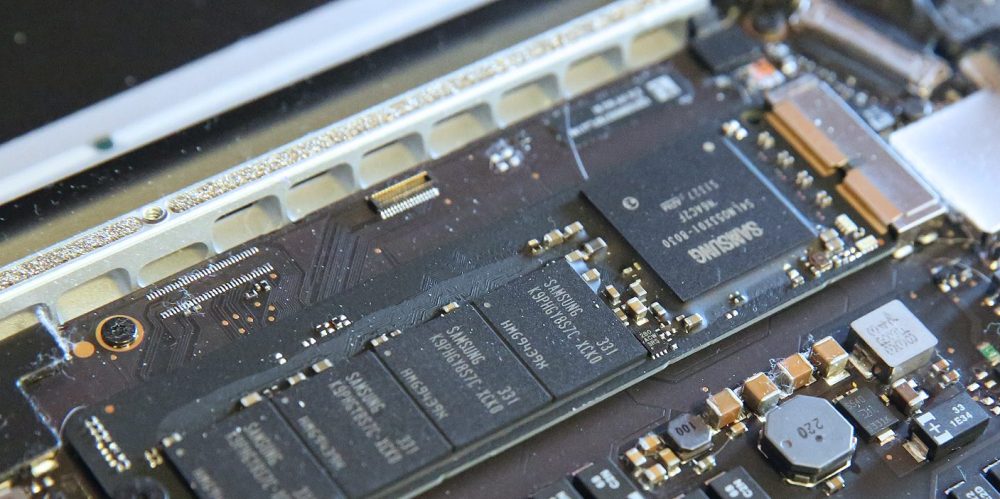
Review: OWC’s Aura PCIe flash storage lets you upgrade the storage capacity of your Mid-2013 and later MacBook [U: Now works with Boot Camp]

Aura

As an owner of a Late 2013 MacBook Pro with Retina Display, it’s slowly beginning to show its age. However, I find that this machine, an i7-powered rig with 16GB of RAM, is still plenty powerful for the applications that I run on a day-to-day basis. For example, with Final Cut Pro X, it’s not the fastest machine in the world (it lacks dedicated graphics), but it’s still plenty competent when it comes to editing and exporting 4K videos.

The biggest bottleneck that I’ve encountered with this computer is its storage capabilities, and that’s something I’ve been trying to deal with since the day I purchased it. With only 256 GB of flash storage, space has been hard to come by since day one. That wouldn’t be so bad if there was a way to upgrade the amount of internal storage, but sadly there has been no upgrade solution…until now.

Back in early March, OWC made a splash by announcing the very first flash storage upgrade solution the MacBook Pro as far back as the Late-2013 product cycle, and the MacBook Air, as far back as the Mid-2013 product cycle. Yes, finally! MacBook Pro and MacBook Air owners with qualifying machines can come out of the storage dark ages with OWC’s new Aura PCIe flash storage upgrade.

Expand
Expanding
Close
Site default logo image

Apple begins charging WWDC 2016 lottery winners

Tim Cook WWDC 2015

As it has in the past, Apple held a lottery for WWDC 2016 tickets. The lottery opened on Monday, April 18th, and closed earlier today at 10:00AM PST.

The lottery format puts developers on even ground, lending all a chance to win the right to purchase a $1,599 ticket. Though Apple has stated that it plans on notifying winners of the lottery by Monday, April 25th, some winners have already begun to see their credit cards charged.
Expand
Expanding
Close

Review: KEF Egg Wireless Digital Music System – an expensive, but glorious-sounding speaker solution

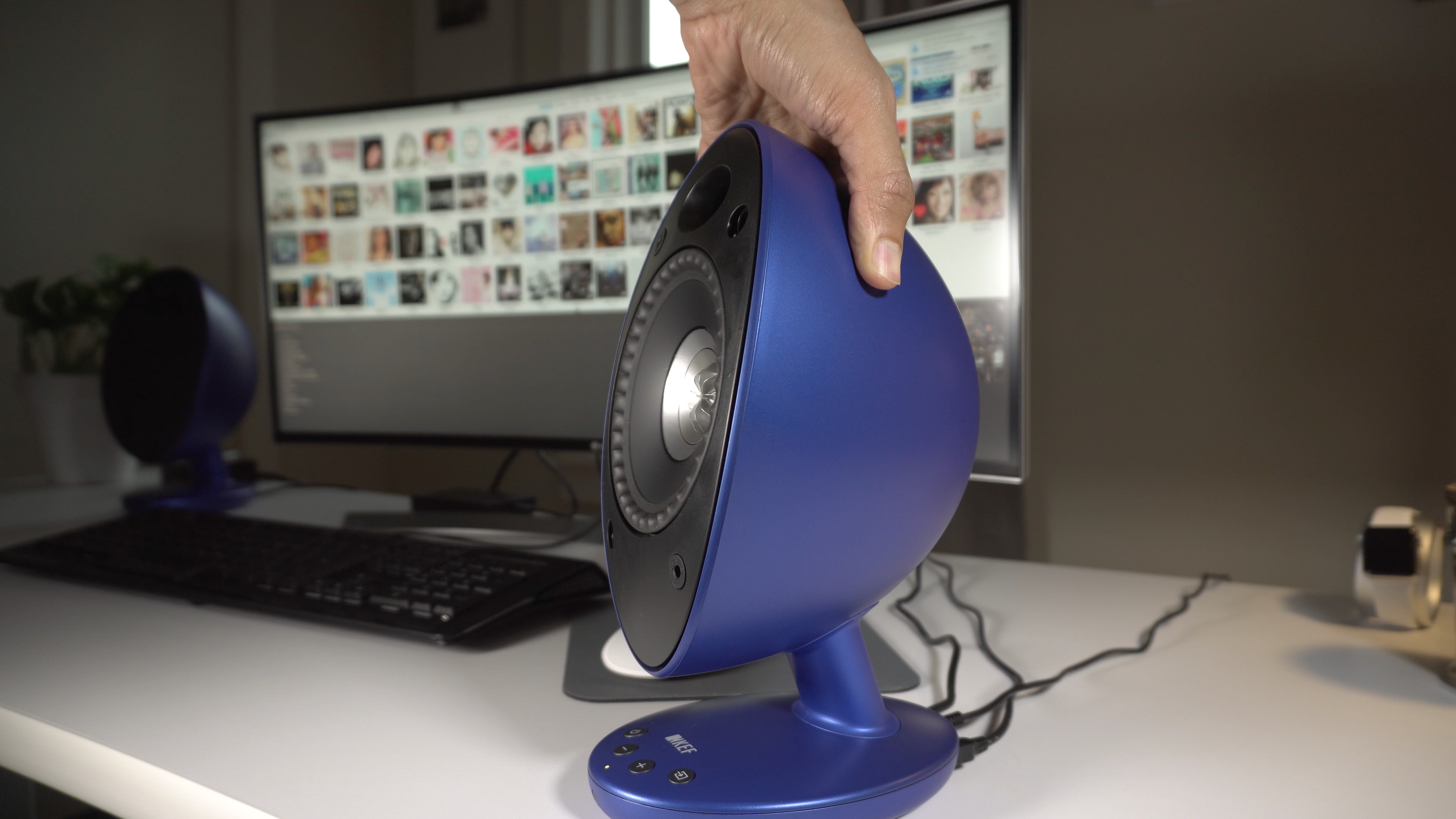
KEF Egg

The KEF Egg digital wireless speaker system certainly lives up to its name. The shape of the speakers are a peculiar half-egg shape that make you question whether or not you should take them seriously.

A quick listen, and that question is answered with authority. Despite the peculiar look, these speakers mean business in the sound department.

Not only do these speakers sound good, but they also work well in a variety of different environments and with a variety of sources. KEF Egg is a Bluetooth speaker, a Hi-Fi USB speaker, and features traditional optical input as well. This means that the Egg works well in a bedroom, an office environment, or even in the living room.

At $499, these speakers are anything but cheap, but if you’re searching for a pair of flexible speakers possessing high-end sound, then the KEF Egg might be worth saving up for.
Expand
Expanding
Close
Site default logo image

Giveaway: SteelSeries Apex M800 Mechanical Keyboard

SteelSeries Keyboard Giveaway

Last week, we reviewed the SteelSeries Apex M800 Mechanical Keyboard. The review was largely positive, citing the keyboard’s Mac-centric keycaps, individual LED lights and tactile key switches.

The SteelSeries Apex M800 is one of the more unique keyboards that we’ve tried, as each individual key can be customized with key bindings and LEDs. With SteelSeries’ Engine 3 software, customization is only a few clicks away.

We’re giving away this $170 keyboard to one of our fabulous readers. Check inside to learn how to win.
Expand
Expanding
Close