MacBook Pro: The biggest and baddest Mac laptops

See All Stories

Apple's premium laptop comes in 13- and 16-inch screen sizes. Each model includes 2-4 USB-C ports for charging, accessories, and data transfer. Higher-end models also include the Touch Bar.
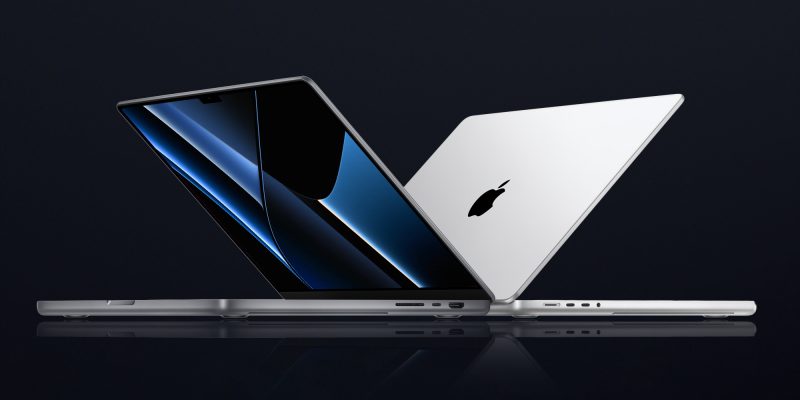
2021 MacBook Pro

MacBook Pro has been the product name for Apple’s high-end laptop since early 2006 when the transition to Intel processors began. Now, that Pro naming has carried forth as Apple has moved to its own silicon. The latest fourth and fifth-generation Pro Apple notebooks bring dramatically more power with lower heat generation and better battery life thanks to the ARM-based Apple silicon. Keep reading for a brief history of the line and a breakdown of the current lineup.

MacBook Pro history

The first generation MacBook Pro followed in the style of the PowerBook G4 that came before it, but used Intel processors rather than PowerPC chips.

The second generation of the MacBook Pro was the first to really separate itself from the products before, with a unibody enclosure. The third-generation MacBook Pro introduced the retina display as well as MagSafe 2.

Perhaps the most controversial version of the MacBook Pro is the fourth generation. While the third generation received some backlash for the removal of ethernet and the optical drive, the fourth generation was a complete rethinking of the device peripherals. No more MagSafe, no more USB-A ports, and only the 13-inch model kept the function keys. Instead, this redesigned MacBook Pro opted for all Thunderbolt 3 ports and headphone jack. In place of function keys, the MacBook Pro gained an OLED Touch Bar. In late-2020, Apple introduced the M1 chip and updated the 13-inch MacBook Pro. The ARM-based processor brought down power consumption and increased performance.

In October of 2021, Apple introduced the fifth-generation MacBook Pro with not one but two updated versions of the M1 chip, the M1 Pro and M1 Max. The move walked back some of the decisions from the previous generation, adding back an HDMI Port, MagSafe charger, and SD card reader while removing the Touch Bar.

The 2020 13-Inch MacBook Pro

In late 2020, Apple introduced the 13-inch M1 MacBook Pro as the latest update to the fourth-generation MacBook. The MacBook features the same look as previous MacBooks, but like the MacBook Air and Mac Mini, switched to Apple silicon.

Apple’s M1 chip brought ARM architecture to the MacBook line, and this was the first MacBook without an Intel processor.

The M1 chip is a unified design with an 8-core CPU and an 8-core CPU. The processor integrated memory on board, limiting the device to either 8GB or 16GB of unified memory. The 13-inch M1 MacBook Pro is configurable with between 256GB and 2TB of storage and features a Magic Keyboard, rather than the problematic butterfly keyboard.

13-inch MacBook Pro specs

Base Configuration$1,299.00

  • Apple M1 chip with 8‑core CPU, 8‑core GPU, and 16‑core Neural Engine
  • 8GB unified memory
  • 256GB SSD storage
  • 13-inch Retina display with True Tone
  • Backlit Magic Keyboard – US English
  • Touch Bar and Touch ID
  • Two Thunderbolt / USB 4 ports

Max Configuration$2,299.00

  • Apple M1 chip with 8‑core CPU, 8‑core GPU, and 16‑core Neural Engine
  • 16GB unified memory
  • 2TB SSD storage
  • 13-inch Retina display with True Tone
  • Backlit Magic Keyboard – US English
  • Touch Bar and Touch ID
  • Two Thunderbolt / USB 4 ports

13-inch MacBook Pro pricing

The price for the 13-inch M1 MacBook Pro starts at $1,299. Upgrading this base configuration to 16GB of memory adds $200 to the price. Likewise, each step above 256GB of storage – 512GB, 1TB, and 2TB – will add $200 to the price. A fully specced out 13-inch MacBook Pro will run you $2,299.

You can configure your own 13-inch MacBook Pro on Apple’s website.

Current 14-inch and 16-inch MacBook Pro

In October 2021, Apple brought a brand new design to the MacBook Pro line. Apple increased the screen size on the 13-inch, making it a 14-inch, and shrunk the bezels on the 16-inch. This fifth-generation notebook addressed many complaints of the last generation. MagSafe returned, in the form of an improved MagSafe 3, while the MacBook also regained an HDMI port and an SD-card slot.

Also gone is the Touch Bar. Instead, the standard row of function keys return. The latest MacBooks also bring a ProMotion display that was first introduced on the iPad Pro, with a variable refresh rate and mini-LED backlight.

The 2021 MacBooks aren’t without a controversial feature, as while the display has been made larger there is now a large notch for the 1080P FaceTime camera. While FaceID would have been a nice addition in exchange for this small chunk of the screen, there are some reasons this is not totally practical.

14-inch MacBook Pro specs

Base Configuration$1,999.00

  • Apple M1 Pro with 8-core CPU, 14-core GPU, 16-core Neural Engine
  • 16GB unified memory
  • 512GB SSD storage
  • 67W USB-C Power Adapter
  • 14-inch Liquid Retina XDR display
  • Three Thunderbolt 4 ports, HDMI port, SDXC card slot, MagSafe 3 port
  • Backlit Magic Keyboard with Touch ID – US English

Maximum Configuration$5,899.00

  • Apple M1 Max with 10-core CPU, 32-core GPU, 16-core Neural Engine
  • 64GB unified memory
  • 8TB SSD storage
  • 96W USB-C Power Adapter
  • 14-inch Liquid Retina XDR display
  • Three Thunderbolt 4 ports, HDMI port, SDXC card slot, MagSafe 3 port
  • Backlit Magic Keyboard with Touch ID – US English

14-inch MacBook Pro pricing

The 14-inch MacBook Pro starts at $1,999. The base model includes 16GB of memory, 512GB of storage, and an M1 Pro processor with an 8-core CPU and 14-core GPU. There are multiple versions of the M1 Pro processor available, while jumping to an M1 Max processor will cost $500 more, and requires you to jump up to 32GB of memory – a $400 upgrade. Going with the M1 Max processor means you can configure up to the full 64GB of memory, an $800 upgrade.

You can configure up to 8TB of storage in the 2021 14-inch MacBook Pro. Upgrade costs are as follows:

  • 1TB SSD Storage – $200
  • 2TB SSD Storage – $600
  • 4TB SSD Storage – $1,200
  • 8TB SSD Storage – $2,400

You can configure your own 14-inch MacBook Pro on Apple’s website.

16-inch MacBook Pro specs

Base Configuration$2,499.00

  • Apple M1 Pro with 10-core CPU, 16-core GPU, 16-core Neural Engine
  • 16GB unified memory
  • 512GB SSD storage
  • 16-inch Liquid Retina XDR display
  • Three Thunderbolt 4 ports, HDMI port, SDXC card slot, MagSafe 3 port
  • 140W USB-C Power Adapter
  • Backlit Magic Keyboard with Touch ID – US English

Maximum Configuration$6,099.00

  • Apple M1 Max with 10-core CPU, 32-core GPU, 16-core Neural Engine
  • 64GB unified memory
  • 8TB SSD storage
  • 16-inch Liquid Retina XDR display
  • Three Thunderbolt 4 ports, HDMI port, SDXC card slot, MagSafe 3 port
  • 140W USB-C Power Adapter
  • Backlit Magic Keyboard with Touch ID – US English

16-inch MacBook Pro pricing

The 16-inch MacBook Pro starts at $2,499. There is only one M1 Pro processor available on the 16-inch MacBook, and that’s the highest version 10-core CPU, 16-core GPU version of the M1 Pro processor that is a $300 upgrade on the 14-inch MacBook Pro. Of course, you can also step up to the M1 Max processor with either a 24-core or 32-core GPU, a $200 and $400 upgrade respectively (which also requires the $400 upgrade to 32GB of memory). The memory and storage options are all the same as the 14-inch MacBook Pro.

You can configure your own 16-inch MacBook Pro on Apple’s website.

Differences between 13-inch,14-inch, and 16-inch models

The 2021 MacBook Pro lineup is a refreshing change. The return of ports and physical keys make the laptops more versatile, while additions like an XDR display and hardware acceleration for ProRes improves the experience but is harder to quantify for the average user.

13-inch14-inch16-inch
ProcessorM1M1 Pro / M1 MaxM1 Pro / M1 Max
Memory8GB / 16GB16GB / 32GB / 64GB16GB / 32GB / 64GB
Storage512GB, 1TB, 2TB512GB, 1TB, 2TB, 4TB, 8TB512GB, 1TB, 2TB, 4TB, 8TB
Screen2560×1600 pixels 3024×1964 pixels; ProMotion3456×2234 pixels; ProMotion
Weight3.0 pounds (1.4 kg)3.5 pounds (1.6 kg)M1 Pro: 4.7 pounds (2.1 kg)
M1 Max: 4.8 pounds (2.2 kg)
Size (Width x Depth)11.97 x 8.36 inches (30.41 x 21.24 cm)12.31 x 8.71 inches (31.26 x 22.12 cm)14.01 x 9.77 inches (35.57 x 24.81 cm)
Height0.61 inch (1.56 cm)0.61 inch (1.55 cm)0.66 inch (1.68 cm)
Base Price$1,299.00$1,999.00$2,499.00

The $1,999 starting price for Apple latest computer is a harder pill to swallow than the $1,300 13-inch Pro from last year. For an average user, the superb M1 MacBook Air will likely suffice (and that sub-$1,000 price is hard to pass up).

But the 2021 14-inch and 16-inch MacBook Pro are exactly what they need to be, a return to function-over-form that will truly meet the needs of professional users.

RIP Mac optical drives? Rumor suggests Apple to drop last non-Retina MacBook Pro this year

Site default logo image

DigiTimes is claiming that Apple will cease production of the non-Retina version of the 13-inch MacBook Pro this year as it prepares to launch refreshed Retina models toward the end of the year.

Apple is expected to stop production of the 13-inch MacBook Pro in the second half of 2014 and will replace the product line with thinner models equipped with a Retina display. Meanwhile, Intel will offer second-generation ultrabooks in the fourth quarter of 2014, pushing the notebook industry further into the ultra-thin era, according to Taiwan-based supply chain makers … 
Expand
Expanding
Close

Nuance announces Dragon Dictate 4, with pre-recorded transcription features and Gmail integration

Nuance has just announced the next major version of its Mac dictation software, Dragon Dictate 4. The new version improves recognition accuracy as well as several new features, including the ability to machine transcribe from a pre-recorded audio file. You no longer have to be recording a voice live to get transcription.

[youtube=http://www.youtube.com/watch?v=RRfbZ0h4yBo]

We’ve had a quick play with the software and the accuracy is almost scary good compared to older versions of the software. Speaking in a normal voice gives you almost 100% accuracy and even mumbling seems to work. While Mavericks uses the same Nuance speech engine, Dictate 4 has a better interface for transcription and tons of extra features as outlined in the videos above and below.

Dragon Dictate software has also been updated for modern system architectures — it is a 64-bit app now.  This results in better performance and better memory management over its predecessors. The company says it has drastically reduced latency when interpreting speech.

[youtube=http://www.youtube.com/watch?v=YnGKb854CNI]


Expand
Expanding
Close

Opinion: Why I love Apple products, and am just a tiny bit embarrassed to be seen using them

Site default logo image

I love my Apple products. I’ve used Macs since day one. My desk right now has on it my MacBook Pro, MacBook Air, iPad Air, Thunderbolt Display and iPhone. Oh, and an Apple Bluetooth keyboard and Magic Trackpad, of course.

My friends are convinced that I’m incapable of leaving the house without my iPad, and I have to confess that the evidence is on their side. My car has an iPhone dock so I can listen to music and podcasts. If I’m on a plane, train or tube, it’s a near-certainty that I’ll be using my iPad or listening to music on my iPhone – or both.

I love Apple hardware design. Sleek, minimalistic, beautiful. There aren’t that many other really attractive laptops out there, and most of the ones that are have essentially copied Apple’s designs … 
Expand
Expanding
Close

How-to: Use Preview to put signatures on PDF’s, Pages Documents, and Mail messages

Site default logo image

As we have written about in previous articles, Preview is a valuable tool in OS X that does not get a lot of press. In this article, we will review how you can use Preview to capture your signature using the iSight camera on a Mac, then use it in Pages documents, to sign PDF documents, and as an image in your signature in the Mail app.


Expand
Expanding
Close

Site default logo image

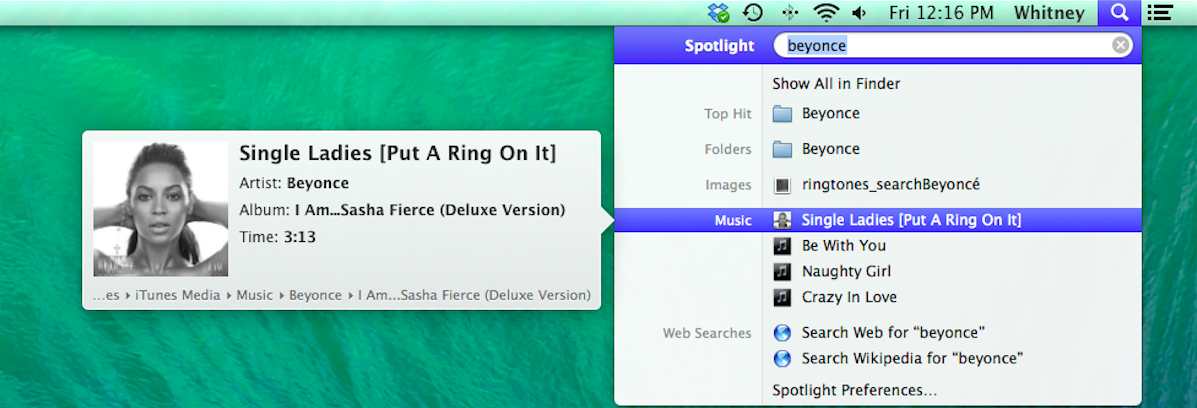
How to: Get Spotlight processes back under control when CPU usage goes crazy

If you’re finding that your Mac fans are running a lot more than they used to, you might want to check out whether a couple of Spotlight processes are consuming more than their fair share of CPU cycles.

Ever since the latest Mavericks update, I found that my MacBook Pro seemed to be running hot a lot of the time, with fans ramping up to high levels to cool it. Checking Activity Monitor didn’t seem to be shedding much light on things at first glance. The only two processes using an unusual amount of CPU were mds and mds_stores. These are two processes used by Spotlight when indexing, so I didn’t think too much of it – Spotlight has to do its indexing sometime, right?

But several checks later, these two processes seemed to be helping themselves to significant chunks of CPU on a regular basis, at which point I did some Googling.

I started by disabling Spotlight altogether to confirm that it was the culprit. To do this, I went into Terminal and entered:

sudo mdutil -a -i off

The fans spooled down and all was back to normal. Spotlight was indeed the culprit.

I briefly considered leaving Spotlight off until the next OS X update, but that proved too much of a pain. I keep my most-used apps in the dock, but everything else I habitually launch from Spotlight. CMD-space plus the first letter or two of the app is just too convenient to give up. So I did some more Googling – after switching Spotlight back on with:

sudo mdutil -a -i on

The first tip I found was here, where it suggested deleting the Spotlight database and forcing it to re-index. You can do this in Terminal again:

 sudo rm -rf /.Spotlight-V100/*

Top tip: set this going overnight, as the re-indexing takes a while.

This helped quite a bit, but the mds process still seemed a little greedy. More Googling led me to a suggestion to remove from Spotlight’s indexing any directories with frequently-changing content, especially those used for online backup. You can do this by going into System Preferences, clicking the Privacy tab and then drag-and-dropping onto it any directories you don’t want it to index.

I added my CrashPlan, MobileSync and Dropbox folders – three specific suggestions I’d found – and then for good measure added some others with frequently-changing content.

This did the trick: my fans stayed on low, and Activity Monitor showed the mds processes consuming only tiny amounts of CPU.

I’m not sure how general an issue this – hence making this an aside – but if you’re finding your Mac running hot, it may be worth checking out.

Apple acknowledges AirPlay Mirroring issue with new Mac Pros & MacBook Pros

Site default logo image

Update: The document originally recommended disabling Bluetooth, but it appears updating to the latest version of OS X is Apple’s recommended fix. Much better.

In a support document issued today, Apple addressed a known issue with AirPlay Mirroring performance freezing or dropping out. MacBook Pro and Mac Pro users with last year’s models may see the issue when using an 802.11 b/g network…
Expand
Expanding
Close

Site default logo image

Offers you can’t refuse: $100 off all MacBooks, up to 70% off 2K iOS games, Samsung 3D BR player $55, more

Be sure to follow 9to5Toys to keep up with the best gear and deals on the web: Twitter, RSS Feed, Facebook, Google+ and subscribe to the new Safari push notifications feature.

Today’s can’t miss deals: 

Best Buy 2-Day Doorbusters: $100 off all Apple MacBooks and 21″ iMac for $1,150 ($150 savings)

Game/App Deals: Up to 70% off 2K iOS games, Tilt to Live: $1 (Reg. $3), 100 Rogues: $1 (Reg. $3), iOS freebies, more

Samsung Smart 3D Blu-ray Wifi BluRay player (refurb): $55 shipped. Add Godfather series Blu-ray for an offer you can’t refuse


Other great deals from today:

More great deals still alive:

Review: How I transformed my workspace w/ LandingZone’s MacBook Pro Dock

Site default logo image

Think of it as an iPhone-style dock for your MacBook. At home you might have several things plugged into your MacBook’s various ports (hard drives, USB products, speakers, etc), which means disconnecting and reconnecting everything each time you leave or return with your MacBook. With LandingZone, everything gets connected to ports in the back of the dock, allowing you to simply place your MacBook in the dock and instantly connect to all your peripherals. When you leave, you can pop out your Mac and walk away in seconds without thinking twice about all the connected cables. It also packs in a 5-port USB hub, ethernet adapter, HDMI, and Mini DisplayPort all while reducing cable clutter on your desk. I’ve been using the latest LandingZone Dock model for the 15-inch Retina MacBook Pro for a couple weeks and it has truly transformed my workspace.
Expand
Expanding
Close

Apple takes over its homepage to celebrate 30 years of Mac, with accompanying video, timeline and poll

In addition to interviews with the press, Apple is celebrating 30 years of Mac with a full-bleed graphic on its homepage, which links to a minisite that plots how the Mac evolved over the years. The message says that Apple made the Macintosh with a promise to get “the power of technology .. in the hand of everyone”. “This promise has been kept.”, it reads. The dedicated minisite depicts a (scrollable) timeline of the major models of Mac since 1984, spanning the PowerBook, the iMac and ending with the Retina MacBook Pro and the brand new Mac Pro.

See the accompanying video after the break.


Expand
Expanding
Close

Google Now comes to the Mac in the latest Chrome Canary release

Screen Shot 2014-01-16 at 13.25.19

There have been indications for a long time that Google Now was eventually coming to the Chrome browser. Via the Google Operating System Blog, the service has finally surfaced in the most recent release of Chrome Canary (Google’s name for the app’s ‘alpha’ channel builds).

As expected, Google Now in Chrome closely mirrors Google Now on Android. The contextually-relevant cards (which show information such as weather, news or upcoming flights) appear in Chrome’s Notification Center on the desktop. The notification area can be accessed in the menubar, represented by a bell icon.


Expand
Expanding
Close

Stylish screensaver recreates the iOS 7 lock screen experience on your Mac

Want to bring iOS and OS X even closer together than they already are?
Christian Heudens has recreated the iOS 7 lock screen to your Mac as a free downloadable screensaver. The thin fonts look great on a Retina Display. It’s a neat way to give your Mac a bit of individuality and make your experience across your Apple devices even more consistent.

The developer has done a good job of replicating the feel of iOS 7, using the same starry wallpaper by default and font style. The screensaver adds a zoom effect to the background too, which is a sophisticated yet subtle addition.


Expand
Expanding
Close

How-to: Use Apple Mail rules to automatically filter out unwanted messages

Site default logo image

Preventing unwanted messages from showing up in your inbox can be integral to enjoying email. In this article we will walk you through the process of creating mail rules that will direct messages to other folders or the trash based on conditions you specify. We will also discuss how to update rules to include additional senders or other criteria, and provide some common-sense guidance about effectively using mail rules in general.

Mail rules allow you to direct messages out of your inbox into another folder or trash automatically, based on their sender or other conditions. Rules can be set up on iCloud.com if the email address is the one you use for iCloud (it can end in either @icloud.com, @me.com, or @mac.com).

For your other email addresses, rules can be set up in the Mail app on a Mac. If you set up rules using iCloud.com they are very effective, immediately directing messages to the specified folders on all your devices. If you set up rules using the Mail app, they are effective only after you start up your Mac and open the Mail app.  At the end of this article, I will make some practical suggestions about how to address that, and other aspects of using mail rules.


Expand
Expanding
Close

Bluetooth portable conference speakerphone smackdown: Philips WeCall vs. Logitech P710e

Site default logo image

Update: Check out the Harman Kardon Esquire which we reviewed in December 2014

As we begin to rely on our mobile devices for more and more of our business needs, I found myself needing a “portable Polycom” which would allow me to make quality speakerphone calls from my Mac or iPhone. Sure, the built-in speaker and mic are top notch on Apple products for their size, but I’d often have a hard time hearing what was on the other end of the line. Even more importantly, people couldn’t understand what I was saying, especially as I moved around.

I’ve decided to take a look at two similar solutions:  Philips WeCall ($150) vs. Logitech P710e ($140) pictured above…
Expand
Expanding
Close

Editors Keys turns Apple’s wireless keyboard into the first Logic Pro X shortcut keyboard

Site default logo image

Editors Keys today announced the first ever wireless shortcut keyboard for Apple’s recently released Logic Pro X audio suite.  The keyboard sports 150 shortcuts and the company notes it was also able to fit in some extra shortcuts as icons sitting behind the text on each key. Perhaps the best part of the new Logic Pro X keyboard is the fact that Editors Keys used an actual Apple wireless keyboard for the product, which means you’ll be able to swap out your current Apple keyboard without sacrificing the look and feel. The company says it worked with the Logic Pro X community to develop the best experience possible for users: 
Expand
Expanding
Close

Best Buy offering 16GB iPhone 5s for $125, 5c for free on all carriers for a limited time

Site default logo image

Best Buy just sent over word that it will be holding a special New Year’s sale this weekend on a number of products including significant discounts on iPhones. The retailer is dropping the cost of the 16GB iPhone 5s down to $124.99 from its usual $199 and the 16GB iPhone 5c will be available to pick up for free, both available through all major carriers. The sale lasts through Jan. 4 both in-store and online, and the prices for the discounted iPhones are already available through at least Best Buy online
Expand
Expanding
Close

New Retina MacBook Pros can drive 4K displays at 60Hz – when running Windows, Mac OS needs new drivers

Site default logo image

Tests by French site Mac4Ever.com found that current model Retina MacBook Pro machines can use their Thunderbolt 2 connections to drive the Sharp PN-K321 4K display at 60Hz when running Windows 8.1 with the latest NVidia drivers, rather than the 30Hz possible with OS X. This suggests that OS X will be able to do the same when Apple updates the rMBP video/Thunderbolt 2 drivers.

While 30Hz is good enough for movies, our own Seth Weintraub found on his bargain Seiki that it gives a poor experience when scrolling webpages, and is of course completely unusable for games. 60Hz, in contrast, gives a smooth experience when using a computer. The mystery had been why the latest Retina MacBook Pros, with Thunderbolt 2 support, were limited to 30Hz when the specs should have made them capable of double this – and the video drivers appear to be the answer …


Expand
Expanding
Close

Removal of Sharp display from Apple Store probably doesn’t mean Apple’s 4K display is imminent

Site default logo image

The ‘now you see it, now you don’t’ Sharp PN-K321 4K display

When Apple started offering a Sharp 4K display in its European online Apple Store, then withdrew it shortly afterwards, some speculated that this might mean an Apple 4K display is about to be launched.

It’s possible, of course, but I strongly suspect not. As I argued in October, the launch of the Mac Pro would have been the obvious point at which to announce an Apple 4K display – and current MacBook Pros can’t drive 4K displays at decent frame-rates, so I can’t see Apple launching a display that would leave the bulk of Mac owners disappointed.

The far more likely explanation is that Apple plans to sell the Sharp displays alongside the Mac Pro once it launches – as I suggested it might in that same opinion piece in October. The displays were inadvertently made live on the store before the Pro was launched, and have been removed until the Pro is available … 
Expand
Expanding
Close

How-to: Take advantage of Zoom and Large Text in OS X Mavericks

Site default logo image

OS X Mavericks has numerous features and settings that make text and images more visible. In this article, I will discuss many options and methods to take advantage of those features in different ways. In pointing out many different ways, I hope to help you find a method that will be a good fit for you.

Use System Preferences, Displays Settings:
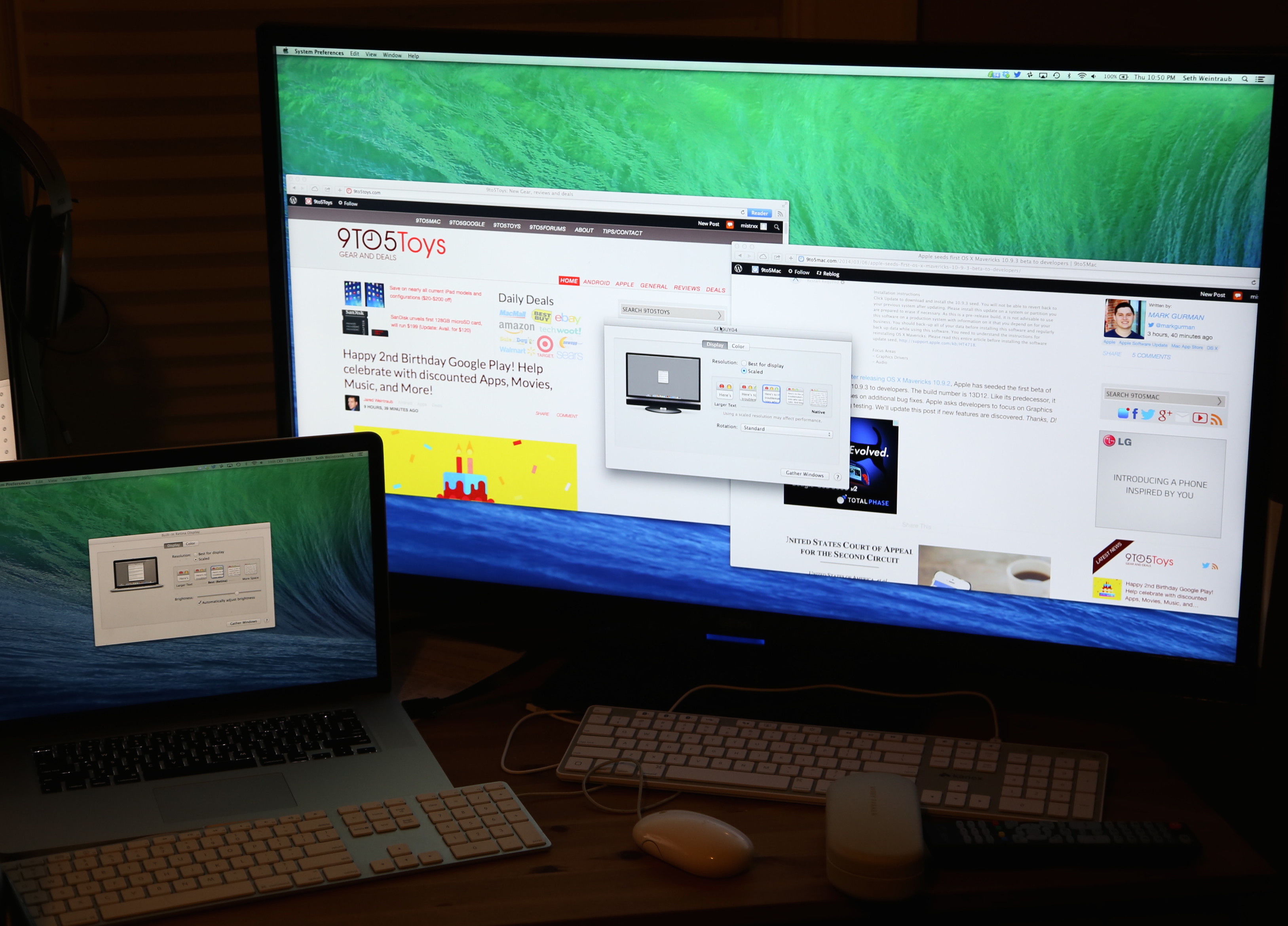
Access System Preferences from the dock or the Apple on the menu bar, and click on Displays. Then click on the Display tab. Choose Scaled, and the different resolution settings available are displayed. The options available vary, depending upon what resolution your model of the computer is capable of displaying. Adjust the settings by choosing different options—the lower the numbers are in the setting, the larger objects will be displayed. Below are examples of the display setting options you will see on a white MacBook, an older iMac, and a MacBook Pro with Retina display … 
Expand
Expanding
Close

Filemaker releases new version for 2013 with HTML5 data entry, new iOS features and tightened security

Filemaker, a subsidiary of Apple, has just announced its 2013 version of its popular database application. The new version focuses on bringing desktop database solutions to the browser. New in Filemaker ’13, projects can now be managed through a centralized web dashboard, with options for partner portals and file hosting. More importantly, data entry can now be taken in a web interface — HTML5 powered forms enable businesses to manage their deployments on any PC or Mac, as there is no longer a reliance on having the native applications installed.


Expand
Expanding
Close

Opinion: Will Apple return to a single MacBook range next year?

Site default logo image

Photo: anandtech.com

I guess you could call me something of a fanboy where Apple laptops are concerned. I bought the very first one, the Macintosh Portable, in 1989 (and actually still have it tucked away in a cupboard even now). This was followed by a series of PowerBooks before the MacBooks came along, and I currently have both a MacBook Pro 17 and MacBook Air 11.

The split between the Air and Pro ranges made sense for a whole bunch of reasons up to now. The Air has performed two important roles for Apple. First, the cachet of producing the world’s slimmest notebook further boosted Apple’s style credentials. Even today, after it lost the slimmest notebook crown and has seen the wedge design copied by others, it remains a style icon, getting admiring glances every time you pull it out in a coffee shop … 
Expand
Expanding
Close

How-To: Start using Maps in OS X Mavericks

Site default logo image

Apple has finally implemented a maps app in the OS X platform, and it seems to have been worth the wait. After being noticeably missing from the system, Maps (and iBooks) are helping achieve a greater consistency between the iOS and OS X platforms. After running the free Mavericks update, the Maps app icon will automatically be added to your dock.

In this guide, we’ll show you how to use the new app for everything from searching for locations to getting turn-by-turn directions set directly to your iPhone.


Expand
Expanding
Close