Jeff is the head of video content production for 9to5. He joined 9to5Mac in 2016, producing videos, walkthroughs, how-tos, written tutorials, and reviews. He takes pride in explaining things simply, clearly, and concisely. Jeff’s videos have been watched hundreds of millions of times by people seeking to learn more about today’s tech. Subscribe to 9to5Mac on YouTube to catch Jeff’s latest videos.
iOS Decoded is Jeff’s flagship video series that breaks down what’s new in iOS betas, including behind-the-scenes deep dives into undiscovered features and exclusive details on the iOS roadmap.
Jeff also produces a weekly podcast, alongside co-host Fernando Silva, entitled 9to5Mac Overtime. A video-first podcast, 9to5Mac Overtime airs weekly on our YouTube channel, but can also be enjoyed in audio form via Apple Podcasts, or your podcast app of choice.
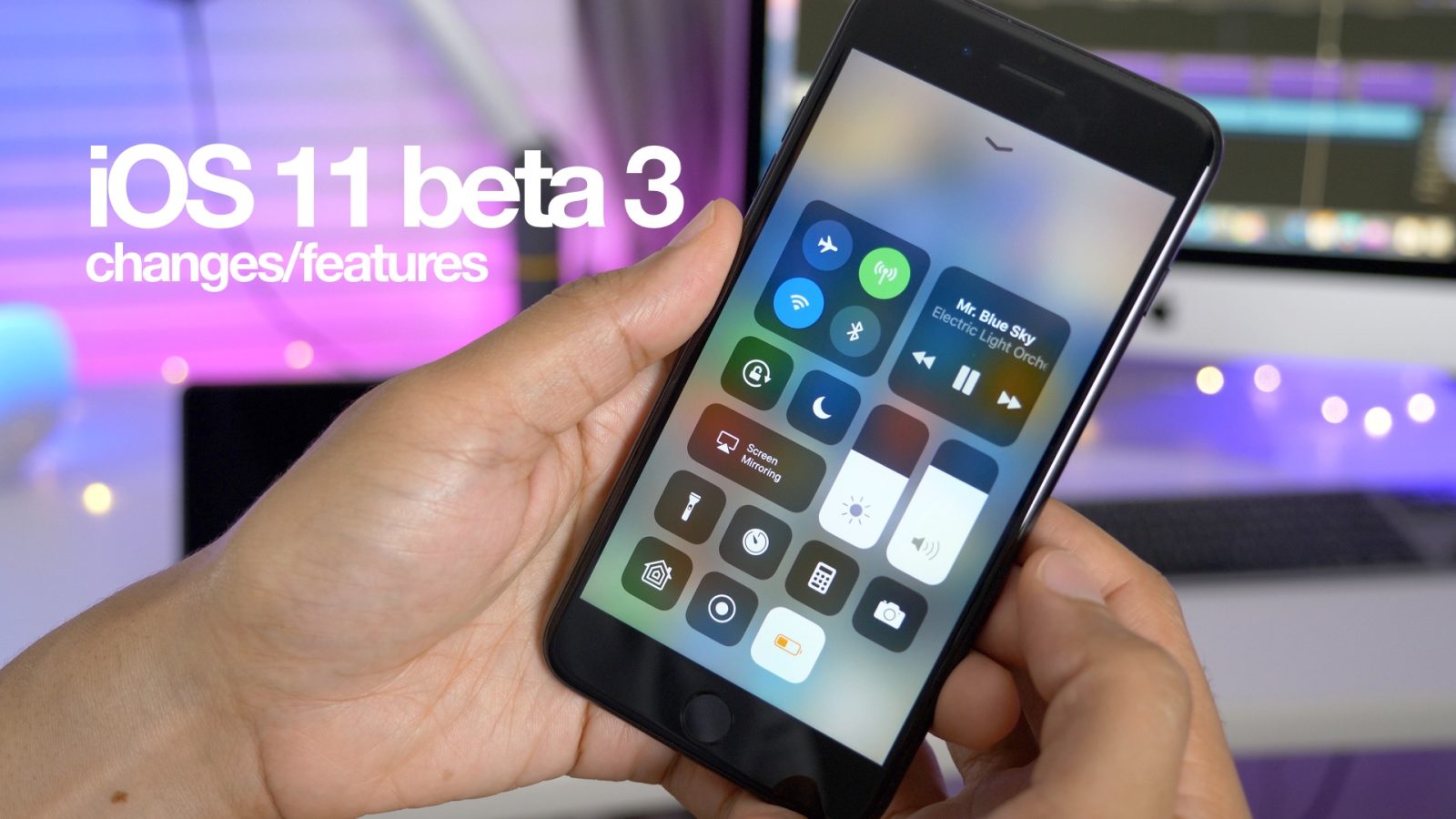
iOS 11 beta 3 just landed yesterday, and we’ve got a hands-on look at the highly-anticipated release. The update brings a variety of changes and improvements, including the ability to force close apps on iPad using a swipe up gesture, folder support in the Dock, and more. Have a look at our hands-on walkthrough video inside as we step through some of the latest changes and features. Expand Expanding Close
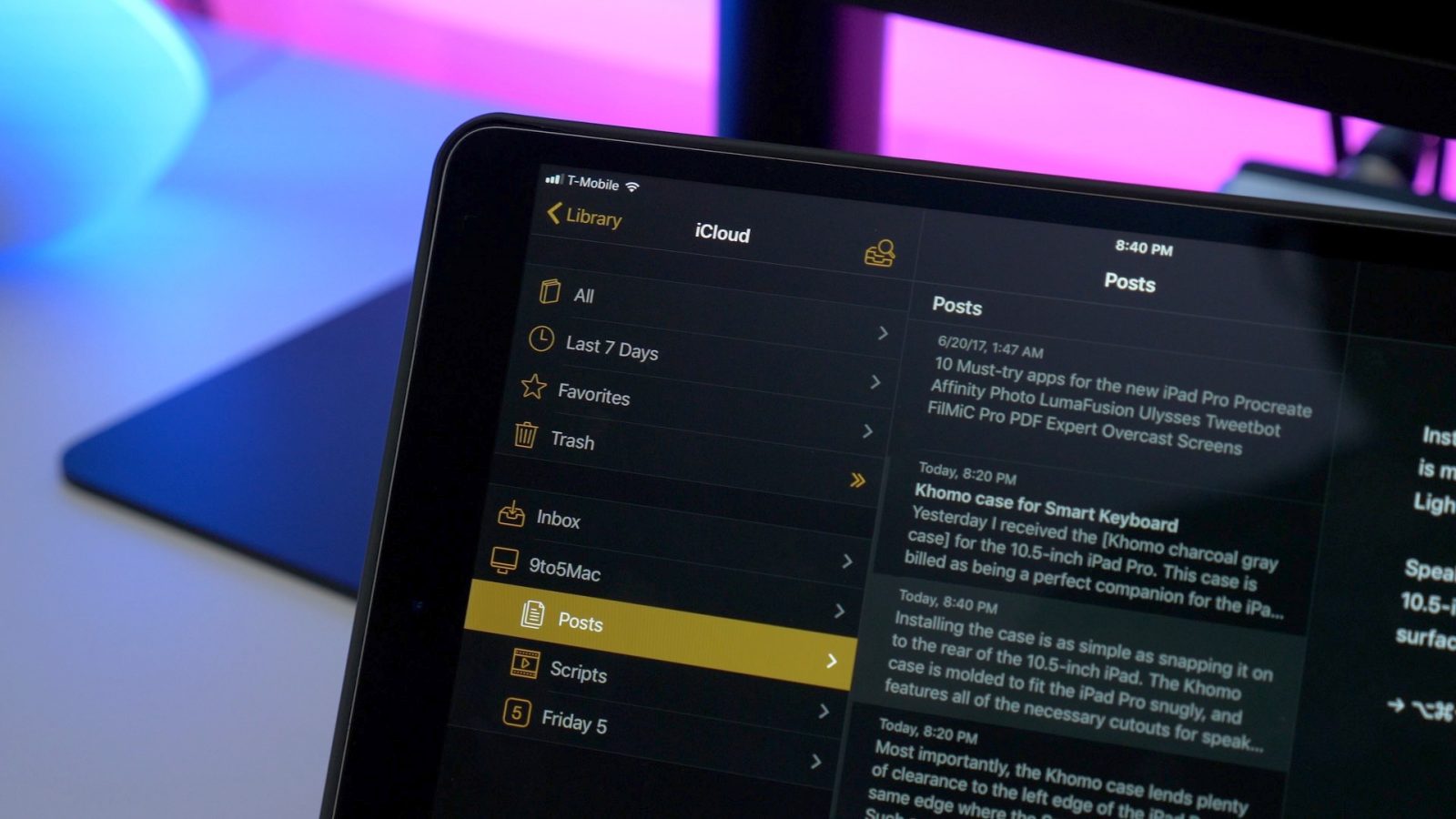
Ulysses is a writing app that I use each and every day on my iPad Pro; I even use it on iPhone to make quick edits or changes to in-progress work. I’ve briefly covered Ulysses on Friday 5 in the past, but tonight I’d like to dig deeper and discuss some of the features that make it my go-to iOS (and macOS) writing app. Expand Expanding Close
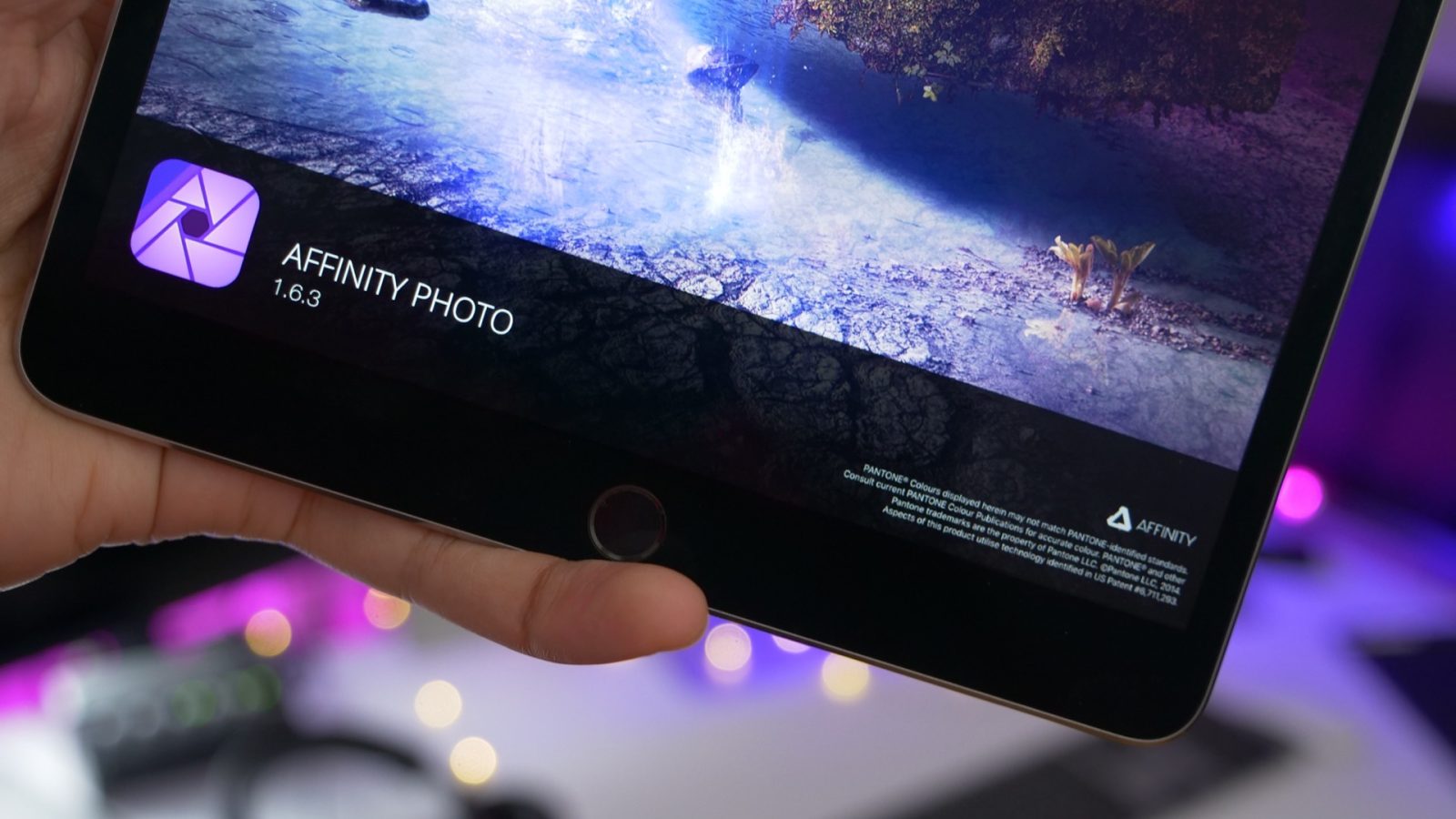
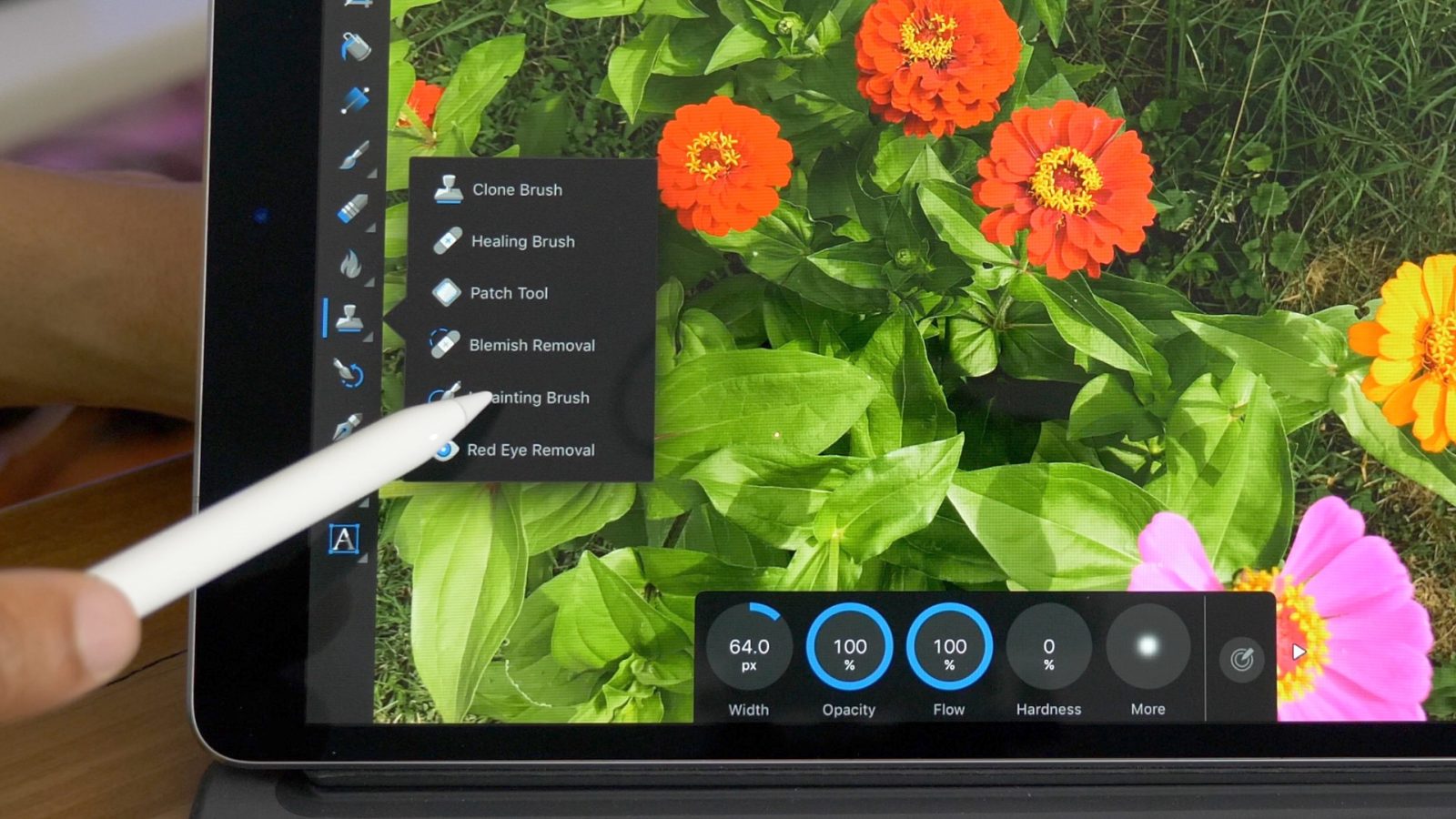
Serif’s Affinity Photo for iPad received its first big update today, headlined by its support for native resolution on the 10.5-inch iPad Pro. The iPad-only release, which now clocks in at version 1.6.3, brings many new changes and features to the popular image editing app. Have a look at the full change log inside for the entire summation of the updates. Expand Expanding Close
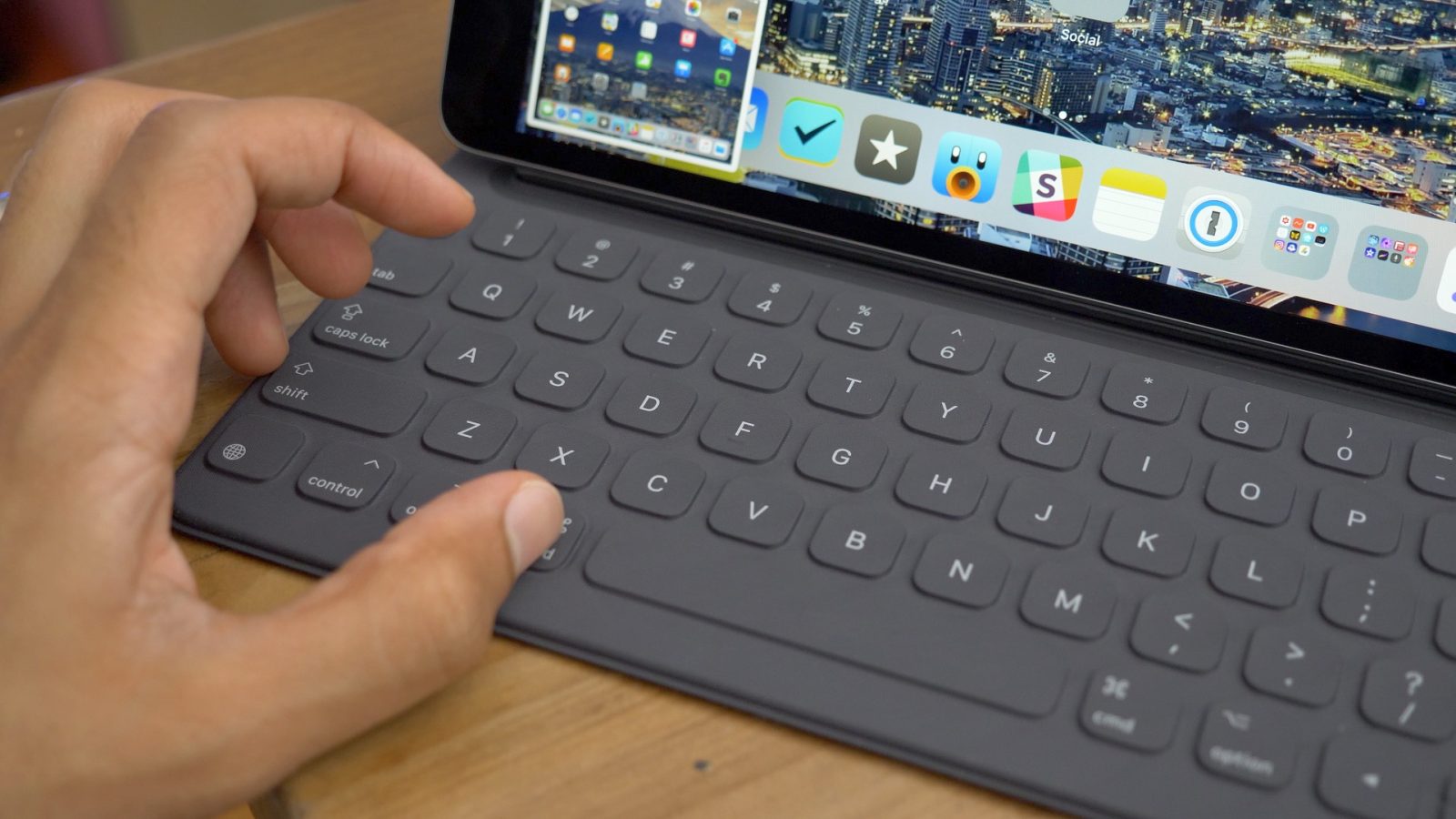
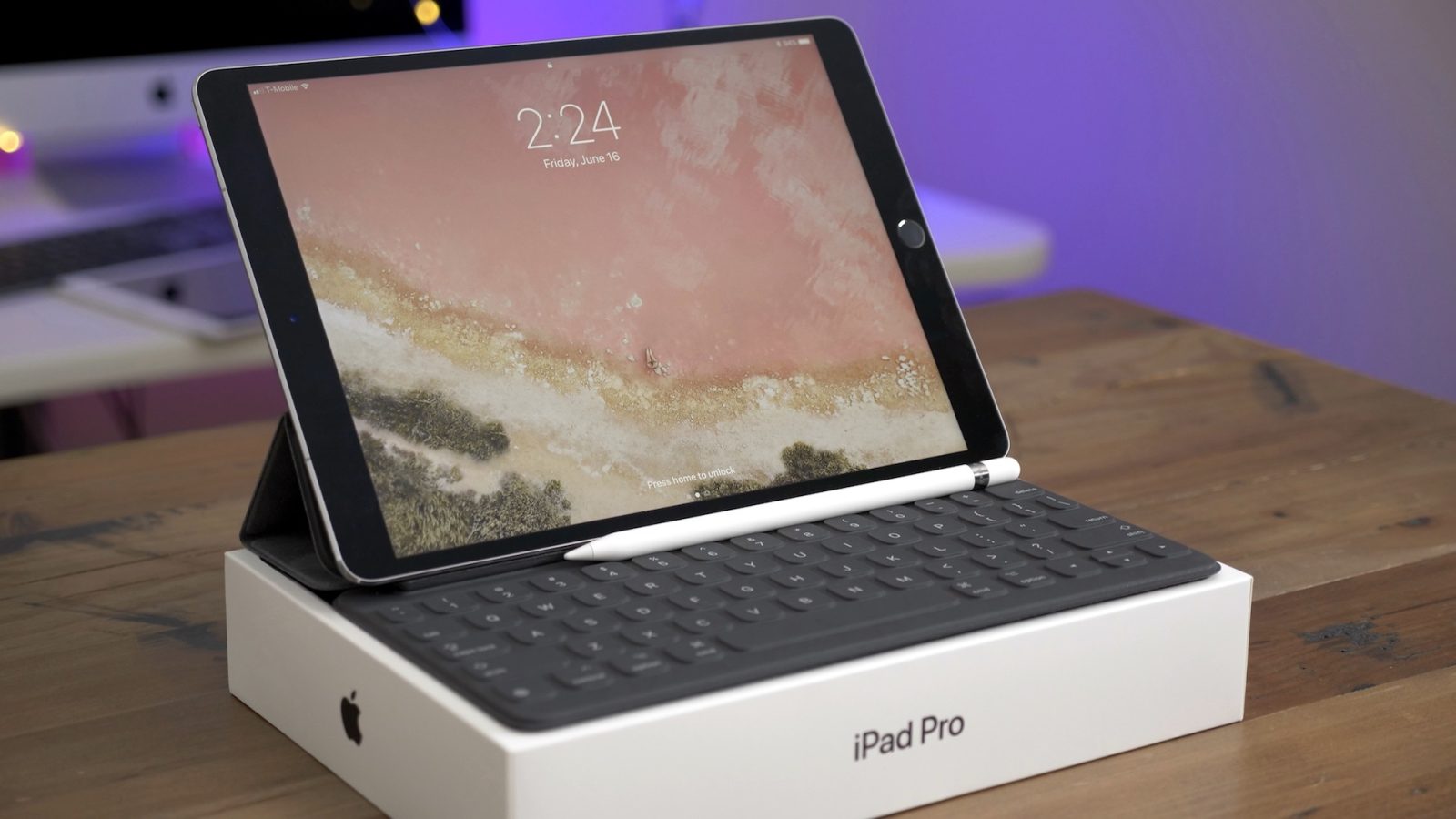
I’ve used a few third-party keyboards with the iPad Pro in the past, but for some strange reason I’ve never opted to give Apple’s very-own Smart Keyboard a fair shake. In hindsight, that was a huge miscalculation on my part, as I’m quickly learning since I received the 10.5-inch iPad Pro with Smart Keyboard in tow.
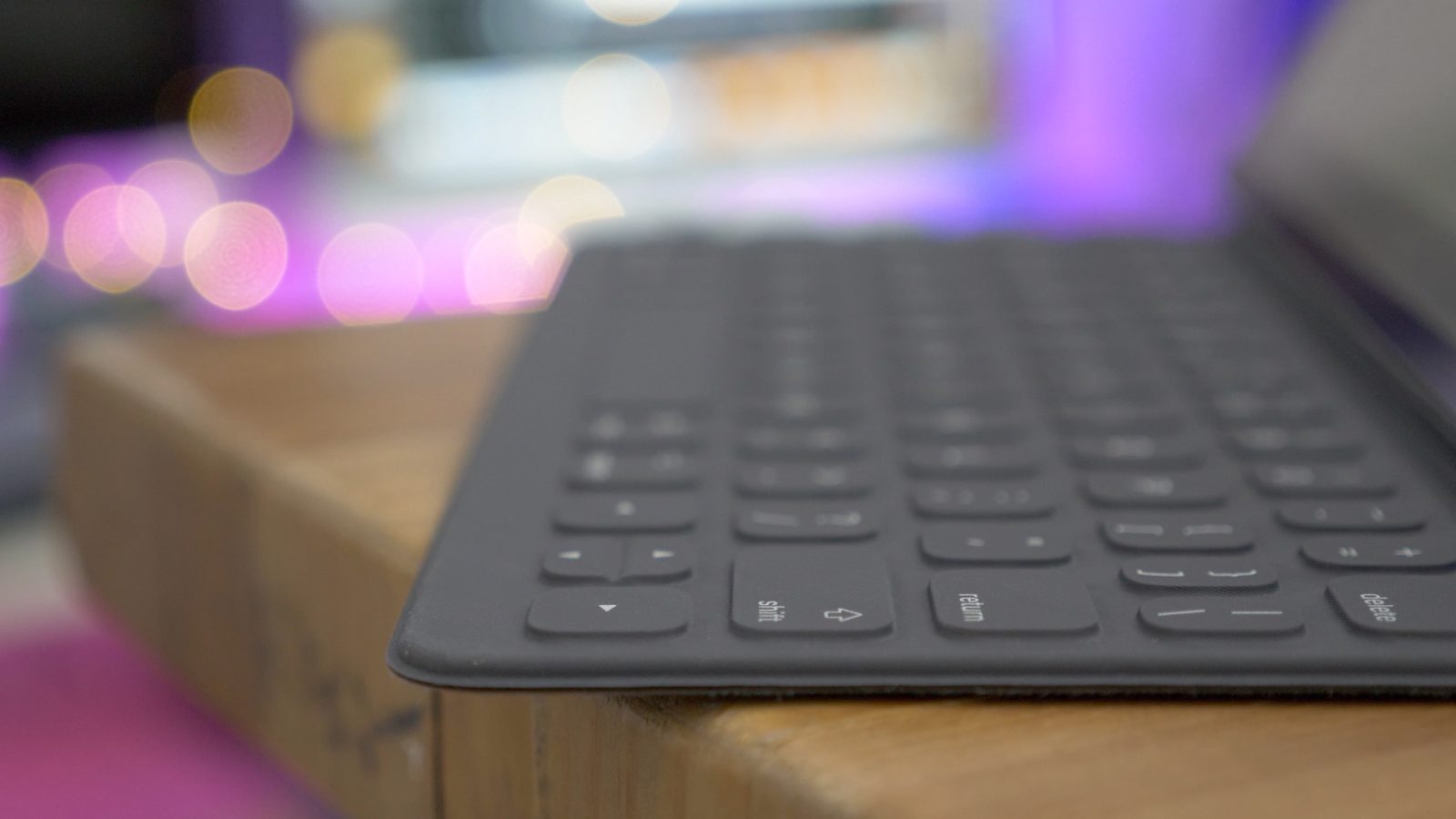
It’s now my opinion that you should strongly consider pairing the 10.5-inch iPad Pro with the Smart Keyboard, because it fundamentally changes the device for the better. It’s not perfect, but the amount of convenience that it brings to the table makes it highly worth considering. Have a look at our video commentary for 15 reasons why I think the Smart Keyboard is a must-have iPad Pro accessory. Expand Expanding Close
The iBus, a tool that we previously discussed, allows users to connect to the Apple Watch maintenance port for interfacing with iTunes on a Mac. MFC, its creator, says that the iBUS is the first such tool in existence. In the following hands-on video, @alixrezax walks through the Apple Watch restore process from start to finish using the iBus. It’s one of the first hands-on step-by-step looks at the tool in usage that we’ve seen. Expand Expanding Close
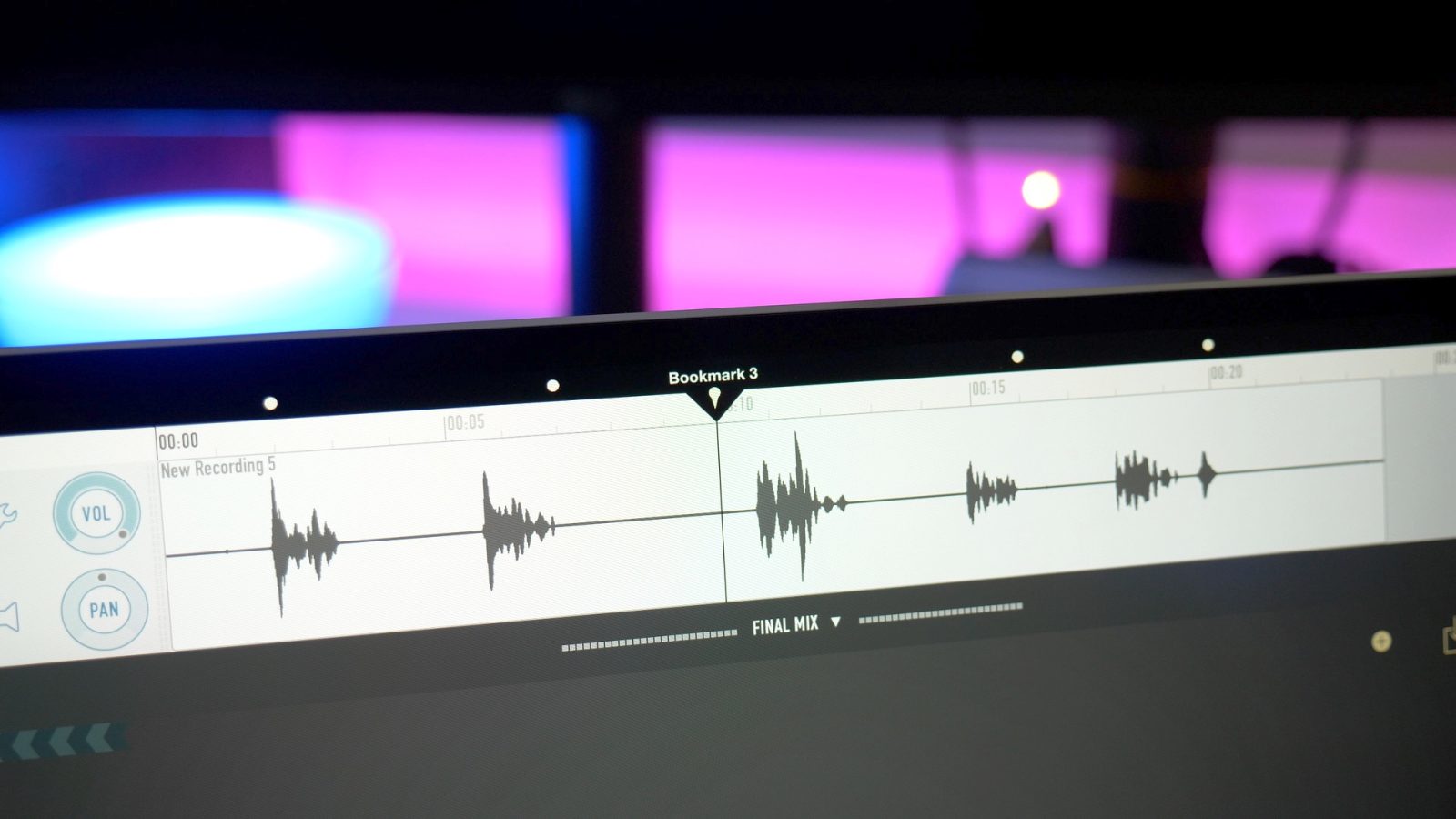
Whenever I need to record audio on my iPad or iPhone, Ferrite Recording Studio is my go-to app of choice. This app, created by developer Wooji Juice, works for simple one-off recordings like voice memos, but can also function as a flexible and powerful multi-track audio editor. Have a look at this week’s Friday 5 as we peer into the features that make Ferrite (free w/available in-app purchases) worth adding to your audio editing repertoire. Expand Expanding Close
Looking to protect the front of your iPad Pro with Apple-produced gear? Apple provides three different options. You can opt for a traditional Smart Cover, a Smart Keyboard, or Apple’s iPad Pro Leather Sleeve.
All three of the aforementioned products protect your iPad Pro in various ways. Both the Smart Cover and the Smart Keyboard will protect the front of your iPad Pro via a magnetic attachment that allows you to easily use the device with the cover or keyboard still attached. The Leather Sleeve, obviously, renders the iPad Pro unusable while contained within the case.
Only one of the products — the Leather Sleeve — provides any sort of rear protection for the iPad Pro, but as stated, the device can’t be used while enclosed inside.
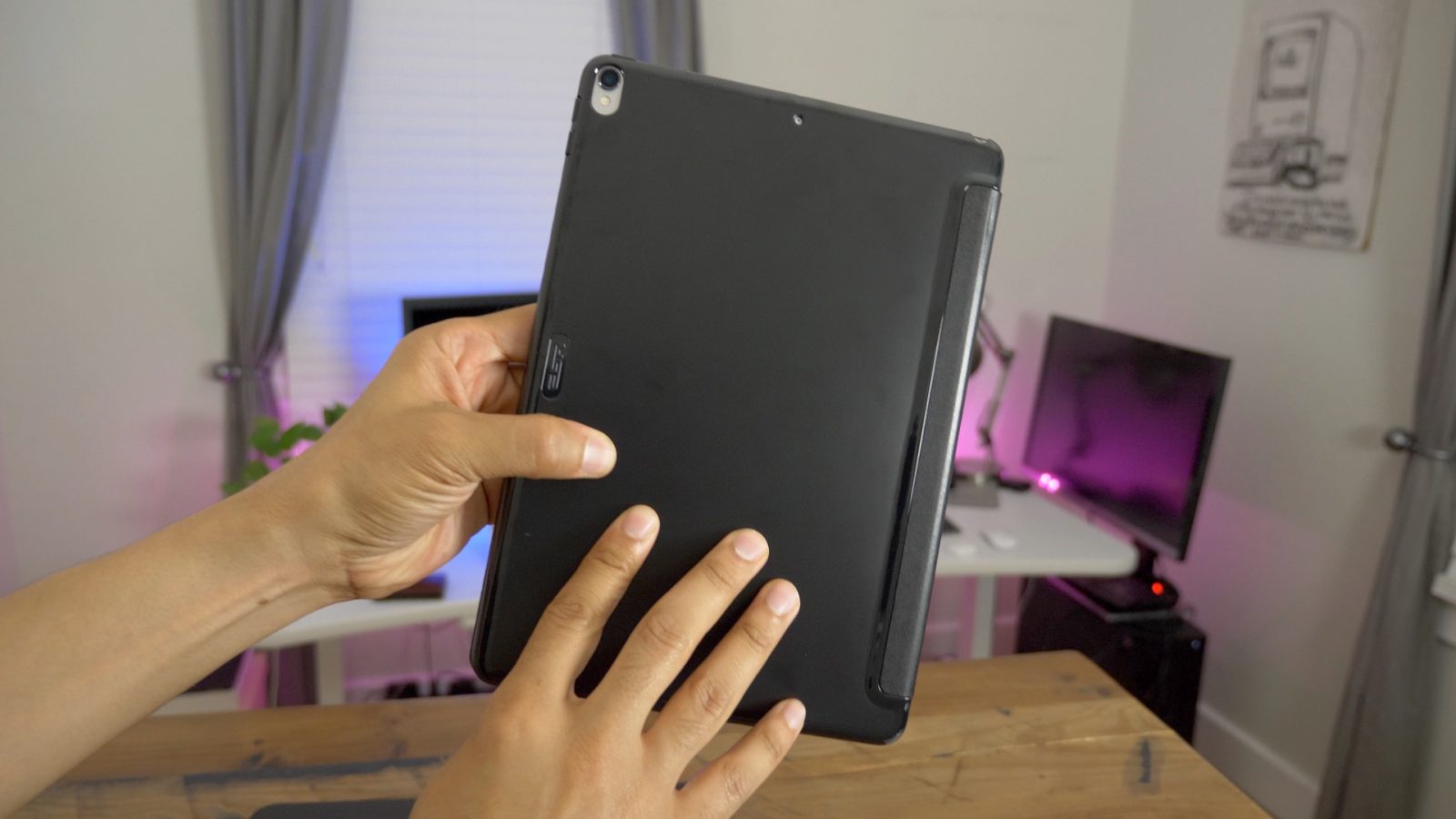
This presents an interesting predicament. Apple doesn’t currently sell any first-party cases that protect the rear of the iPad Pro while in use. Not to mention that a Smart Cover + Leather Sleeve, or Smart Keyboard + Leather Sleeve combination can easily approach $200 or more depending on which you opt for. But even if money were no object, Apple just doesn’t offer a solution to this problem. So I took the next logical step, and found a case on Amazon. Expand Expanding Close
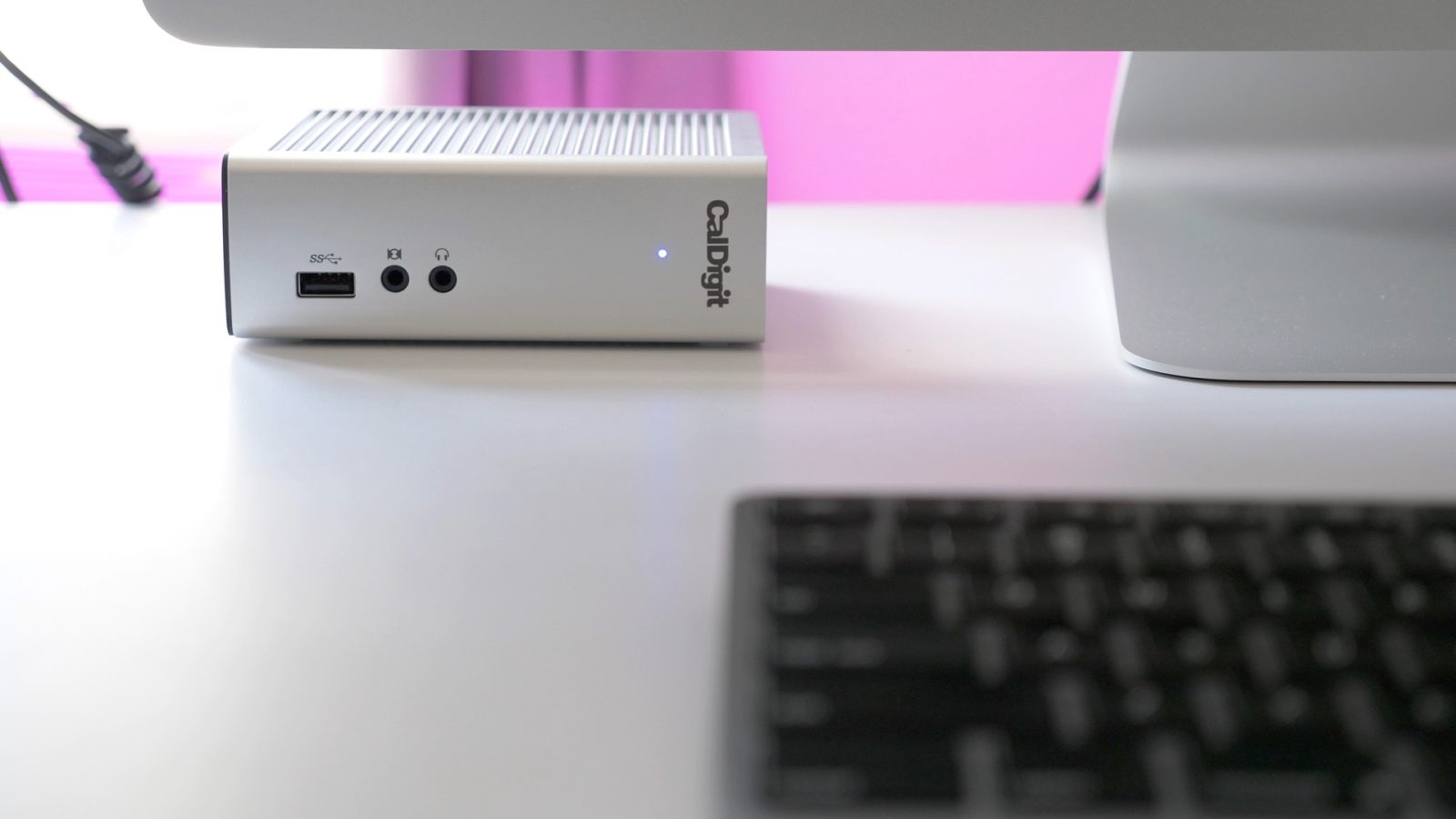
CalDigit’s TS3 is a Thunderbolt 3-enabled dock in a very compact form factor. The dock omits the flat landscape design that has been the hallmark of most Thunderbolt 3 docks thus far, and instead comes with a compact design that can be placed on a desk vertically or horizontally.
Most notably, the CalDigit TS3 affords full-speed 15-inch MacBook Pro charging thanks to its 85W of power delivery. This is a feature that many of the previous Thunderbolt 3 docks, including CalDigit’s own TS3 Lite, weren’t capable of.
Yet, as someone who just recently traded a 2016 MacBook Pro for a Thunderbolt 3-enabled 2017 iMac, I was also anxious to see how the dock would integrate with my desktop setup. Have a look at our hands-on video walkthrough inside for the details. Expand Expanding Close
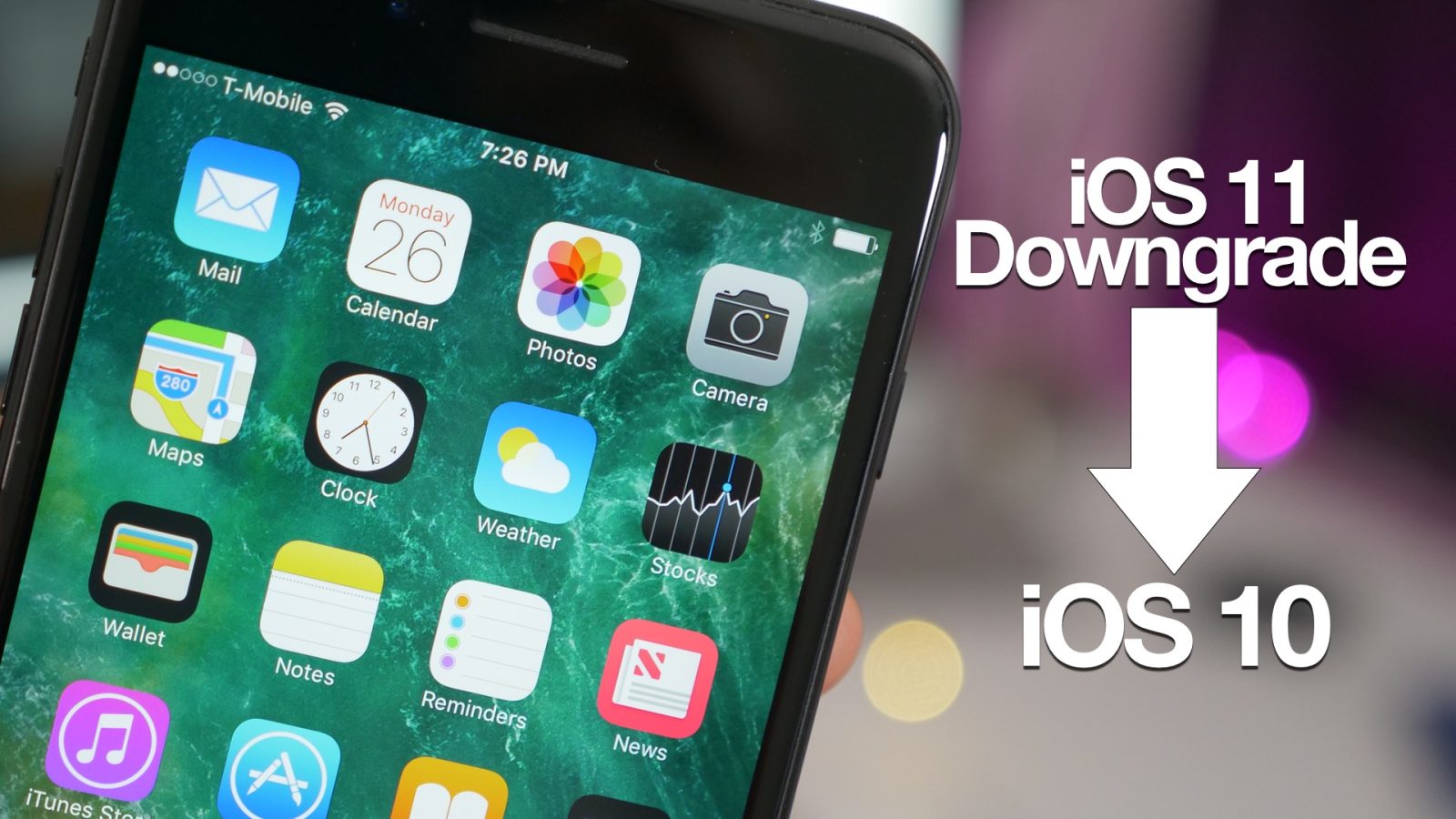
Are you running the iOS 11 beta but now wishing to revert back to iOS 10? If so, this hands-on tutorial is for you. In the following video walkthrough, we show you how to easily downgrade from iOS 11 back to iOS 10 using Apple’s recommended steps. Expand Expanding Close
As we just noted, the iOS 11 public beta has been released for anyone who is interested in trying iOS 11 before it is officially released later this fall. That means that you don’t have to be a registered Apple developer in order to install iOS 11, as the public beta process affords a straightforward process for anyone wishing to take the software for an early test drive. In this walkthrough, we’ll guide you through the iOS 11 install process step-by-step on your eligible iPhone, iPad, or iPod touch. Expand Expanding Close
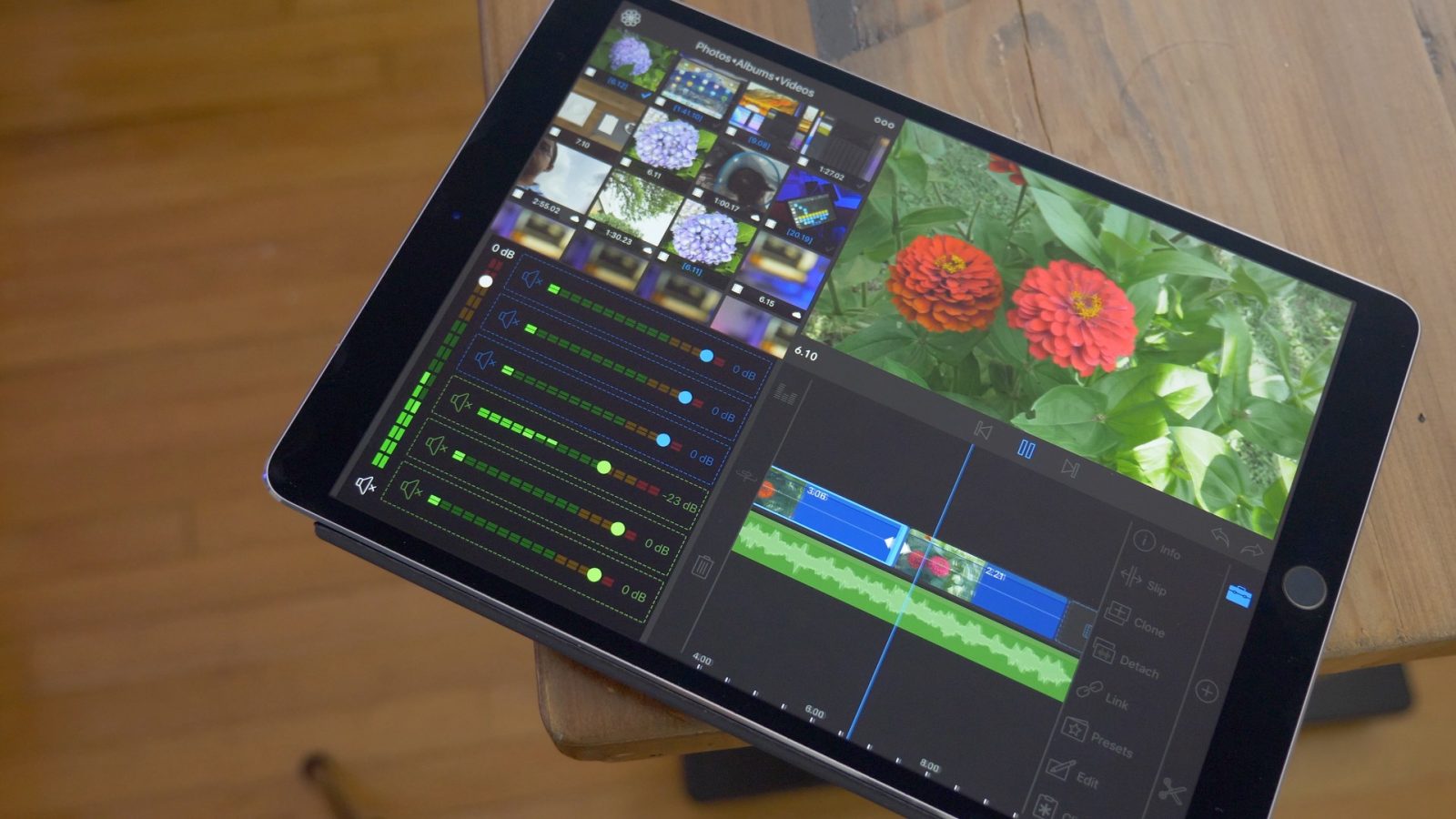
If you’ve never heard of LumaFusion ($19.99), I won’t fault you for that. I hadn’t heard of it either until commenters on our YouTube channel vehemently encouraged me to give the app a shot.
Pardon me for initially being skeptical, as I’d heard this story numerous times before: “So and so has produced an amazing app that finally lets you truly edit videos on the iPad.” As a Final Cut Pro X devotee who’s often seen tethered to a Mac, I guess you can say I have trust issues when it comes to such lofty claims.
I’ve tried a handful of video editing apps on iPad, and have walked away disappointed every single time. Most of them promise something that they simply can’t deliver, while others show promise, yet ultimately fail in some key area.
The most competent video editing app that I’ve seen up until now — Corel’s Pinnacle Studio — featured way more power user features than competing apps like iMovie, but it sorely lacked in presentation and ease of use. Speaking of iMovie, Apple has the presentation part down pretty well, but the app falls laughably short in all but the most basic of features — “Final Cut Lite” it is not.
So there’s the backstory to my video editing woes on iPad. Thus, you can imagine how thrilled I am to be able to say that LumaFusion is an absolutely amazing video editing app on iPad (it also works on iPhone!), with a very bright future.
This, folks, is an app that not only has the power and the features, but is actually fairly easy to use, and isn’t fiendishly ugly to stare at for hours on end. LumaFusion shows what’s possible on the iPad, and like Affinity Photo for photo editors, LumaFusion isn’t perfect, but it’s definitely shaping up to be an absolute must-have for iPad video editors. Have a look at our hands-on video as we step through a dozen features that make this app so promising. Expand Expanding Close
When Serif’s Ash Hewson took the stage in San Jose during the WWDC 2017 keynote, you just knew that something big was about the be announced. That announcement, which didn’t disappoint, turned out to be Affinity Photo for iPad. The flagship desktop app makes its way to iOS for the first time after initially appearing on Mac and PC.
Affinity Photo, like Serif’s other popular desktop app, Affinity Designer, is well-respected photo editing software that can function as an Adobe Photoshop replacement for many desktop workflows. Can the iPad version make the same claim? Expand Expanding Close
It’s no secret that taking screenshots in iOS 11 is now a lot more robust than it’s been in previous versions of iOS. No longer is it just about pressing Home + Sleep; in iOS 11, taking screenshots goes much deeper. Watch our hands-on video walkthrough for a look at 10+ handy screenshot tips for iOS 11, including the ability to take them using keyboard shortcuts. Expand Expanding Close
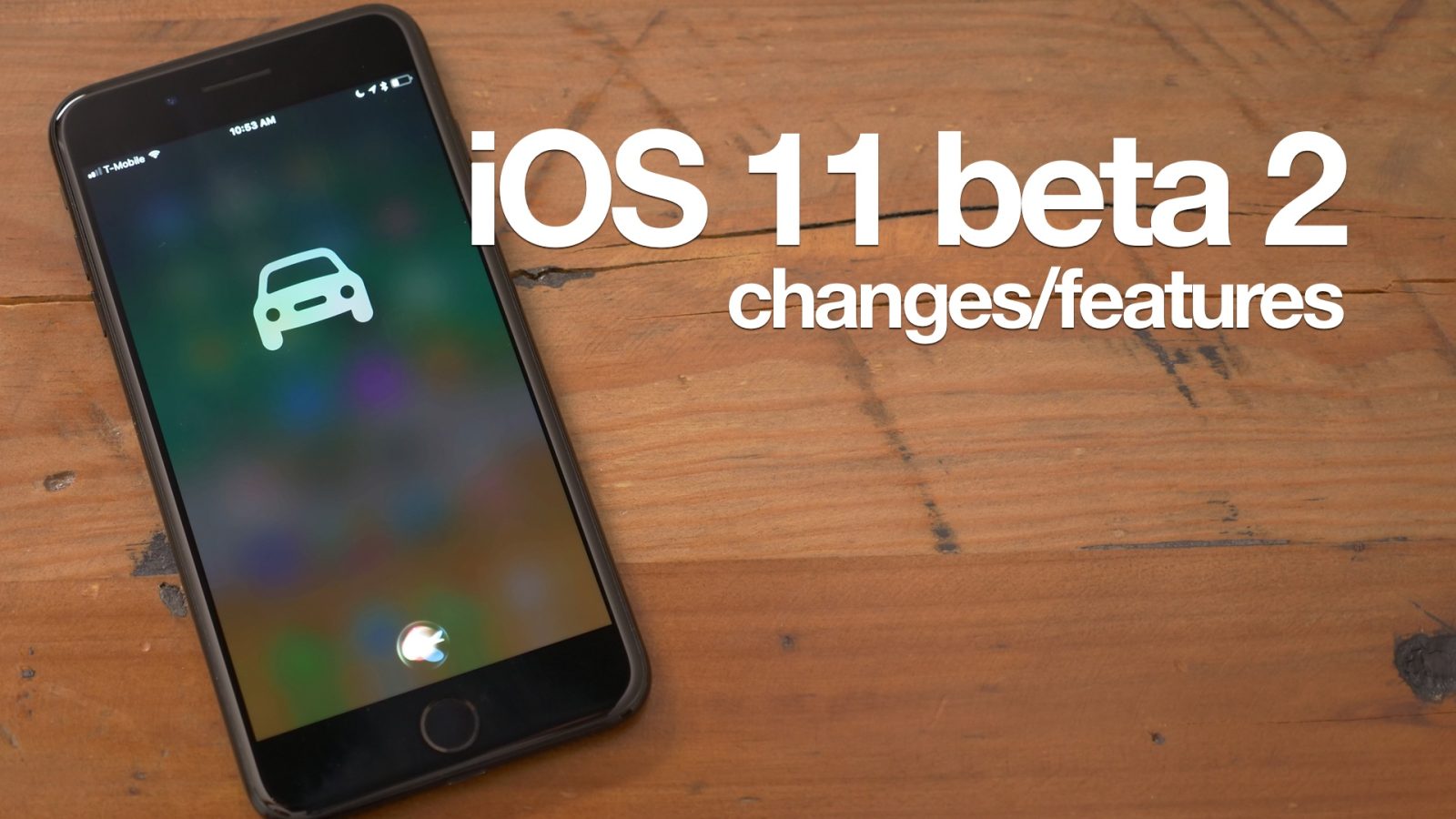
The second iOS 11 beta was released yesterday to developers, and the general consensus is that it runs much smoother than the initial beta. After playing with it for a few hours, I agree with those sentiments, as the release seems to be more polished than beta 1.
Along with performance improvements, there are several new features and changes added to the mix as well. In the following walkthrough, we’ll step through some of those changes on video. Expand Expanding Close
I recently acquired the base model Mid 2017 5K iMac, and I have a post in the works that explains my reasoning for that decision. In a nutshell, I believe that this machine, at $1799, is by far the best bang for your buck as far as Macs go.
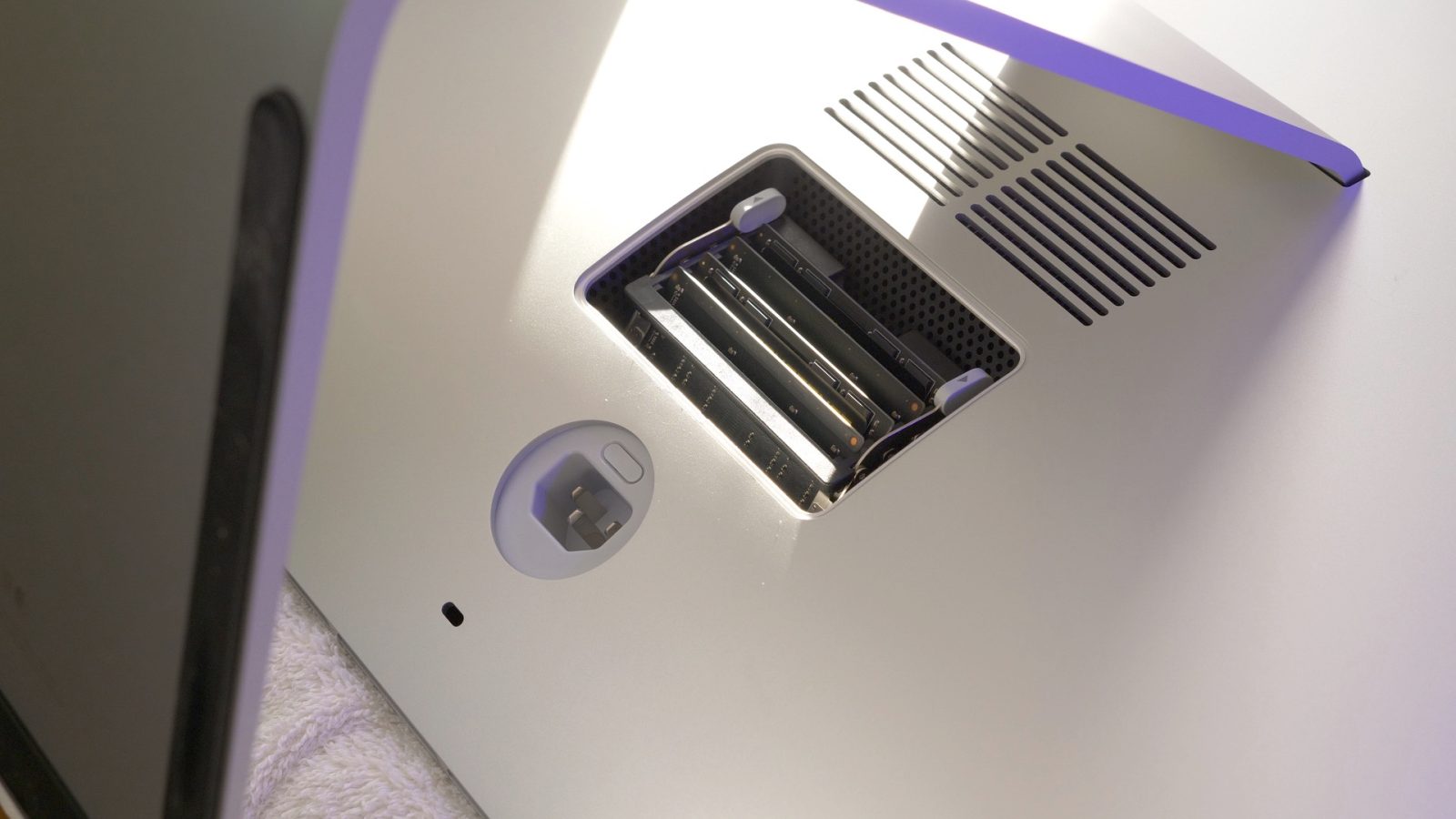
That said, it’s not perfect. One of the weakest points of the base model 5K iMac has to do with its stock RAM configuration. With only 8GB of RAM, the system struggles right out of the gate, and will start writing lots of data to disk in fairly short order. Thankfully, it’s ridiculously easy and relatively cheap to upgrade the 5K iMac’s RAM. In this brief video tutorial, we’ll show you how. Expand Expanding Close
The 2017 iPad that Apple launched earlier this year was inexpensive, but it was also about dealing with various compromises. The display, for instance, lacked anti-glare and lamination properties of more modern iPads, and the speakers weren’t nearly as good as the latest Apple hardware.
The new iPad Pro, however, concedes nothing to price. It’s an all-in product that cuts no corners. Its starting price is basically double the standard iPad at $649, and can quickly balloon up to entry-level MacBook Pro and iMac territory.
But is the updated iPad Pro, with its newly available 10.5-inch form factor and 120Hz ProMotion display, worth it? Have a look at our hands-on video walkthrough for more details. Expand Expanding Close
Earlier today, developer Steve Troughton-Smith posted a well-received tweet showcasing drag and drop functionality that’s present, yet currently disabled, in iOS 11 for the iPhone. Whether or not Apple will eventually enable such functionality for iPhone users is anyone’s guess, but I think the majority of us would welcome the addition with open arms.
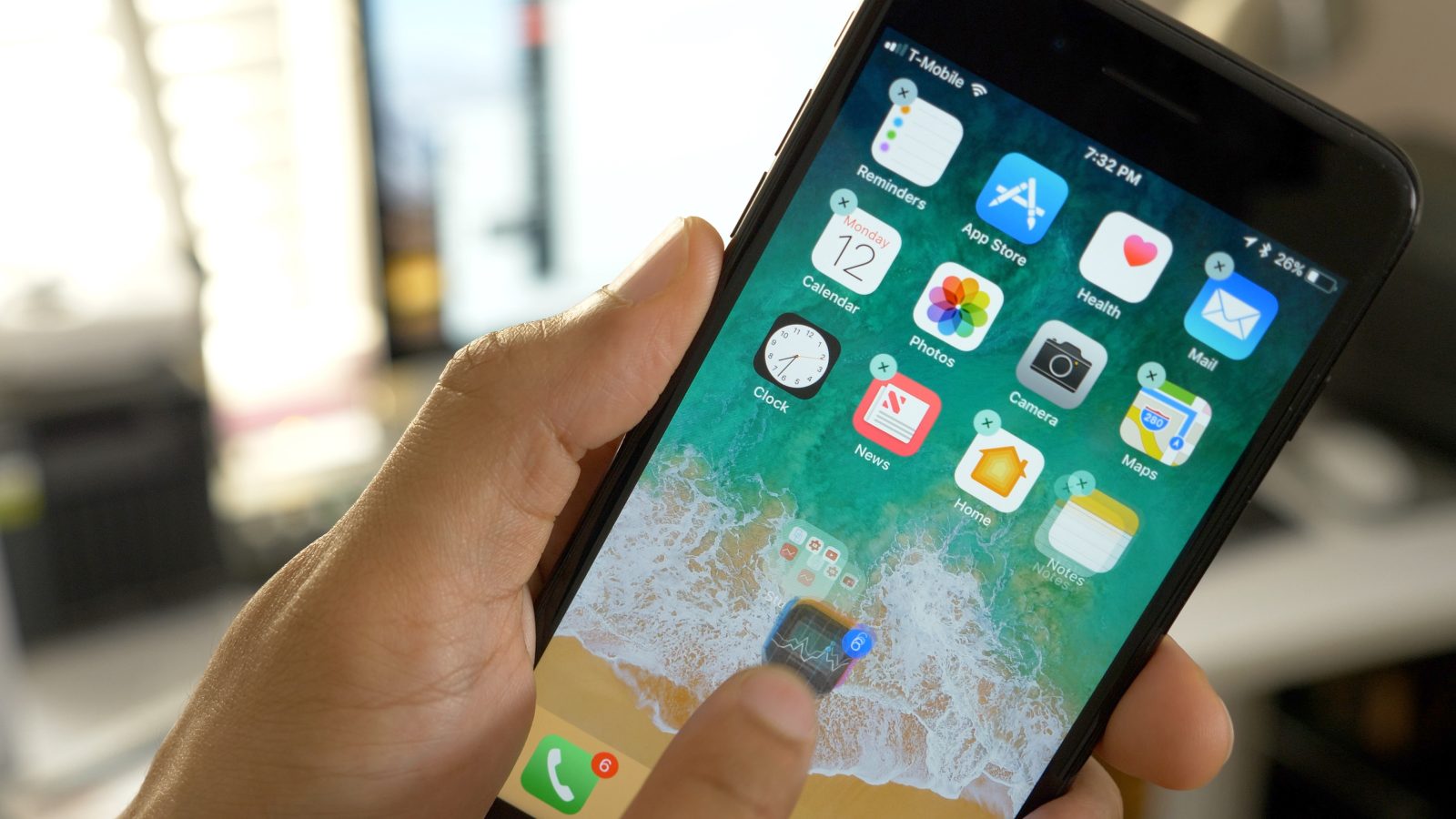
That said, there is one drag and drop feature that all iOS 11 beta iPhone users already have. It’s now possible to manipulate Home screen app icons using drag and drop, allowing users to move multiple icons at once. Why use such a feature? It makes organizing iOS apps directly from the iPhone’s Home screen significantly faster. Expand Expanding Close
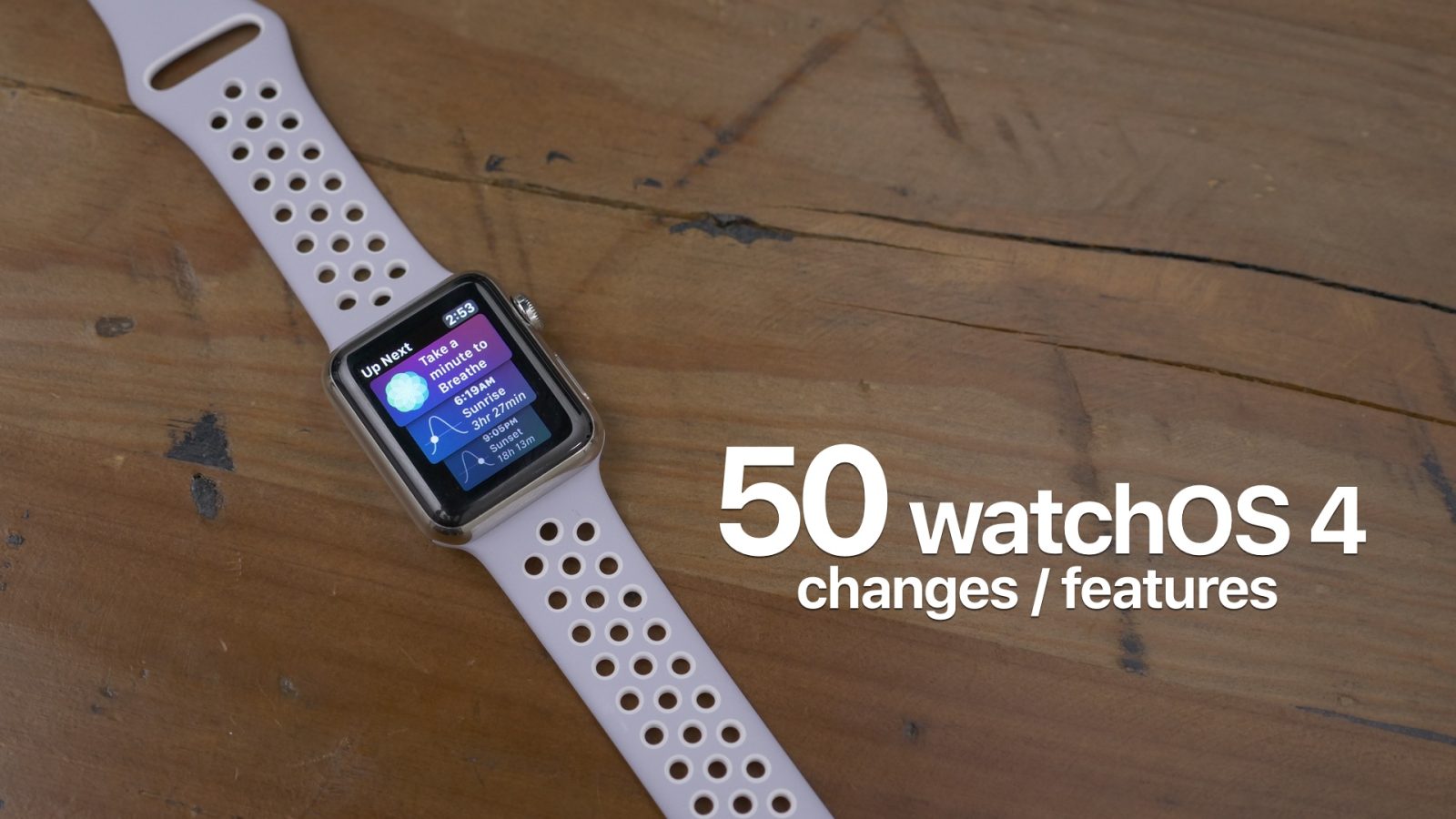
As we did with the beta release of iOS 11, we’ve taken some time to walk through many of the new features and changes found in watchOS 4. While the Apple Watch software isn’t busting at the seams with new features like iOS 11, there are still quite a few new goodies and changes to be found. In this hands-on video walkthrough, we step through many of the new additions in watchOS 4. Expand Expanding Close
Now that macOS supports native eGPU support in the beta version of High Sierra, it’s possible to drive external graphics using a MacBook Pro or iMac via Thunderbolt 3. To support development needs, Apple is selling a special $599 External Graphics Development Kit directly to developers.
This year’s Apple Design Award winners have been announced. The awards, which have now occurred in some form for over 20 years, are announced each year at WWDC.
Past winners have included such excellent releases as Affinity Designer, Ulysses, and Monument Valley. This year’s awards, which include titles featured on iOS, watchOS, and macOS, continue the tradition of excellence. Expand Expanding Close
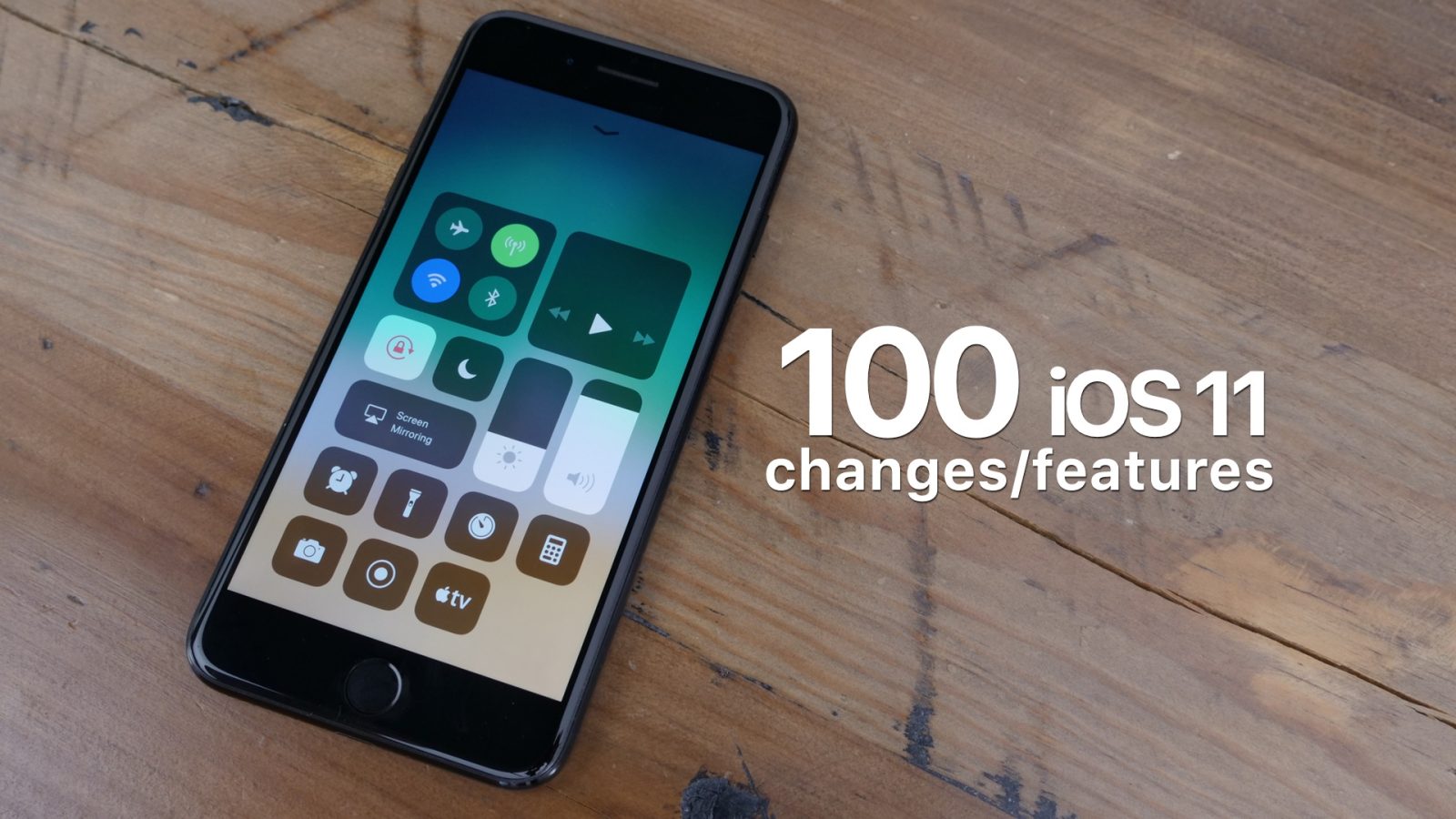
We’ve been playing with iOS 11 for the last 12 hours or so, and have been able to experience a plethora of the new features offered by the release. As you might expect, iOS 11 is quite buggy at this stage, but it’s a truly promising release that’s littered with so many new features that it’s hard to keep count of them all.
In this hands-on video walkthrough, we showcase over 100 of the new items and changes found in iOS 11. Of course, this is just the tip of the iceberg, so stay tuned for more hands-on coverage in the days and weeks to come. Expand Expanding Close
Apple has announced that its new Metal 2 Developer Kit, which launches later today, will support external graphics units over Thunderbolt 3. That means that eGPU setups featuring units like the Akitio Node, will officially support AMD’s popular RX 580 GPU.
But not just that, the Metal 2 developer kit will make it possible to connect to VR headsets. Apple is partnering with Valve to support SteamVR, along with support for the Unreal 4 engine and Unity. Expand Expanding Close