9to5Mac Reviews
All the products that the 9to5Mac team has reviewed.

All the products that the 9to5Mac team has reviewed.
All the products that the 9to5Mac team has reviewed.
All the products that the 9to5Mac team has reviewed.


Update: Setting up the Sonos Play:1 is now easier due to the fact that the Bridge is no longer required.
The Sonos® Play:1 is a wireless audio system that uses your WiFi network to transmit audio to high-quality portable speakers. The Santa Barbara-based company has been producing audio components since 2002, and their new Play:1 demonstrates their experience in the industry. The Play:1 is very compact at only 6.36 by 4.69 inches, but it produces a refined but powerful signal.


After bringing natural language input to the mobile calendar experience with Fantastical for iPhone last November, Flexibits today released a brand new version of what was already my absolute favorite calendar app.
Fantastical 2 delivers an all new design made just for iOS 7 as well as numerous new features like Reminders support, dark and light themes, landscape support for week view, and much more.
I’ve been using Fantastical 2 for the past few weeks, and below I’ll show you why it’s my go-to calendar for iPhone.

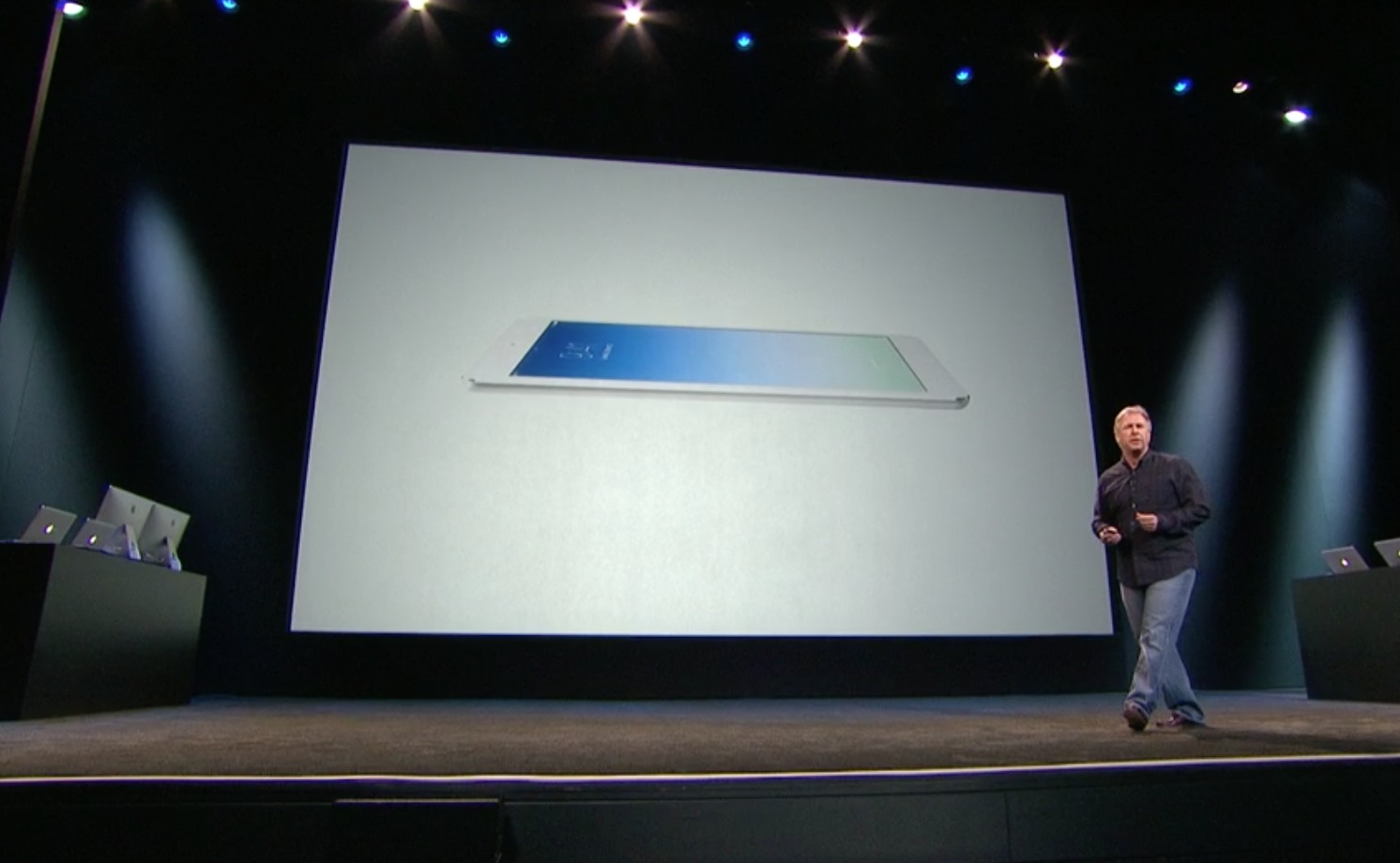
During last week’s media event, Apple announced a new model of the iPad that is lighter and thinner than the previous generation. The iPad Air weighs only one pound and improved internals. The new tablet features the same 64-bit A7 processor found in the new iPhone 5s, support for MIMO Wi-Fi, and an improved FaceTime camera. All of this is packed into a 7.5mm case, a noticeable improvement over the previous 9.4mm fourth-generation iPad.
Tonight, tech writers across the web published their reviews of the iPad Air. The reviews are mostly positive, with much emphasis on the new form factor, battery life, and faster processor. You can find links and highlights for each review below.
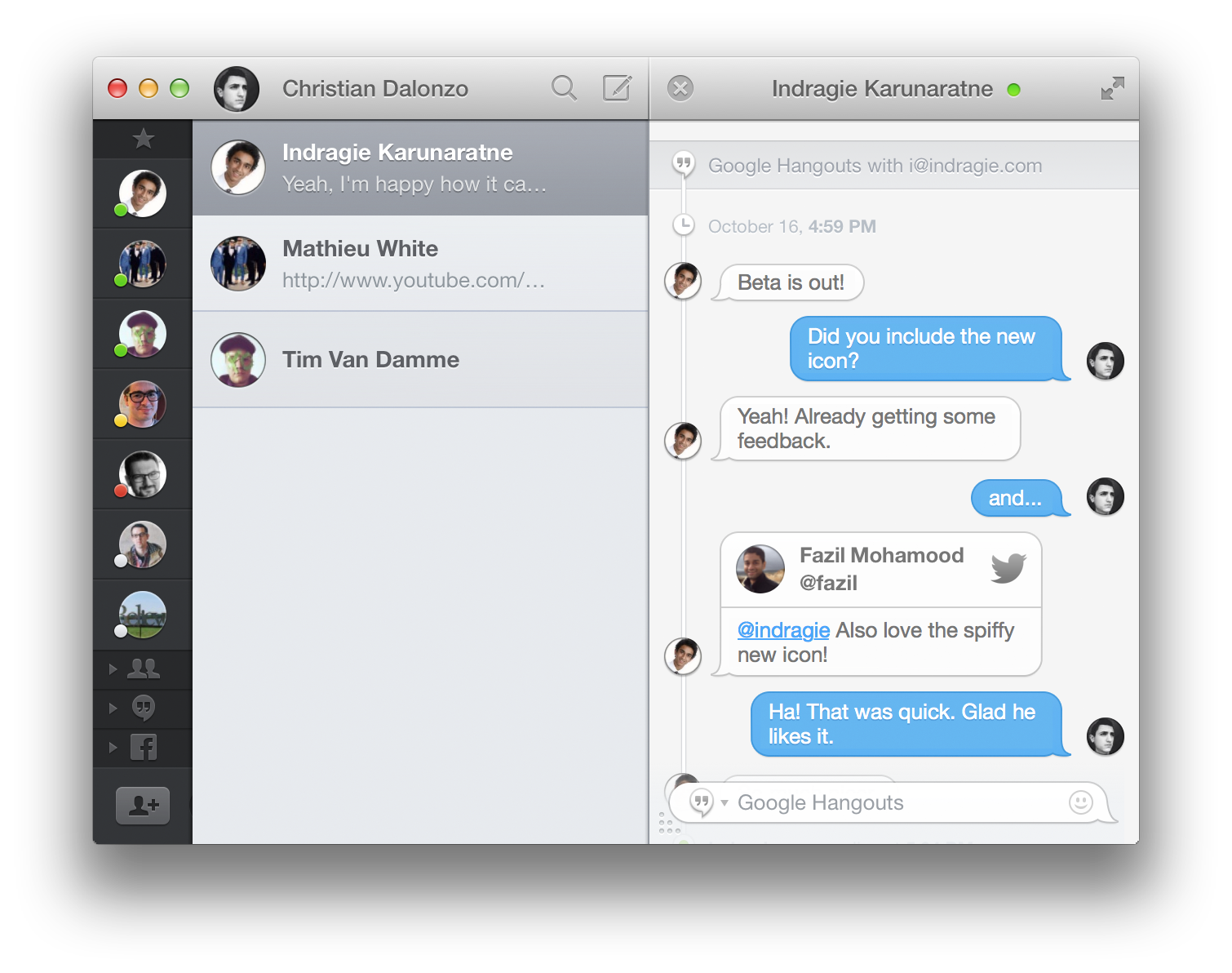
Messages for Mac may support a few different chat services, but there are still a variety of features that would vastly improve the experience of messaging on the Mac. Flamingo is a new app designed to make chatting even better with a whole host of features you didn’t even realize you were missing.
Unfortunately because Apple keeps iMessage pretty locked-down, you won’t be able to use Flamingo with that. You can still use it with your Facebook, Google Hangouts (text, not video), and other XMPP-based chat services. But should you use it for those things? Keep reading for our full review.

RoboMouse HD is a new iPad strategy and tower-defense game from LongKoo Studio. It features a straightforward premise and easy-to-pickup gameplay mechanic that can be quickly learned, but takes time to master. While the strategy game genre is not lacking for entries, RoboMouse HD is a fun addition to the existing landscape that can provide hours of fun. Keep reading for our full review to find out why you should grab your own copy.

Wibbitz is a free innovative news-reader app for iPhone that creates a video summary of text articles from major news outlets. It features political, sports, business, technology, and entertainment news providers such as CNN, BBC, Huffington Post, FOX, TMZ, and Sports Illustrated. Some specific local outlets such as the Jerusalem Post, UK Telegraph and Korea News are also available. The app summarizes the text and images in the articles into videos between one and two minutes long.


For many years, Tweetbot from Tapbots has been my favorite Twitter app and definitely my most used app on iOS. The application includes several powerful features wrapped up in a quick, smooth interface. However, the design began to look dated with the launch of iOS 7, Apple’s revamped iPhone, iPad, and iPod touch operating system, last month. For several months, the Tapbots crew has been hard at work on a complete, end-to-end redesign of their flagship app, and it is available now via the App Store. Check out my complete review…

Earlier today Apple unveiled the new iPad Air as its fifth generation full-sized iPad and the new iPad mini with Retina display alongside new MacBook Pros, the new Mac Pro, and OS X Mavericks. We have a roundup of all of today’s announcements in our NewsHub here, but below is a roundup of some hands-on videos of the new iPads live from Apple’s event today:
Cnet:
AnandTech:
TheVerge:
Slash Gear:
LaptopMag:
PCMag:
LATimes:
http://www.youtube.com/watch?v=0gzlRGoWcf4
Engadget:
TechCrunch:

Random House Digital launched their first original game app today: Catch the Berry. In this physics-based puzzle game, mystical creatures called the Telfnords harvest and collect magical berries. The object of the game is to catch the berries and gems in the Telfnords’ basket using your knowledge of gravity, velocity, and acceleration.
Expand
Expanding
Close

Many of us keep files in the cloud using services like Dropbox. While Dropbox has a decent iPhone app, there are quite a few features that it lacks. Boxie is an intuitive and beautiful new Dropbox client that aims to alleviate some of those issues. From the ability to view any file’s previous revisions and restore deleted files to the simple drag-and-drop file manager, Boxie has a ton of advantages over the official Dropbox app.
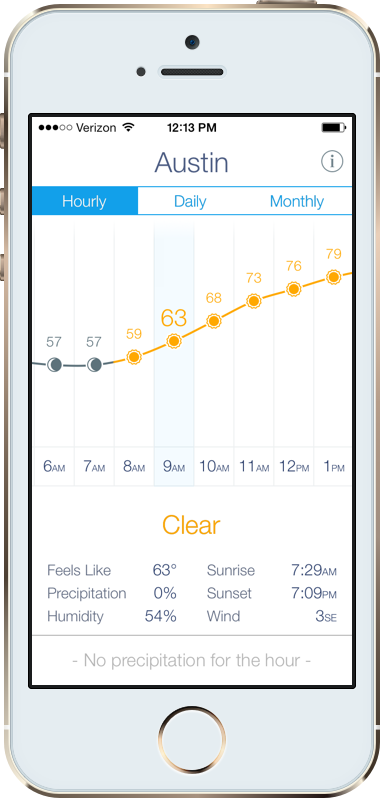
A beautiful new weather app called Weather Line launched this morning in the App Store. Weather Line is designed for iOS 7, and it adopts the updated design language and icons introduced in iOS 7’s native Weather app. The app is also compatible with iOS 6 for those using older devices like the iPhone 3GS or fourth-generation iPod touch. It provides a much deeper level of detail than you’ll find in the default Weather app.


For the last few weeks, I’ve been testing out both the RAVPower Wireless Charger and the xRobot Power Bank, two unique takes on the conventional way to charge your devices. While both products come from the same family, their functionality couldn’t be farther apart. Let’s take a look how both worked.
Yelp updated its iOS app today with a slightly tweaked UI that makes it easier for users to quickly post reviews, photos and check-in at locations. The app is getting rid of its old Home tab and now by default loads up the “Nearby” tab. In addition, the the tab in the middle along the bottom of the app now launches quick access to Check In, Review, and Photo buttons (as pictured above).
The updated app also includes “larger notification photos, better scrolling performance, updated icons and animations.”
New in v7.2
– We said goodbye to our homepage and hello to a beautiful new navigation that makes it even easier for you to discover great places nearby, add photos and reviews, and check in to your favorite businesses.
– We also added tons of polish to our app, including larger notification photos, better scrolling performance, updated icons and animations, and a whole lot more!
Launch Center Pro 2 <3
David Barnard’s Contrast (previously App Cubby) shipped a massive update to the quick shortcut app Launch Center Pro for iPhone today.
Launch Center Pro 2 delivers an iOS 7-inspired user interface and a gorgeous new icon as well as several new features including Dropbox backing up and restoring, various themes, action sharing, and more.
People often ask why anyone would need a separate app to do what their home screen does, but as Contrast’s tag line explains, it allows you to “Launch actions, not just apps!” I’ll share a few of my favorite actions below.

Dropcam has been around since 2009, but only truly became a player in the app-enabled home security space early last year with the release of the Dropcam HD Wi-Fi video monitoring system. It separated itself from the normal cast of IP video cameras by offering an insanely easy setup process, beautiful software, and effortless mobile device integration (iOS/Android). These wireless cameras have become so popular that Dropcam is now processing more video than YouTube on a daily basis.
Building on the success of the Dropcam HD, the San Francisco-based startup is now launching the Dropcam Pro. It will not be replacing the HD, but rather joining it as ‘step-up’ version for users who want to get the absolute most out of their video monitoring setup. The Dropcam HD will now be known simply as “Dropcam.” We had the opportunity to spend an entire week with the Dropcam Pro. Keep reading to find out if it lives up to the high expectations set by its predecessor.

No matter where you are, keeping an eye on your devices’ battery levels can feel like a full time job. To make matters worse, energy sources can be hard to come by when you’re out and about or traveling. In this dual review post, we’ll look at two ways to charge up: through the Anker Astro3, an external battery, and the Energizer Power 180W cup inverter for your car.
USB cigarette lighter adapters with one or two ports are extremely cheap and great for charging up your phone while driving around. However, sometimes your energy demands might be a bit more complex. If your computer battery is low, wouldn’t it be great to charge up on the way to that important meeting or class? That’s where an inverter comes in.
Most car inverters are ugly, loud, or huge. Instead, the Energizer Power 180W cup inverter flips right into one of your cup holders and doesn’t even make a peep. To top it off, you can split the charge between the four USB ports and a regular outlet.
About the size of a coffee mug, the device has been quietly hiding in the cupholder of my car for a couple of months now. It’s been extremely convenient when I’ve been out all day and away from plugs. Rather than plugging in my computer to an inverter and then plugging my iPhone into my MacBook, this makes it easy to plug in my iPhone and computer directly to the inverter.
In addition, you get the Energizer brand name and safety approvals – it conforms to several safety standards like UL 458.
At just around $32 on Amazon, this is great for professionals or students that spend a lot of time in their car and always need to have their devices charged up and ready to go.
This second generation device definitely packs a load of energy in a small amount of space. Great for travelers, students, professionals, or anyone else who’s always on-the-go, the Astro3 is only about 4.5 x 3.5 x 1 inches yet over 12,000 mAh of power is packed into the 10.6 ounce (~3 iPhone 5s) device.
Charging up your devices
Boasting three USB ports – one “Smart” port that can tell the device type and deliver the fastest speed charge (great for iPads and other large tablets) and two universal 5V ports – the Astro3 can charge three devices at once. Once a device has been plugged in, the button-less battery just requires a quick shake to start pushing out the energy.
With such a massive capacity, this device took forever to test and review. At a full charge, I was able to get just about 6 full empty-to-full charges for my iPhone before the Astro3 needed to be plugged in again.
Charging up the battery
The Astro3 has a micro-USB port and, together with the included Micro-USB to USB cord, charges up through a wall plug or computer. There are a couple of caveats when it comes to charging the Astro3: you can’t charge devices while the battery is charging, some wall plugs may not be compatible (the iPhone wall plug doesn’t charge up the device, from my testing), and it takes about 8-10 hours to charge from empty to full. Seeing that you get a full 12,000 mAh of energy (the iPhone 5’s battery is 1,440 mAh for reference), it’s worth the time.
While it’s charging the indicator light on the top shows how much you’ve charged up. Shaking the device at any time will also show the charge level, so it’s easy to shake and check to see if it needs a bit more juice before you head out.
Compatibility
Since the output ports are USB, you can plug in an array of smartphones, tablets, and even accessories (I’ve charged up my Bluetooth headphones successfully). Anker provides this non-exclusive list of compatible devices: iPhone 5s, 5, 4S, 4; Samsung Galaxy S4, S3, Note 2; iPad 4, 3, 2, iPad Mini; Samsung Galaxy Note 10.1, Note 8; HTC One, EVO, Thunderbolt, Incredible, Droid DNA; Motorola ATRIX, Droid; Google Nexus 4, Nexus 7, Nexus 10 and LG Optimus, among other devices.
Wrap-up, availability & pricing
With a sleek design, massive capacity, and simple button-free user experience, the Astro3 is a must-buy for those who need extra energy for their devices wherever they go. It’s available from Amazon for just $49.99 – you can also browse through the over 88 5-star reviews for this high-capacity external battery.

Since its launch a couple of months ago, I have been using the Twelve South GhostStand as a stand for my MacBook Pro. Ideally, the stand is supposed to be used as a way to prop up a laptop’s display to be used with an external mouse and keyboard. However, in my current setup, I lack external input devices, but the stand has been excellent for making room on my desk for other work and watching movies. Sometimes, it is also helpful to use the computer (with its built in keyboard and trackpad) while its propped up on the stand.
As for the accessory itself, the build quality is great, and it is easy to setup. The GhostStand ships with two pieces that you connect together to form the stand. It is not recommended that users take the stand apart after setup. The stand includes a soft material on the bottom so you don’t have to worry about scratching your desk or other places in which you might place the GhostStand. The stand works with MacBooks of all kinds, including the classic models, Airs, Pros, and Retina Pros.
It runs for $34.99, and it a great option for those looking to extend their notebook experience with an external keyboard and mouse.

Update: Since this post was originally written, Ultimate Ears has released the Boom 2 and replaced the Mini with the Roll
Last year, we took the best Bluetooth speakers we could find and put them head to head in one big ‘mega review‘. When all was said and done, the overall best in the field was the Ultimate Ears (UE) Mini Boombox which retailed for $99. Since that time, we’ve reviewed plenty of others including new standouts like the $149 JBL Charge and the $199 Bose Mini Soundlink which we found to be fantastic, higher-priced alternatives.
A few weeks ago, Ultimate Ears dropped their prices on the Mini Boombox at retailers like Amazon and Best Buy and a new Mini Boom app hit the App Store. We reached out to Ultimate Ears on the matter and (long story short) got ourselves the new UE Mini Boom demo units that launch this morning. How did they stack up against the competition and the previous versions?
We’ve had a lot of experience reviewing the best portable Bluetooth speakers on the market but what haven’t yet covered speakers so small, you can actually wear them, put them on your bike, or listen to them in the shower. We have two for you today.
The first of these is the $30 Divoom Bean, a small, durable little Bluetooth speaker that looks a little like a ‘smurf lock’ and is the size of a large egg with a carabiner attached (blue above). It weighs almost nothing and it charges via a micro-USB port on the bottom. It only has 2 buttons on it, a power button and ‘phone’ button. You’ll need to change volume from your phone or other A2DP Bluetooth device and this device seems to automatically switch off after a few minutes of inactivity. It also functions as a speakerphone.
How did it fare in our tests?
Expand
Expanding
Close
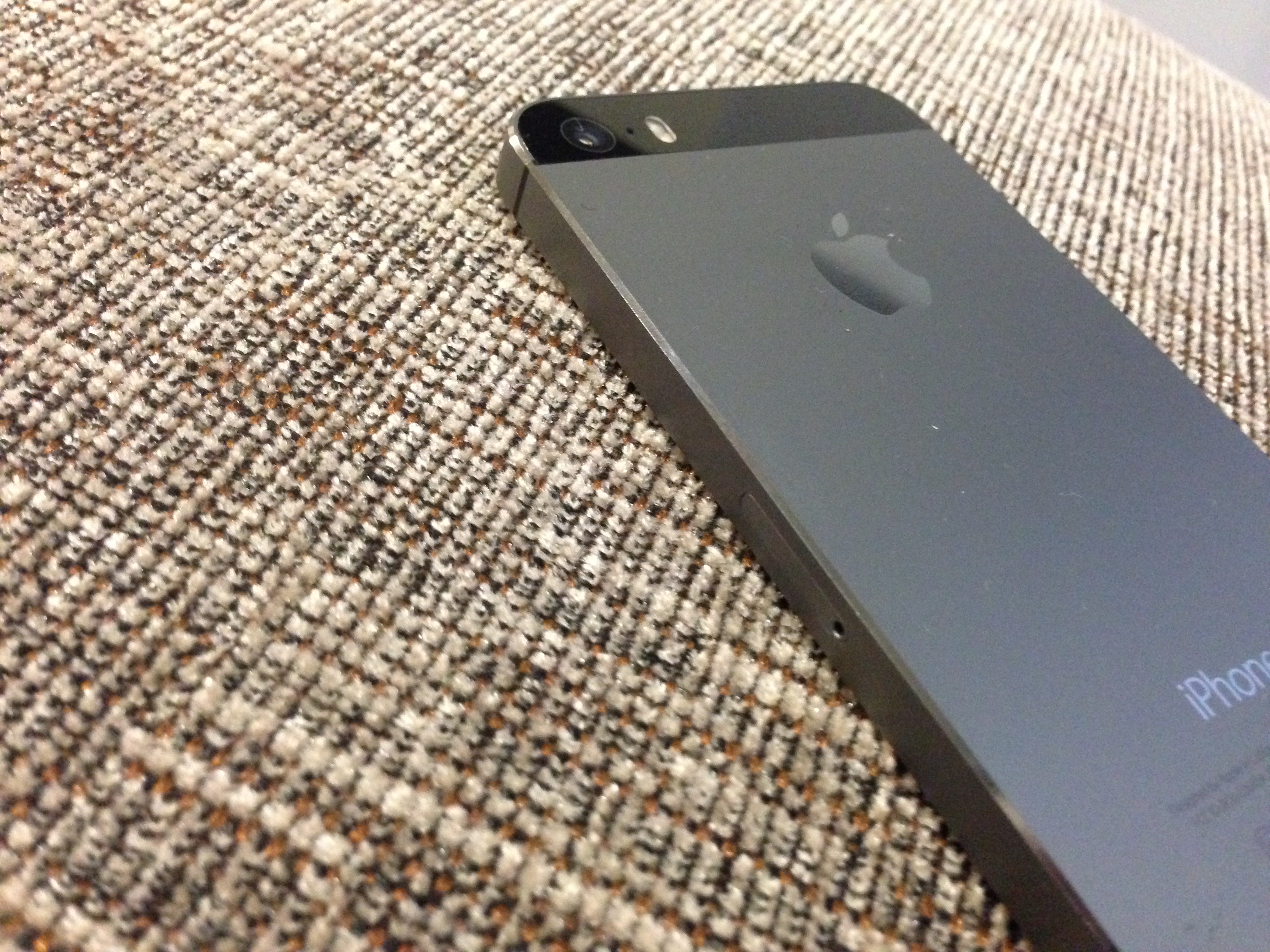
I managed to pick up an iPhone 5s yesterday and have been trying out its new features and enhancements. Here’s my review of the device after using it for 24 hours…
A beautiful new weather app called Perfect Weather for iOS launched this morning. Perfect Weather is designed for iOS 7, as it plays off of the updated color palette and uses the new weather icons introduced in iOS 7 Weather. However, Perfect Weather is a lot more in depth and informative than the default Weather app.
Upon opening Perfect Weather you can easily see the different locations in which you saved and view the weather for each. You can quickly add more locations by pressing the Edit button. To switch between the different locations just tap on the card with the city you want. Perfect Weather is able to retrieve weather data from the United States and parts of Canada. Tapping on the lighting bolts on the left hand side allows you to quickly see if there are any severe weather alerts.
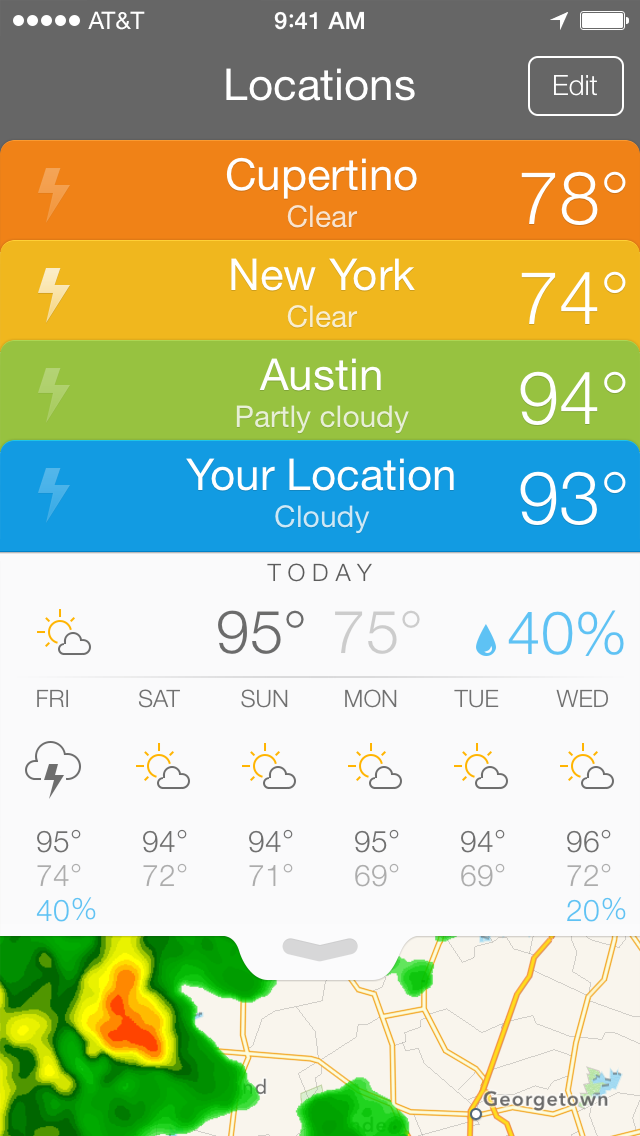
Pulling down on the white tab shows you the week view of the weather and gives you a minute-by-minute guide of the weather in an easy-to-interpret line graph. Hovering your finger on the graph shows you the time, the temperature, and the weather (sunny, partly cloudy, cloudy, raining). This feature is useful because in determining how to prepare for the day ahead.
In this view it is very easy to see when the high temperature and and when the low temperature will occur throughout the day.
Swiping right to left on the temperature chart brings you to the current conditions view, where you’ll find information such as what the temperature feels like, humidity, pressure, visibility, wind, sunrise, sunset, and dew point.

You are also able to open a split view which lets you see a live satellite view and the forecast at the same time. By pressing the play button in the lower left hand corner, you can see the the rain and cloud patterns twenty minutes prior to the current time. You are able to switch between rain and cloud patterns by pressing the icon in the lower right hand corner. Adjusting the slider changes the transparency of the satellite view overlay on top of the map.
Perfect Weather looks pretty, but no where in the app is there a guide or tutorial to show you how to interpret the satellite data. I’m not exactly sure how to interpret it, which limits its usefulness to me.
Overall, Perfect Weather does fit in with iOS 7 because it blends in stylistically and feels like a native iOS 7 app. It easily shows you the 7-day forecast and detailed current conditions. The temperature chart gives a unique perspective of the weather. Navigating Perfect Weather is very intuitive and feels natural. If you are looking for a more comprehensive alternative to the stock weather app on iOS 7, Perfect Weather is just the app you need at $2.99.
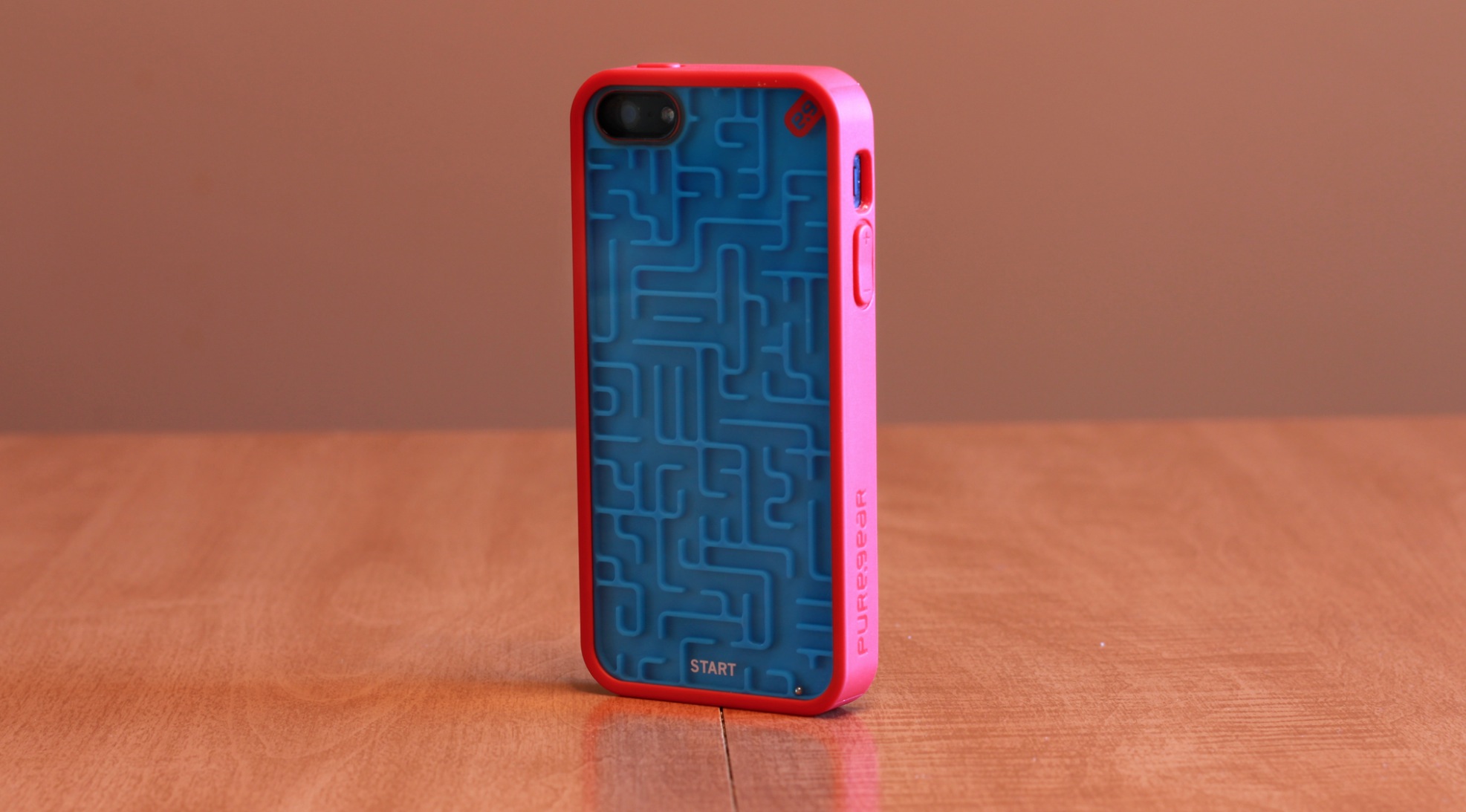
After 6 generations of iPhones, it’s rare to see unique cases anymore. With 100s of options available, if you’ve seen one, you’ve mostly likely seen them all. That’s why I was surprised to come across the PureGear Retro Game Cases for the iPhone 5 and 5s, an incredibly uniquely designed way to protect your phone. How does it work? Read on for the full review.
Prologue: I’ve been a Parallels Desktop user since the Windows XP days (and recently reviewed the latest version, Parallels Desktop 9). However, I’ve always been watchful of VMware and their offerings. This review of Fusion 6 is from my perspective as a Parallels user and potential switcher.
Mac users who need to pull up Windows, Linux, or guest OS X virtual machines usually don’t care too much for the whistles and bells of the virtualization software – they simply want a solid, fast experience to get in, run professional programs or play a few games, and get out. For VMware Fusion users in particular, they tend to care more about the CPU performance for professional apps rather than 3D graphics and frame rates.
Expand
Expanding
Close

Since the introduction of the App Store, developers have been writing applications that attempt to extend the usability of your iPhone beyond what the device itself can do. From credit card readers to lightbulbs to fitness accessories, it seems like almost anything can be controlled with an iPhone now. The iSpy Helicopter is no different. If you’re familiar with the concept of the Parrot AR Drone, the iSpy Helicopter will immediately make sense. With just your iPhone, a special app, and a small transmitter that plugs into your headphone jack, you can pilot your own mini helicopter. How well does it work? Read on to find out.