How-to

See All Stories

A collection of tutorials, tips, and tricks from the 9to5Mac team helping you fix and get the most out of your favorite gear.
9to5Mac How To tutorials

Top tutorials and guides

iPhone how-tos

Mac how-tos

iPad how-tos

Apple Watch how-tos

Apple Watch How-To: Control and use the Stopwatch app

Apple Watch comes with a stopwatch app built into it, which saves you time from grabbing your iPhone, opening up the Clock app and pressing the Stopwatch tab.

There are several different ways to open up Stopwatch on the Apple Watch. You can open the app by tapping on the orange icon with a complete white circle on the home screen, use Siri to open Stopwatch by pressing and holding on the Digital Crown, hands free by saying “Hey Siri open Stopwatch,” or depending on which watch face you are using from the Stopwatch complication on the watch.

When you first open up the Stopwatch, you see the Analog view.

Pressing the green circle in the corner will start the stopwatch. (Note the green circle will be in a different place depending on which hand you wear the Apple Watch as well which side the Digital Crown is on). The red circle stops the stopwatch and pressing the green circle resumes it. Pressing the white circle starts a lap. In the Analog view, swiping up from the bottom of the display gives a detailed view of the information, showing the break down of the laps.

There are different views of the Stopwatch that can be displayed. Switching between the different views requires you to press firmly on the screen for about a second until you feel the haptic feedback. Force Touching the display presents an additional three different views for the Stopwatch: Digital, Graph and Hybrid. Digital displays the stopwatch in a numerical view. Graph conveys how long each lap took on a graph. The last view, Hybrid combines the three different views Analog, Digital and Graph into one stopwatch.

When you are using the Stopwatch on the Apple Watch, the information doesn’t sync to the iPhone, nor does starting the Stopwatch on the iPhone allow you to continue and put laps from the Apple Watch.

How-To: Safely prepare + wipe your iPhone for resale or trade-in

If you’re thinking of selling or trading in your current iPhone ahead of the iPhone 6S’s release, you probably know that you’ll need to wipe your device before a buyer can use it free and clear. Prepping an iPhone for resale used to be almost as easy as hitting a “reset” button in the iPhone’s settings menu. But over the past few years, the process has become more complex thanks to new security, wallet, and cloud-dependent features such as Activation Lock, Apple Pay and iTunes in the Cloud. Completely removing all of your personal items from your iPhone — and your iPhone from Apple’s servers — requires extra work.

Today, I’m going to walk you through the process of thoroughly scrubbing your iPhone prior to resale. There are 9 steps to take to make sure your device is cleaned up and ready to sell to its next owner. Here they are…


Expand
Expanding
Close

The Logic Pros: Moog Sub 37 is one of the best hardware synths for the money

In this week’s episode of The Logic Pros, we are taking a look at the Moog Sub 37. Another analog instrument from legendary synth powerhouse Moog, the Sub 37 takes it up a notch offering a much deeper feature set and refined workflow compared to its baby brother, Sub Phatty.

In last week’s review we found that Sub Phatty was a more than capable instrument that brings Moog’s world famous sound at an, all things considered, affordable price tag. While the Sub 37 will certainly be reaching into your pockets a little deeper, it comes with just about everything the Sub Phatty has to offer, and then some. I might even make the argument that in some ways, for the price, it outshines Moog’s $3,000 – $5,000 Minimoog Voyagers:
Expand
Expanding
Close

How-To: Get the best iPhone trade-in price deal to help buy a new iPhone 6S

Update: In the year since we posted this, we’ve decided to seek out the best partner and do the trade ins ourselves. After doing a lot of research, we’ve decided to work with Myphonesunlimited who consistently offer the best prices for iPhones, iPads and other Apple, Windows and Android devices. Go check them out.


Apple releases new iPhones every fall, guaranteeing that a massive number of old iPhones will be traded in or sold. The rush will dramatically change the market for used iPhones, so I wanted to help you stay ahead of the curve and get the best deal possible. Having just sold my own iPhone 6 Plus to upgrade to a newer model, I have some strong opinions about your smartest options.

Below, I’ve put together a guide to some of the iPhone selling and trade-in options you should consider. There’s no single “right” answer, since some options trade greater convenience for lower prices, and others have higher prices but greater risks or hassles. You can choose the one that’s best for your needs, but whatever you do, make your choice before iPhone values begin to fall…


Expand
Expanding
Close

Apple Watch How-To: Use Maps for navigation and directions

Apple Watch comes with Apple Maps, which allows you to find your current location, pan and zoom around on the area, search the map, get information about a location, call a location, get directions, and more. One of the benefits of having Maps on the watch is that it allows you to get directions without needing to pull out your iPhone, especially if you happen to be lost or in a sketchy neighborhood. In this how-to article, we will discuss how to use Apple Maps on the Apple Watch.


Expand
Expanding
Close

The Logic Pros: iPad/Mac synths still can’t quite capture the experience of this $1,000 Moog

In this week’s episode of The Logic Pros, we are taking a hands-on look at Moog’s Sub Phatty synthesizer to see how it stacks up against some of its much more affordable virtual counterparts.

Moog instruments have been used on many of the most popular and historic records over the years, having become as legendary in their own right in the process. The company is widely considered to be one of, if not the premiere synth makers on the planet. Producing the fattest sounding oscillators and filters around since the late 60’s, Moog’s instruments certainly come at a premium, and there’s a good reason for it. In the past few years the company introduced a couple new synthesizers in its Phatty line, that brought Moog’s flagship features and famous ladder-style filter down to a fairly affordable price point. At just under $1,000, cheap certainly isn’t the word to use to describe Moog’s monophonic, all-analog Sub Phatty synthesizer. But it might be the closet thing to a Voyager you’ll get without seriously breaking the bank. 
Expand
Expanding
Close

How-To: Quickly look up flight status data on iOS 9 and OS X El Capitan

Flight tracking apps have been popular on iOS for as long as the platform had the App Store, and this fall Apple is baking a key function of those apps right into the operating system. A little known feature called ‘flights data detector’ is included in both iOS 9 and OS X El Capitan but was not highlighted on stage during Apple’s WWDC keynote. As one Reddit user highlighted, the feature lets iOS automatically detect when text is referencing a flight and allows users to actually check on the flight’s status and progress with an attractive interface. Here’s how it works on iPhone, iPad, iPod touch, and Mac…
Expand
Expanding
Close

How-To: Swap Your iMac, Mac mini or MacBook CD/DVD drive for a super-fast SSD

When I wrote a series of How-To guides showing how easy it was to swap old Mac hard disks for new solid state drives (SSDs), I focused on raw upgrades — slow mechanical drives for fast chip-based ones. The reason was simple: put an SSD in your Mac instead of the old hard disk, and you’ll be blown away by the speed increases. But as several readers have noted, there is another way to add an SSD to your Mac: you can keep your old hard drive, and instead replace the Mac’s CD/DVD optical drive, also known as a SuperDrive.

Swapping a SuperDrive for an SSD has a mix of pros and cons. It’s typically a little easier and less expensive to replace the SuperDrive than a stock hard drive, and you’ll always wind up with more internal storage than you started with. But you also lose CD/DVD reading and writing abilities — things fewer people care about these days — and you’ll need to set up your Mac to properly take advantage of the SSD. Read on for the details…


Expand
Expanding
Close

Microsoft’s ‘Bridge’ tool for porting iOS apps to Windows 10 is now available

Microsoft first unveiled “Windows Bridge” a few months back, a new tool for developers that aims to make porting iOS apps to Windows 10 easier and hopefully breathe some life into the Windows Store in the process. Today the company is releasing the software, albeit an early release ahead of a final launch planned for later this year in the fall.

The bridge offers developers tools for utilizing existing code from iOS apps to build Windows apps, but Microsoft stressed that its “goal with the iOS bridge has never been simply to run iOS apps on Windows.”
Expand
Expanding
Close

How-To: Bring Marie Kondo’s “life-changing” tidying up magic to your Apple products

Site default logo image

Like many other people right now, I’m in the midst of watching my house transform as a direct result of Marie Kondo’s best-selling book, The Life-Changing Magic of Tidying Up: The Japanese Art of Decluttering and Organizing. As the title suggests, the book powerfully explains how to properly keep any room tidy, in the process helping you resolve lingering issues in your life. Thanks to positive press, strong word of mouth, and surprisingly tangible results, Tidying Up is rapidly taking minimalism mainstream, bucking an age-old trend towards hoarding untold quantities of stuff and leaving it scattered around one’s living and working spaces.

As a long-time minimalist, it’s refreshing to see decluttering catching on. But Kondo’s KonMari system — keep only those items that “spark joy” and are actually being used, discarding everything else — has created a problem for tech-savvy readers. No matter how necessary they’ve become in our lives, Apple device chargers don’t “spark joy.” In Kondo terminology, their cables are untidy; particularly if you’ve purchased inexpensive third-party options, they’re not particularly nice to look at.

I knew this was a problem when my wife, inspired by Tidying Up, nearly tossed out the multi-iPad charger our family has used for years. Yes, the charger was creating visual clutter, but we needed it — or something better — to keep everyone’s iPads working. My hunt to find minimalist solutions to our daily charging needs inspired this article. Below, I’ll run through a few options that will help you tidy up your iPad, iPhone, iPod, Apple Watch, and Mac spaces, so you (and/or your significant other) can achieve minimalism without giving up your favorite devices…


Expand
Expanding
Close

Use Bushel to manage + deploy business iOS devices from anywhere, for free (+ win an iPad Mini 3)

Site default logo image

bushel-01

Update: Our winner has been announced! Congrats!

Congratulations to Jaime Marin—the winner of the Bushel Challenge! Jaime manages Apple devices for a mid-sized produce company that specializes in providing quality fruits and vegetables for their customers, 365 days of the year.  They’ve been able to utilize features from Bushel such as Wi-Fi configuration, app deployment, password policies, and more to streamline work processes for the team.

Thanks to all who participated in the Bushel Challenge—we hope you had a little fun along the way! While there’s only one lucky winner, everyone who participated can still manage up to three devices for free, for life. If you missed the Challenge, head on over to Bushel to learn more and get started for free today.

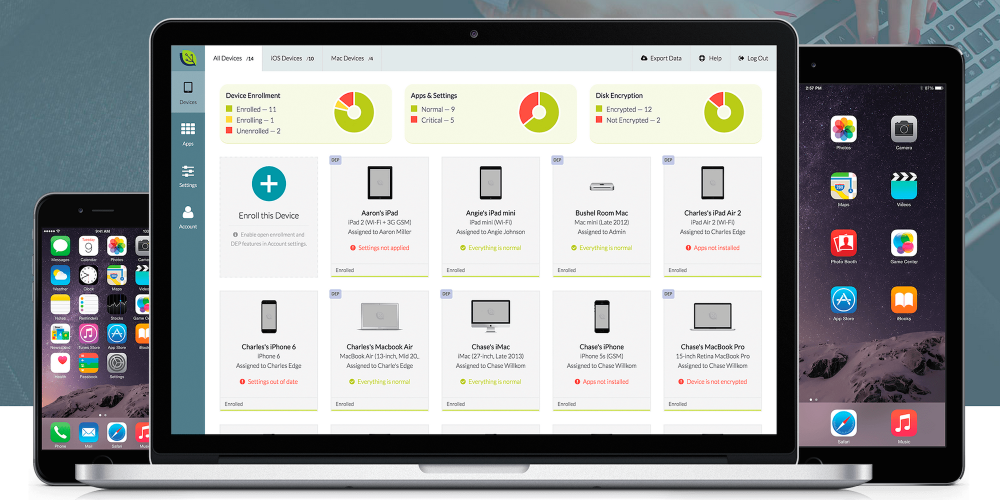
If you need to deploy iOS or OS X devices to your employees or organization, having cloud access to setup, deploy, and manage your fleet these days seems like a no-brainer. That’s why our go-to recommendation is Bushel, a super easy-to-use and slick web-based app that offers cloud access to deploying and managing Apple devicesThe perfect supplement to Apple in the workspaceBushel — created by JAMF Software — is a few steps ahead of the game. In this article, we walk you through how to use Bushel (which is free for up to 3 devices) to manage your fleet of Apple devices.

In special collaboration with 9to5Mac, Bushel is also offering a challenge to businesses: Try out Bushel and get entered to win free Bushel for life, as well as a free iOS device for your company.
Expand
Expanding
Close

The Logic Pros: Time compression and pitch correction with Logic’s built-in Flex tools

In this week’s episode of the The Logic Pros, Flex audio features are up, with some serious hardware reviews on deck. Next week we will start a mini-series of episodes showcasing some top-notch instruments from the likes of Moog, Native Instruments and more, but first we will dive into Logic’s time compression/expansion and micro pitch correction features:


Expand
Expanding
Close

PSA: Here’s how to keep Apple’s Lightning cables working with your iPad, iPhone + iPod

Less than two years after they each went into service, only one of the three Lightning cables pictured above is actually working properly. It’s not the big Belkin cable on the left, which is visibly pretty wrecked, or the thick, no-name 6-foot cable on the right, which looks fine on the surface but can’t properly supply power to a connected device. The one that works without problems is, amazingly, Apple’s official Lightning cable — the one that has been pilloried by numerous dissatisfied users, notably including our own Zac Hall, for coming apart after months or years of use.

These complaints aren’t without merit: even Apple-authorized Lightning cables do break, which is particularly infuriating given how expensive they tend to be. But there’s a lot of bad information about Lightning cables floating around right now, and having spent a lot of time using them and reading user complaints, I wanted to help people avoid some of their preventable failures. Taking a few precautions can save you a $10 to $20 replacement cost, as well as wasted time and stress…


Expand
Expanding
Close

The Logic Pros: Automate tedious MIDI edits into a single-click with Logic’s Transform feature

In this week’s episode of The Logic Pros, we will be looking at ways to speed up our editing and song creation with LPX’s MIDI Transform feature. In many cases, manually working Logic’s Piano Roll editor will get the job done, but there are certainly times when editing MIDI performances/events can be a very tedious process. Getting those extended performances just right or zeroing in on problem areas for complex passages can’t take hours (or days) to get right in some cases. But with LPX’s MIDI Transform features we can get many of these types of arduous tasks done in just a few clicks:


Expand
Expanding
Close

How-To: Screen record in full 4K/5K resolution at 60fps on Mac w/ the new Screenium 3 app (+ giveaway)

Site default logo image

Screenium-3-4K-screen-recording

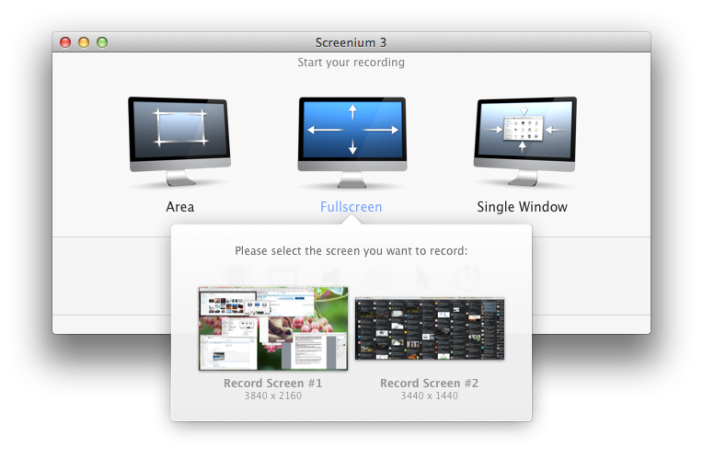
4K and 5K displays are relatively new, but with more and more users upgrading, there is some catching up to do with apps to support the higher resolution screens. That’s why we were pleased when Screenium, one of our favorite screen recording suites, updated earlier this month with some pretty notable new features for Retina, 4K and 5K display users, as well as everyone looking for a solid screen capture solution.

After months of trying different screen casting software and running into issues on 4K and Retina displays, Screenium 3 has finally delivered what we’ve been waiting for. The company has been hard at work on a custom video codec that makes continuous screen recording at 60fps on Retina, 4K, and 5K displays possible, which competitors have thus far failed to match. So if you’ve been asking yourself how to go about screen recording in full resolution at 60fps, here’s how to do it:
Expand
Expanding
Close

How-To: Go beyond OS X Photos + make amazing wall art from your Mac’s pictures (Part 3)

History will remember the early 21st Century as a turning point for photography — the point at which mainstream photos transitioned from chemical to digital, thereby becoming “print optional” for the first time. Although digital photography has taken small annual steps for 20 years, those steps have collectively evolved early, uselessly low-resolution digital cameras into superior alternatives to their film-based predecessors. Even the tiny cameras built into iPhones take much better-quality photos than Kodaks and Polaroids, and more of them, too: the days of 12-, 24-, or 36-exposure film cartridges and fading exposures are long gone, replaced by all but infinite burst-mode photos that can live on your computer forever.

But some photos deserve a more prominent display in your home than a vault in your computer’s photo library. Apple has known this since the dawn of digital photography. Since iPhoto launched in 2002, Apple has offered photo and book printing services, a feature later added to Aperture and OS X Photos. Yet even though CanonSony, and Nikon have introduced high- and ultra-high-resolution cameras capable of creating huge prints, Apple hasn’t updated its apps with new large-format print options. That’s where this How-To series comes in.

It’s possible to use Photos to create large paper prints, but there’s a lot of exciting large-format photo printing work being done now with other materials, including metal, glass, and canvas. Part 1 of this How-To guide looked at large-format metal prints, and Part 2 looked at canvas and glass prints, with tips on composing large-format images. This third and final part looks at several additional options: turning your photos into hand-painted art, printing on brushed silver aluminum, and large-format “behind acrylic glass” photo printing. Each is different from the prior prints we covered, and one is the most beautiful large photo-to-wall art process I’ve yet seen…


Expand
Expanding
Close

Site default logo image

iTunes Connect experiencing multi-day outage for many users, here’s a fix

A noticeably large number of users are reporting issues logging into iTunes Connect, Apple’s developer portal for managing and distributing apps and other content to the App Store and iTunes. The outage appears to only be affecting a subset of users (we’ve had success logging in, for instance), but a growing number of developers have publicly voiced complaints online. Some users report not being able to access the service for going on four days:

[tweet https://twitter.com/powerje/status/623119396412751873]

Apple currently has yet to report any issues for iTunes Connect on its System Status page that tracks and reports downtime for its developer services.

Some users have reported success logging in after tweaking VPN settings, while another user posted the following workaround fix that others have used to patch what appears to be a Javascript issue at least temporarily until Apple officially addresses it:

[tweet https://twitter.com/psyclr/status/623099998687789057]

We’ve reached out to Apple about the downtime, and we’ll update here if we hear back.

[tweet https://twitter.com/rantydave/status/623064147211632641]

[tweet https://twitter.com/umugenzi/status/623020410251034624]

[tweet https://twitter.com/telemedicalapp/status/622972407884709888]

The Logic Pros: How to use MIDI hardware synthesizers in Logic w/ External Instrument plug-in

In this week’s episode of The Logic Pros, we are taking a look at how Logic handles external MIDI-based instruments in the real world. It really doesn’t get any easier than loading up your favorite soft-synth, but that doesn’t mean they are as fun or inspiring as the real thing. LPX has a handy feature that makes it so many of the most popular and sought-after external synths/MIDI-instruments can integrate just as smoothly:


Expand
Expanding
Close

Confirmed: New iPod nano and shuffle won’t get Apple Music to prevent piracy

Site default logo image

You might have heard some discussing the state of Apple Music on the iPod nano and shuffle, two products that just got a minor facelift alongside a larger refresh for their bigger brother, the iPod touch. And you might have already guessed that streaming to the devices was a no-go from the lack of Wi-Fi capabilities, but it turns out you won’t even be able to store your offline Apple Music collection on the devices either.

The reason, according to sources, is simply to prevent piracy…
Expand
Expanding
Close

PSA: Apple Watch’s sapphire display cracks just like iPhone screens

Site default logo image

Yep, that’s a cracked Apple Watch display. Nope, it’s not actually an Edition, just plated, but the $549 and up steel model uses the same sapphire display as Apple’s $10,000 and up watch. And yes, the Apple Watch’s sapphire display reacts to accidental drops against hard surfaces just like iPhones.

In describing the craftsmanship of the Apple Watch, Apple calls sapphire “the second-hardest transparent substance after diamond,” adding that “that’s why we chose it to cover the Apple Watch and Apple Watch Edition faces,” but it still sells a $79 AppleCare+ warranty to cover accidental damage because sapphire is clearly not invincible.

Here’s what to expect if you accidentally break your Apple Watch display and what I learned about how easily it can happen…
Expand
Expanding
Close

How-To: Fix iTunes 12.2’s iTunes Match/Apple Music DRM-adding bug


Apple just released a minor update to iTunes 12, seemingly addressing several issues related to Apple Music’s debut in iTunes 12.2. One major problem — automatic switching of certain iTunes Match songs to “Apple Music” status, along with the unwanted addition of Apple’s Fairplay DRM — is mentioned in iTunes 12.2.1’s release notes. Apple says the update resolves an issue “where iTunes incorrectly changed some songs from Matched to Apple Music,” and lets you restore non-DRMed files to your library.

But unless you follow a specific procedure spotlighted in a new Apple support document, the fix could create even bigger problems for your library. Apple notes that if you download 12.2.1, “previously matched songs [that] appear as Apple Music songs” will be fixed, as iTunes will “correct the information automatically.” Indeed, you’ll see that Matched or Purchased songs that switched to “Apple Music” status now say Matched or Purchased again within the iTunes library. “After you update,” says Apple, “you can remove and download again any songs that were incorrectly downloaded as Apple Music.” But if you hit the wrong button, you’ll find it hard to restore your tracks…


Expand
Expanding
Close

How-To: Go beyond OS X Photos + make amazing wall art from your Mac’s pictures (Part 2)

Your digital photos were never intended to remain trapped on your computer’s hard drive. Apple’s original 2002 version of iPhoto proudly included physical book and photo printing services, adding new books and various types of cards every 2-3 years. Since early digital cameras took low-resolution photos, Apple’s services focused primarily on small prints. But over the past decade, cameras have really evolved: there are now 36-Megapixel Nikons42-Megapixel Sonys, and 50-Megapixel Canons. Unfortunately, Apple didn’t update iPhoto or its later Aperture and Photos apps with additional large-format printing options to keep up with the higher-resolution cameras many people are using.

Even if you don’t have a high-end DSLR, there are ways to turn more typical 20-Megapixel images into large pieces of wall art — if you’re willing to look outside Apple’s photo apps for printing services. And amazingly, even recent iPhones and iPads can create 43-Megapixel ultra-wide panoramas that will look stunning on one or more large canvases, as shown in the photo above.

What’s the best large format to choose for your photos? That depends on the type of images you have, and the results you’re looking for. To illustrate the options, I reached out to a number of popular photo printing services to see how digital photos would look on metal, glass, and canvas — large-format alternatives Apple doesn’t offer. Part 1 of this How-To guide looked at metal prints that apply dyes and gloss directly onto aluminum surfaces. Today, Part 2 looks at large-format canvas and glass prints. And the last part, coming next week, will look at several additional options that provide unique twists on these options. Inside, you’ll see how each process has its own unique appeal…


Expand
Expanding
Close

The Logic Pros: How to create custom sampler instruments using any audio file with EXS24

In this week’s episode of The Logic Pros, we are taking a look at one of Logic’s most prized possessions. A mainstay since, well, almost forever, the EXS24 sampler may seem basic and over-looked simply by virtue of being around for so long, but it might be one of LPX’s most useful musical instruments.

Not only does EXS24 come with hundreds of GBs of samples and the instruments they are made up of inside LPX (for free), but it can also be used to create our very own sampler instruments. For those just getting into Logic for the first time, EXS’s true potential can be somewhat hidden behind the wealth of instruments you’ll find in your library after installation, so we thought a rundown of how to create custom instruments and its additional features was in order. We will also be covering some alternate options for doing so that more experienced users may find helpful:
Expand
Expanding
Close