Time Machine is a backup application developed by Apple that’s distributed with macOS. Time Machine works with the now discontinued Time Capsule router/storage hardware solution from Apple, along with direct attached storage and NAS solutions.
One or more backup bugs in macOS 15.2 Sequoia is affecting Apple’s own Time Machine utility, as well as third-party apps SuperDuper and CarbonCopyCloner. Initially the problem appeared to affect bootable backups only, but it now appears that it is either more general than this, or there is more than one bug affecting Mac backups …
Want to find a solution to back up multiple Macs in your home or office without buying dedicated hardware like network-attached storage, paying for a backup service, or needing multiple external drives? As it turns out you can set up a shared network folder on Mac to allow other machines to save their Time Machine backups. Follow along for how it works.
This article is meant to serve as the most up to date guide to backing up your Mac. Unlike iOS, there is no built-in cloud backup feature that will cover everything on your device to an offsite server. I am often asked by friends and family about backups, so I wanted a way to just send a simple article they can follow.
If you are hesitant to pay for anything, think of it like this: If your hard drive crashed, and I offered to restore everything for less than a meal at a restaurant, you’d take me up on it. Even in the age of flash storage and SSDs, failures still happen. Don’t forget about data losses due to theft, fire, and accidental damage (spilled drinks, drops, etc.). The most important thing I can communicate is you need to act like all of your devices have a chance of breaking tomorrow, and you need to be prepared. Here’s my guide on how to back up your Mac:
If there is one thing I am obsessed with when it comes to technology, it’s my pictures. I keep them extremely organized and culled. I am equally as fanatical about getting them backed up. When it comes to music, movies, and TV shows – I can rebuy anything I lose due to hard drive failure. When it comes to pictures of my family, no amount of money can recreate them if I lose them. Over the years, my strategy has evolved as services have changed. I’ll do my best to keep this article up to date as things change in the future.
Synology just launched its newest prosumer NAS box, the DS1618+. This 6-bay machine comes with a quad-core 2.1GHz CPU, and 4GB of DDR4 non-ECC memory that can be upgraded to 32GB of ECC RAM.
What makes the DS1618+ particularly special is its expandability — and not just eSATA storage expandability that we usually associate with Synology products. The DS1618+ features a PCIe 3.0 x8 expansion slot that can accommodate either an M.2 card for cache, or a 10GbE NIC for significantly faster throughput. Such an addition makes the DS1618+ ideal for connecting to machines with 10 Gigabit Ethernet, such as the iMac Pro.
There are many reasons why individuals and companies employ the use of NAS boxes. In household environments, they can act like a media server, storing high quality video rips for local streaming. Others, perhaps those in corporate environments, like to use NAS setups as a storage solution for video editing.
But there is another key reason why you might want to consider a NAS, especially in light of Apple’s decision to abandon its AirPort and Time Capsule products — Time Machine backups. In this hands-on video, I show you how I use the DS1618+ as a quiet and reliable Time Machine backup solution.
Code42, the company behind CrashPlan has officially announced that as of today they are pulling out of the consumer market. CrashPlan for Home users will have to begin migrating away from the service as it will no longer be available starting in October of 2018.
Even with high-quality devices like Apple’s MacBooks and iMacs, it’s important to back up. No device works as expected all the time and there are many scenarios outside of drive failure when a backup is crucial to have (upgrading, accidents, loss, or theft.) Follow along for how to back up your Mac.
It was reported yesterday that Apple is disbanding the division of the company responsible for its wireless networking products: the hard drive-equipped Time Capsule and both AirPort Extreme and AirPort Express routers. The report was given additional credence by recent discounts and the fact that the products haven’t been updated in more than three years.
On one level, the decision seems like a no-brainer for Apple. The company is in the premium product basis. Back in the days when Wi-Fi was a new thing, it made sense for Apple to boost adoption rates by offering its own products; now it’s ubiquitous, there’s no reason for the company to be in what is today a very mundane product category.
But if the news is confirmed, it will sadden me a little – and worry me slightly as well …
I’ve recently been testing the brand new Synology DS-216+ NAS ($299), a network-attached-storage product meant for consumers. Although Synology products include a variety of features, I will be focusing on two primary functions that I consider most essential and most useful to people today: Mac backup and home media management (TV shows and movies).
With Apple no longer shipping optical drives in most of their products, I think now is a great time to convert your home movie collection of DVDs and Blu-rays to digital files, which a NAS is great for storing. The Apple TV 4 was another big factor: with an app, I can now view all the TV shows and movies, stored on my NAS, from my TV.
Before I owned a NAS, I was worried about two things: whether the features would be useful and how much hassle would be necessary to get everything up and running. Hence, my review starts with an explanation of the setup steps involved …
Over the weekend a good friend of mine shared a screenshot of a really scary error message from Photos for Mac. Every photo and video taken over the last two weeks failed to open, saying instead that ‘An error occurred while downloading a larger version of this video for editing.’ The solution? ‘Please try again later.’ and press OK. What’s worse is he was relying on the app’s Optimize Mac Storage setting to fit the library on his local storage and trusting iCloud not to screw things up along the way. And he didn’t have local copies backed up, a mistake he for obvious reasons regretted.
Stories like these aren’t rare, which is why my colleague Jeremy wrote earlier this year that “iCloud Photo Library still isn’t worth the hassles,” despite Apple lowering iCloud storage costs. But I still recommend Photos and iCloud Photo Library, new features that topped my “favorite new Apple things from 2015 that will last for years” list, just not with the default setup. As with any cloud service, the one major caveat is ensure you have a reliable local backup (followed by plenty of patience at the start).
While there’s no turning back data loss, I shared my personal Photos plus iCloud Photo Library setup with my friend, which he’s moving to now for a hopefully better experience. Below I’ll detail each step, which required a little research before I figured it all out, so you can hopefully have a positive experience with Photos and iCloud Photo Library as well.
Back in the summer, the UK’s High Court overturned legislation allowing citizens to duplicate copyrighted material for personal use. The British government has now accepted this ruling, meaning that the private-copying exception to anti-piracy laws no longer applies – and the government will not attempt to reintroduce it.
This means that we’re back where we started: doing something as simple as ripping a CD, backing-up your music to Time Machine or uploading it to a cloud service is once more illegal, reports copyright blog 1709.
So where does this leave ordinary users in the UK? Clearly some will have been unaware of the introduction of the exception last year, and possibly a larger minority will have been unaware of the rescinding of the exception, so they will no doubt continue to format shift their personally owned music and store tracks on the cloud in blissful ignorance that that is not legal in most cases.
It also means that Apple may need to change the terms of both iTunes Match and Apple Music in the UK.
Operators of cloud services may face pressure to amend their terms of service to reflect the new status quo, and some streaming services may be forced to tighten up their procedures to prevent users from creating multiple copies of the same download.
Yep, technically you can’t have the same music on your iPhone and Mac …
It seems unlikely that anyone will actually enforce the law, but these days, who knows. Just as plastic bags come with warnings that they should be kept out of the hands of infants, technology should come with a warning that it should be kept out of the hands of governments.
Apple has quietly added a new data restore feature to iCloud.com, enabling users to rollback accidentally deleted documents, calendar changes and contacts. The new ‘Restore Files’, ‘Restore Contacts’ and ‘Restore Calendars’ features are hidden in iCloud.com Advanced Settings pane.
Seemingly unrelated to iCloud backup, Apple shows snapshots of your recently deleted documents and lets you put them back onto iCloud Drive. This means there is now a way to recover accidentally deleted iCloud documents for the first time, because there is no equivalent to the Trash folder in iCloud.
Similarly, Contacts restoration shows timestamped snapshots of your iCloud contacts database. Restoring to an earlier version reverts all changes made since the backup date. Unlike with files, you cannot individually restore single contacts. The same is true for Calendars.
It appears it’s not just governments who shouldn’t be allowed anywhere near technology – it’s also courts. The UK’s High Court recently overturned legislation permitting citizens to duplicate copyrighted material for their own private use, and TorrentFreak confirmed with the UK Intellectual Property Office that the ruling really is as dumb as it sounds.
“It is now unlawful to make private copies of copyright works you own, without permission from the copyright holder – this includes format shifting from one medium to another,” a spokesperson informed us.
The IPO specifically notes that copying a CD to an MP3 player is not permitted. This means that iTunes’ popular ripping feature, which Apple actively promotes during the software’s installation, is illegal.
The ruling would also effectively outlaw Time Machine (as it copies music files), and the current behaviour of both iTunes Match and Apple Music, each of which copies music to a cloud server. And it’s not just citizens who fall foul of this law – Apple does too … Expand Expanding Close
Apple’s latest desktop operating system, OS X Yosemite, is available today. In this post, we’ll take you through the steps required to protect your data by backing it up, upgrading the OS, and getting started with the latest version of OS X.
Before you get started, you’ll want to make sure you have everything you need. To backup your data, you’ll need an external hard driveor a Time Capsule with at least the same amount of storage as your hard drive. You’ll also need to make sure your Mac is capable of running Yosemite (we’ll show you how below), and you’ll want to make sure you have an iTunes account to purchase the update.
I’m a huge fan of my Time Capsule. Once an hour, both my MacBook Pro and Air machines are backed-up automatically via wifi without me having to do a thing. As a wise friend once observed, the only 100 percent reliable backup system is one where you don’t have to do a thing – not even plug in a drive.
But there’s no denying that at $299 for the 2TB model or $399 for the 3TB model, the Time Capsule isn’t cheap. You can buy a 2TB external hard drive for well under $100 or a 3TB one for slightly more. You’d normally need a more expensive NAS system to make it work via wifi, but Remy van Elst has created an instructible enabling you to do it with nothing more than a $35 Raspberry Pi.
You’ll need to be comfortable with command lines, and it will take you a little time to get it all configured, but at the end of it all you’ll have a working Time Capsule – that looks to OS X just like the real thing – for somewhere around $120.
WD today announced immediate availability of the My Passport Pro, which it bills as the first Thunderbolt-powered portable dual-drive. The two internal 2.5-inch hard drives and an integrated Thunderbolt cable are packed in a svelte aluminum enclosure that weighs just 1.59 pounds. Users can easily choose between a RAID 0 setup for increased performance or RAID 1 for data redundancy. It’s capable of speeds up to 233 MB/s and to help put that in perspective, it is capable of “copy[ing] a 22 GB high-definition video file in half the time typically required by a USB 3.0 drive working in RAID 0 format.” Combined, it is about half the speed of an SSD but with much more space/$.
Connected Data has announced the third generation version of its 4-bay Drobo storage array. A completely new architecture along with USB 3.0 connectivity help make it “three times faster than the previous generation.” Speed is always a welcome upgrade, but the real crowd-pleaser in this announcement is that its MSRP has been chopped to $349, and previous generation Drobo owners are eligible for a $50 customer loyalty discount.
Current Drobo owners will find it easy to migrate their data to the new system because it’s also built on BeyondRAID technology:
The foundation that allows first and second generation Drobo customers to seamlessly upgrade to a new Drobo by simply removing the disk pack from their current Drobo, and moving it to their new one.
It also offers Apple users an easy way to limit the amount of space available to Time Machine. This prevents OS X from storing extremely old backups because it thinks it has access to the entire drive.
If you are in the market for some serious storage we recommend checking out Synology as we have had nothing but wonderful experiences with them.
Apple’s latest desktop operating system, OS X Mavericks, is available today. In this post, we’ll take you through the steps required to protect your data by backing it up, upgrading the OS, and getting started with the latest version of OS X.
Before you get started, you’ll want to make sure you have everything you need. To backup your data, you’ll need an external hard drive with at least the same amount of storage as your hard drive (or a Time Capsule). You’ll also need to make sure your Mac is capable of running Mavericks (we’ll show you how below), and you’ll want to make sure you have an iTunes account to purchase the update.
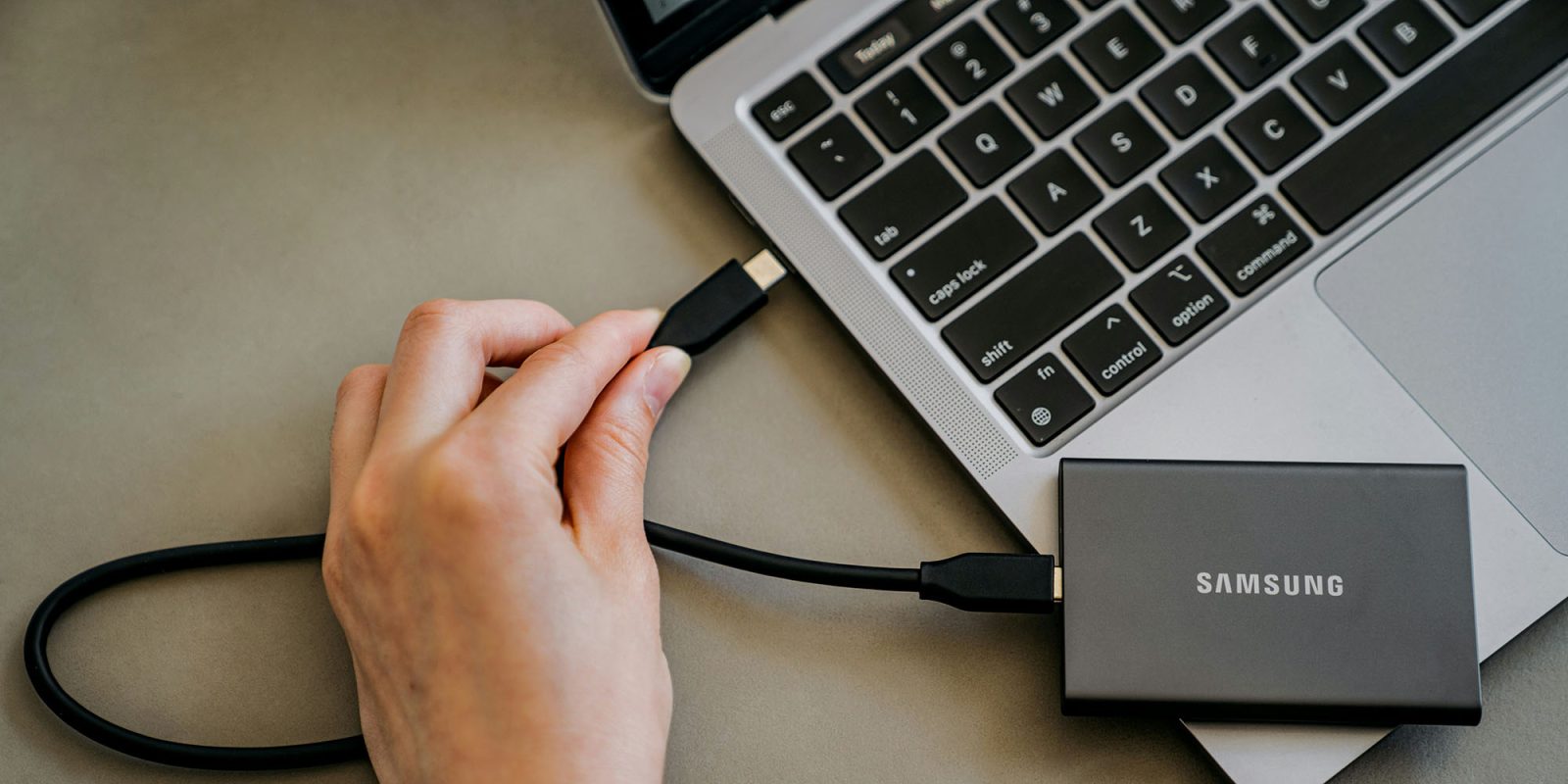
Macs make automated backup childishly easy: simply plug in an external hard drive and OS X will ask whether you want to use it as a Time Machine disk. Say yes, and you’ll then get fully-automatic, hourly, versioned backups without doing anything further.
Unplug it to take your MacBook out & about, and it will catch up as soon as you return and plug it back in. Even easier, get a Time Capsule, and those backups take place over wifi, so you don’t even have to connect a drive.
But I’m a belt-and-braces chap. I like multiple backups, and I like one of those backups to be off-site. That way, if the house burns down, or a burglar takes both my Macs and my backup drives, I still have access to my data. Which is where online backup services come into play. Think of them as your backup of last resort.
iCloud, covered in my cloud storage roundup last week, already backs up quite a lot of your data – but nothing like all of it. The services covered here are ones that backup either your entire Mac, or a large proportion of it …
Remember those promises we were made, about a paperless world? Everything electronic, everything online? Since the world was failing to deliver, I decided a couple of years ago to do an experiment to find out whether it is possible to live a truly paperless life.
Two years later, the bad news is that you can’t entirely avoid the stuff. There are a few documents the government insists I keep in paper form: my passport and driving licence, for example. There are documents that still arrive in paper form, and documents I have to supply in paper form.
The good news is that you can get very, very close. Here’s how I made it work …
Just like it did earlier this week for the 2011 and 2012 MacBook Airs, Apple, today, has released a new firmware update for the 15-inch MacBook Pro with Retina display to enable the PowerNap feature. PowerNap allows your Mac to update iCloud files, emails, software updates and more while in sleep mode. Users can get the update via the Mac App Store software update section.
After updating users will see the following option in System Preferences:
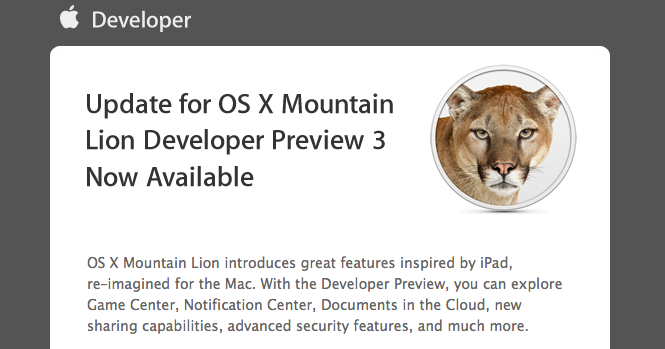
Apple has released software updates to both of their already acknowledged, unreleased Mac OS X updates: Mountain Lion and Lion 10.7.4. The OS X Mountain Lion is a not a full new Developer Preview, but is simply an update to the already released Developer Preview 3. Changes are currently unknown, but please send in anything you find to tips@9to5mac.com. The update weighs in at 1.45GB on a MacBook Air, but that may vary on other machines. Similiarly, Apple released a few minor developer preview updates during the OS X Lion beta period.
In addition, Apple has seeded a new build of 10.7.4 to developers. The build number is 11E53, and this is notable as this is only a single build shift from last week’s release of 10.7.4 build 11E52. A slow down in build number changes often means an imminent release of whatever OS X update is being tested. Augmenting this possibility is that Apple has added the 10.7.4 change log to the installer application for the beta. Apple says the build has no known issues but asks developers to focus their testing on graphics, iCal, Mail, Printing, and Time Machine.
Apple has also released Developer Preview 4 of Xcode 4.4. The Xcode preview requires either OS X Mountain Lion or OS X Lion.
We’re receiving numerous reports from disgruntled users claiming iCloud deleted their documents from iWork apps on their iPhones, iPod touches and iPads after restarting devices. Worse, documents from the Pages, Numbers and Keynote iOS apps are also wiped out from the iCloud servers and cannot be found using the web interface. Sure enough, a bunch of threads on Apple’s Support Communities site (here and here) highlight the issue which affects an unknown portion of users.
A forum user NickFro describes the catastrophic bug:
I can reliably reproduce the error as follows. Create a document in Numbers on an iOS device, or upload to iCloud.com manually. Wait for sync. Restart iOS device. Launch Numbers. The document will be deleted. If you have iCloud.com open, the file will still appear but clicking on it generates a “File not present on server” error. Pretty serious bug, but I can’t tell if it’s in iCloud or the iWork apps. Or both.
He also offers this remedy:
Delete the iCloud account at both the main level of Settings (i.e., by selecting iCloud) AND by deleting the account in the Mail, Calenders, and Contacts section of Settings. Have it remove everything from your device. Once it’s done. Go to the main level, select iCloud, and re-enable your account there and set all settings there for sync. Let the sync happen.
If that didn’t help, try the solutions described here and here.
If you backup your iOS devices with iTunes instead with iCloud, you’re in luck: Just restore to a device backup containing your files and launch Pages, Keynote or Numbers on your device – but don’t enable iCloud in any of those apps. As you know, iTunes creates a device backup at each sync (unless iCloud backup is enabled in iTunes or Settings on your device). This lets you use Time Machine to go back in time and retrieve a specific backup file containing your device’s settings, app data, documents and more. The affected users who enabled iCloud Backup on their device (Settings > iCloud > Storage and Backup) are in a much worse situation as any document created on their device and synced with iCloud gets deleted from both places without a warning, as shown in the below clip.
For some, the problem stems from migrating MobileMe accounts to the iCloud ones so deactivating the “old” MobileMe account on every iOS device, Mac or PC should help.
As long as there is still one machine with a functioning “MobileMe” in the System Preferences, this will erase all files on startup. I found it out when I turned on my wife’s machine, having forgotten that I had created a temporary user account there to store some of my MobileMe information. As soon as I switched to that user account, zap!, all iWork files disappear. Now that all former MobileMe panels have been deactivated, the remote reset is no longer occurring. or at least so it seems.
For others, iWork documents are disappearing upon syncing with a computer, too. This happens after a document has been created on an iOS device or uploaded from the computer. Here’s one possible remedy… Expand Expanding Close