How-to

See All Stories

A collection of tutorials, tips, and tricks from the 9to5Mac team helping you fix and get the most out of your favorite gear.

9to5Mac How To tutorials

Top tutorials and guides

iPhone how-tos

Mac how-tos

iPad how-tos

Apple Watch how-tos

How-To: Show the size of folders in the Finder on Mac [Video]

Site default logo image

The Finder’s list view is my favorite way to view the folders and files within the macOS Finder, because it provides a wealth of information via columns that can be sorted on.

One thing that you won’t find when using the Finder’s default list view is the cumulative size of the Folders contained within. But there’s an easy way to view the sizes of Folders directly within the Finder; watch our video tutorial to see how.
Expand
Expanding
Close

The Dock in watchOS 3 breathes new life into the Apple Watch [Video]

Site default logo image

The Dock in watchOS 3 was arguably the biggest new feature to hit the Apple Watch at WWDC 2016. It’s a feature that allows you to find and switch to your most used apps. It takes the best of the Glances model from previous versions of watchOS and merges it with an updated and actionable interface.

The Dock promotes using apps in a way that no such feature on the Apple Watch has until now. In my opinion, it breathes new life into the Apple Watch, providing practical functionality that was missing in previous iterations of watchOS. Have a look at our hands-on dive into the Dock as we explore this exciting new feature.
Expand
Expanding
Close

How-To: Use Split View in Safari on iPad [Video]

Site default logo image

iOS 10 makes it possible to view two Safari windows side-by-side on the iPad via a feature called Safari split-view. It’s similar to the standard Split View between separate apps, but there are some differences to consider as well. In the following video walkthrough, we’ll show you how to use Safari split-view, and highlight some of its notable features.
Expand
Expanding
Close

Site default logo image

How-To: Enable Picture-in-Picture for YouTube videos in macOS Sierra

One of the big new features in macOS Sierra is the new iPad-inspired Picture-in-Picture mode for Safari. This allows users to detach a video from its player so that it’s always viewable across desktops and while using other apps.

Although YouTube’s player doesn’t make it readily apparent that its videos work with Picture-in-Picture, it’s quite easy to enable the handy feature for all of your favorite YouTube videos on Safari.
Expand
Expanding
Close

How-To: Close all Safari tabs at once in iOS 10 [Video]

Site default logo image

It’s now possible to open an unlimited number of tabs in iOS 10’s Safari browser. With that in mind, it would be quite tedious to have to close each tab one-by-one, and fortunately Apple realizes this.

In iOS 10, users now have the option of closing all open Safari tabs in one fell swoop. To do so, simply tap and hold the tab button, and you’ll be prompted to close all open tabs at once.
Expand
Expanding
Close

iOS 10 supports inline video playback in Safari on iPhone [Video]

Site default logo image

One of the great things about watching video on an iPad is that content can be played inline in Safari. In other words, users can watch videos within Safari without being forced into a full screen video view.

Such functionality has been available in limited fashion on the iPhone. For example, the News app has been capable of playing videos inline since iOS 9.3.

Of course, such playback ability was touted for the Messages app during Apple’s WWDC 2016 keynote, but with the introduction of the iOS 10 beta, inline playback has also been added to Safari on iPhone.
Expand
Expanding
Close

How to watch Apple’s WWDC 2016 keynote live stream on Windows or Android

Apple last night confirmed it will live stream the opening press event for its Worldwide Developers Conference on Monday, but the stream is limited to certain devices. The company will stream the event to iPhone, iPad, and Mac users via its Safari browser, and to Apple TV users, and it’s also recently added support for Windows 10 via Microsoft Edge.


Expand
Expanding
Close

Setups: My hardware setup for podcasting and voiceovers [Video]

Site default logo image

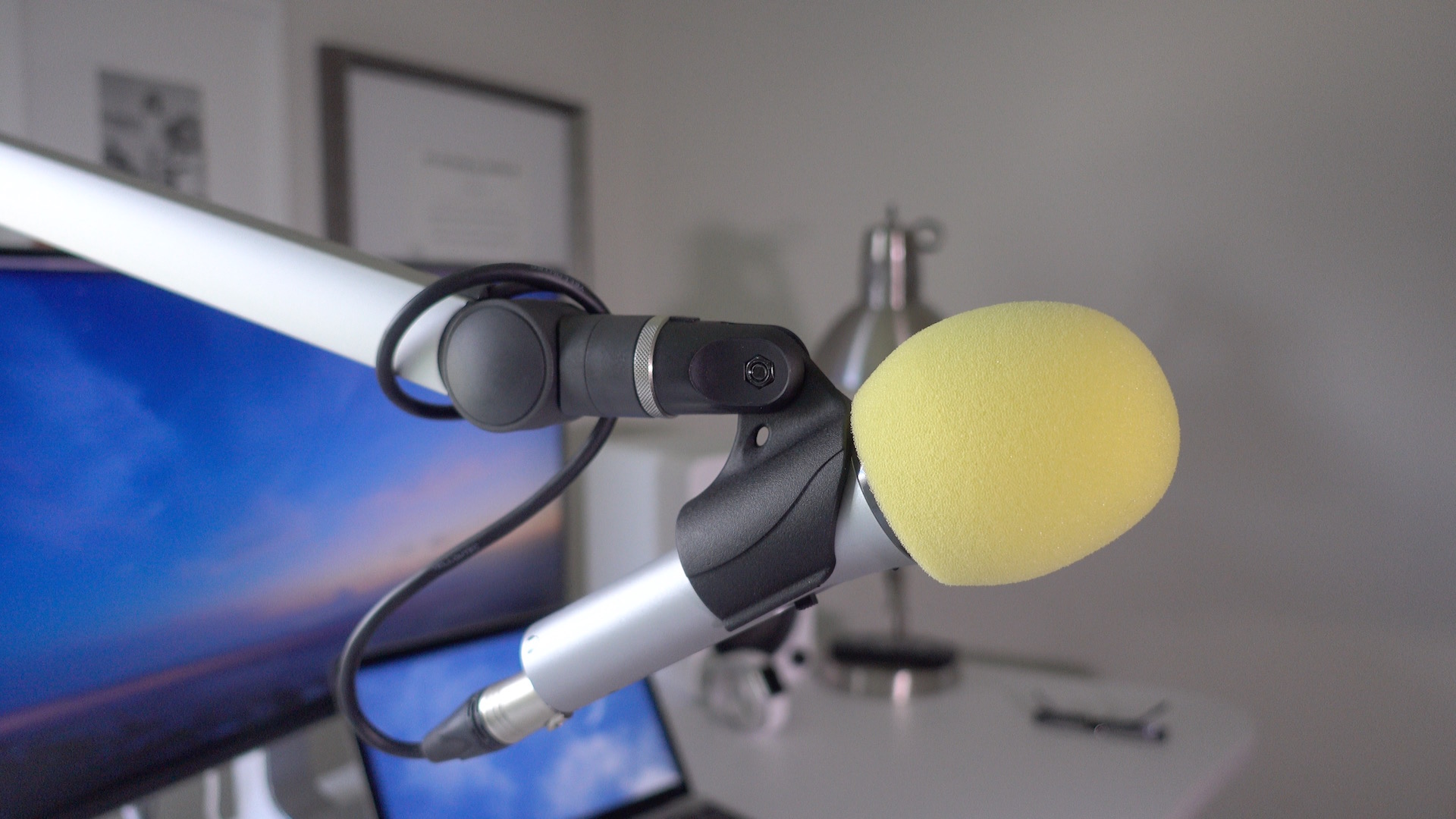
As someone who regularly does voiceover work and records podcasts, I need a setup that allows me to easily record on a whim. Any modern Mac could work for this setup, but I’m especially fond of the 12″ MacBook with its USB-C port. That single port, which handles data transfer, power, and display output, helps to simplify my configuration because all it requires is one cable to get started.

In this post, I’d like to share with you my setup for voiceovers and podcasting. What you’ll find is a rig that’s extremely easy to use and happens to look decent as well.
Expand
Expanding
Close

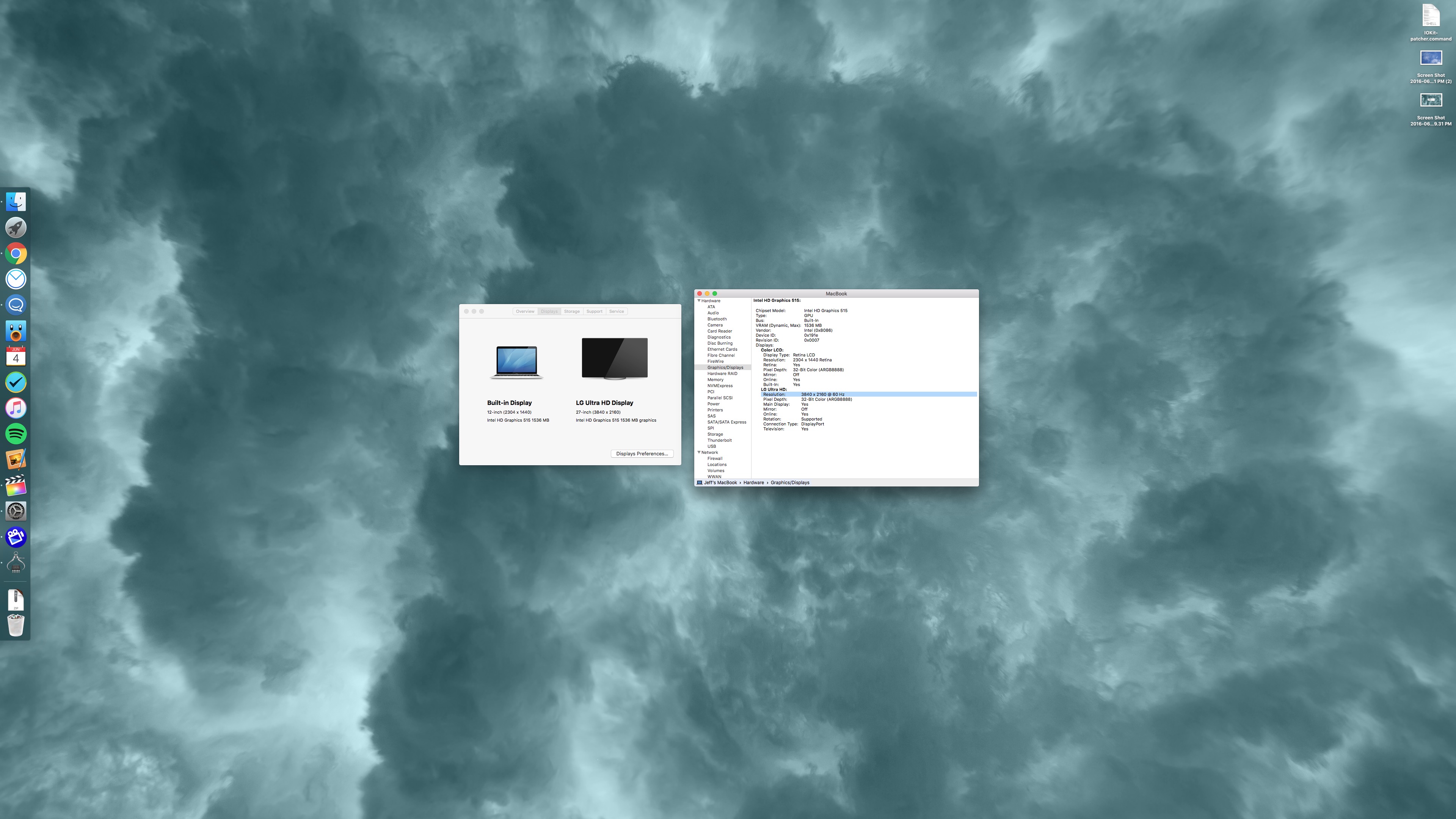
How-To: Drive a 4K display at 60 Hz with the 2016 MacBook

Site default logo image

The 2016 MacBook is capable of driving a 4K display at 60 Hz via a single USB-C cable. Such a feat is achievable via an easy-to-apply IOKit patch.

One of the great things about the new Intel hardware inside of the 2016 MacBook is that it’s capable of supporting 4K resolution at 60 Hz. The jump in refresh is a big deal, as anyone who’s tried to put up with running a 30 Hz refresh rate can attest to.

Operating at 30 Hz results in jerky and choppy cursor movement, and in some cases can induce headaches after prolonged use.

Sadly, the MacBook only supports 30 Hz out of the box for 4K resolution. It’s not immediately clear as to why this is, but on its support page, Apple makes it known that 4K resolution is limited to 30 Hz.

The good news is that it is possible to enable 60 Hz at native 4K resolution and 1080p (HiDPI/Retina) resolution on a 2016 MacBook. In fact, I just did so on the LG 27UD88 4K USB-C monitor that I recently reviewed. Watch the step-by-step process in our video tutorial for the details.
Expand
Expanding
Close

Purchasing your own cable modem may save money and allow for faster data speeds

Site default logo image

If you get your home internet connection via your local cable provider, then it may be wise to invest in your own cable modem. Why? Have a look at your bill. If the cable company provided you with a modem, you might notice that it’s charging you a monthly lease fee.

This leasing option seems to be more common in the US, but investing in your own modem could end up saving you money in the long run. Outright owning a modem also means that you can sell it once you’re finished using it.

Saving money isn’t necessarily the only benefit of purchasing or upgrading your own modem. It may be possible to achieve significantly faster download and upload speeds by taking advantage of new hardware advancements.
Expand
Expanding
Close

How-To: Make Sony’s a6300 a vlogging camera by using an iPhone as a viewfinder

Sony’s a6300 is one of the Japanese company’s most recently released cameras and is the successor to the very popular a6000. The camera has already received a ton of praise — Jeff took it for a test drive the other week, and enjoyed its 4K shooting abilities.

One common complaint, however, is the lack of a selfie screen on the a6300. Sony missed a big opportunity by not including a built-in way for vloggers to view themselves while on camera. 

The solution? Use your iPhone as a digital viewfinder. Not only will such a setup work with the a6300, but it’ll work with other digital cameras that support such functionality.


Expand
Expanding
Close

10 tips for new and prospective MacBook owners [Video]

Site default logo image

As someone coming from a 15″ MacBook Pro with Retina display, adjusting to the smaller form-factor of the 12″ MacBook takes some getting used to. But as brought out in our post highlighting 10 favorite MacBook features, the effort is worth it.

I’ve been using the 2016 MacBook as my primary computer since last week, and I’ve learned a lot about this little machine during my hands-on time. If you’re thinking about purchasing a new MacBook, or if you already own one, consider these tips to get more out of this tiny wonder.
Expand
Expanding
Close

Site default logo image

How-To: Replace open Safari tabs with folder bookmarks in one click on OS X

Safari has changed the way it handles bookmarks and open tabs over the last few versions, which has required me to slightly adjust my workflow each time. The change in behavior is small but one I’ve noticed.

Bookmark folders in Safari on the Mac have an ‘Open in New Tabs’ option that when clicked opens each saved website in its own tab using a single Safari window. A couple of versions back, this button would replace all open tabs with just the bookmarked websites in that folder.


Expand
Expanding
Close

How-To: Create a video record of a fun activity in the laziest possible way

Site default logo image

I like to think I’m pretty handy with a camera, but am definitely an amateur when it comes to video. Unlike some of the talented videographers we have here on the team, my idea of video editing is to throw a bunch of clips into iMovie, add cross-dissolves between them, drop in a music track and call it good.

But even that level of video editing can be surprisingly time-consuming, which creates something of a dilemma. I enjoy having a video record of things like fun bike rides, but don’t want to spend hours creating them. So for a group ride at the weekend, I tried a different approach that took hardly any time and seemed to work surprisingly well …


Expand
Expanding
Close

How-To: Automatically show the desktop bar by using Hot Corners to invoke Mission Control [Video]

Site default logo image

When you invoke Mission Control on OS X El Capitan using the typical gesture on your Mac’s trackpad or via a keyboard shortcut, you’ve probably noticed that the desktop bar at the top of the interface appears minimized. Although this yields additional real estate for the app windows below the desktop bar, it means that you no longer get to see the handy thumbnails that represent each desktop without moving your mouse to the desktop bar area.

There are some workarounds to defeating this OS X El Capitan change, including an open source utility called Force Full Desktop Bar. But for those of you who don’t wish to go through the trouble of installing a separate utility, which also requires you to disable El Capitan’s System Integrity Protection, try this handy Hot Corner shortcut instead.
Expand
Expanding
Close

Security researcher Stefan Esser releases iPhone & iPad jailbreak detection tool in iOS App Store

Maintaining a high level of consumer security on iOS is a huge cornerstone to what makes Apple the company it is. Tim Cook believes that we’re at the ‘golden age of surveillance’, and that Apple’s level of encryption impacts the wellbeing of U.S. citizens. It’s no surprise that users who care about security want to be up to date on the latest practices and methods that guarantee that. That may just be one of the reasons Stefan Esser’s timely app, System and Security Info, is climbing the iOS App Store’s Top Charts (all the way to the top of the paid apps chart in the US).


Expand
Expanding
Close