How-to

See All Stories

A collection of tutorials, tips, and tricks from the 9to5Mac team helping you fix and get the most out of your favorite gear.
9to5Mac How To tutorials

Top tutorials and guides

iPhone how-tos

Mac how-tos

iPad how-tos

Apple Watch how-tos

How-To: Install Watch OS updates on your Apple Watch

The Apple Watch received its first official software update today, giving lucky early adopters their first opportunity to see how the Watch OS updating process works. Unlike the iPhone, iPad, and iPod touch, which can update themselves using iOS’s Software Update feature, the Apple Watch depends upon an iPhone to download the update from Apple’s servers and install it on the Watch. You’ll also need a Wi-Fi network, your Apple Watch charger, and at least 50% battery life in order to do the update.

Here are the full details…


Expand
Expanding
Close

How-To: Benchmark your Mac with these three free downloads

Over the course of writing guides to boosting Mac and hard drive speeds, I’ve discussed the incredible performance improvements Macs can get from simple upgrades — adding RAM, choosing a fast solid state drive (SSD) as an internal or external drive, and even running a simple disk optimizer tool. But there’s a common question that comes up when considering upgrades: how can you tell in advance how big of an improvement you’ll actually see?

The answer: benchmarking tools. Many apps help you measure the speed of various components of your Mac, and with a little help, you can estimate the performance jumps you’ll see after an upgrade. Below, I’ll introduce three of the best free Mac benchmarking tools, and explain how they work…


Expand
Expanding
Close

How to view more Health app data on the Apple Watch

Site default logo image

With the HealthDash app, an alternative dashboard for Apple’s own Health app, Apple Watch users can view more health and fitness data points captured from Apple’s HealthKit platform, as well as a history of stats, right on their wrist.
Expand
Expanding
Close

How-To: Clean your iOS device with free downloads, recovering lost space

When Apple was designing the Mac app iDVD, then-CEO Steve Jobs directed his development team to build a dead-simple DVD-burning application: instead of a mess of options and windows, Jobs wanted one window with one button marked “Burn,” which would be pressed once the desired video file was dragged-and-dropped into the window. Years later, when Jobs wanted Apple’s iOS devices to be even simpler, he dumped the Mac’s windows and drag-and-drop file system in favor of a grid of icons. There wasn’t even a trash can to worry about — instead, iOS would automatically discard unused files as needed.

While that’s great in theory, the reality is that iOS actually leaves bits of trash sitting around on your device, and there’s no easy way to clean everything up at once. iTunes aggregates various types of lingering files as “Other,” but doesn’t have a trash can, nor does it provide direct access to your iPad, iPhone, or iPod touch file system so you can purge trash on your own. Consequently, your device may be holding a large collection of junk that could be dumped to free up gigabytes of space.

Below, I’ll show you how to clean your iOS device for free using two apps, one of which you definitely already have installed…


Expand
Expanding
Close

How to modify your Apple Watch box into an Edition-style charging case for under $10 (Video)

Site default logo image

Apple only includes its fancy charging case if you buy one of the $10,000+ gold Apple Watch Edition models, so I decided to DIY my own using the box Apple includes with its mid-range, stainless steel Apple Watch collection.

If you bought an Apple Watch model— the entry-level Sport collection comes with cheaper, somewhat disposable packaging— you get a box much like with the Edition minus the charging features and leather shell.

With a few drilled holes and less than $10 worth of materials, I transformed my box into a charging case that looks a lot like the Apple Watch Edition charging case.

Here’s how I did it:
Expand
Expanding
Close

How-To: Safely shrink your Mac’s giant photo library, deleting duplicate images to save space

I’ve focused a lot over the last few months on helping readers to speed up and optimize Apple’s Macs — everything from adding RAM to recovering hard drive space and upgrading old hard drives to faster SSDs. Today’s How-To is focused on something very specific but with a lot of optimization potential: trimming down your Mac’s photo library.

Particularly after installing OS X 10.10.3 with Apple’s new Photos app, you might be surprised to learn that you’ve lost a lot of hard drive space, and that there are suddenly tons of duplicate photos on your Mac. After installing OS X 10.10.3, the new Photos app converted my 90GB Aperture library into a 126GB Photos library, and left both on my hard drive. That’s an incredible amount of wasted space attributable to duplicates, so it’s no surprise that a $1 utility called Duplicate Photos Fixer Pro has recently become the #1 paid Mac App Store app, while a superior alternative called PhotoSweeper ($10) is in the top 50. I’ve used both apps, as well as many others, and can help you choose the one that’s best for your needs…


Expand
Expanding
Close

How-To: Understand and unlock Apple’s Mac and iPhone security screws

Decades ago, every electronic device was sealed with one of two types of screws: a minus-shaped Flat/Slot head, or a plus-shaped Phillips head. There was no concept — at least, for common consumer electronics — that average people shouldn’t be able to unscrew their gadgets and take them apart. And the only reason to have multiple Flat or Phillips head screwdrivers was to handle bigger or smaller screws.

Times have changed, and “security screws” have become increasingly common. Apple actually started using tamper-resistant screws in its Macs years ago, but when it added Pentalobe screws to the iPhone 4, the media took notice, and there was a brief public flare-up (actual sample headline: “Apple iPhone 4 Uses ‘Evil,’ Tamper-Proof Screws”). Despite initial frustration, however, the solution turned out to be simple: buy an inexpensive Pentalobe screwdriver, or alternately, a multi-bit screwdriver with tons of different bits, like iFixit’s 54-Bit Driver Kit.

I’ve been using iFixit’s kit for so long and across so many great Mac upgrade projects that I consider it essential to my office; if a Mac, hard drive, or other peripheral needs to be opened, the 54-Bit Driver Kit almost always can do it. But since most people have no idea what Pentalobe, Torx, Tri-Wing, Hex and other bits look like or are supposed to do, I’ve assembled this guide to explain them all, focusing on the ones used in Apple products. By the time you’re done reading this article, you’ll have a good sense of the world of security screws, and the reasons it’s handy to keep a kit around to open anything up…


Expand
Expanding
Close

Site default logo image

Parents use Apple Watch to share newborn’s heartbeat with family

Some might write off Apple Watch’s ability to share your heartbeat as gimmicky, but these new parents have found a truly heartwarming use for it— to share their newborn’s heartbeat with family that weren’t able to make the occasion in person.

“Our first child was born and we used an Apple Watch Sport to send his heartbeat to our distant family members it was a really awesome experience that we couldn’t have done without the Apple Watch.”

[youtube=https://youtu.be/36o1glrs_-8]

Apple Watch support doc suggests tap water rinse to fix Digital Crown

Site default logo image

Despite its splash and water resistance rating, meaning Apple doesn’t recommend going for a swim with Apple Watch, it does recommend running water over it to clean certain components. One problem it’s anticipating is the Watch’s Digital Crown getting stuck or not running smoothly due to trapped debris, like dust or lotions, between the crown and the Watch’s casing. Apple’s fix: hold your Apple Watch’s digital crown under your sink faucet.

From a new support doc Apple published this week:
Expand
Expanding
Close

How-To: Clean and speed up your Mac with free, trustworthy downloads

“My Mac used to be fast, but now it’s running so slow.” I’ve heard many versions of this complaint, and they’re always factually true, not just opinions: Macs do become sluggish over time, even if all of their chips and hard drives are working like new.

I’ve devoted several columns to hardware solutions — replacing old hard drives with fast new SSDs, adding more RAM, and increasing storage capacity using an external drive — but there are software solutions, too. Even die-hard Apple fans will admit that Macs typically run new OS X versions better (faster, and with fewer bugs) if you start with a clean slate: completely wipe your hard drive, do a fresh install of the latest OS X release, and restore only the files you need. That’s not as hard as it sounds, but it’s a radical and fairly time-consuming solution.

This How-To article offers a simpler alternative. First, find and delete enough files to leave your Mac at least 50GB of free storage capacity — enough room for the Mac to work without pausing to manage its hard drive space. Next, cleanse the cruft OS X builds up in the background as you use your computer. Below, I’ll show you how two completely free Mac programs, GrandPerspective and OnyX, will do all the heavy lifting for you. GrandPerspective offers a highly visual display of what’s taking up space on your Mac; Onyx cleans up the Mac files you’d be afraid to touch yourself…


Expand
Expanding
Close

The best Mac and iPad keyboards

Keyboards are important — so important that many people won’t “work” on their iPads without real keys to type on. No one complained when desktop mice gave way to laptop trackpads, or when trackpads evolved into tablet touchscreens, but the switch from physical to virtual keyboards has been met with plenty of resistance… specifically because virtual keyboards offer no resistance. There’s something about the responsive, up and down movement of actual keys, known as “travel,” that people clearly prefer over tapping on completely flat glass.

I’ve tested a lot of keyboards, and since I rely upon them professionally every day, I have some strong opinions as to the best options for different types of Mac and iPad users. You might be surprised by my advice, as it bucks a couple of Apple’s trends (“smaller!” “thinner!”), but if you’re like me, you’ll be a much happier typist if you “think different” on this topic than the folks in Cupertino…


Expand
Expanding
Close

How to make instant sense of the Apple Watch user interface when yours arrives

Site default logo image

There are a whole bunch of ways to help you get to grips with the Apple Watch user-interface, from online videos to in-store workshops to personal setup to comprehensive flow charts to the full user guide. But having had mine for a few days, I thought I’d put together the instant overview I wished I’d had on day one.

I’m not attempting to cover everything the watch can do, or anything close to it – merely give you the 1-minute overview of where you find things so you’ll be up-and-running as quickly as possible when you take delivery of your watch … 
Expand
Expanding
Close

Apple Watch User Guide suggests authorized, third-party band program

Site default logo image

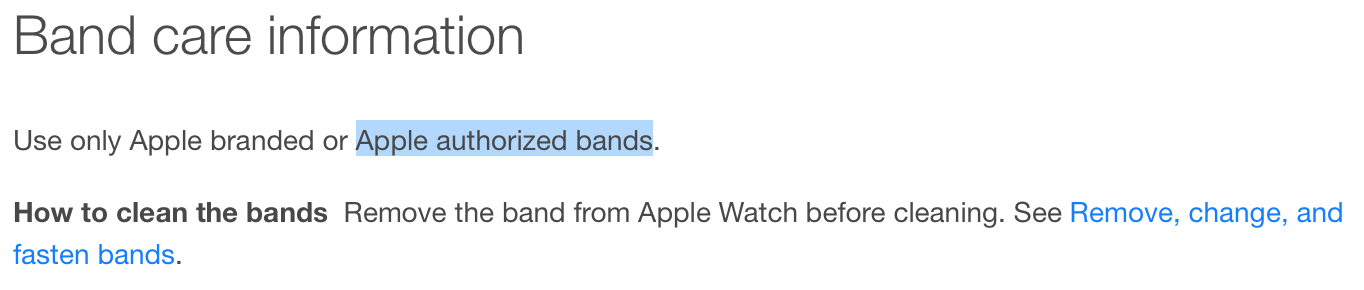
Apple’s recently published User Guide for the Apple Watch appears to reveal that Apple is planning an authorized program for non-Apple branded Apple Watch straps:

Apple is yet to announce such a program, but such an offering for the future makes sense given Apple’s official “MFI” accessory programs for the iPhone, iPad, and iPod. A marquee feature of the Apple Watch is its ability to be quickly attached to various bands via a standard connection on the two sides of the device.

While Apple has not yet announced an authorized program for third-party bands, some enterprising accessory makers have already announced bands ranging from unique leather designs to bands that pack in backup batteries for on-the-go charging. Apple sells branded straps such as the Link Bracelet and Leather Loop.

Thanks, @MacTimeTV


Expand
Expanding
Close

Apple publishes the Apple Watch User Guide online, explaining various hardware features and bundled apps

Site default logo image

Update: Now available on iBooks to download on iPhone, iPad, iPod touch and Mac.

Apple has today posted its Apple Watch User Guide, as customers begin to receive their Watches starting tomorrow. The guide serves as an accompaniment to the Watch, teaching users how to navigate around the interface and access various features. The guide covers all of the native first-party Apple Watch apps as well as general user-interface tips and tricks.

There is also a section on pairing the Watch, which will prove useful when Watches start being distributed into customers hands from tomorrow morning. There is also information about how to properly take care and clean the Apple Watch bands.


Expand
Expanding
Close

The best travel accessories for your MacBook Air, MacBook Pro, or Retina MacBook

Traveling with any MacBook is a lot easier today than it was five or ten years ago. Apple’s latest laptops consume much less space than their predecessors, and last much longer when they’re in active use. Whether it’s on a seat-back tray or resting in your lap, your MacBook can deliver quite a few hours of productive work time, video viewing, or even gameplay without assistance. But it can do even more if you bring the right accessories along.

My goal is to help you choose the best items to carry with you on the road — the type of items I’ve spent years testing. The picks below are highly practical and focused to make good use of space and address real-world concerns that many travelers have. Read on!


Expand
Expanding
Close

Apple Watch user-interface still seems confusing? There’s a workshop for that …

Site default logo image

Following the try-on appointments that allowed 15 minutes hands-on time with an Apple Watch (or an hour for the Edition), Apple is offering Apple Watch Basics workshops at selected retail stores. Appointments can be booked now, and the earliest workshops take place on the official (or perhaps now unofficial) launch date of 24th April.

It’s unlikely many people will have received their Apple Watch by this date, and you won’t be able to buy one in-store before June, but if the tutorial videos or unofficial cheat-sheet still leave you wanting more, the workshops seem a good opportunity to get to grips with the new device … 
Expand
Expanding
Close

Confused by the Apple Watch user interface? Here’s your handy quick-start guide

Site default logo image

The Apple Watch user interface may grow to be second-nature in time, but almost everyone who has tried onemyself included – has found themselves somewhat bemused at first. Do you swipe the screen? Tap it or Force Touch it? Do you scroll with vertical swipes or using the digital crown? Do you single-press, double-press or press-and-hold the crown? And when do you use the contacts button (nope, it’s not just for contacts)?

Redditor macamacamac (I’m guessing he likes Macs) has put together a really handy visual guide showing exactly how you move between the different views … 
Expand
Expanding
Close

How-To: Reclaim your Mac’s old hard drive or build a new one with an external USB enclosure

Earlier this year, I wrote several guides to boost the speeds of older Macs by swapping their internal hard drives for super-fast solid state drives (SSDs). As readers have confirmed, their older iMacs, MacBooks, and Mac Pros have seen dramatic improvements with new SSDs. But some people were left with a question: what should I do with my Mac’s old hard drive? Throw it away?

A great answer: put it in an external hard drive enclosure and keep using it! My latest How-To shows you how easy it is to reclaim your Mac’s old drive by installing it in a nice USB enclosure such as Akitio’s SK-3501U3 (shown here), which I chose because of its Mac-matching design, reasonable sub-$40 price, and compatibility. External enclosures are also ideal options if you want to choose a high-quality hard drive mechanism for yourself, rather than taking a risk on whatever might be hidden inside a fully-assembled external drive. I’ll explain that, and much more, below…


Expand
Expanding
Close

Site default logo image

iOS 8.3 How-to: Type like a Vulcan

With Apple’s release of iOS 8.3 and OS X 10.10.3, there are now over 300 new emojis including diversity options. Apple uses the unicode emoji set, which includes Spock’s Vulcan salute. However, Apple hasn’t added the Vulcan salute — or “raised hand with fingers separated between the ring and the middle finger” symbol as it’s officially named — to the emoji keyboard, so you cannot type it without creating a workaround. There is a trick, however, that can be done by creating a keyboard shortcut.

Open up this tweet on your iOS device. Then you are going to copy the emoticon by tapping and holding on it. Then press Copy.

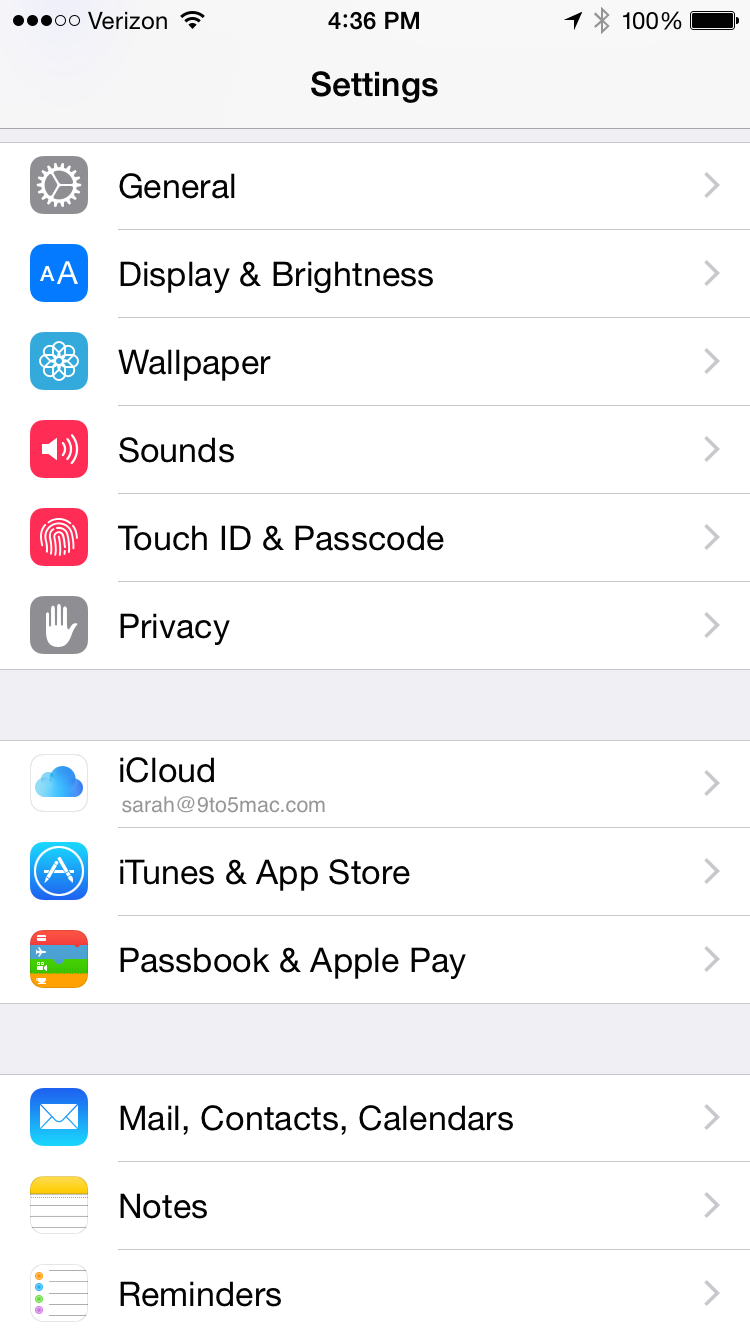
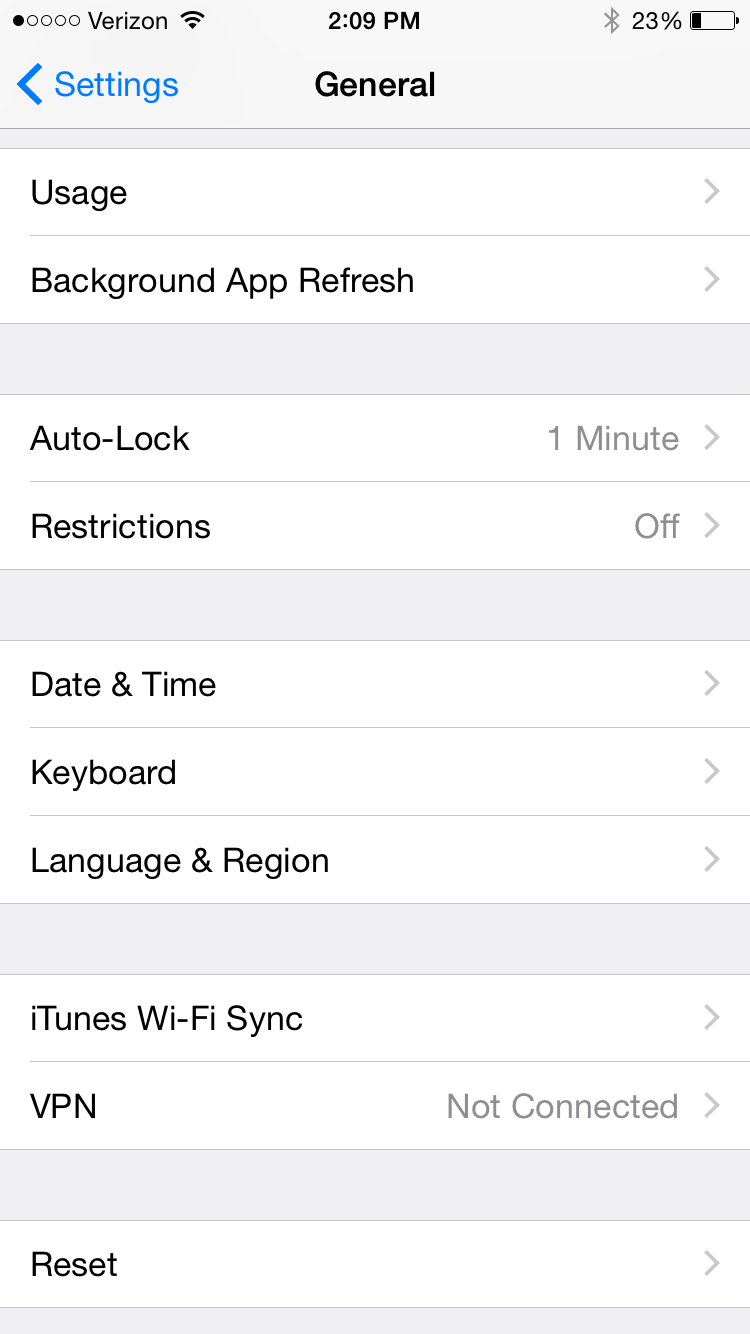
Since we copied Vulcan salute emoji, we can now create the text shortcut. Open up Settings, and then select General.

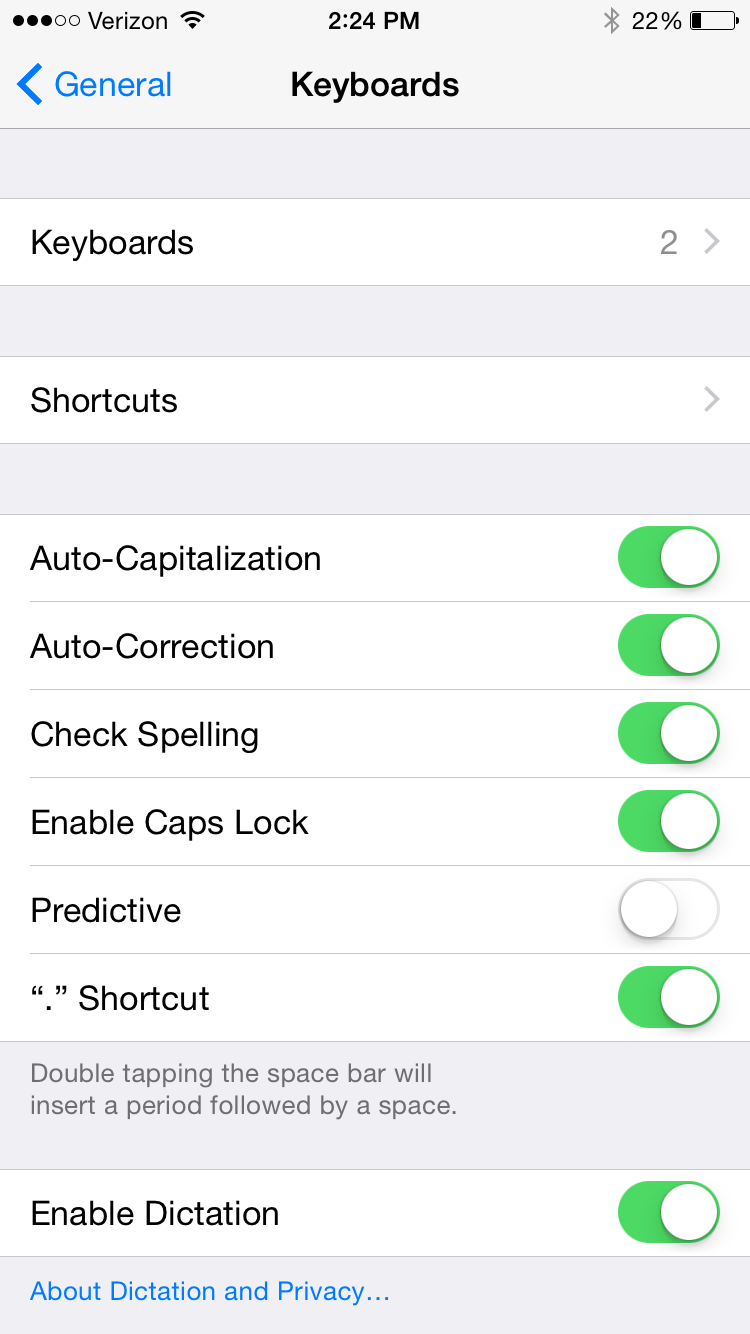
Scroll down and select Keyboard.

Then select Shortcuts.


Expand
Expanding
Close

OS X Yosemite How-To: Move your iPhoto or Aperture library to Photos

Site default logo image

Apple’s latest app Photos is now available for free as part of OS X 10.10.3 for Mac. The new app is the future of photo management from Apple with support for iCloud Photo Library, burst photos, slow-mo and time lapse videos, and more. Here’s how to migrate your photo library to the new Photos app from iPhoto or Aperture, both of which will no longer receive support for software updates going forward:


Expand
Expanding
Close

Site default logo image

iOS 8.3 How-to: Report iMessages as junk

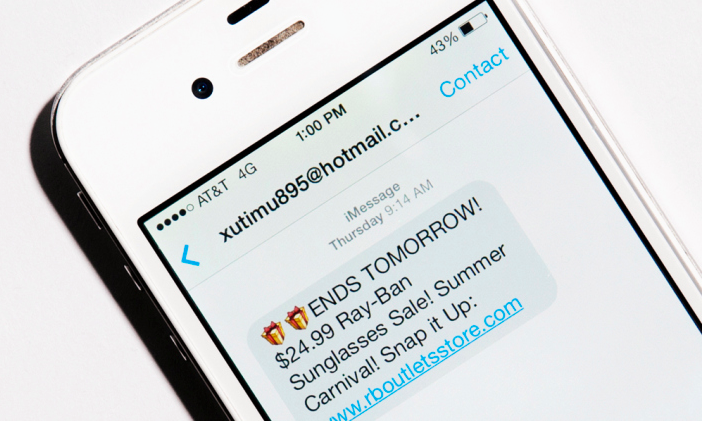
If you use iMessage, it’s possible to receive junk messages due to the fact that spammers only need the email address associated with your Apple ID. You’ve always been able to report spam messages to Apple by sending an email containing a screenshot of the spam, the phone number or email address of the spammer, and the date and time it was sent. But let’s face it, most of us probably didn’t bother reporting the spam or going through that much trouble to do so. With iOS 7, Apple added the ability to block numbers, which helped to some extent. Now with today’s update of iOS 8.3, however, the process of reporting spam received through iMessage has become even easier. iOS 8.3 also added the ability to organize messages between Unknown Senders and senders already in your contacts.


Expand
Expanding
Close