How-to

See All Stories

A collection of tutorials, tips, and tricks from the 9to5Mac team helping you fix and get the most out of your favorite gear.
9to5Mac How To tutorials

Top tutorials and guides

iPhone how-tos

Mac how-tos

iPad how-tos

Apple Watch how-tos

How-To: Choose the best stand or desktop mount for Apple’s iPads and Macs

Apple currently sells more “laptop” than “desktop” Macs, but in reality, most Macs will be used substantially on flat surfaces — desks, tables, and sometimes nightstands. iPads are more lap-friendly, but also tend to get used upright, particularly for watching videos and access in the kitchen. Since I’ve spent a lot of time testing Apple device stands and mounts, I wanted to share what I’ve learned with you, so you can choose the solution that best suits your Mac, iPad, or both at the same time.

Below, I’ve hand-picked options for different types of users, starting with passive MacBook stands such as Twelve South’s BookArc for MacBook Pro ($50). Made from Mac-matching aluminum with gray rubber inserts, BookArc is designed to safely hold a MacBook Pro upright so that its ports and SD card reader are easily accessible. Twelve South also sells a smaller version of BookArc for the MacBook Air, a bigger BookArc for the Mac Pro, and an earthy version called BookArc mod for fans of wood. That’s a rarity, as most Mac and iPad stands are designed to match Apple’s products, as you’ll see inside…


Expand
Expanding
Close

How-To: Upload your photos into iCloud Photo Library from your iOS device and iCloud.com

Site default logo image

Apple announced Photos last year during the WWDC. The Photos app along with iCloud Photo Library will allow you to store all of your photos in the cloud with iOS 8 and OS X Yosemite, provided you upgrade your iCloud storage space to accommodate your iCloud Photo Library. Photos will end up replacing Aperture and iPhoto. You can upload your pictures to iCloud Photo Library via iCloud.com. Currently this feature is in a public beta and this how-to article will discuss how to get a head start and upload your pictures to iCloud Photo Library before Photos becomes available for the Mac to the public.


Expand
Expanding
Close

Apple Watch FAQ: preorders, try-on appointments, availability – what you need to know

With just over a week before Apple Watch previews and reservations kick off in Apple retail and online stores, there are a few things to keep in mind if you’re planning on purchasing the device in the early weeks of availability.

Apple is making big changes to its retail sales process with a completely new approach to in-store demos for what is the company’s first product to cross over into the fashion world. There has been a lot of news surrounding Apple’s reservation and in-store sales experience for Apple Watch, so we’ve put together a concise list of FAQ’s for everything you’ll want to know for launch this month.
Expand
Expanding
Close

Site default logo image

iOS 8 How-To: Use Siri to search the App Store, iTunes Store and iBooks Store

Sometimes searching the App Store can be an overwhelming task. You might already know what you want to download, or other times you might get distracted when you open the store and forget why you were there, and typing in what you want to download is old fashioned now. With iOS 8, you can use Siri to search the App Store, iTunes Store, iBooks Store, and more for you. It’s all a matter of asking Siri with the right commands.

Press down and hold on the home button for two seconds for Siri to appear.

For example you can say something like, “Search the App Store for sports apps,” and Siri will open up the App Store and bring you to the search results of sports.


Expand
Expanding
Close

How-To: Decode Apple’s Tech Specs pages before buying a new Mac, Part 2

As I noted in Part 1 of How-To: Decode Apple’s Tech Specs pages before buying a new Mac, Apple has designed the Mac purchasing process to be easy: pick a model, pick the good, better, or best configuration, hand over your cash, and enjoy your computer. Since most people get confused by tech specs — bullet points filled with numbers and acronyms — Apple downplays them in its marketing materials, leaving customers to sort through the details and figure out what most of them mean.

But these specs are really important when you’re shopping for the right Mac for your current and future needs. So I’ve created this How-To guide to walk you through each of Apple’s Tech Specs pages using clear explanations, hopefully enabling you to properly understand what you’re about to buy. Part 1 focused on the “big 5″ Mac specs you really need to know about, and this Part 2 looks at the rest — generally things that remain the same in a given model, regardless of the configuration you choose…


Expand
Expanding
Close

How-To: Decode Apple’s Tech Specs pages before buying a new Mac (Part 1)

Buying a Mac is designed to be easy. Apple has a handful of different models, each generally available in good, better, and best configurations. You’re supposed to start with the specific Mac model that fits your needs, pick a configuration that has the price and features you want, and walk away happy with your purchase. (Better yet, do your research online and save money after ordering from Amazon, or use the product guides off to the bottom right of this page.)

One thing Apple tends to downplay are tech specs — important numbers and acronyms that nonetheless confuse many people. Look carefully on Apple’s web site and you’ll find that there’s a Tech Specs page for every Mac Apple sells; they’re the keys to making an informed Mac purchase that will be right for your current and future needs. My latest How-To is here to walk you through each of Apple’s specs with clear explanations, so you can understand what you’re about to buy. This Part 1 discusses the “big 5” Mac specs you need to know about, and Part 2 tackles the rest


Expand
Expanding
Close

How-To: Rearrange and hide Apple TV channels to personalize and declutter your home screen

Site default logo image


As the current Apple TV continues to add countless new and sometimes unfamiliar channels to the home screen, the out-of-the-box experience grows increasingly complex for new and existing users. The Apple TV home screen consists of colorful rectangles that represent various content providers for serving up entertainment over the Internet to your television, but actually finding something to watch can prove difficult and intimidating for even a seasoned Apple TV owner. Many of the channels require authenticating an active cable or satellite subscription to unlock full access while others are interest-specific likes sports or culture.

Apple TV’s user interface is meant to simulate an iPhone or iPad home screen with apps being channels and the theme optimized for the living room, and you can customize the app arrangement on your Apple TV similarly to your other iOS devices. While you cannot explicitly delete channels from your Apple TV, you can rearrange or even hide all but the very top row of channels in a few short steps provided in this How-To guide.
Expand
Expanding
Close

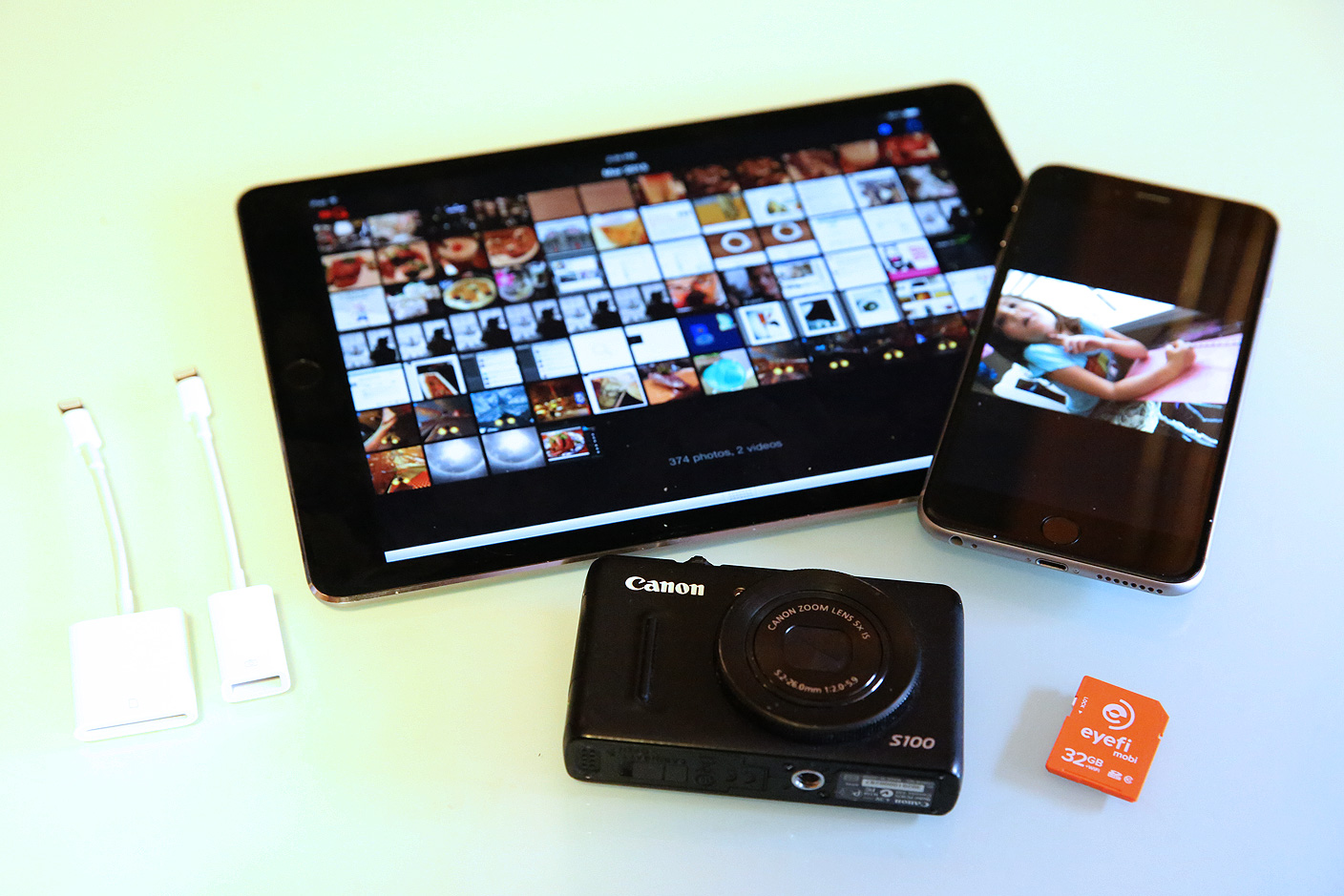
How-To: Transfer, edit, and share DSLR or point-and-shoot photos using your iPhone or iPad

Apple’s iPhones became Flickr’s most popular camera phones in 2008 and most popular cameras overall soon thereafter, but even now, iPhones constitute only 9.6% of the photo-sharing site’s userbase. Despite the iPhone’s undeniable popularity, over 90% of photographers are using other cameras: Canon has a 13.4% share, Nikon 9.3%, Samsung 5.6%, and Sony 4.2%, with tons of other brands following close behind. While the cameras in phones continue to improve every year, they’re not the best tools for photography — they’re just the ones most people carry with them all the time.

If you shoot photos with a DSLR or point-and-shoot camera, you probably aren’t sending images directly to the Internet from the camera itself. You probably come back home, transfer your photos to your computer, then edit and share them with Adobe’s Photoshop Lightroom or one of Apple’s three photo management apps — iPhoto, Aperture, or the beta version of Photos.

For around $30, your iPhone or iPad can change the way you shoot, edit, and share photos. Using the right accessories and apps, you can easily publish DSLR-quality photos a minute after snapping them. I’ve been doing this for years, and it works incredibly well; today, it’s actually better than at any time in the past, thanks to recent iPhone and iPad hardware improvements. This new How-To guide will walk you through everything you’ll need to know to use your iPhone or iPad as a photo editing and sharing station, looking at photo transferring accessories, editing software, and sharing options…


Expand
Expanding
Close

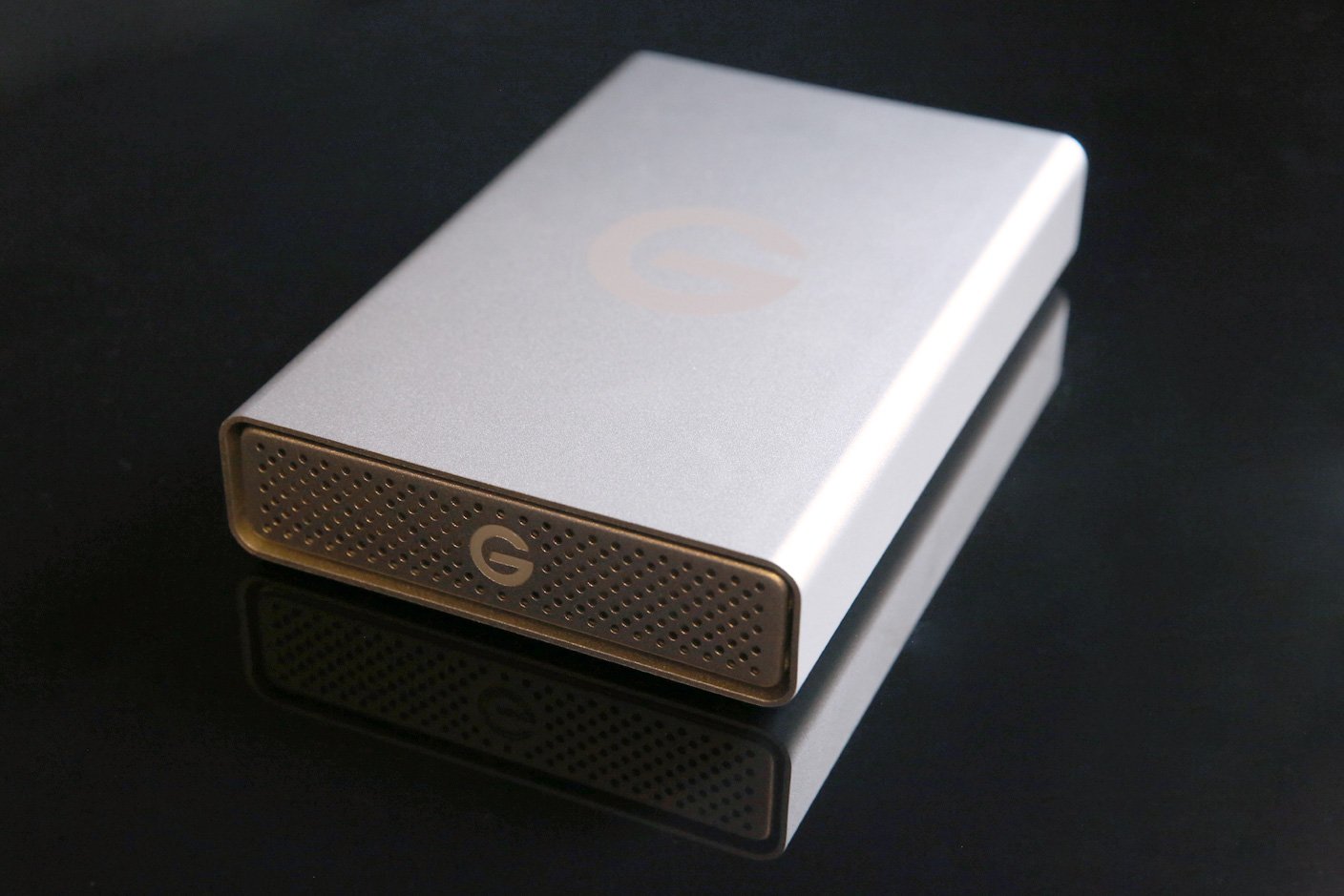
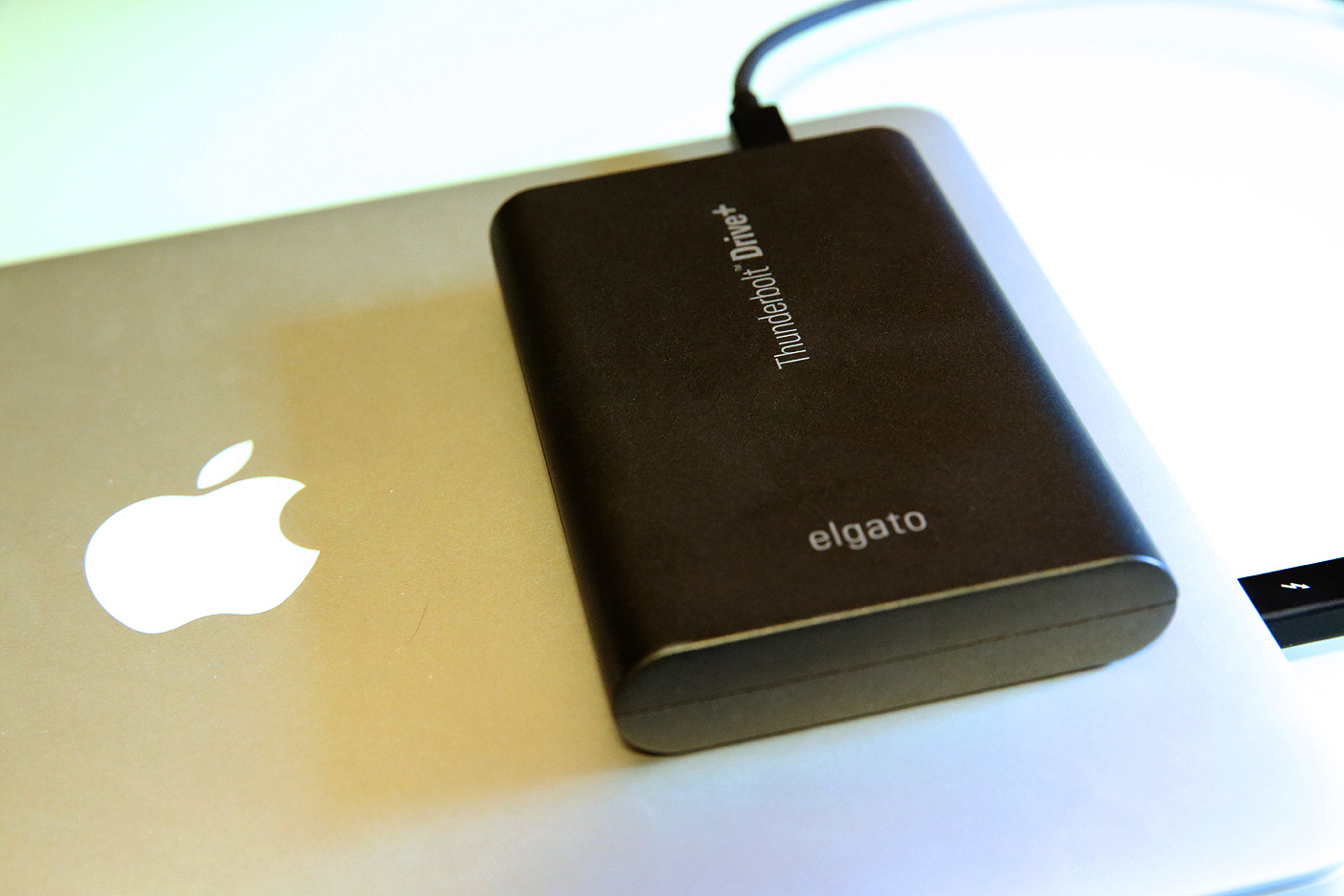
How-To: Choose the best external hard drive for your Mac (or iOS device!)

I feel old saying this, but having used computers since before external hard drives existed, I can say with certainty that buying a hard drive is easier today than it’s ever been before. For traditional drives, prices are low, options are numerous, and capacities are so high that your only choices are “enough space,” “more than enough space,” and “way more than enough space.” I could point you towards a gigantic 5-Terabyte $139 Seagate USB 3.0 hard drive right now and end this article without another paragraph. Since Apple doesn’t even sell a Mac with that much disk space, you could back up five (or more) computers to that drive without running out of room. Or you could store a decade worth of digital photos alongside a giant media library. For $139!

But buying an external hard drive isn’t necessarily that simple. There are a bunch of factors worth considering before making a purchase, including everything from reliability to portability, design, capacity, speed, and connectivity. Some hard drives are really cheap but have a higher chance of failing after a year or two of heavy use. So in this How-To, I’m going to discuss the big issues you need to consider, and guide you towards the best external hard drive for your needs…


Expand
Expanding
Close

How-To: Boost your Mac’s speed and prolong its useful life with easy RAM upgrades

Site default logo image

As I’ve spotlighted over the past month, the best way to dramatically speed up an older Mac is to replace its old hard drive with a new solid state drive (SSD). The process is super-easy on MacBooks and Mac Pros, surprisingly manageable on iMacs, and challenging on Mac minis, yielding 3X to 5X speed boosts. But there’s another option that can speed things up with relatively little effort or expertise: upgrading your Mac’s RAM.

RAM upgrades are easy and cheap. You can expect to pay $90 or less for enough (Mac-safe) RAM to run OS X Yosemite without hiccups, or $180 for enough RAM to guarantee you won’t need more for years. Installing RAM generally doesn’t void your Mac’s warranty, and except for several models, the only tool you’ll need is a small screwdriver. Below, I’ll walk you through your best options.


Expand
Expanding
Close

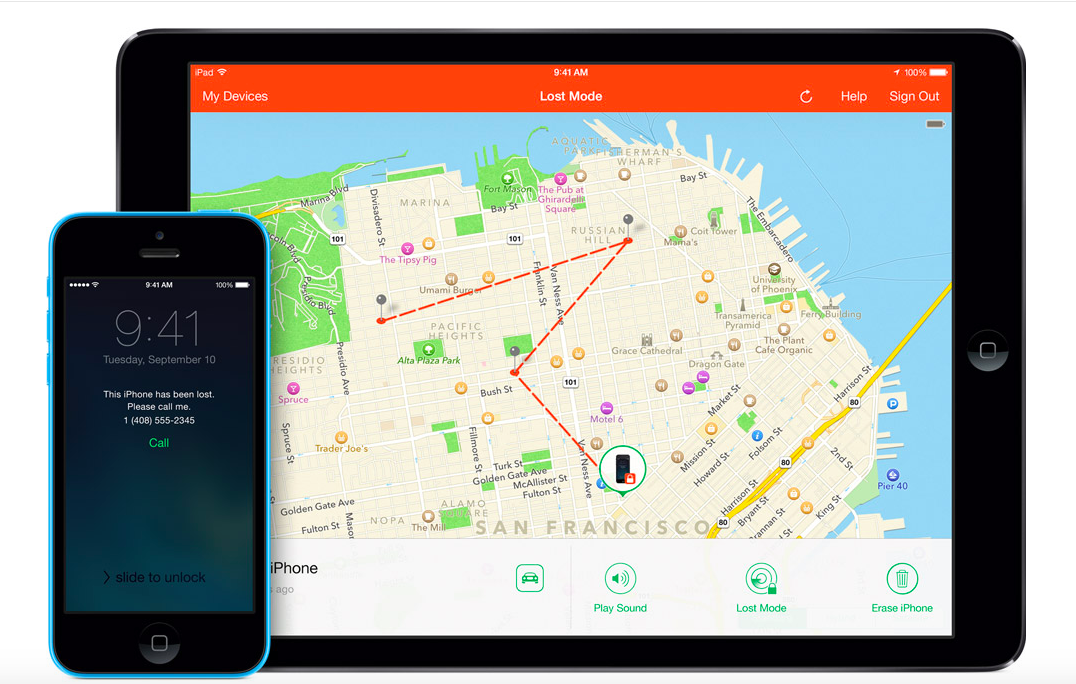
iOS 8 How-to: Set up and Use Find My iPhone, iPad and iPod touch

Site default logo image

Find My iPhone was first released in June 2010 initially for the iPhone. Now, Find My iPhone allows you to track the location of your device, be it an iPhone, iPad or iPod Touch, in case it gets lost or stolen. This is a great benefit because when you locate your device using Find My iPhone, the device makes noise until it is found and will show you were it is located using Apple Maps. Recently, the police used Find My iPhone to track and save a woman’s life. However, Find My iPhone did require the device to be turned on and connected to the internet in order for it to work completely. New with iOS 8, you have the option to automatically send the location of the device to Apple when the battery is critically low. In this how-to I will discuss how to set up Find My iPhone, and how to use Find My iPhone.


Expand
Expanding
Close

How-To: Upgrade the SSD in your MacBook Air or Retina MacBook Pro, boosting size & speed

Over the past two weeks, I’ve written about the (surprisingly easy) process of adding solid state drives (SSDs) to radically speed up older iMacs, and the varied challenge levels of adding SSDs to older Mac Pros, Mac minis, and non-Retina MacBooks. Today’s guide looks at the easiest SSD installations of all: the MacBook Air and Retina MacBook Pro. A new SSD in one of these machines could have two, four, eight, or sixteen times the original storage, plus two to four times faster speeds.

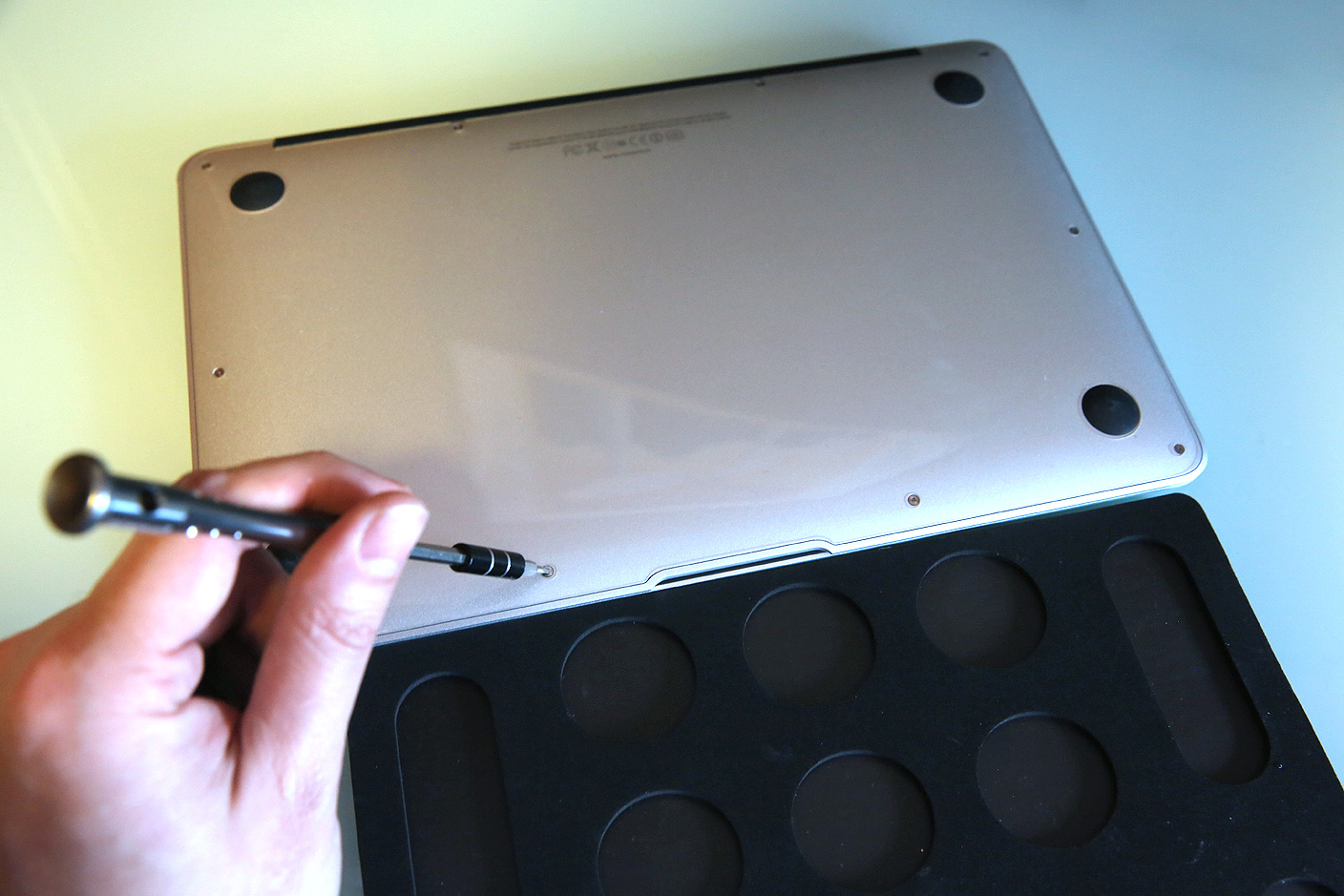
Apple shipped most MacBook Airs and all Retina MacBook Pros with solid state storage, so upgrading these machines for extra capacity and speed is generally as simple as picking a new drive, then using two special screwdrivers during the installation process. Assuming your MacBook is old enough to be out of warranty — except for a few specific models — you’ll find that pretty much anyone can handle this swap with the right tools. Below, I’m going to show those tools to you, as well as the MacBook-ready SSDs that are worth considering…


Expand
Expanding
Close

How-To: Update your old MacBook, Mac mini, or Mac Pro hard drive with a fast SSD

My Mac is now silent. After installing a solid state drive (SSD) with no moving parts, the drone of my iMac’s hard drive and fans has given way to such an absence of sound that I only hear the high-pitched squeal of my office lights.

My Mac is now fast. Even with 400GB of available space, OS X Yosemite’s constant hard drive accessing had brought my quad-core, 3.4GHz Core i7 machine to its knees. Now I’m seeing five times the hard drive speeds, apps are loading instantly, and my iMac feels as responsive as the MacBooks and iPads that beat it to the SSD game.

Last week, buoyed by (finally!) reasonable SSD prices and a desire to try a DIY project, I walked through the steps to replace a prior-generation iMac’s hard drive with an SSD. Similarly excited readers have pointed out that older MacBooks and certain other Macs are also easy to upgrade… but at least one Mac (surprise: the Mac mini) is not. So below, I’ll show you some great SSD options that you can install yourself, ask a tech-savvy friend/repair shop to handle for you, or choose as external solutions.


Expand
Expanding
Close

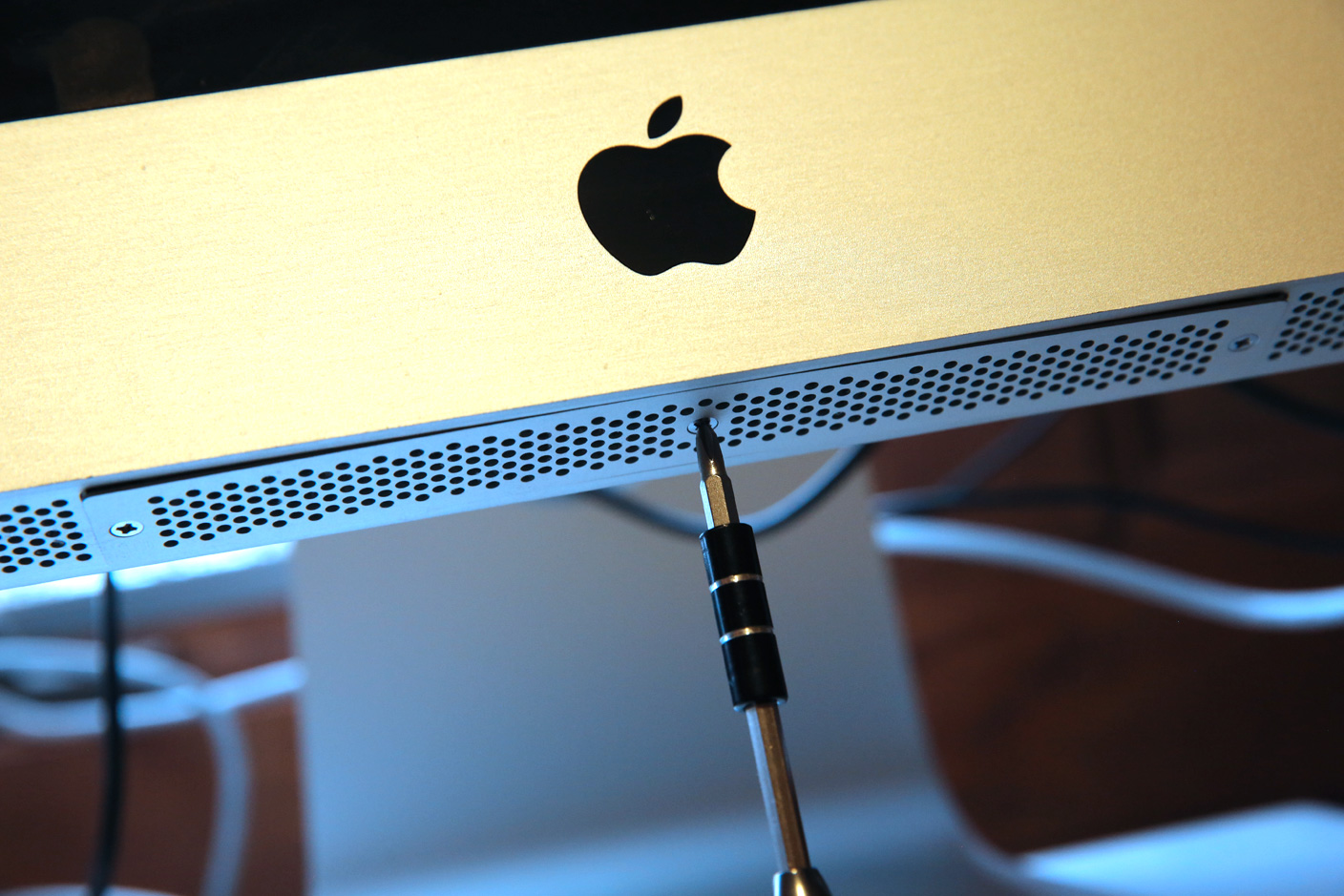
How-To: Now’s the right time to swap your old iMac’s hard drive for a fast new SSD

If you bought your iMac 3-5 years ago, there’s probably nothing so seriously wrong with the hardware that you need to consider replacing the machine. Sure, the new iMac with 5K Retina Display looks a little nicer, but at a steep $2,499 starting point, it’s still a luxury, not a necessity.

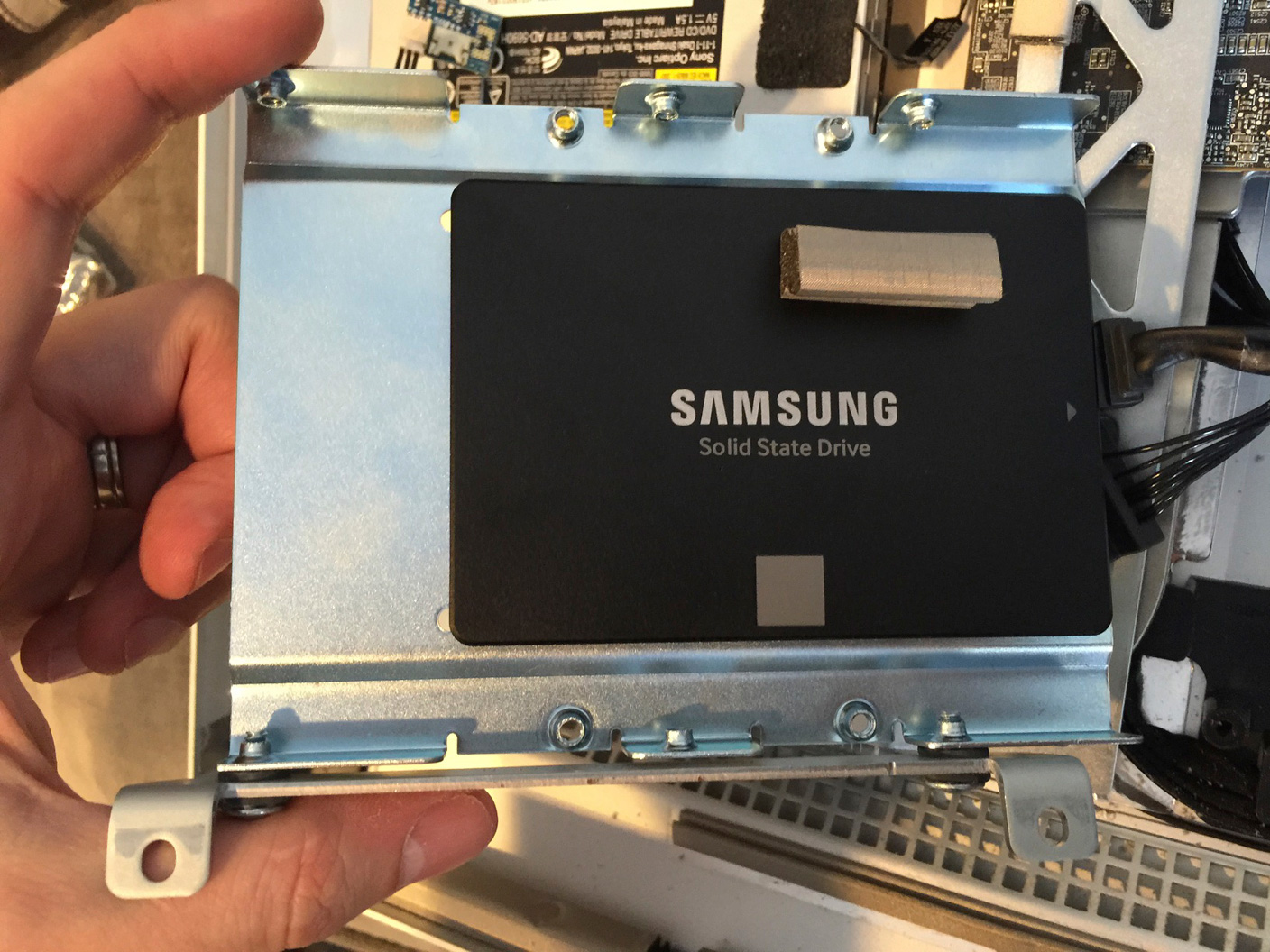
Yet there’s something you can do for $200 to $500 that will radically change your iMac’s performance: install a solid state drive (SSD) in addition to or instead of its original hard drive. SSDs use high-speed memory chips rather than the spinning platter mechanisms in traditional hard drives, achieving up to 5X benefits in speed while requiring no moving parts. Five years ago, SSDs were both expensive and limited in capacity, making them unlikely components for most Macs. Today, high-quality, capacious SSDs can be had for reasonable prices, and they’re surprisingly easy to install in iMacs. With limited expertise and only three tools, I swapped out my old hard drive for an SSD in roughly 30 minutes. Here’s how I did it, and – if you’re up for a quick do-it-yourself project – what I’d recommend for you.


Expand
Expanding
Close

Site default logo image

How to watch the Grammy Awards live stream on your iPhone, iPad, Mac or Apple TV

The 57th annual Grammy Awards are scheduled to take place this weekend on Sunday, February 8th, and CBS just sent over details on the only official live stream of the event accessible through iPhone, iPad, Mac, or on the big screen via Apple TV.

Head below for all the details on how to watch official streams for the event on your computer and all of your mobile devices.

iPhone/iPad: CBS mobile app

CBS has broadcasting of the event locked down this year, and so for mobile users the only official live stream available of the actual awards show will be the CBS app (US only).

It will require a CBS All Access subscription, however, and is also only available in 14 major markets, including: New York City, Los Angeles, Chicago, Philadelphia, Dallas, San Francisco, Boston, Detroit, Minneapolis, Miami, Denver, Sacramento, Pittsburgh and Baltimore. It’s clear CBS is trying to push its All Access service, which offers next day access to TV shows, live TV in some markets, and on-demand content, but you can watch using a free trial and cancel before it expires… 

Normally $6 month, you can take advantage of a free week trial of CBS All Access to watch the show.

The live stream kicks off at 8p.m. – 11:30p.m. live ET/ delayed PT.

The official GRAMMYs and CBS apps will have a live stream of the GRAMMY Awards Premiere Ceremony and red carpet festivities starting at noon PT/3 p.m. ET, and the app will offer a second screen experience of sorts for those viewing the awards on TV at home.

Stream the 2015 GRAMMYs LIVE with CBS All Access on February 8th at 8/7c! Get ready to tune in to the GRAMMYs live stream now by starting your free CBS All Access trial.

Mac/Apple TV: CBS.com

Again, CBS will be the only source of a live stream online through its CBS All Access service. The good news is you can grab a free week trial of CBS All Access, which will give you access on mobile devices as well. This will probably also be your best bet for AirPlay streaming or mirroring to the big screen via Apple TV.

Like on mobile devices, GRAMMY.com and CBS will have a live stream of the GRAMMY Awards Premiere Ceremony and red carpet festivities starting at noon PT/3 p.m. ET online, and also offer a second screen experience of sorts for those viewing the awards on TV at home. The main event takes place 8 p.m. – 11:30 p.m. live ET/ delayed PT.

Yosemite & iOS 8 How-to: Set up and use AirDrop

Site default logo image

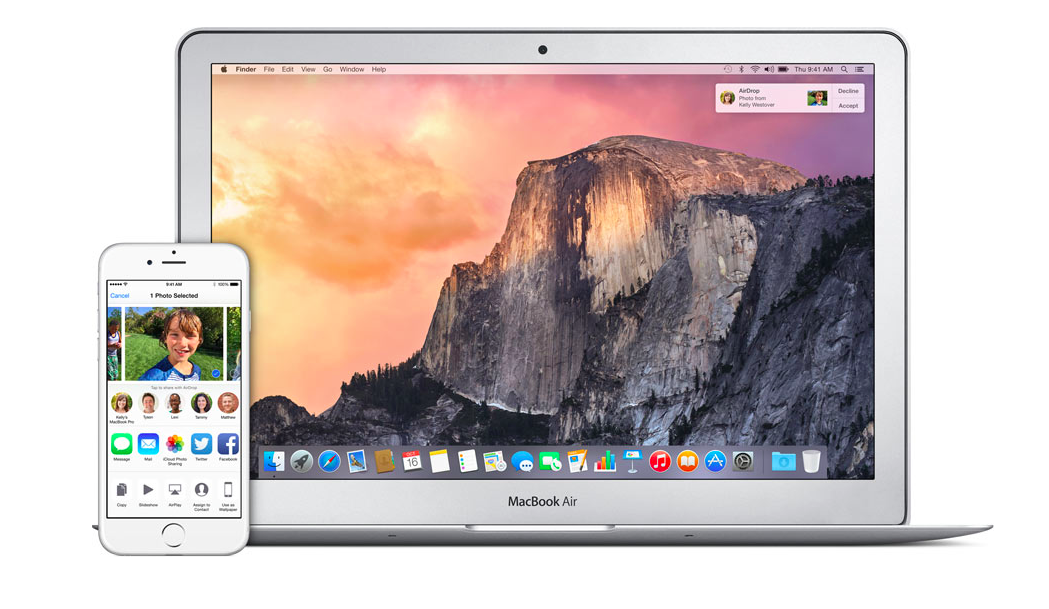
With Yosemite and iOS 8 you can use AirDrop to share files between your Mac and iOS devices. This is one of the features of Continuity, which further integrates and connects your Mac and iOS devices. Continuity also includes Handoff, Instant Hotspot, iPhone Cellular Calls and SMS Relay.

Initially AirDrop allowed you to share files between two Macs or between two iOS devices. Now, AirDrop allows you to share files and information between Mac and iOS devices. It is a device-to-device transfer that works even when the devices don’t have internet access, although Wi-Fi and Bluetooth have to be turned on. This includes sharing photos, videos, music, iWork documents, notes, contacts, links, directions and location data. Many third-party iOS apps like Dropbox, Runkeeper, eBay, Deliveries, and PDF Expert support AirDrop. Apple just added support to Logic to share files via AirDrop. When receiving a file, the recipient receives a notification, allowing them to download the file.


Expand
Expanding
Close

Made any tech-related New Year’s resolutions? Here are a few suggested ones

Site default logo image

One week into the new year, and with that post-holiday diet we promised ourselves still hanging in there, I thought it might be interesting to suggest a few tech-related New Year’s resolutions you might like to consider.

Don’t worry, though – it’s not all work and no play. Me being me, I’ve found a way to make a solid case for the new year being the perfect time to treat yourself to a gadget or two … 
Expand
Expanding
Close

Grab a big iOS App designer bundle (MSRP: over $1000) for only a few bucks

Site default logo image

From 9to5Toys Specials:

Specials.9to5toys.com is running a **special** on an iOS app designer bundle that up and coming iOS app designers will likely want to take advantage of.  This is an “NYOP bundle”, meaning that people can name their own price to get 2 courses (Learn Mobile Web Design Using Bootstrap & Learn To Build Cross Platform Apps). Or, if you beat the average price, you’ll get the entire bundle (7 courses & assets). This evening that is only a few bucks plus 10% goes to charity of your choice and high bidders get a chance to win a Gold iPad Air/ iPhone 6. The bundle includes:


Expand
Expanding
Close

Site default logo image

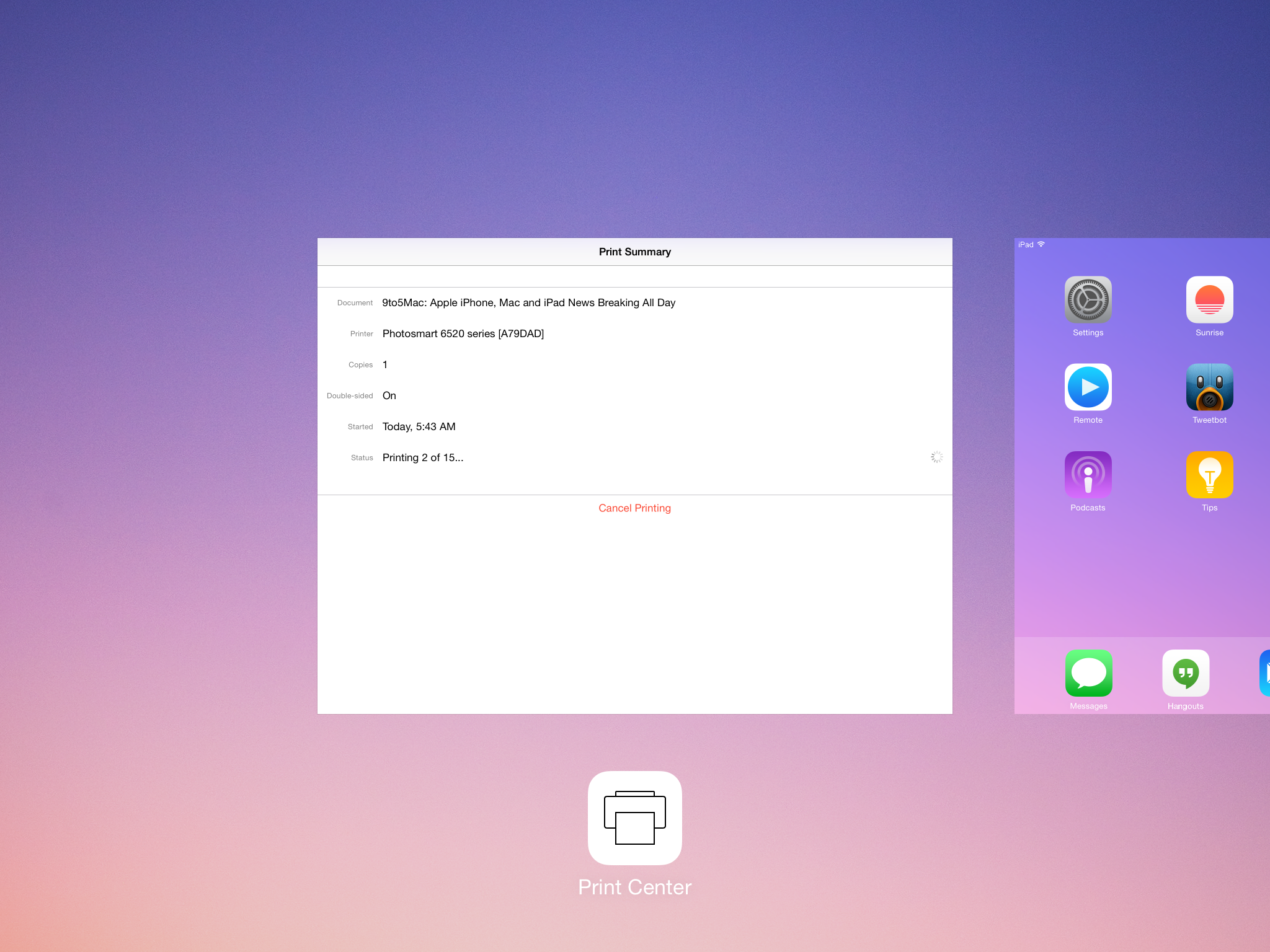
iOS 8 How-to: Print wirelessly from iOS device

Sometimes you may need to print something from your iOS device. In this how-to article I will discuss how to wirelessly print from your iOS device.

First of all you need an AirPrint compatible printer. Apple does not make printers. Brother, Canon, Dell, EpsonHP, Konica Minolta, Kyocera, Lexmark, Samsung, and Zink offer a variety of AirPrint printers differing on printer speed, printer resolution, type of cartridge and functionality. For a complete list of AirPrint compatible printers, visit Apple’s support page. You also need to make sure that your iOS device is connected to the same Wi-Fi network as your printer.


Expand
Expanding
Close

Free 50-minute video tutorial video shows you how to make an Apple Watch app

Site default logo image

If you want to get quickly up to speed on the basics of creating an Apple Watch app following the release of WatchKit, developer Nick Walter has put a free 50-minute video tutorial online. You can also sign up for a full online course for just $39 on Kickstarter – saving $161 on the likely launch price.

Walter gained a certain amount of fame recently when Forbes reported that he made $66,000 in one month following a similar Kickstarter campaign for a course in making iPhone apps … 
Expand
Expanding
Close