Jeff is the head of video content production for 9to5. He joined 9to5Mac in 2016, producing videos, walkthroughs, how-tos, written tutorials, and reviews. He takes pride in explaining things simply, clearly, and concisely. Jeff’s videos have been watched hundreds of millions of times by people seeking to learn more about today’s tech. Subscribe to 9to5Mac on YouTube to catch Jeff’s latest videos.
iOS Decoded is Jeff’s flagship video series that breaks down what’s new in iOS betas, including behind-the-scenes deep dives into undiscovered features and exclusive details on the iOS roadmap.
Jeff also produces a weekly podcast, alongside co-host Fernando Silva, entitled 9to5Mac Overtime. A video-first podcast, 9to5Mac Overtime airs weekly on our YouTube channel, but can also be enjoyed in audio form via Apple Podcasts, or your podcast app of choice.
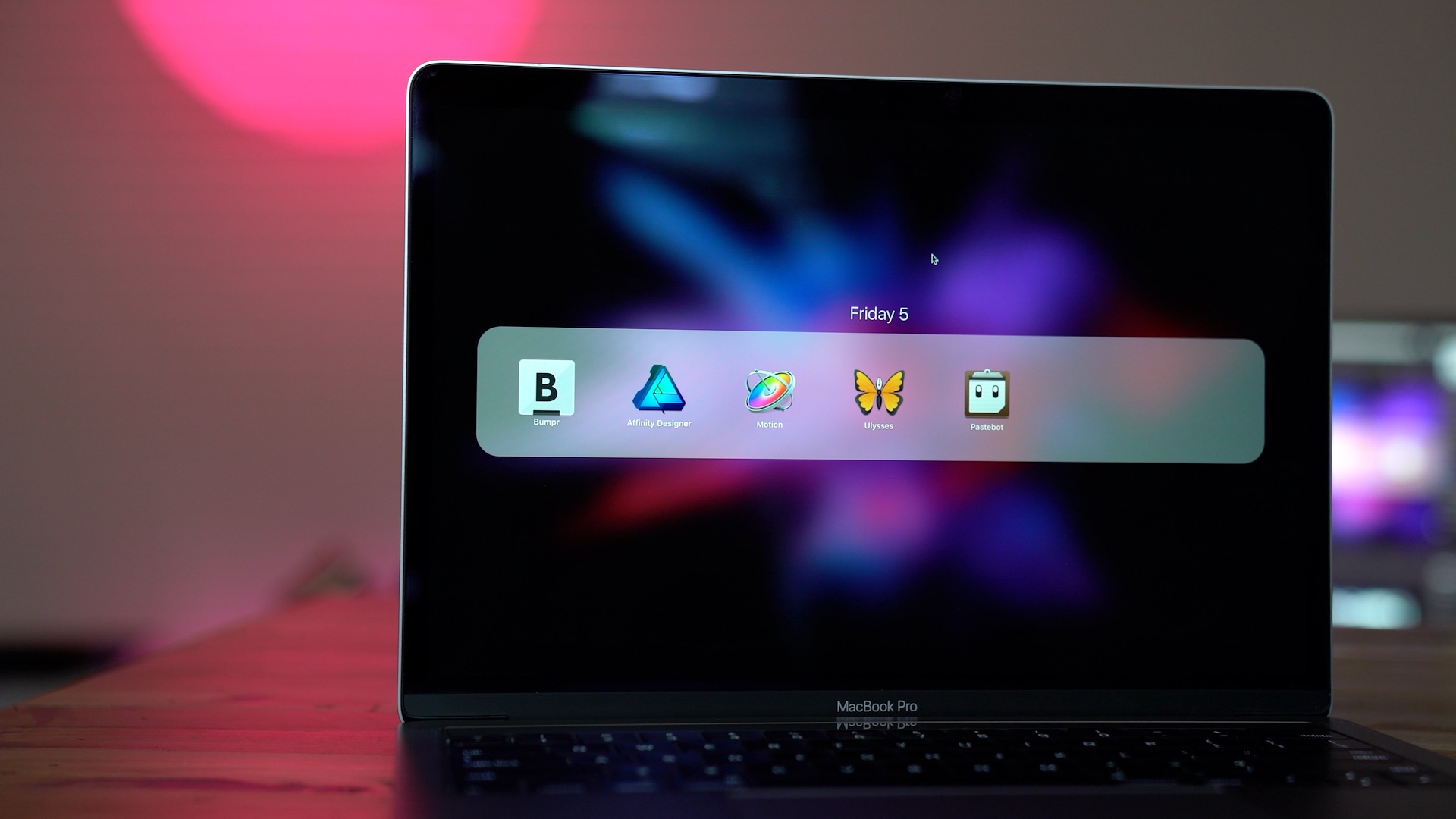
On this week’s edition of Friday 5, we explore several additional paid Mac App Store apps that I use on a regular basis. Apps include titles like Bumpr, which lets you choose the browser that links are opened in, along with Affinity Designer, a remarkably deep vector illustration app that can be had for an outstanding price.
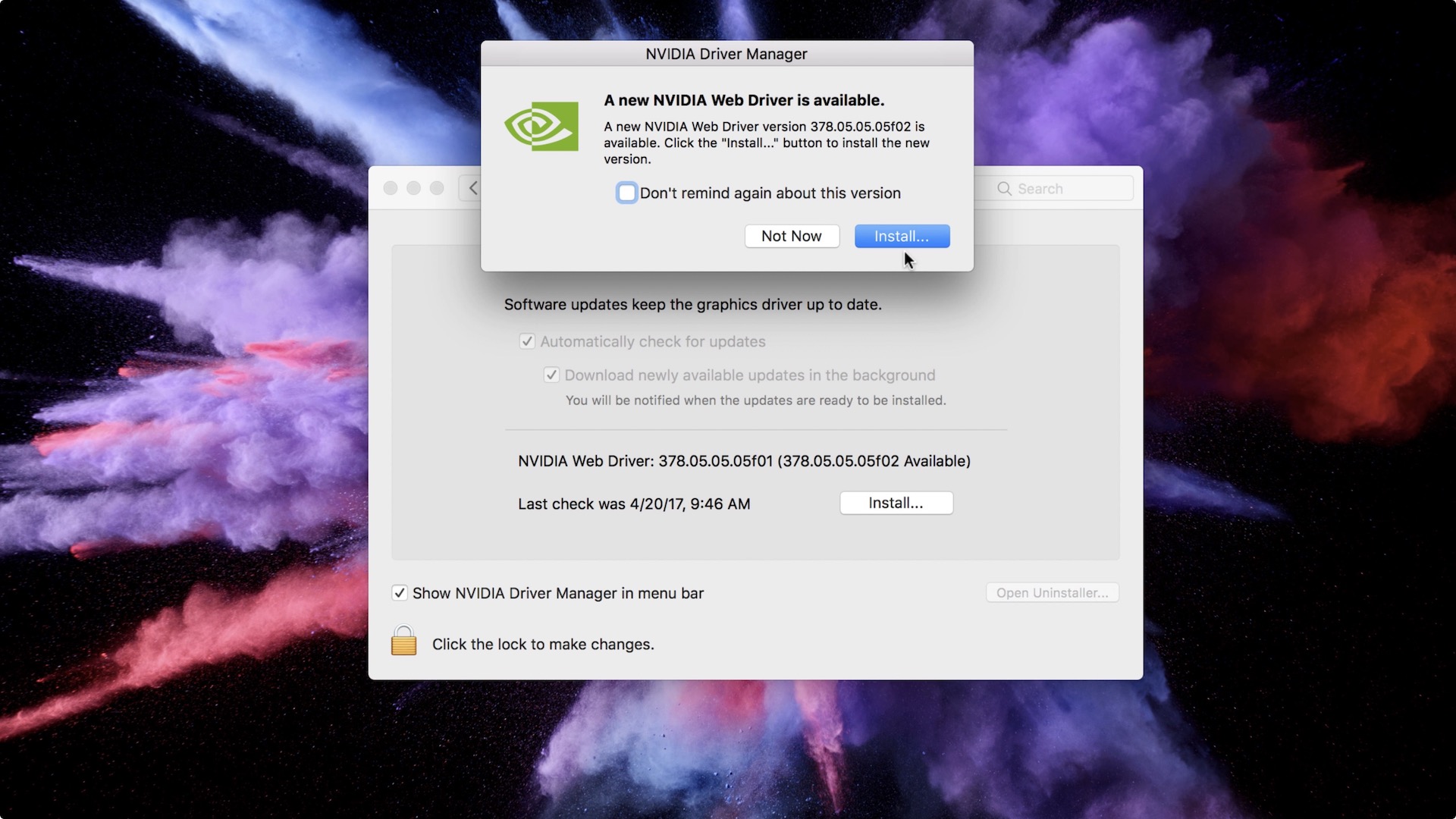
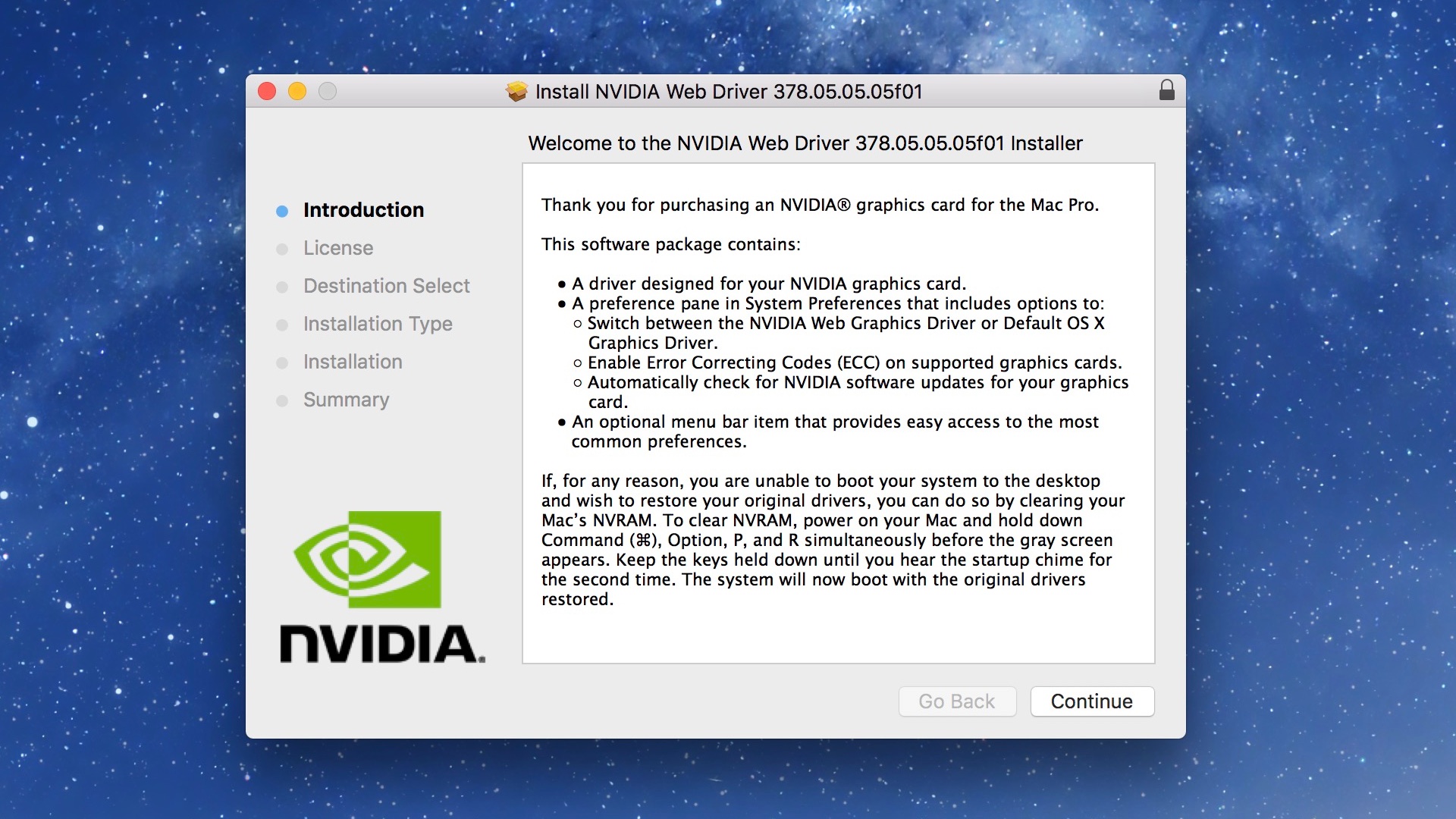
An updated version of the Nvidia Pascal Web Driver for macOS has been released. Version 378.05.05.05f02, which supersedes the previous 378.05.05.05f01 release, includes a fix for those experiencing issues with Night Shift on macOS Sierra 10.12.4. Expand Expanding Close
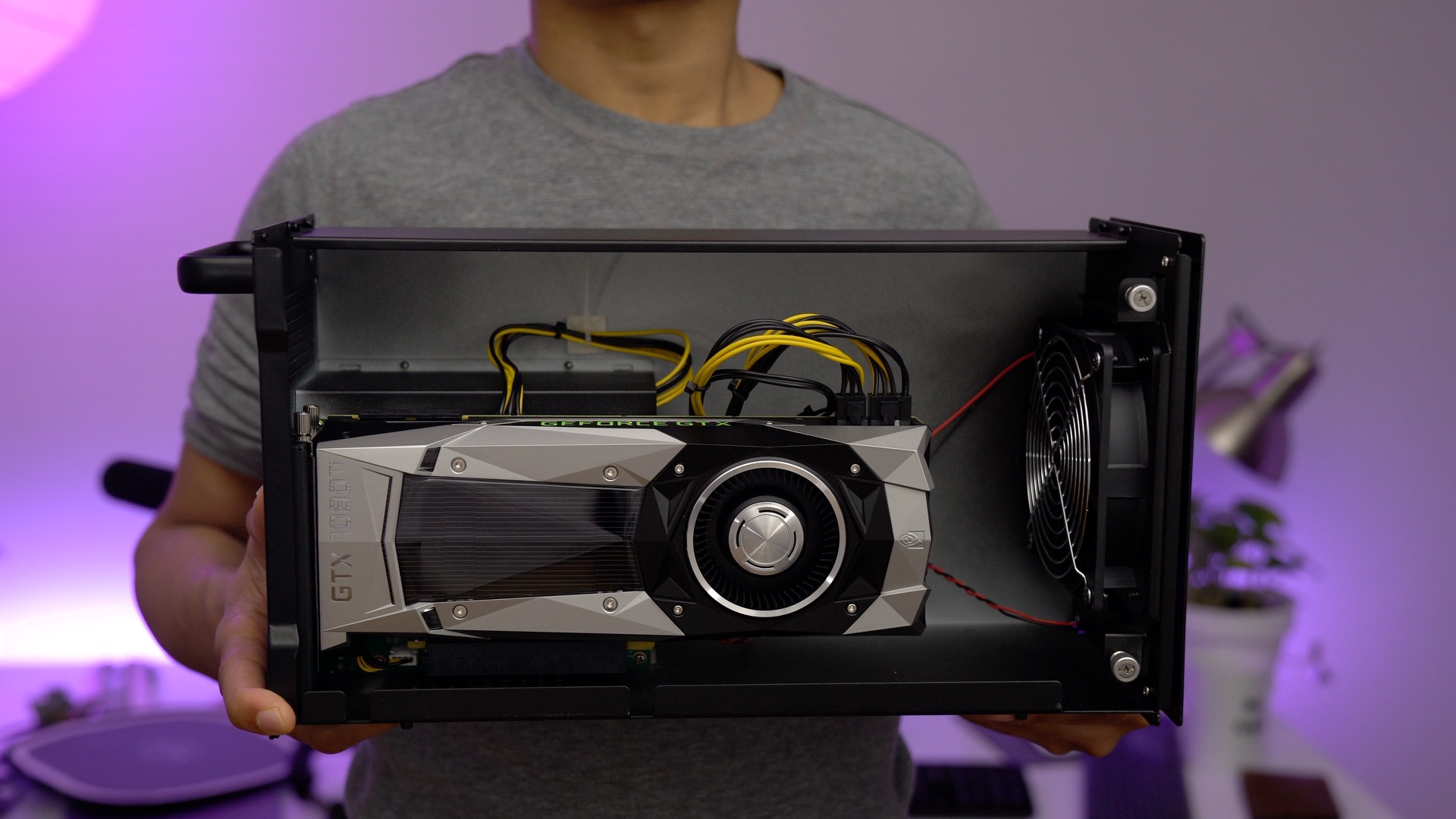
After last week’s exciting release of Nvidia’s beta Pascal drivers for Mac, I was looking forward to trying the top of the line consumer GPU with my MacBook Pro. That GPU is none other than the venerable GeForce GTX 1080 Ti — a $700 card with 11 Gbps of GDDR5X memory and a 11 GB frame buffer. Needless to say this card is one that will interest those looking to push their games to the next level.
I took the time to install my EVGA GTX 1080 Ti FE inside of my Akitio Node external GPU enclosure. After connecting the unit to my 2016 MacBook Pro via a Thunderbolt 3 cable, all it took was a simple shell script and a reboot to get the unit working with a (required in macOS) external display.
Nvidia’s drivers are still in beta, and from my hands-on time, the experience is far from perfect in macOS. That said, you can most certainly see the potential and performance differences between the 13-inch MacBook Pro’s integrated Intel Iris Graphics 550 GPU, and the beastly 1080 Ti. As expected, it’s also a lot faster than the GTX 1050 Ti that I tested last week.
If you’re looking to truly experience the power of such a card with the MacBook Pro, however, you’ll need to step into the Windows world, and run a Boot Camp installation. The GTX 1080 Ti + Windows turns the MacBook Pro into an insanely powerful and flexible gaming machine with just a single Thunderbolt 3 cable. Watch our hands-on video walkthrough as we explain. Expand Expanding Close
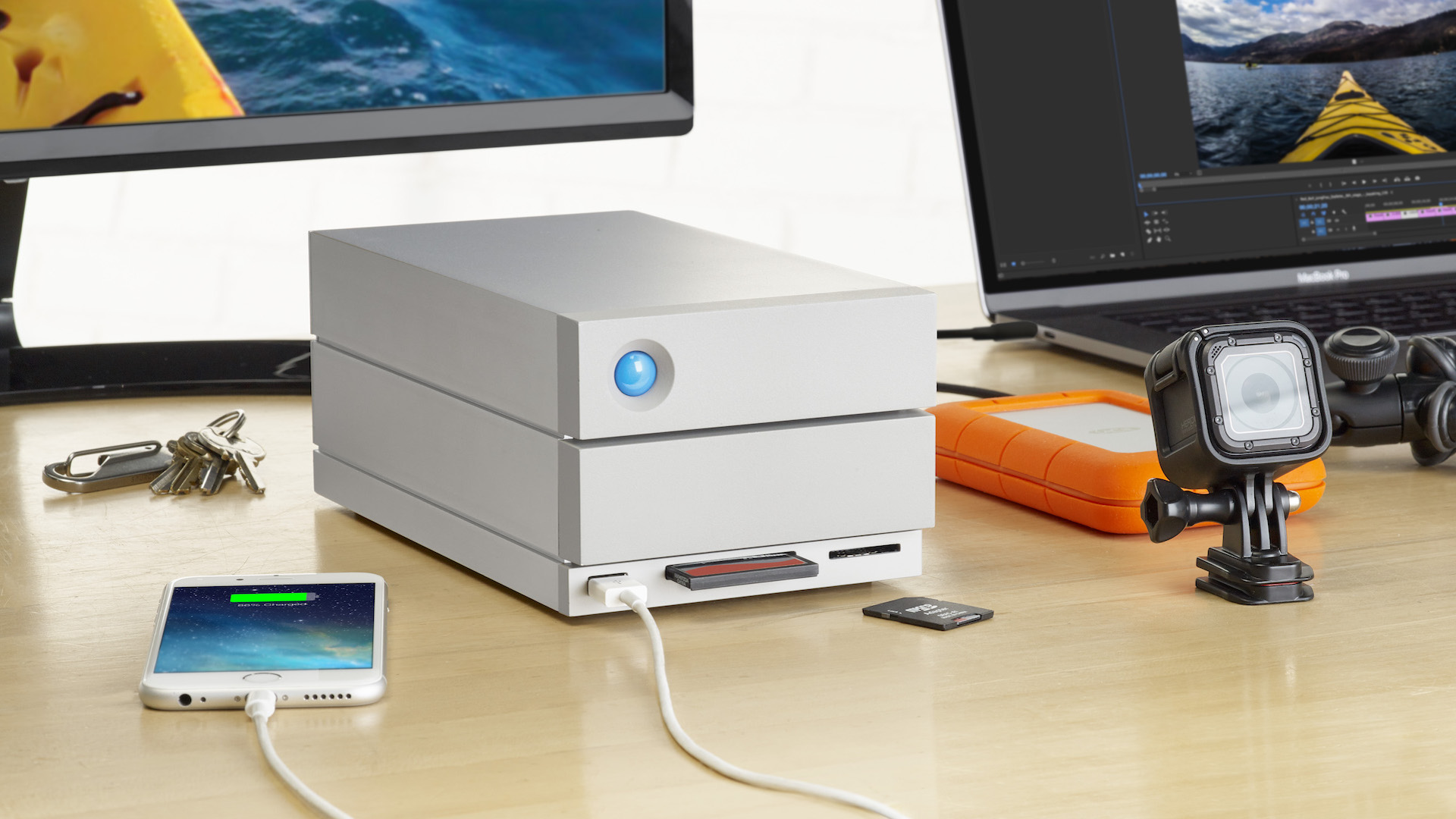
LaCie, the Seagate-owned company best known for its rugged external drives, has developed a Thunderbolt 3-enabled dock. The just-announced product, which debuts at this year’s NAB Show in Las Vegas, is officially titled the 2big Dock Thunderbolt 3, and it looks to be the most compelling Thunderbolt 3 dock thus far. Expand Expanding Close
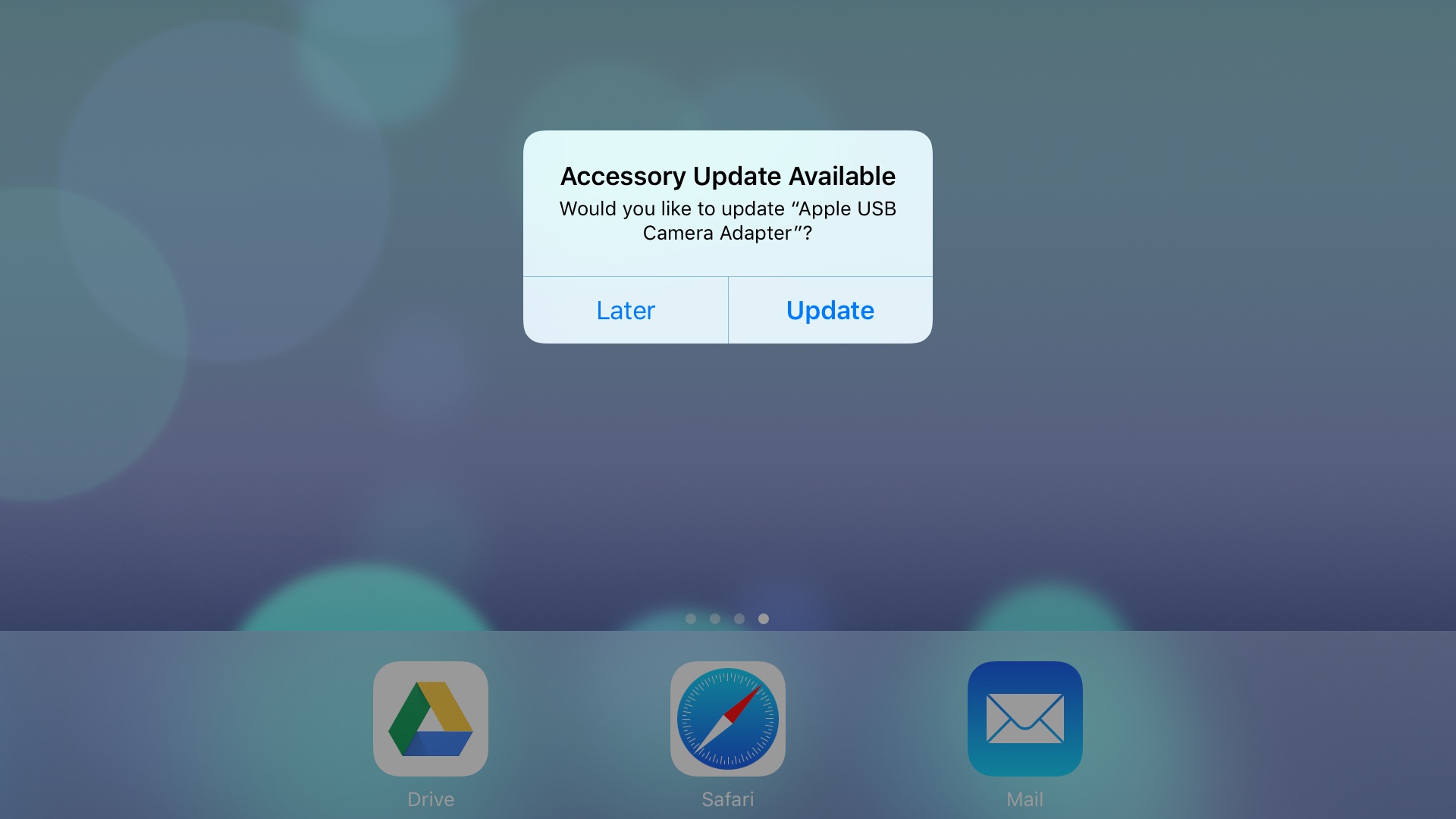
If you recently plugged in Apple’s Lightning to USB 3 Camera Adapter, you were likely met with an alert requesting an update for the device. The update is performed over the air directly via the iOS device that the dongle is connected to. It’s not clear what new enhancements or bug fixes, if any, are included with the new update, but there are no glaring user-facing changes that we’ve spotted thus far. Expand Expanding Close
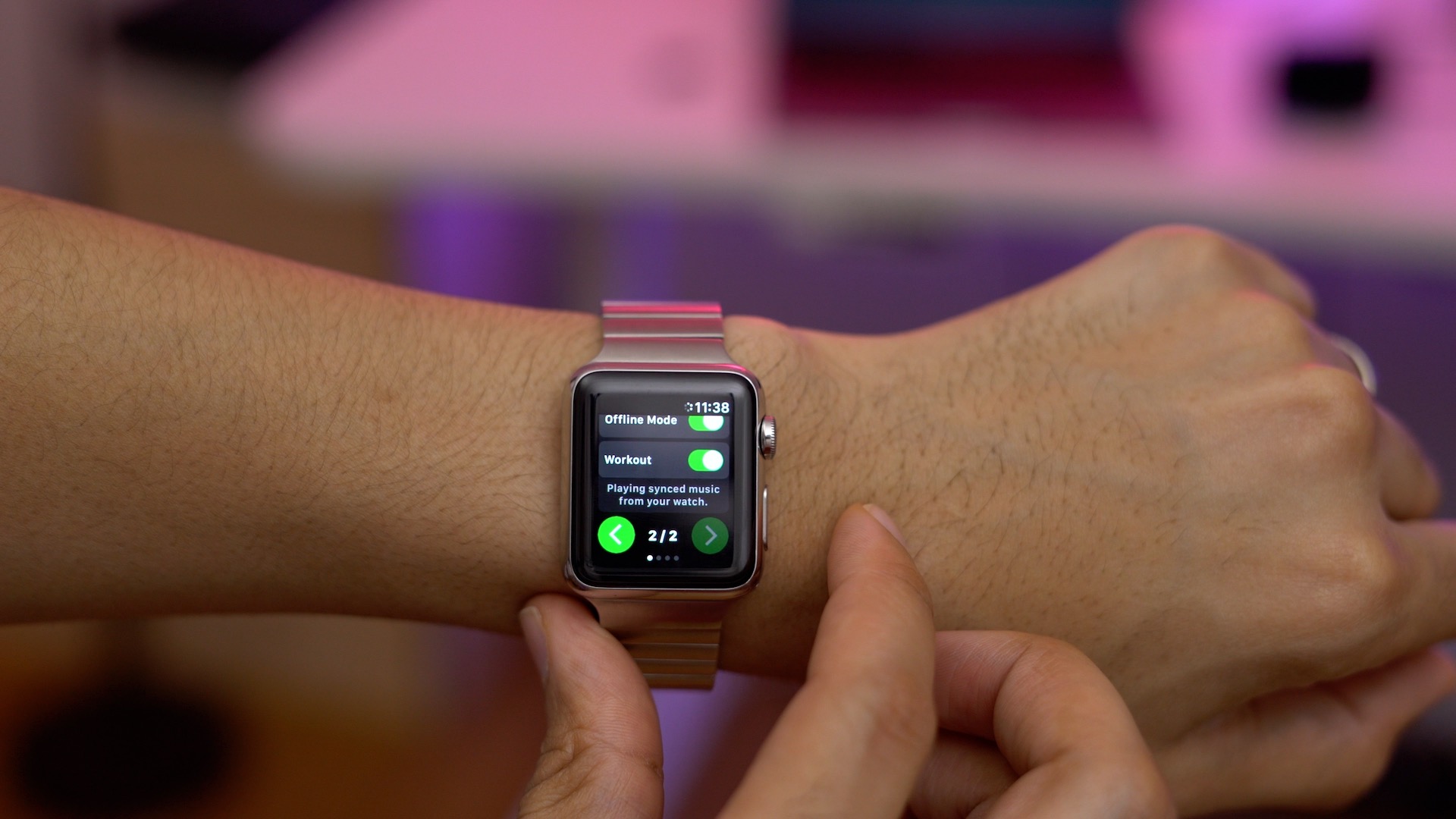
The folks over at Spotify had to have been impressed when Andrew Chang first revealed Spotty, a third-party Spotify companion app for the Apple Watch. We went hands-on with Spotty back in early February, and were likewise impressed by the app’s full-featured design, offline Spotify playback ability, and workout integration.
After being met with some initial legal pushback over Spotty’s name and close resemblance to the official Spotify app, it was unclear what the future might hold for Chang’s highly-anticipated creation. Since then, the app has been visually updated and rebranded as Snowy.
But give credit to Spotify, because instead of overreacting and using the company’s significant legal resources to shut the project down, the Stockholm, Sweden-based company has agreed to collaborate with Chang to help fill in an obvious void on Apple Watch. Expand Expanding Close
As we reported earlier this morning, Nvidia has released its long-awaited Pascal beta drivers for the Mac. These drivers make it possible to use graphics cards from the company’s popular 10-series lineup, which include the GeForce GTX 1080 Ti, among other hardware.
This release has major implications for legacy Mac Pro, Hackintosh, and eGPU users. It means that we can now use the latest Nvidia hardware to drive our machines graphically. It means taking a relatively underpowered computer like the 13-inch 2016 MacBook Pro, and running games at high settings with respectable frame rates.
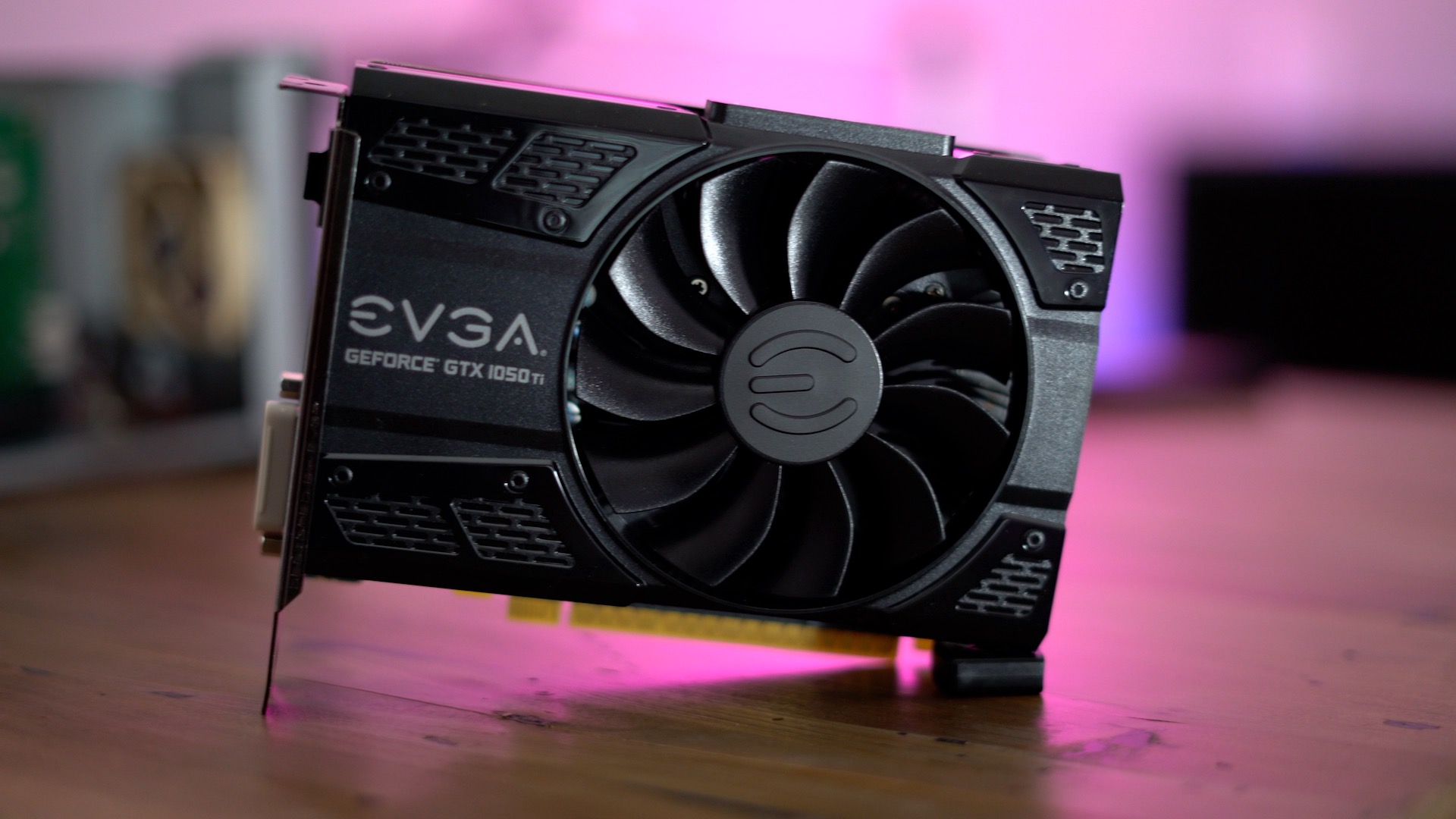
We plan on testing out the beta drivers more extensively in the future, but for quick testing purposes, we decided to try powering our 13-inch MacBook Pro with the Pascal-based GTX 1050 Ti. What we found was an encouraging sneak peek at the potential of eGPU setups on the Mac. Expand Expanding Close
Nvidia has made good on its promise to release Pascal drivers for the Mac. This makes it possible to drive macOS with 10-series cards like the popular Geforce GTX 1080, or the newly released Titan Xp.
Up until now, users wishing to use modern Nvidia GPUs on a Mac were forced to use last-gen Maxwell-based hardware, such as the GTX 980 Ti and other 9-series cards. With the release of the Pascal drivers, more options have been opened up for eGPU users, legacy Mac Pro users, and Hackintosh users wishing to utilize the latest and greatest in GPU technology. Expand Expanding Close
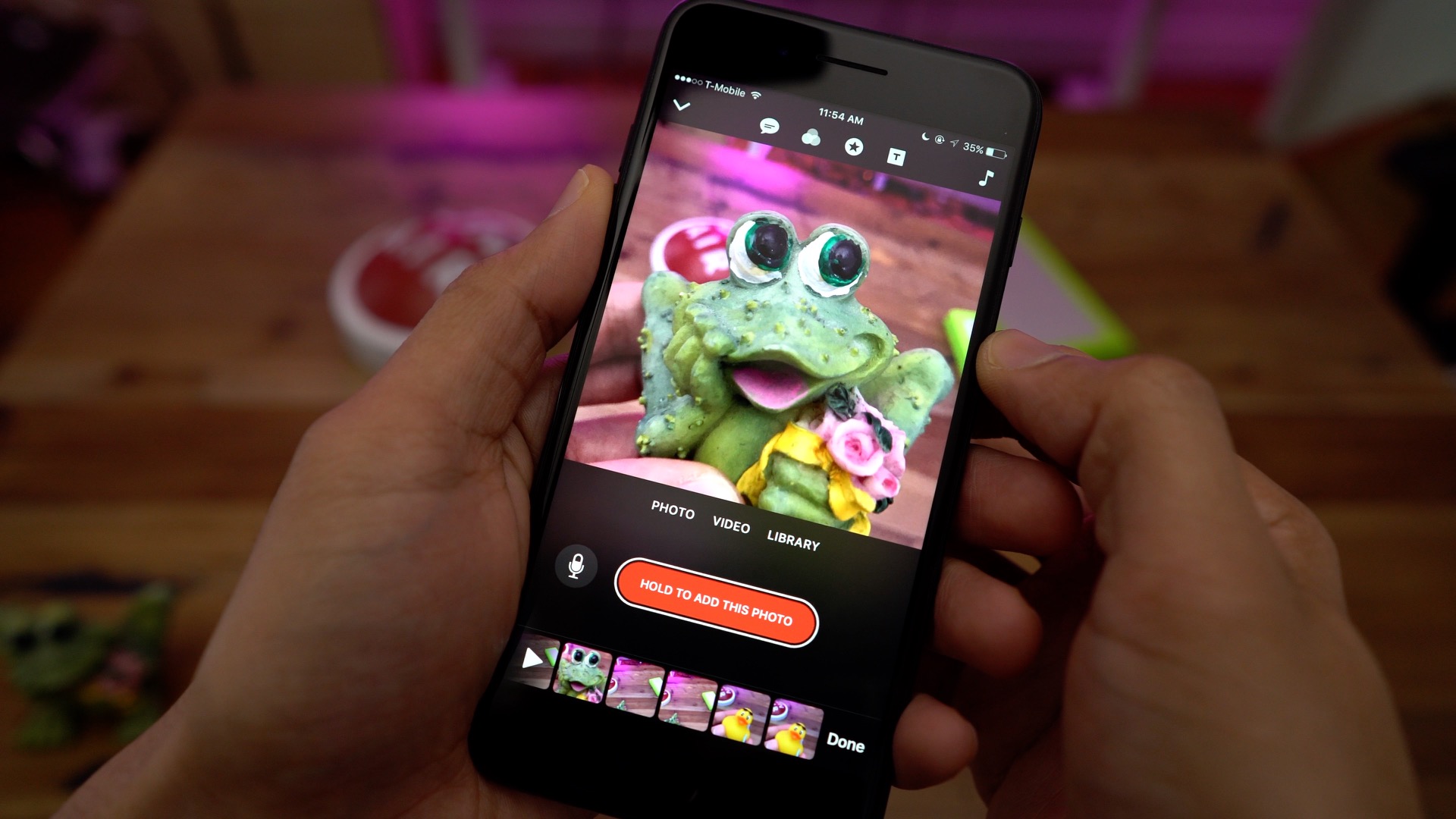
Apple’s Clips app is here, and it brings with it the ability to produce full videos by combining short (or long) clips together in a logical way. The idea seems simple on the surface, but the app is deeper than it initially appears. Have a look at our hands-on video walkthrough as we step through Clips’ main features. Expand Expanding Close
I’m currently in the process of building a new Hackintosh rig for 2017, so imagine how surprised and happy I was to hear that Nvidia is working on beta drivers for its GPUs with the latest Pascal architecture. Up until today, I had just settled on being relegated to a Radeon RX 480, or a Maxwell-era Nvidia card.
Not having Pascal drivers for the Mac certainly didn’t diminish the Hackintosh community, but it was significantly limiting in both options and creativity.
With today’s announcement, the Hackintosh just got exponentially more appealing. Nvidia’s announcement is positive for a variety of reasons: there’s the prospect of using an eGPU setup with a MacBook Pro, along with future prospects of Nvidia cards powering future Mac Pro hardware.
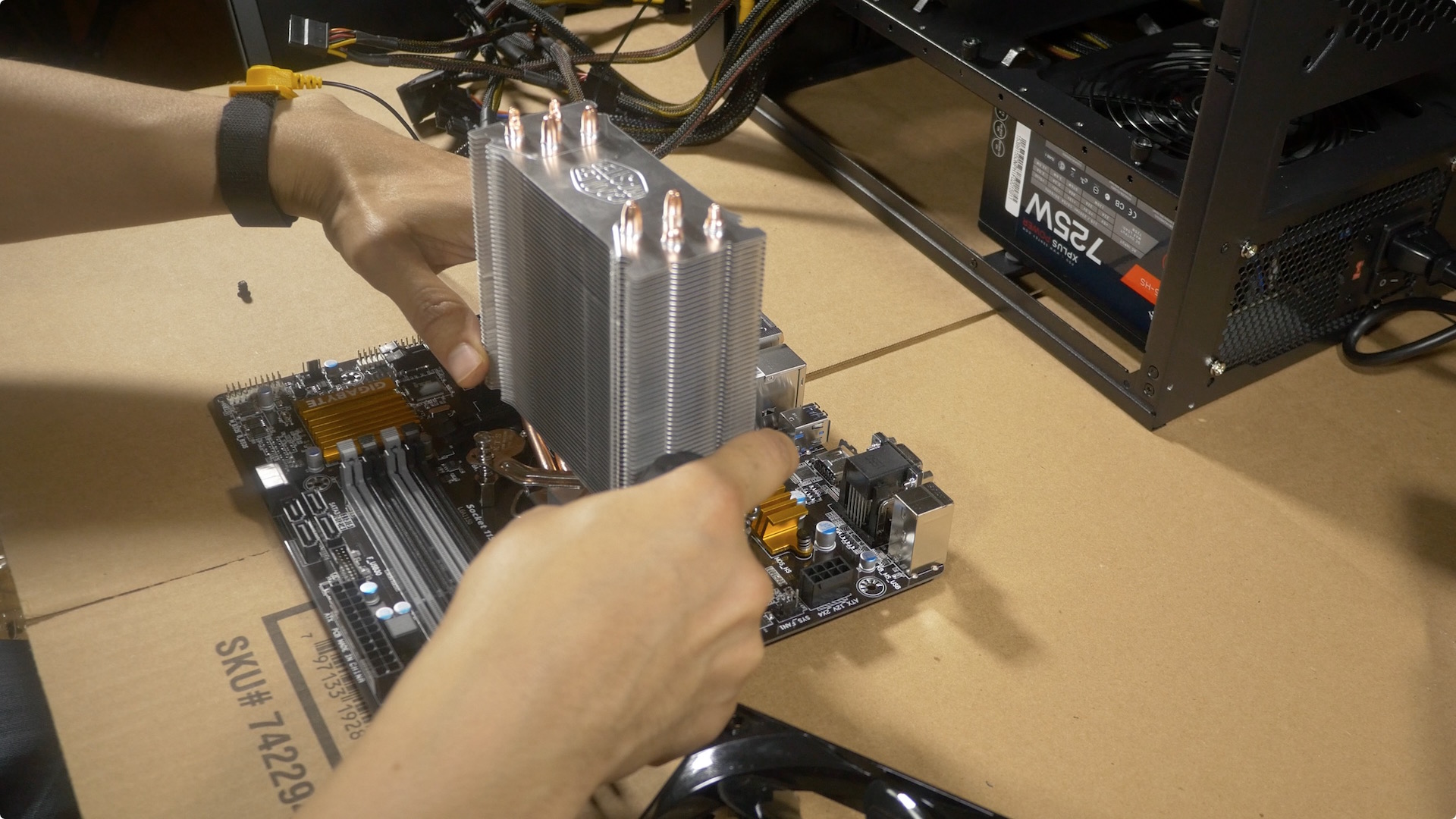
But on the immediate horizon, the announcement is most promising for Hackintosh builders. With this in mind, I wanted to share the build that I’m currently working on in this first part of a multi part series. Expand Expanding Close
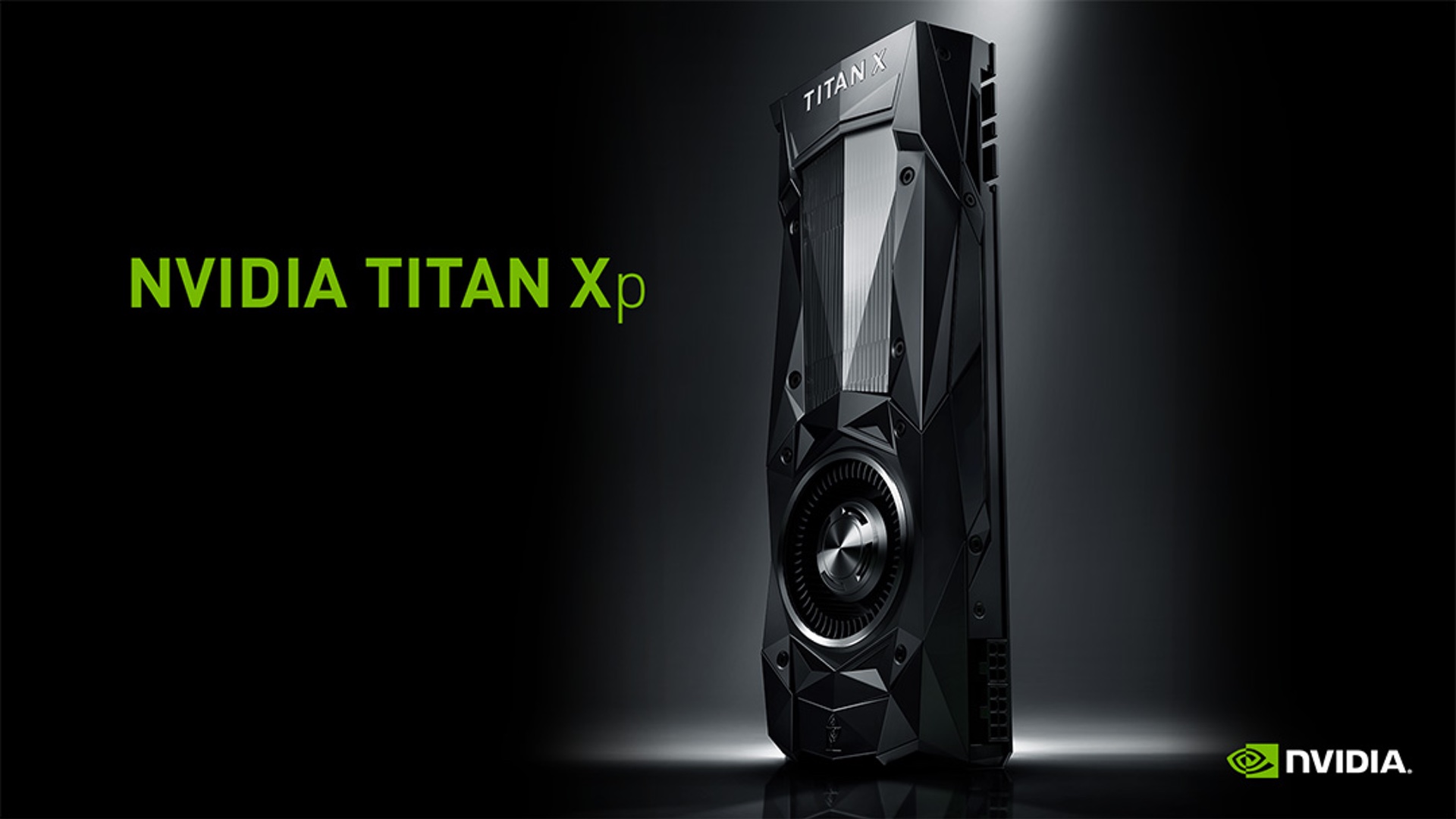
Big news on the GPU front today for Mac users. Along with the announcement of its new ridiculously powerful Titan Xp GPU, Nvidia announced that new beta Pascal drivers are coming next week for the Mac.
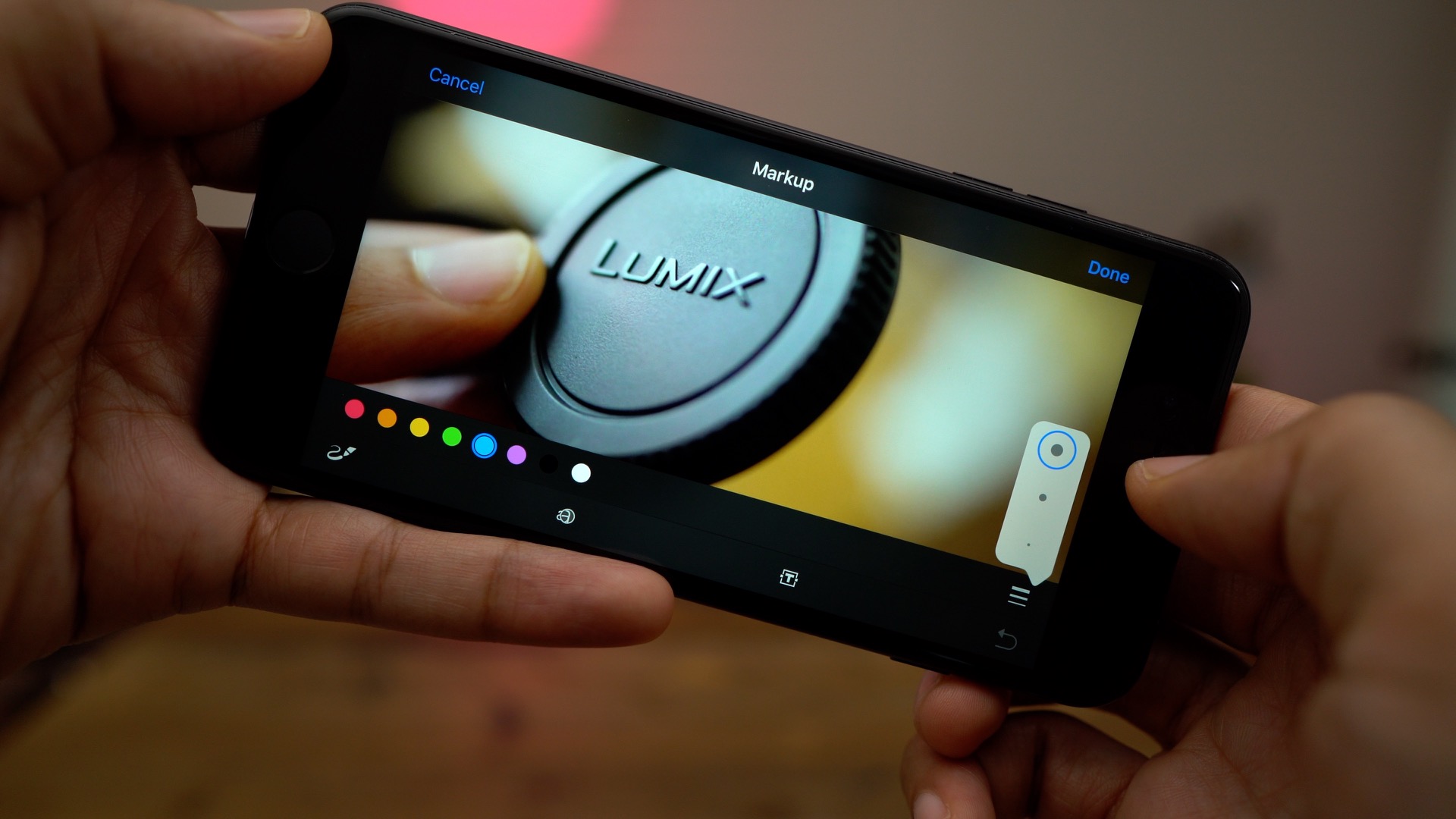
A few weeks ago I posted about 10 handy iPhone tips that I use on a regular basis. To follow up, I’d like to share 10 additional iOS tips that I often use. Like I said before, chances are that hardcore iOS users will know most of these, but there’s usually at least one or two tips that catch users by surprise. Watch our hands-on video walkthrough for the full list. Expand Expanding Close
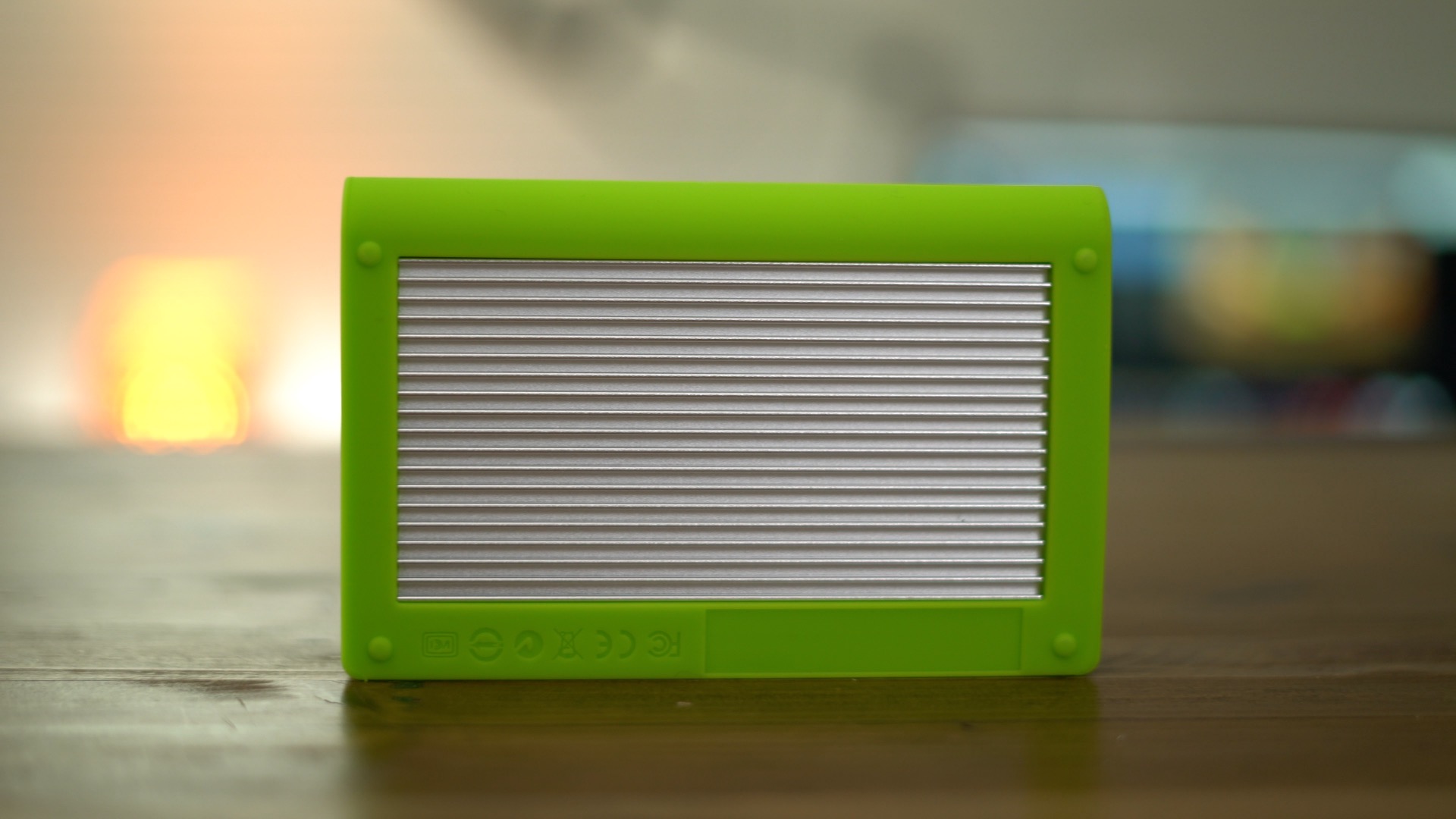
Back in October we reviewed the spinning hard disk version of the CalDigit Tuff Drive. While it was nice from a build quality perspective, the HDD speeds left us anticipating the soon-to-come SSD model.
Last week we received the 1TB SSD version of CalDigit’s Tuff Drive (coming later this month), and as expected, it’s much faster. Watch our brief hands-on video walkthrough as we unbox the CalDigit Tuff 1TB SSD, and test its speeds. Expand Expanding Close
We’ve heard from a number of people who recently purchased Apple’s just-released 2017 iPad. For most, if not all of these people, this was their first iPad, or their first new iPad in years.
A lot has changed since the iPad debuted. Tablets are much more capable from a hardware perspective, but there have been big changes on the software end of the spectrum as well.
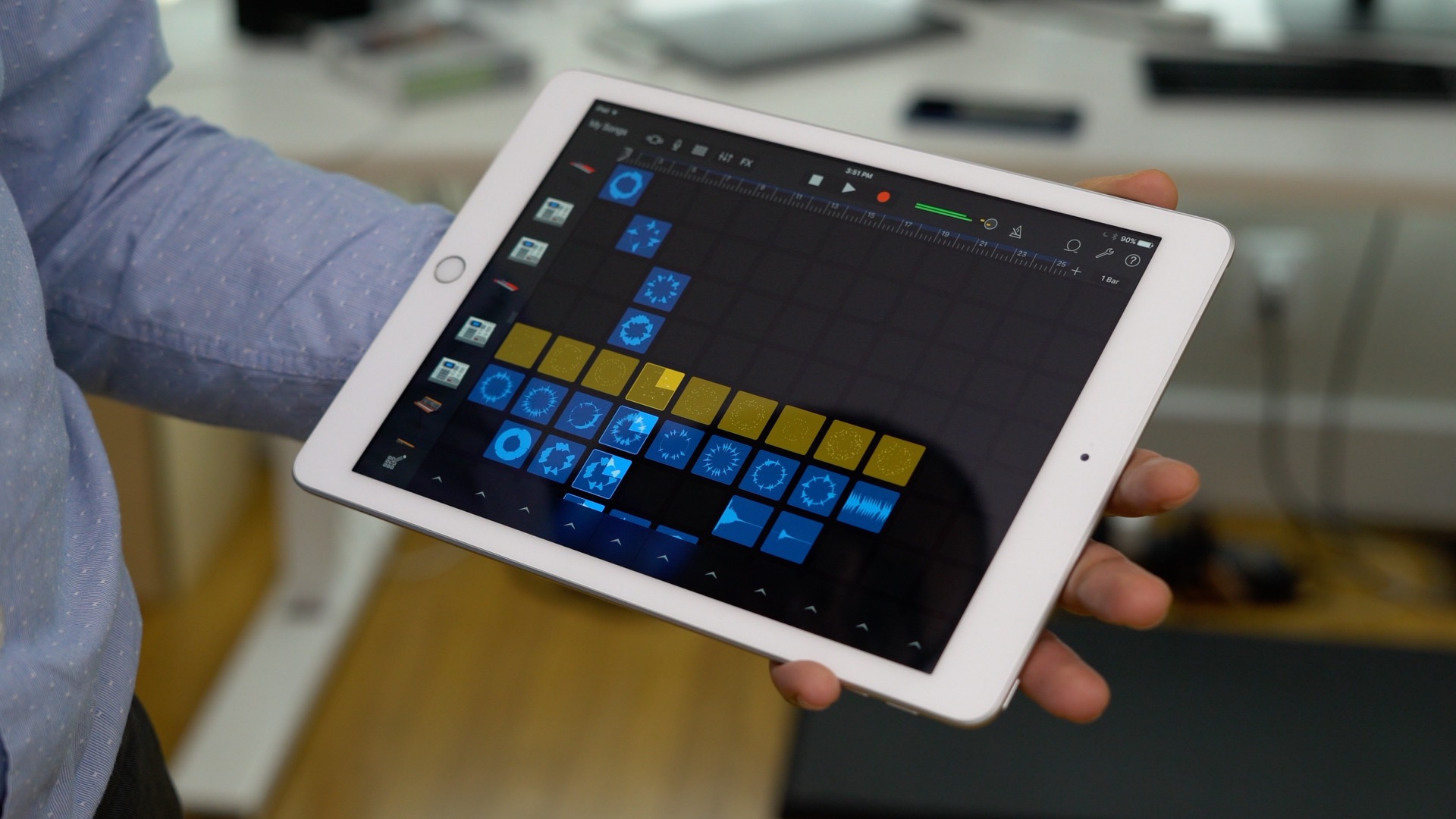
The iPad has always been known as a content consumption device, but as you’ll see, it’s also a strong platform for creative-minded people. If you’re new to the iPad, you owe it to yourself to try these apps, as they truly are some of the best in the business for creative types. Expand Expanding Close
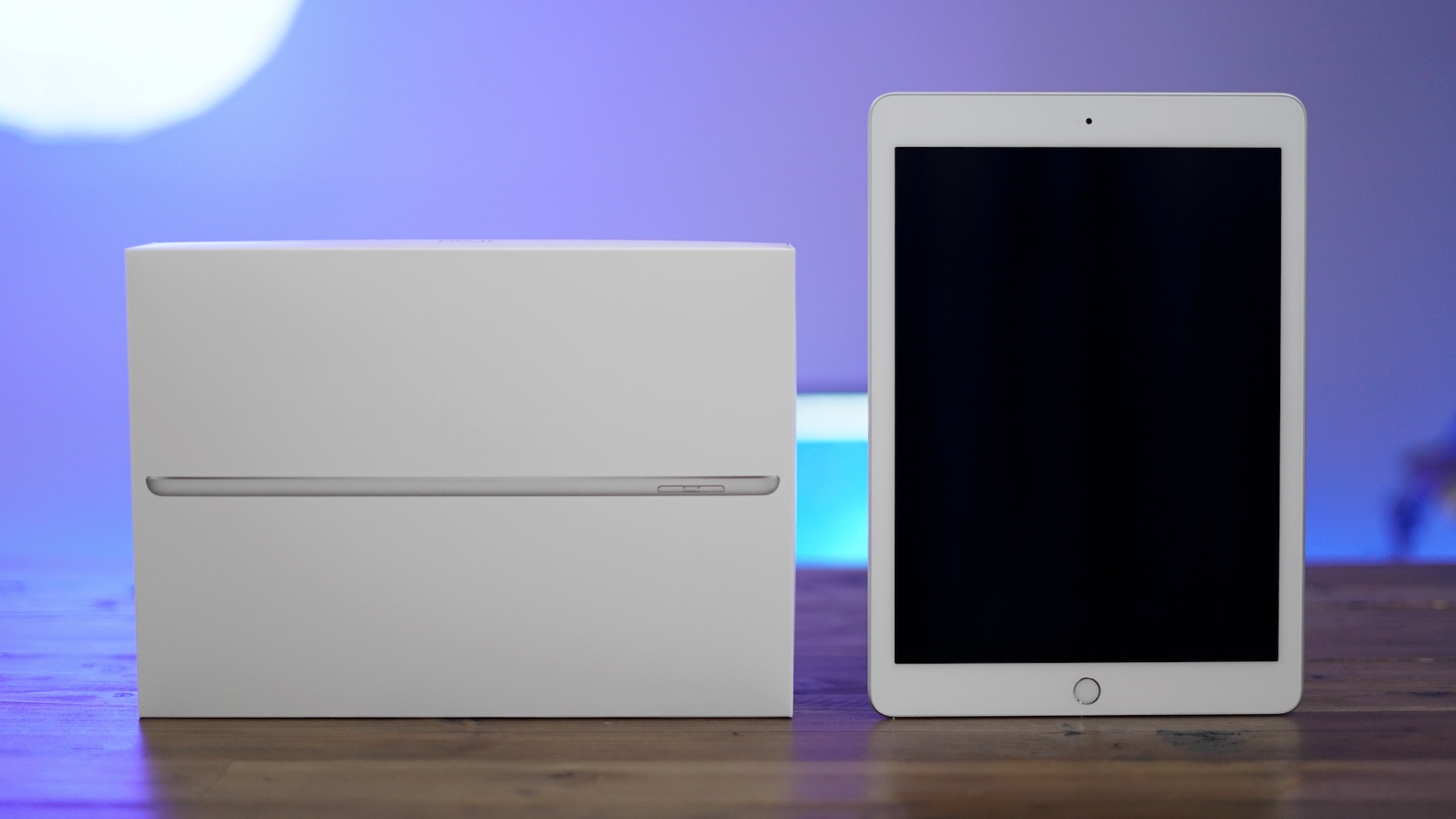
I fully expected to outright dislike the new budget-friendly 9.7-inch iPad, but it’s the type of product that’s hard to hate. Sure, it lacks the gorgeous laminated, anti-reflective display of the iPad Air 2, and sure it’s not as svelte in either thickness or weight. But there’s no denying that the 2017 iPad with A9 dual core processor in tow, is a good value.
With base model storage starting at a healthy 32 GB, the new iPad is priced so reasonably that it’s almost an impulse buy for anyone previously on the fence about iOS tablets. No longer do you have to pay an extra $100 to obtain a model that will actually work over the long haul from a storage perspective. No longer are you left with an anemic processor that feels somewhat feeble after an iOS update or two.
Even with its obvious shortcomings, the 2017 iPad is worth considering as long as you know what you’re getting into. If you’re brand new to the world of iOS, or you’re coming from a pre-iPad Air device, then you may want to seriously consider the new iPad. Watch our hands-on video walkthrough as we explain. Expand Expanding Close
iOS 10.3 was released yesterday and it was a major release. Headlined by a brand new file system, the update brings major changes to the backbone of iOS. There are also a whole host of big and small user-facing features to be found as well. In this video walkthrough, we step through some of the changes you can expect to find in this latest release. Expand Expanding Close
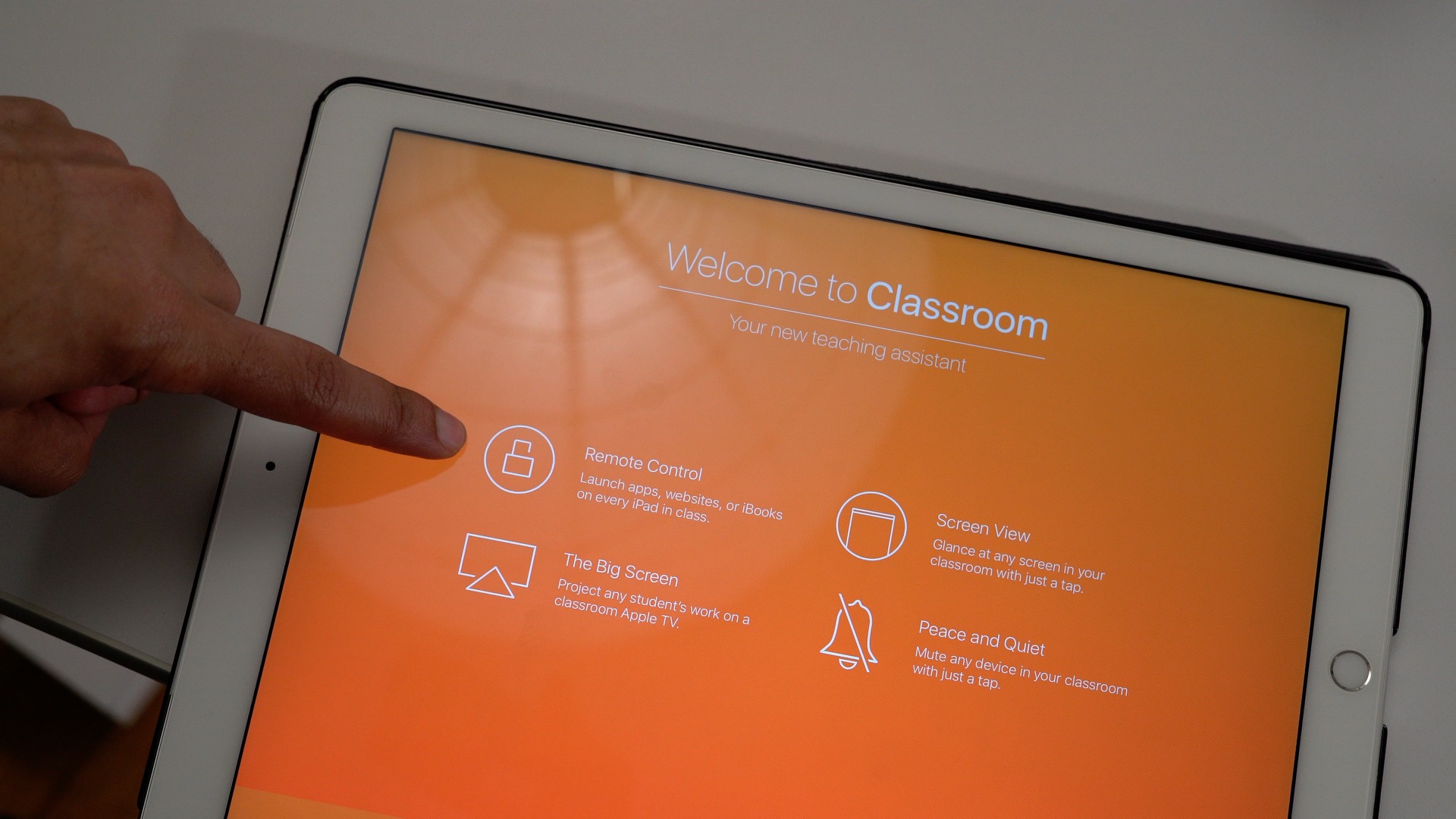
Nestled between all of the other headlining releases yesterday was Classroom 2.0 for the iPad. The original Classroom app featured an MDM (Mobile Device Management) prerequisite, which made it more suitable for larger organizations with a dedicated IT department. With Classroom 2.0, teachers can invite students to a class manually, as long as their iPad is running iOS 10.3. Watch our hands-on video inside to see some of the features made possible by the updated Classroom app. Expand Expanding Close
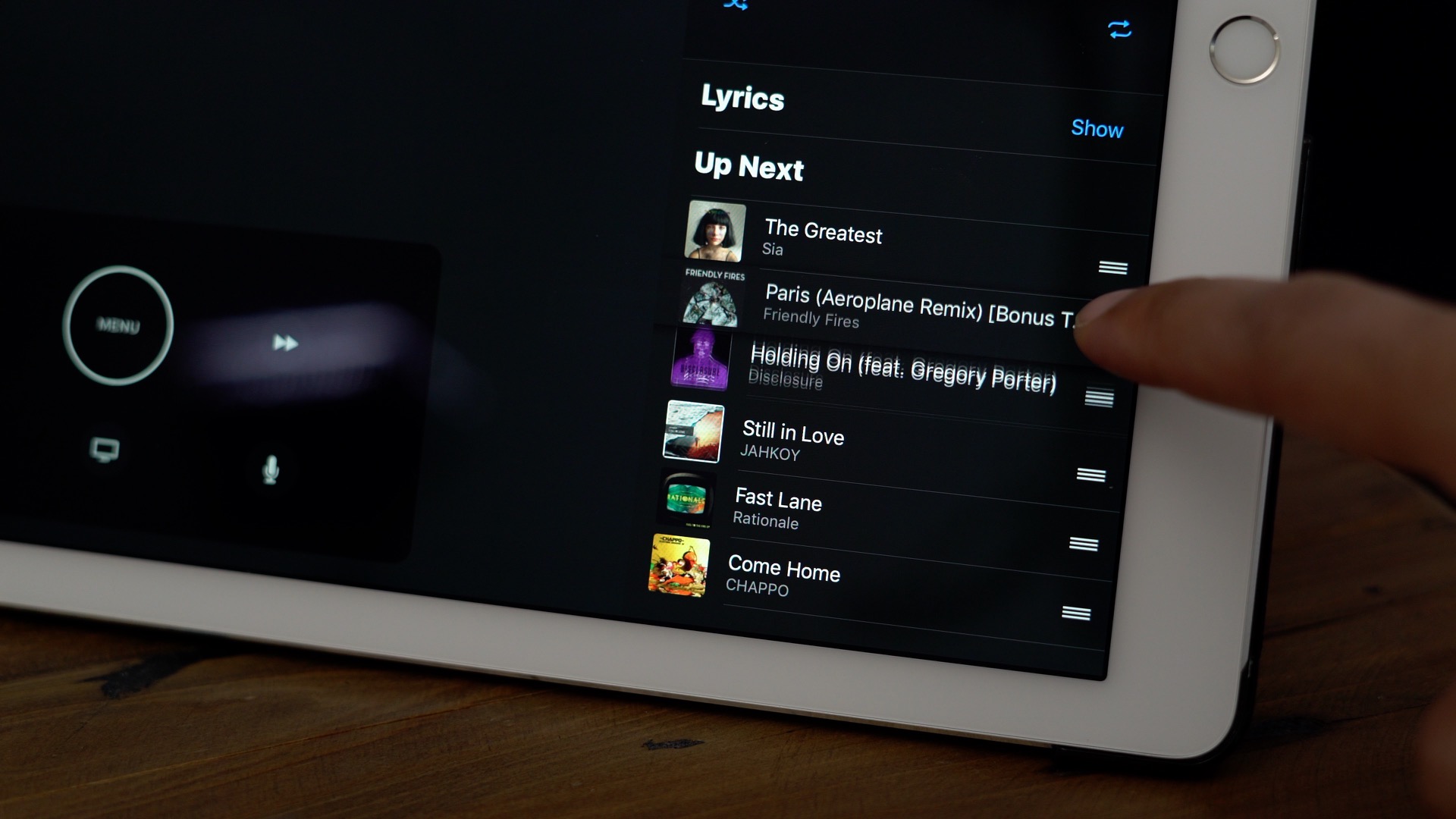
Along with support for the iPad, the updated Apple TV Remote app features an enhanced Now Playing interface complete with support for lyrics and Up Next playlists for music, along with several other notable features. Have a look at our hands-on video walkthrough with the Apple TV Remote app inside. Expand Expanding Close
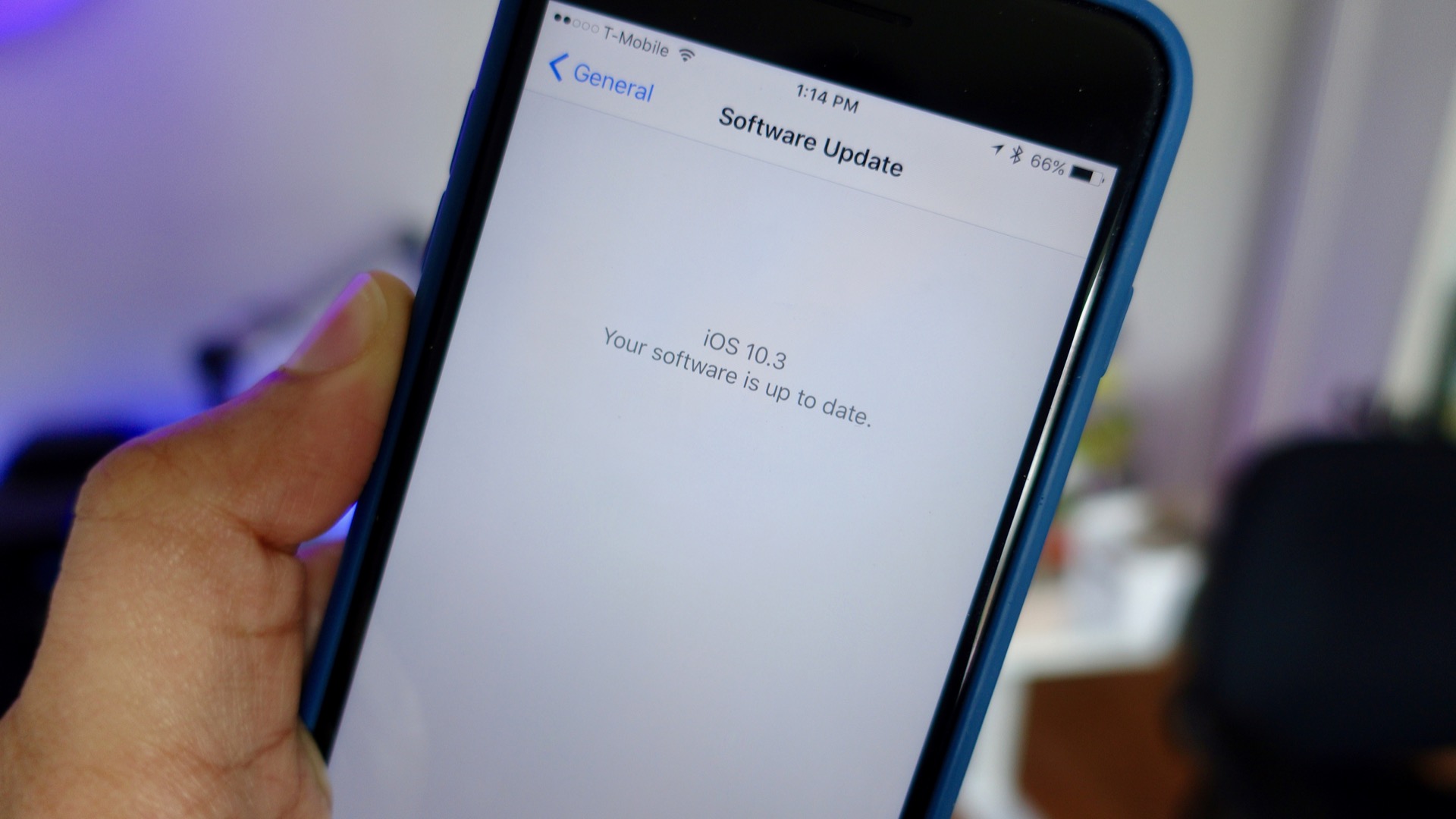
If you’re currently running the beta version of iOS 10.3, but you’re not seeing the new iOS 10.3 software update, there’s a simple way to force your device to find it. You’ll need to remove the iOS Beta Software Profile before your device will be able to see the final iOS 10.3 public release. We show you how to do so in this brief step-by-step guide. Expand Expanding Close
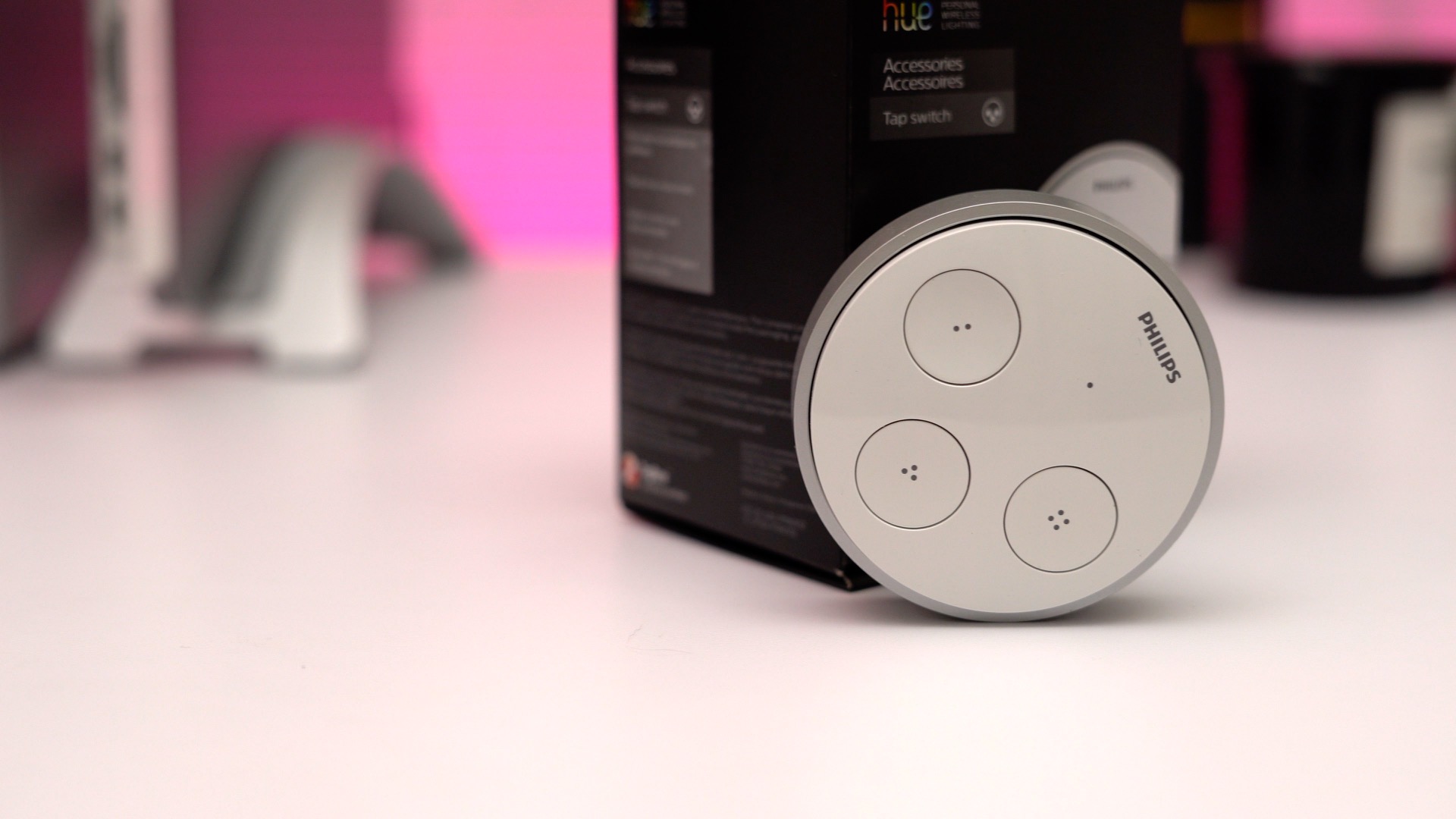
As I continue to go hands-on with more products in the Philips Hue family, I have to say that the Philips Hue Tap is one that caught me by surprise. This is a device that allows you to control your Philips Hue lights using physical buttons, sort of like a traditional light switch, which to me sounded archaic and like the opposite of progress.
Yet, after trying the Hue Tap, I found it to be a convenient compliment to controlling lights from my iPhone or via Siri. The Philips Hue Tap is wireless, pairs easily, can be mounted anywhere, and is powered, not by batteries, but by your touch. Have a look at our brief hands-on video for more details. Expand Expanding Close
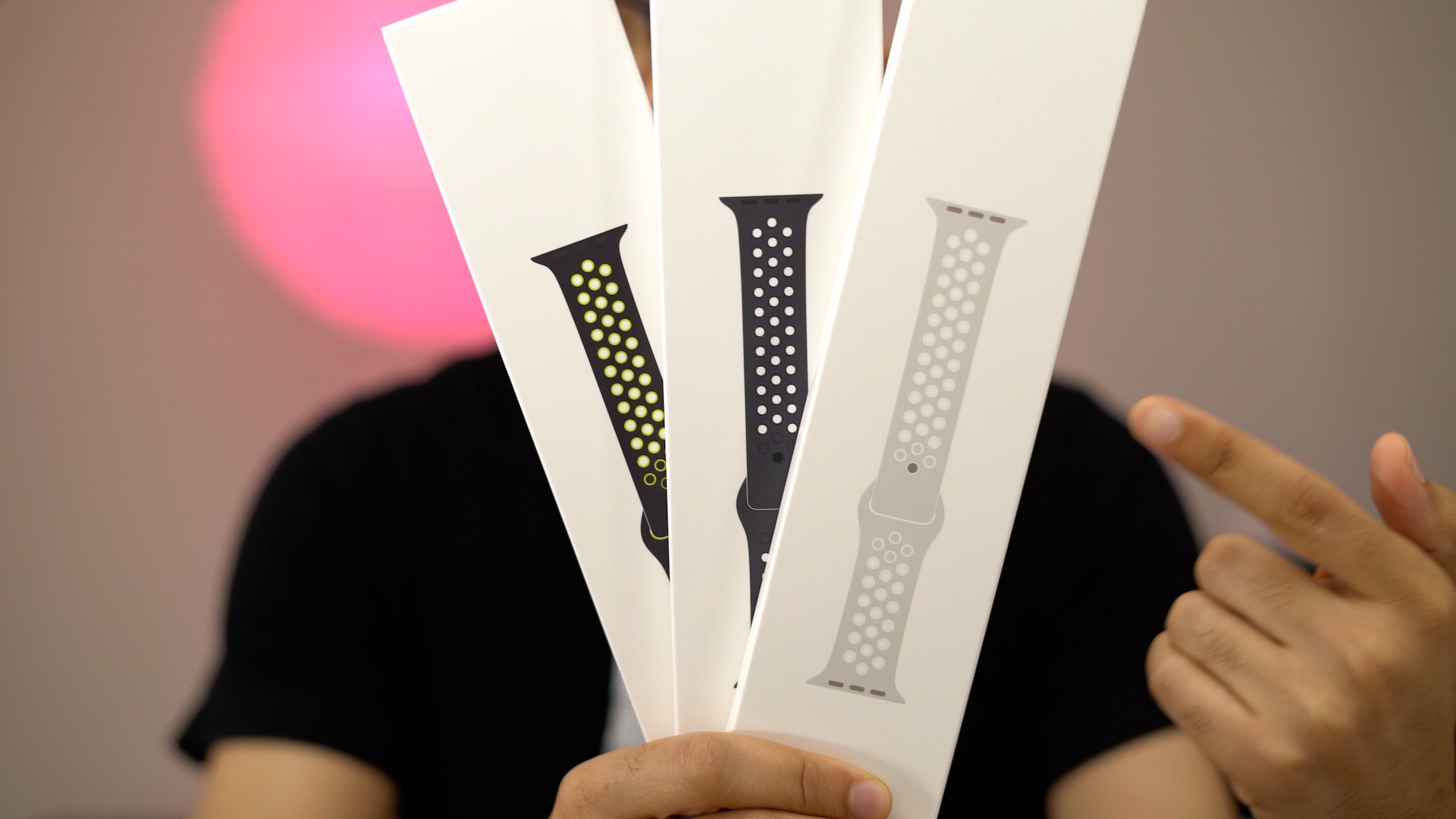
In this post, we go hands-on with all three of the Nike Sport Bands, which include Pure Platinum/White, Anthracite/Black, and Black/Volt. Watch our hands-on video for a look at each individually packaged band. Expand Expanding Close
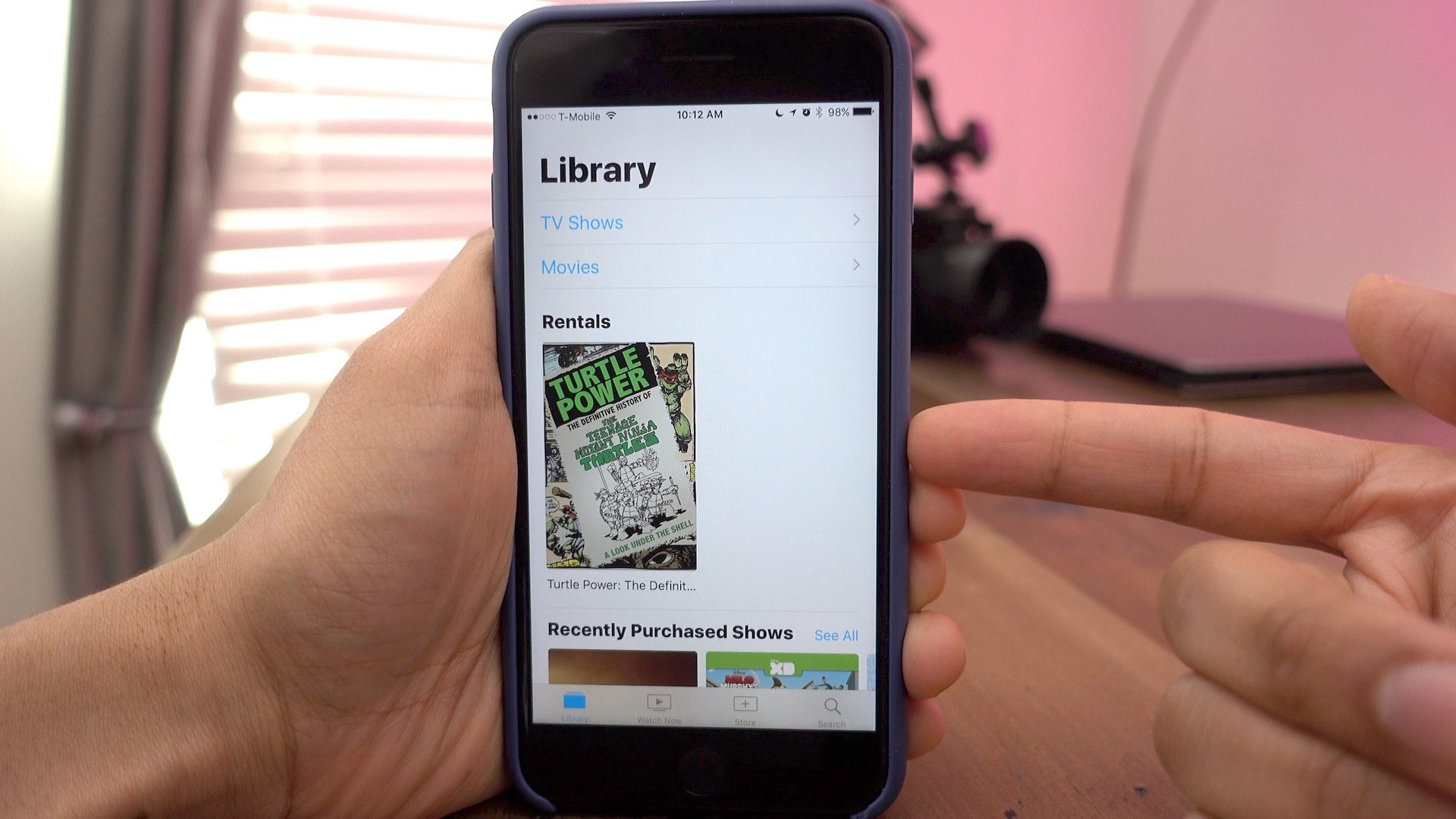
As someone who runs the latest iOS and tvOS betas on all devices, I was able to take advantage of the new rent once, watch anywhere feature included in yesterday’s iTunes 12.6 update to the full. Have a look at our brief video walkthrough inside to see why this comes as a welcomed new addition. Expand Expanding Close
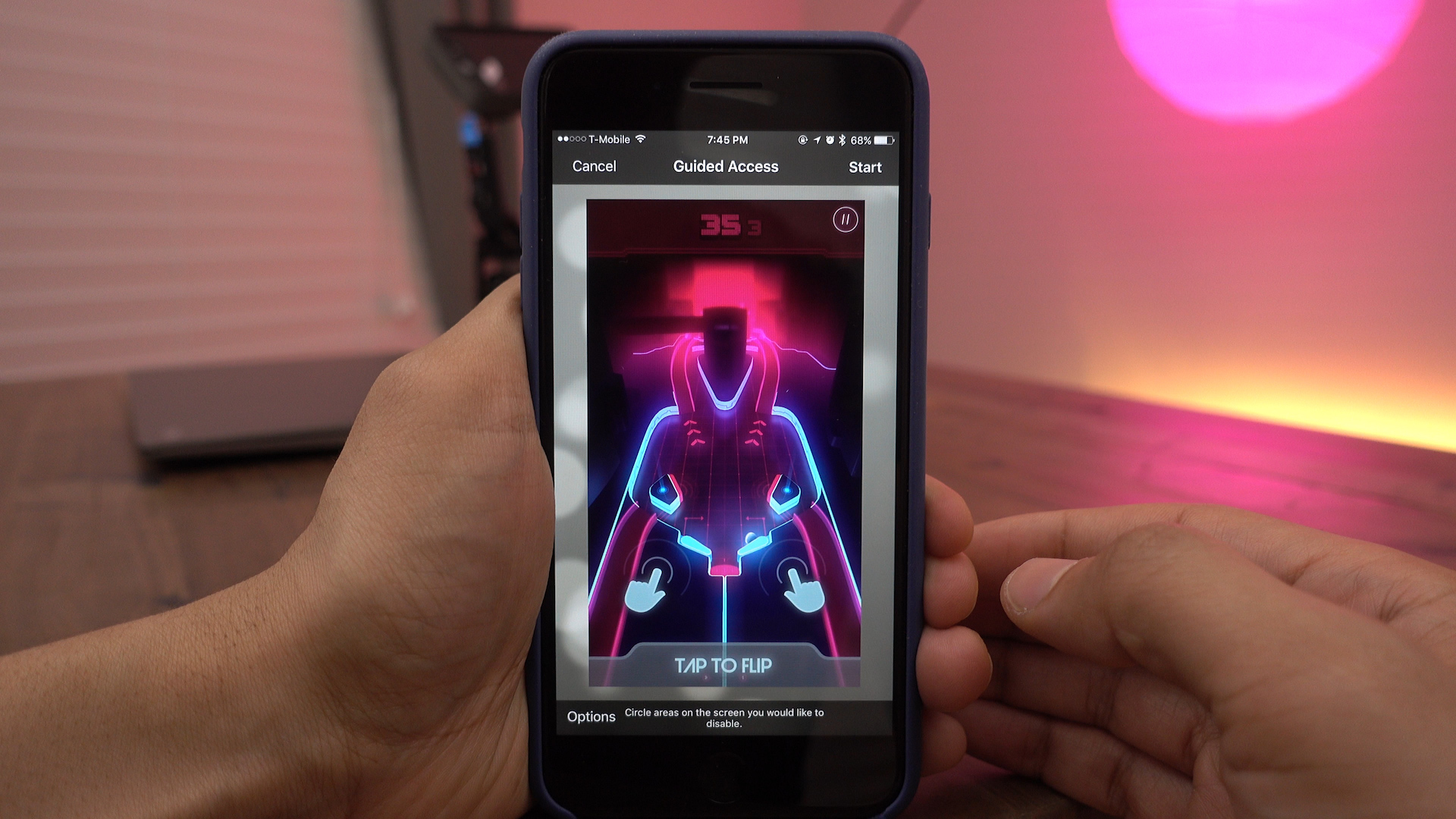
In this hands-on video walkthrough, I share 10 handy tips for iPhone that I use on a regular basis. While I expect that most readers know and employ many of these tips, I’m hoping that there’s at least one or two that you’ll find useful. Expand Expanding Close