How-to

See All Stories

A collection of tutorials, tips, and tricks from the 9to5Mac team helping you fix and get the most out of your favorite gear.

9to5Mac How To tutorials

Top tutorials and guides

iPhone how-tos

Mac how-tos

iPad how-tos

Apple Watch how-tos

Site default logo image

iOS 7 How-to: Manage your iCloud storage space from an iOS device


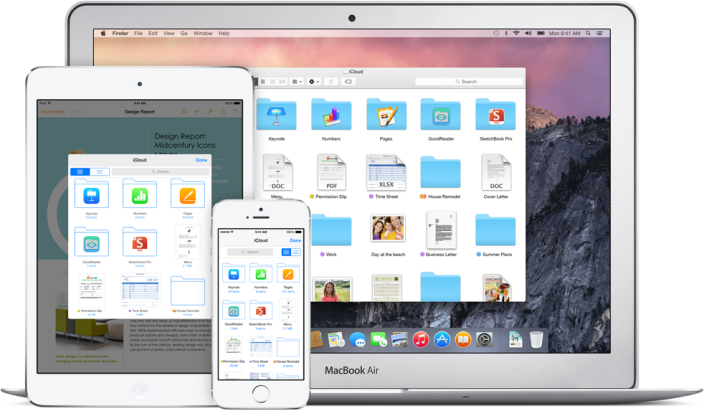
Apple gives all iCloud users 5 GB of iCloud storage. For most users, this is more than plenty of space, but for some, it isn’t nearly enough. This space is used for iOS device backups, iWork and other documents, and email if you are using a @mac.com, @me.com or @icloud.com address.

In this article, we’ll give you some tips for managing your iCloud storage so you can get the most of the space you have available.


Expand
Expanding
Close

Site default logo image

Want a Time Capsule but find it a bit pricey? Create a DIY version with $35 Rasberry Pi

I’m a huge fan of my Time Capsule. Once an hour, both my MacBook Pro and Air machines are backed-up automatically via wifi without me having to do a thing. As a wise friend once observed, the only 100 percent reliable backup system is one where you don’t have to do a thing – not even plug in a drive.

But there’s no denying that at $299 for the 2TB model or $399 for the 3TB model, the Time Capsule isn’t cheap. You can buy a 2TB external hard drive for well under $100 or a 3TB one for slightly more. You’d normally need a more expensive NAS system to make it work via wifi, but Remy van Elst has created an instructible enabling you to do it with nothing more than a $35 Raspberry Pi.

You’ll need to be comfortable with command lines, and it will take you a little time to get it all configured, but at the end of it all you’ll have a working Time Capsule – that looks to OS X just like the real thing – for somewhere around $120.

Site default logo image

How-to: Use Spotlight and Smart Folders to search for anything on your Mac

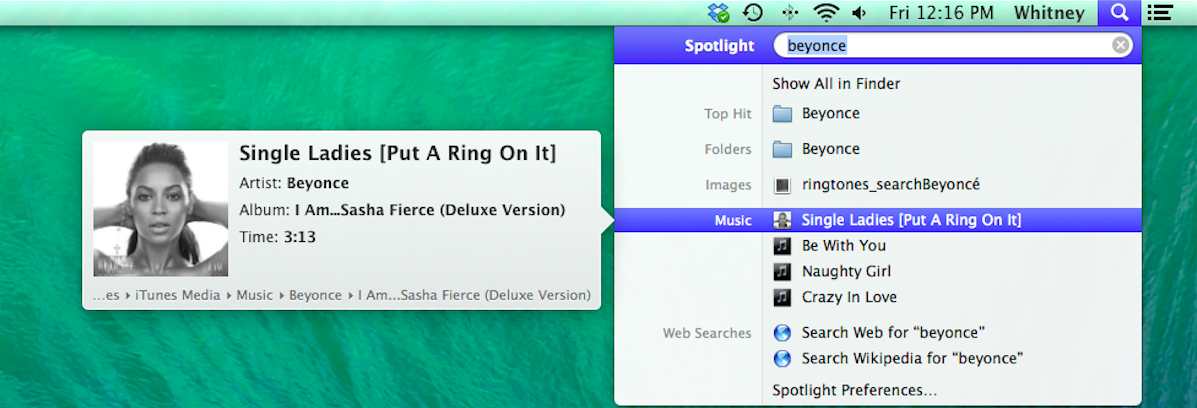
In OS X, Spotlight is an effective way to search your entire hard drive for a file or folder, email, or any other file. There are many other things Spotlight can do, and searching for files is just one of them. Spotlight is also capable of looking up dictionary definitions, launching apps, performing calculations, previewing audio, video, documents, and other files. This article will outline some of the benefits of using Spotlight and how to use Smart Folders, which allow you to search for a file even if you don’t know its name.


Expand
Expanding
Close

Facebook introducing ‘Save’ read later feature for iOS & Android

Site default logo image

[vimeo 101133002 w=700 h=381]

Facebook announced today that it’s rolling out a new feature for its mobile apps that will let users save content for easy access at a later date. A list of saved content from Facebook— including links to things like places, movies, TV, and music— will appear in the Facebook mobile apps in the “More” section and on the left side bar on the web.
Expand
Expanding
Close

Site default logo image

How-to: Safely delete or change an iCloud account from your Mac or iOS device

First off, before we begin and actually discuss how to safely delete or change an iCloud account, we should discuss the different scenarios as to why you might need to delete or change your iCloud account off of your device.

  1. If you are using the same Apple ID as a family member for iCloud, your contacts, calendars, and other content could be merged, or you might be getting each other’s iMessages and FaceTime calls. That’s not an ideal situation if you prefer to keep your data separate.
  2. The email address associated with the Apple ID you are using for iCloud is no longer a valid, active email address. In that case, you’ll need to change the email address associated with your Apple ID.

To get started making the necessary changes to your account on an iOS device, go into the Settings app and scroll down until you see iCloud. To delete the iCloud account from the device, just press “Delete Account.” To do this on a Mac, go into System Preferences and choose iCloud, then press the “Sign Out” button.
Expand
Expanding
Close

How to jailbreak iOS 7.1 and 7.1.x with Pangu (Video)

Pangu is a new untethered jailbreak tool for iOS 7.1 and 7.1.1 that was recently released for Windows. There’s no current ETA on an OS X version (OS X is now version available), but after some initial testing, we’ve determined this to be a legitimate tool for jailbreaking iOS 7.1 and up. The process does seem a bit shady, but we have yet to experience any issues with it. Pangu iOS 7.1-7.1.X jailbreak is compatible with all iOS 7 devices.

Keep in mind, this tool is from an unknown team and we’re unsure of the long-term reliability of the jailbreak and exploits used. Proceed at your own risk, but like I mentioned above, everything seems to be working as advertised…


Expand
Expanding
Close

Site default logo image

How-to: Request an iTunes purchase refund if you have a legitimate reason

When you purchase an item from the App Store or iTunes, it is possible to obtain a refund on items purchased within the past 90 days if you have a legitimate reason. For example, you might buy the live version of a song when you meant to get the studio version. It is certainly possible to download the wrong app inadvertently, especially on an iOS device.

In this article, I will outline the process of how report a problem (and request a refund) with items purchased in the App Store or iTunes.


Expand
Expanding
Close

How-to: Unofficial tool allows you to import iTunes and Rdio Playlists to Beats Music

Site default logo image

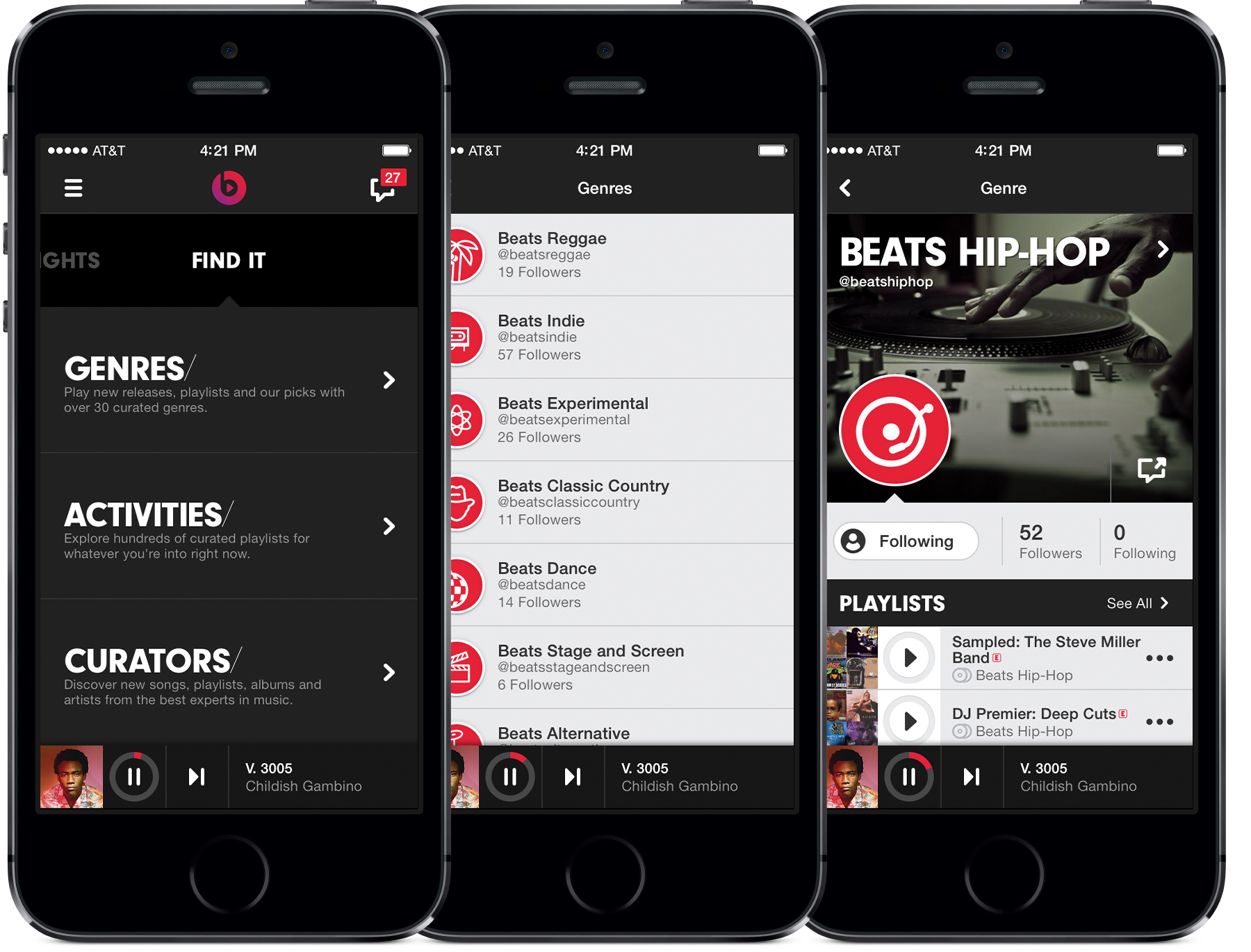
While Beats Music will soon be owned by Apple, the music service does not easily integrate with iTunes. For instance, there is no official Beats tool to link your iTunes library for streaming from Beats Music. However, an unofficial tool called Beats Importer is a temporary solution that seems to work well for adding iTunes and Rdio Playlists to your Beats Music library. We’ve compiled a tutorial for importing your iTunes Playlists to Beats Music, below:


Expand
Expanding
Close

Site default logo image

Easter egg in icons for Swift files features ‘Here’s to the crazy ones’ from Think Different campaign

In a throwback to Apple’s Think Different campaign, the icon used by OS X for Swift files, Apple’s new programming language. Swift documents have the file extension ‘.swift’.

The code seen in the icon makes reference to the iconic speech, with functions named ‘heresToTheCrazyOnes’ and ‘villify(troubleMaker: NSObject)’. The code also generates collections of ‘misfits’, ‘rebels’ and ‘troublemakers’.


Expand
Expanding
Close

Site default logo image

How-to: Conserve battery power on your iOS devices

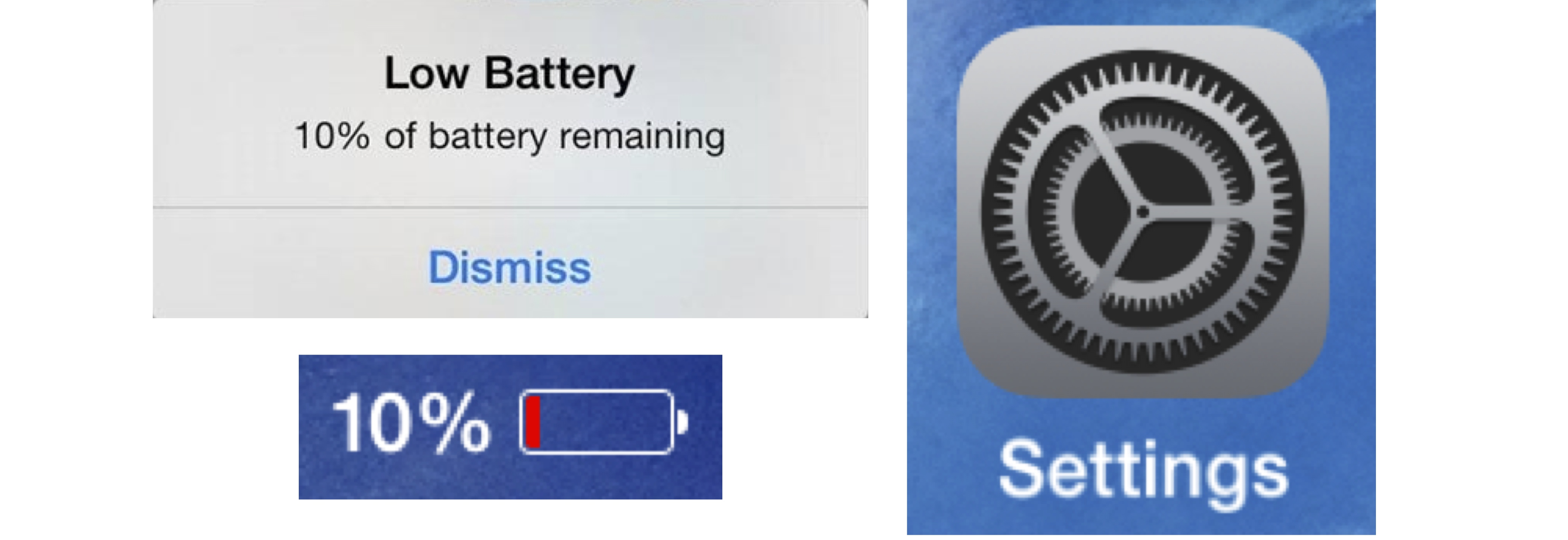
Since the introduction of smart devices, battery power has been and still remains a precious commodity. In this article we will review many of the features and settings of iOS devices that impact battery life, and make recommendations about how to conserve power.

One important thing to keep in mind is that battery life is complex, and the impact of one setting for a specific user may not always reflect the impact of that same feature on another user’s device. It’s also important to note that after you make any changes, be sure to charge your iOS device on a wall charger overnight. This full charge is often needed before any changes will be effective.


Expand
Expanding
Close

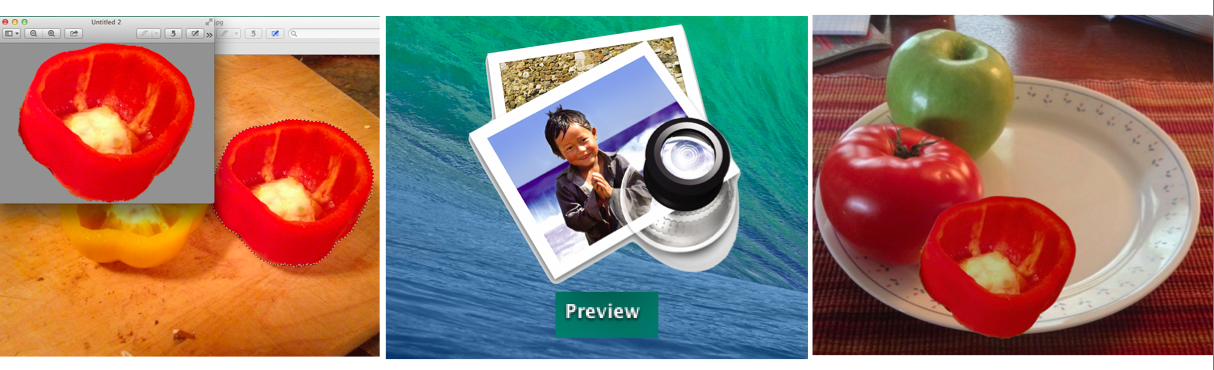
How-to: Get started with Instant Alpha and Smart Lasso in Preview for OS X

Site default logo image

As you may know, Instant Alpha is a feature that allows you to remove an object in an image from its background. You can find this feature in apps like Pages and Keynote, as well as the Preview app that comes built-in on Macs. As we’ve written recently in articles about signatures and marking up images, Preview has a lot of capabilities that don’t get much press.

In this article, you’ll learm how to use Instant Alpha and Smart Lasso to create custom images, remove an object from its background, and some advantages of using Preview to create custom images.

Images created in this way could be used for anything, including fun social media posts. They can be imported into iPhoto, cropped and used in books, calendars, or especially to customize a birthday or greeting card. Depending on what kind of image you want to create, you can really do quite a bit using Preview, Pages and a few other tips and tricks.


Expand
Expanding
Close

Slingshot app lets you share your iOS screen with others on any platform

Site default logo image

I’ve written about apps from Squirrels in the past. It makes the AirParrot and Reflection apps that let you mirror your Mac or PC screen to an Apple TV or your iPad, iPhone, and iPod touch screen to a Mac or PC. Today it’s launching a new product that utilizes technology from both of those previous apps called ‘Slingshot.’ The cross-platform apps let you share your iOS screen with others on iOS, Mac OS X, Windows, or Android, and provides some slick collaboration tools in the process:
Expand
Expanding
Close

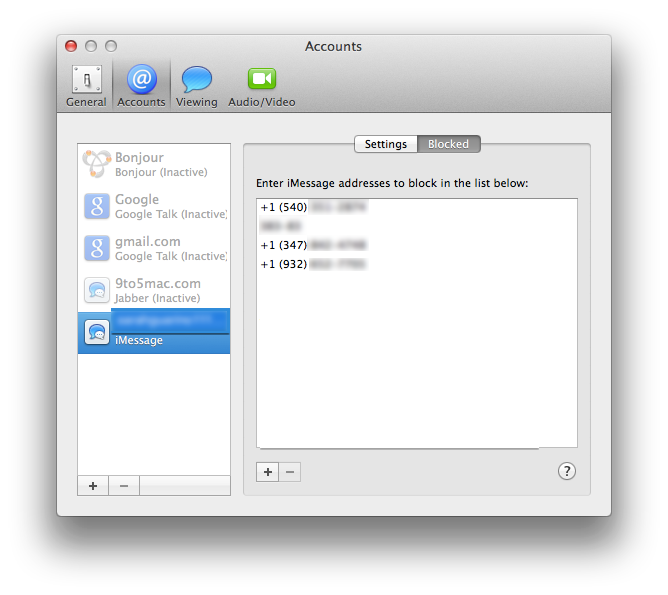
Mavericks How-to: Block contacts in FaceTime and iMessage on OS X

Site default logo image

With the highly anticipated update to Mavericks 10.9.2, users gained the ability to block contacts in FaceTime and iMessage. This has been a long-awaited addition, since iOS 7 received this feature five months ago. If you previously blocked people in iOS 7, the block list syncs over from your iOS devices to your Mac through iCloud. Make sure Documents and Data is turned on in order for that to occur.

Now with Mavericks, you are able to block certain phone numbers from iMessaging or FaceTiming you without needing to get up and grab your iOS device…


Expand
Expanding
Close

How-to: Use AirDrop to share files between iOS devices [Poll]

Site default logo image

AirDrop can be a be a quick, simple way to transfer files between iOS devices. It can be especially handy because it is truly a device-to-device transfer that works even when neither device has internet access, although Wi-Fi  and Bluetooth have to be turned on for it to function. In this article I will discuss how to turn on AirDrop and use it to share files between devices.

In Apple apps, any files that can be transferred using the share icon can be sent via AirDrop. This includes photos, videos, iWork documents, notes, contacts, links, directions, and location data. Some third-party apps can also share data using AirDrop. AirDrop for mobile devices is a feature of iOS 7, and can only be used to share files between mobile devices, not between computers and mobile devices.


Expand
Expanding
Close

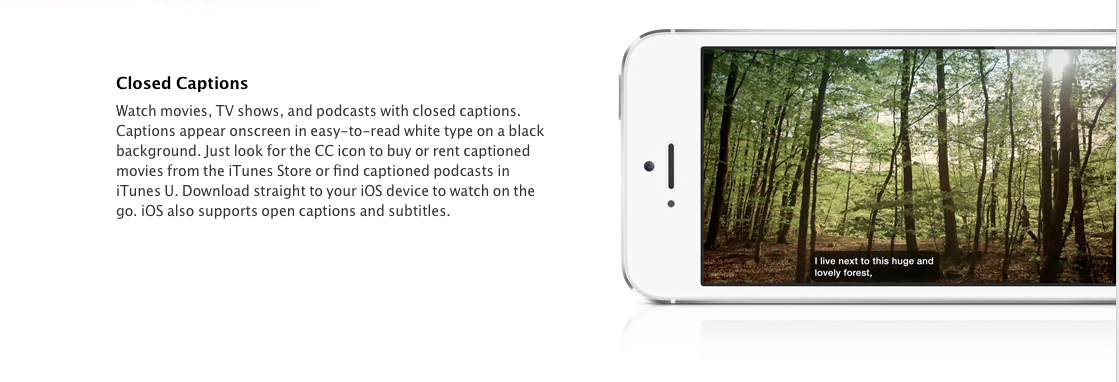
How-to: Enable and customize subtitles and captioning during video playback on iOS 7

Site default logo image

iOS devices are built with all users in mind: they come with several accessibility features for low-vision or legally blind users, hard-of-hearing or deaf users, individuals who have physical and motor difficulties, and individuals with learning
difficulties.

In this accessibility segment, we will be discussing how to use and customize subtitles and captioning.


Expand
Expanding
Close

Apple patched a major SSL bug in iOS yesterday, but OS X is still at risk

Site default logo image

Update: Apple says an OS X fix is coming soon.

Yesterday Apple released iOS update 7.0.6 alongside new builds for iOS 6 and Apple TV  that it said provided “a fix for SSL connection verification.” While Apple didn’t provide much specific information on the bug, it wasn’t long before the answer was at the top of Hacker News. It turns out that minor security fix was actually a major flaw that could in theory allow attackers to intercept communications between affected browsers and just about any SSL-protected site. Not only that, but the bug is also present in current builds of OS X that Apple has yet to release a security patch for.

Researchers from CrowdStrike described the bug in a report:

“To pull off the attack an adversary has to be able to Man-in-The-Middle (MitM) network connections, which can be done if they are present on the same wired or wireless network as the victim. Due to a flaw in authentication logic on iOS and OS X platforms, an attacker can bypass SSL/TLS verification routines upon the initial connection handshake. This enables an adversary to masquerade as coming from a trusted remote endpoint, such as your favorite webmail provider and perform full interception of encrypted traffic between you and the destination server, as well as give them a capability to modify the data in flight (such as deliver exploits to take control of your system),”

Adam Langley, a senior software engineer at Google, also wrote about the flaw on his blog ImperialViolet and created a test site to check if you have the bug (pictured above):
Expand
Expanding
Close

How-to: Use Preview to put signatures on PDF’s, Pages Documents, and Mail messages

Site default logo image

As we have written about in previous articles, Preview is a valuable tool in OS X that does not get a lot of press. In this article, we will review how you can use Preview to capture your signature using the iSight camera on a Mac, then use it in Pages documents, to sign PDF documents, and as an image in your signature in the Mail app.


Expand
Expanding
Close

Site default logo image

How to: Get Spotlight processes back under control when CPU usage goes crazy

If you’re finding that your Mac fans are running a lot more than they used to, you might want to check out whether a couple of Spotlight processes are consuming more than their fair share of CPU cycles.

Ever since the latest Mavericks update, I found that my MacBook Pro seemed to be running hot a lot of the time, with fans ramping up to high levels to cool it. Checking Activity Monitor didn’t seem to be shedding much light on things at first glance. The only two processes using an unusual amount of CPU were mds and mds_stores. These are two processes used by Spotlight when indexing, so I didn’t think too much of it – Spotlight has to do its indexing sometime, right?

But several checks later, these two processes seemed to be helping themselves to significant chunks of CPU on a regular basis, at which point I did some Googling.

I started by disabling Spotlight altogether to confirm that it was the culprit. To do this, I went into Terminal and entered:

sudo mdutil -a -i off

The fans spooled down and all was back to normal. Spotlight was indeed the culprit.

I briefly considered leaving Spotlight off until the next OS X update, but that proved too much of a pain. I keep my most-used apps in the dock, but everything else I habitually launch from Spotlight. CMD-space plus the first letter or two of the app is just too convenient to give up. So I did some more Googling – after switching Spotlight back on with:

sudo mdutil -a -i on

The first tip I found was here, where it suggested deleting the Spotlight database and forcing it to re-index. You can do this in Terminal again:

 sudo rm -rf /.Spotlight-V100/*

Top tip: set this going overnight, as the re-indexing takes a while.

This helped quite a bit, but the mds process still seemed a little greedy. More Googling led me to a suggestion to remove from Spotlight’s indexing any directories with frequently-changing content, especially those used for online backup. You can do this by going into System Preferences, clicking the Privacy tab and then drag-and-dropping onto it any directories you don’t want it to index.

I added my CrashPlan, MobileSync and Dropbox folders – three specific suggestions I’d found – and then for good measure added some others with frequently-changing content.

This did the trick: my fans stayed on low, and Activity Monitor showed the mds processes consuming only tiny amounts of CPU.

I’m not sure how general an issue this – hence making this an aside – but if you’re finding your Mac running hot, it may be worth checking out.


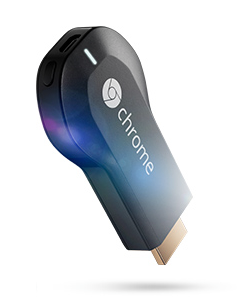
How-to: Setup and Use Chromecast to stream your content from a Mac and iOS device

Site default logo image

The Chromecast, Google’s streaming HDMI dongle came out last summer. It is compatible with any Android device running 2.3 or later, iOS device with iOS 6 or 7, and any Mac or PC. Initially, users were able to stream Netflix or Youtube from an iOS device and Android device, Google Play Movies and Music only on Android, or cast websites using the Chrome browser on a computer. The Chromecast works differently from Airplay in that you can multitask and do other tasks on the device or you can let it go to sleep while streaming.

Very quickly after its release, Chromecast has received support for Hulu +, Pandora, and HBO GO. Last month a major update added ten new apps including Plex, Vevo, Songza, Red Bull TV, Post TV from the Washington Post, Viki, RealPlayer Cloud, Avia, Revision3 Internet Television and BeyondPod. The most recent update the Chromecast received allowed users to stream Google Play Movies and Music directly from the Chrome browser on a computer.

In this How-to, we’ll discuss how to setup the Chromecast, use it with a Mac and iOS device and explore its gaming potential.


Expand
Expanding
Close

How to watch live streams of the Sochi 2014 Winter Olympics on your iPhone & iPad

Site default logo image

With the Sochi 2014 Winter Olympics officially kicking off with opening ceremonies today at 11 AM EST/ 2 PM PST, you’re probably wondering how to watch live streams and keep up to date with events from your iPhone, iPad, and Mac. NBC will be delaying the TV broadcast of the opening ceremonies until 7:30pm tonight in the US, but you can still catch everything live on your Mac or mobile device using the apps below:
Expand
Expanding
Close

Site default logo image

Need occasional access to Windows on your Mac? Install it from a USB key …

If you need occasional access to Windows and don’t want to install it from a DVD, a how-to guide by Sam Power may have the perfect solution. It talks you through exactly how to create a Bootcamp-compatible USB key installer for either Windows 7 or 8 compatible.

A 4GB USB key is sufficient, and the complete process can be done in 20-40 minutes.

(Update: sorry for the confusion. You can’t install Bootcamp onto a USB Key yet. You’ll need Paralllels or VWMware for that.)

How to change OS X banner notification duration using Terminal

Site default logo image

I’ve recently found myself wishing there was a space between banners and alerts with OS X’s notification system. Alert style notifications that require manually dismissing can be rather annoying, but quick banner notifications often fly by before I’ve had time to glance at the information. It turns out despite not having a toggle in the system preferences, a little Terminal code shared by OS X Daily allows you to toggle the duration down to the second…


Expand
Expanding
Close