MacBook Pro: The biggest and baddest Mac laptops

See All Stories

Apple's premium laptop comes in 13- and 16-inch screen sizes. Each model includes 2-4 USB-C ports for charging, accessories, and data transfer. Higher-end models also include the Touch Bar.
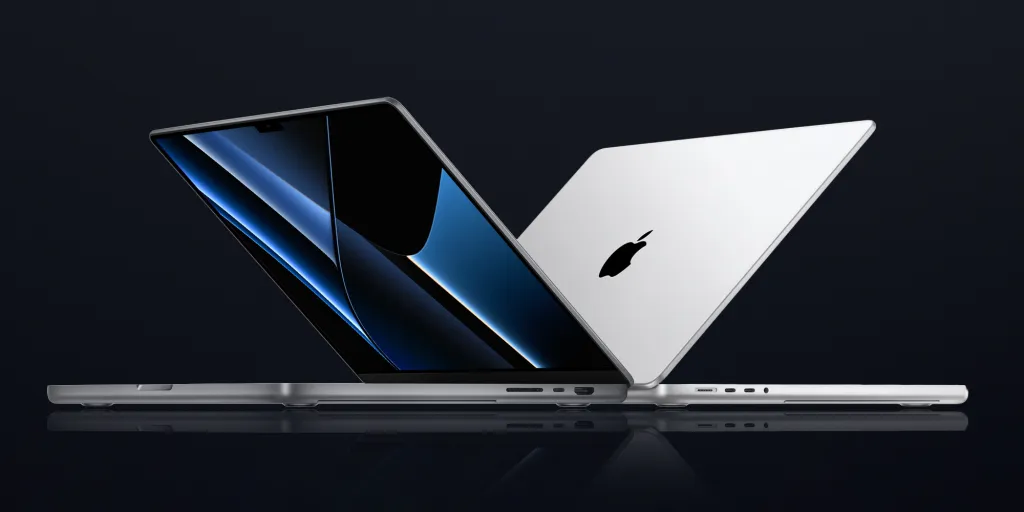
2021 MacBook Pro

MacBook Pro has been the product name for Apple’s high-end laptop since early 2006 when the transition to Intel processors began. Now, that Pro naming has carried forth as Apple has moved to its own silicon. The latest fourth and fifth-generation Pro Apple notebooks bring dramatically more power with lower heat generation and better battery life thanks to the ARM-based Apple silicon. Keep reading for a brief history of the line and a breakdown of the current lineup.

MacBook Pro history

The first generation MacBook Pro followed in the style of the PowerBook G4 that came before it, but used Intel processors rather than PowerPC chips.

The second generation of the MacBook Pro was the first to really separate itself from the products before, with a unibody enclosure. The third-generation MacBook Pro introduced the retina display as well as MagSafe 2.

Perhaps the most controversial version of the MacBook Pro is the fourth generation. While the third generation received some backlash for the removal of ethernet and the optical drive, the fourth generation was a complete rethinking of the device peripherals. No more MagSafe, no more USB-A ports, and only the 13-inch model kept the function keys. Instead, this redesigned MacBook Pro opted for all Thunderbolt 3 ports and headphone jack. In place of function keys, the MacBook Pro gained an OLED Touch Bar. In late-2020, Apple introduced the M1 chip and updated the 13-inch MacBook Pro. The ARM-based processor brought down power consumption and increased performance.

In October of 2021, Apple introduced the fifth-generation MacBook Pro with not one but two updated versions of the M1 chip, the M1 Pro and M1 Max. The move walked back some of the decisions from the previous generation, adding back an HDMI Port, MagSafe charger, and SD card reader while removing the Touch Bar.

The 2020 13-Inch MacBook Pro

In late 2020, Apple introduced the 13-inch M1 MacBook Pro as the latest update to the fourth-generation MacBook. The MacBook features the same look as previous MacBooks, but like the MacBook Air and Mac Mini, switched to Apple silicon.

Apple’s M1 chip brought ARM architecture to the MacBook line, and this was the first MacBook without an Intel processor.

The M1 chip is a unified design with an 8-core CPU and an 8-core CPU. The processor integrated memory on board, limiting the device to either 8GB or 16GB of unified memory. The 13-inch M1 MacBook Pro is configurable with between 256GB and 2TB of storage and features a Magic Keyboard, rather than the problematic butterfly keyboard.

13-inch MacBook Pro specs

Base Configuration$1,299.00

  • Apple M1 chip with 8‑core CPU, 8‑core GPU, and 16‑core Neural Engine
  • 8GB unified memory
  • 256GB SSD storage
  • 13-inch Retina display with True Tone
  • Backlit Magic Keyboard – US English
  • Touch Bar and Touch ID
  • Two Thunderbolt / USB 4 ports

Max Configuration$2,299.00

  • Apple M1 chip with 8‑core CPU, 8‑core GPU, and 16‑core Neural Engine
  • 16GB unified memory
  • 2TB SSD storage
  • 13-inch Retina display with True Tone
  • Backlit Magic Keyboard – US English
  • Touch Bar and Touch ID
  • Two Thunderbolt / USB 4 ports

13-inch MacBook Pro pricing

The price for the 13-inch M1 MacBook Pro starts at $1,299. Upgrading this base configuration to 16GB of memory adds $200 to the price. Likewise, each step above 256GB of storage – 512GB, 1TB, and 2TB – will add $200 to the price. A fully specced out 13-inch MacBook Pro will run you $2,299.

You can configure your own 13-inch MacBook Pro on Apple’s website.

Current 14-inch and 16-inch MacBook Pro

In October 2021, Apple brought a brand new design to the MacBook Pro line. Apple increased the screen size on the 13-inch, making it a 14-inch, and shrunk the bezels on the 16-inch. This fifth-generation notebook addressed many complaints of the last generation. MagSafe returned, in the form of an improved MagSafe 3, while the MacBook also regained an HDMI port and an SD-card slot.

Also gone is the Touch Bar. Instead, the standard row of function keys return. The latest MacBooks also bring a ProMotion display that was first introduced on the iPad Pro, with a variable refresh rate and mini-LED backlight.

The 2021 MacBooks aren’t without a controversial feature, as while the display has been made larger there is now a large notch for the 1080P FaceTime camera. While FaceID would have been a nice addition in exchange for this small chunk of the screen, there are some reasons this is not totally practical.

14-inch MacBook Pro specs

Base Configuration$1,999.00

  • Apple M1 Pro with 8-core CPU, 14-core GPU, 16-core Neural Engine
  • 16GB unified memory
  • 512GB SSD storage
  • 67W USB-C Power Adapter
  • 14-inch Liquid Retina XDR display
  • Three Thunderbolt 4 ports, HDMI port, SDXC card slot, MagSafe 3 port
  • Backlit Magic Keyboard with Touch ID – US English

Maximum Configuration$5,899.00

  • Apple M1 Max with 10-core CPU, 32-core GPU, 16-core Neural Engine
  • 64GB unified memory
  • 8TB SSD storage
  • 96W USB-C Power Adapter
  • 14-inch Liquid Retina XDR display
  • Three Thunderbolt 4 ports, HDMI port, SDXC card slot, MagSafe 3 port
  • Backlit Magic Keyboard with Touch ID – US English

14-inch MacBook Pro pricing

The 14-inch MacBook Pro starts at $1,999. The base model includes 16GB of memory, 512GB of storage, and an M1 Pro processor with an 8-core CPU and 14-core GPU. There are multiple versions of the M1 Pro processor available, while jumping to an M1 Max processor will cost $500 more, and requires you to jump up to 32GB of memory – a $400 upgrade. Going with the M1 Max processor means you can configure up to the full 64GB of memory, an $800 upgrade.

You can configure up to 8TB of storage in the 2021 14-inch MacBook Pro. Upgrade costs are as follows:

  • 1TB SSD Storage – $200
  • 2TB SSD Storage – $600
  • 4TB SSD Storage – $1,200
  • 8TB SSD Storage – $2,400

You can configure your own 14-inch MacBook Pro on Apple’s website.

16-inch MacBook Pro specs

Base Configuration$2,499.00

  • Apple M1 Pro with 10-core CPU, 16-core GPU, 16-core Neural Engine
  • 16GB unified memory
  • 512GB SSD storage
  • 16-inch Liquid Retina XDR display
  • Three Thunderbolt 4 ports, HDMI port, SDXC card slot, MagSafe 3 port
  • 140W USB-C Power Adapter
  • Backlit Magic Keyboard with Touch ID – US English

Maximum Configuration$6,099.00

  • Apple M1 Max with 10-core CPU, 32-core GPU, 16-core Neural Engine
  • 64GB unified memory
  • 8TB SSD storage
  • 16-inch Liquid Retina XDR display
  • Three Thunderbolt 4 ports, HDMI port, SDXC card slot, MagSafe 3 port
  • 140W USB-C Power Adapter
  • Backlit Magic Keyboard with Touch ID – US English

16-inch MacBook Pro pricing

The 16-inch MacBook Pro starts at $2,499. There is only one M1 Pro processor available on the 16-inch MacBook, and that’s the highest version 10-core CPU, 16-core GPU version of the M1 Pro processor that is a $300 upgrade on the 14-inch MacBook Pro. Of course, you can also step up to the M1 Max processor with either a 24-core or 32-core GPU, a $200 and $400 upgrade respectively (which also requires the $400 upgrade to 32GB of memory). The memory and storage options are all the same as the 14-inch MacBook Pro.

You can configure your own 16-inch MacBook Pro on Apple’s website.

Differences between 13-inch,14-inch, and 16-inch models

The 2021 MacBook Pro lineup is a refreshing change. The return of ports and physical keys make the laptops more versatile, while additions like an XDR display and hardware acceleration for ProRes improves the experience but is harder to quantify for the average user.

13-inch14-inch16-inch
ProcessorM1M1 Pro / M1 MaxM1 Pro / M1 Max
Memory8GB / 16GB16GB / 32GB / 64GB16GB / 32GB / 64GB
Storage512GB, 1TB, 2TB512GB, 1TB, 2TB, 4TB, 8TB512GB, 1TB, 2TB, 4TB, 8TB
Screen2560×1600 pixels 3024×1964 pixels; ProMotion3456×2234 pixels; ProMotion
Weight3.0 pounds (1.4 kg)3.5 pounds (1.6 kg)M1 Pro: 4.7 pounds (2.1 kg)
M1 Max: 4.8 pounds (2.2 kg)
Size (Width x Depth)11.97 x 8.36 inches (30.41 x 21.24 cm)12.31 x 8.71 inches (31.26 x 22.12 cm)14.01 x 9.77 inches (35.57 x 24.81 cm)
Height0.61 inch (1.56 cm)0.61 inch (1.55 cm)0.66 inch (1.68 cm)
Base Price$1,299.00$1,999.00$2,499.00

The $1,999 starting price for Apple latest computer is a harder pill to swallow than the $1,300 13-inch Pro from last year. For an average user, the superb M1 MacBook Air will likely suffice (and that sub-$1,000 price is hard to pass up).

But the 2021 14-inch and 16-inch MacBook Pro are exactly what they need to be, a return to function-over-form that will truly meet the needs of professional users.


Hands-on: TouchSwitcher brings fast app switching to the MacBook Pro Touch Bar [Video]

Site default logo image

A new MacBook Pro Touch Bar-oriented app called TouchSwitcher is now available for free download. The app’s premise is simple: it allows you to quickly bring to focus any running app via a tap of the app’s icon displayed in the Touch Bar.

There are some inherent downsides to consider when using TouchSwitcher, but it’s nonetheless very interesting to see when running on a new MacBook Pro. Have a look at our brief hands-on video to see it in action.
Expand
Expanding
Close

The best 4K & 5K USB-C and Thunderbolt 3 displays for MacBook Pro & MacBook

Site default logo image

We already gave you the rundown on requirements for connecting your old DisplayPort and HDMI displays to the new MacBook Pro, and if you need a new monitor now, the best option going forward is probably to go all-in on USB-C. That goes not only for MacBook Pro or 12-inch MacBook users, but also anyone who wants to be future-proofed as Apple moves to Thunderbolt 3 on other devices going forward (most displays have HDMI and/or DisplayPort for your other Macs). 

These are the best 4K and 5K USB-C and Thunderbolt 3 displays available so far:


Expand
Expanding
Close

Final Cut Pro rendering almost twice as fast on new 15-inch MacBook Pro as original Retina model

Site default logo image

Tests by freelance video editor Peter Wiggins, who runs the fcp.co website, show that the new 15-inch MacBook Pro is almost twice as fast at video rendering as the original 2012 Retina model.

On to a project rendering test with Final Cut Pro X. All the machines used the same Library and were connected to the same Thunderbolt drive where the ProRes 422 was rendered. Before each test, the render files were deleted.

The project was a one and a half minute sequence made up of multicams, chromakey, drop shadow, repositioning and Motion effects […] So a rough bit of maths and you’ll see that the new 15″ MacBook Pro is nearly twice as fast as the 2012 model.

While the comparison is with the first-gen Retina machine, rather than the most recent one, that’s probably a reasonable real-life comparison as most people keep their machines for 4-5 years …


Expand
Expanding
Close

Phil Schiller again breaks down why new MacBook Pro is limited to 16GB RAM, citing battery & logic board design

Site default logo image

The new MacBook Pros have been met with a wide array of responses thus far, with some praising the new machines and others viewing them as a step back for a variety of reasons. One common question since the announcement of the new models, however, has centered around why the machines max out at 16GB of RAM.

While Phil Schiller originally penned this limitation on battery life concerns, a new email from the Apple executive offers a bit more insight as to the reasoning…


Expand
Expanding
Close

How to enable unsupported Thunderbolt 3 devices on the MacBook Pro using ‘TB3 Enabler’ hack

Site default logo image

TB3 enabler is a brand new hack from Khaos Tian that enables unsupported Thunderbolt 3 devices on the latest MacBook Pro.

As explained by Tian, Apple impedes support for some categories of Thunderbolt 3 devices by implementing a software block. TB3 enabler allows users to bypass that software block, enabling access to previously unsupported Thunderbolt 3 devices.
Expand
Expanding
Close

MacBook Pro Diary: First impressions in the metal and glass

Site default logo image

While some in the U.S. have been fortunate enough to take delivery of their shiny new MacBook Pro with Touch Bar models, those of us in the UK are getting a rather more gradual unveiling. Most Apple Stores don’t even have display models yet, and even in the Regent Street store they only had one of each model, tucked away inside a perspex tube running demo loops.

My MacBook Pro Diary series is, then, getting a rather more drawn-out ‘first impressions’ treatment than usual. But there is an upside to that: there’s actually quite a lot to discuss with this new machine, and so far the focus has been very much on the specs. The loss of ports, whether Apple should have waited for Kaby Lake, whether the Touch Bar is a useful innovation or a gimmick … plus the ‘has Apple lost touch with its professional user roots?’ debate.

Those are all issues worthy of discussion, but I do feel the machine has perhaps missed out a little on the more usual (admittedly superficial) first impressions of its design …


Expand
Expanding
Close

It’s not just you, there’s definitely a problem with the three-finger drag gesture on the new MacBook Pro

Site default logo image

I’ve spent a considerable amount of time with both the 13-inch MacBook Pro with Touch Bar, and the 13-inch MacBook Pro that features standard function keys. The machines share some noteworthy differences, but there are numerous similarities as well.

One unfortunate similarity is the fact that the three-finger drag trackpad gesture doesn’t work like it should. In other words, if you’re having a problem with the three-finger drag gesture on your shiny new MacBook Pro, it’s not just you.
Expand
Expanding
Close

15 Touch Bar tips and tricks for the new MacBook Pro [Video]

Site default logo image

The Touch Bar is the flagship feature for the new MacBook Pro. It’s a small touch surface that offers dynamically changing content based on the current app you’re using.

The Touch bar is simple to use, but it’s somewhat deeper than it may appear at first. In this walkthrough video, we’ll discuss 15 tips and tricks for the new MacBook Pro Touch Bar to help you get started.
Expand
Expanding
Close

iFixit teardown of 15-inch MacBook Pro with Touch Bar finds hidden connector, maybe for SSD data rescue

Site default logo image

iFixit has completed its third teardown of the new MacBook Pro models, following the entry-level and Touch Bar 13-inch units with the top-of-the-range 15-inch version. The tl;dr is that the machine’s innards are almost identical to the 13-inch model.

One interesting find, also present in the smaller version, is a ‘connector to nowhere’: a port on the logic board that isn’t connected to anything. Comments on the previous teardown speculate that this might be to pull data from the soldered-in SSD …


Expand
Expanding
Close

Comment: Given the ultra-low repairability of the new MacBook Pro, I’m getting AppleCare this time

Site default logo image

I don’t generally bother with AppleCare. My usual view is that, like any other extended warranty, it offers poor value for money. You’re paying a lot of money upfront for coverage you’ll likely never need.

Most Mac faults are going to make themselves known well inside the first year of standard Apple warranty coverage. The likelihood of a major fault occurring in the interval between the standard warranty expiring and AppleCare doing the same is very low. (There’s an additional factor at play in the EU, which I’ll get to later as it won’t be relevant to U.S. readers.)

But I am opting for it this time. Because the MacBook Pro with Touch Bar is not only non-upgradable, but also pretty much non-repairable …


Expand
Expanding
Close

MacBook Pro w/ Touch Bar now available to order for in-store pickup via Apple’s website

Site default logo image

Apple’s new MacBook Pro with Touch Bar has slowly been making its way into the hands of consumers gradually over the past week and many have already started to offer up their opinions on the new machine. While the new Touch Bar models first hit retail stores earlier this week, they are now available for pickup in store via Apple’s website, as well.


Expand
Expanding
Close

Apple releases ‘Bulbs’ TV ad featuring the new MacBook Pro with Touch Bar, a “tool for all the ideas to come”

Apple has just shared a new TV commercial to its YouTube page, called ‘Bulbs’. The ad shows a series of lightbulbs exploding around the world, ending with a tag line ‘Ideas push the world forward’ and a few short shots of the new MacBook Pro with Touch Bar.

The ad highlights human inventions like fire, harvesting, woodwork, trains, transport, television, robots and space travel, finishing with a few glimpses of Apple’s newest MacBook Pro which it calls “a tool for all the ideas to come”. Watch the minute and a half spot after the jump …


Expand
Expanding
Close

PSA: Apple’s Thunderbolt 3 to Thunderbolt 2 MacBook Pro adapter doesn’t support your Mini DisplayPort displays

Site default logo image

There is a bit of confusion over what displays are supported via the new MacBook Pro’s Thunderbolt 3/USB-C ports. If you don’t have a display that uses a Thunderbolt 3/USB-C port— like the new 4K and 5K LG displays being sold exclusively by Apple for the new MacBook Pros— then you’ll need an adapter to go from Thunderbolt 3 to whatever I/O your display has (DisplayPort, HDMI, Thunderbolt 2, etc). Something like Apple’s Thunderbolt 3 to Thunderbolt 2 adapter, for example. 

But here’s where some users have been confused and accidentally purchased the wrong adapter:

Expand
Expanding
Close

Hands-on impressions: 13-inch MacBook Pro with Touch Bar [Video]

Site default logo image

After going hands-on with the Late-2016 13-inch MacBook Pro sans Touch Bar, I was finally able to spend some significant hands-on time with the real MacBook Pro for this generation, the Touch Bar-equipped version.

Outside of a few obvious differences, the MacBook Pro with Touch Bar shares the same form factor and design as the version without Apple’s fancy new input method. Therefore, I’m going to avoid rehashing topics that I’ve already covered, such as in-depth impressions of the keyboard, trackpad, display, build quality, etc. If you want a hands-on synopsis of the overall design of the Late-2016 MacBook Pro, then be sure to read our original hands-on post.

These impressions will focus on the areas that differentiate the Touch Bar-equipped MacBook Pro from the entry-level model. It is here where you’ll find my hands-on impressions of the Touch Bar, Touch ID, faster processors, additional USB-C ports, and more. Have a look at our full video walkthrough for all of the details.
Expand
Expanding
Close

How to add or disable Touch ID fingerprints, Apple Pay cards & view transaction history on MacBook Pro

Site default logo image

The new MacBook Pro with Touch Bar is the first of Apple’s Macs to include a Touch ID sensor built-in for Apple Pay, unlocking the Mac with your fingerprint, and authentication purposes in third-party apps.

Other Macs can use Apple Pay, but they need to use a nearby iPhone or Apple Watch to authenticate and complete the purchase.

Here’s how it works:


Expand
Expanding
Close

How to create Touch Bar screenshots on the new MacBook Pro + more

Site default logo image

Apple’s new flagship MacBook Pro replaces the function key row with a dynamic multi-touch display called Touch Bar. This new screen changes based on which app you’re currently using and enables quick access to additional functionality throughout macOS.

One example of this is how Touch Bar handles screenshots. Whether you’re using the system keyboard shortcuts to create a screenshot or using the optional screenshot button on Touch Bar, you can assign the app or folder where you want the screenshot to save to on-the-fly.

And since Touch Bar is actually a second display, you can create a screenshot of whatever Touch Bar is displaying using a new system keyboard shortcut…


Expand
Expanding
Close